Archive
Classroom management system: Netop School Software Install, Configuration and Test
- Uninstall the test install of Netop first from “Add/Remove Programs”

- The install should be made under the account that will before imaging copied into the Default User Profile.
- The install files are here (you need to be logged into, as well as for the videos).
- Both the teacher and the student software are recommended to be installed on the teacher computer.
- The basic settings for teacher:
- lrc-class: The name of the class that the Student module should join.
YES:Whether the Teacher module should use the Windows login name of the Student computer as student primary display name.
[see lrchelp mail account] =Protection password
NO:Whether the communication profile should be changed to something other than the default TCP/IP, for example wireless. - The basic settings for student install:
- YES:Whether the Student module should join a class automatically when started.
lrc-class:The name of the class the Student module should join. Note: This class name must match the class name defined in the Teacher module.
NO:Whether the communication profile should be changed to something other than the default TCP/IP, for example wireless - There are more configuration choices in the screencasts here:
- Teacher software Install Screencast
- Student software Install Screencast
- Functionality Test Screencast: (testuser needs to be logged in on PC05. Skip the waiting section before the results come in at the end; this is when I took the test on the student computer).
- In addition, try to point the shared folder for teachers J:\LRC\Plagwitz (try alternatively UNC: ). Try this first as labadmn (labadmn has no access to this share) and alternatively with your staff/teacher login (where Netop will likely accept it, but may not carry over from the labadmn into the Default User Profile).
- Try to add a copy of the “Teacher” program from “Startup”/ “All programs” to All Users / Startup

Examples of Quizzes based on MS-Word template
You can view a series of examples for formative assessments, used during face-to-face teaching (German) settings, in this screencast: .
.
How to use the MS-Word Quiz Template (and the MS-Excel subtitles spreadsheet)
How to make formative assessment quizzes for face-to-face teaching settings like in the examples here?
Part I: quiz_dot_create_excel: Watch a screencast on How to ready target language subtitle source material for the quiz template
|
0,00 |
Working with subtitle material from the source: time coding is not correct
1,40
spreadsheet formulae can fix the subtitle time codes
2,00
why using DVD chapters as learning units
2,20
filtering on chapters in the DVD
3,00
ready to copy paste the filtered learning unit text data into the quiz template
Part II: Watch a screencast on How you can apply your pedagogy with ease to a text and transform the same to a quiz, and how the student benefits from both
|
0,00 |
start quiz from word template (on file share)
0,35
paste text data, e.g. for listening comprehension, e.g. from target language movie subtitles
1,15
create markup from pedagogy
3,14
generate quiz from markup : parenthesis 1 {helpful hint}, parenthesis 2 [correct answer]
3,35
closing and saving the quiz, receiving a summary
3,55
create a backup
4,00
open the quiz to test the quiz from student perspective
4,30
what opening information the student receives
5,00
how the student inputs answers and receives feedback
5,20
language learning lookup menu , after pausing the quiz
6,30
or double-click words to look them up in the default dictionary for the set language
7,10
how the student resumes the quiz
7,20
how the student closes the quiz
Part III: Watch a screencast on How you can revise your pedagogy
|
0,15 |
open the quiz, enable macros
0,30
unprotect the quiz
0,45
office 2003: tools / macros / macros
1,00
now you can edit your pedagogical markup
1,10
regenerated the altered quiz
Using the MS-Word Quiz Template (and the MS-Excel subtitles spreadsheet)
Part I: quiz_dot_create_excel: Watch a screencast on How to ready target language subtitle source material for the quiz template:
|
0,00
|
Working with subtitle material from the source: time coding is not correct
|
|
1,40
|
spreadsheet formulae can fix the subtitle time codes
|
|
2,00
|
why using DVD chapters as learning units
|
|
2,20
|
filtering on chapters in the DVD
|
|
3,00
|
ready to copy paste the filtered learning unit text data into the quiz template
|
Part II: Watch a screencast on How you can apply your pedagogy with ease to a text and transform the same to a quiz, and how the student benefits from both
|
0,00
|
start quiz from word template (on file share)
|
|
0,35
|
paste text data, e.g. for listening comprehension, e.g. from target language movie subtitles
|
|
1,15
|
create markup from pedagogy
|
|
3,14
|
generate quiz from markup : parenthesis 1 {helpful hint}, parenthesis 2 [correct answer]
|
|
3,35
|
closing and saving the quiz, receiving a summary
|
|
3,55
|
create a backup
|
|
4,00
|
open the quiz to test the quiz from student perspective
|
|
4,30
|
what opening information the student receives
|
|
5,00
|
how the student inputs answers and receives feedback
|
|
5,20
|
language learning lookup menu , after pausing the quiz
|
|
6,30
|
or double-click words to look them up in the default dictionary for the set language
|
|
7,10
|
how the student resumes the quiz
|
|
7,20
|
how the student closes the quiz
|
Part III: Watch a screencast on How you can revise your pedagogy
|
0,15
|
open the quiz, enable macros
|
|
0,30
|
unprotect the quiz
|
|
0,45
|
office 2003: tools / macros / macros
|
|
1,00
|
now you can edit your pedagogical markup
|
|
1,10
|
regenerated the altered quiz
|
Calendaring: How the LRC publishes schedules for viewing
-
This is how we can publish the LRC drop-in tutoring schedule from MS-Exchange for viewing online:
-
We have 1 calendar per language tutored in the MS-Exchange public folder: All Public Folders\Languages\COED 434 (LRC).
-
Each calendar for each tutoring slot has an appointment. Put restrictions (e.g. “1201/2 level only”) in the appointment title, tutor name in the notes field (the language tutored appears in calendar title itself).
-
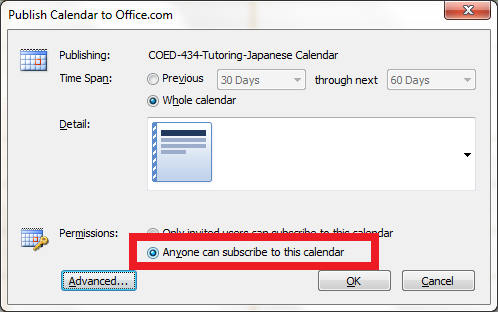
Publish each calendar to office.com as described in the MS-Outlook help: In Calendar, in the Navigation Pane, under My Calendars, select (1) one calendar checkbox, go to (2) Ribbon “home” / section: “share” / dropdown: (3) “publish online” / item: “Publish to office.com”, like so:
-

-
In window: “Publish Calendar to Office.com” / section:”Detail”, choose “limited”, like so:
-

-
Make sure the permissions are set for anybody to subscribe, like so:
-

-
When MS-Outlook offers you to notify other users of this published calendar, email it to me and to yourself.
-
For now, subscribe to all published tutoring calendars in MS-Outlook 2007, using the link in the email to yourself
-
In MS-Outlook, select all published calendars, overlay them, and make a screenshot of the result (note: there should be only titles, no details).
-
On the LRC website tutoring calendar page, post the screenshot with the title “Snaphot of the calendar””. Leave the text for any exceptions from recurring events.
-
Add as instruction “How students can subscribe to the live calendar: https://plagwitz.wordpress.com/2011/02/24/calendaring-how-students-can-view-the-lrc-schedules/”.


Calendaring: How students can view the LRC schedules
- As of Fall 2011, this is obsolete. View instead the new and improved procedure.
- Calendars you can subscribe to:
|
Ind.Instr.Spanish |
webcal://calendars.office.microsoft.com/pubcalstorage/6d826ffz2216669/COED_434-Tutoring-Spanish_Calendar.ics |
|
Tutors French |
webcal://calendars.office.microsoft.com/pubcalstorage/6d826ffz2216669/COED_434-Tutoring-French_Calendar(1).ics |
|
Tutors Russian |
webcal://calendars.office.microsoft.com/pubcalstorage/6d826ffz2216669/COED-434-Tutoring-Russian-2_Calendar.ics |
|
Tutors Portuguese |
webcal://calendars.office.microsoft.com/pubcalstorage/m8qcbqfz1289583/COED-434-Tutoring-Portuguese_Calendar.ics |
|
Tutors Japanese |
webcal://calendars.office.microsoft.com/pubcalstorage/m8qcbqfz1289583/COED-434-Tutoring-Japanese_Calendar.ics |
|
Lab Assistants |
webcal://calendars.office.microsoft.com/pubcalstorage/6d826ffz2216669/COED_434-Lab_Assistants_Calendar.ics |
|
Director Free/Busy |
webcal://calendars.office.microsoft.com/pubcalstorage/m8qcbqfz1289583/Plagwitz_Thomas_Calendar.ics |
- How?
“You can subscribe to published calendars if you use a program that supports the WebCal protocol, such as Outlook, Windows Live Calendar, Google Calendar, or Apple iCal” (MS-Office online Help), as well as Yahoo Calendar.
Is Windows Live Calendar available to everyone with a Windows Live ID?
Yes, the Windows Live Calendar is available to all Windows Live ID accounts. To learn more about setting up and maintaining your calendar, open Windows Live Calendar Help. (Microsoft Live Services for Moodle User FAQ)
Windows Live ID = UNCC Live@edu ID
Using the “webcal://”-links (to be posted also on the LRC website), students will be able to view live LRC schedules from live@edu (and many other applications that support the iCalendar format, like listed on
http://blogs.office.com/b/microsoft-outlook/archive/2007/08/08/publishing-a-calendar-using-office-online.aspx or here):
-
Application
Publisher
Open Source Applications Foundation
Novell & GNOME
Facebook.com
Google
iCal and iCal Server
Apple Computer
The Kontact Team
IBM
Microsoft
Microsoft
Microsoft
Microsoft
Sun
Zimbra
-
How to set this up, taken from the Windows Live help:
-
Sign into Windows live (or later live@edu) with your Windows live (or later live@edu) ID.
-
On the toolbar, go to Calendar.
-
Click Subscribe.
-
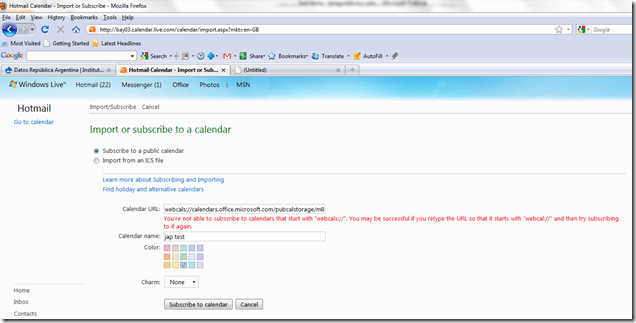
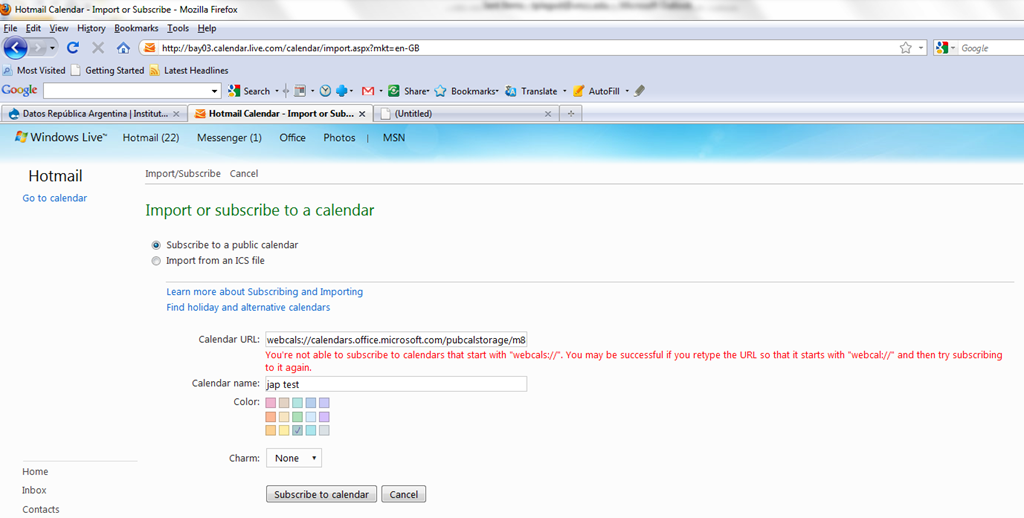
Select Subscribe to a public calendar, and then, in the Calendar URL box, paste the “webcal://” link from the LRC website for the tutoring hours or other LRC schedule that you want to keep an eye on. You begin the link either with “webcal:” or “http:”. Note, however, that trying to subscribe to “webcalS” will result in this error:
-
In the Calendar name box, type a name for the calendar.
-
Next to Color, select a color for the calendar.
-
Click Subscribe to calendar, and then click Done. Result:
-
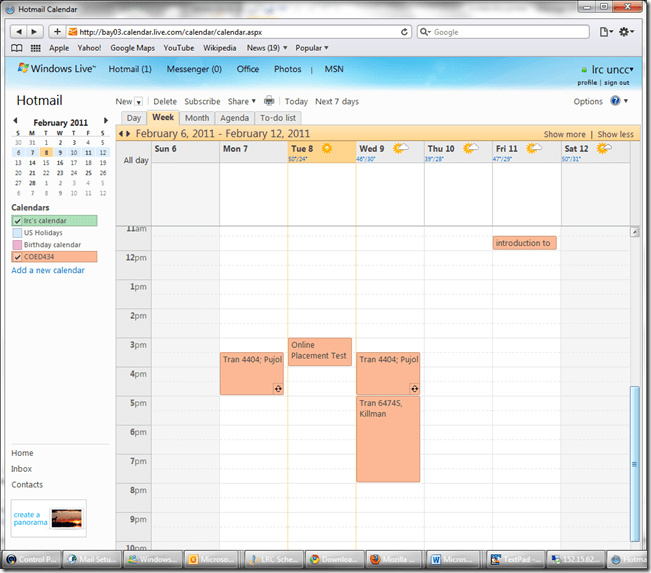
- This calendar will be live, i.e. every subscriber will see any updates the LRC makes (like for late-breaking changes and cancellations of tutoring hours). Note however, that synchronization is not instantaneous. Give it up to 30 minutes, under normal circumstances.

How to view non-displaying video files on Windows XP, using VideoLan VLC player
Not an uncommon sight when trying to play video files, given that Windows XP is an 11-year old operating system:

It may come as no surprise that Windows XP -despite a number of upgrades of its built-in Windows Media Player application -, lacks native support for newer video codecs (= what the computer needs to understand the compression of video data, does not map 1-to-1 with video file formats. Video codec support in Windows 7 has been much improved).
If you run into the common problem that, when trying to play a video on your computer, only the audio displays, try downloading, installing and playing the freeware, open-source, cross-platform VideoLan VLC player from here.
If VideoLan cannot display your video either, download, extract, start and open the video with this utility from here , to diagnose which codecs your video files uses, like so:
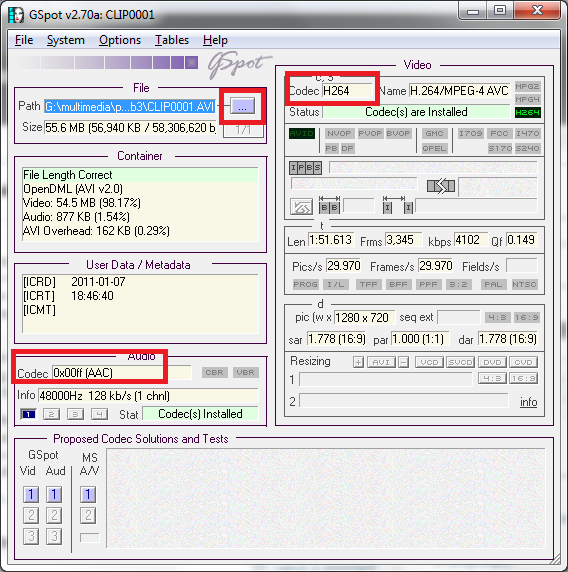
You may find it easier to pass only this codec information to local IT support than the actual video source file. However, before trying to install missing video codecs from unverified internet sources, make sure to consult local IT support (a lot of malware is distributed with video codec packs).
Video mirroring bug on dual screen systems, and a workaround
System: Vista 64-Bit SP2;
Monitors: 2 23’’ LCD screens, side-by-side in portrait mode, with Windows extended to secondary screen.
Video Card: Nvidia 9600GT
Driver Version: 8.17.12.5896 Microsoft windows hardware compatibility publisher
After downloading this driver from Windows Update, I noticed that when spanning a video window (observed in Windows Media Player and LC VideoLan; and codecs: MPEG-2, DivX 5.x/6.x, XviD ISO MPEG-4, H264), mirrors the image (wn Window mode; full screen mode unwilling to span both monitors anyway), like so:
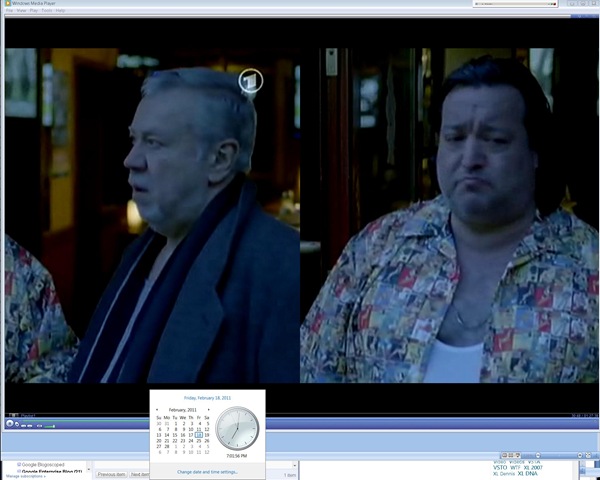
Moving the mouse pointer over the video image (player window is not sufficient), however, fixes the issue:

A bit of a nuisance, but no newer driver has been released yet on Windows Update, so I decided to work around the issue like this .


Questions? Read the About. Or just ask me a quick Our Databases: Resources with calendars -- Language learning material Moodle Sites, multimedia files -- films


FAQs for LRC student staff or for students or for teachers. To search our FAQs, in the browser addressbar, add after "https://plagwitz.wordpress.com/feed/?tag=faqs+/" "+TAG1" (from tag cloud below) OR "https://plagwitz.wordpress.com/feed/tag=faqs
&category_name=" "CAT1" (from category hierarchy below). OR search both categories and tags, and multiple TAGs/CATs (connect with "," for OR-search, with "+" for AND-search), like so: https://plagwitz.wordpress.com/feed/?tag=TAG1+TAG2+...TAGn&category_name=CAT1
+CAT2+...CATn"
Other ways to find help
If you cannot find it here, look there: 5,500 Language-Learning Links and Programs for learning or teaching 150 languages
Shortcuts:Our Lists, Our Maps, LRC Staff Moodle Site,LRC Project Moodle Site, 49erexpress, UNCC Moodle, Student Recordings: s:claslcslrcsanakostudent
Learning usage samples: Sanako oral exam, Kaltura webcam presentation, Dictation with speech recognition, Sanako written exam, Chinese and Japanese interactive stroke-order practice
Test the Sanako Installer, Webbrowser Popup Konfigurator for XP, or Windows7, faster LRC TeacherPC Log-in Let MS facilitate diacritics writing by installing for you US-International keyboard layout
This is my personal blog (Google+). The views expressed on these pages are mine alone and not those of my employer. The information in this weblog is provided “AS IS” with no warranties, and confers no rights.
 Thomas' Work Space