Can we get rid of Windows Media Player first run experience?
2013/11/05
Leave a comment
- It costs a lot of time in a language lab where computers are frozen (user cannot change settings between sessions – unless this is a roaming user setting on the server which it does not appear to be) and audio files are frequently played for which Windows Media Player has is set to be the default player to go through this set of dialogues whenever trying to listen to a file. We had this bypassed in Windows XP/Symantec Ghost.

- Even better, make the Sanako Recorder the default player for audio files in the language lab. The Sanako student settings I recommend here are meant for the teacher office computers where we do not have to control and try and optimize the experience as tightly as in a face-to-face class teaching lab and therefore can tread lightly during install of the Sanako. In the Student Recorder Settings, "associate media files" option should be checked.

Categories: digital-audio-lab, e-languages
audio, image2013, sanako-study-1200, student.exe
Dead key behavior could be more intuitive in MS US-International keyboard layout…
2013/11/04
Leave a comment
…from a good source on writing international characters on the MS platform. After having to explain around dead key behavior hundreds of times, I’d definitely sign the proposed petition to make it more intuitive (= temporarily revive the dead, show something!). The suggestion in the comments to move more languages to full-blown IME’s seems also interesting.
Categories: e-languages, Writing
foreign-language-character-input, us-international

Forced downgrade to Color scheme Windows 7 Basic since “exceeded its allowed memory”
2013/10/31
Leave a comment
-

-
This warning and forced downgrade appeared on the teacher after starting using MS-Community Clips (which is just a GUI wrapper for Windows Media Encoder internally, which we used on the same machine successfully while it was still on XP).
-
The error seems slightly more informative than what we received earlier, but I did not manage to investigate since this was in the middle of supporting a teaching use .

How to find out whether you have access to your classroom early (e.g. for setup tasks), by using the R25 calendar
2013/10/31
Leave a comment
- Go to http://calendar.uncc.edu/, and follow these steps:
- (1) switch to view by “locations” instead of (the default) “events”,
- (2) select your building,
- (3) find your classroom,
- (4) see whether it is blocked=booked before your class (hover over the block to see by what) –

- in order to browse to your classroom’s schedule – for example, you could also just (5) search for your classroom.
- Sorry, unlike in the LRC calendars from MS-Exchange, here
- no direct links to your room’s schedule;
- no simple flexible booking, even though there seems to be a need for one-time bookings (AFAIK, I did not venture behind the screen after top menu: “Reservation request” since I do not know how to answer its question).

How to set the date and time on LRC cameras Canon Eos Rebel, Canon Vixia
2013/10/30
Leave a comment
- Vixia HFM 5000 and Vixia 4:
-
- press Hardware Button:

- touch Screen buttons:
 ,
, 
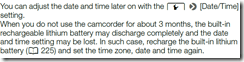
- press Hardware Button:
- Rebel: TBA



Categories: audience-is-language-learning-center-temp-staff
cameras, rebel, vixias
A few thoughts on headphones for the language lab
2013/10/28
Leave a comment
- Analog (3.5mm connector): the traditional way; still cheaper.
- Digital (USB connector): comes with its own soundcard – potentially better compatibility, especially with software form the same vendor (digital audio labs)
- Sanako SLH-07 has long connectors that stick out too much for our purposes. Students have broken them open inadvertently with their backrests of their chairs. But you can defuse this risk with a simple male-female USB extension cord (disadvantages: extra cost, extra layer of items to be managed and extra connection that can break…)
- Sometimes there is (intermittent or permanent) static on startup – must be some driver loading error. Restart the computer.
- Sans SHS-100 (for the Sony Virtuoso) have short connectors. I have only briefly tested a Sony headset, seemed fine.
- For any USB headset, I recommend having the built-in analog audio card that comes with the computer disabled (normally done in the BIOS). Again: more options means here more failure points and more confusion and distraction from language learning.
- Sanako SLH-07 has long connectors that stick out too much for our purposes. Students have broken them open inadvertently with their backrests of their chairs. But you can defuse this risk with a simple male-female USB extension cord (disadvantages: extra cost, extra layer of items to be managed and extra connection that can break…)
- For either analog or digital:
- Less is more. Volume control and mute are available through software. duplicate that, and you multiply potential for error, confusion and troubleshooting. Also, what is not there, cannot break.
- Light headsets may be fashionable, but, in a shared “lab”environment, what about
- sound insulation in a , now that the cubicles are long gone (outside of professional interpreter facilities)?
- ruggedness? I recommend buying headsets that have as few movable parts as possible, especially not the microphone boom: short circuits will ensue in no time (case in point: Sanako and Sony have zero moving parts)
- connect your headsets on the rear – out of the way and out of reach (and secured, cable-tied: to avert theft, but also “troubleshooting” by troublemakers).
Categories: e-languages, hardware, headphones
How to run a microphone test before taking an ACTFL exam on languagetesting.com
2013/10/28
Leave a comment
- To avoid having your test recordings rejected for quality reasons (and having to take the entire test again), please run this simple microphone test OUTSIDE of languagetesting.com:
- This microphone test can be run either
- at the listening stations (see sign 433a, brown headsets) or
- (PREFERABLY) in the main classroom (see sign 434, black headsets).
- After logging in, put the headphones on. No need to re-plug anything.
- From the desktop, open Audacity
 .
. - In Audacity, Press the red RECORD button
 .
. - Speak into the microphone.
- Check the results:
- You should see something like this:

- Press the green PLAY button
 and listen to your recording.
 - Does the recording look AND sound OK?
- NO: let the LRC staff at the reception desk know the computer number and switch computers.
- Yes: Save the recording using menu: File / Export / [name = number of computer].mp3 to your “my documents” folder (if your test gets rejected, you have evidence that you ran the test and that the LRC headset hardware you used was o.k.).
- You should see something like this:
- This microphone test can be run either
- You also need to run the test WITHIN languagetesting.com (which just tests for volume, not for quality).




Questions? Read the About. Or just ask me a quick Our Databases: Resources with calendars -- Language learning material Moodle Sites, multimedia files -- films


FAQs for LRC student staff or for students or for teachers. To search our FAQs, in the browser addressbar, add after "https://plagwitz.wordpress.com/feed/?tag=faqs+/" "+TAG1" (from tag cloud below) OR "https://plagwitz.wordpress.com/feed/tag=faqs
&category_name=" "CAT1" (from category hierarchy below). OR search both categories and tags, and multiple TAGs/CATs (connect with "," for OR-search, with "+" for AND-search), like so: https://plagwitz.wordpress.com/feed/?tag=TAG1+TAG2+...TAGn&category_name=CAT1
+CAT2+...CATn"
Other ways to find help
If you cannot find it here, look there: 5,500 Language-Learning Links and Programs for learning or teaching 150 languages
Shortcuts:Our Lists, Our Maps, LRC Staff Moodle Site,LRC Project Moodle Site, 49erexpress, UNCC Moodle, Student Recordings: s:claslcslrcsanakostudent
Learning usage samples: Sanako oral exam, Kaltura webcam presentation, Dictation with speech recognition, Sanako written exam, Chinese and Japanese interactive stroke-order practice
Test the Sanako Installer, Webbrowser Popup Konfigurator for XP, or Windows7, faster LRC TeacherPC Log-in Let MS facilitate diacritics writing by installing for you US-International keyboard layout
This is my personal blog (Google+). The views expressed on these pages are mine alone and not those of my employer. The information in this weblog is provided “AS IS” with no warranties, and confers no rights.
 Thomas' Work Space