Archive
Protected: Meet the Resource Attendants and their Scheduling Assistants– or Who are these people, anyway?
Setting time zone for all and for all misconfigured OWA users
live@edu/Office365 Exchange in the cloud does not seem to allow setting a default time zone, but rather leaves it to the user to change the time zone (defaulting to the time zone the cloud server is in that the user happens to hit) on first login – in the world I operate in, большая ошибка!
How to use the cmdlet set-MailboxRegionalConfiguration with parameter TimeZone to change the time zone of all your mailboxes is nicely explained on the blog How Exchange Works here, including screenshot and PowerShell command.
Unfortunately such an operation is reported to have needed 3 days for updating all mailboxes in an educational live@edu installation with 30000 users… You can restrict the mailboxes touched by examining first which are not in your local time zone (consult the MS TimeZone table for syntax, e.g. US “Eastern Standard Time”):
$mymailboxes = get-mailbox
ForEach ($examinedmailbox in $mymailboxes){
$regionalconfig = get-MailboxRegionalConfiguration –identity $examinedmailbox.identity
if ($regionalconfig.timezone -ne “Eastern Standard Time”){
Set-MailboxRegionalConfiguration -identity $examinedmailbox.identity -TimeZone “Eastern Standard Time” -confirm:$false
}
}
Why does MS-OneNote fail to linkify my URLs properly?
If this is a bug, it seems a pretty basic one:
 ,
,
for a 3rd generation software plus a service pack:  . Unless I am doing something wrong, of course (I only paste those links). It is not a link length issue, not all links break at the same length (94 would be an odd length in a binary world anyway). If it is a special character, I fail to see it.
Reports that Messenger cannot initiate a video call?
I can initiate from Windows 7 to XP, back and forth, as the following screenshots attest to (they also show my version #).
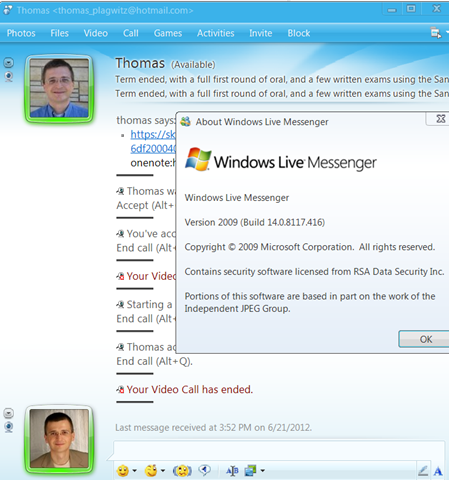

Might reports be related to the fact that, on June 14, Microsoft has made it compulsory for all Windows Live Essentials 2009 users to update to the latest version, Windows Live Essentials 2011 QFE3 update, bumping the version number up to 15.4.3555.0308 (which is what I already have on Windows 7, but not on XP which cannot run Windows Live Essentials 2011, but Vista does)?
Here is a troubleshooting list from Microsoft Answers:
“repair your Windows Live Programs.
1. Click Start, select Control Panel.
2. View by: Category.
3. Under Programs, click Uninstall a program.
4. Select Windows Live Essentials, then click Uninstall/Change.
5. Click Repair all Windows Live Programs.
1. Ensure that the webcam driver is up to date.
2. Run Audio/Video Setup Wizard.
a. Start Windows Live Messenger
b. Click Tools, and then click Audio and Video Setup. (Press Alt on the keyboard to get the Menu bar) Note: For Windows Live Messenger 2011, select Set up audio and video devices.
c. Follow the directions in the wizard to select and configure the audio and video devices
Note: If you encounter an error and you have a McAfee Site Advisor, please refer to our related article below: Unable to Initiate a Video Call or Video Conversation in Windows Live Messenger
3. Remove Third Party Applications or Add-ons. – if you installed any.
How to fix inability to open notebook from web in MS-OneNote
- A lot of people seem to experience this problem, where the menu item “Open in OneNote” in the OneNote webapp results in the error: “To open this notebook your computer must be running a supported version of Microsoft OneNote and a browser that supports opening files directly from the Office Web Apps.”
- Here is what seems to have solved it for me (it only started to work when owssupp.dll was reinstalled. However, some of the earlier steps may also be necessary, notably adding to the “trusted sites”).
- To open from OneNote desktop, as opposed to form the webapp, I tried to find out the URL of OneNote notebook
- Easiest way is subtracting the edit.aspx portion from the OneNote webapp URL you are viewing.
- Or if you can open the notebook on a different computer in OneNote, right-click on the notebook in the left tree and choose properties, or hover over one of its section headers above it to read the tooltip).
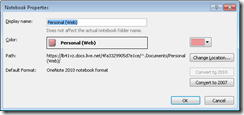
- Then in OneNote on the offending computer, menu:file/open/ instead of browsing, paste the URL. This failed without providing any feedback:

- Then I tried following the tips under the link “troubleshooting” in the error message.
- However, Firefox had the office plugin already enabled:
- I made sure you I was not not running Internet Explorer IE 64-bit.
- In IE 32-bit: Enable the SharePoint OpenDocuments Class add-on in “Tools”/”Manage Add-ons”: Display the list of add-ons, Dropdown “Show” / “All add-ons” / SharePoint OpenDocuments Class, “Enable”, this had also already been the case.

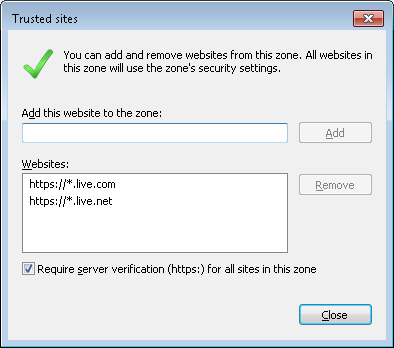
- I added in IE trusted sites (these were missing – did it matter?): Tools / Internet Options./ Security / Trusted sites/ Level needs to be lower than High, Sites, Add this website to this zone box, added liv e.com and live.net (IE adds the asterisk) :
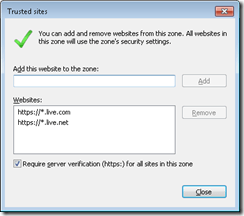
- I then followed the MS Answers forum instructions to reinstall MS-Office, or rather remove and reenable the owssupp.dll:
- before:
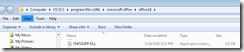 , then rename extension to “old”.
 - In control panel / programs and features / office 2010 professional plus / configure / office tools / Microsoft SharePoint Foundation support, run from my computer, to re-add the SharePoint plugin:
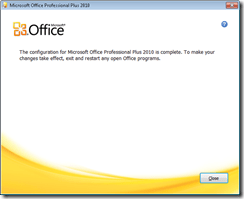
- after:
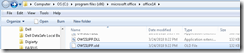
- Voilà: Now I could open in OneNote from OneNote webapp:

- before:
- Here is wishing that this were easier.., but now I can also open from OneNote / File / Open, and give the URL on live.net (giving the URL does not open directly, I have to press open again to open the OpenNotebook.onetoc2):





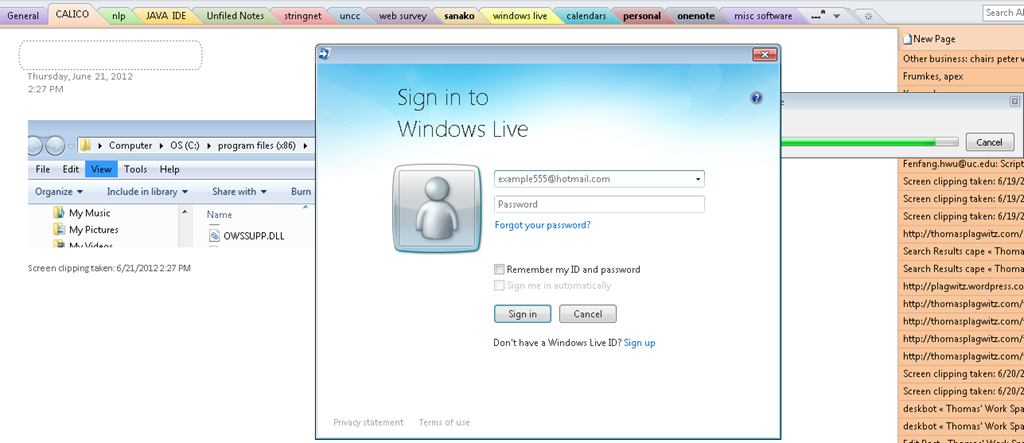

NetOp School 6 not upgrading
- Here is what we have:
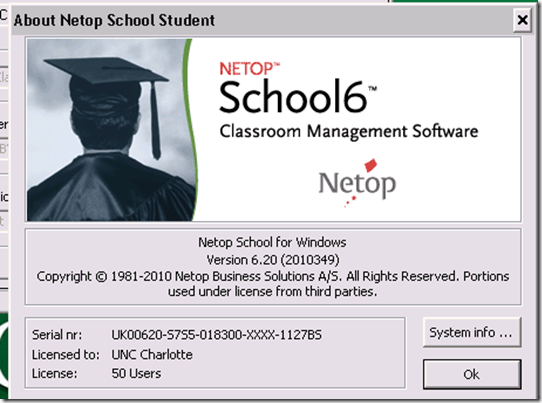
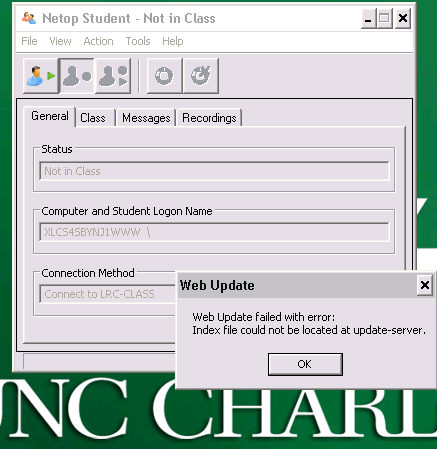
- Here is what get:

- And for the indexing servers: “ Web Update failed with error: Index file could not be located at update-server.”

Bad experience with Hard drive WD20-ears00mvwb0
This one contained most of the digital photos I made since 1999, and only a few are backed up on MS-Skydrive, or anywhere else. Bad timing…

Classroom Management Systems deemed a necessity in Higher Education computer labs
As seen in a teaching lab of a top-20 US university.



Questions? Read the About. Or just ask me a quick Our Databases: Resources with calendars -- Language learning material Moodle Sites, multimedia files -- films


FAQs for LRC student staff or for students or for teachers. To search our FAQs, in the browser addressbar, add after "https://plagwitz.wordpress.com/feed/?tag=faqs+/" "+TAG1" (from tag cloud below) OR "https://plagwitz.wordpress.com/feed/tag=faqs
&category_name=" "CAT1" (from category hierarchy below). OR search both categories and tags, and multiple TAGs/CATs (connect with "," for OR-search, with "+" for AND-search), like so: https://plagwitz.wordpress.com/feed/?tag=TAG1+TAG2+...TAGn&category_name=CAT1
+CAT2+...CATn"
Other ways to find help
If you cannot find it here, look there: 5,500 Language-Learning Links and Programs for learning or teaching 150 languages
Shortcuts:Our Lists, Our Maps, LRC Staff Moodle Site,LRC Project Moodle Site, 49erexpress, UNCC Moodle, Student Recordings: s:claslcslrcsanakostudent
Learning usage samples: Sanako oral exam, Kaltura webcam presentation, Dictation with speech recognition, Sanako written exam, Chinese and Japanese interactive stroke-order practice
Test the Sanako Installer, Webbrowser Popup Konfigurator for XP, or Windows7, faster LRC TeacherPC Log-in Let MS facilitate diacritics writing by installing for you US-International keyboard layout
This is my personal blog (Google+). The views expressed on these pages are mine alone and not those of my employer. The information in this weblog is provided “AS IS” with no warranties, and confers no rights.
 Thomas' Work Space