Archive
How to find resources that best fit your schedule using the OWA scheduling assistant parallel timelines
- Load all equivalent resources for each resource type that you require.
- Using the parallel free/busy timelines in the “Scheduling Assistant”, look for and “plug the holes” (in white):

- In the above example,
- for the given time frame (between rad/green line), no item is completely available;
- however, if you adjust your time frame slightly to earlier in the morning, you would be able to book either camera13 and 17 (assuming you need only one) and micboom 2
- In the above example,
- Remove the resources from the “Attendee list that are non-white = busy for the start/end time that you require the resources for.
- Click upper left menu: “Send” to book.

Protected: Many input languages, keyboards and IMEs requested are not accessible to most LRC users
WordSmith Tools are once again not licensed
- StartingWordsmith from the desktop shortcut results in this:

- Didn’t I test and describe last summer how to fix this?

How to speed up jumping around YouTube videos in class with YouTubeCenter
- Problem: When you use – that is to say: analyze – YouTube video clips in a classroom setting – whether in Film studies or second language acquisition classes –, you will find yourself jumping around a lot in these clips. This can be slow and enter a lot of undesirable little interruptions into your teaching (or learning) flow.
- Root cause: Since pedagogical use is not the primary use case for YouTube videos, their download configuration defaults to streaming, which preloads the video only a few seconds ahead of the cursor or playhead.
- Solution:
- If you want to buffer or preload the entire YouTbue video clip before examining it in your class, you can install a browser add-on called YouTubeCenter.
- Here is more on how to install YouTubeCenter.
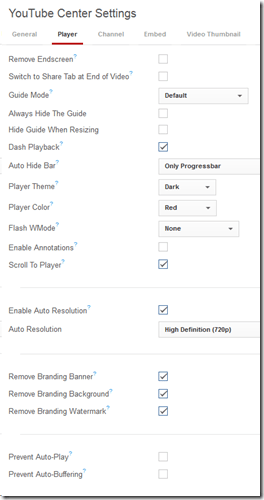
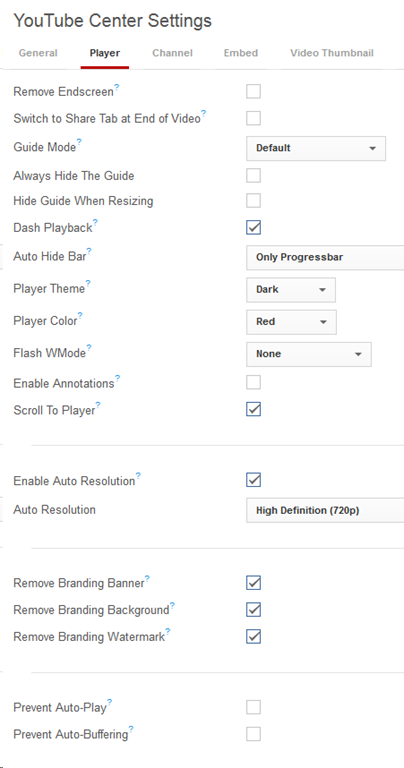
- No configuration necessary, ”Dash Playback” which buffers videos completely locally, is the default setting.
YouTube Center, a power user extension for your video usage in class
- YouTubeCenter comes for a variety of browsers, but note that Firefox seems the only practically supportable browser in our campus computing environment.
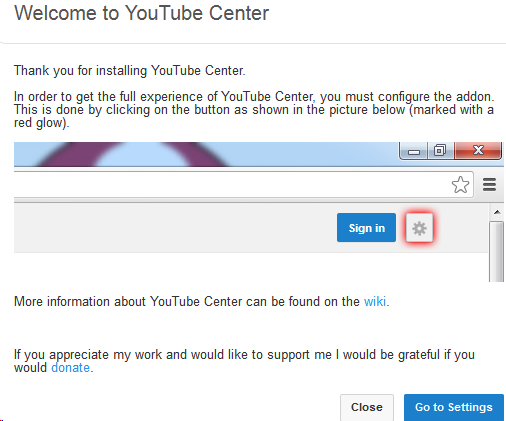
- To download and install, go to : https://addons.mozilla.org/en-us/firefox/addon/youtube-center/ and click on:

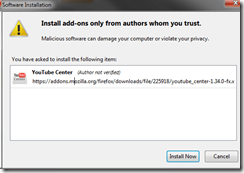

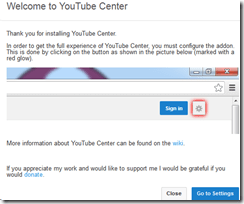
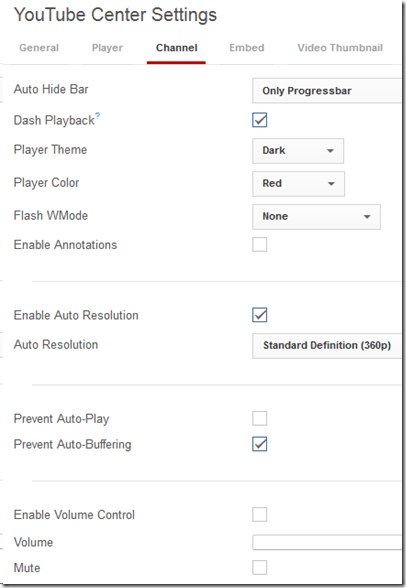
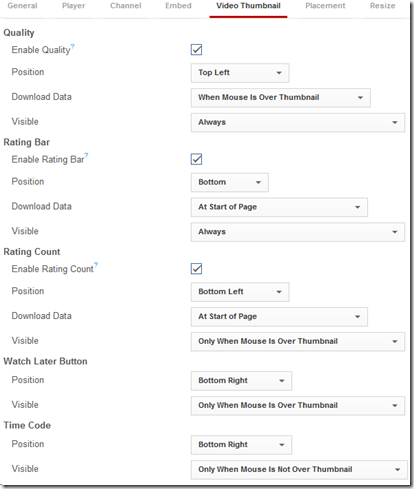
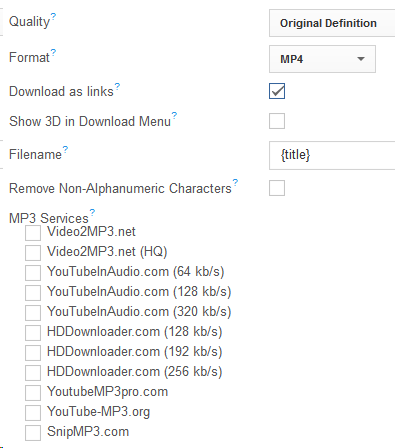
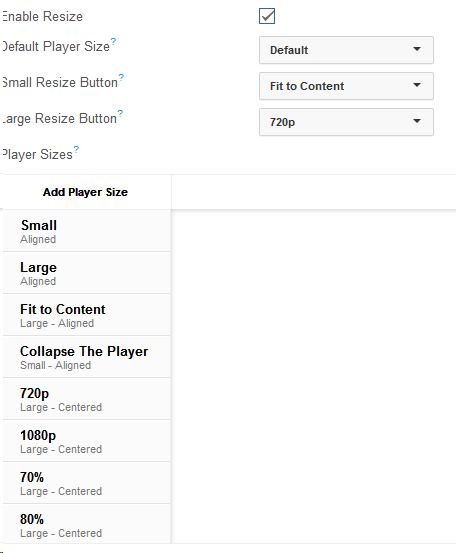
- There is not shortage of settings (e.g. preselected is the Dash Playback, useful to speed up jumping around a video, by disabling streaming):








Pearson mygermanlab "AUDIO INIT FAILED" for Blackboard voice/Wimba setup wizard – a firewall issue?
In Firefox, Chrome, IE8 on Win 7 (64bit) …

No other missing requirement in browser tuneup but QuickTime (which is said to be not required for PC)… And here is the likely solution from the Pearson website:
“Audio Init Failed” or “Error: Communication Error”
This error occurs because the computer’s security prevents the Wimba plug-in from sending data to our servers. Please take the steps described below to be sure that communication between your computer and our servers is always allowed.
- Please configure the security program or firewall on your computer to allow the file shown below (audioproxy.exe) to connect to the internet. (If you do not know how to make this change, please contact technical support for the security program you are using.)
Windows XP or 2000
C:\Documents and Settings\[Windows Username]\Application Data\HorizonWimba\JSecureDoor\audioproxy_X.Y.Z\data\audioproxy.exe
Windows Vista
C:\Users\[Windows Username]\AppData\Local\HorizonWimba\JSecureDoor\audioproxy_X.Y.Z\data\audioproxy.exe
- Java applets or Java Script also must be allowed by personal firewall or internet security software. Some firewalls have settings to block Java applets and Java Scripting, which will prevent Wimba Voice applets from loading. You may need to contact technical support for that firewall or security program for assistance configuring that program to allow Java applets and Java Script.
- Your browser must also allow Java applets and Java Scripting.
Internet Explorer
- Open Internet Explorer and click Tools > Internet Options
- From the Internet Options window, select the Advanced tab
- Scroll down the list to Java(Sun) heading and make sure the box below it is checked
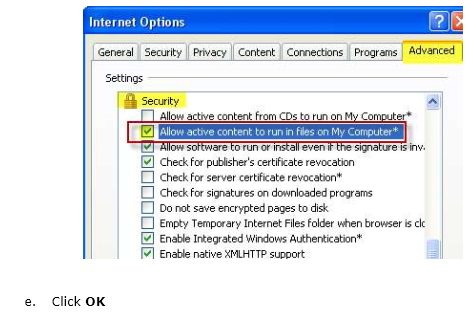
Note: If you do not see Java(Sun), go Sun’s Java website at www.java.com and click Free Java Download. - Scroll down the list to the Security heading and make sure the box beside Allow active content to run in files on My Computer is checked
- Click OK
Pasted from <http://247pearsoned.custhelp.com/app/answers/detail/a_id/7356/~/blackboard-voice-(wimba-voice)%3A-error-messages>
More info from the Pearson troubleshooting documentation:

Fall2013 LRC room booking and equipment circulation improvements
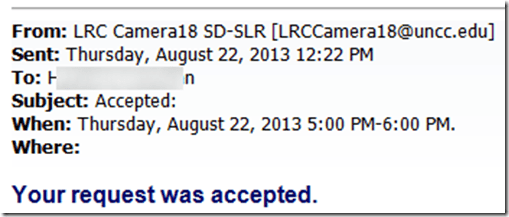
- We had a lot of problems over the last 2 years with students, unlike faculty and staff, not getting automated accepted/declined responses to their resource booking requests. This seems now finally a thing of the past:
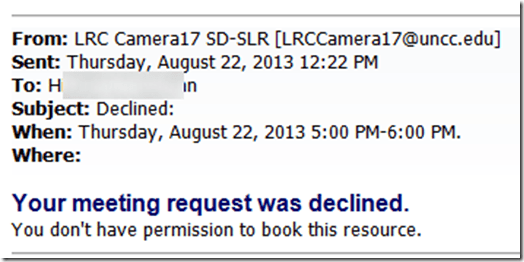
- In addition to automated responses in cases of policy violations or booking conflicts, we meant to automatically enforce policies that restrict booking of certain resources to certain groups. While groups still need to be maintained manually, this is now possible (and being implemented first for film studies and film club students that have exclusive rights to our film equipment). And here is what it will look like: “You don’t have permission to book this resource”. Don’t hand out equipment to clients who got this response.
- Now onto the next problem: about seeing those responses from within in meeting request in OWA? (works in Outlook Desktop, but that does not help us at the reception desk).


Protected: McGraw-Hill Connect Online Textbook Teacher Links


Questions? Read the About. Or just ask me a quick Our Databases: Resources with calendars -- Language learning material Moodle Sites, multimedia files -- films


FAQs for LRC student staff or for students or for teachers. To search our FAQs, in the browser addressbar, add after "https://plagwitz.wordpress.com/feed/?tag=faqs+/" "+TAG1" (from tag cloud below) OR "https://plagwitz.wordpress.com/feed/tag=faqs
&category_name=" "CAT1" (from category hierarchy below). OR search both categories and tags, and multiple TAGs/CATs (connect with "," for OR-search, with "+" for AND-search), like so: https://plagwitz.wordpress.com/feed/?tag=TAG1+TAG2+...TAGn&category_name=CAT1
+CAT2+...CATn"
Other ways to find help
If you cannot find it here, look there: 5,500 Language-Learning Links and Programs for learning or teaching 150 languages
Shortcuts:Our Lists, Our Maps, LRC Staff Moodle Site,LRC Project Moodle Site, 49erexpress, UNCC Moodle, Student Recordings: s:claslcslrcsanakostudent
Learning usage samples: Sanako oral exam, Kaltura webcam presentation, Dictation with speech recognition, Sanako written exam, Chinese and Japanese interactive stroke-order practice
Test the Sanako Installer, Webbrowser Popup Konfigurator for XP, or Windows7, faster LRC TeacherPC Log-in Let MS facilitate diacritics writing by installing for you US-International keyboard layout
This is my personal blog (Google+). The views expressed on these pages are mine alone and not those of my employer. The information in this weblog is provided “AS IS” with no warranties, and confers no rights.
 Thomas' Work Space