Archive
Can’t play video?
It is unlikely that you may be missing Adobe-Flash. Not quite so unlikely: MS-Silverlight.
You may simply be missing a codec. Many of my videos use the H.264 codec.
Short of dealing with too many codecs or codec packs, try a better media player:
- VLC player or
- Windows Media Player Classic or
- Windows Media Player 12 (comes with Windows 7)).
Interpreting Suite: How to avoid audio feedback
- symptom: loud squealing noise over the classroom speakers
- context: left lectern microphone is turned on; Creston / main room /
[Elmo room] camera is chose (e.g. to display the speaker on the projector; may also be chosen for background recording purposes only)
- resolution: Creston / room controls / speaker: up/own, on/off, to turn the classroom speaker volume down or off entirely
- explanation: the Elmo camera works with the sound from the left lectern microphone (not from the right or DIS microphone); if the Elmo camera is room source, its sound is displayed over the classroom speakers; from where it feeds back into the microphone; etc (infinite loop, feedback).
Windows Live FAQ
Swift Subtitling Frequently Asked Questions
This list will be updated:
Shared Calendar for Interpreting Suite Bookings on Windows Live: Frequently asked questions
-
Problem: How do I return to “Windows live”?
-
Solution: AFTER you followed the “accept” button in the invitation email, you can return to the calendar by simply going to http://calendar.live.com. Or for easy access to other windows live services like groups, go through http://home.live.com and the top menu “more”/ “calendar”.
-
-
Problem: I seem to have lost access to the calendar?
-
Solution: if you go to http://login.live.com, make sure you are logged in with the windows live account that you gave us for calendar access (if you are logged in under a different name, log out from that account first) . Then go to http://calendar.live.com: you should have access now.
-
-
Problem: My calendar time seems off?
-
Solution: adjust your time zone: after going to http://calendar.live.com, in the upper right hand side, click on options / more options / time zone: change this to “Greenwich mean time [….] LONDON” (do NOT choose GMT UNIVERSAL time”, this has no daylight savings time adjustment!). Then click “save”at the bottom Please let me know of any other issues (please provide OS and browser version and error message).
-
-
Problem: Other users cannot see my calendar appointments.
-
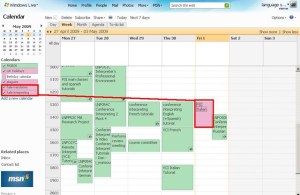
Solution: Make sure you added them to the right calendar, called “MGB-36” (an option when you add an appointment). There are now several calendars for other purposes, but booking of the suite is done in “MGB-36”. You can see something went wrong if your appointment stands out in a different colour (see legend), like here:
-
-
Problem: I would like to book some space (booths) in the suite, but the entire suite seems already booked – what should I do?
-
Solution: The original calendar instructions mentioned to start a booking with your email address under “what” and qualify under “where” if you require only parts of the interpreting suite for your class. If only the latter has been omitted, you can still email the colleague to inquire. If the former has been omitted also, we will have to try tracking down which the information which will take time.
-
-
Problem: There is a (recurring) event which I can not delete (I get the error: “there’s a problem connecting to windows live calendar”).
-
Solution: The error message is misleading. This seems a bug in the software. You can try to work around it like this
: Move one occurrence of the event (drag it with your mouse to a different time). This breaks the recurrence. Now left-click on the moved event to edit it. From the popup, choose to “Edit every occurrence” instead of “Edit this one occurrence”. This should get you to the “Event details” page, where you can delete the entire event from the top menu.
-



Questions? Read the About. Or just ask me a quick Our Databases: Resources with calendars -- Language learning material Moodle Sites, multimedia files -- films


FAQs for LRC student staff or for students or for teachers. To search our FAQs, in the browser addressbar, add after "https://plagwitz.wordpress.com/feed/?tag=faqs+/" "+TAG1" (from tag cloud below) OR "https://plagwitz.wordpress.com/feed/tag=faqs
&category_name=" "CAT1" (from category hierarchy below). OR search both categories and tags, and multiple TAGs/CATs (connect with "," for OR-search, with "+" for AND-search), like so: https://plagwitz.wordpress.com/feed/?tag=TAG1+TAG2+...TAGn&category_name=CAT1
+CAT2+...CATn"
Other ways to find help
If you cannot find it here, look there: 5,500 Language-Learning Links and Programs for learning or teaching 150 languages
Shortcuts:Our Lists, Our Maps, LRC Staff Moodle Site,LRC Project Moodle Site, 49erexpress, UNCC Moodle, Student Recordings: s:claslcslrcsanakostudent
Learning usage samples: Sanako oral exam, Kaltura webcam presentation, Dictation with speech recognition, Sanako written exam, Chinese and Japanese interactive stroke-order practice
Test the Sanako Installer, Webbrowser Popup Konfigurator for XP, or Windows7, faster LRC TeacherPC Log-in Let MS facilitate diacritics writing by installing for you US-International keyboard layout
This is my personal blog (Google+). The views expressed on these pages are mine alone and not those of my employer. The information in this weblog is provided “AS IS” with no warranties, and confers no rights.
 Thomas' Work Space