Archive
Keyboard overlay stickers improve foreign character writing support in the LRC
Some non-western, but character-based languages benefit from having keyboard overlay stickers installed. Here is a list of what the LRC has:
| Amount | Languages | installed@ |
| 3 | Arabic | 1 list. station, 2 rightmost computers in the front row of the left (teacher perspective) half of the main classroom |
| 2 | Farsi | 2 rightmost computers in the middle row of the left (teacher perspective) half of the main classroom |
| 1 | Greek | 1 list. station |
| 3 | Russian | 1 list. station, 2 rightmost computers of the rear row of the left (teacher perspective) half of the main classroom |
Here are photos of the Arabic and Cyrillic keyboards:
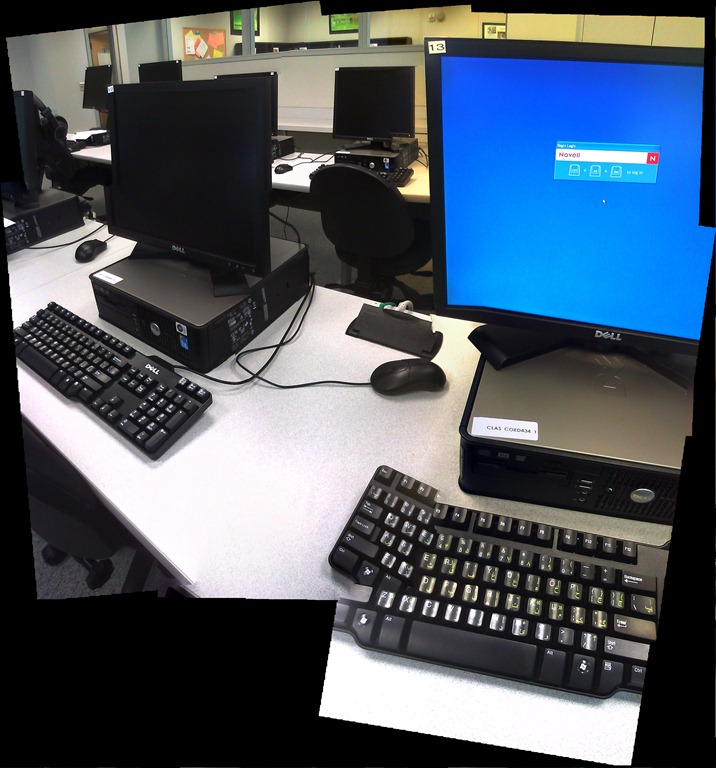

We installed the stickers, so that they reflect the software layout of the keyboard that you get when choosing the respective language from the international toolbar. Note that the letters marked in red on the Cyrillic keyboard picture below are not supported by the Russian keyboard layout:
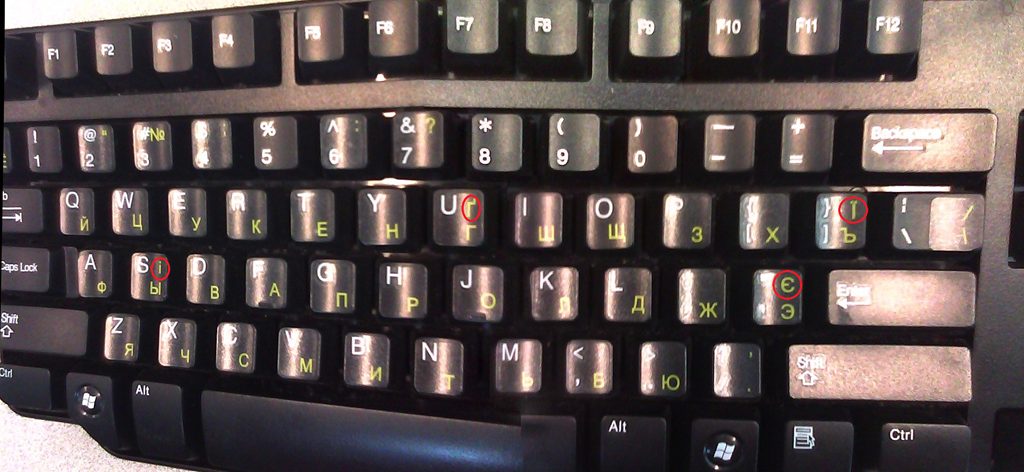
Since only one set can be added to any existing physical keyboard, the teacher computer keyboard can not have an overlay. The student computers with overlays are the listening stations and computers 6,7,12,13,18,19 on the LRC layout map.
Remember that the On-screen-keyboard software remains accessible at all PC’s through clicking “Start”, “Run”, typing “OSK”, clicking "OK".
Example where you can get your own keyboard overlay stickers.
How to efficiently find help on this blog
- Searching
- Full-text search: quick, even though dumb (“Computers are only machines…”). It may not return the most relevant results.

- Human-curated search: The author adds metadata to his posts as he sees fit. The metadata vocabulary is somewhat stable from past experience, but may change (”The author is only a human.”
 ). You effectively execute a humanly-curated search when clicking in the right column on either
- a tag link, e.g.
 https://plagwitz.wordpress.com/tag/moodle/
 - a category link, e.g.

- a tag link, e.g.
- Humanly-curated and Boolean AND search combined: This can be powerful in drilling down to an answer to a specific problem – provided there is one on the blog.
- Even though there is no easily clickable interface for this, by building URLs in the web browser address bar
 , combining tags or categories with the plus-sign, you can execute an AND-search against multiple tags(or categories) on WordPress.com
 - Example: https://plagwitz.wordpress.com/tag/moodle+erepository/ finds posts that the author related to both Moodle and eRepository. This can be especially useful for searching the FAQs: https://plagwitz.wordpress.com/tag/faq+[add your problem-technology-tag here, e.g. Audacity]/
- Even though there is no easily clickable interface for this, by building URLs in the web browser address bar
- Full-text search: quick, even though dumb (“Computers are only machines…”). It may not return the most relevant results.
- Notifications: Subscribe to RSS-feeds to receive timely updates on the topics that matter most to you. Both
- WordPress.com, providing RSS-feeds for all categories and tags (click on a tag or category link and find the
 icon, it will link to the RSS feed – Example: https://plagwitz.wordpress.com/tag/moodle/feed/) – watch either the webpage or your browser GUI for orange RSS icons you can click on to initiate a subscription -and also for multiple categories/tags (even though this feature is even better hidden, you need to construct a URL in your browser address bar. Example: https://plagwitz.wordpress.com/tag/moodle+erepository/feed/). If you want to go beyond our own metadata, WordPress allows also for subscribing to your own searches via RSS: “To keep up with your favorite search results we offer an RSS feed for all search results. Simply click the Follow this search via RSS link in the side bar of any search results page to subscribe to updates in the search result”, consult the WordPress search documentation.
 - and MS-Outlook, making RSS-subscriptions look familiar like email (of importance in certain environments), greatly facilitate this.
- WordPress.com, providing RSS-feeds for all categories and tags (click on a tag or category link and find the
- Text-messaging: Get synchronous human help through the Moodle-Wimba Room link.


Arabic character input tools in the LRC: MS-Maren and Fontboard-Arabic
“Lack of access to an Arabic keyboard or lack of familiarity with one are two of the most common problems preventing Arabic users from communicating in their own language. Microsoft Maren is a Windows extension that comes to the rescue, allowing you to type Arabic in Roman characters (Romanized Arabic, Arabizi, Arabish or Franco-Arabic) and have it converted on the fly to Arabic script. Maren integrates seamlessly with Windows and works in most Windows applications and websites.”. “Maren Transliteration enables the use of an English keyboard to spell out text in what is called ‘romanized’ Arabic. Maren Transliteration then shows the user options in Arabic script.”
The fontboard “Arabic keyboard created by Zsigri Gyula more closely resembles the sounds and shapes of the US English QWERTY keyboard.It is extremely helpful if you do not type in Arabic on a regular basis, and it is without a doubt more intuitive than the Arabic keyboards Microsoft provides.”
These tools can be downloaded from the links and are, if you use the LRC, accessible from the desktop: 
UNCC LRC Language Placement Test: Web-CAPE Online Placement Exam Step-by-Step
- “The Online Placement Exam is designed to help you determine the first course you should take, based on your ability. This multiple-choice [no speaking, listening or writing required] exam presents questions of different ability levels, adapting the next question’s level according to your answers. The number of questions you will be required to complete depends upon your ability to use the language. The duration of the test varies, but it usually takes 15-20 minutes to complete [but can be finished after only 4 questions, and we will give you up to an hour time to complete the exam]”.
- The proctored exam takes place in the LRC (COED434). The exam schedule is published in the LRC COED434 calendar. Read more on how to view the LRC calendar from within the new NINERMAIL.
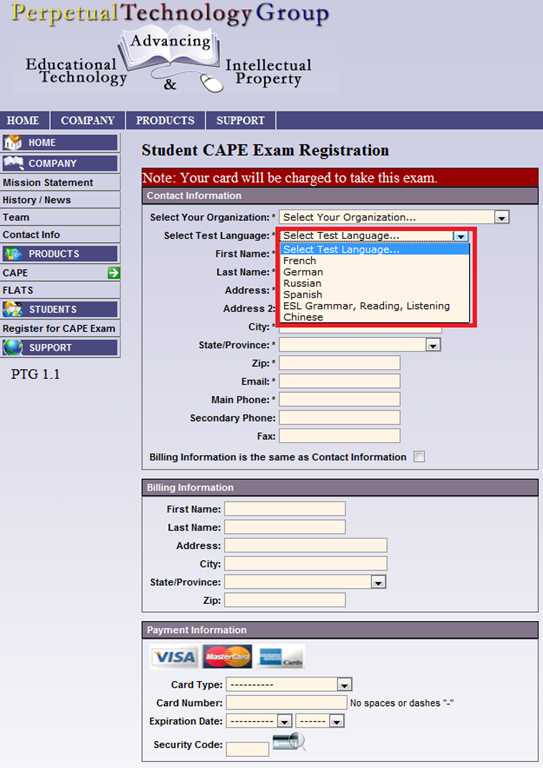
- When taking the exam during the proctored session in the language center [do not take the exam on your own], to sign up for the test, you have to go to: https://www.aetip.com/student/RegisterStudent.cfm (note: the “s” behind “http” is required), this now forwards to:https://www.perpetualworks.com/secure/register/student/, for which sthe shortcut is: http://goo.gl/PBjhhS:

- First chose UNCC (Avoid the common error of choosing another University of the UNC system, you will not be able to take the test if you do):

- Then choose your language – note that UNCC only allows testing in French, German and Spanish.

- Fill out the other form fields with your information.
- Finally, you need one of these credit cards, and the proper billing info, to take the test:

- Next, you will have to enter your NINERNET student id number.
- The exam results will eventually go to your file. However, they will have to be post-processed by the department. Do not take the exam without coordinating with the Department of Language and Culture Studies, or else your exam results will get lost!
- Remember that you can repeat the placement test, even though the number of retries per languages is limited to two (your score will get invalidated after that!).
- Remember also that is not advisable to study for (let alone cheat during) a placement exam, or else you will get placed into a course that is not right for you.



How can I change the volume on my SANAKO headsets?
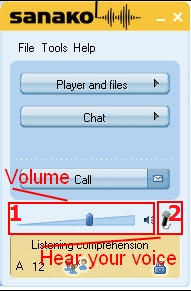
- Q: How can I change the volume on my headsets? Hear my own voice on the headsets? A:Use the Sanako Student Player 1. Volume Slider and 2. (for Sidetone = echo of your speaking) Headset Icon:
-
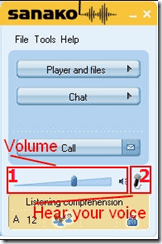
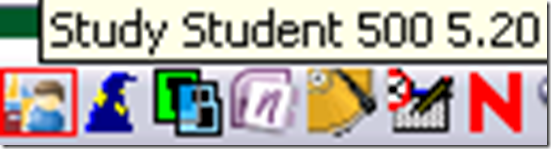
- Q: Where is the Sanako Student Player? A: Show Sanako Student by clicking on the notification bar icon:

Foreign Language Character Input on Windows XP in the LRC
The LRC offers the following foreign language characters writing support:
| American English | us international | not needed | us-int |
| Arabic | Google;MS;MS-maren;fontboard | maybe later, now osk | demo |
| British English | us international | not needed | us-int |
| Dutch | us international | not needed | us-int |
| Farsi | Google;MS | maybe later, now osk | demo |
| French | us international | not needed | us-int |
| German | us international | not needed | us-int |
| Greek | Google;MS | maybe later, now osk | demo |
| Italian | us international | not needed | us-int |
| Japanese | MS | not needed | |
| Korean | MS | maybe later, now osk | demo |
| Mandarin | MS;pinyinput | not needed | pinyin |
| Portuguese (Brazilian) | us international | not needed | us-int |
| Russian | Google;MS | maybe later, now osk | demo |
| Spanish | us international | not needed | us-int |
The support is best accessed from the “international toolbar”, like so: 
You can also use the windows on-screen keyboard to input non-Western characters on a computer that has not the corresponding keyboard overlay stickers. In the small-group workspaces, which have writing pads, you can also use the MS-Handwriting IME for East-Asian languages.
Multi-monitor setup on teacher podium in the LRC main classroom
- Like most modern computer workplaces, the LRC main classroom teacher podium needs multiple monitors, if you want to truly take advantage of gathering up to 28 students at 28 multimedia-enabled, networked computers which, thanks to classroom management systems like NetOp School and Sanako Study1200, can be remote controlled by the teacher.
- That’s why we built a simple extension on the teacher podium to connect a 2nd screen and more than double (resolution-wise) your on-screen teaching space.
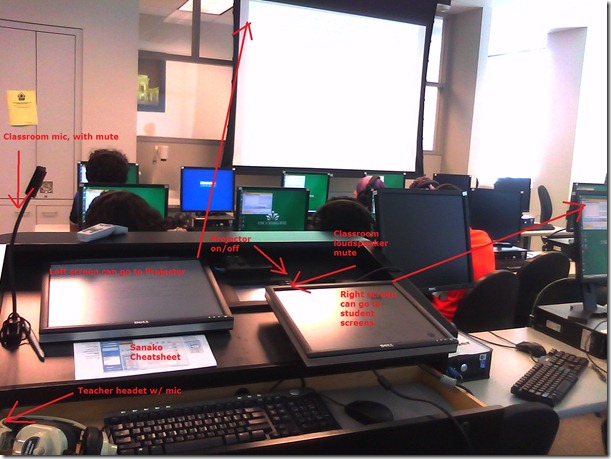

- Note: MS-Windows is set to “extend my screen onto this monitor”, except “maximized” windows still only maximize across 1 of 2 screens. De-”maximize” a window to be able to drag a window from one screen to the other (e.g. to prepare it on the teacher screen and then display it on the classroom projector) or to span a window across both monitors (note that, while this could be very useful to display larger thumbnails of more students computer screens, the Sanako Study1200 apparently cannot be spanned across two monitors. I yet have to test whether the Mosaic/separate thumbnail window can, but even if, this one lacks the feature of being able to take advantage of the great class overview by jumping to where teacher assistance is needed).
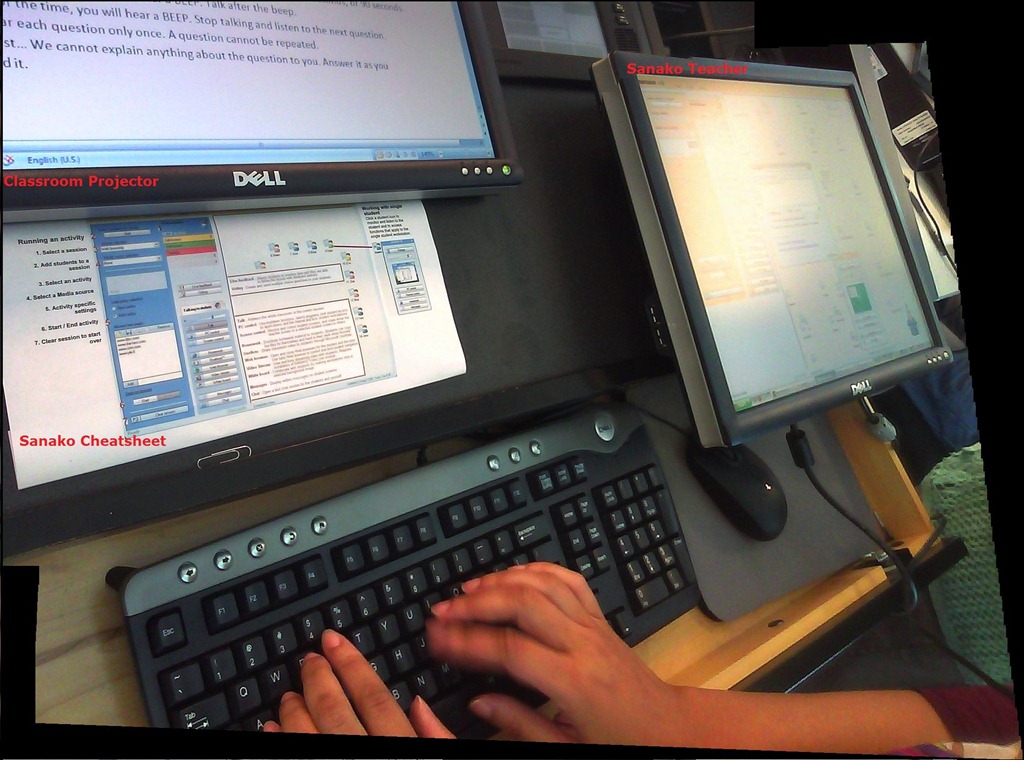
- The left monitor is monitor 1 for Windows and being projected to the classroom. The right monitor, monitor 2 for Windows, is your staging area and control room.
- Note, however, that both NetOp School and Sanako Study 1200, normally housed in the control room, are able to project the right monitor: onto (some or all of) the student’s computer screens. While I prefer not to hog the students computers for extended periods of time (effectively “dumbing down” computers to TV screens), this feature can give you more flexibility:
- E.g. during a recent workshop on the Sanako Study, with the Sanako feature “Teacher screen to students”, I could demonstrate live operation of the Study 1200 software on my right monitor to participants’ computer screens while being able to keep up the PowerPoint overview slide show onto the classroom screen (after setting up my PowerPoint slideshow to display on the secondary screen).
- Note that, even though multicast is being used for projection, only still images, including PowerPoint Slides, and, to some extend, computer screen video can be projected in high resolution over the network at reasonable speeds. The Sanako Study 1200, Version 5 also allows for an extremely low resolution video projection to students. For high resolution video streaming, you need the add-on module Sanako Video Live, which comes with its own streaming server hardware.

Quia Audio Files in Internet Explorer
Quia.com contains “Play audio” links to mp3 audio.

You may experience this, when you first try to access the audio with Internet Explorer.

If you cannot read the instruction in the information bar, resize the window so that you can, like here:

After clicking “trust Microsoft” and “Run ActiveX” in the following dialog, the “Internet Explorer cannot display this webpage” may appear. Ignore this, close the window and reopen it by clicking again on the “Play” link in the parent window.
This time you will (hopefully) see this:

You need to do this only once – per PC? per user? Let me know in the comments.


Questions? Read the About. Or just ask me a quick Our Databases: Resources with calendars -- Language learning material Moodle Sites, multimedia files -- films


FAQs for LRC student staff or for students or for teachers. To search our FAQs, in the browser addressbar, add after "https://plagwitz.wordpress.com/feed/?tag=faqs+/" "+TAG1" (from tag cloud below) OR "https://plagwitz.wordpress.com/feed/tag=faqs
&category_name=" "CAT1" (from category hierarchy below). OR search both categories and tags, and multiple TAGs/CATs (connect with "," for OR-search, with "+" for AND-search), like so: https://plagwitz.wordpress.com/feed/?tag=TAG1+TAG2+...TAGn&category_name=CAT1
+CAT2+...CATn"
Other ways to find help
If you cannot find it here, look there: 5,500 Language-Learning Links and Programs for learning or teaching 150 languages
Shortcuts:Our Lists, Our Maps, LRC Staff Moodle Site,LRC Project Moodle Site, 49erexpress, UNCC Moodle, Student Recordings: s:claslcslrcsanakostudent
Learning usage samples: Sanako oral exam, Kaltura webcam presentation, Dictation with speech recognition, Sanako written exam, Chinese and Japanese interactive stroke-order practice
Test the Sanako Installer, Webbrowser Popup Konfigurator for XP, or Windows7, faster LRC TeacherPC Log-in Let MS facilitate diacritics writing by installing for you US-International keyboard layout
This is my personal blog (Google+). The views expressed on these pages are mine alone and not those of my employer. The information in this weblog is provided “AS IS” with no warranties, and confers no rights.
 Thomas' Work Space