Archive
How to fix “Print to OneNote”, “OneNote cannot find a page on which to insert your printout”
- This error kept popping up for me on OneNote 2013, but I gather it is a classic.
- I should have just taken the error message seriously and literally: Could I do better than OneNote and find a page where OneNote says it cannot?
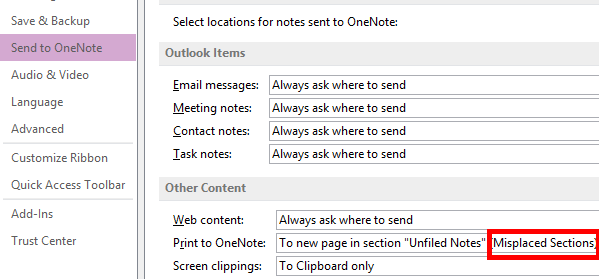
- First, to find out where I and OneNote are supposed to be looking for this page, go to File / Options/ Send To OneNote and check which “print to “location you have set.
- This one here looks obviously suspicious (and does not exist – one would wish still when this location goes out of scope this could be flagged with a more transparent warning):

- Change the location :

- to one that actually exists:

- or better maybe, for lack of a more transparent error checking if page goes out of scope, chose one of the other, hopefully more robust options:



How to sort a Pivot table by a calculated field column
(Click on image for original size version, now bigger.)

How to work around broken links and visible “Machine generated alternative text”issues with images from MS-OneNote in Windows Live Writer
- Problem: Sometimes when you use Windows Live Writer (2012) to post images copied from MS-OneNote (2010, 2013), the result (on WordPress) can get messed up, like so (post has since been fixed as described below):
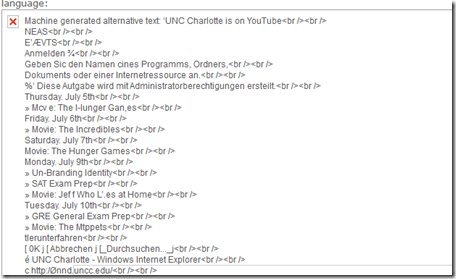
- The image is missing (“src=” link broken).
- The “alt=” text is visible instead (and you did not want to post this “alt=”text anyway. (MS-OneNote OCRs images to make the text therein searchable; this text is put into the “alt”when pasting from MS-OneNote).
- Root cause:
- Windows Live Writer converts the pasted content by
- removing the “alt=”Machine generated alternative text: [deleted for brevity]”
- creating from the pasted content thumbnail images
- which it links in the “src=” tag, and links the thumbnail image to the full-size original image.
- If something – unclear what – prevents this conversion, Unfortunately, this is not obvious from the “edit” tab view or elsewhere within Windows Live Writer. But when posted, will result in “Machine generated alternative text” from MS-OneNote in place, but even break the image src link:
 .
. - What exactly triggers (and would allow you to force) a successful conversion within Windows Live Writer I do not know. However, there is a simple:
- Windows Live Writer converts the pasted content by
- Workaround:
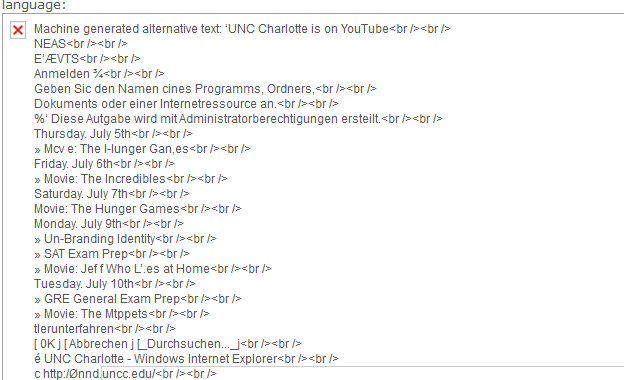

- After pasting your images, be patient : The trick seems to be to give Windows Live Writer enough time (more apparently if you have pasted multiple images) to finish
- Things you can look for in Windows Live Writer to make sure the conversion is finished:
- edit tab: you can tell the difference by the resizing of the image on the edit tab:
- before:

- after (= conversion finished):
- before:
- source code tab: A somewhat radical solution, but here beneficial is that the conversion removes the imported “alt” text of the image.
- before: alt=”Machine generated alternative text: [deleted for brevity]” src=”$clip_image006.jpg”
- after: alt=”clip_image006″ src=”$clip_image006_thumb.jpg”
- edit tab: you can tell the difference by the resizing of the image on the edit tab:
MS-OneDrive “Get link” incompatible with MS-Word “Always create backup copy”, use MS-OneDrive versioning instead
- Symptoms:
- If I edit my local MS-OneDrive copy with MS-Word, my collaborators lose access to the most recent copy via the link I shared with them.
- Worse, the new file MS-Word generates when the backup is created, won’t get automatically synched with MS-OneDrive, and no sync error seems to get flagged in Explorer.
- Root cause (presumably):
- When saving in MS-Word, I can see my focus moving to the backup file

- MS-Word, when creating a backup of the original file, actually rather creates a “fore-up”: The original file gets renamed (“Backup of…”) and the recent changes get copied into a new file.
- The MS-OneDrive link keeps pointing to the old file “Backup of…”, “when after (which one can see normally, if the user renames a file manually, is a desirable feature)
- Workaround: I managed to manually upload the files that got out off synch.
- When saving in MS-Word, I can see my focus moving to the backup file
- Solution:
- Turn MS-Word backup off, it is not compatible with MS-OneDrive under File / Options /Advanced / section: Save:

- Rather, rely on the MS-OneDrive versioning.
- Turn MS-Word backup off, it is not compatible with MS-OneDrive under File / Options /Advanced / section: Save:


How to install and use a free dictionary/encyclopedia app in MS-Word 2013
Installing is easy (our example is Wikipedia): Right-click a word, pick “define” from the context menu, the click download in the side pane for the app you choose.

Usage is also easy: To look up phrases, select, right-click and choose define: 
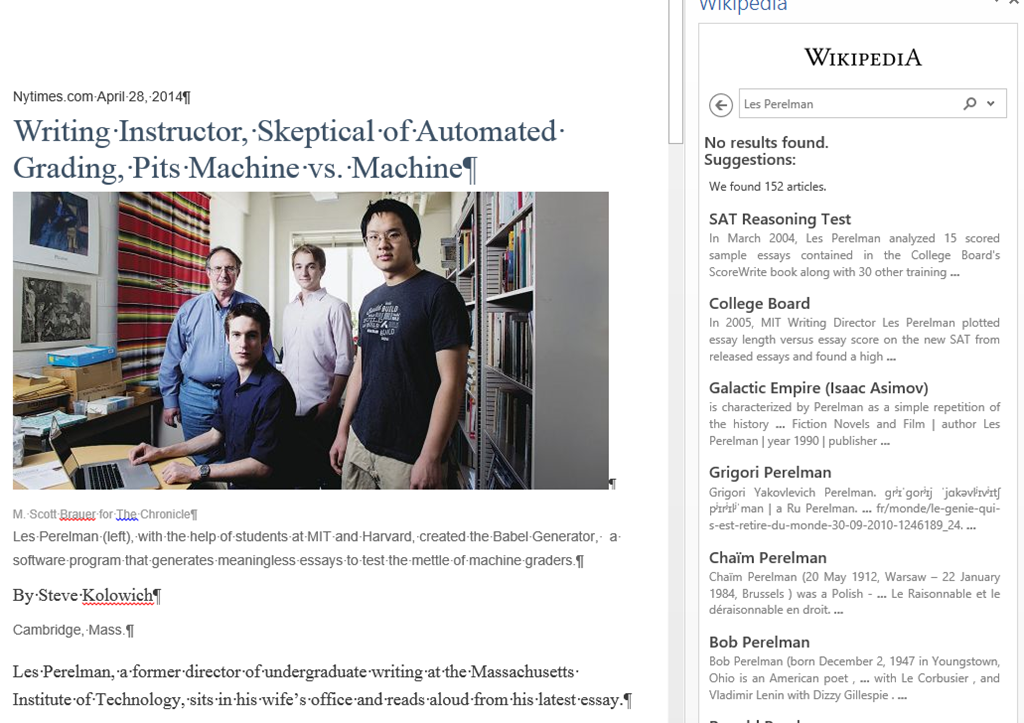
To look up individual words, you can also just double-click the word: 
You can also click “Expand”: 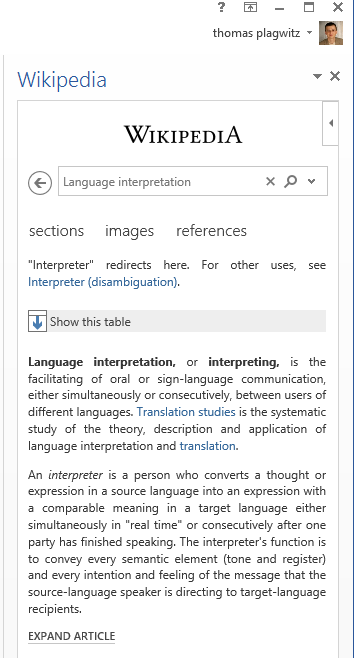
To install more dictionaries after the first one, click Insert / Apps for Office. 

You can search for your L2 (too many to list): 
It works for base forms: 
But I cannot lemmatize (ouch): 
I found out that when I go to Insert/ My Apps/ See all :  , I can show more than one app in the side pane.
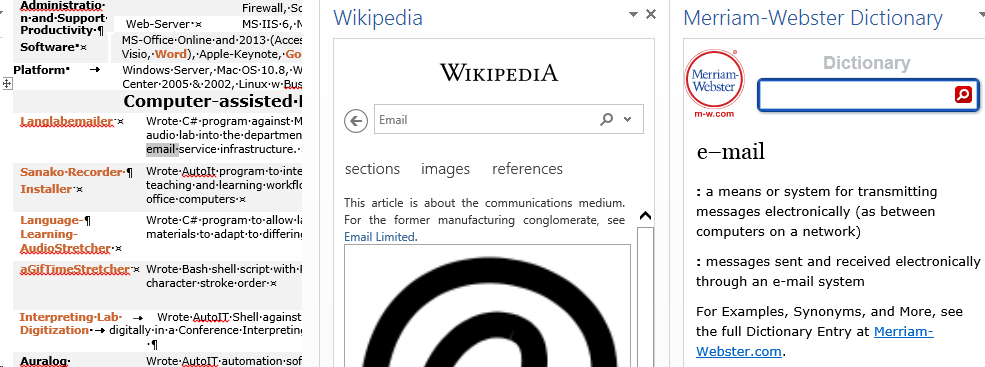
However,how o I change the default lookup that happens on double click on a word?
Mapping of Language Student Locations using PowerView
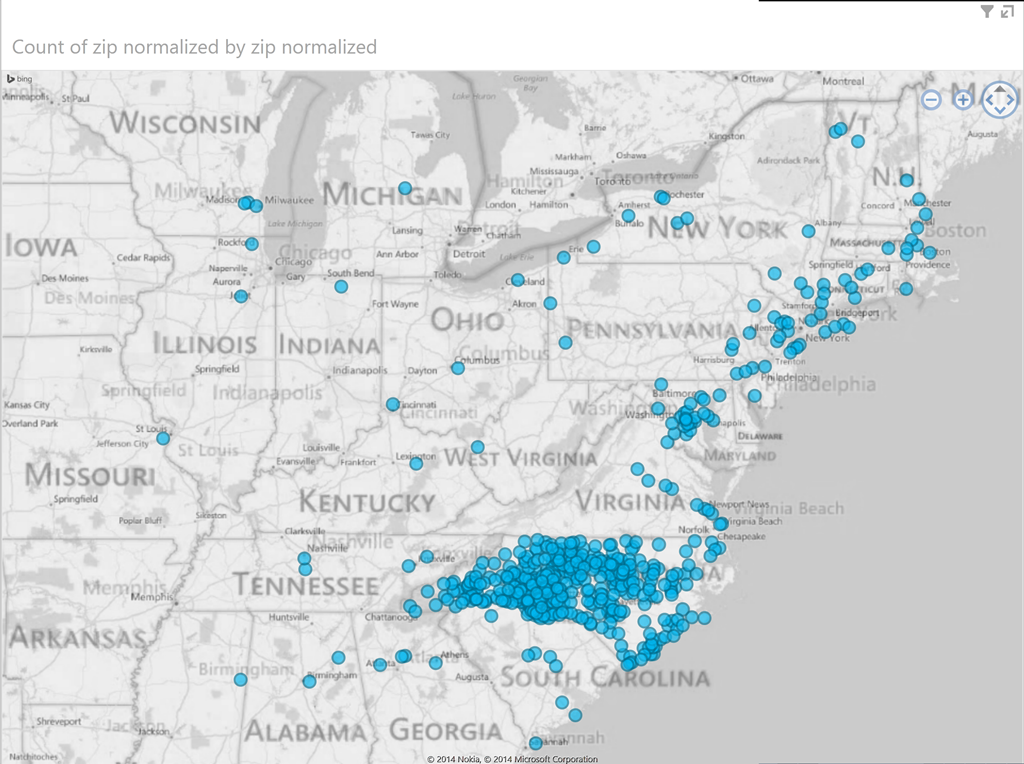
- What do our language students call home? Based on a pivot-table that counts zip codes, let PowerView tell you, which is can now distributed as a free add-in for Excel 2013 Prof, but you need to enable it (under File / Options / Add-Ins).

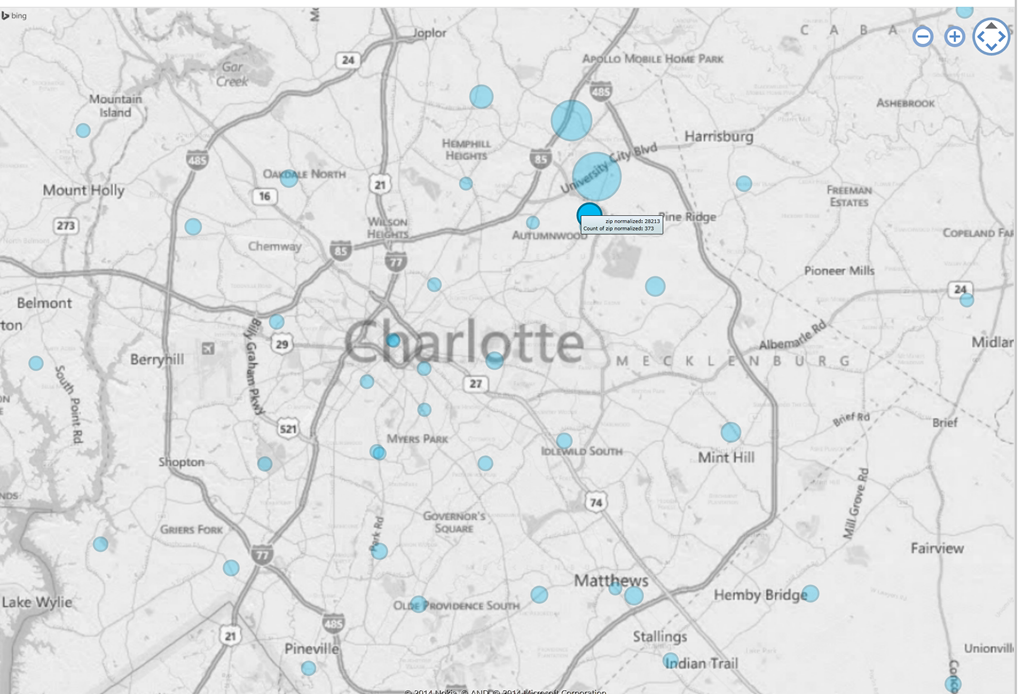
- Comes with a nifty zoom:
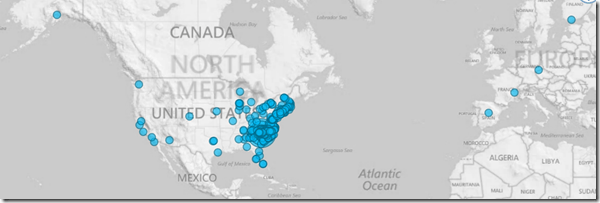
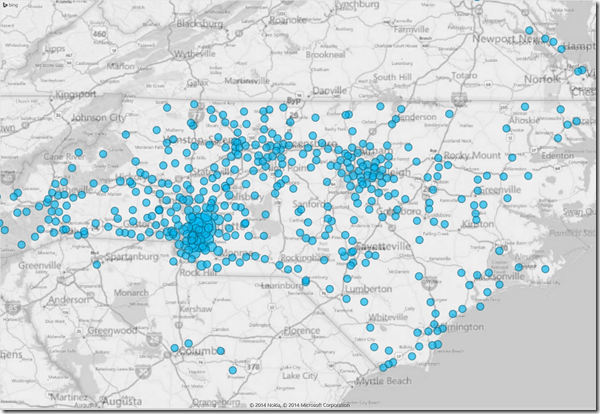
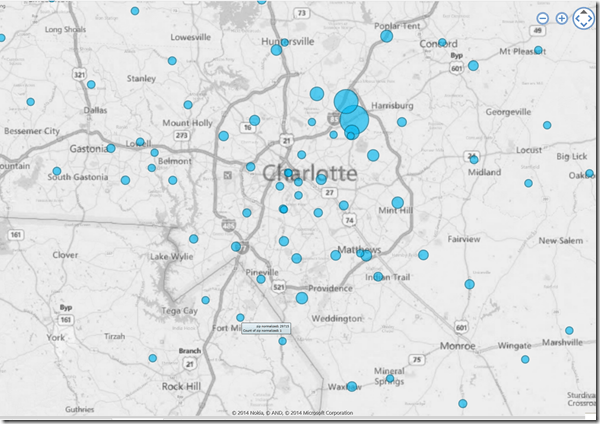
- Click, then Hover a data bubble for more info;

- Like with Bing Maps Visualization, the weighting is surprising:



Mapping of Language Student Locations using Bing Maps
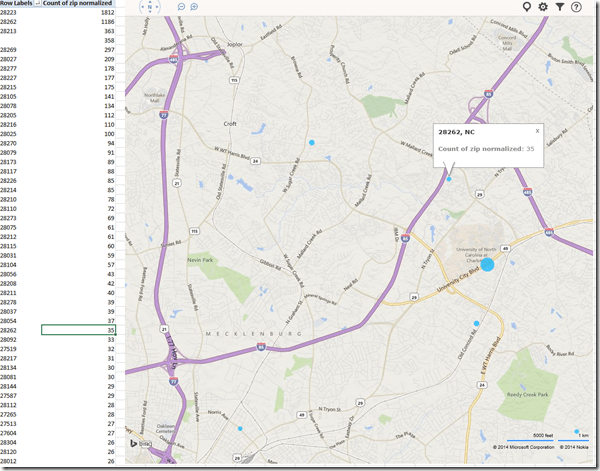
- What do our language students call home? Based on a pivot-table that counts zip codes, let Bing Maps tell you, a default add-in easily accessible in the insert section of the ribbon:
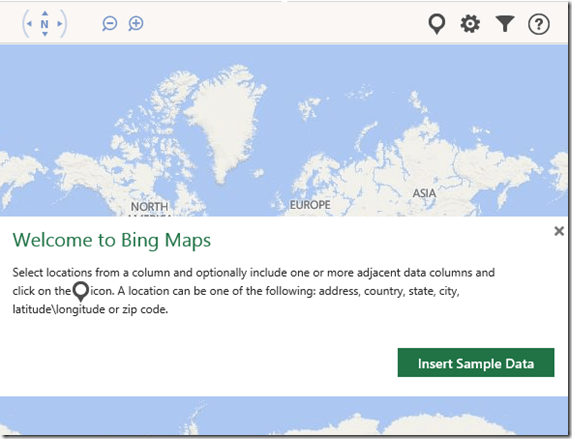
- Note a Limitation: Bing Maps max 100 data points.

- So we limited to zip codes with at least 15 students (which returns just below 100 zip codes).
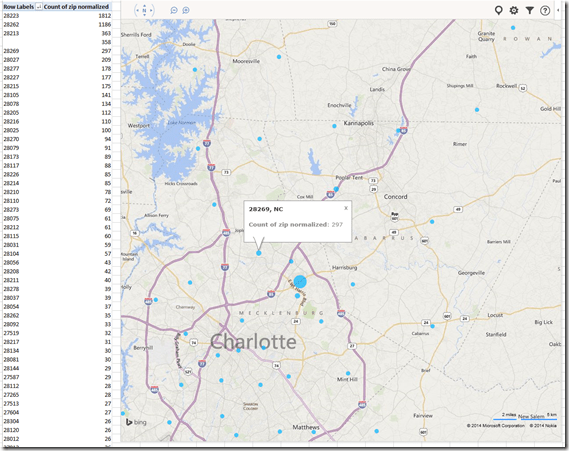
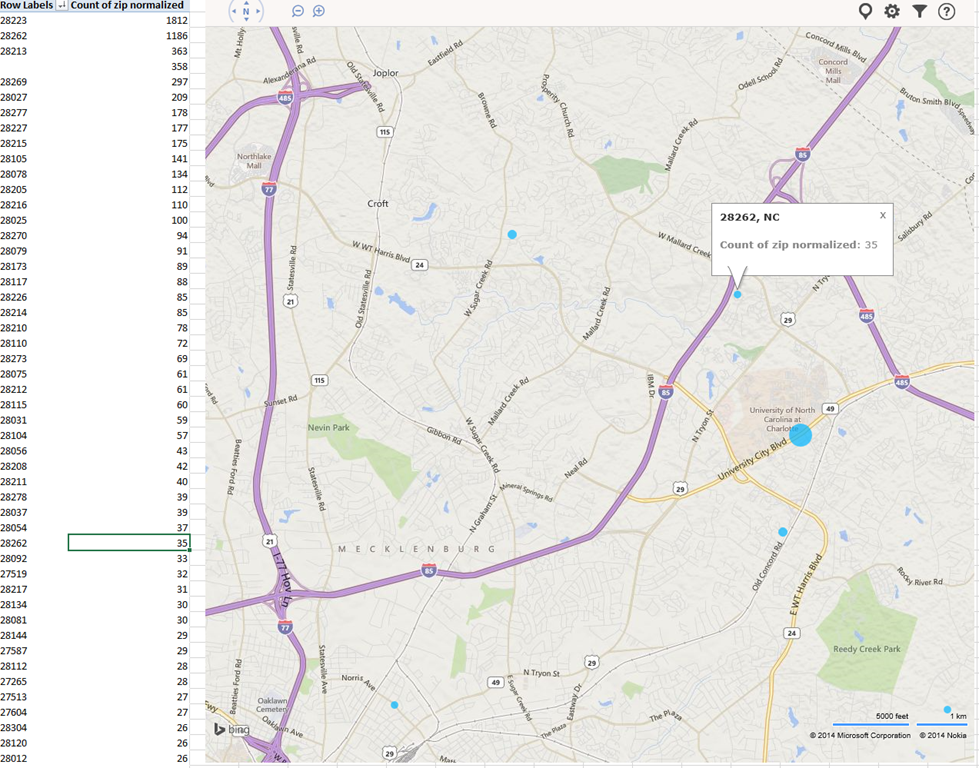
- Also note, the Bing maps app cannot be increased beyond a certain size (below is the maximum).

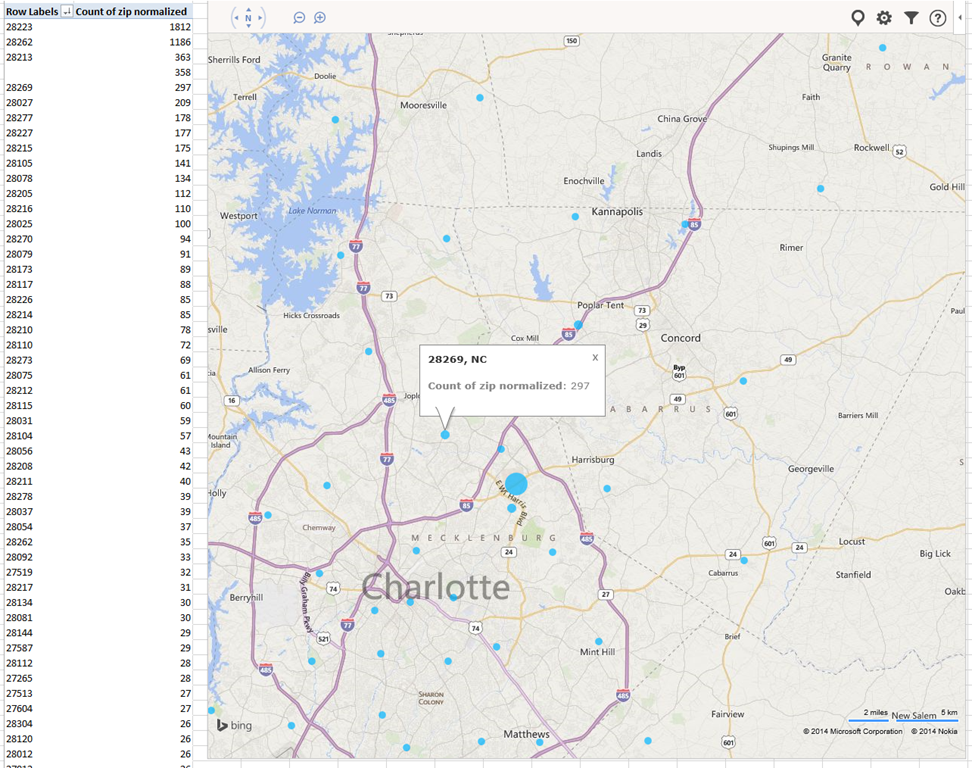
- Finally, note that the visualization does have a weight indicator, but it seems imperfect:

- Here is how data (type) input errors get handled (duplicates override the original):
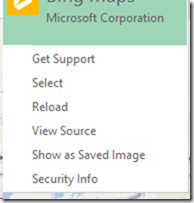
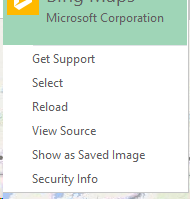
- Fix your data, the reload from the upper right unfoldable menu:

- Voilà:





First steps with MS-Lync 2013 screen sharing and remote control during support calls
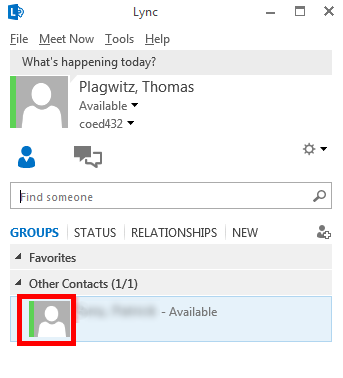
- Start a meeting, by double-clicking on somebody who shows as available in your contact list:

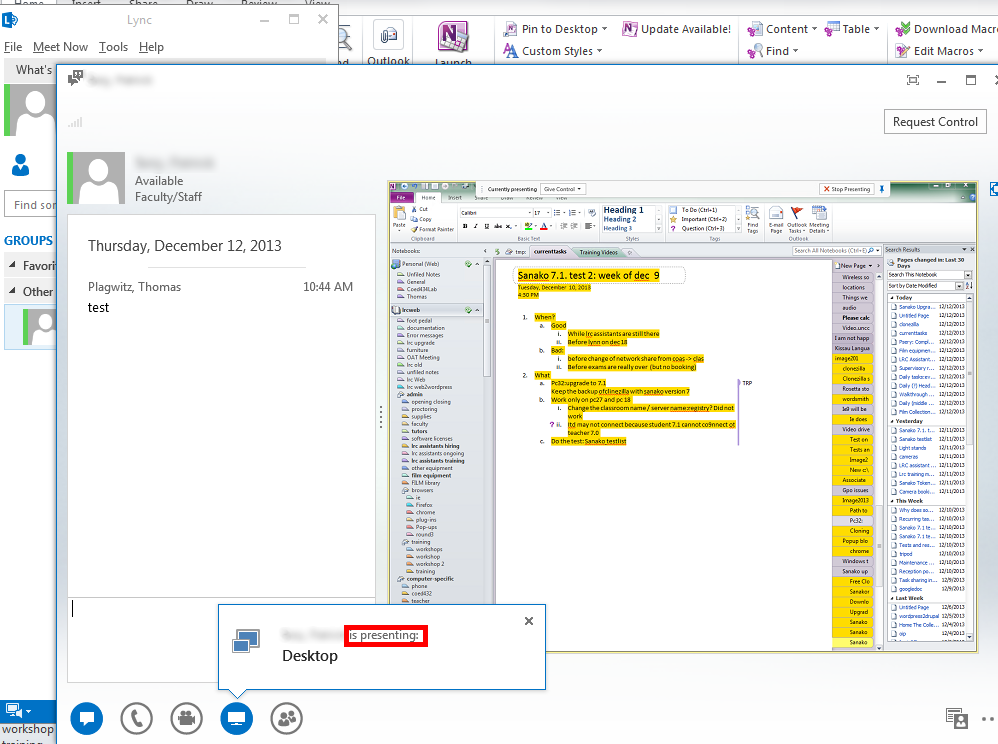
- If you then hover over the monitor item at the bottom, you get the option to “present”, i.e. show your screen to the other person your are meeting with. (Multi-monitor support seems good, if you have multiple monitors like we do):

- If you accept the sharing:

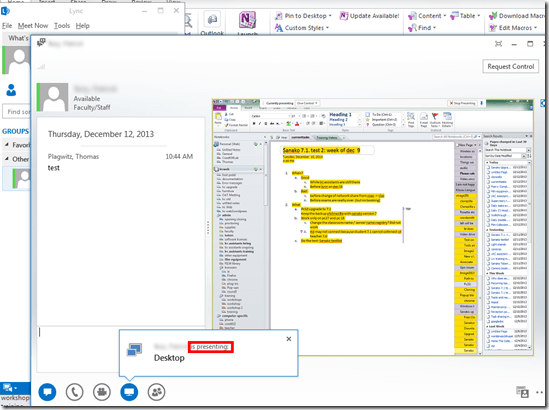
- Voilà, there is your colleague’s screen in a window on your desktop, watch her mouse actions:
- The presenter
- receives a visual reminder:

- can also give you control to remote control her mouse:
 , the result of which looks like that:
- can stop the presentation at any time.
- receives a visual reminder:
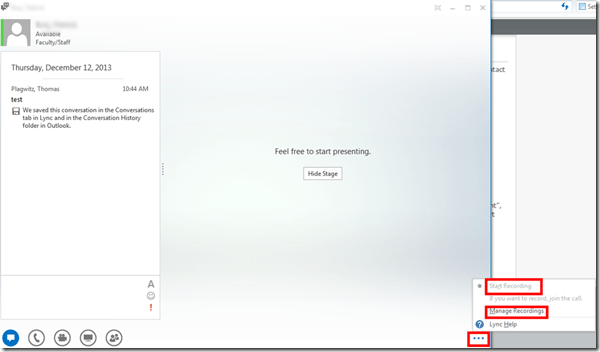
- Finally, the presentations can be recorded which could be extremely useful in a support call for later reuse/review either by the presenter or audience. Click on the 3 dots in the lower right of the “stage”window.
- It looks like a basic, easy workplace-wide screen sharing software that integrates with the local accounts could be extremely productive during daily collaboration. To make such a solution a system-wide service for calling support, one would probably need a queue and pool of supporters and call forwarding.






Questions? Read the About. Or just ask me a quick Our Databases: Resources with calendars -- Language learning material Moodle Sites, multimedia files -- films


FAQs for LRC student staff or for students or for teachers. To search our FAQs, in the browser addressbar, add after "https://plagwitz.wordpress.com/feed/?tag=faqs+/" "+TAG1" (from tag cloud below) OR "https://plagwitz.wordpress.com/feed/tag=faqs
&category_name=" "CAT1" (from category hierarchy below). OR search both categories and tags, and multiple TAGs/CATs (connect with "," for OR-search, with "+" for AND-search), like so: https://plagwitz.wordpress.com/feed/?tag=TAG1+TAG2+...TAGn&category_name=CAT1
+CAT2+...CATn"
Other ways to find help
If you cannot find it here, look there: 5,500 Language-Learning Links and Programs for learning or teaching 150 languages
Shortcuts:Our Lists, Our Maps, LRC Staff Moodle Site,LRC Project Moodle Site, 49erexpress, UNCC Moodle, Student Recordings: s:claslcslrcsanakostudent
Learning usage samples: Sanako oral exam, Kaltura webcam presentation, Dictation with speech recognition, Sanako written exam, Chinese and Japanese interactive stroke-order practice
Test the Sanako Installer, Webbrowser Popup Konfigurator for XP, or Windows7, faster LRC TeacherPC Log-in Let MS facilitate diacritics writing by installing for you US-International keyboard layout
This is my personal blog (Google+). The views expressed on these pages are mine alone and not those of my employer. The information in this weblog is provided “AS IS” with no warranties, and confers no rights.
 Thomas' Work Space