Archive
Archive for the ‘service-is-any’ Category
How to quickly add resource mailbox calendars as an Outlook calendar group
2013/05/29
Leave a comment
- Right-click the left calendar tree.
-
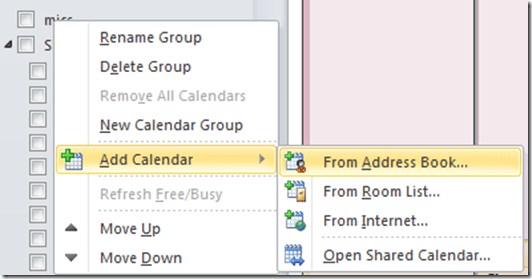
Choose context menu item: add calendar group / from address list:
-
-
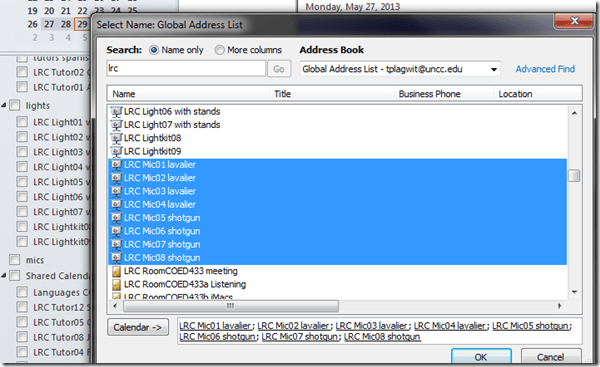
Type " LRC" to search – or the consistent naming scheme you implemented (I hope!).
-
Select all relevant calendars to add.
-
Click on button: "calendar".
-
Click on button: "ok":
-
-
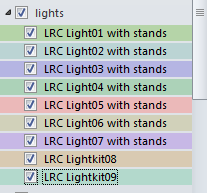
Done:
-


MS-Expression Encoder SP2 can encode using Intel HD Graphics, but…
2013/05/28
Leave a comment
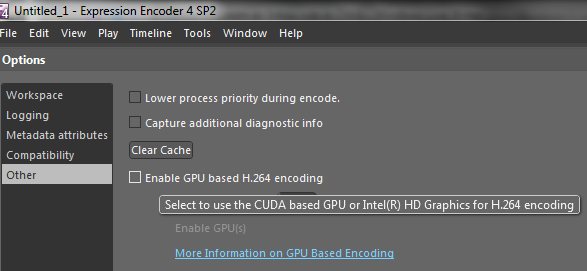
… only the PRO version.

How to get access to the LRC Sanako (teacher materials, student recordings) from your office or home PC
2013/05/15
1 comment
- Run the Sanako Installer (first meant for faculty offices only, but now faculty also want to have access from home, so I added that functionality).
- On your office and or home PC, you get a folder “SANAKO” on your desktop. This folder will contain all you need to access student assessments from past classes or upload learning materials for future classes:
- In the office:
 : It is sufficient to click the additional “UNCC…” links at the bottom of the list .
 - At home:
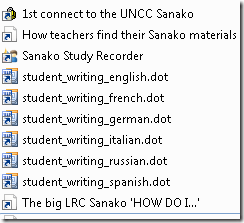
- Click “1st connect…” and log into the campus.
- Click “How teachers find…”, log in with the blog password, open the PDF, click the links in the PDF to the Sanako off-campus folders, log in again with the network credentials as shown in the PDF (sigh…).
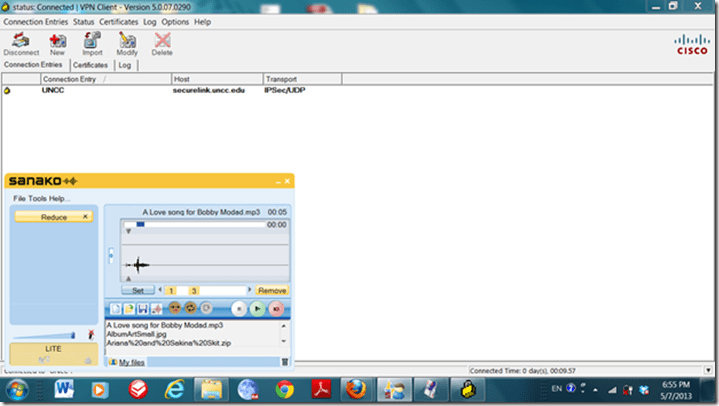
- EXAMPLE: Here you can see on a faculty home PC:
- the sanako recorder and campus connector:
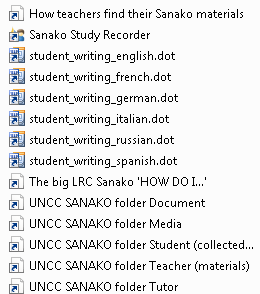
- the SANAKO desktop folder shortcuts:

- You get the Word templates only if you can use them (have WORD installed – remember you can install MS-Office with your free faculty license from here).
- (No, you won’t get the “UNCC…”shortcuts at home, we simplified since.)
- the sanako recorder and campus connector:
- Both office and home:
- Drag any audio files into the Sanako study recorder window (further reading on why the Sanako study recorder is useful for teachers).
- Need to record? configure your microphone in Sanako study recorder, menu Tools.
- In the office:



Categories: audience-is-teachers, documentation, e-infrastructure, e-languages, faculty-offices, Institution-is-University-of-North-Carolina-Charlotte, service-is-configuring-learning-tools, service-is-it-managing, service-is-programming
autoit, iallt2013, MS-Word, sanako-study-1200, sanakorecorderinstall.exe, student.exe, vpn
How faculty can move their local files to the new computer during their office PC upgrade using temporary network space
2013/05/12
Leave a comment
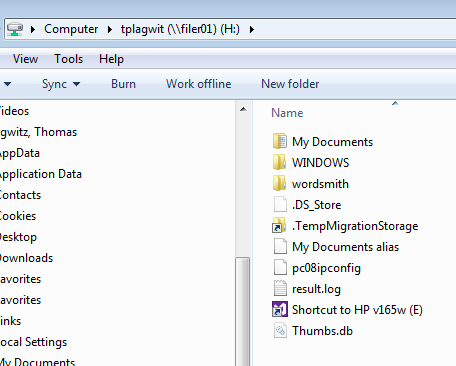
- Go to your H: drive:

- Click on the icon: “TempMigrationStorage”:

- Here is your temporary storage which you should move your files to from your old computer, so that you can move them later to your new computer:

- In this example, I copied my “downloads”folder from my local drive to my network “TempMigrationStorage”. Even when my old computer gets removed, I will be able to access the network from the new computer and download the files from there to the new computer.
- Files on your H: drive do not need to be moved that way. Settings on your old PC cannot be moved that way. Typical candidates for files that should be moved that way include large multimedia files that you could not store on your H: drive. For finding them on your local drive, I recommend examining your C: drive with the free WinDirStat.


Make life simpler in the language lab by disabling extra audio panels
2013/05/10
Leave a comment
- Problem: Having multiple audio panels enabled can led to too many options = sources of errors and confusion.
- Software (e.g. Saba Centra) may defaults to different audio panels (front “Microphone” preferred over a “Rear Input” that can be used as a Microphone and is the preferred device in your lab (for security, safety and ergonomic reasons).
- Students may make erroneous assumptions and try to reconfigure the PC audio by plugging cables into a different outlet.
- ESP Panel software detects plugging in of devices and asks users to identify whether microphone or line-in device has been plugged into rear input which confuses our users even more.
- Software configuration: On Dell Optiplex 760 under Windows 7 , you can
- run mmsys.cpl,
- go to tab:“recording” devices
- to disable the front panel input microphone:
- select “microphone”(that is the front input)
- right-click and choose “disable”:

- result:

- right-=click and uncheck “show disabled devices”
- to configure the “rear input”:
- select and click “properties”

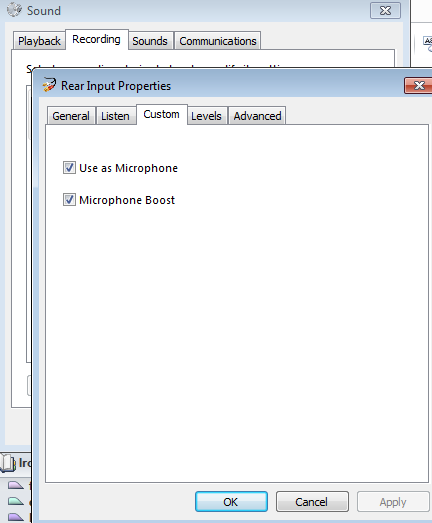
- go to tab “custom” (may require having an add-on driver installed, consult the DELL driver update utility)
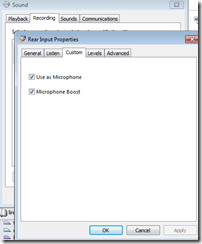
- check “use as microphone”
- check (optional, recommended): “microphone boost”
- select and click “properties”
- “Ok” out of all mmsys.cpl dialogues and (for good measure) restart computer.
- Test your software configuration to work (listening, recording) with the applications used in your lab:
- Sanako student recorder
- Saba Centra
- Audacity
- Voicethread
- Moodle: Audio and Kaltura (even though no webcam)
- Etc.?
- Hardware configuration
- Plug your headset microphone and speaker into the rear audio panel. Tie the microphone cable down with a cable tie. Students have managed to pull the cable through the cable tie, so tie the cable into a knot around the cable tie to prevent that
- Tape (plastic that student cannot push a plug through easily) over the front audio panel and put a label on top: “Do not use! Get help at desk!”. Instruct your help desk student staff.


How to comprehensively identify your software packages using the MS-Installer infrastructure
2013/05/10
Leave a comment
- Problem:
- Some packages may have built-in checks which prevent installation. The built-in error messages may be difficult to interpret (even if you speak foreign languages).
- Some built-in checks may be erroneous.
- Product name and version may be difficult to identify.
- Etc.
- Solution: Take advantage of the features of the MS Installer infrastructure.
- If necessary (setup file does not come as an MSI file), try to unpack your setup file (7zip alone will work in many cases. There are more advanced free extractors available on the web).
- with the the unpacked MSI’s
- run with the “/log” parameter and to generate and examine the log file for more speaking (an English!) installation errors.
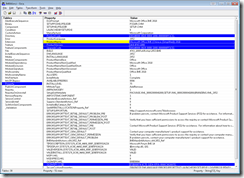
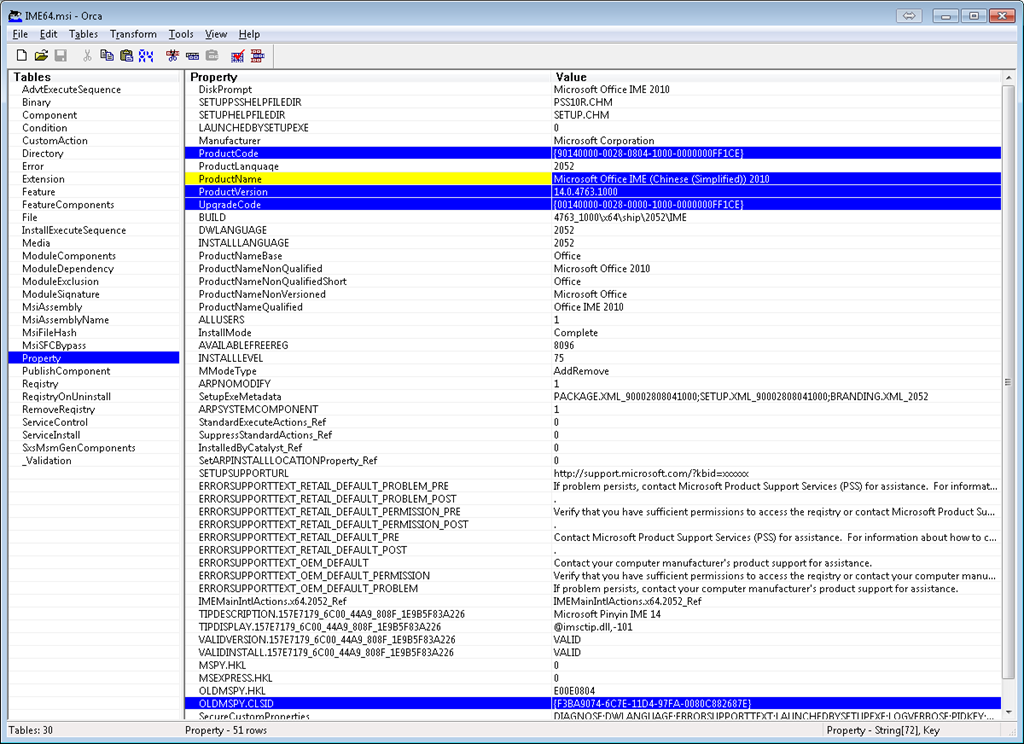
- Open with MS-Orca to examine the software package properties:
 .
. - Right-click and “copy cell” :

- Esp. note the following:
- “Make”
- Productname (base, qualified) variants
- “Model”
- GUID for Upgradecode (e.g. {00140000-0028-0000-1000-0000000FF1CE})
- Productname
- “Year”:
- GUID for Productcode ({90140000-0028-0804-1000-0000000FF1CE})
- ProductVersion
- “Make”
- you can edit your MSI with MS-Orca (better be sure what you are doing).
- you can compare this installer package with what you already have installed in the registry
- use a registry search tool
- you have to search the registry for the compressed GUIDs, to compress, use this: https://thomasplagwitz.com/tag/guid/.

Categories: e-infrastructure, service-is-it-managing
GUID, MS-ORCA, msi
How not to have to join a Saba Centra online class from the LRC late, for lack of speaking capabilities
2013/05/06
Leave a comment
- Problem: We continue getting reports from teachers that students who try to participate in a Saba Centra online class from the LRC listening station computers (with analogue headphones) experience a considerable delay in joining and cause disruption to online classes since they have to troubleshoot their microphones, for lack of being audible online.
- Root cause: Saba Centra on startup automatically selects the “microphone” as recording device…
- Workaround:
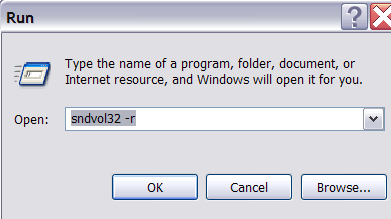
- On XP, click “Start”, click “Run”, type (without quotes) “SndVol32 –R” (meaning: “SoundVolume for Recording”), click “OK” which opens the volume mixer for recording devices. The radio button selected will be “Rear input”.

- Start Saba Centra.
- Switch back to the volume mixer you opened in step 1. Note that the radio button now selected is “Microphone”. This is wrong for the listening stations (and the teacher station) in the LRC. Switch it back to “Rear input” (you know that your headset is supposed to be plugged into the rear).

- And off you go… Plus note: There is no need for “expensive” workarounds like:
- haphazardly trying to replug headphones,
- purchasing your own USB headphones,
- hogging the main classroom with its USB headphones.
- On XP, click “Start”, click “Run”, type (without quotes) “SndVol32 –R” (meaning: “SoundVolume for Recording”), click “OK” which opens the volume mixer for recording devices. The radio button selected will be “Rear input”.

Categories: audience-is-language-learning-center-staff, audience-is-language-learning-center-temp-staff, audience-is-students, audience-is-teachers, Distance-education-format-is-Synchronous, e-learning, Listening-Stations, Presenter-Computer, presenter-computer, service-is-configuring-learning-tools, service-is-testing-troubleshooting-debugging, Speaking
audio, FAQs, saba-centra


Questions? Read the About. Or just ask me a quick Our Databases: Resources with calendars -- Language learning material Moodle Sites, multimedia files -- films


FAQs for LRC student staff or for students or for teachers. To search our FAQs, in the browser addressbar, add after "https://plagwitz.wordpress.com/feed/?tag=faqs+/" "+TAG1" (from tag cloud below) OR "https://plagwitz.wordpress.com/feed/tag=faqs
&category_name=" "CAT1" (from category hierarchy below). OR search both categories and tags, and multiple TAGs/CATs (connect with "," for OR-search, with "+" for AND-search), like so: https://plagwitz.wordpress.com/feed/?tag=TAG1+TAG2+...TAGn&category_name=CAT1
+CAT2+...CATn"
Other ways to find help
If you cannot find it here, look there: 5,500 Language-Learning Links and Programs for learning or teaching 150 languages
Shortcuts:Our Lists, Our Maps, LRC Staff Moodle Site,LRC Project Moodle Site, 49erexpress, UNCC Moodle, Student Recordings: s:claslcslrcsanakostudent
Learning usage samples: Sanako oral exam, Kaltura webcam presentation, Dictation with speech recognition, Sanako written exam, Chinese and Japanese interactive stroke-order practice
Test the Sanako Installer, Webbrowser Popup Konfigurator for XP, or Windows7, faster LRC TeacherPC Log-in Let MS facilitate diacritics writing by installing for you US-International keyboard layout
This is my personal blog (Google+). The views expressed on these pages are mine alone and not those of my employer. The information in this weblog is provided “AS IS” with no warranties, and confers no rights.
 Thomas' Work Space