Archive
Saba Centra on startup automatically selects the "microphone" as recording device…
- … But we in the language lab use the (dual function microphone/line-in) "rear input" for our headsets (for ergonomic, health&safety and security reasons). Workaround here.
- Apparently this startup behavior cannot be changed within Saba Centra:
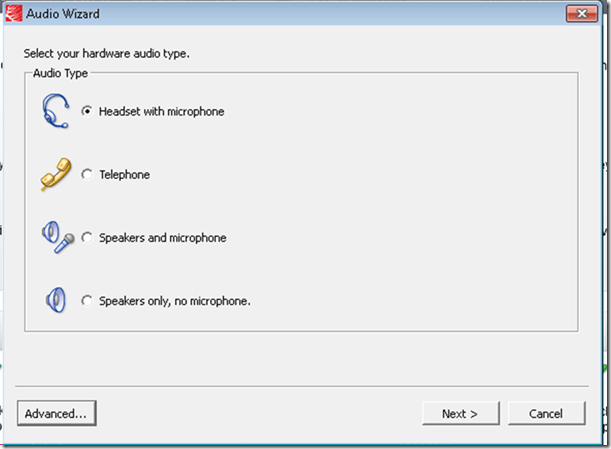
- Any startup will bring up the “Audio Wizard” asking users, even in a controlled lab environment, to configure their audio devices,
- and if users do (and choose what they have: headset), make wrong assumptions which audio plug to enable (“Microphone” front panel, even if your headset is plugged into the rear panel dual “line-in/microphone”)
- The workaround according to these easily Googled instructions is using the “Advanced” audio wizard options to override this “Audio Wizard” error, like so:
- “Re-open the Audio Wizard, go to the third screen and change your recording device in your “Recording Device” menu. Advance two slides and determine if you can hear your recorded voice. ”
- 1st screen:
- 3rd screen:
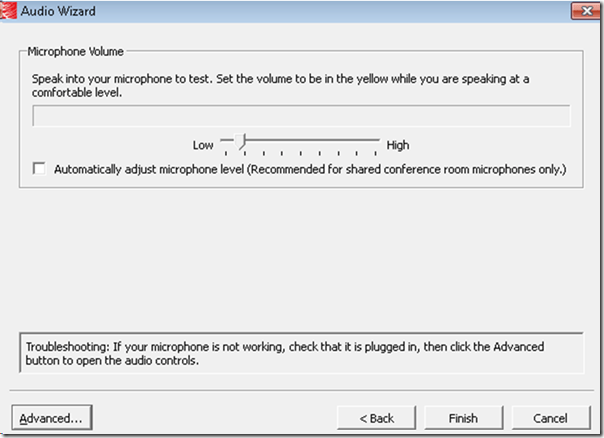
- note the instructions – Click “Advanced”. But it is easier to just use from the start our Workaround here.
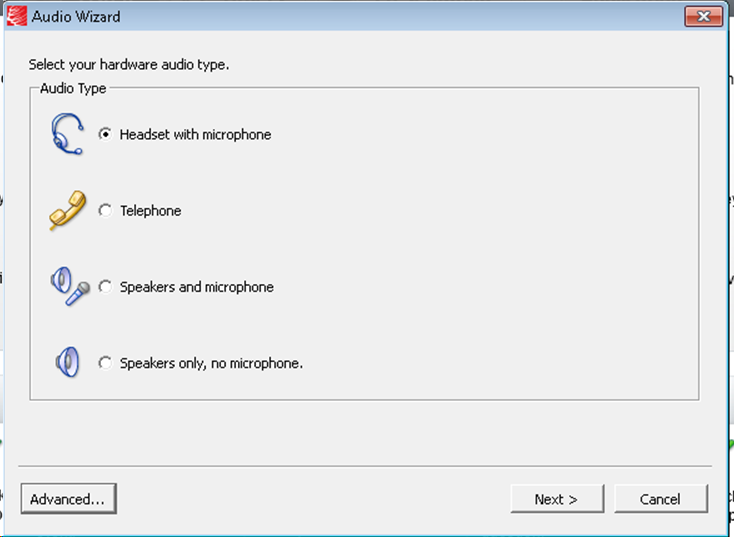
- 1st screen:
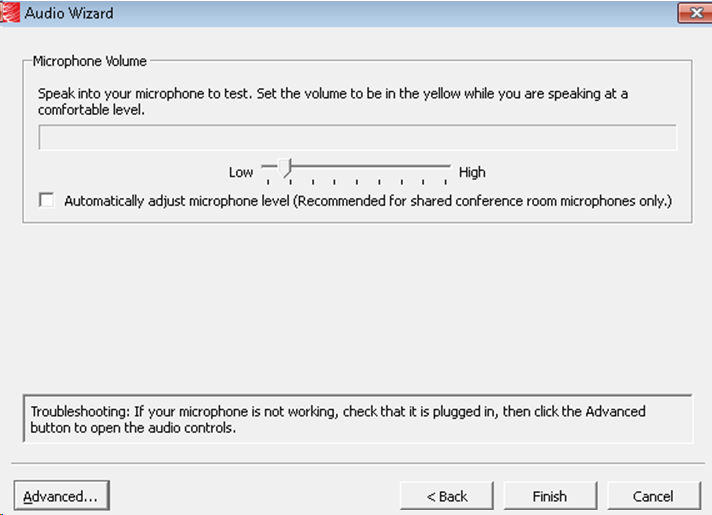
- “Re-open the Audio Wizard, go to the third screen and change your recording device in your “Recording Device” menu. Advance two slides and determine if you can hear your recorded voice. ”
- The long-term solution is reconfigure your hardware and disable the front panel audio – but will Saba Centra understand you? Stay tuned…
Protected: How a teacher can give students aural feedback on oral exams using the Sanako Study 1200 Lite Recorder
Testing my Langlabemailer…
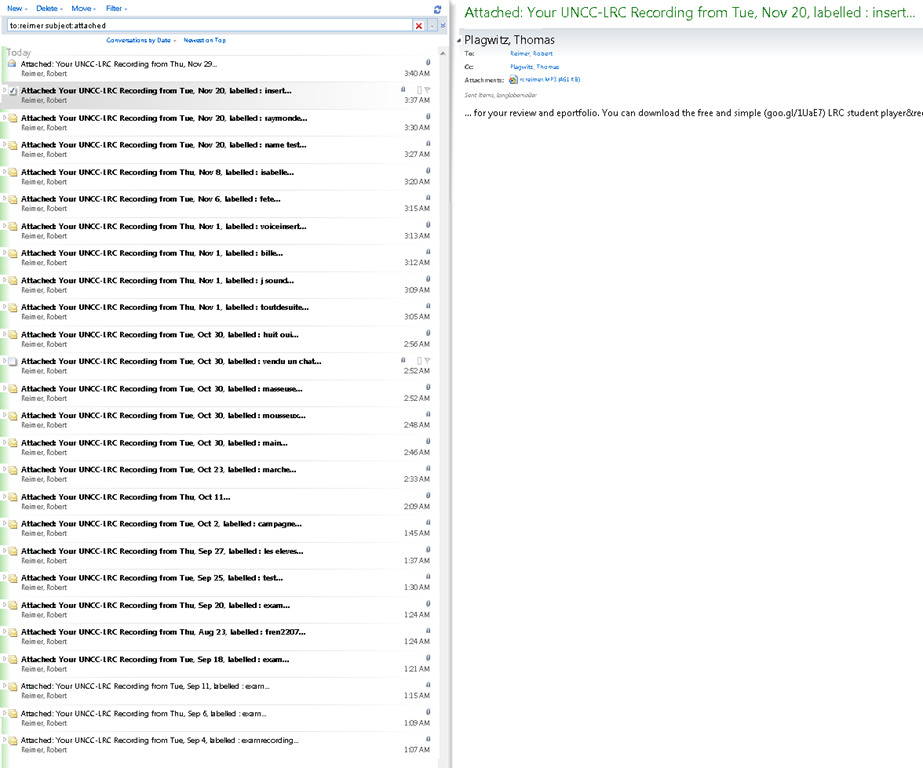
… to improve the integration of the digital audio lab into the university’s language teaching processes – 1000 emails at a time.  (Coming soon: same day delivery. More on this project will be available here: https://2013.iallt.org/session/driving-tutorial-call-face-face-classroom-and-what-it-took).
You can get the LRC’s keyboard shortcuts to write foreign language characters automatically installed on your home or office PC …
..if you click on Microsoft’s FixIt here: http://support.microsoft.com/kb/306560 (’nuff said elsewhere about US International keyboard layout) . Our British Friends seem to still type French, German, and Spanish accents the old tedious way. Maybe they find it too difficult to install the MS UK-International keyboard layout which takes care of most accents in all languages that use a Roman alphabet. I wish I could recommend them also a Microsoft FixIt installer which automatically enables the UK "international" keyboard layout option built-in to Windows. However, the FixIt version automated enablement seems only available for US International, not for UK international. If you want US International without manually configuring it (interactive video) , take advantage of MS FixIt by clicking here.
Cheatsheet for typing phonetic symbols with the IPA Keyboard Layout on Windows 7 – the ultimate training…
…using animated .gifs. Slower? Compact: 0.25sec, 0.5sec, 0.75sec, 1sec, 1.5sec, 2sec, 3sec, 4sec, 5sec, 6sec, 7sec, 8sec, 9sec, 10sec. 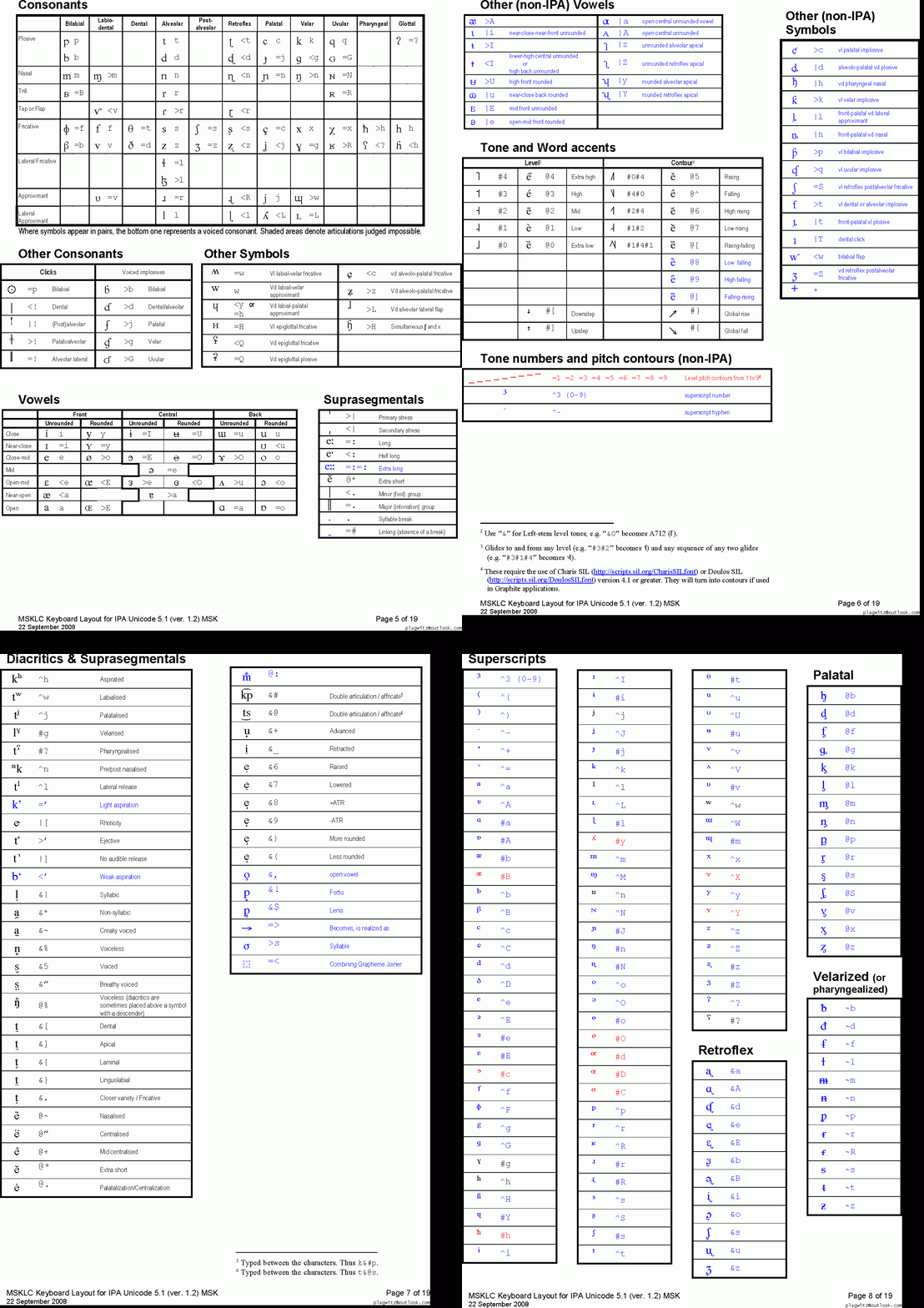
This is taken straight from the great documentation of this great Phonetic symbols Windows keyboard layout by SILS international, but needed a bit of massaging to support hands-free lookup via display on one screen of your dual screen system, while you learn or demo the keyboard to the class). Users without dual screen (including students) are better off with the slideshow below in which they can stop the images on any page:


The IPA MSKLC can produce both regular Roman characters and transcriptions with phonetic symbols by employing certain “dead keys” that can be combined with regular keys. Just and like our default LRC keyboard us-international .
Your first must select the keyboard like so. 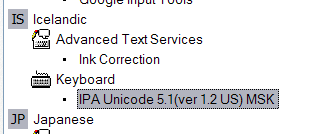 (Icelandic is suitable since it is not used for other purposes much). In the LRC, you must wait until we upgrade to Windows7.
Scraping RSS of online actualités for language learning materials production
- The capability of RSS-news feed integration of foreign language news may be standard now in most LMS, but was not in 2002 (not even having an LMS was standard, I had to build my own while it took the university a few more years to adopt Blackboard as I had recommended in 2000):

- But RSS-feed display is skin-deep and, even in extensive-reading pedagogies, not sufficient for integration into teaching and learning which requires more post-processing.
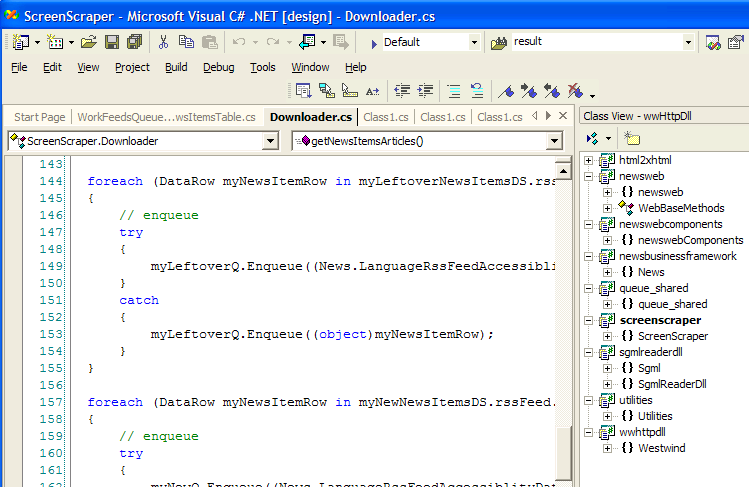
- At a recent Digital Humanities Unconference, I was asked how I had “scraped” (RSS-scraping was chosen since it easier than screen scraping, for RSS is devoid of most markup, as long as it validates) into a SQL-server database. Here are some code-snippets to get you
- from the web
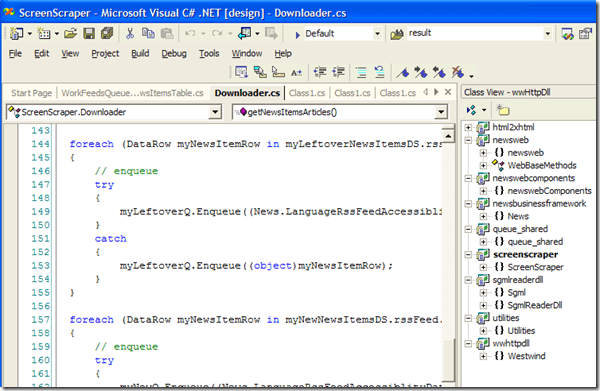
- into the database:
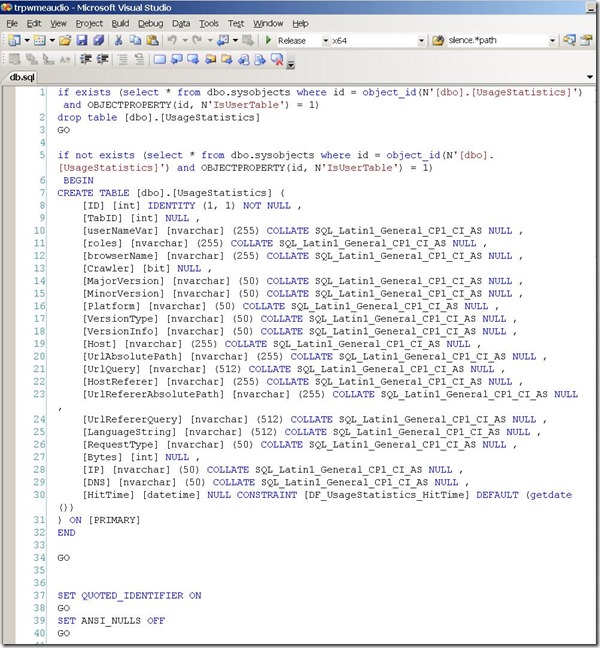


- The scraped plain text in the database can form the foundation for post-processing for SLA-purposes, see e.g. glossing for reading comprehension facilitation or question generation with the trpQuizConverter for
- from the web



How a teacher can adapt a Sanako teacher-controlled class recording activity for individual student recordings
- Pedagogical need:
- A teacher wants her students to record a presentation,
- but allow the students to move around freely in their recording afterwards, when evaluating it, and submit the best out of 3 tries:
- Technical implementation:
- Using Sanako activity:model imitation of differing for multiple groups
- offers maximum control, least flexibility: students have to speak their presentation linearly
- if you anticipate presentations of considerably different lengths
- first try asking your students – might be useful to them anyway to realize if theirs turns out to be much shorter than others,
- if students are unsure about the length of their presentation,
- conduct the first recording with the entire class and
- have students note what time their recorder time counter is at when they finish, and send you the time as text via the button:envelope
- group your students (grouping step-by-step) into Sessions A-F by incrementing time according to what the student icon bubble shows
- then differentiate class into as many groups as necessary (if <= the 6 “sessions”A-F Sanako Study 1200 offers) end the recording at a different time for each group
- for each group (one or more up to 6),
- choose from dropdown activity: model imitation recording
- and from dropdown: source: none) with more than one group at a time,
- and (optionally) for not more than one group at a time (suggest choosing the biggest group for that) from (dropdown: source: file ) the background noise to play
- and after each group’s allocated time (+ buffer) is up,
- press button:end to end the recording
- after collection of the recordings from students is finished, you can
- press button:replay
 , to let each student listen to her recording (linearly, without control), and
 - press button:free
 , to let students freely move back and forth on the timeline)
 - eventually, press button: clear, to be ready:
- choose from dropdown activity: model imitation recording
- for tries 2 and 3: repeat above steps.
- using Sanako activity: self access:
- provides
- the teacher some control (none over this turning into more of an editing than coherent language practice exercise),
- and students more flexibility (hence requiring prior recording training for students);
- students individually
- record
- move around freely in the file
- replay
- record over prior footage and/or start completely over (menu: File / new)
- press button:envelope to text message the teacher that they are finished and want their (final ) recording to be collected by the teacher
- teacher
- moves signaling students into a group (grouping step-by-step) that is
- dedicated for collecting recordings (TBA:does this not empty their buffer?)
- and button:pc control: locked (= no further or accidental changes)
- once an appropriate (compromise between finished students wanting to leave and teacher not having to collect each recording individually) number of students have been added to this group, presses
- button: end to collect and
- button: clear session to clear the button
- assesses the recordings in the folder that opens with audacity;
- in case of problems, moves students back to the group dedicated to recording
- else lets students leave
- moves signaling students into a group (grouping step-by-step) that is
- provides


LRC offers generating audio files from your foreign language texts
- Would you like to expose your student to L2 listening materials beyond the audio learning materials that come with your textbook?
- Materials customized to the learning needs of your classes? From current affairs maybe?
- Would you prefer no to send them to internet audio that may be difficult and time consuming to integrate?
- Do you lack the time to record speaking cues, oral exam questions or reading models yourself?
- Do you need audio files that you and your students can rewind/fast forward/replay, edit and record into with voice insert?
- And would you prefer using audio in your classes that comes with aligned text, whether that audio that has been transcribed or vice versa, to create glossaries, captions, multimedia assignments?
- The LRC now offers generating audio files from your foreign language texts in many languages.
- The service is based on the quality voices of Google Translate text-to-speech (better (simpler) than its actual translation portion, let alone its naïve use).
- Unlike Google translate, the service persists longer than 100 character texts to audio files (mp3) that (and the underlying digital text) we can work with further, in your syllabus, the LMS and the digital audio lab.
- Technical background and samples.
- Languages that are available in good quality: See links under this post; other languages: please test with me..
- To request an audio file generation for your class, send the following information to the LRC
- regular reading/listening materials: plain digital text should do;
- SANAKO oral exam cues: please enter the text in this MS-Word table and add information in the additional columns for exam customization.


Questions? Read the About. Or just ask me a quick Our Databases: Resources with calendars -- Language learning material Moodle Sites, multimedia files -- films


FAQs for LRC student staff or for students or for teachers. To search our FAQs, in the browser addressbar, add after "https://plagwitz.wordpress.com/feed/?tag=faqs+/" "+TAG1" (from tag cloud below) OR "https://plagwitz.wordpress.com/feed/tag=faqs
&category_name=" "CAT1" (from category hierarchy below). OR search both categories and tags, and multiple TAGs/CATs (connect with "," for OR-search, with "+" for AND-search), like so: https://plagwitz.wordpress.com/feed/?tag=TAG1+TAG2+...TAGn&category_name=CAT1
+CAT2+...CATn"
Other ways to find help
If you cannot find it here, look there: 5,500 Language-Learning Links and Programs for learning or teaching 150 languages
Shortcuts:Our Lists, Our Maps, LRC Staff Moodle Site,LRC Project Moodle Site, 49erexpress, UNCC Moodle, Student Recordings: s:claslcslrcsanakostudent
Learning usage samples: Sanako oral exam, Kaltura webcam presentation, Dictation with speech recognition, Sanako written exam, Chinese and Japanese interactive stroke-order practice
Test the Sanako Installer, Webbrowser Popup Konfigurator for XP, or Windows7, faster LRC TeacherPC Log-in Let MS facilitate diacritics writing by installing for you US-International keyboard layout
This is my personal blog (Google+). The views expressed on these pages are mine alone and not those of my employer. The information in this weblog is provided “AS IS” with no warranties, and confers no rights.
 Thomas' Work Space
