Archive
Collaboration using MS-Office and Network Shares
Accessing: We set up collaborative editing on a number of MS-Office files (Word, Excel, PowerPoint for starters) on network shares.
These files function like files on your computer’s C: or D: (cd) drive. C: (and H:, S:) you can write to, while D: (and M:) you can only read from. Details, including students’ access, below:
|
Mapped as for |
Staff (including LLC staff) can |
Student can |
Language services use |
NetworkPath |
|||
|
Staff |
Student |
read |
write |
read |
write |
|
|
|
H:\LLC |
|
Yes |
Yes |
No |
No |
sensitive exam files; internal documentation & management (hallway.ppt, channel55.ppt, Sign_In_Sheet.xls) |
\\adfileprod01\shared\LLC |
|
M: |
|
Yes |
No (admin only) |
Yes |
No |
LLC: (large) multimedia files (to be moved into Blackboard content system) |
\\resman\media |
|
S: |
|
Yes |
Yes |
Yes |
Yes |
Student audio recordings |
\\resman\Student Saved Work\ |
|
G: |
G: |
Only current user |
Only current user |
Only current user |
Only current user |
Personal home drive |
\\adfileprod01\users\[yourusername] |
If you do not see the M: and S: click drive  , click
  , paste “\\resman\Student Saved Work\Admin\conf\ms.vbs”, click
  .
.
To access the files quickly, you can click , click , paste the path to the file, click . Alternatively, browse to the folder with the file like to any other folder on your PC, starting from “My Computer”. Repeat access from the office computer is easiest if you create a shortcut to the file, by right-click-dragging the file onto your desktop (do not create a copy, it will get out of synch and be useless for collaboration).
You can also access the files from home if you follow the instructions here. I have not thoroughly tested this, but my installation on MS-Vista, after the initial setup, defaults to a web-interface view which allows reading the files, but, unlike VPN connections I have used, not editing.
Searching: Search files like you do on your computer.
Editing: Files are unlike those on your C: or D: drive insofar as other people can open them also. If somebody has a file open and thus locks you out of writing to it, simply come back later when she has closed it.
The Excel Sign_In_Sheet.xls is a “shared” spreadsheet, in the sense that you will not be locked out while lab assistants have it open (which is always during LLC opening hours). However, you may get conflict messages if you try to save edits (which you normally would do not need to do, just viewing), like demonstrated here: excel_shared.wmv.

If you use regular (non-shared Excel) MS-Office Files, you may see such a warning message:

If you clicked “Notify”, you will eventually be prompted to open the file in read-write mode, and your changes will be saved, if you colleague did not update the file (otherwise you will have to save under a different file name and later can use tool “compare and merge” to merge changes). 
For PowerPoint, you may see this:

If you clicked “open” ”read-only”, you will see a reminder:
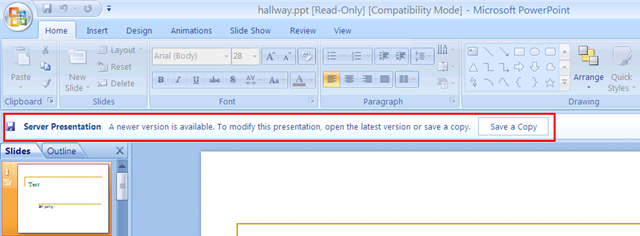
It is probably easier to close the file and try again later, to see whether your colleague is finished with it.
Sanako Lab 300: Pairing and some basics
In the spirit of ‘Better improvised instruction and information distribution than failing classes in the lab”, I recorded a 1-on-1 instruction on how to pair students, including some other basic Lab300 features into a 5-minute screencast with voice over (open with Windows Media Player): sanako-lab300_pairing-and-basics.wmv
For an overview, see the following table of contents (when reviewing the video before starting your class in the Lab, search your webmail for the link to this instruction.)
- Not shown: teach students once and for all: always log in first;
- Grouping setup pane (all into L, then into A, excluding unused seats);
- Pair discussion setup pane (button: select for manual pair select mode);
- Not shown: teacher should use button: duo launch to facilitate student control of audio;
- Within group A pane , teacher uses button:transfer, changes program source to audio cassette:
Pair discussion setup pane : “re-pair”, using button:cancel all, button:random to have Lab 300 software choose pairs; - Within group A pane , teacher uses button:headphone for talking to group (not shown: remember to undo when finished!)
- From classroom layout: teachers clicks student icon to bring up student pane;
- From student pane, teacher views student screen, listens to student (or pair), uses student button:intercom for talking to student (or pair);
- From top menu: Other / thumbnail view of group: teacher brings up Mosaic window, to monitor (“police”) entire group screens; translates what you see to individual student, and uses button:lock (keyboard, screen or both) to prevent students from not staying on task [Demo this in first lab class to your students, using the screen projector , and hopefully they will hopefully stay on task];
- From menu: Other/ thumbnail view of group, teacher brings up Mosaic window and double clicks student screen to control individual student computer (e.g. to close a web browser – another way to police, less effective, but possible; better used for collaboration) . [Better policing options can be set up in the using the Lab300 web browser).
MS-Office Communicator: Getting Started
https://thomasplagwitz.com/2009/11/13/collaboration-using-ms-office-and-network-shares/Click  , click
  , type “communicator”, click
  .
.
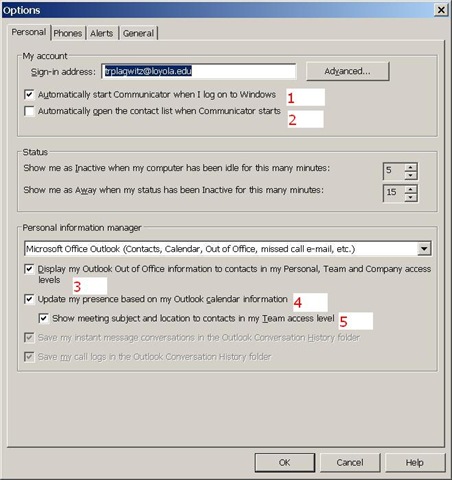
To adjust options, click (1), (2) and (3) here:

To start communicator with Windows, select (1).
To have Outlook automatically show you as busy during calendar appointments (e.g. your classes), select (4).
To get your contact list up to speed, select all the contacts in the to-address line of a mass email and drag them to your communicator window, see this screencast here: communicator-email-contact-drag.wmv.
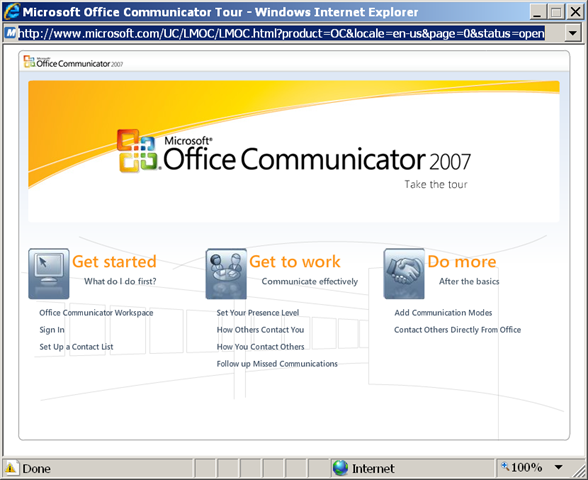
Microsoft has a useful “Getting Started” web-based training here:
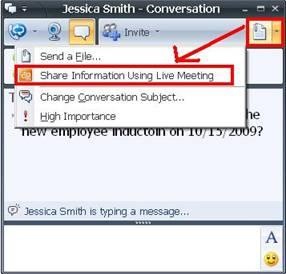
To use the advanced features of Live Meeting, you can either use the context menu of the contact, or within an existing messaging session, escalate to Live Meeting by using the upper right hand corner menu, like in these 2 screnshots:

How to distribute learning materials using the Blackboard Content System
I needed to make a large set of textbook mp3 files accessible to myself in the classroom, as well as to students and myself from dorm/home.
The Blackboard Content System makes this easy, while observing copyright restrictions.
Below is a 6-minute narrated screencast on how to set up and use the Blackboard Content System to easily (work on batches of files on the web, just like on your computer, access from office, classrooms or home office) and securely (allow access only to qualified students) handle multimedia files
The example involves numerous mp3 files from a Textbook Audio CD previously only accessible from the LLC computers)).
This would work as well with your self-created teaching materials, from text handouts to video recordings.
If you need better management (many files, reuse across terms) than the standard course document upload can provide.
See the video file name for a brief table of contents:
If the teaching material item is already in the content collection, to publish it to a new course:
- add a new item to a content area of the course,
- follow the numbered steps 1-4 in this screenshot:

- then click submit twice: first close the content system window with
 , to automatically give your students access to the files:
  , then finish adding



Demoing a requirements gathering template for IT project management
Designed for SME focus group meeting capture when upgrading the City-of-London conference interpreting facility at London Metropolitan University. Querying users for business requirements in use case form. Watch a demo: 
to generate functional requirements:

and to generate technical requirements (and questions for vendors):
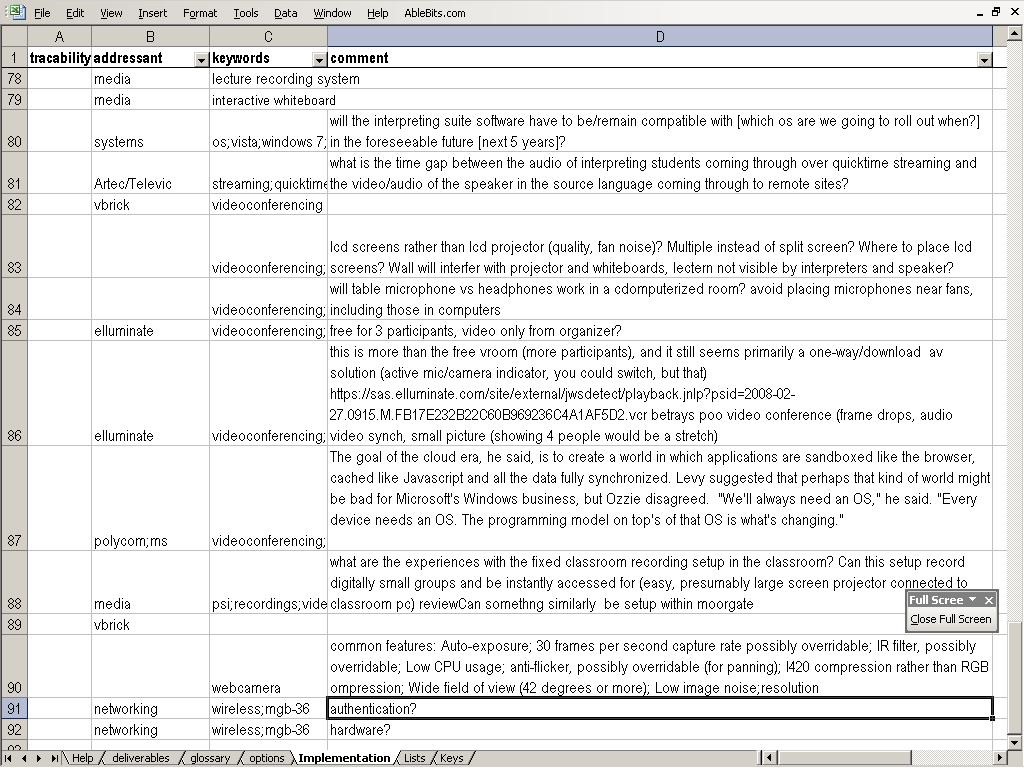
While keeping an eye on requirements metrics (what is important, contentious, unclear):

Blackboard VLE Training Videos Overview
|
2006 |
Video |
|
|
2006 |
Video |
|
|
2007 |
Video |
|
|
2007 |
Video |
|
|
2007 |
Video |
|
|
How to do a language lab recording exercise as Blackboard assignment |
2007 |
Video |
| Blackboard controlpanel_export_import_course_or_parts.wmv | 2008 |
Video |
| Blackboard dropbox_sort_filter.wmv | 2008 |
Video |
|
Blackboard Content System: Add a content item instead of attaching a file |
2009 |
Video |
|
2010 |
Video |
|
|
2010 |
Video |
|
|
2010 |
Video |
|
|
2010 |
Video |
Auralog Tell-me-more Demo Screencasts
An overview, mostly narrated:


Questions? Read the About. Or just ask me a quick Our Databases: Resources with calendars -- Language learning material Moodle Sites, multimedia files -- films


FAQs for LRC student staff or for students or for teachers. To search our FAQs, in the browser addressbar, add after "https://plagwitz.wordpress.com/feed/?tag=faqs+/" "+TAG1" (from tag cloud below) OR "https://plagwitz.wordpress.com/feed/tag=faqs
&category_name=" "CAT1" (from category hierarchy below). OR search both categories and tags, and multiple TAGs/CATs (connect with "," for OR-search, with "+" for AND-search), like so: https://plagwitz.wordpress.com/feed/?tag=TAG1+TAG2+...TAGn&category_name=CAT1
+CAT2+...CATn"
Other ways to find help
If you cannot find it here, look there: 5,500 Language-Learning Links and Programs for learning or teaching 150 languages
Shortcuts:Our Lists, Our Maps, LRC Staff Moodle Site,LRC Project Moodle Site, 49erexpress, UNCC Moodle, Student Recordings: s:claslcslrcsanakostudent
Learning usage samples: Sanako oral exam, Kaltura webcam presentation, Dictation with speech recognition, Sanako written exam, Chinese and Japanese interactive stroke-order practice
Test the Sanako Installer, Webbrowser Popup Konfigurator for XP, or Windows7, faster LRC TeacherPC Log-in Let MS facilitate diacritics writing by installing for you US-International keyboard layout
This is my personal blog (Google+). The views expressed on these pages are mine alone and not those of my employer. The information in this weblog is provided “AS IS” with no warranties, and confers no rights.
 Thomas' Work Space