Archive
Tools for Search-Replace text with Regular Expression on Windows
Just a quick thumbs up for a free tool:
To examine licensing files, I am looking for a tool that can massage the computer-readable file (no XML) into a friendlier format (that can be imported into Excel).
The regular needed to achieve that I too complex for TextPad or MS-Word.
Other tools I have used have not been updated in a long ime (RegEx Workbench).
Grep for Windows? I have just revitalized my cygwin installation, but would like something a little more user-friendly, with a GUI .
That also rules out PowerShell’s 2.0 Select-String.
PowerGrep, as recommended on stackoverflow, looks nice, but is not free.
inforapid-searchreplacer looks not bad, but I went for grepWin, which got the job done quickly and nicely:
Click Button “Test” to preview results:

Click Button “Search” to file the matching files list:

Limitations of GrepWin: Is there a size limit in the test regex text input field – here is how my test text got truncated:

Examples of Quizzes based on MS-Word template
You can view a series of examples for formative assessments, used during face-to-face teaching (German) settings, in this screencast: .
.
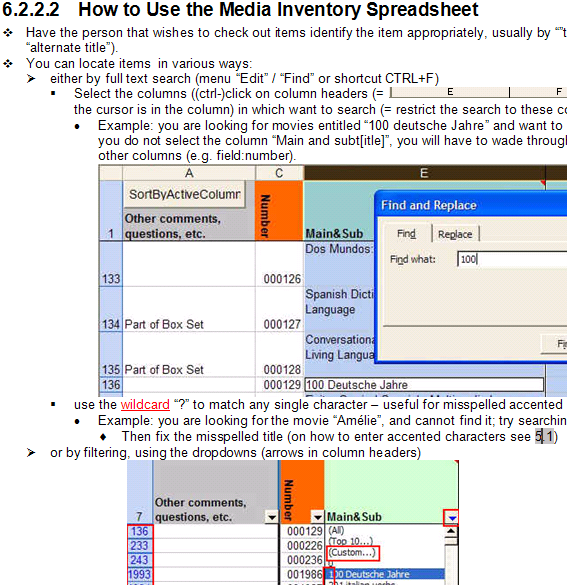
How to use the MS-Word Quiz Template (and the MS-Excel subtitles spreadsheet)
How to make formative assessment quizzes for face-to-face teaching settings like in the examples here?
Part I: quiz_dot_create_excel: Watch a screencast on How to ready target language subtitle source material for the quiz template
|
0,00 |
Working with subtitle material from the source: time coding is not correct
1,40
spreadsheet formulae can fix the subtitle time codes
2,00
why using DVD chapters as learning units
2,20
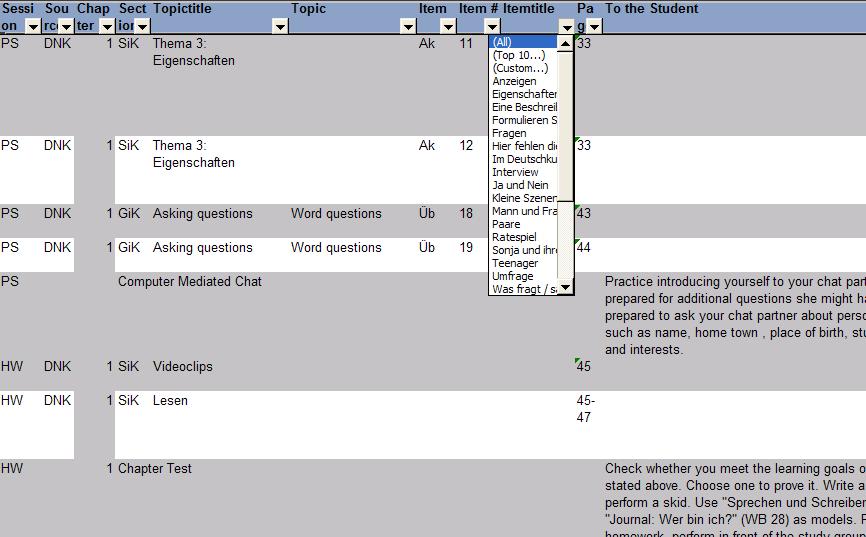
filtering on chapters in the DVD
3,00
ready to copy paste the filtered learning unit text data into the quiz template
Part II: Watch a screencast on How you can apply your pedagogy with ease to a text and transform the same to a quiz, and how the student benefits from both
|
0,00 |
start quiz from word template (on file share)
0,35
paste text data, e.g. for listening comprehension, e.g. from target language movie subtitles
1,15
create markup from pedagogy
3,14
generate quiz from markup : parenthesis 1 {helpful hint}, parenthesis 2 [correct answer]
3,35
closing and saving the quiz, receiving a summary
3,55
create a backup
4,00
open the quiz to test the quiz from student perspective
4,30
what opening information the student receives
5,00
how the student inputs answers and receives feedback
5,20
language learning lookup menu , after pausing the quiz
6,30
or double-click words to look them up in the default dictionary for the set language
7,10
how the student resumes the quiz
7,20
how the student closes the quiz
Part III: Watch a screencast on How you can revise your pedagogy
|
0,15 |
open the quiz, enable macros
0,30
unprotect the quiz
0,45
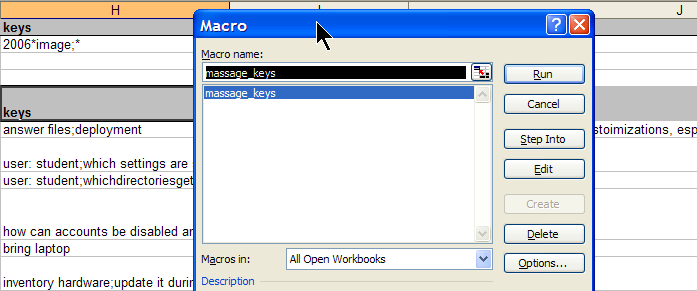
office 2003: tools / macros / macros
1,00
now you can edit your pedagogical markup
1,10
regenerated the altered quiz
eRepository: How to manage multimedia learning materials? Maybe with ShareStream
Target language audio and video materials – as well as other textual, multimedia and/or interactive materials – are crucial assets (and should become “reusable learning objects”) in learning centers – how best to manage them?
I have worked for a number of HE institutions, up to the very recent past, that charge their students between $30.000 and $40.000 per year, while their learning materials handling in the learning center consisted of what DVDs and VCR tapes fit into a shoe carton, for a lab assistant to frantically browse through when faced with a learner or teacher request for materials. Not to mention teachers spending inordinate amounts of time scanning stacks of make-believe VCR and DVD “libraries” in the learning center.
I have blogged here before about various solutions that attempt to remedy this: from home-baked stop-gap measures to the introduction of eRepository offerings for digital asset management.
If you are familiar with these issues, you will understand that I am eagerly looking for better help with managing multimedia learning materials. ShareStream claims to provide a turnkey solution addressing these needs. Its architecture – according to the Tulane pilot – consists of a ShareStream server which serves as eRepository and metadata catalogue, a streaming server, and an encoding server (for lecture-capture: YAT (“yet another tag”)). ShareStream also integrates with the Blackboard LMS.
Have a look at the demo of the pilot at Georgetown University which they gave during MAALLT 2010 and which they now also offer workshops on. One interesting thing I figured out during the question period is that they avoid breaking the Digital Millennium Act when digitizing copy-protected DVD materials by capturing to digital only the analog AV output of a DVD – a reminder that a reform of copyright is sorely needed.
Virtual Whiteboard in Computerized Classrooms
To virtualize/digitize your classroom scripts/textbooks/etc. – with all the obvious benefits (single familiar, control interface for multimedia, audio and video) and hidden benefits, like being able to link to offline (e.g. MS–Proofing Tools, MS-Text-to-Speech API) and online language learning tool (e.g. dictionaries, image libraries), use the already installed and supported hardware and software tools in computerized classrooms.
Hardware:
- Teacher Computer
- LCD Projector
- LCD Projector Screen
- Classroom Speakers
- Wireless keyboard/mouse
Software/Content:
- Textbook Scans as images – common nuisance: as ingle exercise (or a rule explanation and its practice exercise) gets spread over 2 pages that won’t fit on document camera –> right-click, open with, “Paint”, use rectangle selection, edit/cut, file/new, edit/paste to combine).
- my template Teacher.Dot (and additional downloaded or saved files, copyright permitting) with lookup menu:


- MS-Remote desktop: default enabled on all office PCs; on classroom teacher computer, click “start”-button, type “mstsc”, click “OK”, type the IP address of your office computer once, if logged in a yourself on the teacher computer, it will remember it, (you only need to access the advanced options of MSTSC if you encounter compatibility problems, like with screen resolution
- MS-ZoomIt: on file server, allows you to zoom, draw + type on frozen images of your screen (access advanced options if you want to change the font settings and behavior of the mouse scroll wheel)
- Blackboard: Content System <—Web folder <—> Email
Time saving benefits:
- Class time: prep in office; slow writing on blackboard, handling of document camera (switching, drawing), internet access
- Teacher time: separate steps to & handling email (<—> close file with class and be done)
- Student: slow note-taking (not all is mnemonic), handling email (still need to access Blackboard)
- More benefits could be had if students had hardware/software to share the screen. If a fully computerized classroom freaks you out, consider MS multi mouse, especially designed for resource challenged educational environments (India originally)
My little Ode to Excel
Since about 2003, I have spent a good portion of my days analyzing data in Excel, and I enjoy it.
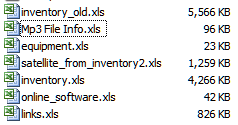
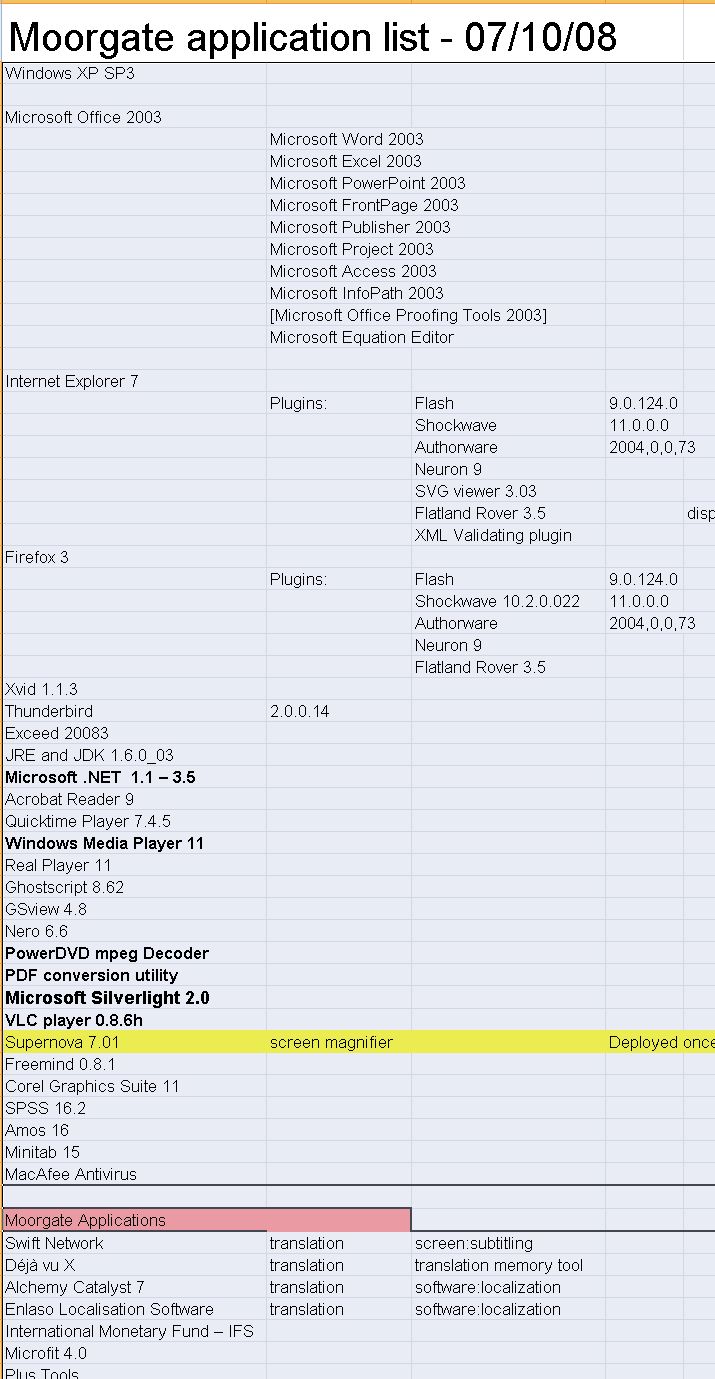
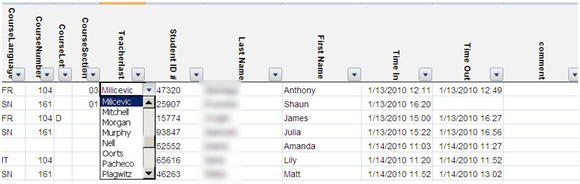
Specifically, I have written and administered many inventory databases: for software, various learning materials, media products, content feeds, departmental equipment, work tickets, for user timesheets and user accounts and other user management tasks. I have of course also maintained budgets and various schedules applications in MS-Excel and technology projects.
I have also programmed learning and other LOB applications in MS-Excel: automated account creation from the university student database, subtitle exercise creation, vocabulary learning based on word frequency, collaborative learning material repository catalogue, automated video metadata reading and import or automated multimedia learning material cataloguing system in MS-Excel.
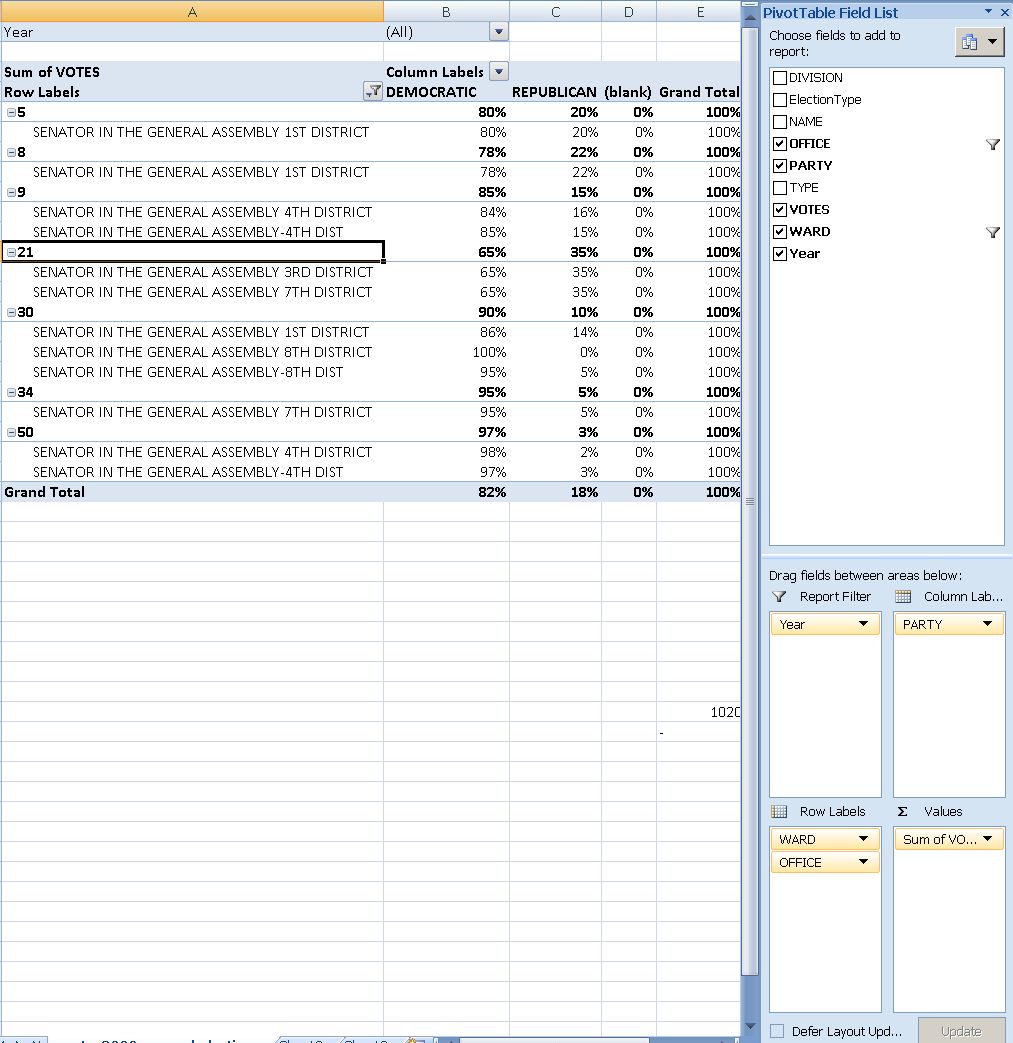
From work, I am proficient in using MS-Excel features array formulas for aggregating/summarizing numerical data, v-lookups, data visualization and chart plotting. I routinely write VBA macros, including my own worksheet formulas/functions to enforce complex data integrity requirements (ISBN13), created a VBA-driven automated backup solution for shared workbooks, and data-mine complex dependencies, including network graphs. Most recently, I have set up pivot tables against multi-million record election database for a large political organization in Philadelphia.
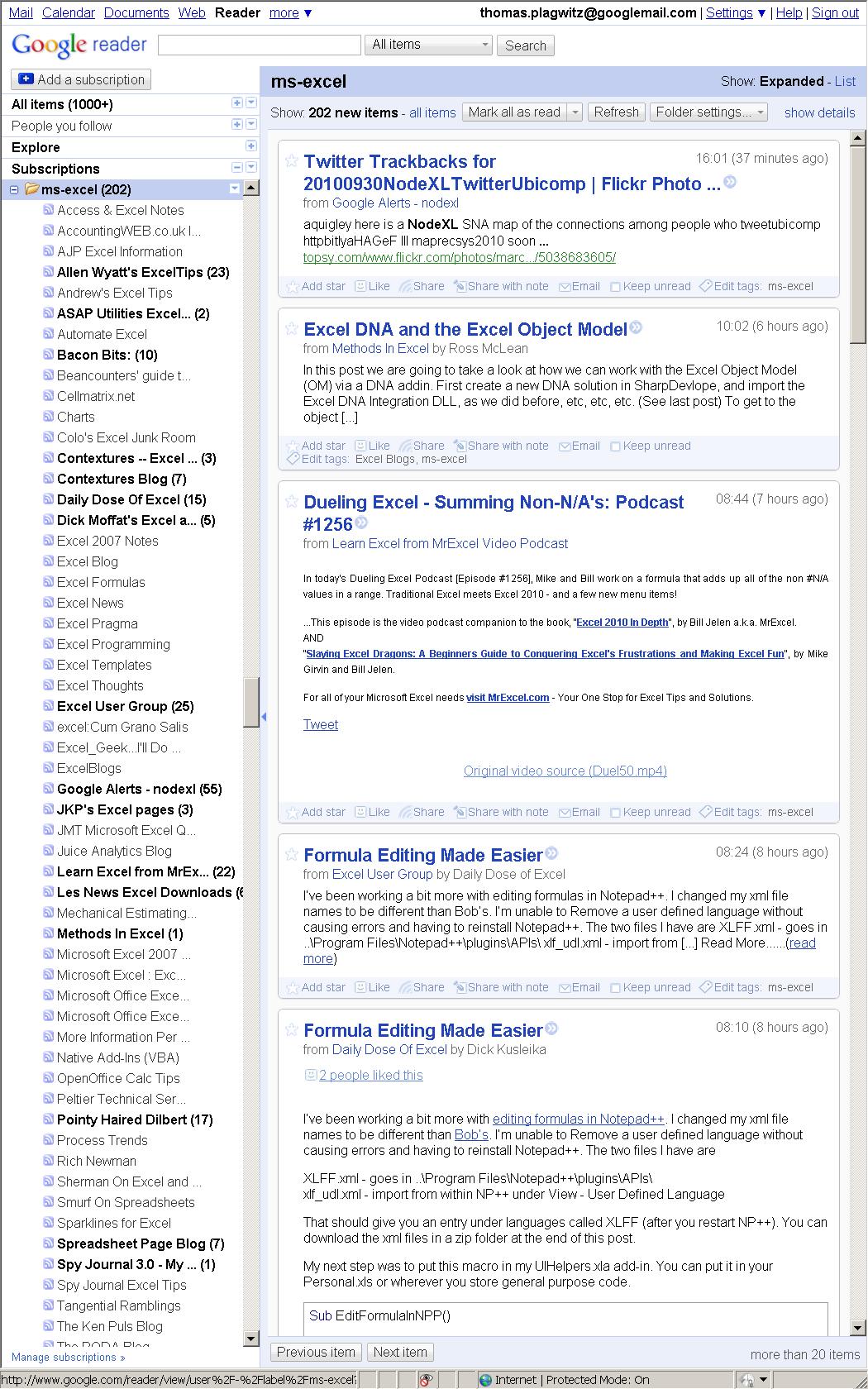
For many years, I have been subscribed to the lists and blogs that are most popular in the MS-Excel user community. Finally, I also have experience in documenting of and training staff in MS-Excel, e.g. on sharing workbooks, and I blog MS-Excel how-to’s, e.g. on pivot-tables or scheduling.
Please also have a look at my Excel portfolio.
Plagwitz making Page 2 for Google search on Sanako Lab 300?

- Why, thanks? 🙂

Blackboard: Content System: Ancillary digital textbook material reuse (publish to course participants, roll-over between terms)
If you have a well administered language program, your admin should have uploaded all digital (text, audio, textbook and table of contents) materials that come with your textbook for convenient reuse between sections and terms into the Blackboard content system.
As a Blackboard course administrator, you can easily give all course participants access in 1 step (as course administrator, you can also access the audio materials during classes from the Blackboard content system directly).
Here is a video recording of a real-world walkthrough of this process – voice-over is in German, but Blackboard interface is in English: blackboard-content-system-finding-adding-existing-content-item-to-course-access-play.wmv
|
Start Time |
Topic |
|
0,0 |
overview of teaching and learning procedure |
|
0,1 |
course add item / content collection link |
|
1,30 |
how to search for content. Remember: Search is your friend, if you have a consistent metadata system for your content (start with meaningful file names): |
|
3,15 |
hot to add permissions for other users |
|
5,3 |
add to course for for students |
|
5,4 |
listen to an example audio from course |
Once you have given course participants access to the audio materials, and you teach the course again next term, it is even easier to roll over the access: Just use the Copy link in the Blackboard Control Panel.

Questions? Read the About. Or just ask me a quick Our Databases: Resources with calendars -- Language learning material Moodle Sites, multimedia files -- films


FAQs for LRC student staff or for students or for teachers. To search our FAQs, in the browser addressbar, add after "https://plagwitz.wordpress.com/feed/?tag=faqs+/" "+TAG1" (from tag cloud below) OR "https://plagwitz.wordpress.com/feed/tag=faqs
&category_name=" "CAT1" (from category hierarchy below). OR search both categories and tags, and multiple TAGs/CATs (connect with "," for OR-search, with "+" for AND-search), like so: https://plagwitz.wordpress.com/feed/?tag=TAG1+TAG2+...TAGn&category_name=CAT1
+CAT2+...CATn"
Other ways to find help
If you cannot find it here, look there: 5,500 Language-Learning Links and Programs for learning or teaching 150 languages
Shortcuts:Our Lists, Our Maps, LRC Staff Moodle Site,LRC Project Moodle Site, 49erexpress, UNCC Moodle, Student Recordings: s:claslcslrcsanakostudent
Learning usage samples: Sanako oral exam, Kaltura webcam presentation, Dictation with speech recognition, Sanako written exam, Chinese and Japanese interactive stroke-order practice
Test the Sanako Installer, Webbrowser Popup Konfigurator for XP, or Windows7, faster LRC TeacherPC Log-in Let MS facilitate diacritics writing by installing for you US-International keyboard layout
This is my personal blog (Google+). The views expressed on these pages are mine alone and not those of my employer. The information in this weblog is provided “AS IS” with no warranties, and confers no rights.