Archive
Archive for the ‘Learning-Tool-is-any’ Category
Microsoft Contextual Translator
2011/11/14
Leave a comment
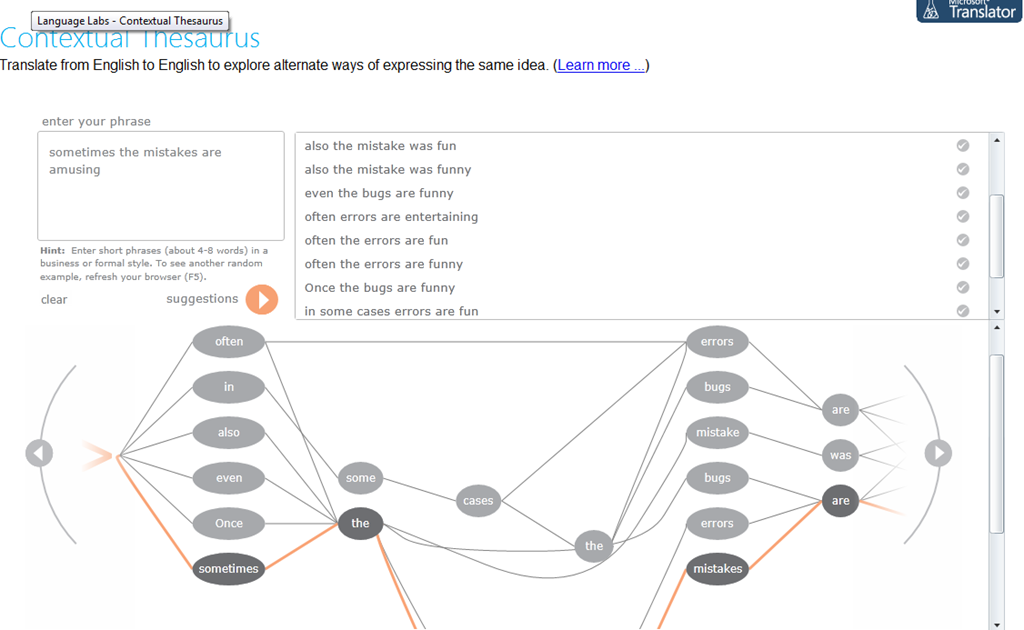
Certainly an advance over the MS-Word thesaurus (unlike the MS-Word 2007 and up spell check, still not contextual). Does this work at least well enough to serve as a fruitful pedagogical exercise: “Which phrase does not belong in the group?”
Categories: Advanced, audience-is-students, audience-is-teachers, Beginner, e-languages, English, Intermediate, Speaking, websites, Writing
links, thesaurus
How students access language learning materials on the Library ereserves system
2011/11/11
Leave a comment
- Note the important update in red below.
- This has been tested at post date with Firefox. ereserves seems to be not compatible with Internet Explorer 8: i

- On the Library home page, from the top menu: “Research & Course Help”, choose menu item: “Course Reserves” (or, if this menu changes again, I have a hunch that deeplinking may be more stable: http://library.uncc.edu/caos/coursereserve, what’s in a URL…),
- sign in with your Ninernet ID,
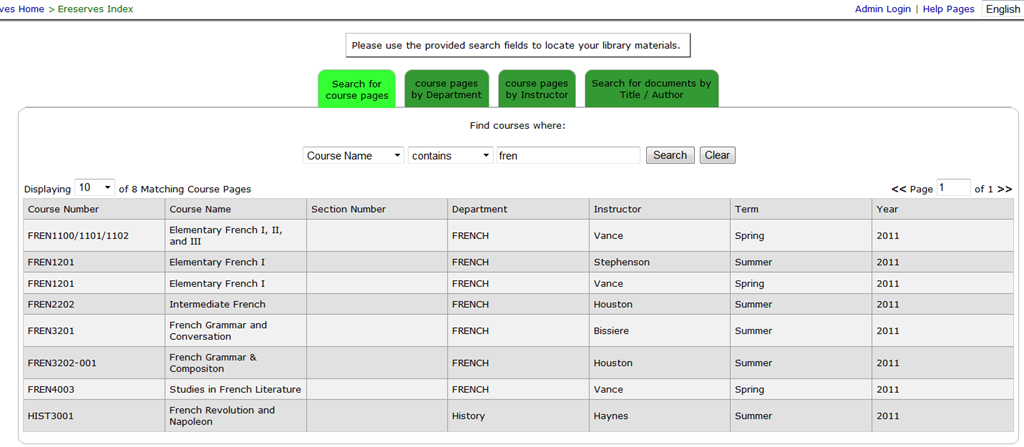
- enter search term
- select from the dropdown “search by name”, an enter part of your course name in the textbox,
- or click on tab:”Course Reserves Pages by Instructor”, and from the dropdown, select your instructor,
- click search,
- then select your course from the results grid.

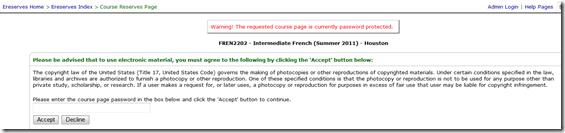
- Enter the password, which has been given to your by your instructor.
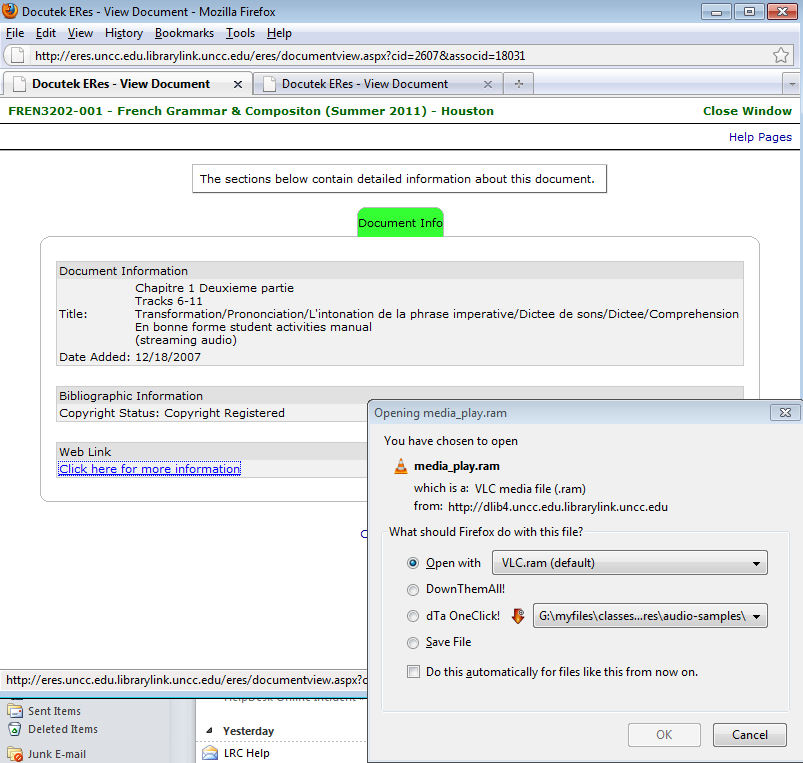
- In the results grid, click on the desired chapter and tracks. Note: You need to disable your web browser”s “popup blocker”.
- In the popup window, click on link: “More information”,
- when offered, , like in this screenshot:
- you cannot save the file, or rather: only a text file with links to the audio which you cannot play, like rtsp://dlib4.uncc.edu:554/e_reserves/CD1bonneforme12-16.rm). That is by design.
- Instead of trying to save, select to “open” the file. You need have a streaming audio playing software installed, like Real Player or the open source VLC-Player.
- instead of VLC, as offered by default, like so :

- choose “Open with”, “Other”, pick “RealPlayer” from the list, like so:

- Here is a more on what does not work with ereserves. The only combination I could get to work with eReserves streaming audio is – see resulting screencast (requires Windows Media Player) of streaming a long file successfully – is RealPlayer 14, Firefox 3.6 on Windows XP3, and that only after resetting the Winsock catalog which I can do for the entire LRC only nownext time the lab is reimaged. For now, use instead audio from Moodle metacourses where possible.



Streaming Problems with Realmedia via RTSP from ereserves with VLC Player (and Internet Explorer. And NetOp School)
2011/11/10
Leave a comment
- VLC-player
- version 1.1.9, but also currently newest 1.1.11 as well on Windows CXP SP 3
- opens from IE8 and Firefox 3.6
- but is not able to play files (tested even multi) through. Rather, it nicely falls on its face, with the audio stream simply appearing to stop, mid-sentence, after 2:38 (pretty consistently – a buffering bug? A great way to slip through pre-testing).
- In the LRC, I could hardly bring the taskswitcher up, let alone (15 minutes of waiting) the task manager, to even find that vlc.exe is the culprit, with a CPU utilization of 99% solid (Ouch!).

- Not quite so bad in the office computer where it hovered slightly above 25%, maybe busying only one CPU core.

- My Google searches do not find anything quite similar.
- RealPlayer 14 to the rescue?
- In IE8, RealPlayer does not open when clicking on the web page link with the RM file which causes a dialogue to open if VLC-player is the default player, rather a strange unplayable content error..

- In Firefox, RealPlayer open and plays (and pre-buffers) the stream completely.

- Note that ereserves “download as zip” cannot serve as a workaround: gives you only the links like http://dlib4.uncc.edu/streaming/media_play.php?file=9364cb66b9e1cae26aed0f471e9eab5b, which require you to re-authenticate, even if in the same browser session, and do not redirect to the resource, neither audio nor web page form which you could launch the audio (in short, I do not get what this download as zip is good for)
- Next Problem: This may work on my office computer. In the lab we have NetOp School installed. That adds another layer of NetOp School problems which look like they can be resolved
next time the lab is reimaged. For now, use instead audio from Moodle metacourses where possible.next time I get around to design and run a Symantec-Ghost Software and File Action on the computers (all LRC lab PCs) and test the result (on PC10) which was now.


MS Universal Language Input Tool offers correction and transliteration on any web page
2011/11/10
Leave a comment
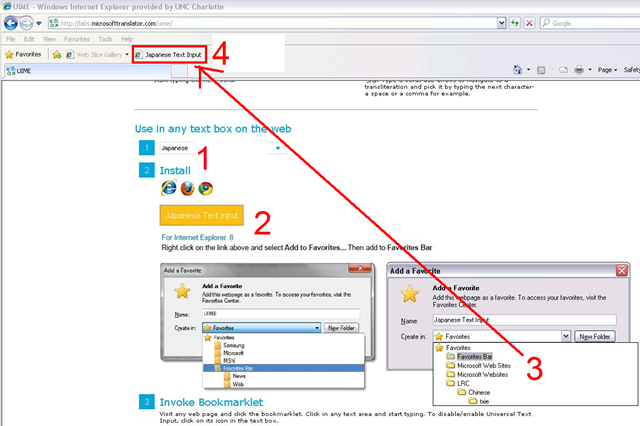
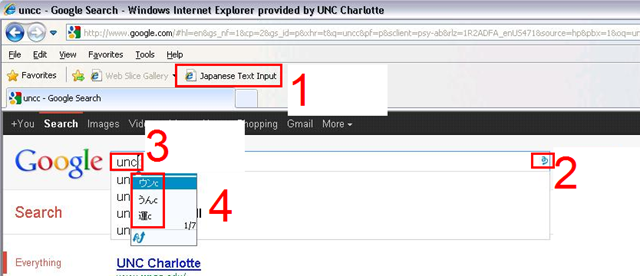
Using the UIME, you can “type any language with any keyboard on any web page, using only the Roman characters present on every keyboard.”

And you can install your favorite input language in your web browser, like so:
Categories: Absolute-Beginner, Advanced, Arabic, Beginner, e-languages, English, French, Greek (modern), Intermediate, Japanese, Mandarin, Russian, software, websites, Writing
character-input, ms-uime
How a teacher creates and grades a Moodle streaming video assignment.
2011/11/02
Leave a comment
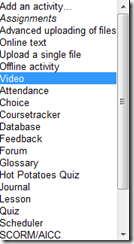
- Click button: “Turn editing on”, from the “add an activity dropdown, choose: “video”, like so:
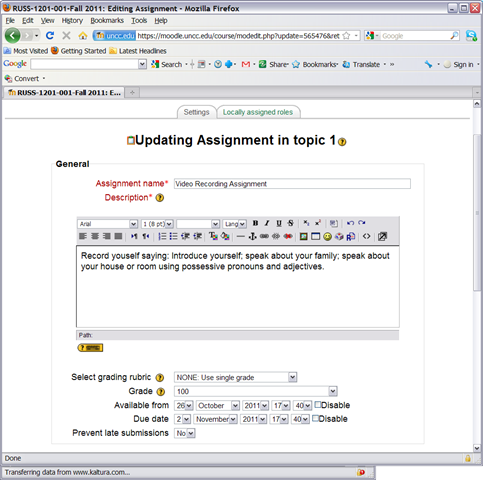
- Edit your assignment, like so:

- using the following options (or else expect problems)
- Due date: not DISABLED (is the default)
- Prevent late submissions: YES (is not the default)
- Allow resubmitting: NO (is the default)
- using the following options (or else expect problems)
- after you post your assignment and your students took it, like so,
- and if you turned notifications (not recommended; rather grade the assignment well after the deadline, or else expect problems) on (if you get already enough email, remember you can turn notifications off, rather send a deadline to the assignments which the students can see in their calendar, and until they get used to it, tell them there will be more video assignments, best: make it a routine and leave 2 for extra credit could be enough to get everybody to catch), you will get an email like this:

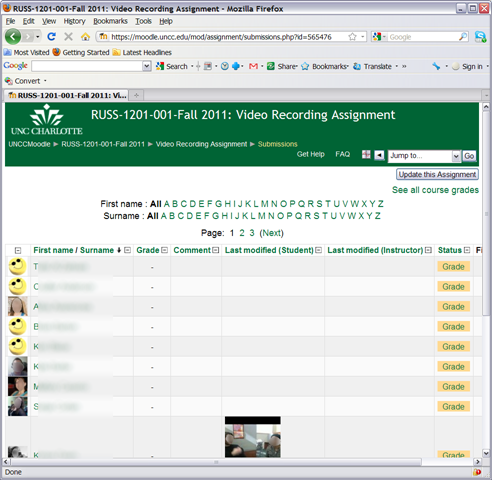
- where you click either on the link (1) to go to the assignment, then click through to the submissions (3)

- or on (2) to go directly to the grade book:

- where you are best advised to click on the button: “grade” to view the video submission, , or else you might run into this bug.
- In the grading window,
 play the video, add helpful comments, if any, add final Grade and click “save and next” (but click “next” if no video submitted yet and you grade before the submission deadline. Better: do not grade before the submission deadline).
 - If video seems unwilling to play (frozen frame), drag the play cursor forward on the timeline underneath the video.
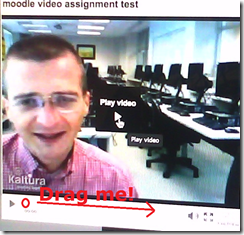 If this does not unfreeze the video, let the timeline run to the end (both workarounds have helped with Kaltura issues we encountered here).





Categories: all-languages, audience-is-teachers, e-languages, lms, Speaking, step-by-step-guides
1.9, kaltura, moodle, video
Moodle Streaming Video Recording Assignment Glitch 2
2011/11/02
Leave a comment
- environment: win xp sp3, firefox 3.6
- If you view the Moodle video assignment from the grade book table, inline, in Firefox 3.6, how do you close the popup window?
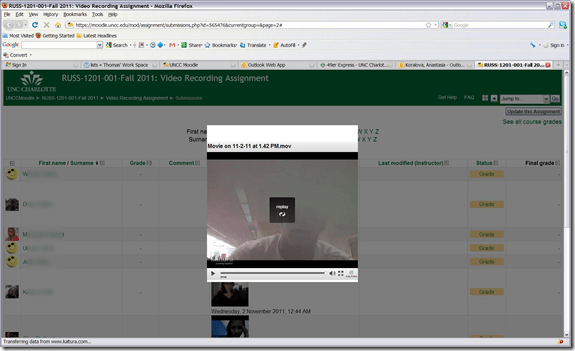
- no hovering around revelaed a close control to us, escape did not help eithe, nor the brwoser back button.
- workarounds:
- copy the url from the address bar, open a new tab, paste the url, close the old tab
- do not view the video in the grade book overview chart, but after opening the individual submission form the grade button.
- try a differnet browser than firefox. on the mac, safari solved a similar problem with firefox and kaltura.

Categories: audience-is-teachers, Glitches&Errors, lms, websites
kaltura, moodle, video
Deutsche Welle ends her live German program streaming today
2011/10/29
5 comments
- Too bad:
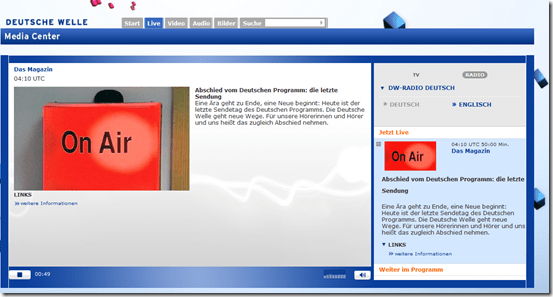
- And in those last news: “The Chinese government demands reforms in the Euro-zone before providing financial help”.
- I remember a time when Deutsche Welle was available during family vacation only via short wave radio. Now, the on-demand offerings of the Deutsche Welle will be expanded. They are more useful for language learning than live streaming anyway.

Categories: audience-is-students, audience-is-teachers, e-languages, German, Media
dwelle, links, radio
MS-Engkoo glossing of Chinese newspaper text
2011/10/28
Leave a comment
- Learners of Mandarin can increase not only their cross-cultural knowledge, when using the English versions of two of the biggest Chinese newspapers: “China Daily has adopted Engkoo’s “hover translation” feature—hover your cursor over an English word or phrase and get an inline Chinese translation— on its China-facing website” and the People’s Daily, the largest official newspaper in China, uses the same feature in its English website”
- Make sure you are on the right version (English version for Chinese user) of the site (
 are the choices you want to see on top) and “Enable Bing Dictionary”in lower right corner:
 ![china daily engkoo enable_thumb[1]](https://thomasplagwitz.com/wp-content/uploads/2011/10/china-daily-engkoo-enable_thumb1_thumb.png?w=244&h=40 "china daily engkoo enable_thumb[1]")
- Then hover:
![china daily engkoo example_thumb[1]](https://thomasplagwitz.com/wp-content/uploads/2011/10/china-daily-engkoo-example_thumb1_thumb1.png?w=559&h=462 "china daily engkoo example_thumb[1]") .
.

![china daily engkoo enable_thumb[1]](https://thomasplagwitz.com/wp-content/uploads/2011/10/china-daily-engkoo-enable_thumb1.png "china daily engkoo enable_thumb[1]")
![china daily engkoo example_thumb[1]](https://thomasplagwitz.com/wp-content/uploads/2011/10/china-daily-engkoo-example_thumb11.png "china daily engkoo example_thumb[1]")
Categories: Advanced, Beginner, e-languages, Intermediate, Mandarin, Media, Reading, Vocabulary, websites
engkoo, glossing, links, microsoft, newspapers

Questions? Read the About. Or just ask me a quick Our Databases: Resources with calendars -- Language learning material Moodle Sites, multimedia files -- films


FAQs for LRC student staff or for students or for teachers. To search our FAQs, in the browser addressbar, add after "https://plagwitz.wordpress.com/feed/?tag=faqs+/" "+TAG1" (from tag cloud below) OR "https://plagwitz.wordpress.com/feed/tag=faqs
&category_name=" "CAT1" (from category hierarchy below). OR search both categories and tags, and multiple TAGs/CATs (connect with "," for OR-search, with "+" for AND-search), like so: https://plagwitz.wordpress.com/feed/?tag=TAG1+TAG2+...TAGn&category_name=CAT1
+CAT2+...CATn"
Other ways to find help
If you cannot find it here, look there: 5,500 Language-Learning Links and Programs for learning or teaching 150 languages
Shortcuts:Our Lists, Our Maps, LRC Staff Moodle Site,LRC Project Moodle Site, 49erexpress, UNCC Moodle, Student Recordings: s:claslcslrcsanakostudent
Learning usage samples: Sanako oral exam, Kaltura webcam presentation, Dictation with speech recognition, Sanako written exam, Chinese and Japanese interactive stroke-order practice
Test the Sanako Installer, Webbrowser Popup Konfigurator for XP, or Windows7, faster LRC TeacherPC Log-in Let MS facilitate diacritics writing by installing for you US-International keyboard layout
This is my personal blog (Google+). The views expressed on these pages are mine alone and not those of my employer. The information in this weblog is provided “AS IS” with no warranties, and confers no rights.

