Archive
Archive for the ‘Learning-Tool-is-any’ Category
How to do model imitation recording exercises to improve language learner pronunciation in the LRC and beyond
2011/11/22
Leave a comment
- Sometimes teachers ask about support for voice recognition in the LRC. The term voice recognition or speech recognition (the former appears to be analogous to face recognition in authentication and other security contexts?) is usually reserved for software that can transcribe your voice into text – still no free option for this, AFAIK. Dragon naturally speaking is the oft recommended market leader outside of education (and within, Auralog Tell me more, see below). Update summer 2012: We are working on enabling the Speech recognition built into Windows 7 Enterprise for English, Chinese (Simplified and Traditional), French, Spanish, German, and Japanese.
- Often times, what is actually desired is a digital audio recorder with voice graph, ideally a dual track recorder.
- In the LRC student computers, we have for exactly this purpose a digital audio recorder as part of the SANAKO Study 1200language learning system
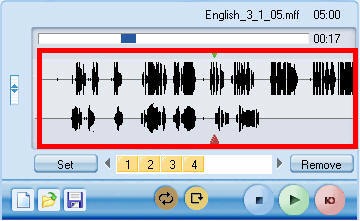
- It features a dual track recorder (allows to listen to teacher track which can be a prerecorded model to imitate on the left channel while recording the student track on the right channel of a stereo track) with a voice graph:
 . See this dual-track-voice-graph screencast demo from the vendor and also our student cheat sheet from the vendor documentation.
 - The Sanako is available in the LRC, as well as in many other educational institutions around the world, but neither free nor web-based (although a web-based version seems to be in the works). It currently requires MS-Windows to run.
- It features a dual track recorder (allows to listen to teacher track which can be a prerecorded model to imitate on the left channel while recording the student track on the right channel of a stereo track) with a voice graph:
- A popular and free audio editor (but not an SLA – specific application, let alone geared towards model imitation; also, for all practical ends and purposes, requires an extra download and installations of an MP3 encoder to be able to save recordings as compressed MP3) is Audacity. To use for model imitation exercises,
- the student can open a model track (mp3 recommended)
- and manage within the program the imitation portion, using the voice graph:

- then export back out as mp3,
- either her responses individually (see my demo screencast, requires Windows Media Player on Windows, which actually shows a question/response rather than a model imitation, but same principle),
- or, by deleting the model track, the response parts mixed down to one track,
- or also, if, like in my demo screencast, the timeline sequence of model (with pauses) and responses is carefully managed (so that model and imitation do not overlap), mixed down to one track.
- In one language program, I have worked extensively with Auralog Tell me more
- which was (not exclusively, but arguably too much) based on this pedagogic concept of having students compare the voice graph of their imitation with the model voice graph (while it do did not allow for teachers to upload their own content, and was certainly not free).

- To my knowledge, Auralog Tell me more does not allow for adding teacher-produced content as models.
- I did like the self-reflective and repetitive practice element. However, I found that students – apart from intonation and (not useful for not pitch based languages) pitch -, did not benefit as much as one might have expected from viewing the voice graph, indeed tended to get overwhelmed, even confused by the raw voice information in such a voice graph.
- And automated scoring of pronunciation (or speech recognition” – not free form, but on a level that has been commoditized in operating systems like Windows 7, the level of voice-directed selection between a limited set of different options, like menu options, and in the case of Auralog, choosing between different response options) seemed iffy and less than transparent in Auralog Tell me more, even though this is their primary selling point. E.g. when I made deliberate gross mistakes, the program seemed to change its standards and wave me through ( English pronunciation example; also observed by me when testing Auralog with East Asian speakers of English).
- which was (not exclusively, but arguably too much) based on this pedagogic concept of having students compare the voice graph of their imitation with the model voice graph (while it do did not allow for teachers to upload their own content, and was certainly not free).
- In the LRC student computers, we have for exactly this purpose a digital audio recorder as part of the SANAKO Study 1200language learning system
- A voice graph is not the same as a more abstract phonetic transcription (although I do not know whether language learners can be trained in phonetic symbol sets like the IPA). There are now experimental programs that can automate the transcription of text into phonetic symbol sets for e.g. Portuguese or Spanish. Maybe you will find that practice with recording and a phonetic transcription of the recorded text is more useful for your students’ pronunciation practice than a fancy voice graph.


Memrise: Another flashcard site for vocabulary learning
2011/11/21
Leave a comment
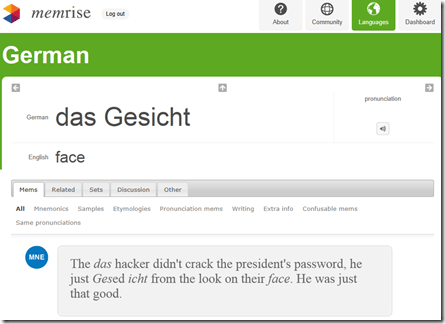
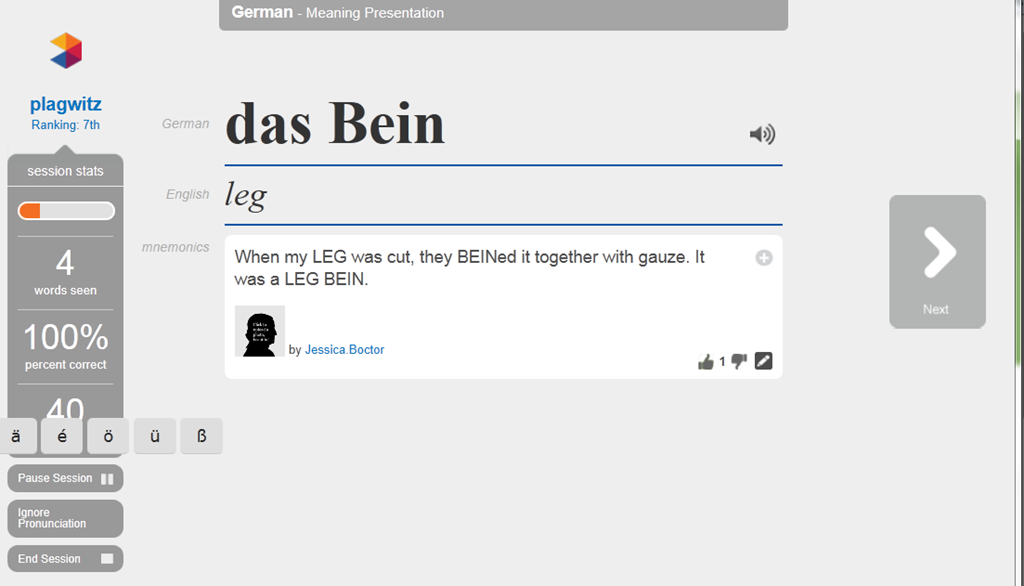
- Yet another attempt to tackle foreign language vocabulary learning with a crowd-sourced flashcard site: What is different this time, other than the layout?
- The site works with a seed/greenhouse/garden metaphor for spaced repetition (how intelligent is the underlying algorithm for that?) and processing/short/long term memory

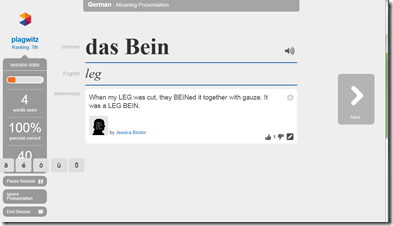
- You can have the word pronounced (is this Text-to-speech? does not sound like it. So will it scale?) The focus on non-target language “ponies” seems not fruitful. Actual target language context should be under “Samples”, but seems widely missing. Communicative motivation also. Multiple meanings and grammatical information seem to be missing from the lemmata. .
-
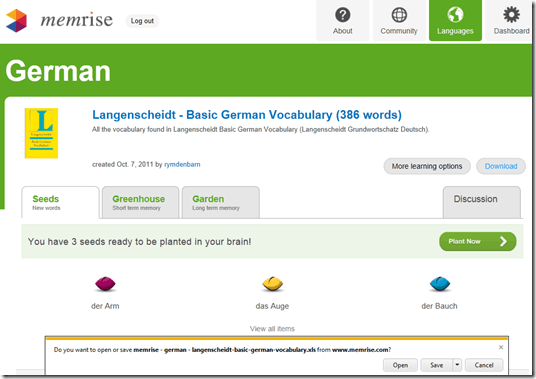
- Looks like a long list of flashcard lists, but note that the number of included words is descending quickly, hardly one of the many textbooks

- The site allows you to download the word lists as Excel files:




Categories: all-languages, e-languages, Vocabulary, websites
flashcards
Calendaring: How to view all your Moodle course assignments in Ninermail, OWA or MS-Outlook – Short version
2011/11/21
2 comments
- In Moodle:
- With Firefox (3.6 here), go to Moodle Calendar: https://moodle.uncc.edu/calendar/view.php?view=upcoming&course=1
- Right-Click on
 and choose “Copy Shortcut”: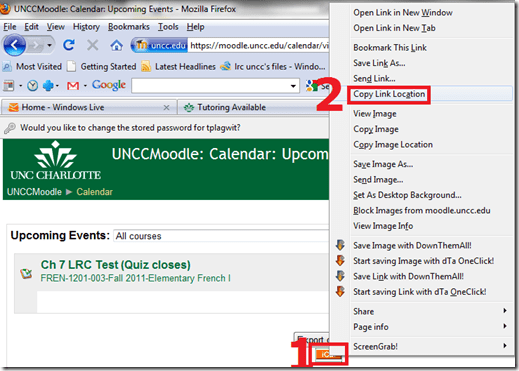
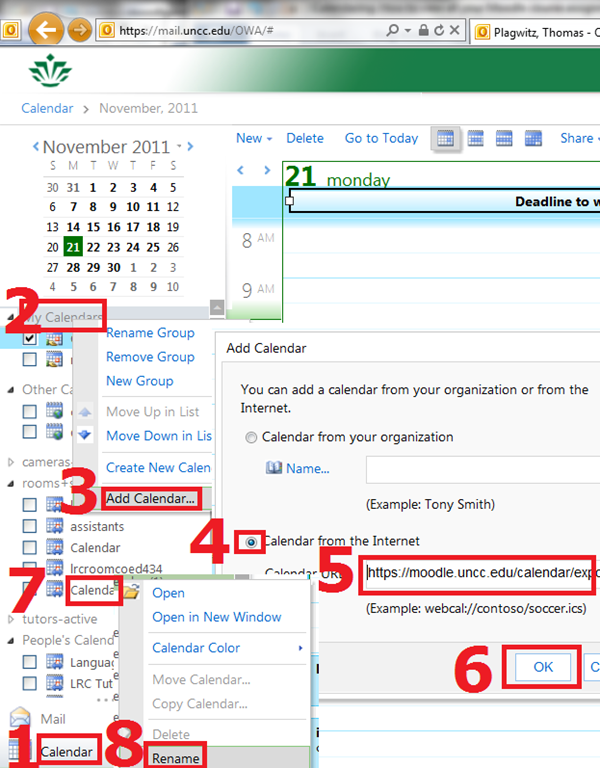
- In Ninermail/OWA: click “Calendar”, right-click “My calendars” , click “Add calendar’, click radio-button “From internet”, paste URL you put in clipboard into textbox, click button “OK”, right-click calendar added, click “rename” and call it “Moodle”

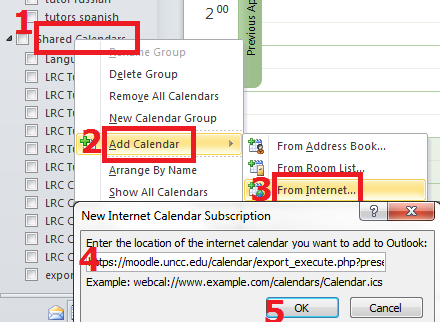
- Alternatively, in Outlook Desktop: go to “calendars”, right-click “shared calendars” , click “add calendar’, click “from internet”, paste URL you put in clipboard into textbox, click button “OK”, right-click calendar added, click “rename” and call it “Moodle”

- Want a longer explanation?

Categories: audience-is-students, audience-is-teachers, documentation, lms
calendaring, moodle, ms-outlook, OWA
How to run Windows Media Center during a Remote Assistance Session
2011/11/20
Leave a comment
-
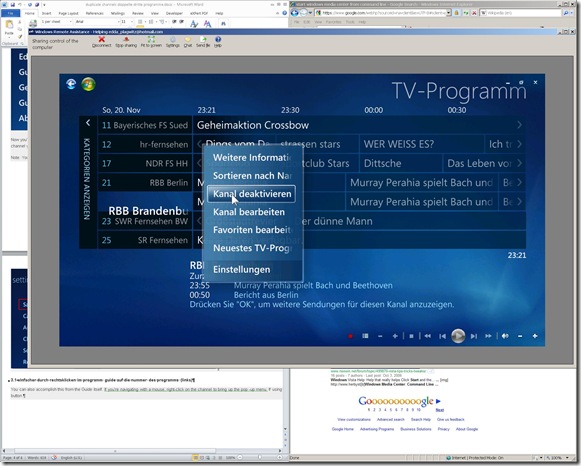
The /gdi switch for Windows Media Center allows for operating Windows Media Center full screen during
-
Windows Live Messenger Remote Assistance sessions if you have to help a relative over the internet.
-
Should also work in MSTSC Remote Desktop sessions if you manage media with Windows Media Center on your work network.
-
-
You can combine the above switch e.g. with the program guide shortcut to go directly there: /homepage:VideoGuide.xml /PushStartPage:True
-
Put the following in the “Target” field of your shortcut that you start on the remote computer (running Windows7 32-but here) during your remote assistance session:
-
%windir%\ehome\ehshell.exe /nostartupanimation /gdi /homepage:VideoGuide.xml /PushStartPage
- Voilà, or rather: “Dem Inschenör ist nichts zu schwör”.

Categories: documentation, e-infrastructure, Media
7, ms-live-messenger, ms-windows, mstsc, remote-assistance, windows-media-center
How to use the online Spanish pronunciation help to generate phonetic alphabet transcriptions and text-to-speech
2011/11/18
Leave a comment
- Go to http://showroom.daedalus.es/es/tecnologias-de-la-lengua/phonetictrans/phonetictrans.php, enter your text, select your phonetic symbol set:
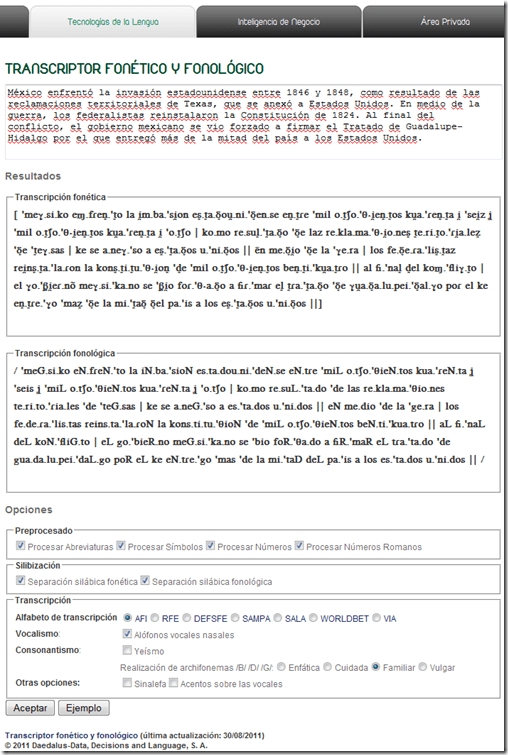
- Unlike with the Portuguese help, there is no text-to-speech option here.

Troubleshooting the wireless headsets in the TV viewing area
2011/11/18
Leave a comment
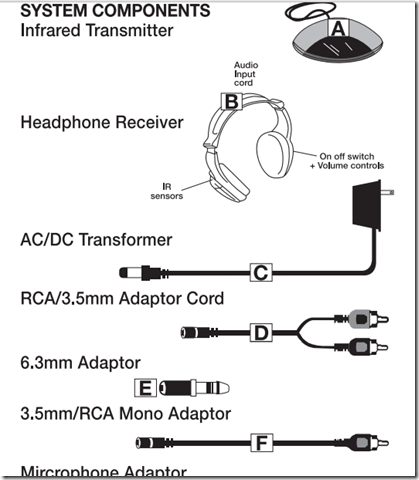
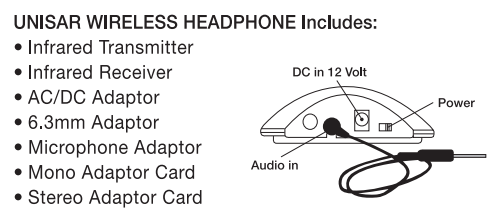
- For lack of small group work areas, the 3 headsets help sharing the LRCROOMCOED433. They amplify the sound for the TV viewing audience, allowing to turn the TV volume down so as not to disturb other users in the shared area.
- No sound?
- headsets turned on?
- headset volume turned up?
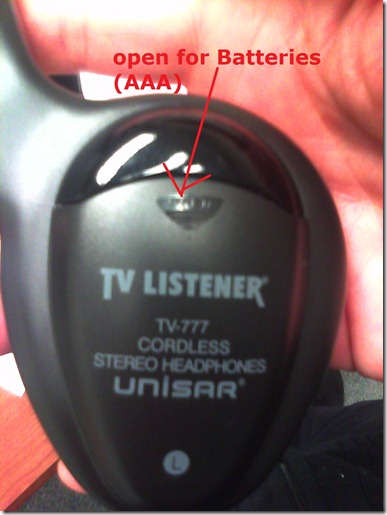
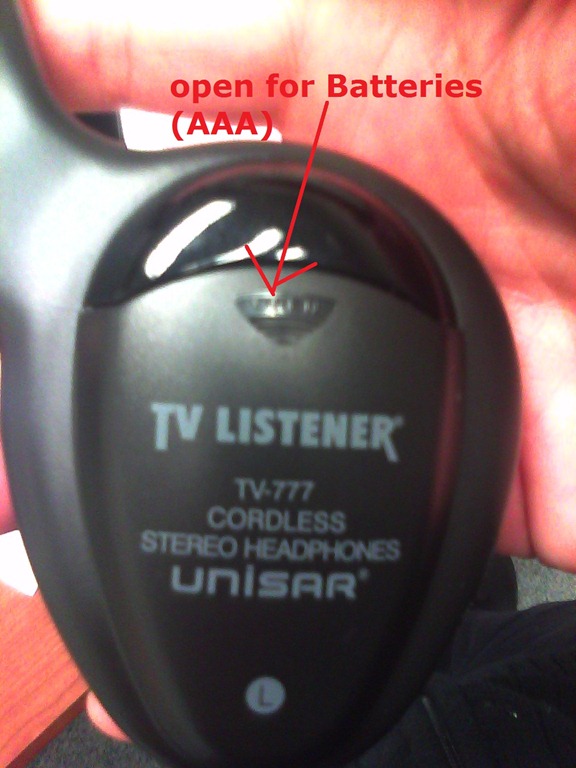
- headsets batteries dead?
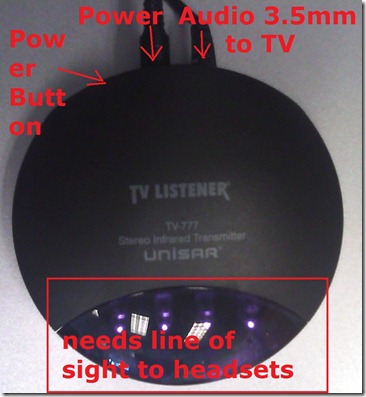
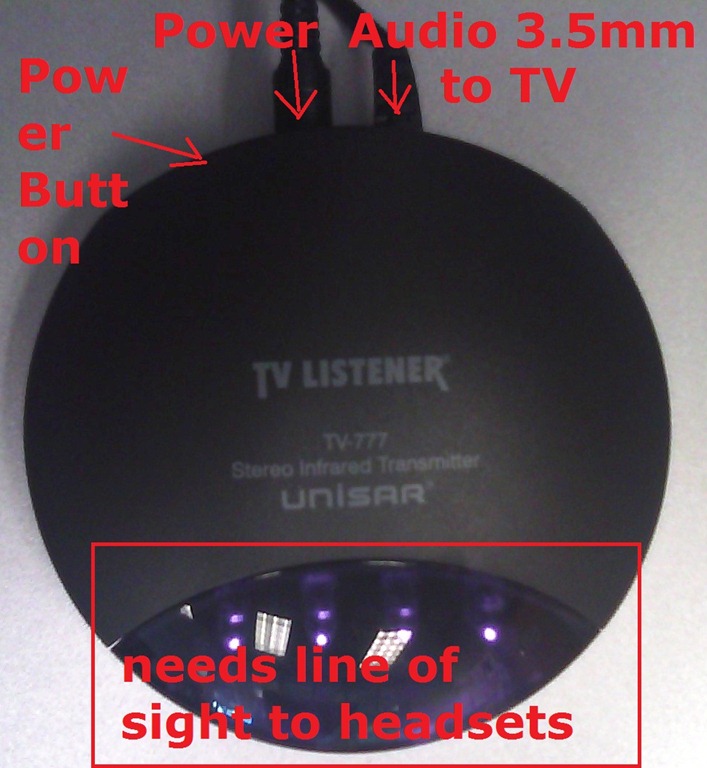
- transmitter turned on?
- Static noise on headsets?
- headsets batteries weak?
- no line of sight to transmitter?
- Other things you can try:
- a different headset. We have 3.
- a different transmitter. We have 2.
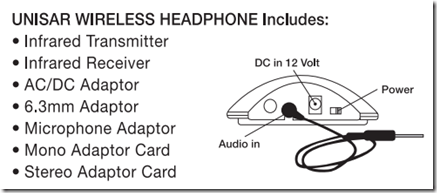
- An image says more than 1000 words:





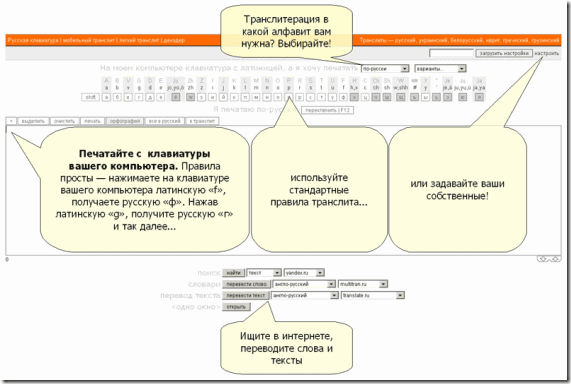
Web-based romanized letters to Cyrillic transliteration tool.
2011/11/16
Leave a comment
- Our Russian tutor uses this transliteration tool HTTP://TRANSLIT.RU which allows for phonetic input on a keyboard that does not have Cyrillic letters and seems popular with native speakers of languages written in Cyrillic.
- As so often, that implies: not designed for language learners. The explanation attests to that:
Categories: Advanced, audience-is-students, audience-is-teachers, e-languages, Intermediate, Russian, websites, Writing
character-input, websites

Questions? Read the About. Or just ask me a quick Our Databases: Resources with calendars -- Language learning material Moodle Sites, multimedia files -- films


FAQs for LRC student staff or for students or for teachers. To search our FAQs, in the browser addressbar, add after "https://plagwitz.wordpress.com/feed/?tag=faqs+/" "+TAG1" (from tag cloud below) OR "https://plagwitz.wordpress.com/feed/tag=faqs
&category_name=" "CAT1" (from category hierarchy below). OR search both categories and tags, and multiple TAGs/CATs (connect with "," for OR-search, with "+" for AND-search), like so: https://plagwitz.wordpress.com/feed/?tag=TAG1+TAG2+...TAGn&category_name=CAT1
+CAT2+...CATn"
Other ways to find help
If you cannot find it here, look there: 5,500 Language-Learning Links and Programs for learning or teaching 150 languages
Shortcuts:Our Lists, Our Maps, LRC Staff Moodle Site,LRC Project Moodle Site, 49erexpress, UNCC Moodle, Student Recordings: s:claslcslrcsanakostudent
Learning usage samples: Sanako oral exam, Kaltura webcam presentation, Dictation with speech recognition, Sanako written exam, Chinese and Japanese interactive stroke-order practice
Test the Sanako Installer, Webbrowser Popup Konfigurator for XP, or Windows7, faster LRC TeacherPC Log-in Let MS facilitate diacritics writing by installing for you US-International keyboard layout
This is my personal blog (Google+). The views expressed on these pages are mine alone and not those of my employer. The information in this weblog is provided “AS IS” with no warranties, and confers no rights.

