Archive
Here are some direct links to live international TV
|
Arabic |
|
|
Chinese |
|
|
Dutch |
|
|
Finnish |
|
|
French |
|
|
French |
|
|
German |
(new & untested) ARD live stream, or (likely more useful)ARD Mediathek |
|
Italian |
|
|
Italian |
|
|
Japanese |
|
|
Japanese |
|
|
Korean |
|
|
Norwegian |
|
|
Portuguese |
|
|
Russian |
|
|
Spanish (Spain) |
|
|
Spanish (Spain) |
|
|
Spanish (Latin America) |
|
|
Swedish |
You can probably tell from the language selection where this list is from  : Many thanks, University of Minnesota Language Center, I only had to remove your scheduling information which we have no use for…
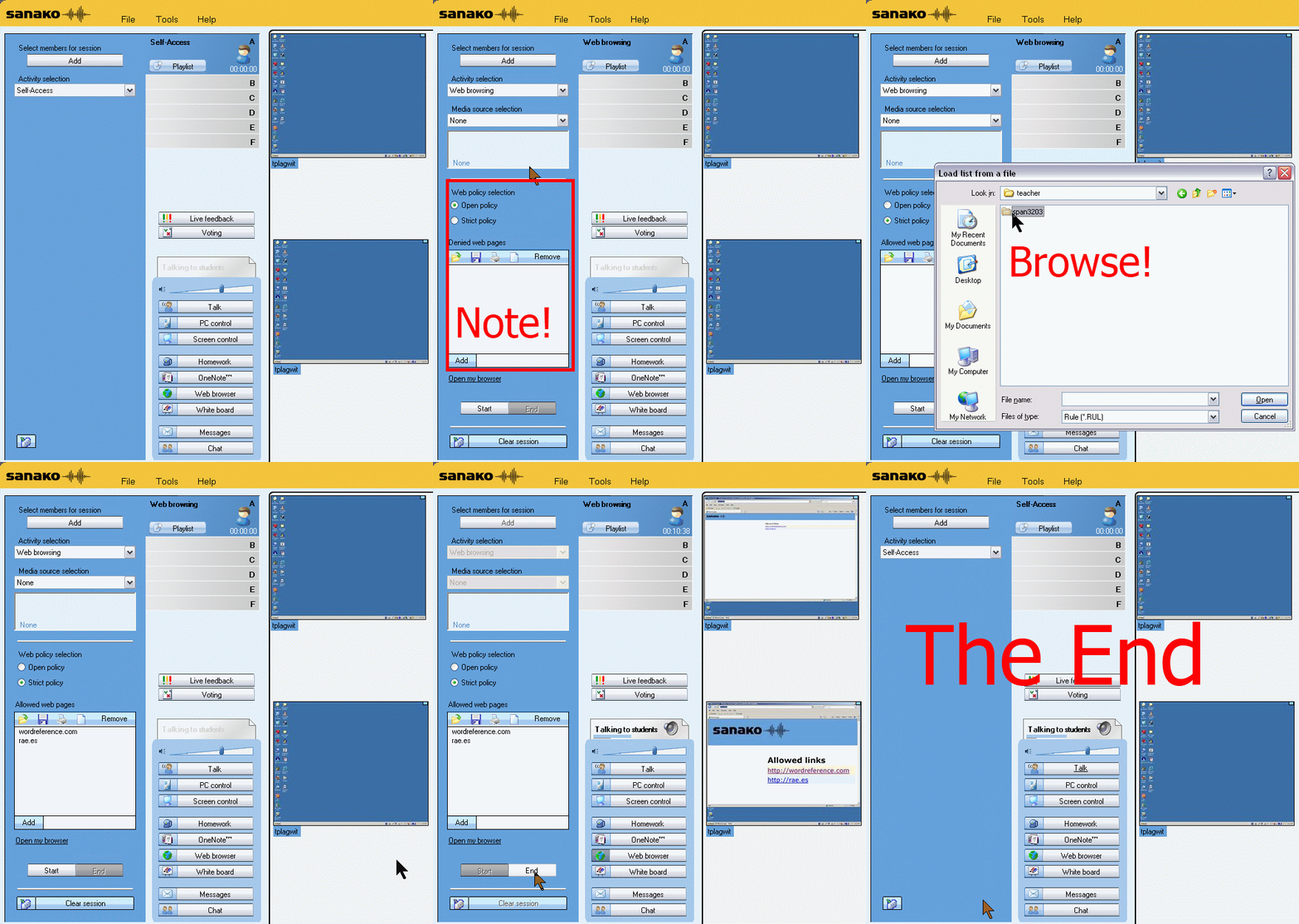
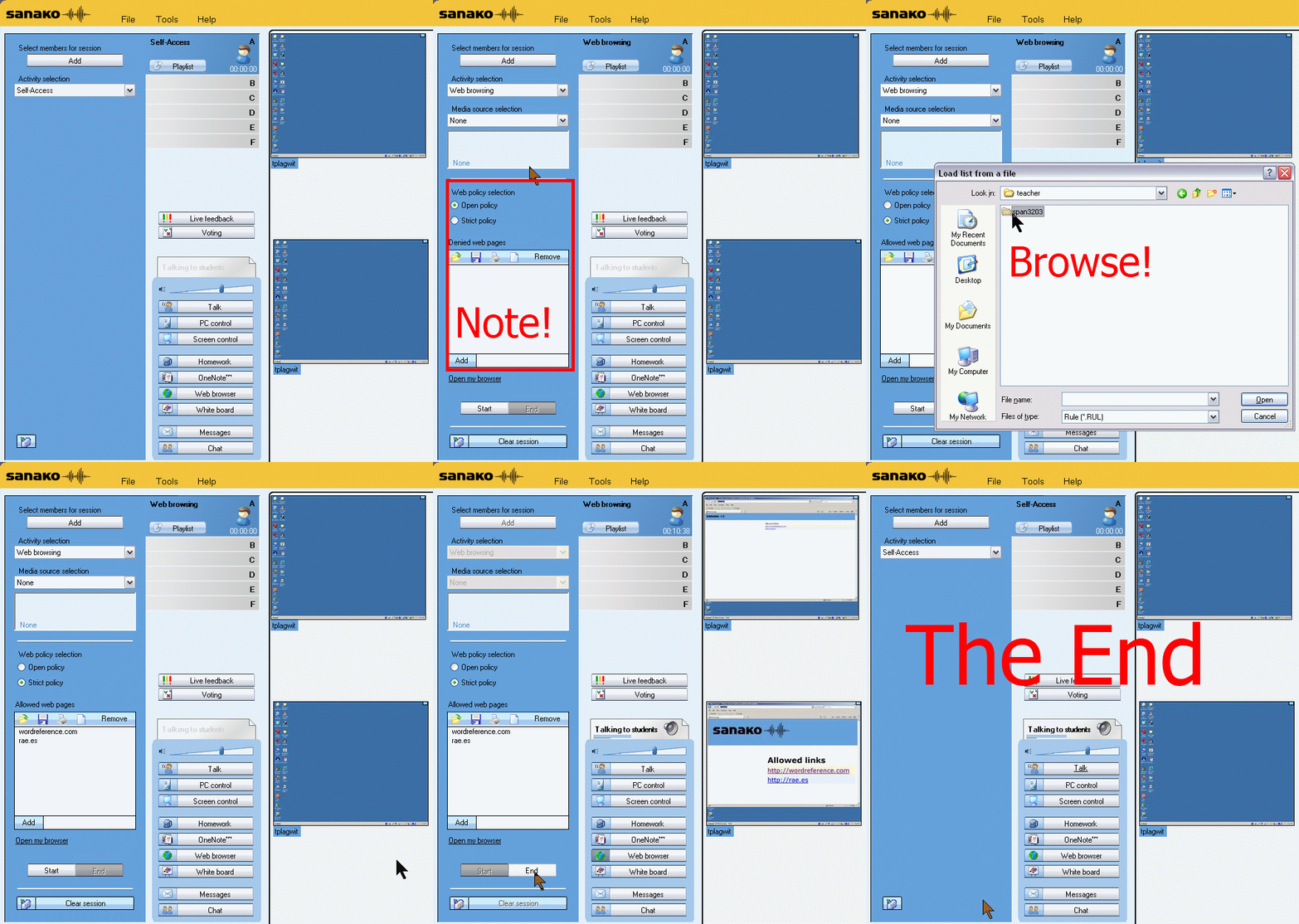
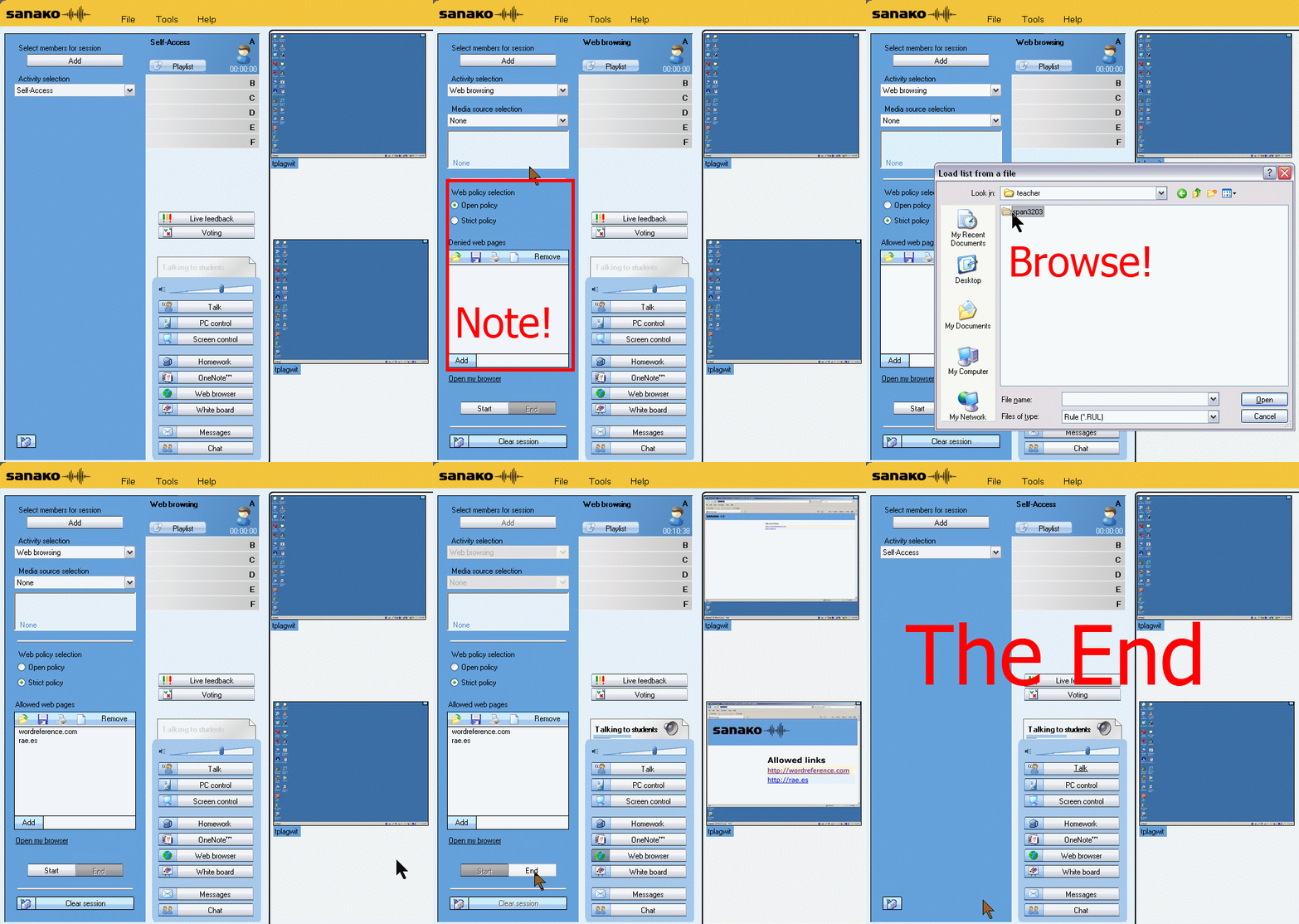
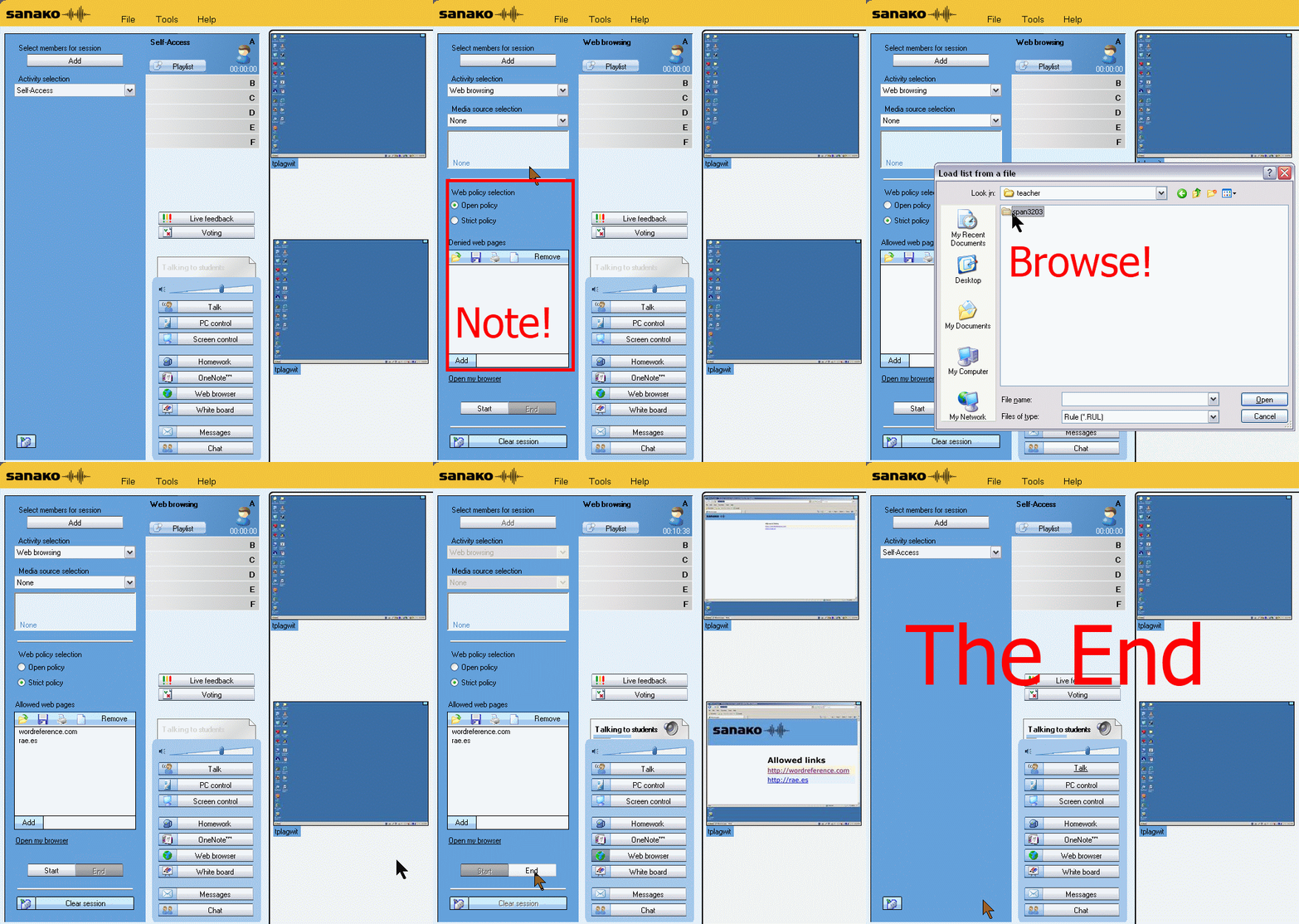
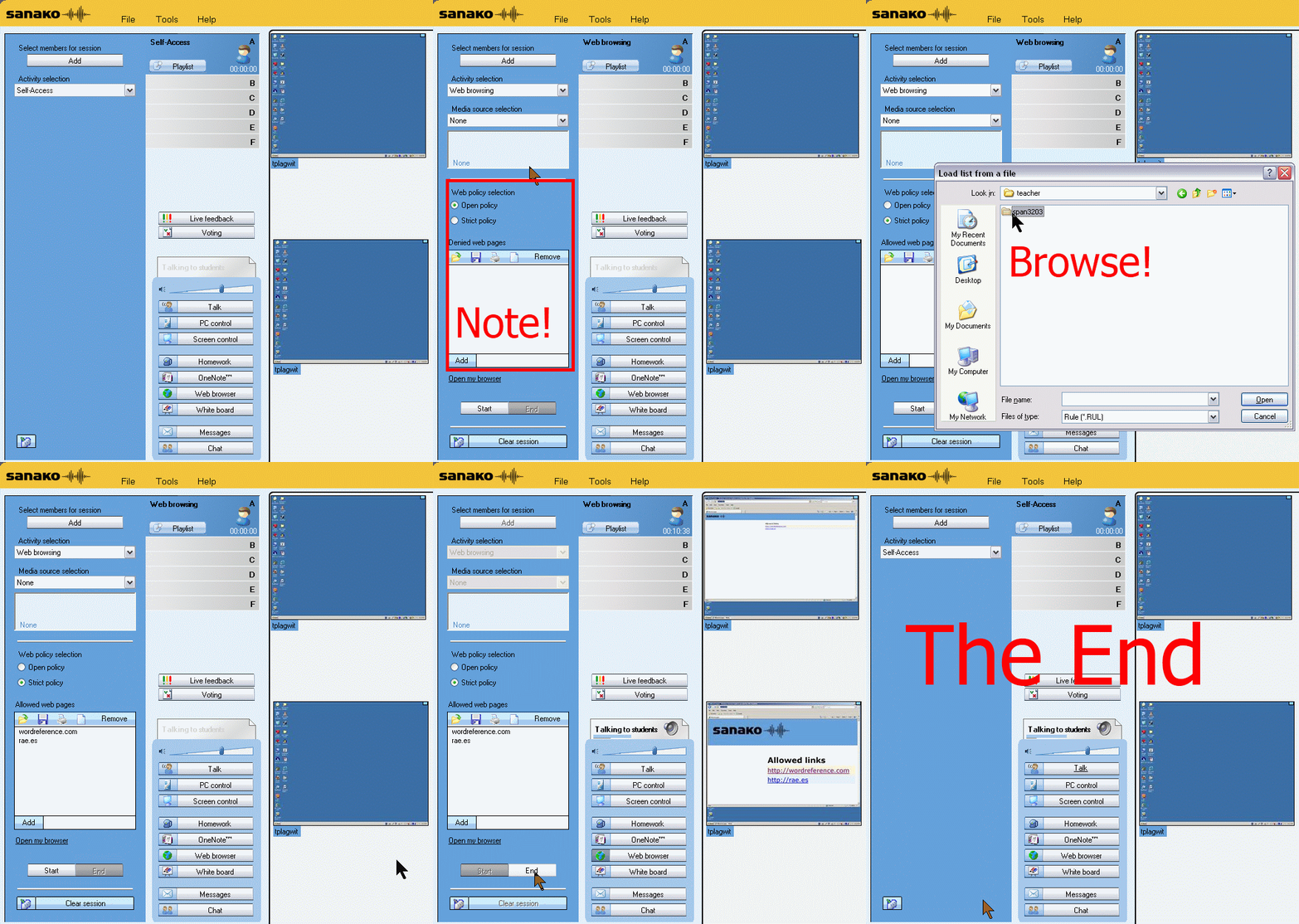
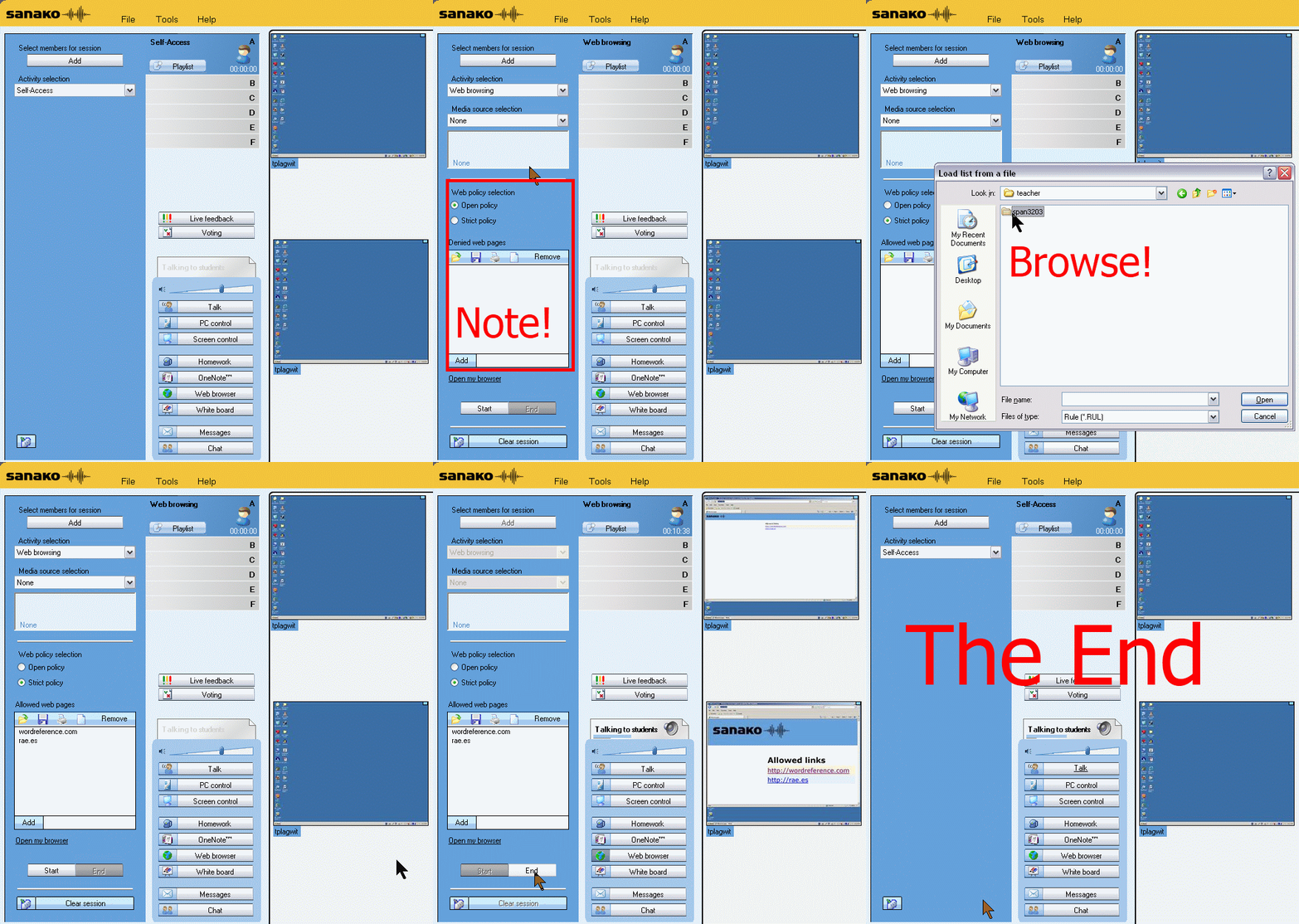
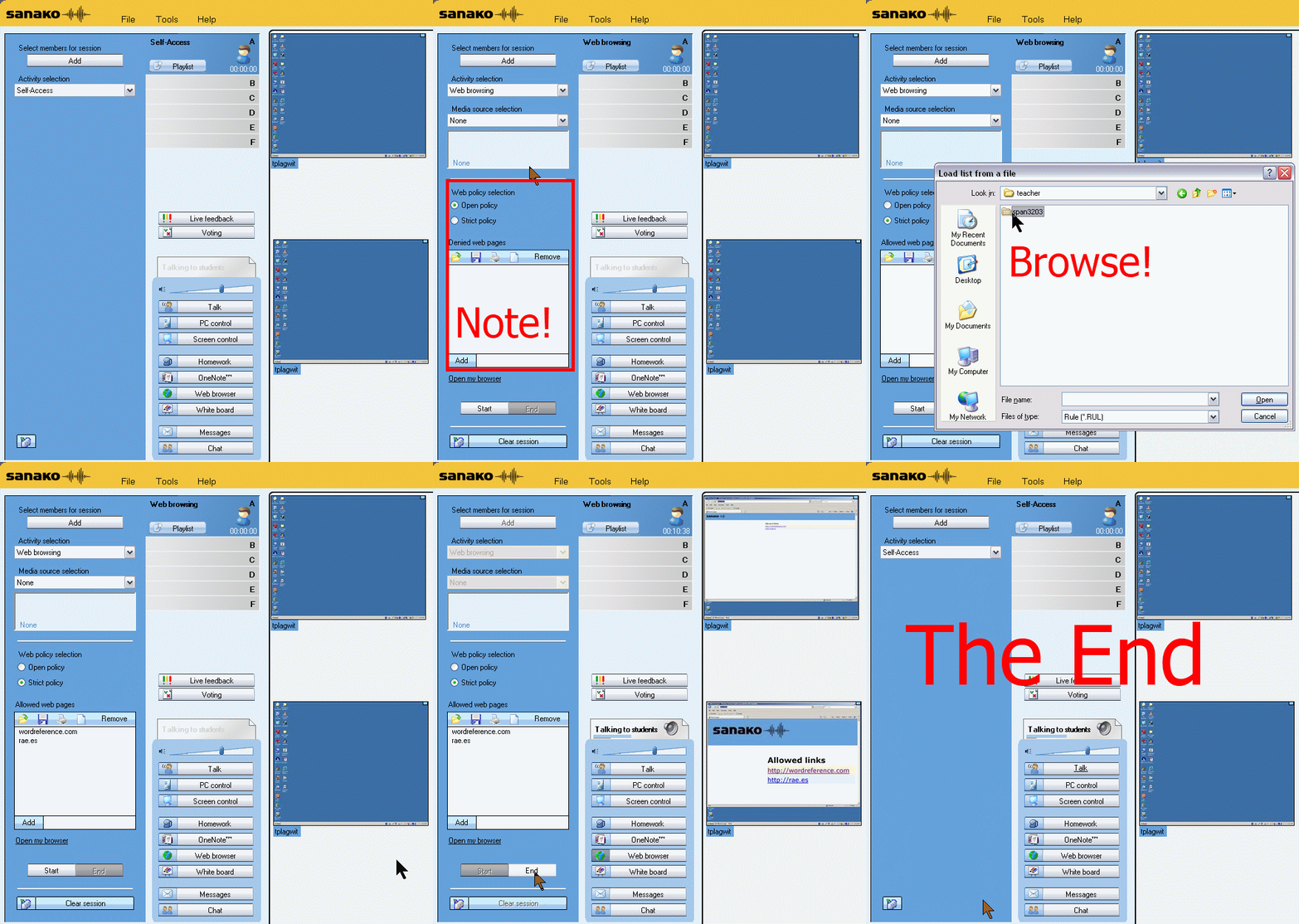
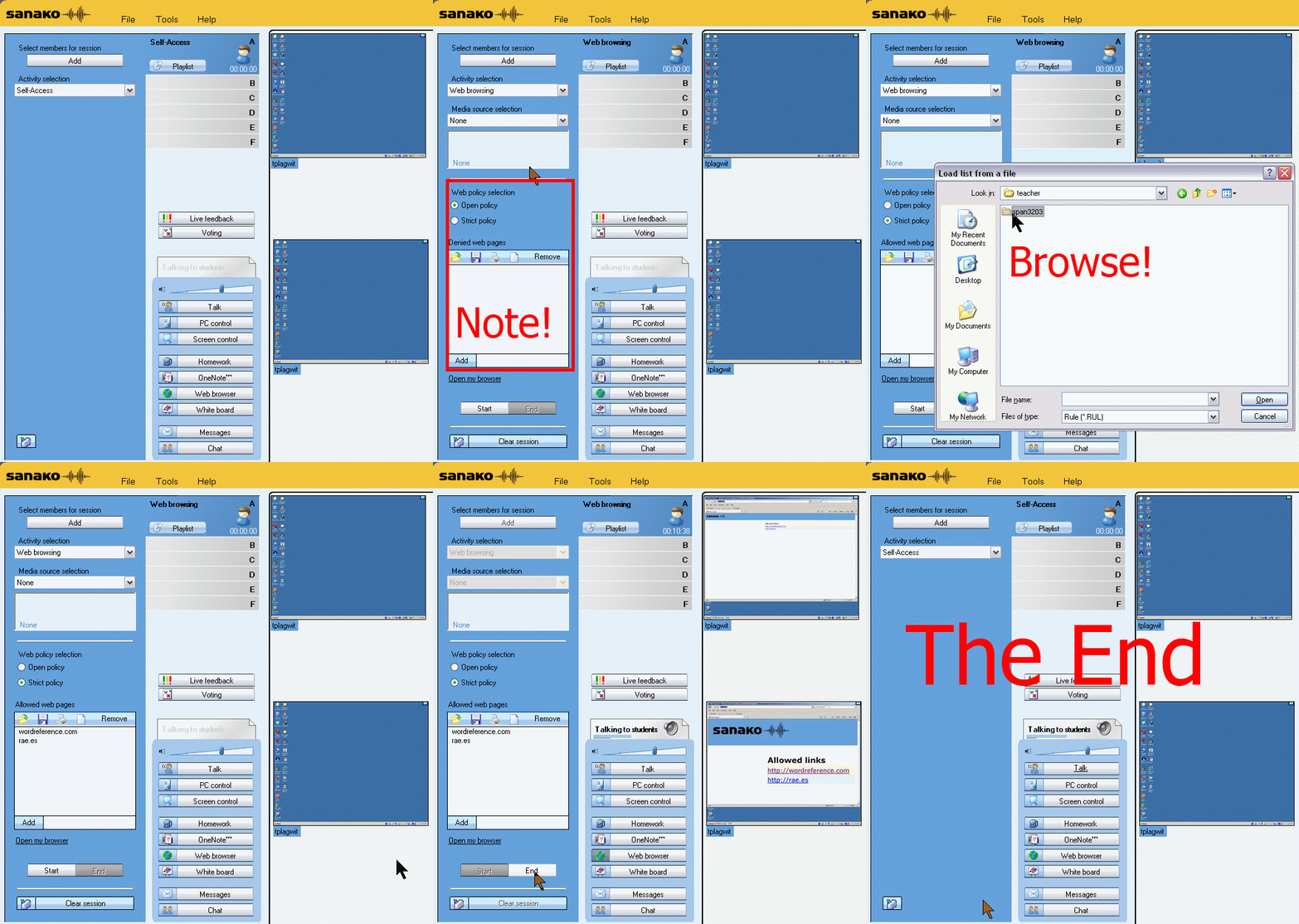
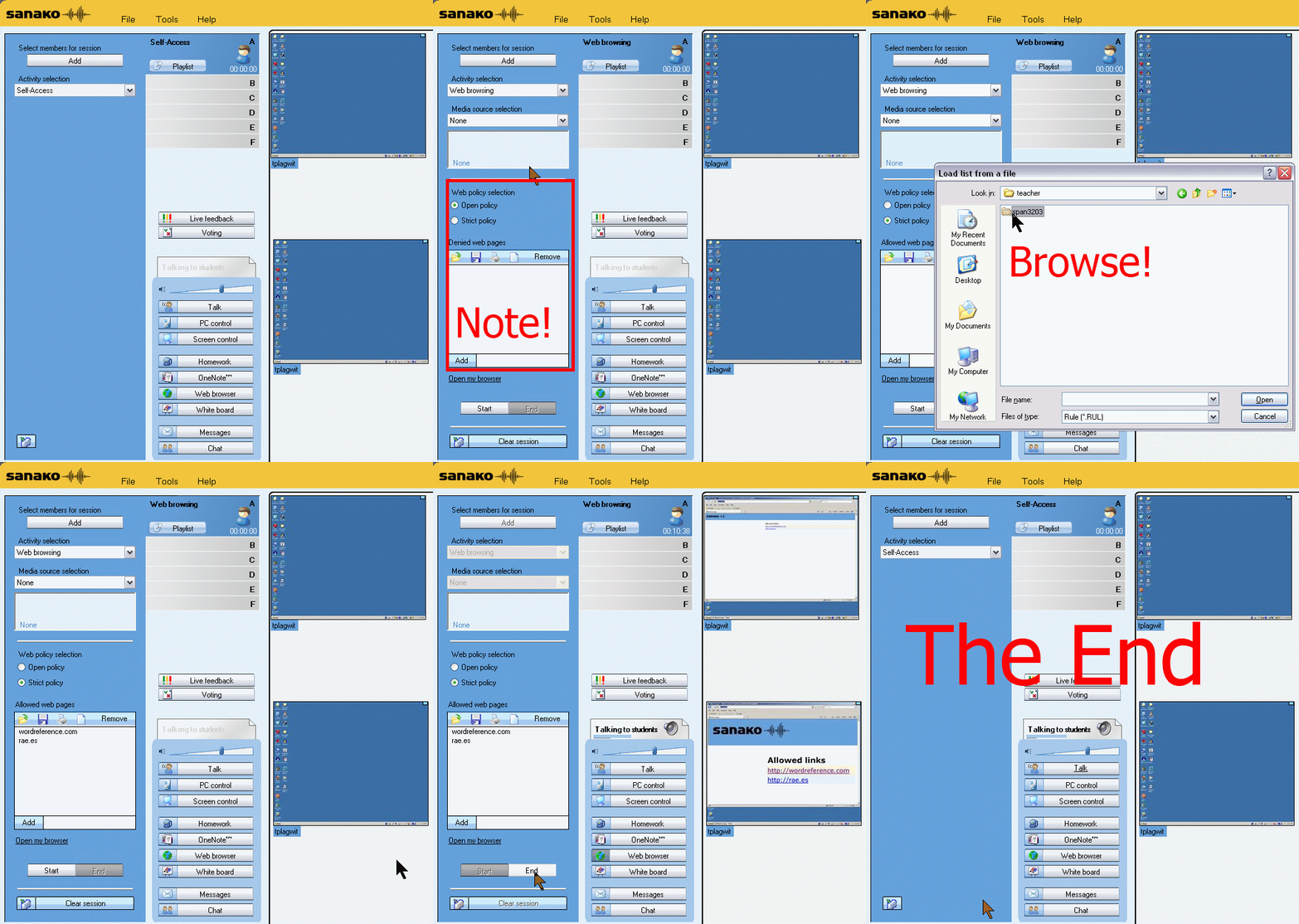
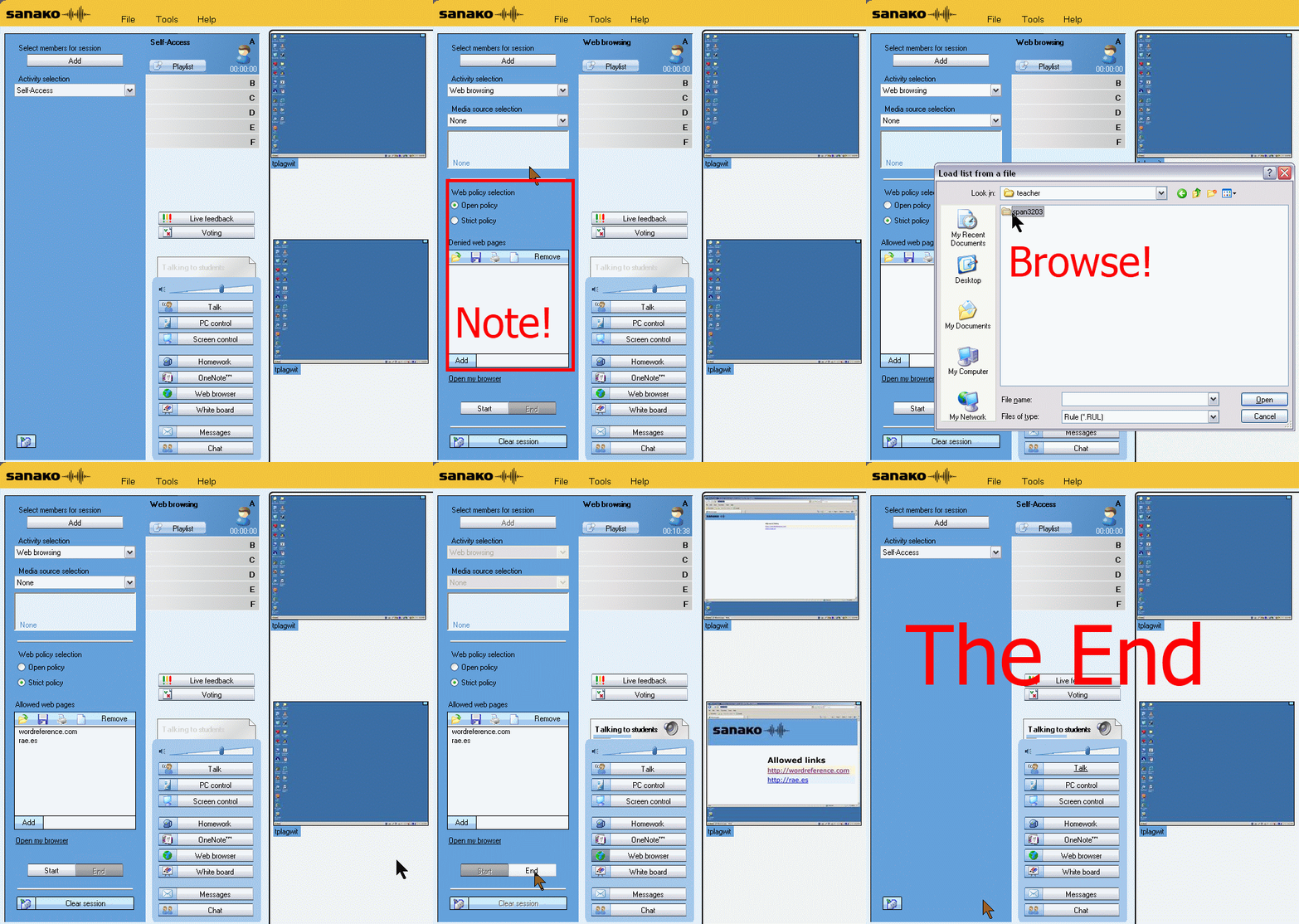
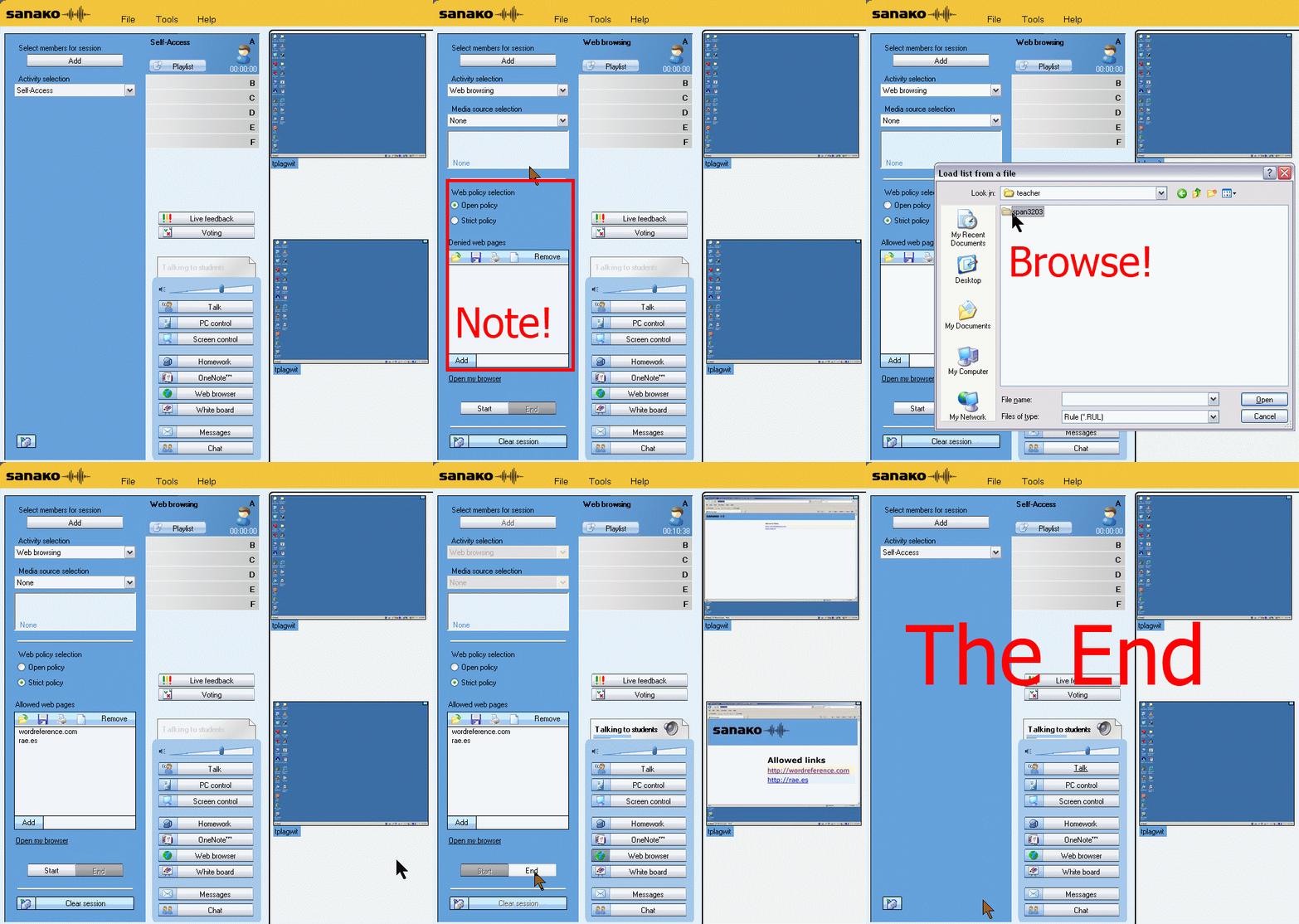
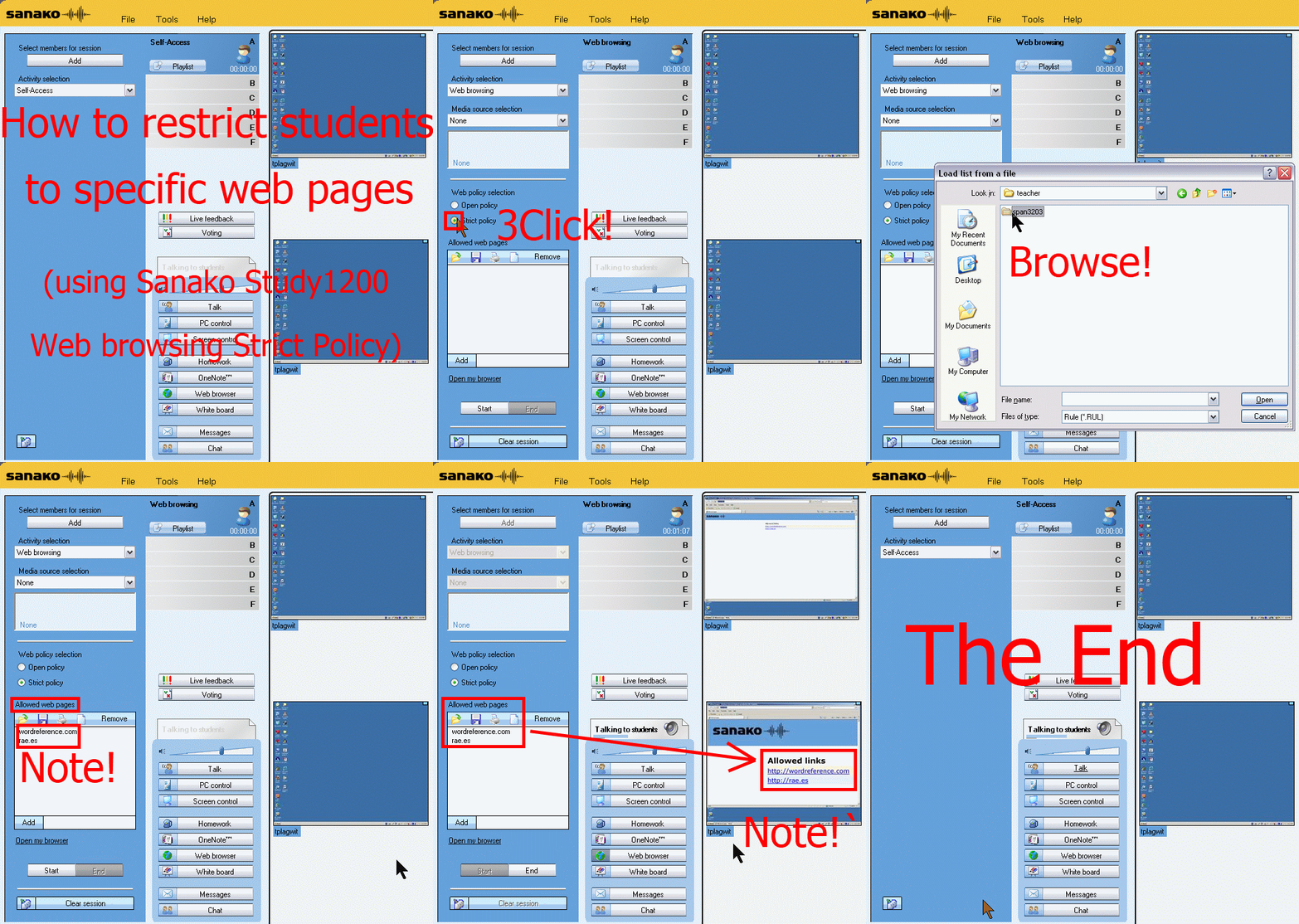
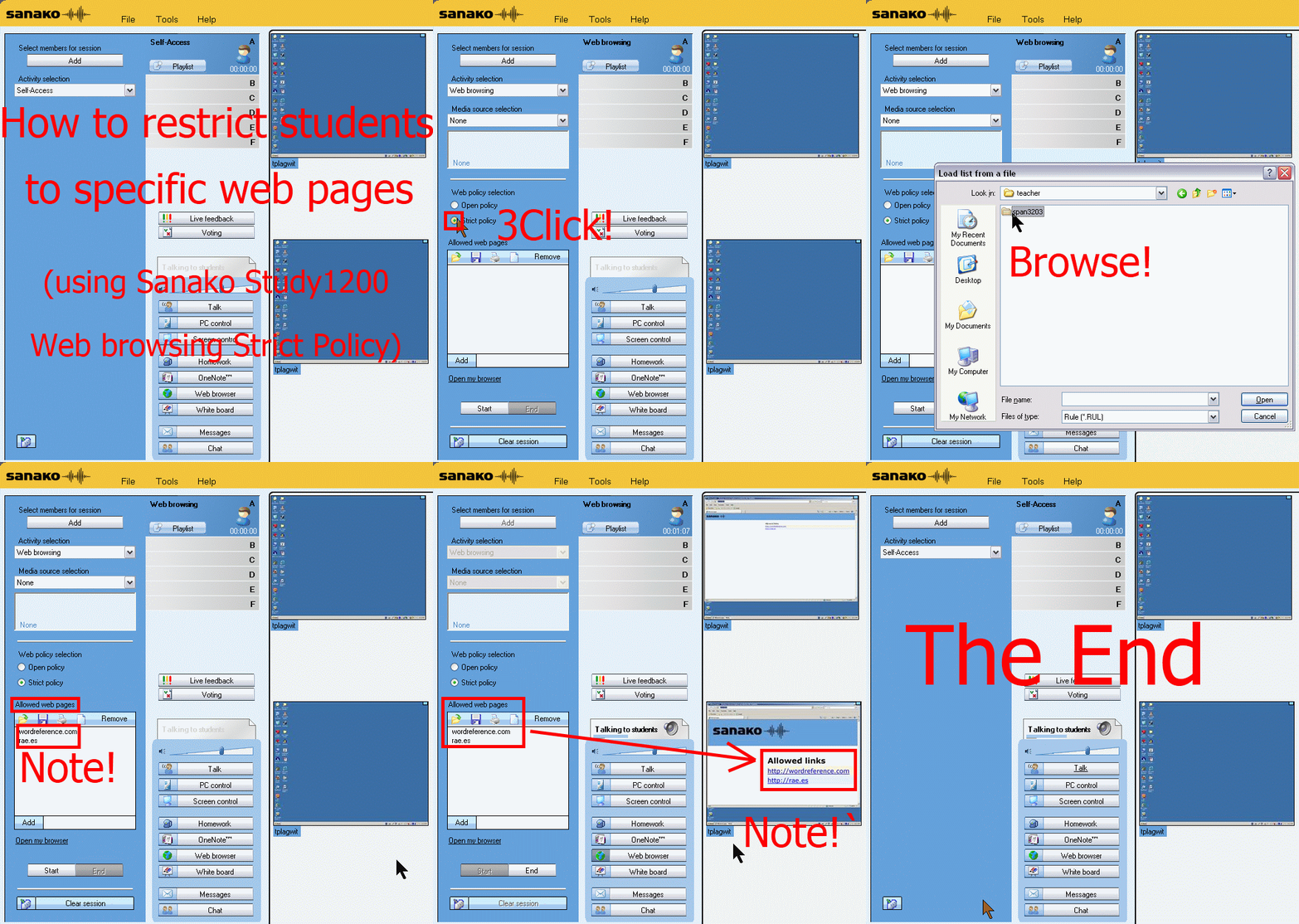
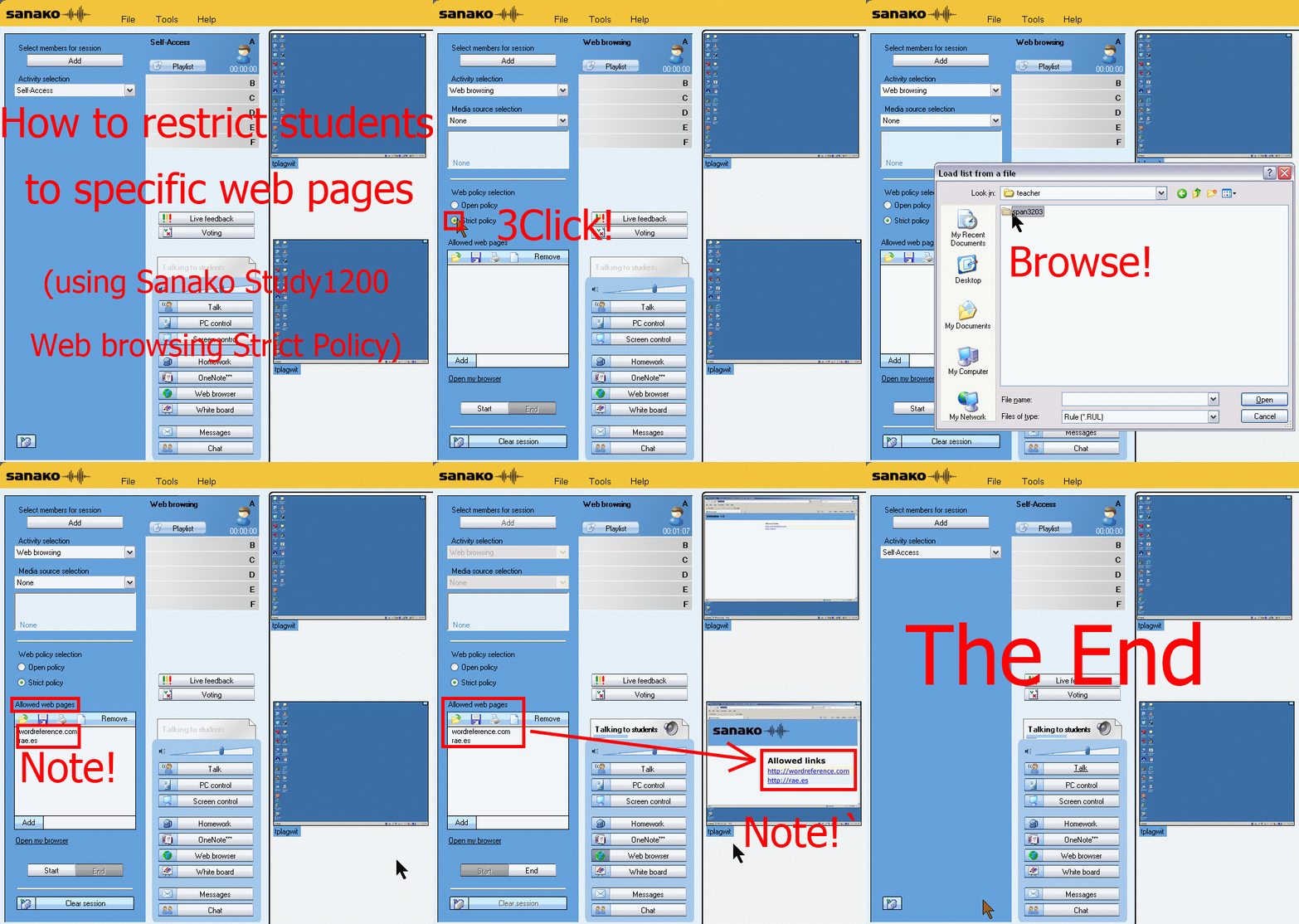
How teachers restrict students to allowed web pages with Sanako Study 1200 web browsing (strict) activity–the ultimate training summary
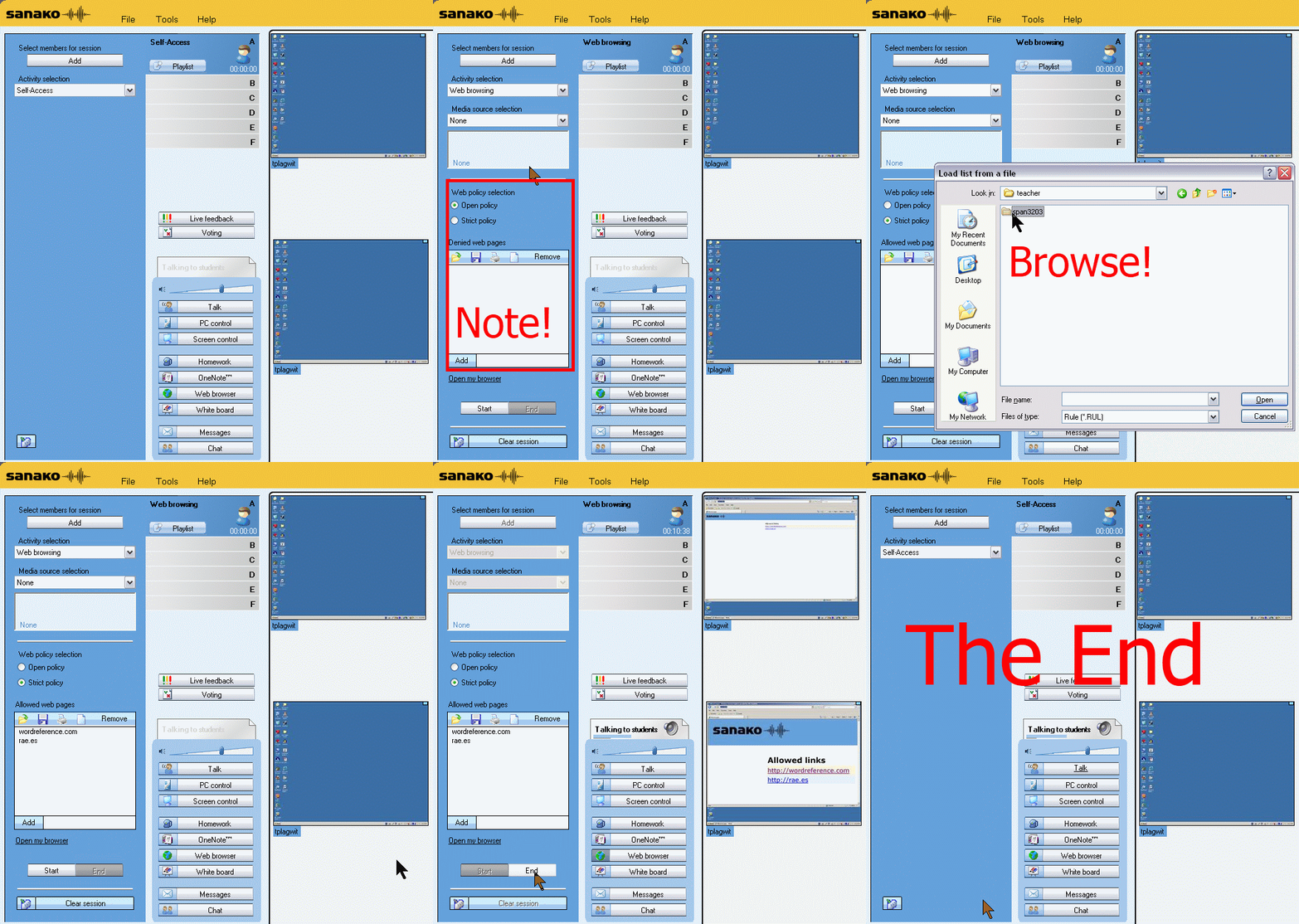
…using animated GIFs. Load the speed of your choosing (or several, use CTRL-Click to open links in a new tab) into the left screen of the teacher station before administering an oral exam, with the window active, press F5 in your web browser to restart the animation from the beginning:0.50sec,0.75sec,1sec,2sec,3sec,4sec,5sec,6sec,7sec,8sec,9sec,10sec
 .
.
Condensed (instructions only) for recap: 100cs, 200cs, 300cs, 400cs, 500cs, 600cs, 700cs, 800cs, 900cs, 1000cs. And if you need to pause:


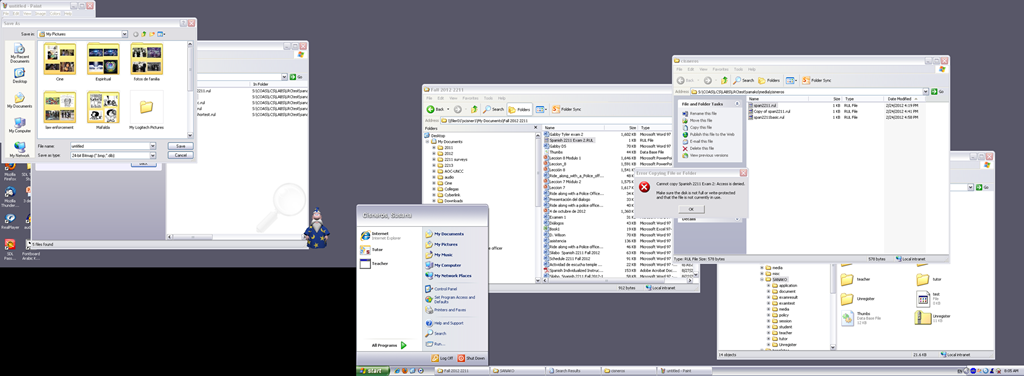
LRC teacher screen new and improved

The above screenshot (taken from a screencast) does not do the new screen justice: Teachers can actually read all the ongoing student work, and, with two clicks, intervene surgically, where necessary.
On the right screen of the teacher PC in the main LRC classroom, we went from WXGA to HD1080, gaining almost 60% more screen real estate (=(1920*1080)/(1280*1024)), a crucial improvement for displaying all the information the Sanako Study 1200 provides the teacher with.
Or in more graphical terms (thanks to Wikipedia), we went from 2nd lower left to 3rd upper right:
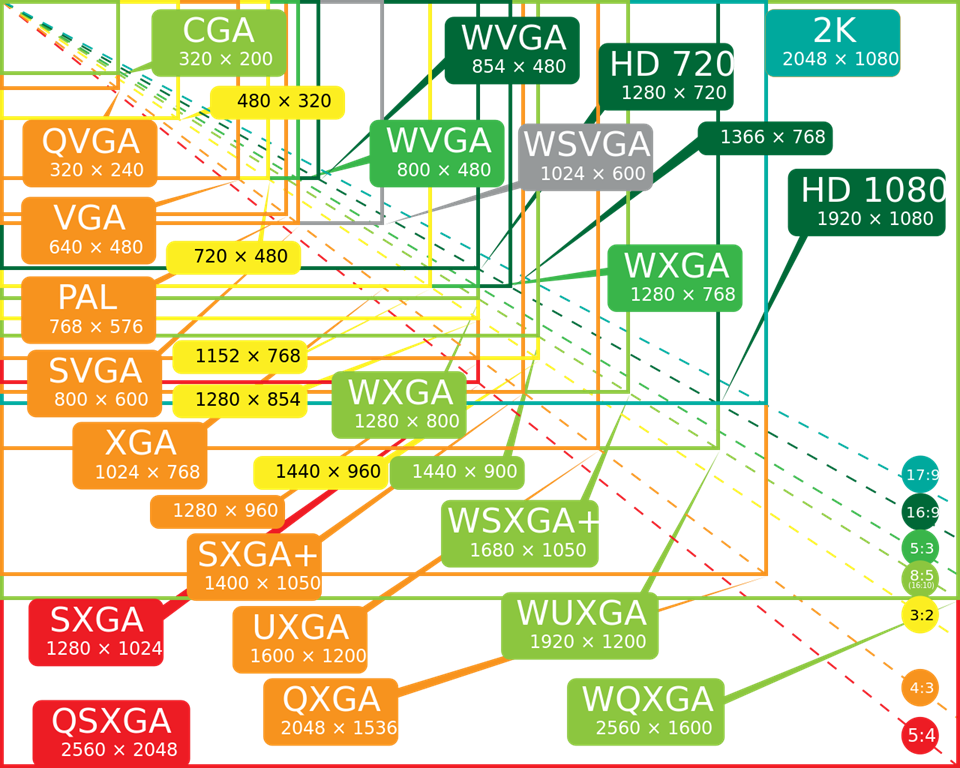
To fit the actual classroom layout into the display, we would however need the bottom lower right resolution (WQXGA). We still have to split the classroom you see into 2 halves and tilt those by 90 degrees clockwise to fit them onto the right teacher screen.
Since our left screen is still the original 1024*768 (and will be until not only the screen, but the switch and projector get upgraded), you have to work (= move your mouse pointer) around the “wall” formed by the black block in the lower right of this screenshot.
A few tools for speech transcription
- For teacher (research, learning material production etc.) transcription tasks (as opposed to language learner tasks, for which we can use the Sanako),
- if you have
- no switch (foot pedal) hardware (which usually comes with its own software), :
- no budget (a professional, but not free tool described here earlier is Swift-TX)
- available freeware tools that can speed up your transcriptions tasks are:
- Simple enough, but functional for the occasional transcription task: http://www-personal.umich.edu/~ebreck/code/sscriber/.
- More oriented towards research and large-scale (corpora) transcriptions:
How to retrieve students’ recordings under student login name if you saved under position or computer name in Sanako Study 1200
- Why? Most (though not all) times you will find it easier to manage student files if their names contain the student login names
- How?
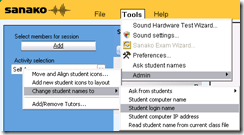
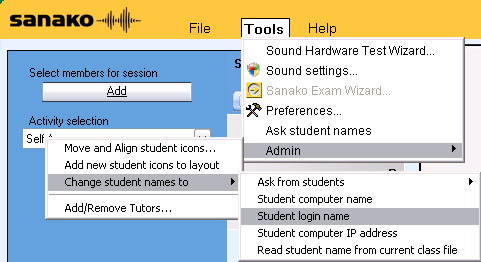
- Change the classroom layout naming scheme from menu:”Tools”/ “Admin”/ “Change student names to” / “Student login name”
 and
and - collect or repeat a prior collection of the student recorder buffer by using the activity pane: files icon
 (this requires that you have not yet used activity pane:button:”clear session”).
- Change the classroom layout naming scheme from menu:”Tools”/ “Admin”/ “Change student names to” / “Student login name”


How to conduct a Sanako Study 1200 functionality test before oral exams
- Why? Before high-stakes oral assessments, it is best practice to test the functionality of all computers in the digital audio lab.
- How?
- Log into 2 computers with your own account (these will serve as a backup computers. Should you need backup computers later, there will be no delay waiting for them to start up and become operational).
- Change Sanako classroom layout names to computer or position name (whatever makes it easier for you to identify any non-functioning machines).
- If you are doing this for a first time with a class, load your test exam audio into Audacity and display the voice graph to students on a projector. This way you make sure that students understand from the voice graph that they are supposed to
- hear an instruction over the headphones and
- respond to the instruction by saying their names into their microphones.
- Perform a name-test recording using Sanako activity:”Model imitation”and examine the results:
- Make sure the Sanako collection folder opens – meaning all student recordings could be collected. If not, identify the offending positions from the Sanako collection dialogue and open the folder with the remaining collected recordings manually from the Sanako collection dialogue
- Drag the recorded files into an empty Audacity window and examine the collected recordings visually, plus, where in doubt, aurally, by clicking “solo” and play on the track in question.
- React accordingly:
- If some positions show problems, move students to one of the backup machines that you logged into earlier.
- move backup machines not needed to a different session by right-clicking on their classroom layout icon.
- if more than one backup machine is indeed needed, Sanako – since it is you who are logged in on both – will ask you later for permission to number collected files for duplicate students sequentially. Allow that and rename the files manually.
- Don’t forget to change Sanako classroom layout names back to student login name.
 . Or else here is how you can later recover student recordings by student login names.
LoC says on DVDs: Excerpts, but no space-shifting
And: foreign language faculty seems now included.
“The most complicated exemption focuses on DVDs. Between now and 2015, it will be legal to rip a DVD “in order to make use of short portions of the motion pictures for the purpose of criticism or comment in the following instances: (i) in noncommercial videos; (ii) in documentary films; (iii) in nonfiction multimedia e-books offering film analysis; and (iv) for educational purposes in film studies or other courses requiring close analysis of film and media excerpts, by college and university faculty, college and university students, and kindergarten through twelfth grade educators.” A similar exemption applies for “online distribution services.”
The Librarian also allowed DVDs to be decrypted to facilitate disability access. Specifically, it’s now legal “to access the playhead and/or related time code information embedded in copies of such works and solely for the purpose of conducting research and development for the purpose of creating players capable of rendering visual representations of the audible portions of such works and/or audible representations or descriptions of the visual portions of such works to enable an individual who is blind, visually impaired, deaf, or hard of hearing, and who has lawfully obtained a copy of such a work, to perceive the work.”
But the Librarian did not allow circumvention for space-shifting purposes. While public interest groups had argued that consumers should be allowed to rip a DVD in order to watch it on an iPad that lacks a built-in DVD drive, the Librarian concluded that no court has found that such “space shifting” is a fair use under copyright law.”
Jailbreaking now legal under DMCA for smartphones, but not tablets | Ars Technica
Use SharePointDesigner here to quickly and cleanly edit legacy static web pages
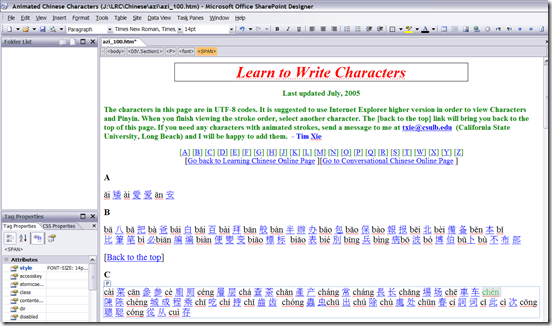
- Confronted with the need to have faculty classify my variable speed animated GIF collection of Mandarin characters linked from static HTML pages, I find:
- SharePointDesigner is a FrontPage derivative, but still beats dealing with the special markup MS-Office tends to smuggle into your legacy web pages.
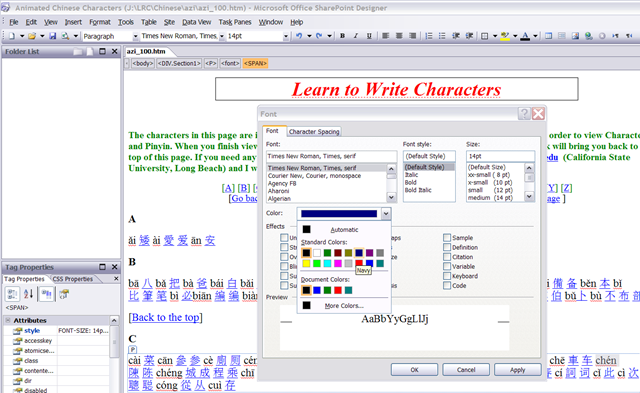
- And you can download it for free from MS here, install and open a file by right-clicking it and “Open with”, like so:
 .
. - User then can e.g. select a pinyin word, right-click it, access the font-dialogue, like so:
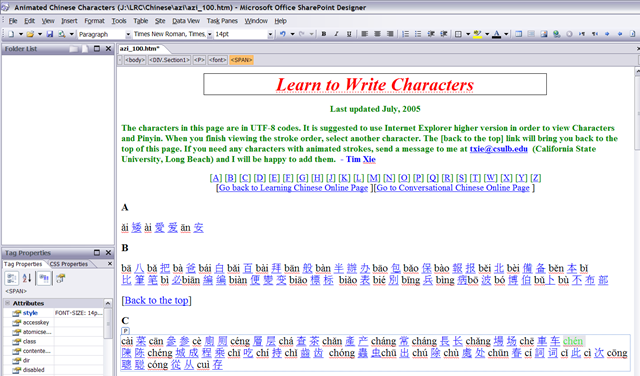
 , and, to align this alphabetic pinyin list to the progression in the syllabus if the Chinese language program, assign a heat-scale like so:
  . E.g this would denote an easy character for Chinese 101:
  .
. - Note 1: Do not use SharePointDesigner 2010,, this doe not allow easy editing of single web pages anymore:
 .
. - Note 2: The CSS style markup that SharePointDesigner puts in smartly for the font color change is ignored by Internet Explorer 8 (Huh?!), so we will have to TBA:ask students to use Firefox instead.
- Note3: Why not just use MS-Word as HTML-Editor. Even if you save as and choose “Web-page filtered, like so:
 , to avoid MS-Office specific markup, MS-word puts spurious markup in that makes it not only slow down the road to open the file, but also difficult to post-process them with regular expression (I have a few hundred copies to make for different animation speeds). Compare the file sizes here:





Questions? Read the About. Or just ask me a quick Our Databases: Resources with calendars -- Language learning material Moodle Sites, multimedia files -- films


FAQs for LRC student staff or for students or for teachers. To search our FAQs, in the browser addressbar, add after "https://plagwitz.wordpress.com/feed/?tag=faqs+/" "+TAG1" (from tag cloud below) OR "https://plagwitz.wordpress.com/feed/tag=faqs
&category_name=" "CAT1" (from category hierarchy below). OR search both categories and tags, and multiple TAGs/CATs (connect with "," for OR-search, with "+" for AND-search), like so: https://plagwitz.wordpress.com/feed/?tag=TAG1+TAG2+...TAGn&category_name=CAT1
+CAT2+...CATn"
Other ways to find help
If you cannot find it here, look there: 5,500 Language-Learning Links and Programs for learning or teaching 150 languages
Shortcuts:Our Lists, Our Maps, LRC Staff Moodle Site,LRC Project Moodle Site, 49erexpress, UNCC Moodle, Student Recordings: s:claslcslrcsanakostudent
Learning usage samples: Sanako oral exam, Kaltura webcam presentation, Dictation with speech recognition, Sanako written exam, Chinese and Japanese interactive stroke-order practice
Test the Sanako Installer, Webbrowser Popup Konfigurator for XP, or Windows7, faster LRC TeacherPC Log-in Let MS facilitate diacritics writing by installing for you US-International keyboard layout
This is my personal blog (Google+). The views expressed on these pages are mine alone and not those of my employer. The information in this weblog is provided “AS IS” with no warranties, and confers no rights.