Archive
Archive for the ‘Learning-Tool-is-any’ Category
Protected: Our assessment results after 1.5 years with Sanako Study 1200
2012/11/09
Enter your password to view comments.
Categories: audience-is-administration, audience-is-teachers, digital-audio-lab, e-languages, Institution-is-University-of-North-Carolina-Charlotte, learning-usage-samples, marketing, Metrics, recording-software, reports, Screencasts, service-is-assessing, Speaking, Spreadsheets, Writing
oral-exam, sanako-study-1200
Announcing new MS-Word templates for writing assignments during face-to-face-classes in the LRC
2012/11/08
Leave a comment
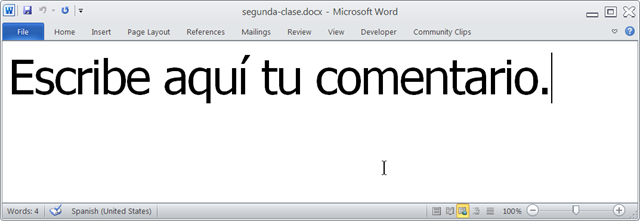
- Benefits
- MS-Word is technology that has become “transparent”for most users:
- Have teachers focus on assignment pedagogy, not authoring technology.
- Have students focus on the target language, not authoring technology.
- Document is protected (for restricting formatting to predefined Word-styles):
- Have students focus on form or content, but not on distracting formatting issues.
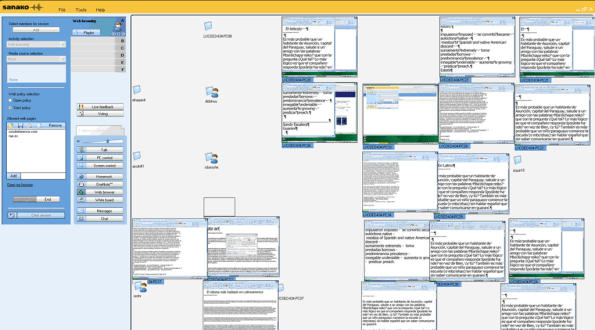
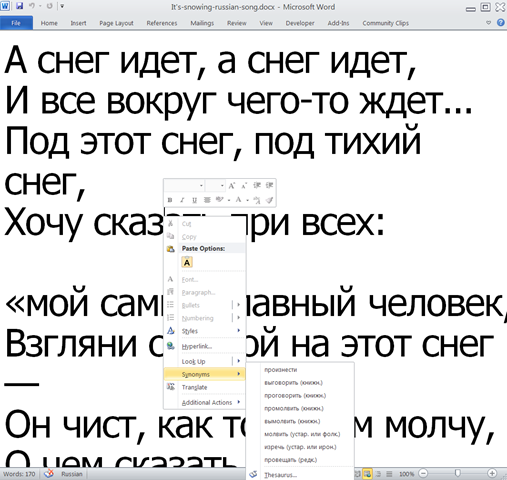
- Styles are designed to facilitate teacher monitoring students’ work using Sanako screensharing, like so:
- Take advantage of MS-Office Proofing tools (templates are preset for your target language).
- Take advantage of easy assignment file management with Sanako homework activity.
- Take advantage of internet lookup process, especially pedagogical if you combine with Sanako controlled-web-browsing activity
- MS-Word is technology that has become “transparent”for most users:
- Requirements:
- Teacher
- The easiest is to save the writing template for your language in C:\Program Files\Microsoft Office\Templates\1033 (or if your run 32-bit MS-Word on a 64-bit Windows, C:\Program Files (x86)\Microsoft Office\Templates\1033)
- Then base your writing assignment document on the template (e.g. by double-clicking the template in the folder you saved it to).
- Then save your writing assignment to your class material folder on the Sanako network share (from the office or in the LRC).
- In class, launch the Sanako homework activity.
- Student: none other than downloading and submitting the Sanako homework.

- Teacher
Categories: announcements, audience-is-teachers, classroom-management-system, e-languages, office-software, Presenter-Computer, service-is-configuring-learning-tools, service-is-learning-materials-creation, service-is-programming, Student-Computers, Writing
homework-activity, MS-Word, sanako-study-1200, screensharing, templates, trpStudentWriting, web-browsing-activity
Protected: How teachers find their Sanako materials
2012/11/06
Enter your password to view comments.
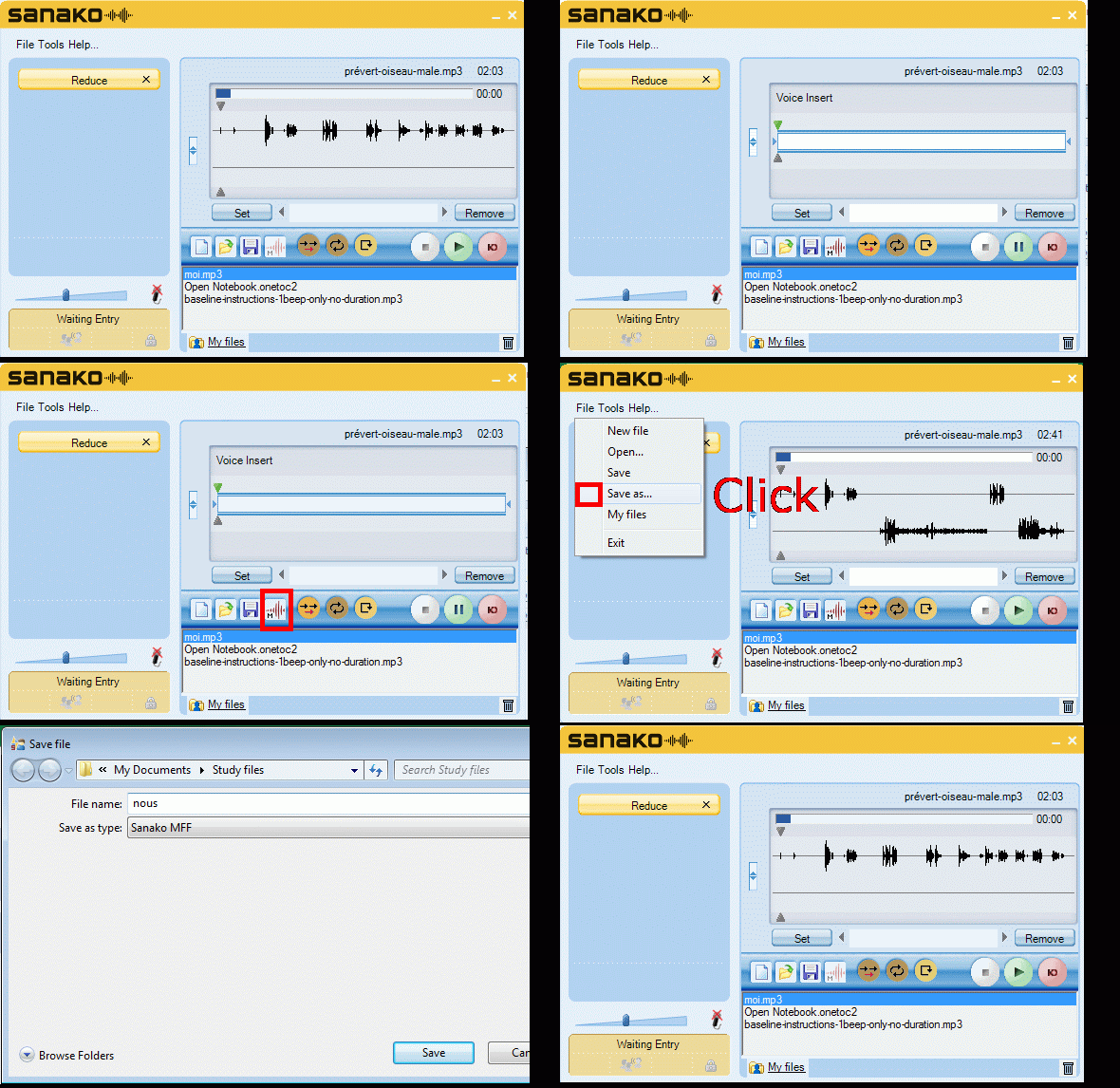
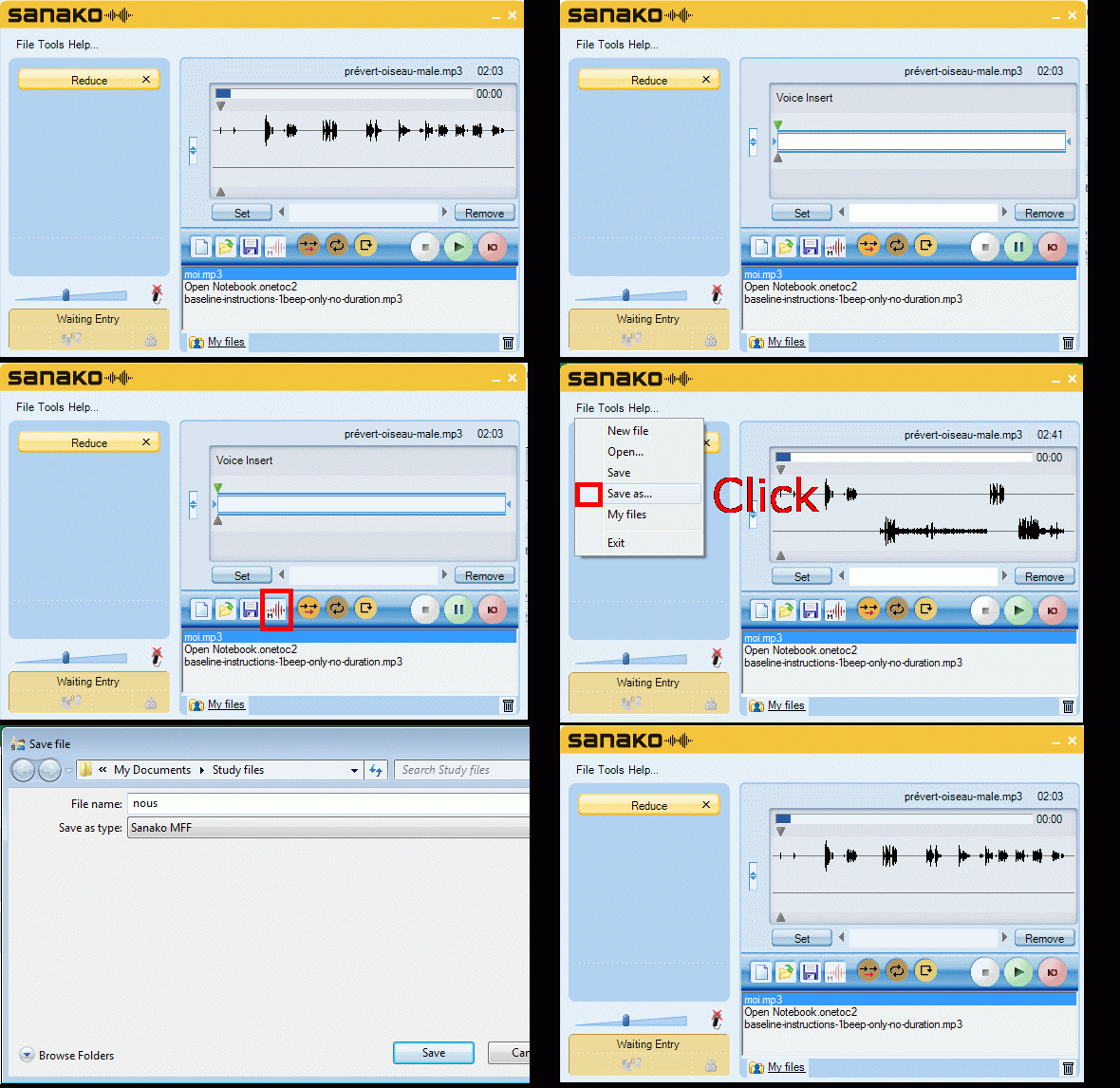
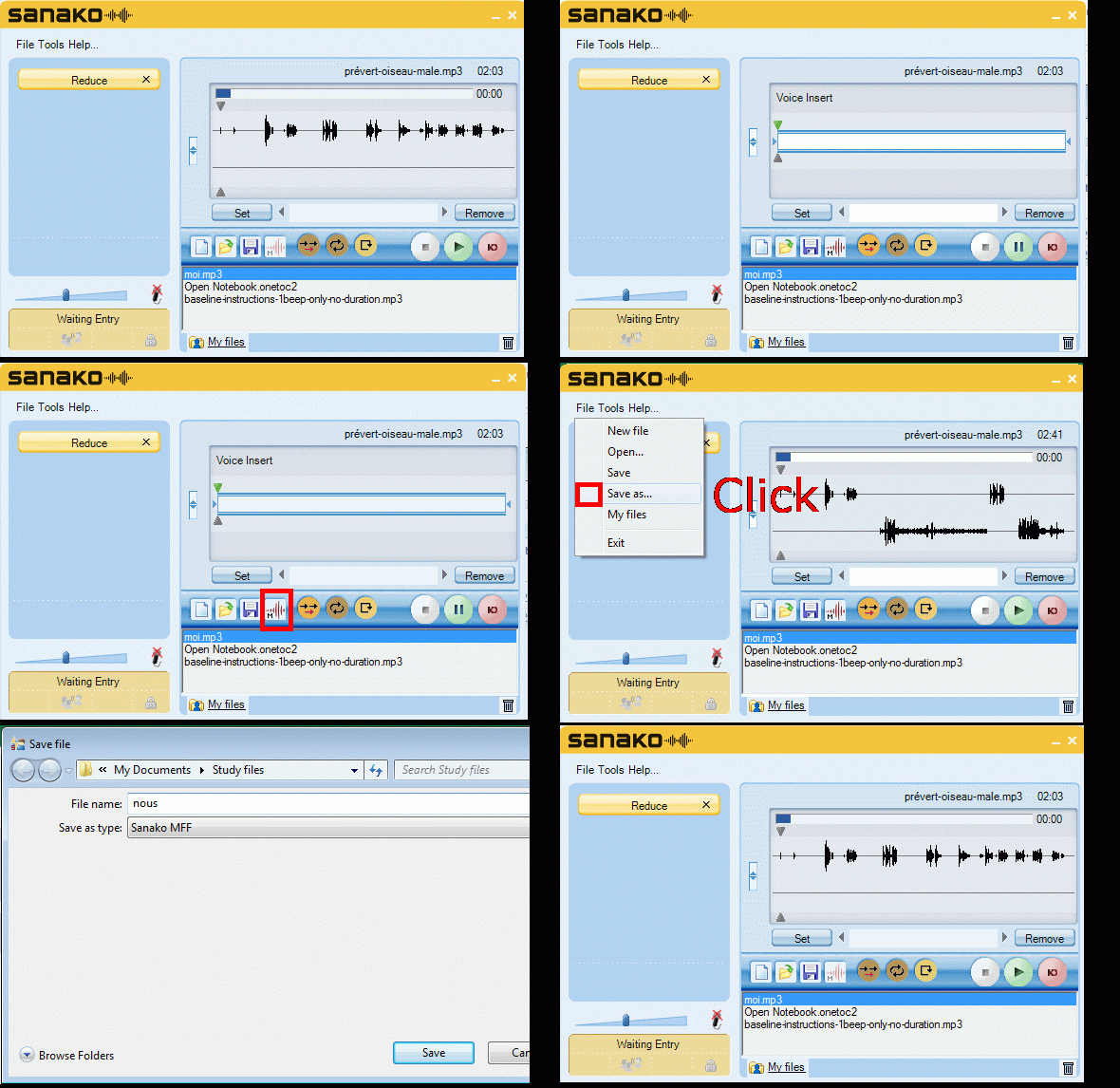
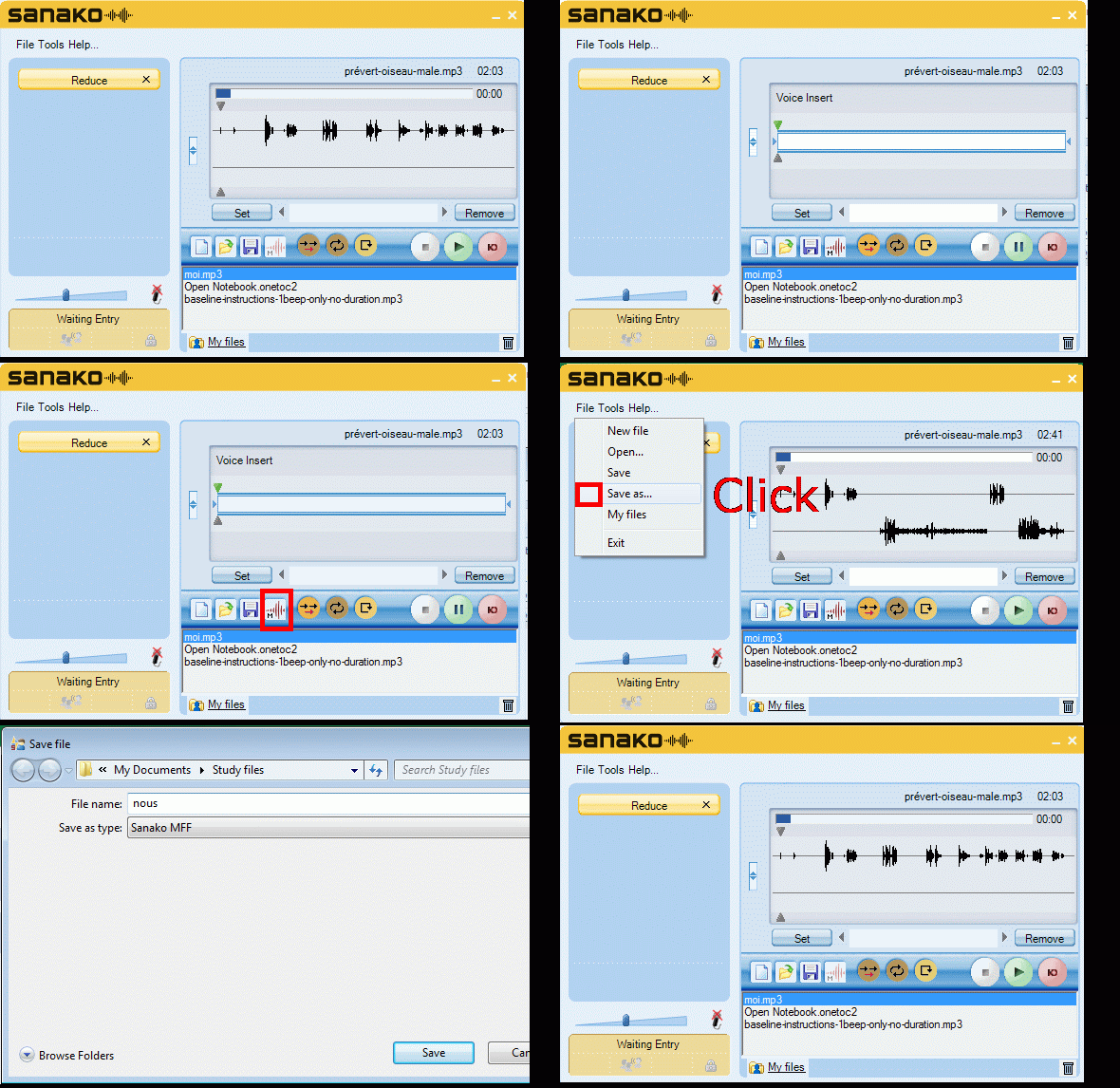
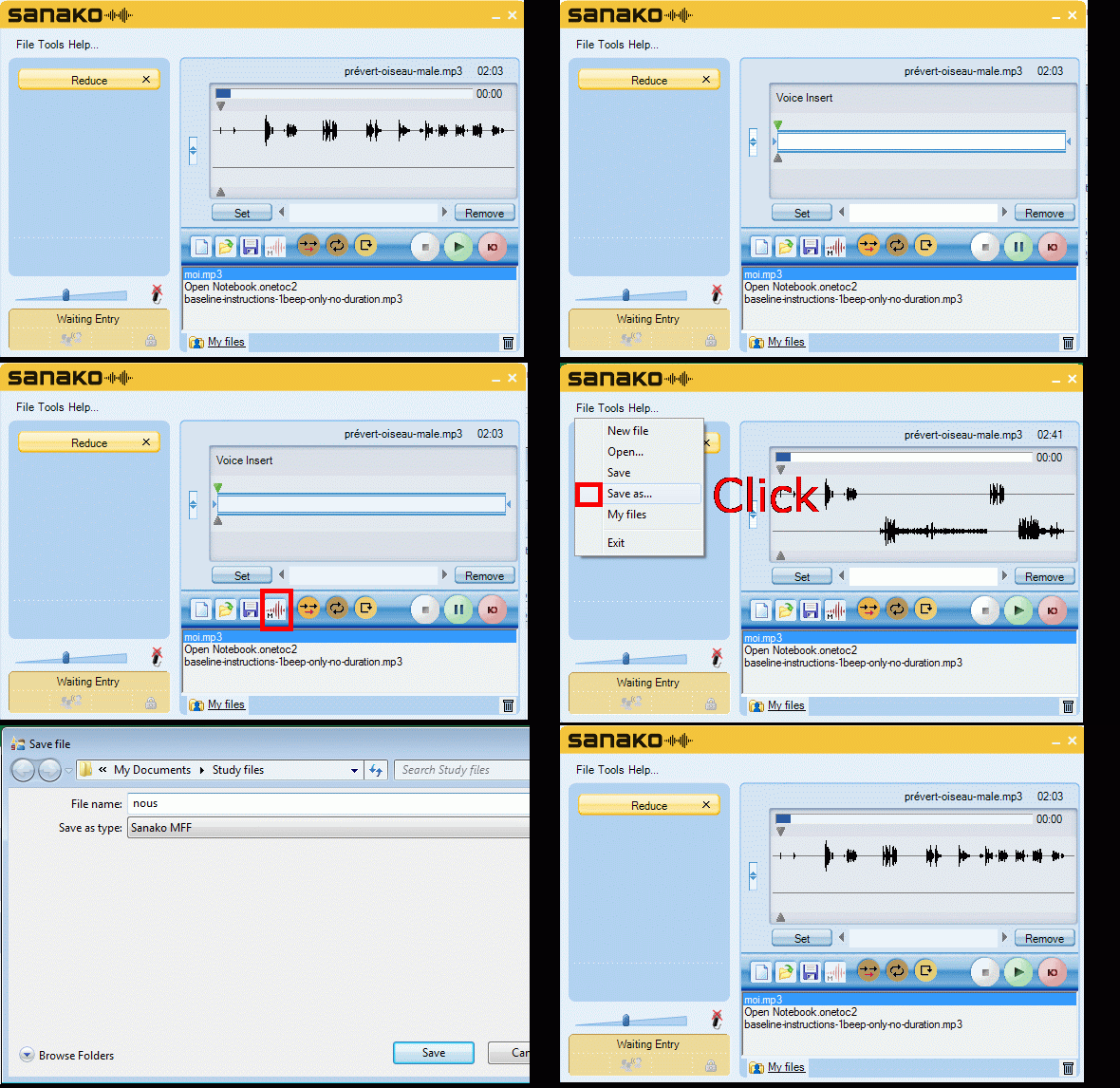
How students can do voice insert recordings with Sanako Study 1200 student recorder – the ultimate training summary…
2012/11/06
2 comments


How to mix SANAKO- recorded individual students’ audio tracks together
2012/11/05
Leave a comment
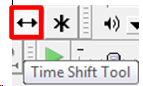
- If the students’ audio tracks are not already time-aligned, first use audacity: "time shift tool" to align individual tracks
 (with this tool selected, you can move individual tracks back and forth, to the left or right).
 - If/ When they are time-aligned, use audacity/ menu: tracks/"stereo track to mono".
My iMac hard drive qualifies for the Apple recall
2012/11/02
Leave a comment
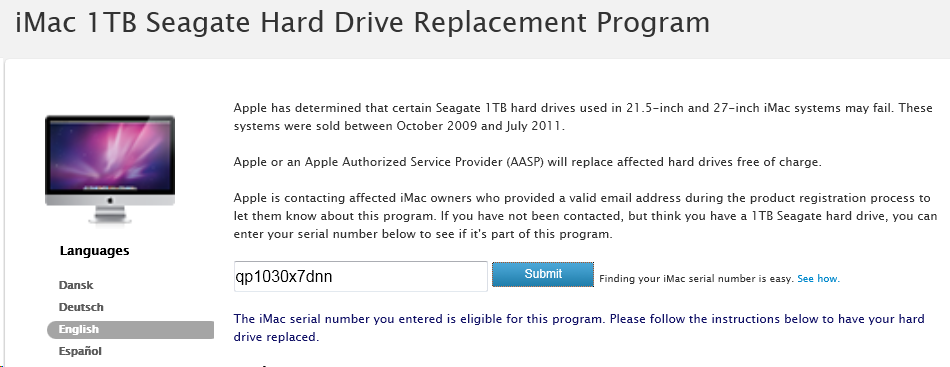
Yay! (I guess…?)
Categories: Back office, e-infrastructure, hardware
hard-drives, imacs, recall
MS Windows Media Encoder, your free audio and video encoding utility
2012/11/02
Leave a comment
- Benefits
- Free
- Can cut and convert
- video
- Makes screencasts also.
- can capture video
- audio
- including pause removal.
- video
- can stream
- Limitation: Outputs only to MS media formats (WMA, WMV) (
- Download here. There is also a 64-bit version.
- Officially supported on
- Windows 2000 and XP. I use it on Vista and Windows 7 (both 64-bit) also (for audio; no guarantees).
- f I remember correctly, Windows Media Encoder has a built-in limit to support only up to 4 CPU cores, you may have to limit CPU usage if you run on more advanced hardware platforms).
- a bit of config:
- For good quality video and audio, put a prx file like this in "C:\Program Files (x86)\Windows Media Components".
- Put a wme file like this anywhere and start by double clicking the file, then press green “Record” button.


Questions? Read the About. Or just ask me a quick Our Databases: Resources with calendars -- Language learning material Moodle Sites, multimedia files -- films


FAQs for LRC student staff or for students or for teachers. To search our FAQs, in the browser addressbar, add after "https://plagwitz.wordpress.com/feed/?tag=faqs+/" "+TAG1" (from tag cloud below) OR "https://plagwitz.wordpress.com/feed/tag=faqs
&category_name=" "CAT1" (from category hierarchy below). OR search both categories and tags, and multiple TAGs/CATs (connect with "," for OR-search, with "+" for AND-search), like so: https://plagwitz.wordpress.com/feed/?tag=TAG1+TAG2+...TAGn&category_name=CAT1
+CAT2+...CATn"
Other ways to find help
If you cannot find it here, look there: 5,500 Language-Learning Links and Programs for learning or teaching 150 languages
Shortcuts:Our Lists, Our Maps, LRC Staff Moodle Site,LRC Project Moodle Site, 49erexpress, UNCC Moodle, Student Recordings: s:claslcslrcsanakostudent
Learning usage samples: Sanako oral exam, Kaltura webcam presentation, Dictation with speech recognition, Sanako written exam, Chinese and Japanese interactive stroke-order practice
Test the Sanako Installer, Webbrowser Popup Konfigurator for XP, or Windows7, faster LRC TeacherPC Log-in Let MS facilitate diacritics writing by installing for you US-International keyboard layout
This is my personal blog (Google+). The views expressed on these pages are mine alone and not those of my employer. The information in this weblog is provided “AS IS” with no warranties, and confers no rights.