Archive
How to search this blog: Combining searching for tags and categories with feed display in Internet Explorer
- By adapting this mask in the address-bar: https://plagwitz.wordpress.com/tag/YOUR-1ST-TAG+YOUR-2ND-TAG+…+YOUR-NTH-TAG/feed/?category_name=YOUR-1ST-CATEGORY+YOUR-2ND-CATEGORY+…+YOUR-NTH-CATEGORY
- you can combine into an AND-Search
- a tag-search (e.g. for the posts tagged as “FAQs”. You can find other tags from the tag-cloud in the right column of the blog; note that it is not complete, but only the most frequent tags are displayed there. Tags are a metadata collection that can flexibly grow on demand)
- a category_search (e.g. for “audience-is-teachers”. You can find other tags from the category-hierarchy in the right column of the blog; note that this hierarchy is complete, all categories tags are displayed here, top categories alphabetically, sub-categories alphabetically under their respective parent. Categories are a more controlled metadata collection)
- and the display of only the “feed”
- which makes for a quicker overview of large search result sets than the complete articles that a search without “ /feed” would return)
- and allows for subscribing to (or saving stored) searches
- Internet Explorer’sfeed display is
- compact
- provides a (1) cumulative overview of all tags and categories (the “ tag cloud for search results” that is missing on WordPress.com ) within the search results which is easy to browse and drill into, for searches within search results (click to “filter by category” and tag: Internet Explorer subsumes both tags and categories of WordPress.com’s blogs under the term “category”).
- (2) evidence of an AND-search across tags and categories (e.g. find only FAQs that are for meant for teachers: 15 matches for the former, 15 matches for the latter, 15 matches overall)
- Result:

- Limitations
- To browse categories by view (syntax /category/[CATEGORYNAME]), you would have to travel the full path of the category hierarchy. Using “&category_name=” seems easier, especially since the view does not allow for searching within the entire category sub-branch. Each node stands by itself.
- Remember that this is not full-text, but metadata (“human curated”) search technology. The quality of the search results hinges on the quality of the metadata originally added to the blog posts by the author (“To err is human”, or “Garbage in, garbage out”).
- Worse: There is no provision for collaborative tagging on WordPress.com.
- more hints:
- “/feed” works only before ?query-string-syntax, but only after /view-syntax, like in the following examples around “Arabic”.
- you do NOT need to give the whole branch of categories when using the view-syntax (and also not only for the 1st and 2nd level): https://plagwitz.wordpress.com/feed/?category_name=arabic works, but so does https://plagwitz.wordpress.com/category/arabic/feed and also https://plagwitz.wordpress.com/category/study-program-is-any/all-languages/arabic/feed.

How to book LRC resources – explained in one screenshot
You can come to the LRC reception desk to book an item (you will still need to log into your NINERMAIL). But you can also self-help, and get immediate confirmation, from any device with access to your NINERMAIL:
If you have a basic LRC classroom booking scenario, send to the room lrcroomcoed434@uncc.edu what looks like “an email that includes times”: Go to your Ninermail inbox. Using the little triangle icon, unfold the “New” menu. Click menu item “Meeting request”. In the window, that opens, in the “Resources:” field, put lrcroomcoed434@uncc.edu. In the “Subject:”, put your course number. Enter start and end times of your classes visit. In the upper left, Click “Send”. Within a few seconds you receive a response email from the room in OWA: If you did not check the “Scheduling Assistant” tab, you may be asked to reschedule because of a conflict. If you fail to get a response, something went wrong, did you mistype the address? OWA remembers and suggests it after first use, but the first time you need to get it right.
For more advanced scenarios (beyond #3 below), first find the email address of our bookable resources, then book it like so:

More on repeating/recurrence here.
LRC computer and other hardware inventory
- These lists document hardware owned by the LRC:
- Symantec-Ghost generated.
- A handmade overview (partially based on the previous) can be (permissions provided) viewed or edited here.
How to do model imitation recording exercises to improve language learner pronunciation in the LRC and beyond
- Sometimes teachers ask about support for voice recognition in the LRC. The term voice recognition or speech recognition (the former appears to be analogous to face recognition in authentication and other security contexts?) is usually reserved for software that can transcribe your voice into text – still no free option for this, AFAIK. Dragon naturally speaking is the oft recommended market leader outside of education (and within, Auralog Tell me more, see below). Update summer 2012: We are working on enabling the Speech recognition built into Windows 7 Enterprise for English, Chinese (Simplified and Traditional), French, Spanish, German, and Japanese.
- Often times, what is actually desired is a digital audio recorder with voice graph, ideally a dual track recorder.
- In the LRC student computers, we have for exactly this purpose a digital audio recorder as part of the SANAKO Study 1200language learning system
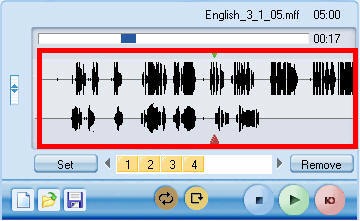
- It features a dual track recorder (allows to listen to teacher track which can be a prerecorded model to imitate on the left channel while recording the student track on the right channel of a stereo track) with a voice graph:
 . See this dual-track-voice-graph screencast demo from the vendor and also our student cheat sheet from the vendor documentation.
 - The Sanako is available in the LRC, as well as in many other educational institutions around the world, but neither free nor web-based (although a web-based version seems to be in the works). It currently requires MS-Windows to run.
- It features a dual track recorder (allows to listen to teacher track which can be a prerecorded model to imitate on the left channel while recording the student track on the right channel of a stereo track) with a voice graph:
- A popular and free audio editor (but not an SLA – specific application, let alone geared towards model imitation; also, for all practical ends and purposes, requires an extra download and installations of an MP3 encoder to be able to save recordings as compressed MP3) is Audacity. To use for model imitation exercises,
- the student can open a model track (mp3 recommended)
- and manage within the program the imitation portion, using the voice graph:

- then export back out as mp3,
- either her responses individually (see my demo screencast, requires Windows Media Player on Windows, which actually shows a question/response rather than a model imitation, but same principle),
- or, by deleting the model track, the response parts mixed down to one track,
- or also, if, like in my demo screencast, the timeline sequence of model (with pauses) and responses is carefully managed (so that model and imitation do not overlap), mixed down to one track.
- In one language program, I have worked extensively with Auralog Tell me more
- which was (not exclusively, but arguably too much) based on this pedagogic concept of having students compare the voice graph of their imitation with the model voice graph (while it do did not allow for teachers to upload their own content, and was certainly not free).

- To my knowledge, Auralog Tell me more does not allow for adding teacher-produced content as models.
- I did like the self-reflective and repetitive practice element. However, I found that students – apart from intonation and (not useful for not pitch based languages) pitch -, did not benefit as much as one might have expected from viewing the voice graph, indeed tended to get overwhelmed, even confused by the raw voice information in such a voice graph.
- And automated scoring of pronunciation (or speech recognition” – not free form, but on a level that has been commoditized in operating systems like Windows 7, the level of voice-directed selection between a limited set of different options, like menu options, and in the case of Auralog, choosing between different response options) seemed iffy and less than transparent in Auralog Tell me more, even though this is their primary selling point. E.g. when I made deliberate gross mistakes, the program seemed to change its standards and wave me through ( English pronunciation example; also observed by me when testing Auralog with East Asian speakers of English).
- which was (not exclusively, but arguably too much) based on this pedagogic concept of having students compare the voice graph of their imitation with the model voice graph (while it do did not allow for teachers to upload their own content, and was certainly not free).
- In the LRC student computers, we have for exactly this purpose a digital audio recorder as part of the SANAKO Study 1200language learning system
- A voice graph is not the same as a more abstract phonetic transcription (although I do not know whether language learners can be trained in phonetic symbol sets like the IPA). There are now experimental programs that can automate the transcription of text into phonetic symbol sets for e.g. Portuguese or Spanish. Maybe you will find that practice with recording and a phonetic transcription of the recorded text is more useful for your students’ pronunciation practice than a fancy voice graph.


How to poll for the best meeting time using Meeting Requests
- Please also see the follow-up user-perspective video here: How to respond to a poll for the best meeting time using Meeting Requests.
- A traditional issue around the LRC is getting busy teachers to agree on a common workshop time. Ideally, the scheduling assistant would automate this by allowing you to see the common free time slot in their busy timelines. However, this requires that the university calendaring system has already been widely adopted. In the meantime, meeting requests can still greatly facilitate finding this most common free time, by serving as a poll.
- To find the most popular time slot, send a number of alternative meeting requests with the instruction: “If interested in the workshop, please accept those times during which you could attend. I will only not cancel the most popular meeting time”. (Make sure that respondents know that they can “Edit response before sending” to include a message, or else this will skew the tally).
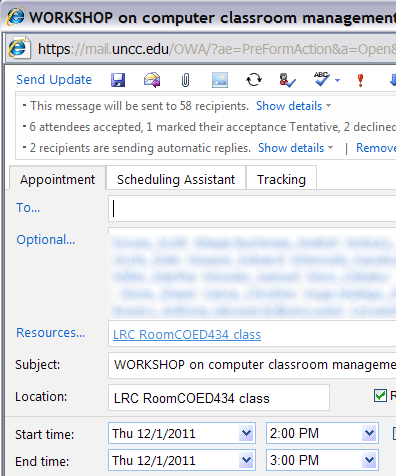
- At the end, you can easily tally the response in your calendar, and, as the meeting organizer, cancel the unpopular ones:

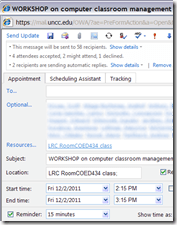

- And you can spare everybody one final summary email: “ Mark your calendars!” . The interested parties’ calendar has already be marked.


How to stay up to date by receiving RSS like email newsletters in MS-Outlook
- Why subscribe?
- RSS is a great way to get your information both fast and filtered.
- For advanced filtering of RSS feeds, try Yahoo Pipes.
- However, WordPress makes this even easier by allowing for a wealth of atomic searching and filtering options. Choosing the right template (and content strategy), if you click on any of the linked items in either the category list or tag cloud on WordPress,


- the resulting page will include an RSS link
 , or simply add “/feed” to the URL of your category, tag or even search result page, to get a feed that you can subscribe to.
- How to subscribe?
- MS-Outlookmakes subscribing to RSS more convenient since you do not need to go to a separate application like an RSS-Reader. Read your RSS with your email, think of the RSS feed as an email list, but personalized to your interests.
-
You can subscribe to the “RSS feed” link like so:
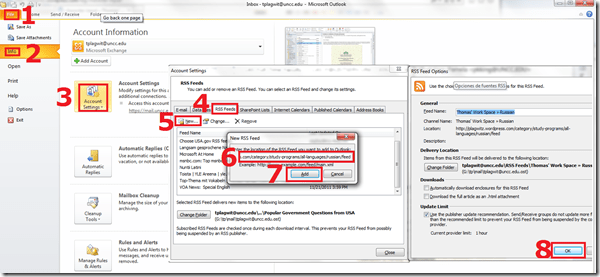
- For historical reasons, I still use Google Reader, but I rely on Outlook’s advanced automated content download (including full text posts and multimedia attachments) and well-understood archiving, search and export features to not miss podcasts which I want to collect for potential use as teaching content:
 When Outlook fails, as with some RSS formats, you can still try and resort to the Internet Explorer Feed store:
-
- If you use OWA: you can read feeds, but not add them through the OWA interface. If you are staff, you can still add them in Outlook first. If you are a student and restricted to NINERMAIL, you need to use a different feed reader. I recommend the free web-based Google Reader.
- MS-Outlookmakes subscribing to RSS more convenient since you do not need to go to a separate application like an RSS-Reader. Read your RSS with your email, think of the RSS feed as an email list, but personalized to your interests.




Calendaring: How to view all your Moodle course assignments in Ninermail, OWA or MS-Outlook – Short version
- In Moodle:
- With Firefox (3.6 here), go to Moodle Calendar: https://moodle.uncc.edu/calendar/view.php?view=upcoming&course=1
- Right-Click on
 and choose “Copy Shortcut”: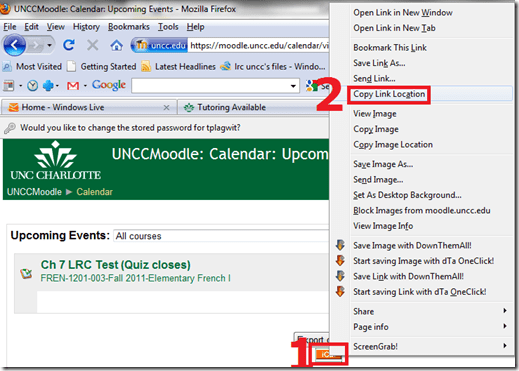
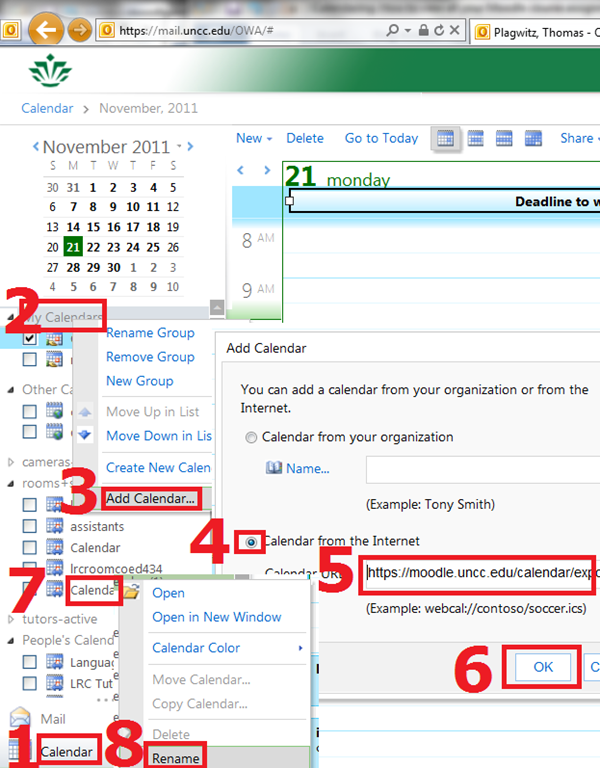
- In Ninermail/OWA: click “Calendar”, right-click “My calendars” , click “Add calendar’, click radio-button “From internet”, paste URL you put in clipboard into textbox, click button “OK”, right-click calendar added, click “rename” and call it “Moodle”

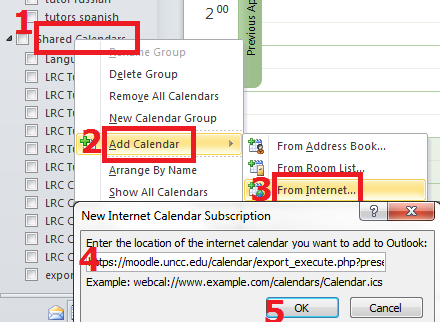
- Alternatively, in Outlook Desktop: go to “calendars”, right-click “shared calendars” , click “add calendar’, click “from internet”, paste URL you put in clipboard into textbox, click button “OK”, right-click calendar added, click “rename” and call it “Moodle”

- Want a longer explanation?

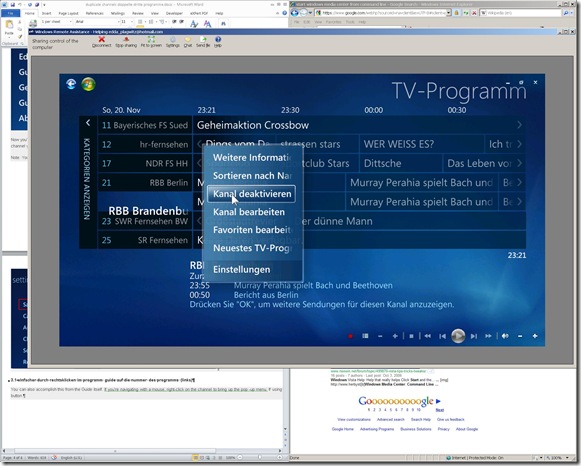
How to run Windows Media Center during a Remote Assistance Session
-
The /gdi switch for Windows Media Center allows for operating Windows Media Center full screen during
-
Windows Live Messenger Remote Assistance sessions if you have to help a relative over the internet.
-
Should also work in MSTSC Remote Desktop sessions if you manage media with Windows Media Center on your work network.
-
-
You can combine the above switch e.g. with the program guide shortcut to go directly there: /homepage:VideoGuide.xml /PushStartPage:True
-
Put the following in the “Target” field of your shortcut that you start on the remote computer (running Windows7 32-but here) during your remote assistance session:
-
%windir%\ehome\ehshell.exe /nostartupanimation /gdi /homepage:VideoGuide.xml /PushStartPage
- Voilà, or rather: “Dem Inschenör ist nichts zu schwör”.



Questions? Read the About. Or just ask me a quick Our Databases: Resources with calendars -- Language learning material Moodle Sites, multimedia files -- films


FAQs for LRC student staff or for students or for teachers. To search our FAQs, in the browser addressbar, add after "https://plagwitz.wordpress.com/feed/?tag=faqs+/" "+TAG1" (from tag cloud below) OR "https://plagwitz.wordpress.com/feed/tag=faqs
&category_name=" "CAT1" (from category hierarchy below). OR search both categories and tags, and multiple TAGs/CATs (connect with "," for OR-search, with "+" for AND-search), like so: https://plagwitz.wordpress.com/feed/?tag=TAG1+TAG2+...TAGn&category_name=CAT1
+CAT2+...CATn"
Other ways to find help
If you cannot find it here, look there: 5,500 Language-Learning Links and Programs for learning or teaching 150 languages
Shortcuts:Our Lists, Our Maps, LRC Staff Moodle Site,LRC Project Moodle Site, 49erexpress, UNCC Moodle, Student Recordings: s:claslcslrcsanakostudent
Learning usage samples: Sanako oral exam, Kaltura webcam presentation, Dictation with speech recognition, Sanako written exam, Chinese and Japanese interactive stroke-order practice
Test the Sanako Installer, Webbrowser Popup Konfigurator for XP, or Windows7, faster LRC TeacherPC Log-in Let MS facilitate diacritics writing by installing for you US-International keyboard layout
This is my personal blog (Google+). The views expressed on these pages are mine alone and not those of my employer. The information in this weblog is provided “AS IS” with no warranties, and confers no rights.
 Thomas' Work Space