Archive
Calendaring: How teachers can reserve the LRC for classes and schedule tutors in the LRC
- This is obsolete from Fall 2011, please view instead https://plagwitz.wordpress.com/2011/08/31/the-new-way-of-booking-lrc-rooms-and-equipment-from-fall-2011/.
- You may already collect calendars in one place to stay on top of your course calendars in Moodle and of your non-teaching-related university or departmental activities.
- Now you can do the same with the schedules of LRC rooms and “human resources” (tutors, LRC assistants, the director free/busy schedule is also available – equipment checkout remains to be solved!): We have added new calendars to the LRC public information and moved them into our newly upgraded MS-Exchange infrastructure.
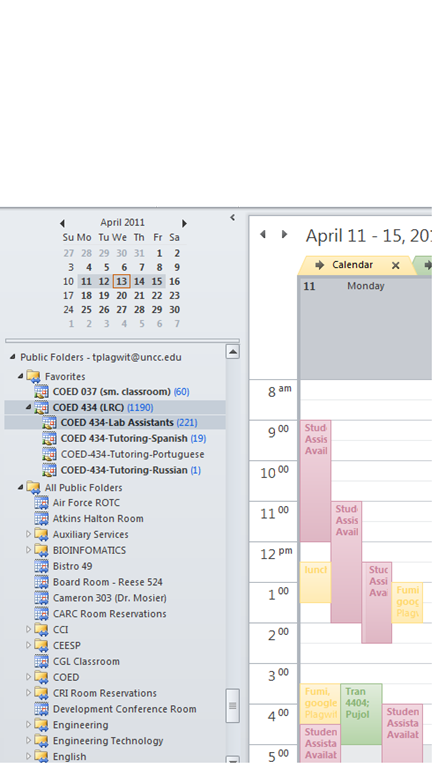
- Short answer: In Outlook (desktop, OWA may vary), go to Folder view / Public Folders / Languages / Coed 037 and Coed 434, with sub-calendars. Make any calendar you need a favorite (or in the dialogue (show below) “Add favorites” for Coed434, check “Add all subfolders”) . In Calendar view, show the calendar by adding a check to the checkbox in front of it. Add and edit your (recurring) appointments as on your personal calendar.
- For class reservation, put class number and activity in the Subject field. Put in the notes field sensitive information which you do not want to put on the WWW, as well as, if you need our support, details of technology activities planned and student numbers that need computers and headsets.
- For tutor scheduling, we have one schedule per language being tutored. Protect the tutor privacy by using the notes field for personal information. Use the Outlook recurrence options as a time-saver (just delete individual exceptions instead of the entire series).
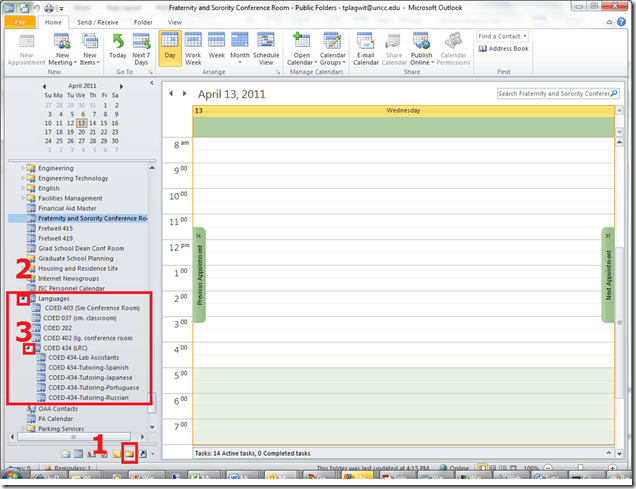
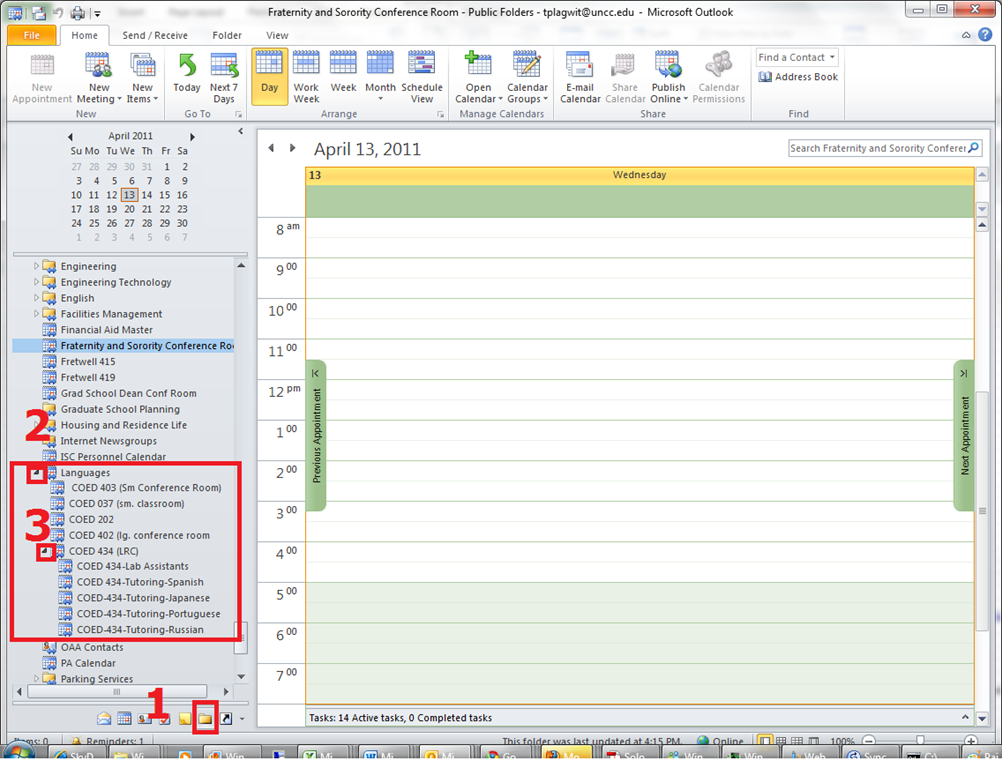
- More detail: You can access the calendar from 1. Folder view, 1a (not shown) Public Folders, 2. Languages and 3: Coed434, like you see here:
- I recommend adding them to your calendar favorites for easier management, like so:


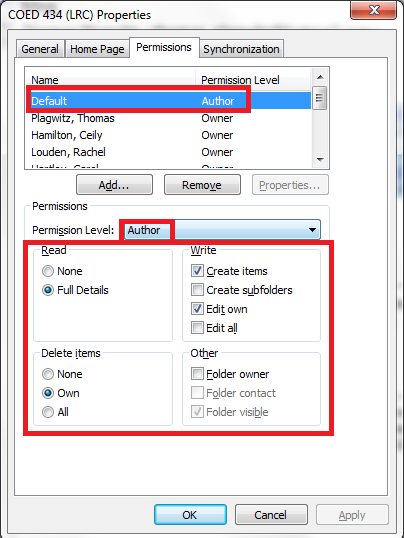
- Per default, you can see and edit (problems? request access) the LRC calendars in the Outlook "Public Folders" under "LRC", as the permissions dialogue below shows:


How to conduct an easy oral exam with Sanako Study-1200 (Model imitation/Question Response) – Part I: The exam administrator’s perspective
This 7-minute screencast explains how to operate the Study-1200 software interface to administer an oral exam, using as audio source the teacher, providing cues live:
- 0:00: from selecting the activity and program source,
- 1:50: over start and use of the autoscan screen control feature to monitor both audio and screen of the examined students
- 3:45: to ending the exam and automatic collection of the exam files.
For an implementation during an actual class-wide oral exam, see Part II of the Study-1200 oral exam.
Protected: How to conduct an easy oral exam with Sanako1200 (Model imitation/Question Response) – Part II: Implementation/instruction of examined students
Languages & Culture Studies Film Collection: Pivot Table and Labeling System
We analyzed the film collection for diversity and media, by setting up a pivot table (the underlying spreadsheet is getting updated currently, but is current enough for an overview), snapshot:
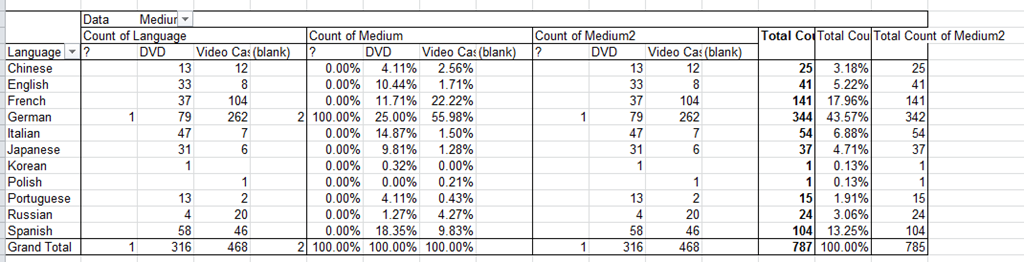
You can make your own analysis at S:\plagwitz\labconfig\spreadsheets\film-collection\film-collection.xlsx. (temporary location). The sheet also contains the new labeling system to facilitate locating videos:
|
IN |
From |
To |
Language |
|
AR |
0001 |
0400 |
Arabic |
|
CH |
0401 |
1400 |
Chinese |
|
EN |
1401 |
2400 |
English |
|
FA |
2401 |
2500 |
Farsi |
|
FR |
2501 |
3900 |
French |
|
GR |
3901 |
5300 |
German |
|
IT |
5301 |
5700 |
Italian |
|
JP |
5701 |
6700 |
Japanese |
|
KO |
6701 |
6900 |
Korean |
|
PL |
6901 |
7000 |
Polish |
|
PT |
7001 |
7200 |
Portuguese |
|
RU |
7201 |
7400 |
Russian |
|
SP |
7401 |
9400 |
Spanish |
|
SW |
9401 |
9500 |
Swahili |
|
OT |
9501 |
10000 |
Other |
How to design a classroom layout in Sony Virtuoso, and reflect it in the Sony Soloist
Teachers using a fully computerized classroom – as well as the installed language learning software itself (which, once set up, will help further by displaying the names of the students logged in on the student computers), – need to have an easy way to identify and address individual student computers.
Sony Virtuoso/Soloist, like the Sanako Lab 300, use an identification scheme which based on manual numberin of te student computers.
This requires the administrator to manually make a configuration change on each student computer when the software is first installed (and whenever the classroom is reimaged with upgrades).
Newer classroom mangement and langauge learning systems like NetOp SChool or Sanako Study can autonumber and –identify connected student computers.
To set up the student computers, start the Soloist from the desktop icon.
Press ctrl – shift –f10 to access the configuration dialogues. On tab: teacher control, 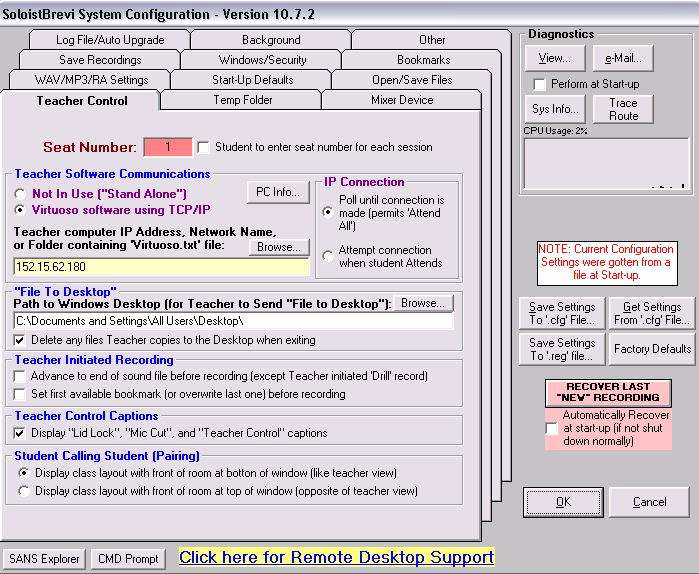
in the text input field Seat number highlighted red above, put the number that corresponds to the attached seating map below.

NOTE: the seats in the center bottom forming a dent in the layout are intentionally left blank for he presenter computer and PC32.
The square in the upper right are the leftmost (teacher perspective) computers in our main lab – they would not fit better into the lab layout grid of the Sony Virtuoso Apprentice (higher versions have more flexible layout grids, I hear).
How to do a screenshot of a full web page (beyond visible portion)
I have been meaning to find a screenshot software that can show the entire portion of a window – including the “scrollable” portion, i.e. more than the visible.
A long time ago, I used to do this with HyperSnap, but this software is not free.
Screengrab which I came by today, does it nicely – within Firefox:
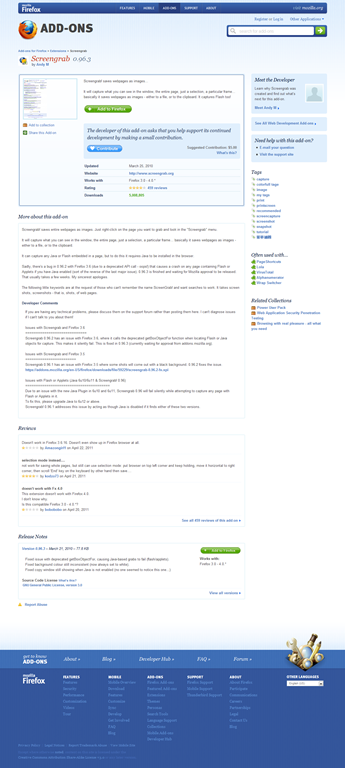
Limitation: Screengrab requires you to access the context-menu on the page via right-clicking – some web sites prevent this!
Minor Updates during Computer Lab Imaging with Symantec Ghost Explorer
TBA: intro mit querverweis checklist of lists
You can do minor updates using the file manipulation features of Ghost Explorer (you may have to recompile the image, which adds some time – but not necessarily, even for registry changes – and is still faster than the checklist).
Load the image with Ghost explorer. Browse to a file. Right-click the directory or file to get options. Or simply drag and drop files between the host file system into the Ghost Explorer.
Remember that the Windows registry is also only a file. Save a hive of the registry to the host file system, then use the MS knowledgebase approved method to edit it with regedit on the host system before copying it back:
|
1. Run Regedit.exe from the new installation of Windows, and then click theHKEY_LOCAL_MACHINE key. |
|
2. On the File menu, click Load Hive. |
|
3. Open the %SystemRoot%\System32\Config folder of the original Windows installation, click the System file, and then click Open. |
|
4. In the Load Hive box, type test, and then click OK. The original Windows installation System hive is loaded as a subkey of the current HKEY_LOCAL_MACHINE registry key as "test". |
|
5. [Do what it takes] |
|
6. Unload the test registry subkey: |
|
a. Click test, and then click Unload Hive on the File menu. |
|
b. Click Yes to confirm the unloading. |
Here is a ghost image registry hive loaded as test into the host registry editor:

Using the runonce key of the registry, you can also use this technique to force separate application installs after deployment and before the freezing of the image:

Clone/deploy as normal: Easy, fast. Good luck.
Webswami, a Moodle-compatible language learning platform for self access (homework, asynchronous distance learning)
What about improving language learning through technology during homework activities?
“The greatest strength of WebSwami lies in the seamless support it provides for doing audio/visual-based tutorial activities within an existing course management system, thus allowing anywhere/anytime access for lesson designers, instructors, and students alike. Its student record keeping system, in particular the integration [duplication] of a grade book with direct access to student responses and the support it provides for multimedia response feedback, far surpasses what is available in any other virtual learning environment. Most important, it manages all of this through well established, reliable, web browser and Flash software coupled with ubiquitous, inexpensive web camera hardware.” (review by Jack Burston for CALICO (pay-link, ask me for access); see also also the freely accessible review by İlhan İnçay).
Authoring and managing authored materials is not an easy task, but gives more flexibility than using textbook provided materials. WebSwami promises the possibility of exchanging learning materials through a materials bank.
View a recording of a recent WebSwami Online Demo.


Questions? Read the About. Or just ask me a quick Our Databases: Resources with calendars -- Language learning material Moodle Sites, multimedia files -- films


FAQs for LRC student staff or for students or for teachers. To search our FAQs, in the browser addressbar, add after "https://plagwitz.wordpress.com/feed/?tag=faqs+/" "+TAG1" (from tag cloud below) OR "https://plagwitz.wordpress.com/feed/tag=faqs
&category_name=" "CAT1" (from category hierarchy below). OR search both categories and tags, and multiple TAGs/CATs (connect with "," for OR-search, with "+" for AND-search), like so: https://plagwitz.wordpress.com/feed/?tag=TAG1+TAG2+...TAGn&category_name=CAT1
+CAT2+...CATn"
Other ways to find help
If you cannot find it here, look there: 5,500 Language-Learning Links and Programs for learning or teaching 150 languages
Shortcuts:Our Lists, Our Maps, LRC Staff Moodle Site,LRC Project Moodle Site, 49erexpress, UNCC Moodle, Student Recordings: s:claslcslrcsanakostudent
Learning usage samples: Sanako oral exam, Kaltura webcam presentation, Dictation with speech recognition, Sanako written exam, Chinese and Japanese interactive stroke-order practice
Test the Sanako Installer, Webbrowser Popup Konfigurator for XP, or Windows7, faster LRC TeacherPC Log-in Let MS facilitate diacritics writing by installing for you US-International keyboard layout
This is my personal blog (Google+). The views expressed on these pages are mine alone and not those of my employer. The information in this weblog is provided “AS IS” with no warranties, and confers no rights.
 Thomas' Work Space