Archive
Calendaring: How to use your Moodle course calendars to keep your students up to date
- UPDATE: this now stopped working here. Clicking on the link from IE9, using “open with”: MS-Outlook 2010 fails with “the requested information store could not be found in the active profile”. I have not found a way to feed the Moodle ical link manually into MS-Outlook 2010 (Shared Calendars / Add Calendar / From Internet) or OWA different problem). Stay tuned…
- Easy if you use standard Moodle assignments: “Adding closing dates to course activities — assignments, quizzes etc. will cause them to show up in the calendar block as course events. “
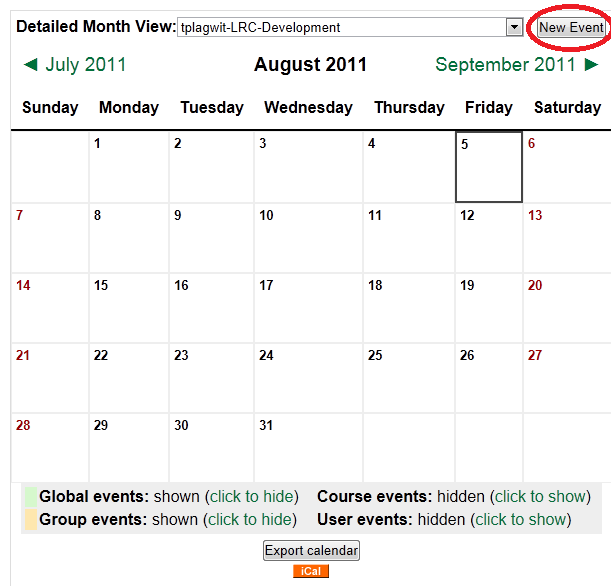
- Other assignments you have to add manually, like so:
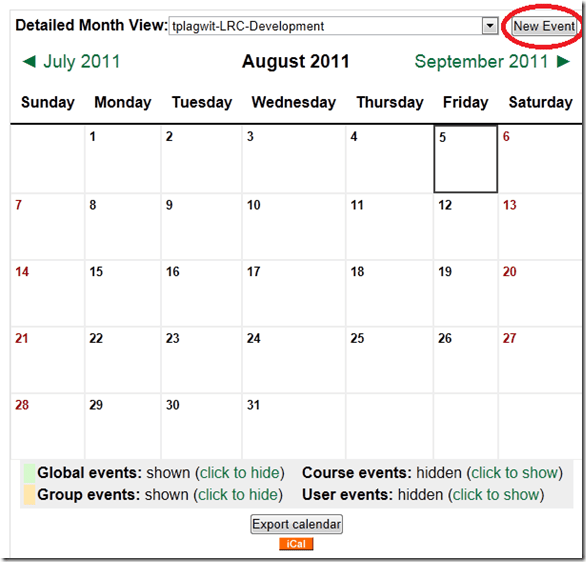

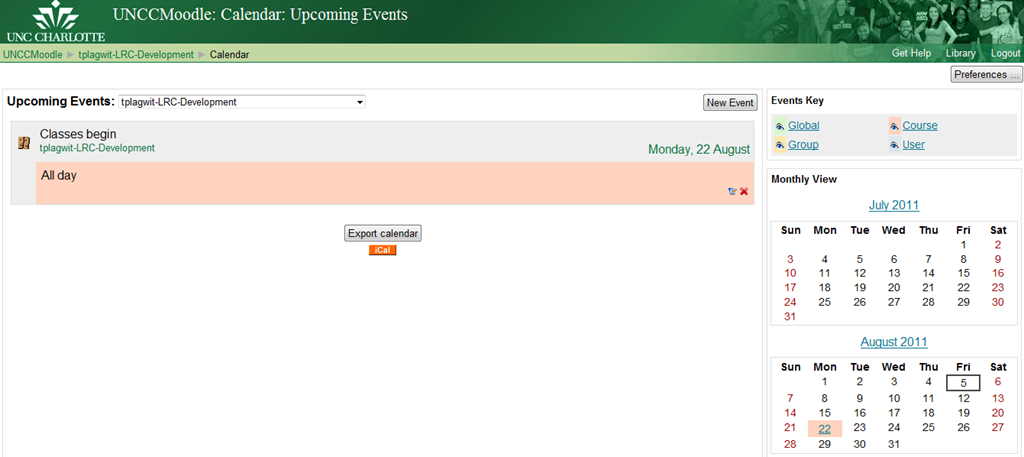
- Resulting in this:
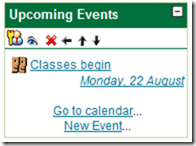 or this:
- Editing your calendar in other applications and importing, even synching it with Moodle is not currently (2.1) supported.
- More on Calendar you can find in the official 1.9 Moodle calendar doc and FAQ.


How to disable or rather bypass the Popup Blocker in your Web browser
Try pressing the CTRL-key when clicking a link that tries to open a popup window.
This is a known problem with web-based learning applications like Moodle or library ereserves (like UNCCC’s Docutek ERes-based one) .
You can permanently disable popup blockers for certain sites if you study the documentation that comes with your browser (and possibly with the shared computer) you are working on.
Free screencast recording software from Microsoft
Teachers ask me about software for making screencasts explaining procedures to their students. I have not googled for free screencast recorders recently, since I have been happy for many years to use (or rather work with extensively, and recommend) Windows Media Encoder 9 on MS-Windows. Allegedly as of end of 2010, this software is not linked on Microsoft’s website anymore (but can still be googled and downloaded). Even though not officially supported on this OS any more, I have also used it successfully on Windows 7 (64-bit) (after Vista (64-bit) and Windows XP)).
The official replacement screencast recorder from Microsoft is Windows Expression Encoder (of which I still use the inexpensive Version 3), which is available here (Version 4 SP1) for free. Media Encoder is almost 10 years old, so Expression Encoder is clearly superior – however, the free version is somewhat crippled, most notably in this context I seem to remember the time limit for screencasts is 10 minutes.
Both Encoders are somewhat technical in nature. In particular, I suspect the reason why considerable experts did not know Media Encoder as a screencast recorder (which is not the same as a documentation and training maker: its post-editing capabilities are limited and not specialized for documentation, unlike e.g. Camtasia), was that its default settings for screencast recordings are low quality.
To “uncork” the real possibilities of this software, your first need to alter the compression settings within the WME configuration file that your screencast is based on (you can do this from within Windows Media Encoder itself). Moreover, for this change to stick, you need to alter an underlying PRX template file also. This file is hidden away in the depths of the Encoder install directories; after installing Windows Media Encoder, search your programs folder for a file named schia.prx, it is an XML file that will open with the Windows Media Encoder utilities.
How to enable a secondary monitor, using the Dell Monitor: Front Buttons
If the Monitor is in no-signal mode (indicator: screensaver test image floating across the screen, may be color test or single color like message below) ,

try to press front button: icon “monitor with incoming arrow” AKA the ”input selector” (may be leftmost or the 2nd button from the left), to help the monitor detect the input signal ( setting “Autodetect” should do just this, but seems to fail).

This has been tested to work (turn the monitor on to display a signal received in a dual monitor setup) on the dual monitors connected to both the LRC teacher and reception desk computers.
QuickNotes: For ELTI 201/202/501 Student Recordings with Sanako Study1200
- This is 20 students class doing a model imitation for English phonetics and grammar – use right half of classroom plus 2 rightmost columns of left half.
- Have a couple of spare student computers logged in as labadmn (not as presenter: has no permissions to s-drive to save recordings) for emergencies.
- Your students will log in, then take their break. Wait until entire class shows up in the Sanako Classroom layout. Then you can lock their keyboard and mouse – but remember when computers go into locked mode, Sanako cannot control them
- See http://plagwitz.org, upper right corner “Quick links” for the path to copy/paste. Or, on the teacher computer in LRC 434, in folder C:\Temp, you can find a shortcut to the Sanako folders
- “media” with teacher audio (to be prepared with pauses and beeps once it has been recorded and sent; you can easily prepare it yourself: download and view how with Windows Media Player);
- “student” with student recordings
- You can download and view with Windows Media Player the (unedited) screencast of our summative walkthrough here.
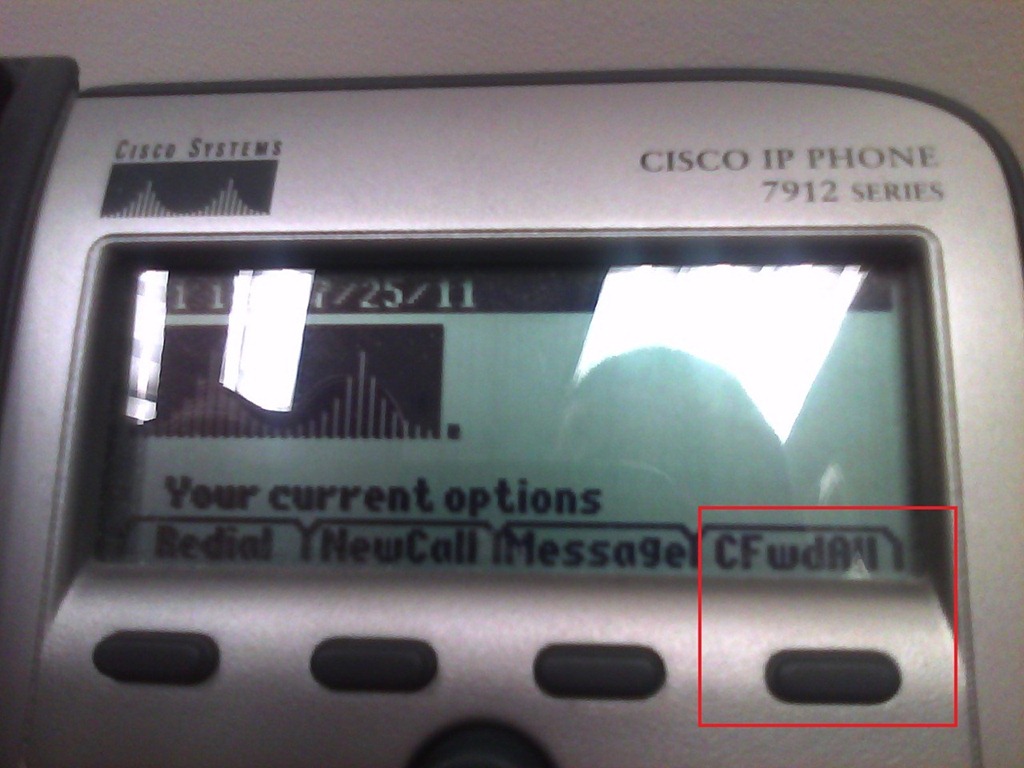
How to do Call forwarding on the Cisco IP Phone 7912
Press button “CFwdAll“:
Type the phone number:
 .
.
To un-forward, press button “CFwdAll” again.
Summary: Foreign language character input in LRC and on your own Windows PC
On popular request, I am posting a summary on this topic:
https://plagwitz.wordpress.com/2011/04/14/foreign-language-character-input-on-windows-xp-in-the-lrc/
DO try this on your PC at home: https://plagwitz.wordpress.com/2009/09/04/character-input-methods-for-sla-western/, includes an Interactive Demo of installation procedure (personal computers outside of the LLC) here: keyboard_usinternational.swf.
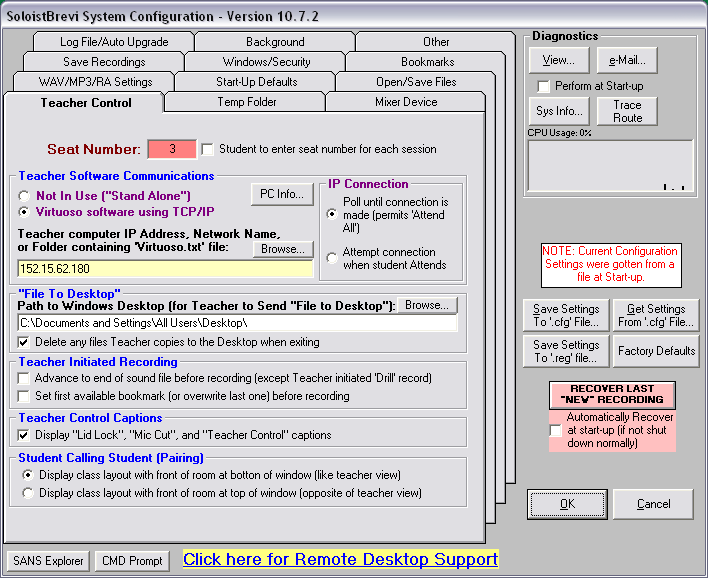
Sony Virtuoso Apprentice and Brevi Options Dialogues and Diagnostics
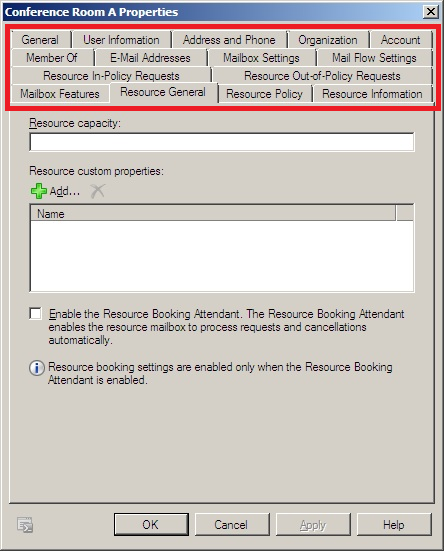
When working on improvements for the room booking and equipment checkout in the LRC, I was recently reminded by the MS-Exchange 2010 room mailbox settings :
 ,
,
how nice it is to have, like a giant tool belt, a reasonably evolved software application with all kinds of knobs and handles (all you can set here can help you, solve a problem for you, relieve you of manual troubleshooting/clerical work).
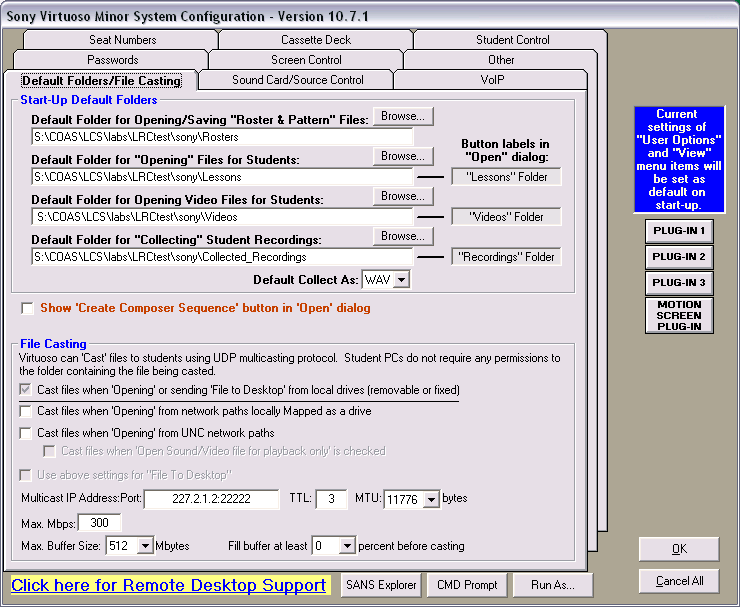
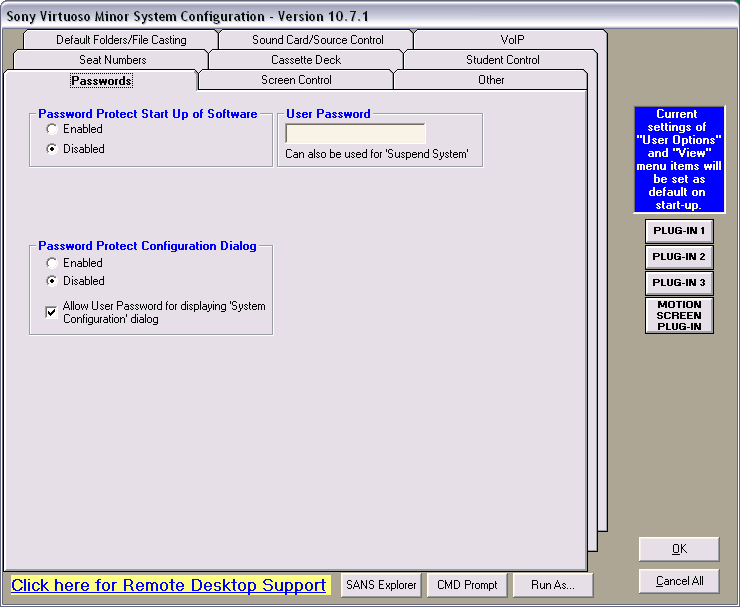
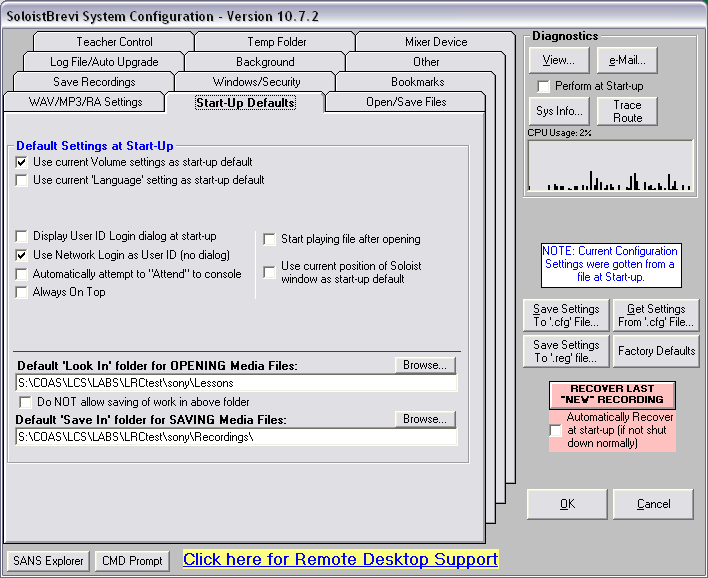
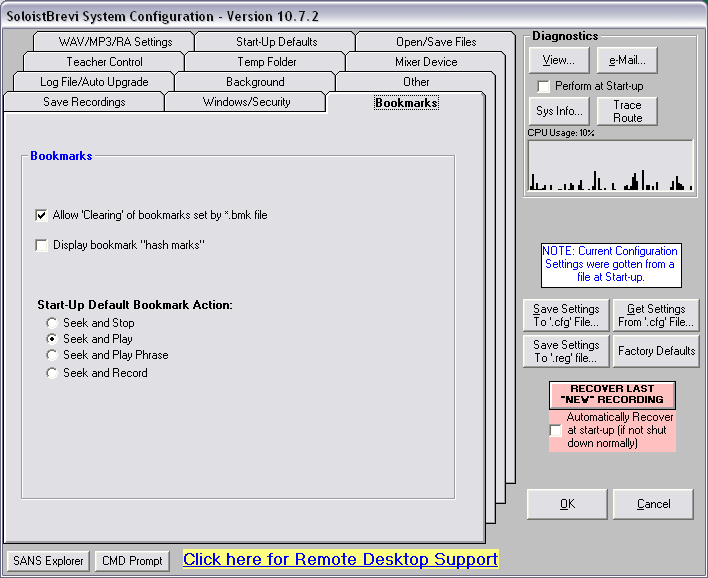
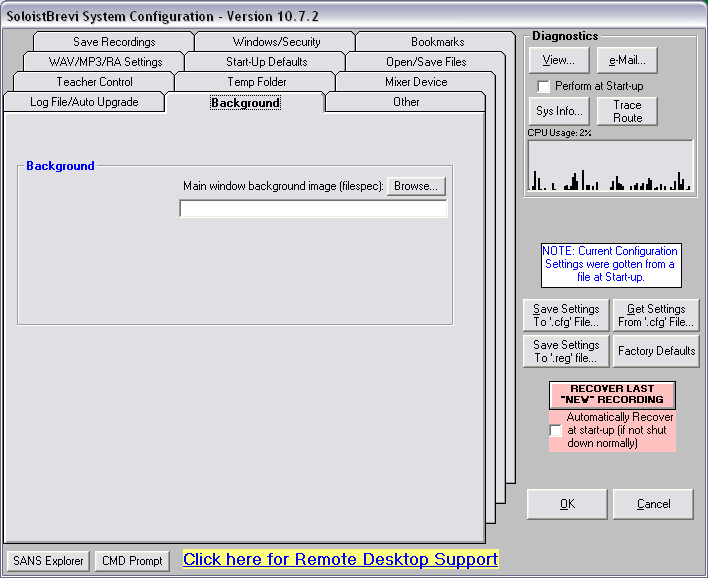
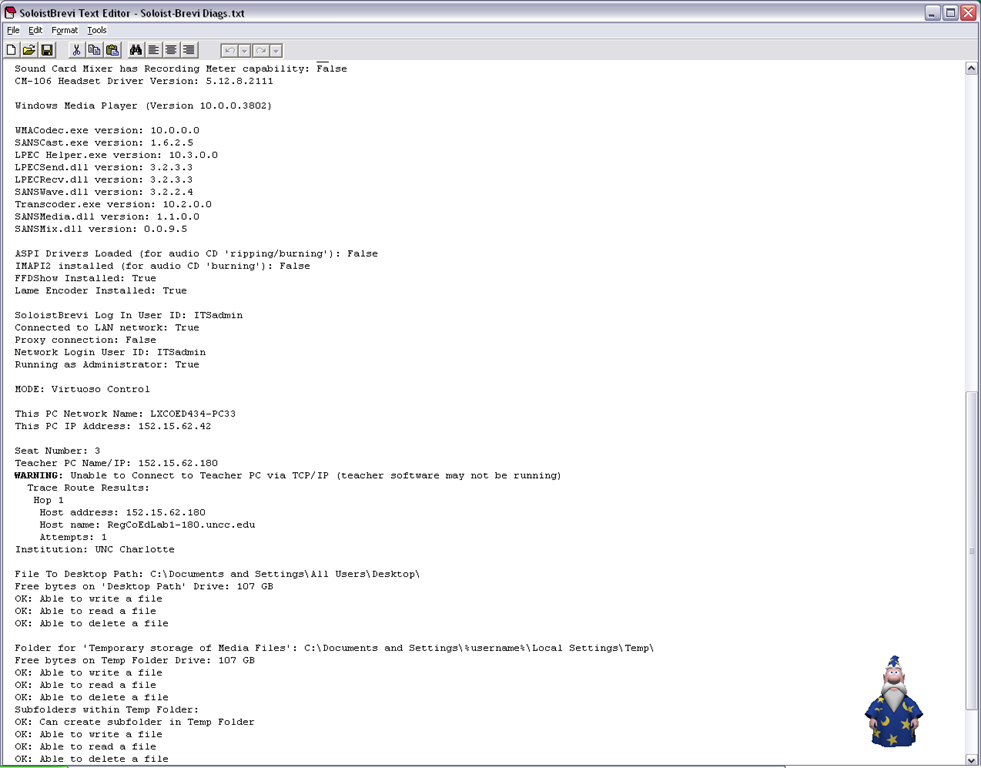
The Sony Virtuoso Apprentice language lab software and the corresponding Sony Soloist Brevi Student Recorder application did not make the cut here for other reasons. But I sure felt intrigued and put in control by its options and settings dialogues:
Virtuoso Dialogues:



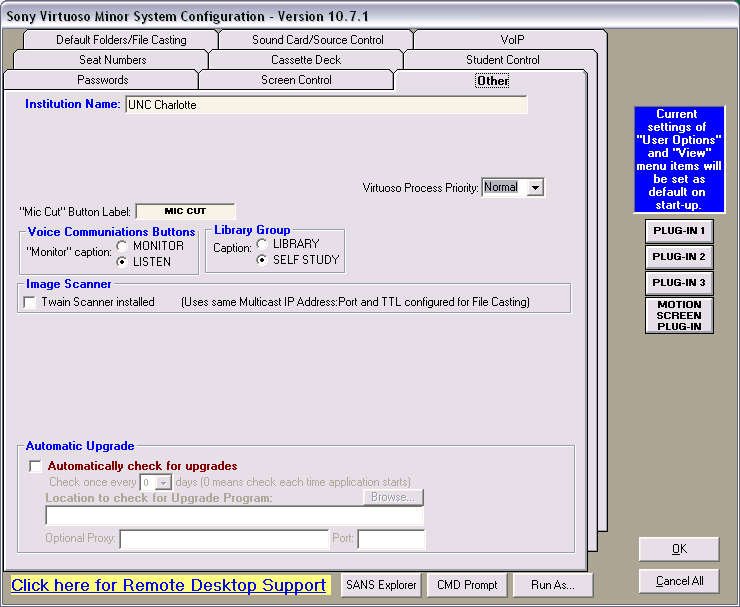


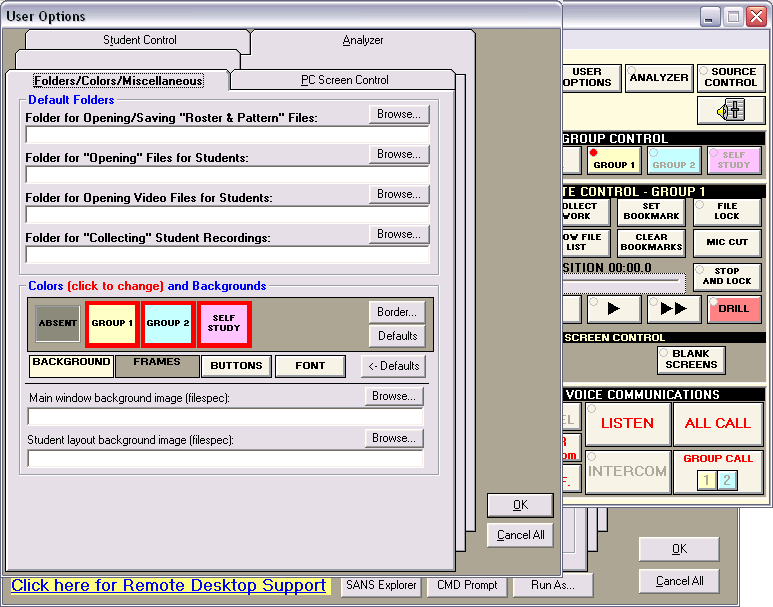


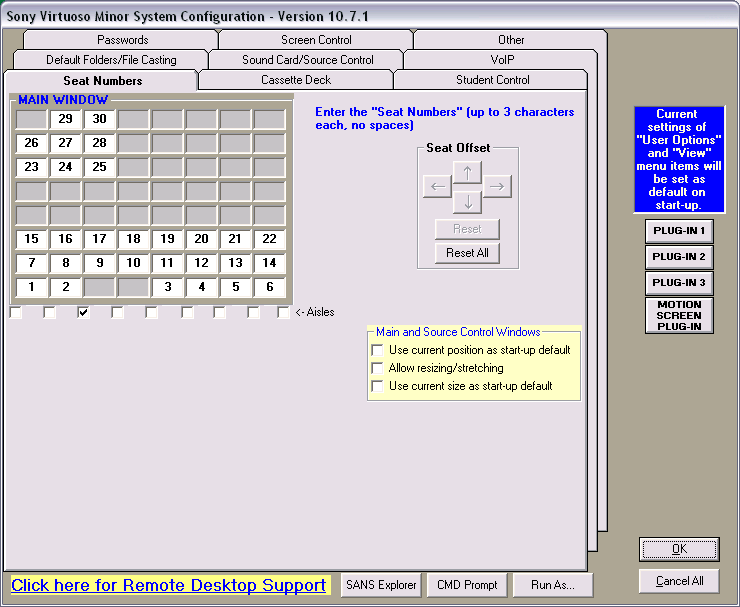


Soloist Dialogues and Diagnostics:










Questions? Read the About. Or just ask me a quick Our Databases: Resources with calendars -- Language learning material Moodle Sites, multimedia files -- films


FAQs for LRC student staff or for students or for teachers. To search our FAQs, in the browser addressbar, add after "https://plagwitz.wordpress.com/feed/?tag=faqs+/" "+TAG1" (from tag cloud below) OR "https://plagwitz.wordpress.com/feed/tag=faqs
&category_name=" "CAT1" (from category hierarchy below). OR search both categories and tags, and multiple TAGs/CATs (connect with "," for OR-search, with "+" for AND-search), like so: https://plagwitz.wordpress.com/feed/?tag=TAG1+TAG2+...TAGn&category_name=CAT1
+CAT2+...CATn"
Other ways to find help
If you cannot find it here, look there: 5,500 Language-Learning Links and Programs for learning or teaching 150 languages
Shortcuts:Our Lists, Our Maps, LRC Staff Moodle Site,LRC Project Moodle Site, 49erexpress, UNCC Moodle, Student Recordings: s:claslcslrcsanakostudent
Learning usage samples: Sanako oral exam, Kaltura webcam presentation, Dictation with speech recognition, Sanako written exam, Chinese and Japanese interactive stroke-order practice
Test the Sanako Installer, Webbrowser Popup Konfigurator for XP, or Windows7, faster LRC TeacherPC Log-in Let MS facilitate diacritics writing by installing for you US-International keyboard layout
This is my personal blog (Google+). The views expressed on these pages are mine alone and not those of my employer. The information in this weblog is provided “AS IS” with no warranties, and confers no rights.
 Thomas' Work Space