Archive
Interpreting Suite: How to avoid audio feedback
- symptom: loud squealing noise over the classroom speakers
- context: left lectern microphone is turned on; Creston / main room /
[Elmo room] camera is chose (e.g. to display the speaker on the projector; may also be chosen for background recording purposes only)
- resolution: Creston / room controls / speaker: up/own, on/off, to turn the classroom speaker volume down or off entirely
- explanation: the Elmo camera works with the sound from the left lectern microphone (not from the right or DIS microphone); if the Elmo camera is room source, its sound is displayed over the classroom speakers; from where it feeds back into the microphone; etc (infinite loop, feedback).
Thoughts on use of MS-OneNote for Learner Portfolios in Interpreting?
What are aspects of portfolios, according to Wikipedia.org? Portfolios “document education, work samples and skills” “more in-depth than a resume” can. They come in different flavours: “developmental (e.g., working), reflective (e.g., learning), and representational (e.g., showcase)” and can contain “personal information, evaluations, sample work, and awards and acknowledgments”. If they are e-Portfolios, implying online, they can be “updated often” and with ease, and are “assembled and managed by a user” who controls the “varying degrees of audience access”. With this come “problems of exporting data and related interoperability issues” and the pros and cons of portfolios integrated into existing VLEs of educational institutions, who are initially easily available, but may lack in “learner-centered-ness” beyond the institutional affiliation.
In the OneNote ecosystem, there is a lot of student workbooks samples – may be closer to what I mean to be a portfolio, if they would groom it and reflect on their work –, plus a so called “Digital portfolio: Sample digital portfolio of a teacher that contains multiple sets of student work, stored and organized within OneNote. Includes homework, quizzes, tests and projects.”
“If you want to use recordings made in OneNote, be aware that the default recording quality for OneNote is not meant for speech recognition. We use a voice codec and bit rate/sample rate designed to compress spoken word audio as small as can be while still usable by human beings. In OneNote 2007 we increased the settings slightly to make audio search work better, but speech recognition (transcription) requires a much higher level of quality. To set up your future recordings in OneNote to be transcribable, first go to Tools/Options/Audio and Video. Switch the codec to Windows Media Audio 9.1 Professional. ”
8+x computers in the interpreting suite and maybe 8 extra in the language center could get us started. (an configuration of these computers which is different from the it labs configuration may save some money initially, but incurs maintenance cost permanently, which may be somewhat hidden, but is very real. so a site license for OneNote, if the licensing cost is reasonable at all, would probably be preferable. of course we are past the deadline for software image upgrades, i just managed to get the OneNote in the interpreting suite request in before the deadline).
if we want to enable students to work remotely, they need personal licenses. this is not necessarily expensive (ca 40 pounds for a full office 2007 suite from ms directly for students only which i recommend to any student just to get ms-word, much more so if you use more advanced office applications)..
one of the nicest features of ms-OneNote and which, even if i have not had a chance to test, would most likely strongly recommend using, is the following:
we can store these OneNote portfolios as shared files on our intranet so that students can keep editing /adding to them, and Danielle and other staff at the same time, without conflicts or need for copying and keeping files in synch, open for checking and giving feedback.
this seems much more usable than copying and transmitting (email is impossible, Weblearn, sans webdav and learner portfolio feature at least, very inconvenient) large multimedia files.
using this feature requires, however, a network share which the students can write to (which will also be required for the digitization of the interpreting suite, even my personal hack), and, if we want to support students doing this from home, probably VPN access (i do not think the current FTP access to the home drive would help us any with this task).
Digitization of the SAVILLE analogue Conference interpreting recording facility: Booths. Technical instructions
Prerequisites:
The original SAVILLE setup to add (floor and booth) video and enable recording in the DIS 6000 conference interpreting facility. The cabling, switching and interfacing can all be used unchanged, and the VHS recorders should indeed be used as backup. OTOH, once you feel confident about digital recording, you can fade out the VHS recorders (or replace them by yet another output device).
Digital video capture card – the cheapest I could find was this and it tested to work (including lip synching),
Miscellaneous AV splitters and cables.
Windows Media Encoder 9 and the Windows Media Encoder SDK, both available from Microsoft and installed by campus ICT support.
Windows Media Encoder Configuration Files trprecord_a.wme and trprecord_av.wme in \\stushare_server\StuShare\Humanities, Arts and Languages\Language_Services\configuration
AutoIt3, a scripting language used on campus for computer deployment. The compiled executable I provide has no prerequisites on our MS-Windows installation. If you want to make changes in the au3 script, you will need the free AutoIt3 language and development environment.
The script relies on impersonation to access the network shares. If the user/password this impersonation is based on changes, you can still work with the recordings on the local PC. To restore the network archiving/sharing functionality, you have to run trpPwdEncrypt.exe (a slight adaptation from the AutoIT3 help file example) and follow the included instructions:

Then recompile the script trprecord.au3 (both files are stored on the instructors-only share) and put the resulting trprecord.exe on the student-accessible share.
Troubleshooting:
- Check the AV cables and connectors.
- Check the screenshots and their filenames which the software produces for logging in the local temp directory (note that this directory gets purged on restart).
- If you make changes in the environment, do not fail to also change the corresponding configuration strings at the top of trprecord.au3, then recompile.
Digitization of the SAVILLE analogue Conference interpreting recording facility: Booths: End-user
The instructor sets the booth AV sources as usual (using the CRESTRON remote control).
The student in the booth starts the trprecord.exe from the student-accessible share (if the application is already running, an attempt to start another instance brings the current instance to the foreground).
In the GUI (which should not be hidden by blocking the student screen with AV signal; one more reason to stop the wasteful sharing of one screen between AV and VGA signal):
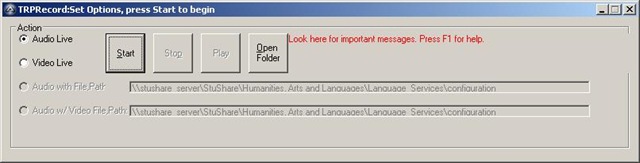
- choose whether to record “Audio” or “Video”(the disabled (grayed out) non-live recording modes are not yet implemented. they would be a completely separate extension of the SAVILLE system.).
- press “Start”, wait for the message indicating recording has begun
- pressing “Start” enables the “Stop” button; press “Stop” when finished
- once the “Play” button has been activated, the student can listen to the last recording in the default player for WMA or WMV files (normally Windows Media Player).
- both student and instructors can listen to other (past and/or peer) recordings by “open[ing the network share] folder”. The instructor (having full control permissions on the network share folder) controls the release of network share videos. Students can only read from this network share folder. The filename, e.g. trprecord_2009_08_04_18_24_47_MORLIB–PCC6392_plagwitt.wma, indicates this:
-
Prefix
Date recording started
Time recording started
on which computer
for which logged-in user
Audio or video
trprecord_
2009_08_04_
18_24_47_
MORLIB–PCC6392_
plagwitt
.wma/v
- Currently, the computer in the booths of the interpreting suite have the following names (note that the computer names are not aligned with the booth numbers; update this when the computers get upgraded):
-
Booth
Computer
mgb-41
morb43-6374
mgb-42
morb44-6344
mgb-43
morb45-6363
mgb-44
morb46-6353
mgb-45
morb42-6368
mgb-46
morb47-6359
- When listening to the recording in Windows Media Player, use the “Balance” slider which you can enable by clicking Menu:File / View / Enhancements / Graphics Equalizer. Wiggle the slider
- Press F1-key for (this) Help. Pay attention to program feedback messages in red.
View trprecord_demo_walkthrough.AVI (your problems with videos are addressed here; no screencast this time, as 2 simultaneous video encoding sessions would overtax the recording computer and could not demonstrate the interaction with the new secondary video screen) which demonstrates ease of use of the program itself and recording files it
How to Digital Audio Record: Olympus Voice Recorder
- Layout:

- To prepare
- Turn on by pressing “OK” (14) button on front
- No external microphone needed, but do not cove built-in microphone (2)
- Troubleshooting: If the device will not turn on/function, check the battery (compartment (23) on rear, uses AAA)
- Make sure
- the “hold” switch (21) is on unlocked
- the “mode” switch (22) on the left is not set to “music” , but “voice”
- Turn on by pressing “OK” (14) button on front
- To record: press record button (4) on right
- To pause, press “record”(4)
- To end, press “stop” (5) on right
- Advanced:
- Voice Activation mode: TBA
- Troubleshooting: if the device does not record and says “music mode”, change
- To saving recordings
- On rear, press release (24) button
- Slide the recorder out of the battery compartment to reveal the usb connector (8)
- Insert the usb connector into a pc of the booths, wait until windows recognizes the device, then move the (wma) files and store them on your home (x:) drive or email them to yourself.
- Loan policy:
- to borrow a digital voice recorder, leave your student or staff card in the plastic pocket of the recorder
- Students need to ask before they can borrow one. Tutors need to collect them back by the end of the session.
- You must return the recorder at the end of the lesson. Digital voice recorders must not leave the interpreting suite premises (MGB-36).

How to Video Record Floor (using Hitachi Camera and Sennheiser Wireless audio)
- To start recording,
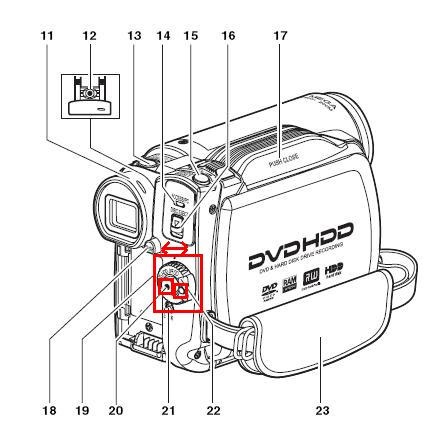
- On the camera, turn the wheel, using the grey knob (22), to “HDD”, and press the red button (20)
- Check whether camera display shows red recording symbol
- On the audio transmitter/receiver, under the rear door, turn the “on/off”button to on
- On the audio transmitter top, make sure “mute”is NOT set
- Check whether display backlight is on and signal bar shows activity when you tab the micro
- To stop recording,
- On the camera, turn the wheel, using the grey knob (22), to “Off”
- On the audio transmitter/receiver, , under the rear door, turn the “on/off”button to “Off”

-
v
An outline of the MS-Word Cloze Quiz, MS-PowerPoint Multiple Choice Quiz and Internet Lookup tools for
- To facilitate lesson delivery and student interaction in our language lab and computerized classrooms, I am programming two MS-Office templates with interactive lookup and quiz functions and create new/convert traditional language teaching materials in French, German and Spanish with them.
- These templates support the learner by strengthening learner autonomy and providing immediate corrective feedback and – in conjunction with the grouping facilities of the centre’s infrastructure – allow for custom-tailored instruction based on the immediately available outcome of formative assessments.
- MS-Word-Template
- The student can be given additional hints when tabbing into a form entry field.
- The student can easily look up words and terms in internet-based reference works and collections.
- Double clicking on a word opens a browser window with the corresponding entry in a dictionary of the corresponding foreign language.
- Selecting a word or phrase and clicking on a menu item in the lookup menu a browser window with the corresponding entry of various reference works and databases (Figure 3: Look up Internet Reference Works, Figure 4: Look up Internet Illustrations).
- The student will receive instant feedback when tabbing out of an entry field.
- During quiz-taking, the screen will be formatted (font face, size, spacing, colors) so that the teacher keeps easily informed, whether through a computer lab management system / screen monitoring tool or by a more “pedestrian” approach for student monitoring.
- After collection and before correction by the teacher and reviewing by the student, the screen will be re-formatted to facilitate reading outside of the classroom setting.
- The template can be used for a wide variety of typical foreign language teaching exercises:
- Instructors have requested fuzzy matching for fill-in-the-blank exercises, which I am planning to implement by integrating an existing COM add-in that can make available the Levenshtein Distance Metric to MS-Word.
- Upgrade of Templates from Sanako Lab300 to better integrate with the new Sanako Study1200 software features.
- Teaching Content Creation:
- Making subtitles for foreign language movie digitally available;
- Programming regular expressions ins VS.Net that match function words (example: demonstrative pronouns in Spanish) to run over these templates in order to batch create fill-in-the-blank exercises;
- Importing them into the templates and creating grammar and listening comprehension exercises
- Support: Implementing an Error Logging Application
- MS-PowerPoint-Template
- The teacher can easily lookup words and terms in internet-based reference works and collections
- Currently implementing additional lookup options (NLP and Corpus Linguistics (ACORN, BNC, Sketchup), Dictionaries (Visurwords, Wiktionary, Google Define).
- A number of templated custom-animated exercises can be used for
- presenting students with guiding questions before watching/listening to a target language segment
- Revealing correct answers after the segment.
- A number of templated interactive exercises can be used for revealing correct answers (word lists) depending on students’ responses.
- The templates support typical activities in the digital language lab (interactive presentations with multimedia, listening comprehensions, speaking and dialoguing activities for language learning, view usage examples in my Templates Eurocall Presentation video of September 2007). Teachers can use them as exercise-generating engines: they allow copy/paste of their own exercises into these templates. These templates have the advantage of being able to hook into the rich infrastructure that MS-Office provides for language teaching; they work with all Western Languages (but have been thoroughly tested only with ESL, French, German, Italian and Spanish so far). These templates that are better geared than VLE and other CALL resources for daily use in a computerized classroom environment: easy to author, take and monitor and either multimedia-heavy or focused on human interaction. These templates support the instructor by relieving of routine tasks in favor of well-informed, well-focused non-routine intervention, and extend the centre’s screen-sharing and VOIP infrastructure to provide the instructor with an unprecedented control of the learning of an entire class.
- APP delivery format:
- MS-PowerPoint: 1 template-file (.pot) and 1 addin (.ppa)
- MS-Word: 1 template (.dot – incorporates Lookup application) and 1 COM application (fuzzy matching)
- Apart from the templates themselves, there is
- Explanation: documentation of the tool
- see Figure 4: Template Documentation,
- Figure 8: PowerPoint Exercise Templates,
- sample materials which illustrate the practical exploitation of a tool the development of a skill or the response to an issue
- see Figure 3: Quiz Template with Chanson Lyrics
- Figure 9: PowerPoint-Exercises for German History Documentary,
- Sample Exercise material: hands-on activities for materials development, skills training or discussion
- Figure 9: PowerPoint-Exercises for German History Documentary)
- Explanation: documentation of the tool
- Since January 2008, the templates have been adapted for use in the Aston university Study1200 lab and a series of 3 teacher training workshops has been delivered in May/June of 2008. During that time, the implementation of the distance metrics within the templates has been started also which is currently still in the debugging state (see following slide below.)

Figure 1: Look up Internet Reference Works
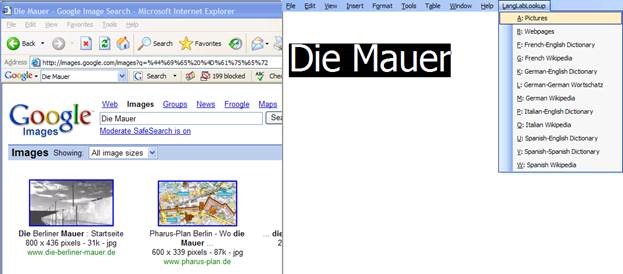
Figure 2: Look up Internet Illustrations
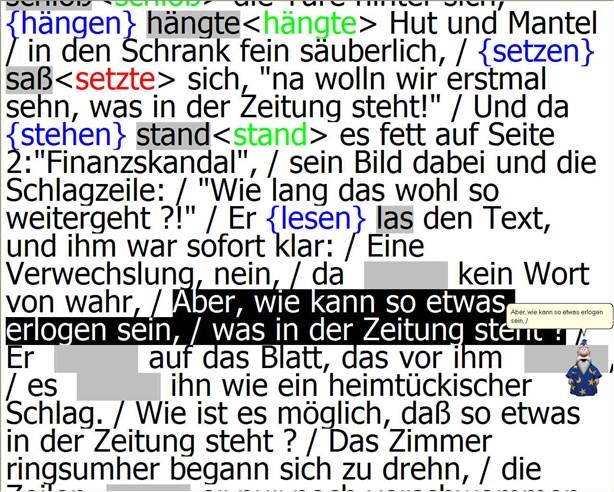
Figure 3: Quiz Template with Chanson Lyrics
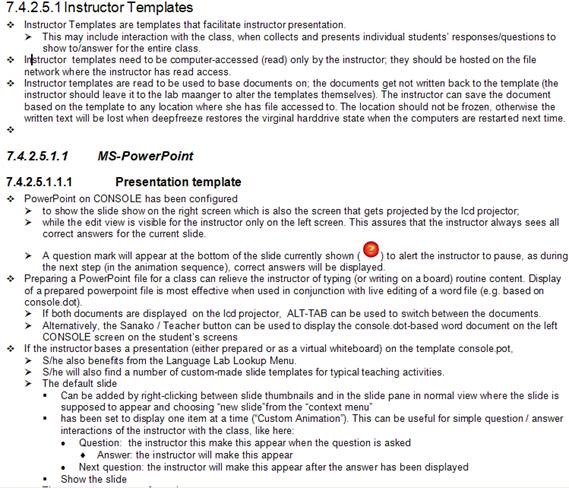
Figure 4: Template Documentation

Figure 5: Quiz Result Summary

Figure 6: Spanish Movie Subtitling Exercise Creation

Figure 7: Information Gap Dialogues (Language Lab Example)

Figure 8: PowerPoint Exercise Templates


Questions? Read the About. Or just ask me a quick Our Databases: Resources with calendars -- Language learning material Moodle Sites, multimedia files -- films


FAQs for LRC student staff or for students or for teachers. To search our FAQs, in the browser addressbar, add after "https://plagwitz.wordpress.com/feed/?tag=faqs+/" "+TAG1" (from tag cloud below) OR "https://plagwitz.wordpress.com/feed/tag=faqs
&category_name=" "CAT1" (from category hierarchy below). OR search both categories and tags, and multiple TAGs/CATs (connect with "," for OR-search, with "+" for AND-search), like so: https://plagwitz.wordpress.com/feed/?tag=TAG1+TAG2+...TAGn&category_name=CAT1
+CAT2+...CATn"
Other ways to find help
If you cannot find it here, look there: 5,500 Language-Learning Links and Programs for learning or teaching 150 languages
Shortcuts:Our Lists, Our Maps, LRC Staff Moodle Site,LRC Project Moodle Site, 49erexpress, UNCC Moodle, Student Recordings: s:claslcslrcsanakostudent
Learning usage samples: Sanako oral exam, Kaltura webcam presentation, Dictation with speech recognition, Sanako written exam, Chinese and Japanese interactive stroke-order practice
Test the Sanako Installer, Webbrowser Popup Konfigurator for XP, or Windows7, faster LRC TeacherPC Log-in Let MS facilitate diacritics writing by installing for you US-International keyboard layout
This is my personal blog (Google+). The views expressed on these pages are mine alone and not those of my employer. The information in this weblog is provided “AS IS” with no warranties, and confers no rights.

