Archive
Exchange 2010 and Live@edu: How to use resource calendar publishing to implement a help desk timetable and signup sheet
- Calendar sharing with students that have only cloud accounts in live@edu requires them to be mail-enabled users in on-premise AD and only works if a users privileged to share shares with individuals through the GUI (in our circumstances: no groups, no PowerShell access).
- Workaround to share resource calendar information is: publish calendars to the internet. This needs careful consideration of privacy issues, but Exchange 2010 provides you with a number of helpful options, including “availability only”.

- If you publish, you can easily generate the links from the resource mailbox name, and manage large sets of calendars e.g. in an MS-Excel Web app.
- As you can see in the below LRCTutor12 calendar subscribed to in either OWA or Windows Live, the Exchange 2010 ICS does not seem to provide the calendar name, users have to update it manually (maybe use the resource mailbox account name from the calendar URL).
![student-internet-calendar-in-owa-error_thumb[2]](https://thomasplagwitz.com/wp-content/uploads/2011/09/student-internet-calendar-in-owa-error_thumb2_thumb.png?w=526&h=287 "student-internet-calendar-in-owa-error_thumb[2]")
![student-internet-calendar-in-windows-live-works_thumb[2]](https://thomasplagwitz.com/wp-content/uploads/2011/09/student-internet-calendar-in-windows-live-works_thumb2_thumb.png?w=545&h=342 "student-internet-calendar-in-windows-live-works_thumb[2]")
- If you “hack” resource calendars to be a help desk timetable (support personnel, like lab assistants/tutors, one calendar per language, sharing the support role), and have personnel update their availability with late-breaking changes through their Outlook calendars (“cancel this occurrence”) and automatically get these changes pushed out to all users over the internet.
- You can also “hack” a signup sheet “on steroids”:
- enforce a MaximumDurationInMinutes suitable for a sign-up appointment duration)
- set the AutomateProcessing option to AutoUpdate,
- accept the meeting requests of lab assistants/tutors at term start, so that they appear as solid blocks in the calendar, and advise clients trying to sign-up that only 1 client can sign-up during any given solid block with the office.
- Then ignore meeting requests of clients during the term (but communicate the rule to clients: only one client can sign up for support from the “office” during any given time slot. There is in my knowledge no way to set a number in Exchange 2010. Neither MaximumConflictInstances nor ResourceCapacity are applicable). The client meeting requests will remain tentative and appear hatched in the calendar for any other client to see.
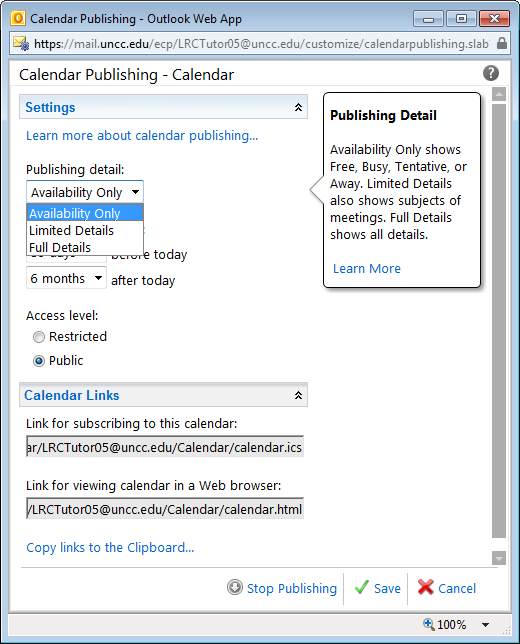
- It is advisable to publish the calendar not with “Availability” only, but with “Limited Detail”, so that additional information (office hours dedicated to specific support topics/clinics, specific requests by clients) can be passed back and forth between support personnel and clients (and anything is better than “Free/Busy” which is especially misleading for such office calendars). Note that even if OrganizerInfo is included on-premise, it seems not included on calendars published to the internet (option “public”; “restricted” has not been tested), which makes Limited Detail possible in our environment.
- Publishing the calendar to the internet with “Full details” could be used for passing additional information, like special handling instructions to student workers,
- like this:
 (this is the publically viewable HTML – oddly)
 - This notes passing does not work with cloud-accounts that are subscribed to the calendar ICS that are not mail-enabled in AD: no notes field gets through to them in OWA)
- But the one-size-fits-all approach is unsatisfactory. If the group of student workers is small, it could (once mail-enabled in AD) be shared the calendar with instead.
- incidentally, what happens with the organizer field under “full details”
- Ìt appears that a calendar can not simultaneously be published "public" and "restricted" (need to know the obscure URL), let alone with different levels of information included.
![student-internet-calendar-in-owa-error_thumb[2]](https://thomasplagwitz.com/wp-content/uploads/2011/09/student-internet-calendar-in-owa-error_thumb2.png "student-internet-calendar-in-owa-error_thumb[2]")
![student-internet-calendar-in-windows-live-works_thumb[2]](https://thomasplagwitz.com/wp-content/uploads/2011/09/student-internet-calendar-in-windows-live-works_thumb2.png "student-internet-calendar-in-windows-live-works_thumb[2]")

How a Student takes a Moodle Video Assignment in the LRC
- On one of the LRC iMacs, in the Safari web browser (open new window with COMMAND-key+n),
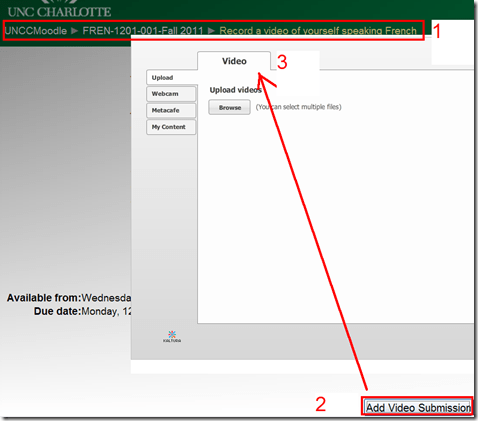
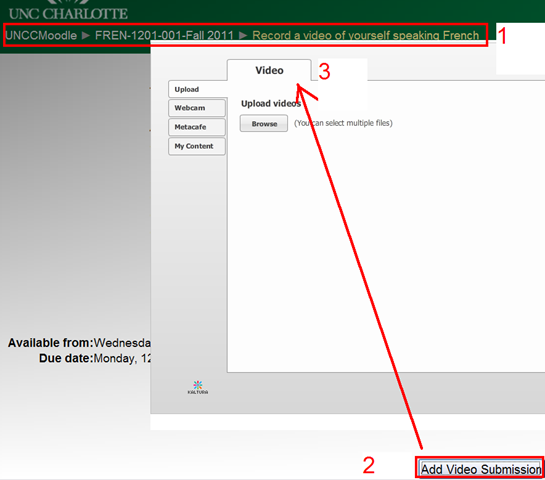
- go to your Moodle course, (1) find the video Assignment, read the assignment instructions (what your teacher wants you to record). Then click underneath the (2) button: “Add video Assignment”, to open the (3) submission window:
- Note that she will also have to allow the flash player to interact with her webcam first.
 If you see no web cam video window, only a black frame, read in.
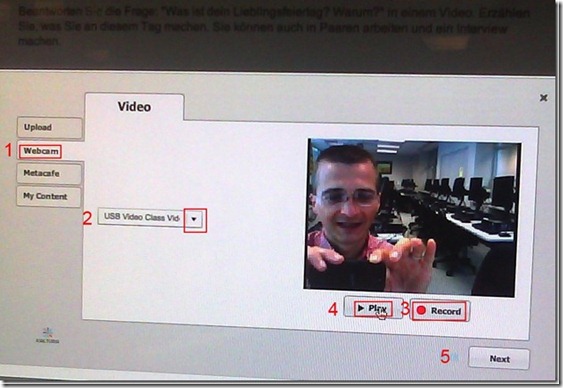
- In the submission window, choose the tab “Webcam” (1), use the dropdown to select the camera hardware (2).

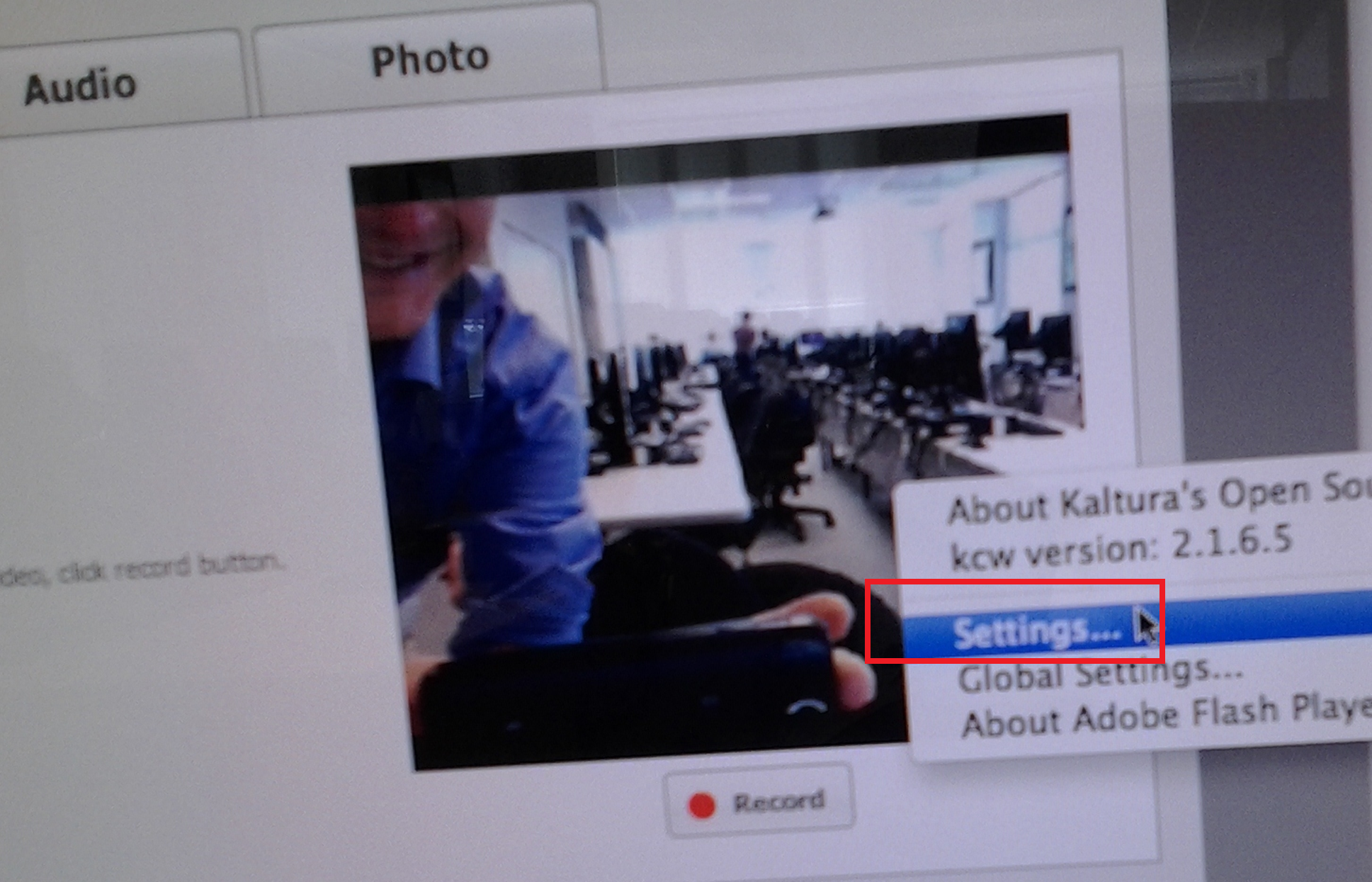
- Check the headset microphone audio: The external headset microphone on the iMacs did not work., but now it does, provided you do this: control-click on Flash’s a video preview window (= the window where you see yourself like in a mirror) for the web camera, and click on “settings”.
-

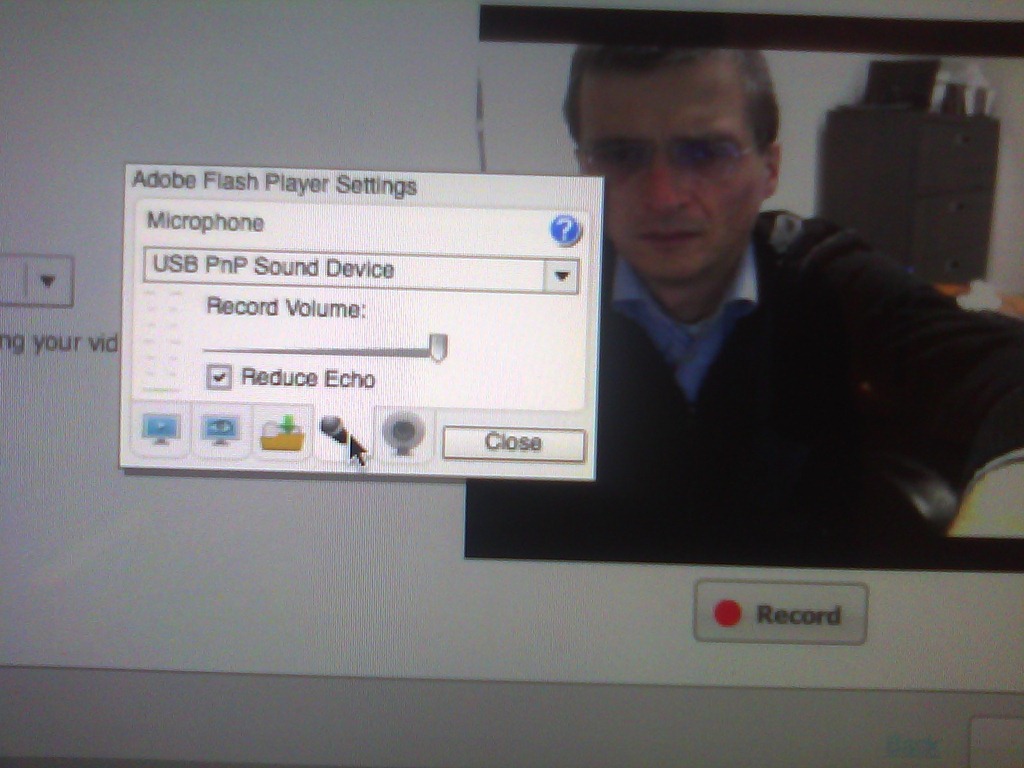
- Click on the microphone icon :

- Make sure the USB PnP device is selected.

- You can bring up the settings dialogue, make sure the USB PnP device is chosen for audio and CRANK up the microphone input sensitivity! Then, by tabbing (don’t speak yet) on the headset microphone, test the volume levels with the built-in volume meter (should show lots of green bars when you tab). Unlike in the picture, do not choose “reduce echo ”.
-
- Start (3) the video recording.
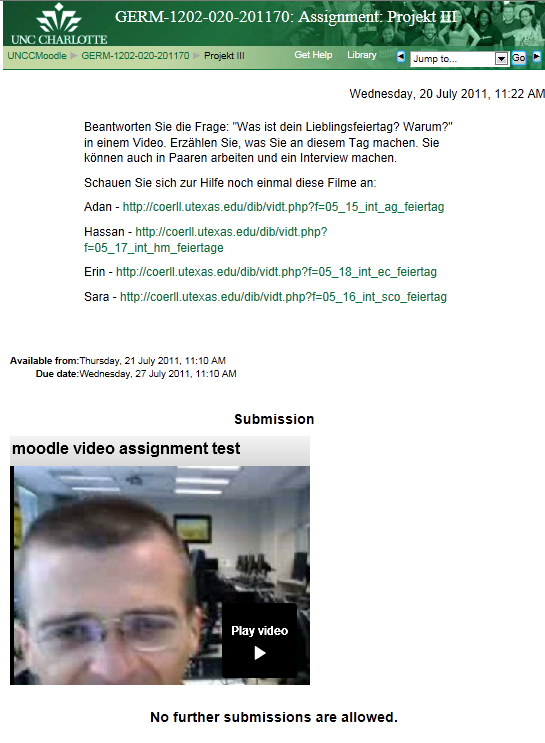
- Afterwards, the student can review (4) her submission.
- If you don’t like your first recording, (3) “record” over it and review again with (4) “Play”. If you do this and the video appears frozen, drag the timeline cursor forward to get the re-recorded video to play. If this does not seem to work, you are likely still able to submit your 2nd attempt, just not review it again.
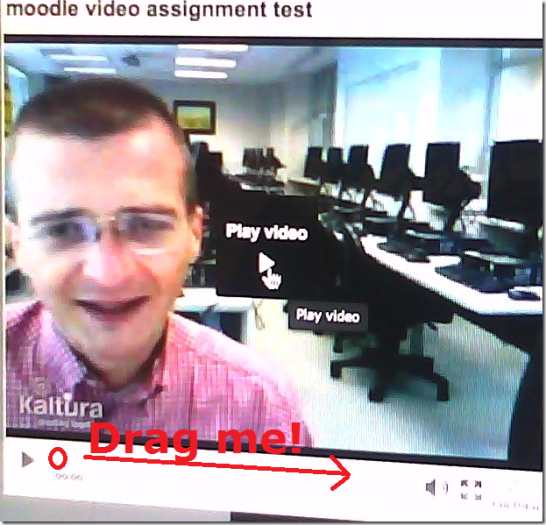
- Click through all the “Next”etc. buttons:
-


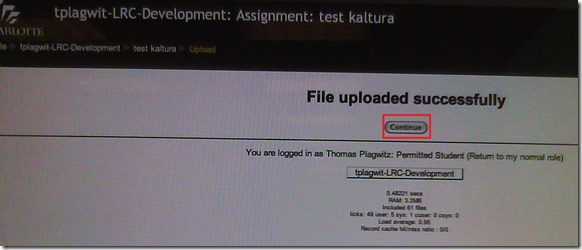
- until you get to the feedback page for the student (caveat: in IE9, the video does not fit into the frame provided on the page).

- Note, it warns you to be patient now:
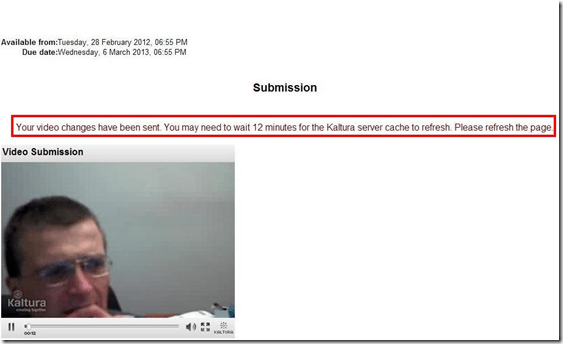
-
- LRC support:
- Depending on your hardware (webcam), software and network support, you can record your language speaking video assignments on any device that has a webcam and a browser that supports flash – and even more devices, if you are willing to post process and upload the video clip.
- If you run into problems or want to use a tested setup, we recommend using the LRC. Since our PCs have no built-in or added webcam (proposed), we can currently only use our 5 8 iMacs (see LRC Layout, see Classroom Calendar and iMacs Calendar for availability). Our (limited) tests worked better in Safari than Firefox.





Our Office 2010 natural language features upgrade: A running log
- Just logging some notes, observations, issues, step-by-step instructions… – other than non-natural-language, most collaboration features, which are being logged here.
- Office 2010 proofing tools (proofing-tools2010-install.wmv),:
- again, we select custom install, “run all from Computers”
- install is extensive, but uneventful
- Office 2010 proofing tools (proofing-tools2010-first-run-German-set-language.wmv), first run:
- German is not autodetected. You have to set the language of the selected text manually, and first find the button on the ribbon:reviewing
- While choosing the language, you can see from the checkmark which languages now have proofing tools installed
- Foreign Language Support
- One of the strongest benefits of upgrading to MS-Office 2010 in the language center is the improved foreign language support licensing for so called “Language Packs”, and that we have a complete set of licenses to the MS-Proofing Tools.
- In addition MS-Office supports free download of so called “Language interface packs” which seem essentially downscaled language packs for LCTL (usually come only with (see feature list) a spell checker and help in the language). Compare: “If a language is available in a language pack or as a fully localized version, it is not available as a language interface pack”.
- Unfortunately multi-user (= learner of different language) support is not the primary usage scenario of these tools. It is, however, possible, to set the language to a default (e.g. Spanish, Arabic or Chinese, depending on your environment). Switching to another language is relatively easy for a user
- changing the screen-tip language: http://skydrive.live.com/embedicon.aspx/screencasts/office-2010-switch-screentip-language.wmv?cid=4fa3329905d7e1ce&sc=photos
Sanako Study-1200 Oral Exams: More result examples
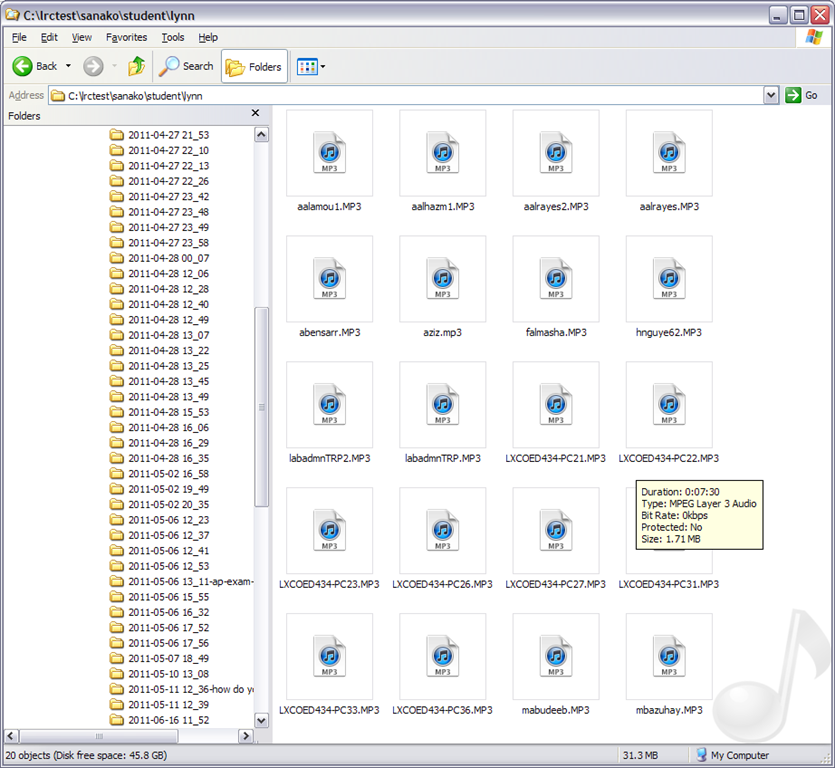
- Study 1200 will automatically save the exam recordings of each of your students under a distinct name (you can choose student email name or seat number) in a location which you can access from your office desktop:

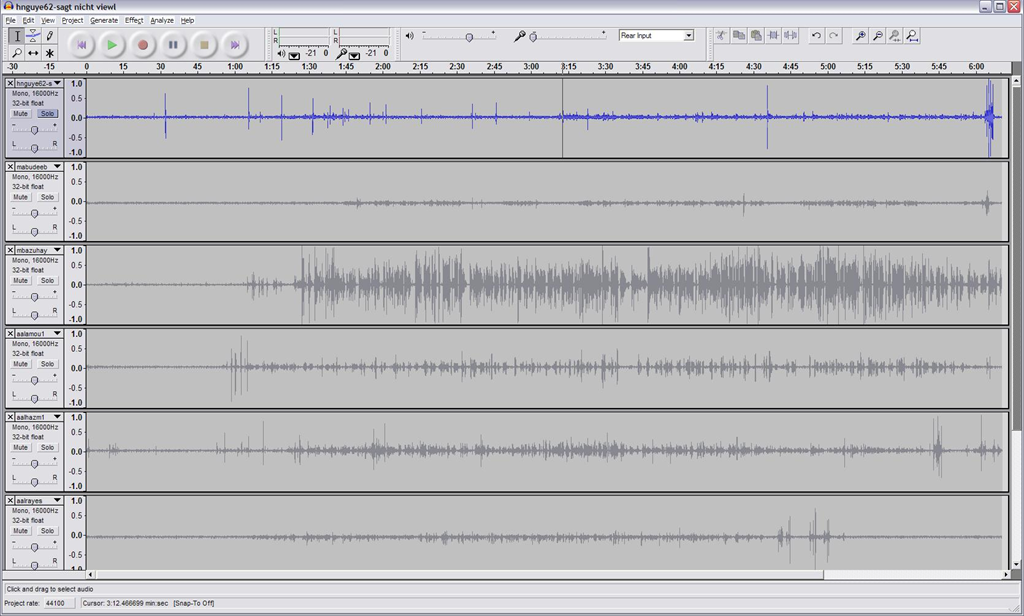
- You can load this recordings in Audacity to grade them, including skipping past the questions and increasing the play speed, but not the pitch, and easy comparison of students like in the picture below:
-


How to do Sanako Oral Exams with large classes, but few licenses: A workaround using partial classroom layouts
When you open the Study1200 tutor, a dialogue comes up which lets you select you the “classroom layout’. What this actually means – since the physical classroom (LRC layout) is obviously immutable –, is: which computers do you want the Study1200 to connect.
The “template classroom” (this happens to be just the default name within Sanako) tries to connect all students logged in on computer in COED434 to the teacher from the “corridor” (= where Study1200 leaves all computers that it knows of, but that you do “into” want to let into the classroom; the corridor has link in the bottom center of the Study1200 teacher window, and it flashes if there is a change “in “ the corridor Stuy1200 wants to make you aware of) that the Study1200.
However, beyond the 20th client (first come, first serve), this will fail because of licensing restrictions, and a grey exclamation mark will appear in the classroom layout in the Study1200 window for these student icons.
The “left-half”and “right-half” layouts that I created load only the computers in either the left or right half of the COED434 classroom (each without the wall/window-facing computers at the very edges) into the classroom layout (other logged-in students will remain in the “corridor”, linked in the bottom center of the tutor interface, if you want to add select students – note that the student icon will not appear on screen in their approximate physical position in the classroom.
You can also bring up the dialogue from which you can choose classroom layout after the initial startup of the tutor: Go to top menu: file / classroom layout. A 45-second screencast of this switching our classroom layouts in Sanako Study 1200 is available for download (requires Windows Media player).
In the screencast, you can see how the visual layout on screen reflects the physical layout in the classroom (the number labels on top of our computer monitors appear (optionally) in seat numbers): rotate by 90% clock- or counterclockwise (I wish we would have not only more licenses, but also a higher screen resolution. Stay tuned).
This technique of splitting the classroom, unloading and loading half of it at a time, you can exploit for administering oral exams consecutively with class sizes (current maximum is 25/30, depending on level) that exceed the number of licenses we have (currently 20 + teacher).
This technique of excluding computers from connecting to the teacher we could also use to merge the listening station computers, even though they have a different audio hardware configuration (analog headsets only, no Sanako headsets with built-in sound card and disabled on board sound) into the main software image without consuming valuable licenses – not without other problems.
Film-studies educational community can get free Autodesk Software
Autodesk offers free software licenses to the educational community if you register (free), some of which may be of interest for film studies (see selection of software below). Make sure you check fit into the licensing conditions: “Important Note :The Autodesk Student Version software incorporates all the functionality of our professional licenses, but includes a print banner making the software inappropriate for professional, commercial, or for-profit purposes. Autodesk Student Version software may not be used in the classroom or lab for instructional purposes, or for commercial or for-profit purposes. Annual licenses of Autodesk student software are not eligible for product upgrade or transfer to a commercial license. View print banner sample.”
Autodesk Maya
Autodesk® Maya® 2012 software delivers powerful new toolsets for previsualization and games prototyping; offers extended simulation capabilities; and opens the way for better pipeline integration.
Autodesk MotionBuilder
Autodesk® MotionBuilder® 2012 software delivers new tools for virtual movie-making, performance animation, and stereoscopic productions, and enhanced interoperability with other products in the Autodesk® Entertainment Creation Suites 2012.
Autodesk Mudbox
Autodesk® Mudbox™ 2012 software delivers enhancements to the painting toolset; innovative new UV and topology-independent workflows; practical posing tools; and improved performance and large dataset handling.
Autodesk 3ds Max Design
Autodesk® 3ds Max® Design 2012 software delivers powerful new rendering toolsets, accelerated iterative workflows, and enhanced interoperability that together help increase overall productivity.
Autodesk Softimage
Autodesk® Softimage® 2012 software delivers innovative new creative toolsets; enhanced interoperability with Autodesk®
Autodesk Smoke for Mac OS X
Autodesk® Smoke® 2012 software offers a timeline-based, all-in-one creative toolset for editorial finishing that spans color correction, keying, tracking, paint, cleanup, titling and 3D visual effects.
Sanako Study 1200 Workshop Fall 2011
Those who wanted to, but did not make it to the vendor training by Sanako’s David Golden (who gave us a basic orientation displaying functions of teacher screen and student screen and demonstrated basic activity functions and what happens at the student screen), might want to have a look at the unedited screencast footage (for Windows Media Player on Windows, if necessary, resort to LRC) I recorded during the entire 2 1/4-hour session:
- the first one recording the screen of a sample student station
- with an explanation of the student player at the beginning,
- the second one recording the screen of the teacher computer
- have a look at the end around 2:10:00 where we connect a group of students via screensharing and audio (headsets), so that a group, dispersed across the classroom, can orally collaborate on an MS-Word document that one student types into but all students see.
- The Sanako features used for this are from the dropdown: activity: discussion, and from the button: pc control:model student. Both can be combined with each other, and with a third feature, the capability to subdivide the class in multiple groups.
- This application I found useful when, before reviewing materials with one half of the class, I sent my more advanced learners off to a more independent and applied group writing task. I allows any member of the class to join the advanced group, no matter where they are located. It also forces the group members to communicate all the target language aurally to the model student. Finally, it affords them access (though not individually) to the language learning tools of a computer while working on their tasks


Questions? Read the About. Or just ask me a quick Our Databases: Resources with calendars -- Language learning material Moodle Sites, multimedia files -- films


FAQs for LRC student staff or for students or for teachers. To search our FAQs, in the browser addressbar, add after "https://plagwitz.wordpress.com/feed/?tag=faqs+/" "+TAG1" (from tag cloud below) OR "https://plagwitz.wordpress.com/feed/tag=faqs
&category_name=" "CAT1" (from category hierarchy below). OR search both categories and tags, and multiple TAGs/CATs (connect with "," for OR-search, with "+" for AND-search), like so: https://plagwitz.wordpress.com/feed/?tag=TAG1+TAG2+...TAGn&category_name=CAT1
+CAT2+...CATn"
Other ways to find help
If you cannot find it here, look there: 5,500 Language-Learning Links and Programs for learning or teaching 150 languages
Shortcuts:Our Lists, Our Maps, LRC Staff Moodle Site,LRC Project Moodle Site, 49erexpress, UNCC Moodle, Student Recordings: s:claslcslrcsanakostudent
Learning usage samples: Sanako oral exam, Kaltura webcam presentation, Dictation with speech recognition, Sanako written exam, Chinese and Japanese interactive stroke-order practice
Test the Sanako Installer, Webbrowser Popup Konfigurator for XP, or Windows7, faster LRC TeacherPC Log-in Let MS facilitate diacritics writing by installing for you US-International keyboard layout
This is my personal blog (Google+). The views expressed on these pages are mine alone and not those of my employer. The information in this weblog is provided “AS IS” with no warranties, and confers no rights.