Archive
How to download videos from YouTube.com, and other video sites
- Don’t know what this institution recommends – here is a list of software that I have accumulated over time – I stopped a while ago, since there is always something newer coming out - try googling what is currently most popular.
- http://www.viloader.net/addon.htm: You have to click on download, and save the file with the name you want and in the end you have to add .flv that its the video format. Then when the video has been saved to your PC you have to convert the video in a comercial format like wmv, mpg, etc. or download a flv player to be able to see the videos.
- Youtube Catcher can download videos from Youtube, Google Video, Myspace Video, Yahoo video Dailymotion Stage6 Veoh. The downloaded videos can be exported to various formats like MPG,AVI, MP4,3GP, 3G2, WMV, PSP, MOV, FLV with the quality you choose: http://www.teknobites.com/2007/08/23/youtube-catcher-youtube-and-other-video-downloader-tool/
- zamzar.com
- http://userscripts.org/scripts/show/25105,
- http://www.googlewatchblog.de/2008/04/13/youtube-video-als-mp4-herunterladen/
- MPEG Streamclip can download YouTube files. They are always opened or downloaded in MP4 (MPEG-4) format, so they can be used in MPEG Streamclip.
- this works well as of 8/17/2009 1.Go to http://edtech.nwresd.org/?q=node/157 . You will see the words ""download script"" (in blue – a hyperlink). Right click on that text and then on ""Bookmark this link"" (at least that’s what it says using Mozilla Firefox as a browser). You can move this bookmark within your Bookmarks or Favorites Folder wherever you want. 2.Go to YouTube and locate a video you want to save. While the video is actually playing, go to your Bookmarks Folder and click on the ""download script"" link you saved there.3.Next look in the right hand column on the screen – to the right of the video playing. Just below the section that says URL, and EMBED (right below URL) you will see a text that says download as MP4. 4.Right click on that text and then click on SAVE LINK AS. You can choose where you want the file to be saved and you can even rename the file (for me the default name is ""video""). Just to be sure I’d let the video play to the end before checking to see if it actually where you put it.
-
if (document.getElementById(‘download-youtube-video’)==null && !!(document.location.href.match(/http:\/\/[a-zA-Z\.]*youtube\.com\/watch/))) {var yt_mp4_path=’http://www.youtube.com/get_video?fmt=18&video_id=’+swfArgs%5B‘video_id’%5D+’&t=’+swfArgs%5B‘t’%5D; var div_embed=document.getElementById(‘watch-embed-div’);if(div_embed){var div_download=document.createElement(‘div’);div_download.innerHTML=’ <br /><span id="\’download-youtube-video\’"><a href="\”+yt_mp4_path+’\’">Download as MP4</a> ‘+ ((navigator.userAgent.indexOf(‘Safari’)!=-1)?'(control-click and select <i>Download linked file as</i>)’:(‘(right-click and select <i>Save ‘+ (navigator.appName==’Microsoft Internet Explorer’?’target’:’link’) +’ as)</i>’))+’</span>’;div_embed.appendChild(div_download);}}void(0)
-
- Updates for the the 2013/4 academic year:
- YouTube Center, includes download functionality, more on YouTube center here.
- Orbit downloader:
- Claims to be a generic downloader, and looks complicated enough to convince me of that
 .
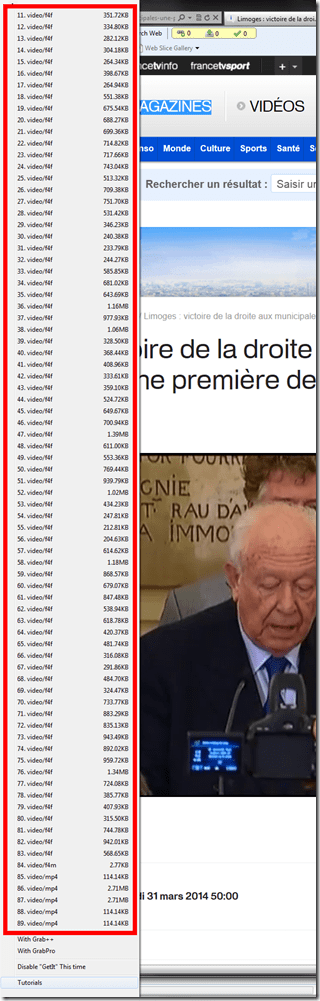
. - However, I did not have any luck here, at least I did not find a practical (=automated) way to cobbling these clips together (are media outlets, even if they are under non-US legislation and trying so hard, still bound by the fair use legislation?):
- Also changes your browser home page without asking – I can’t say I like the territory I get myself into with these teacher download requests.
- Claims to be a generic downloader, and looks complicated enough to convince me of that

News TV on the internet: Politics and Legislatures
http://en.wikipedia.org/wiki/Template:Parliamentary_broadcasters
http://en.wikipedia.org/wiki/Category:Legislature_broadcasters
http://ec.europa.eu/avservices/about/activities_en.cfm
”On-demand consultation of any event or subject during the week following its transmission on satellite. All products become accessible to any connected media or individual anywhere in the world through the Internet portal of the audiovisual service. On the site you will find EbS permanently updated transmission schedule, as well as shotlists detailing the content of pictures and links to complementary information sources and photos. Pictures and sound may be downloaded in broadcast quality formats: MPEG2 for video, MP3 for sound and JPEG for photos. This news material is published during or soon after the events, remains available *for at least one month* and is easy to download, process and file.”
German public TV on the internet
French TV on the internet
TV5 seems still in the satellite/per-per-view phase. But it offers free video learning resources: http://www.tv5.org/TV5Site/enseigner-apprendre-francais/accueil_enseigner.php
International TV on the Internet
http://wwitv.com/portal.htm, lists 2244 online TV stations, by topic and “country” (note that this does not equal “language”).
How teachers can grade student recordings done with the LRC Sanako Study-1200 in their Office
-
Teacher on their office PC (MAC users talk to http://helpdesk.uncc.edu) can press
 windows-key+e, and in the window, that opens,
 -
browse to the student mp3 recordings with date and time in the folder name on s:\coas\lcs\labs\lrctest\sanako\student (no S: drive on office PC? talk to http://helpdesk.uncc.edu, but in the meantime, trywindows-key+r, paste = \\DATASERV1\DVOL1\coas\lcs\labs\lrctest\sanako\student”, click “OK”),
-
open the student recording file, either by double-clicking to, presumably, open it in Windows Media Player, or, preferably, by selecting multiple files, right-clicking and choosing “Open with” to open them for comparative grading (read some tips) in Audacity.

Speaking/Listening Assessments and Oral Exams: A comparison what the LRC has to offer
- Moodle:
- I proposed for installing one of the free audio recorder plug-ins into our Moodle, but we are not there yet.
- However, we do have a new video recording assignment (which is based on Kaltura).
- Format: free form, according to your written instructions in the assignment. Students can review and repeat the recording as often as they wish.
- The video overhead is minimal since it is streamed, and video is better for authentic language assessments – unless you specifically prepare your students for phone interviews: then just have students step out of the viewing angle of the webcam).
- thanks to Moodle, the familiar interface and the underlying LMS support infrastructure, it is easy
- for the teacher
- to create and assign a video-assignment
- to grade it from the gradebook
- for the students to take it and submit it.
- for the teacher
- LRC Support:
- Since our PCs have no built-in or added webcam (proposed), we can currently only use our 5 iMacs for Moodle video assignments. Since the MACs do not have headsets (but built-in microphones), the audio quality is not as good as on the PCs. Since 5 seats are not sufficient for class-size activities/exams, it is best to use this as a homework assignment
- I list all necessary steps for a video assignment
- Additional support is available through the campus Moodle support team.
- Sanako
- Sources
-
Dual-track comparative recorder:
- the teacher can prepare an input track (or provide one live. Preparing is easy, and worth your while, since easily reusable. I can help you)).
- the students records on her own track
-
Pair and group recording:
- Sanako makes it easy to pair or form groups of students and to record free-form conversations.
- These recordings can be either controlled remotely by the teacher or locally by the user
-
- Control
- Remote-controlled recording under exam conditions,
- responding to a listening cue within a preset (or live) pause in the teacher track
- model&imitation: for phonetics and pronunciation exercises,
- question&response for a wide variety of activities as commonly used in SLA textbooks and classroom, including practicing grammar structures or vocabulary recently
- question&response&model response: the teacher can also include after the pause in the teacher track a model answer for the students to compare their own output to.
- automatically saved with student names to be accessed from the teacher office desktop
- easy comparative grading using Audacity (see below)
- responding to a listening cue within a preset (or live) pause in the teacher track
- Remote-controlled recording under exam conditions,
- User-controlled recording is also possible, using the student recorder in manual operation mode
- which has more language learner features (bookmarks, voice graph, dual band recording), and a simpler interface than a full blown audio editor like Audacity (see below).
- The task how to save and sent the assignment to the teacher is here left to the user.
- LRC support:
- I can help you
- creating an audio recording with your content and speaking cues and pauses – using Audacity (see below)
- conducting the remote-controlled exam
- Up to 20 seats can take an oral exam simultaneously, until we get more Sanako licenses. However, we found a way to split classes into 2 halves and have consecutive exams (we can play audio on the other students’ headsets to provide for exam conditions). The LRC main classroom is equipped with 30 seats for 2 consecutive exams with Sanako headsets.
- Sources
- Voicethread is a popular online recorder, especially for educational institutions that have no onsite support.
- Visual and audio cues can be provided by the teacher.
- Pairing of students has been attempted via sharing and responding/commenting to the partner’s submission. This is not a realistic conversation.
- Recordings are stored in the cloud.
- There is no integration with the SIS (accounts – getting students set up with accounts that can communicate back with the teacher is a challenge) and LMS (the Moodle integration is superficial).
- Voicethread is not free. The ELTI, however, has a subscription. LCS does not.
- LRC Support:
- We support Voicethread exercises with new and improved headsets.
- Help is available through the vendor.
- Audacity:
- for teachers and LRC staff and other language professionals:
- best free audio editor, also good for comparative grading. I routinely make my audio exam recordings with Audacity.
- LRC support: I have tips and tricks how you can use it in your teaching preparation and grading.
- for language learners: not the recommended option, since Audacity has not a feature set geared towards language learning nor support for language assessment workflows:
- Language learners do no need an audio editor for speaking exercises, they need a recorder. If you are a language learner, it is not pedagogical to be able to technically edit and refine your audio recording. Rather rehearse, reflect on and repeat your audio recording, until you are happy with your language output.
- Audacity is too technical: It involves too many steps, options and settings for the students to record, save, export and name the audio and to get it to the teacher, and (if it is not uploaded into a Moodle assignment, which could then be a Kaltura assignment anyway, see above), too tedious for the teacher to manage and grade files.
-
LRC Support:
- If your students are technically inclined, we do have Audacity installed in the LRC.
- Your students should not find it difficult to read the documentation. Here are my posts on Audacity.
- for teachers and LRC staff and other language professionals:


Questions? Read the About. Or just ask me a quick Our Databases: Resources with calendars -- Language learning material Moodle Sites, multimedia files -- films


FAQs for LRC student staff or for students or for teachers. To search our FAQs, in the browser addressbar, add after "https://plagwitz.wordpress.com/feed/?tag=faqs+/" "+TAG1" (from tag cloud below) OR "https://plagwitz.wordpress.com/feed/tag=faqs
&category_name=" "CAT1" (from category hierarchy below). OR search both categories and tags, and multiple TAGs/CATs (connect with "," for OR-search, with "+" for AND-search), like so: https://plagwitz.wordpress.com/feed/?tag=TAG1+TAG2+...TAGn&category_name=CAT1
+CAT2+...CATn"
Other ways to find help
If you cannot find it here, look there: 5,500 Language-Learning Links and Programs for learning or teaching 150 languages
Shortcuts:Our Lists, Our Maps, LRC Staff Moodle Site,LRC Project Moodle Site, 49erexpress, UNCC Moodle, Student Recordings: s:claslcslrcsanakostudent
Learning usage samples: Sanako oral exam, Kaltura webcam presentation, Dictation with speech recognition, Sanako written exam, Chinese and Japanese interactive stroke-order practice
Test the Sanako Installer, Webbrowser Popup Konfigurator for XP, or Windows7, faster LRC TeacherPC Log-in Let MS facilitate diacritics writing by installing for you US-International keyboard layout
This is my personal blog (Google+). The views expressed on these pages are mine alone and not those of my employer. The information in this weblog is provided “AS IS” with no warranties, and confers no rights.

