Archive
Sanako Study 1200 Teacher Guide

Taken directly from the Sanako documentation and posted here for your convenience (click on image for larger version), this practical cheat sheet is also available on the teacher podium.
Sanako Study 1200 Workshop Spring 2011
Those who wanted to, but did not make it to my introductory training for the newly installed Sanako Study-1200 in LRC COED434 might want to have a look at the unedited screencast footage of the teacher computer that I recorded during this session (for Windows Media Player on Windows, if necessary, resort to LRC PCs).
SDL-Trados Studio 2009 Online Training Links
SDL maintains an repository of archived online webinars on Trados here.
SDL maintains a list of upcoming free webinar events here. Here is a sampling of their upcoming live trainings (as of August 2011) here:
Friday 19
Ask the expert – A session dedicated / to the most frequently asked questions / on SDL Trados Studio 2009
15:00 – 16:00 London / 16:00 – 17:00 Paris
Thursday 25
Tips and tricks to get you more productive / with SDL Trados Studio 2009
09:30 – 10:30 London / 10:30 – 11:30 Paris
Type: Product info & demo
Friday 26
An introduction to SDL Trados Studio 2009 for translators
10:00 – 11:00 London / 11:00 – 12:00 Paris
Type: Product info & demo
For what you can expect from these webinars, please note that they also offer full training courses, but these are not free.
QuickNotes: For ELTI 201/202/501 Student Recordings with Sanako Study1200
- This is 20 students class doing a model imitation for English phonetics and grammar – use right half of classroom plus 2 rightmost columns of left half.
- Have a couple of spare student computers logged in as labadmn (not as presenter: has no permissions to s-drive to save recordings) for emergencies.
- Your students will log in, then take their break. Wait until entire class shows up in the Sanako Classroom layout. Then you can lock their keyboard and mouse – but remember when computers go into locked mode, Sanako cannot control them
- See http://plagwitz.org, upper right corner “Quick links” for the path to copy/paste. Or, on the teacher computer in LRC 434, in folder C:\Temp, you can find a shortcut to the Sanako folders
- “media” with teacher audio (to be prepared with pauses and beeps once it has been recorded and sent; you can easily prepare it yourself: download and view how with Windows Media Player);
- “student” with student recordings
- You can download and view with Windows Media Player the (unedited) screencast of our summative walkthrough here.
Summary: Foreign language character input in LRC and on your own Windows PC
On popular request, I am posting a summary on this topic:
https://plagwitz.wordpress.com/2011/04/14/foreign-language-character-input-on-windows-xp-in-the-lrc/
DO try this on your PC at home: https://plagwitz.wordpress.com/2009/09/04/character-input-methods-for-sla-western/, includes an Interactive Demo of installation procedure (personal computers outside of the LLC) here: keyboard_usinternational.swf.
Successful test of the new streaming video recording assignment for language proficiency assessment in Moodle.
- Video recordings allow for a more authentic assessment of spoken language proficiency. Today, we could test a new Moodle video assignment type for Almut’s Summer II Elementary German II class: Preparing a natural sounding statement on one’s favorite holiday. This Moodle assignment type is an extension to students of the teacher video upload tool using a service Kaltura – we hinted at that earlier.
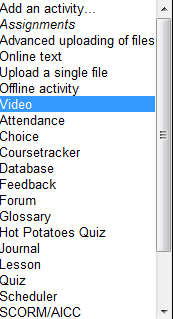
- Teachers, when editing their Moodle course, can find this assignment type in the dropdown: Activity as “Video”.

- The assignment options: Note that creating a video assignment is pretty much the same as creating other assignments in Moodle, and so is grading, except instead of reading, you view the submission, right within the web page.

- An example of guiding questions for a recording assignment is here (topic: holiday, language: German):

- Here is how the teacher sees the student submission in the gradebook.


- Caveat: in Safari, we were not able to close the video popup, after viewing it from the class roster, and could only back out of the entire gradebook. Instead, from the roster, first open the page with the individual student submission, and review the video there on that page:

- For the student experience, see here.
- Further reading: The CTL has a number of step-by-step instructions which we recommend for further reading: Student Video Assignment, and specifically for students: Upload a Video for a Video Assignment; for instructors: Grading Video Assignment Submissions.
- The LRC had originally prepared to record the students with our old, handheld mini-DV cameras, import the movie into iMovie or Windows Movie Maker, then find a way to get the files (with easily identifiable submitter names) to the teachers. Hitherto, our best option was compression of the video to to fit into the Moodle 64MB file upload size limit (which, even if you decide to shoot and produce your video elsewhere and bring it as an uploadable file to the assignment , does not apply to the Video assignment either).
- Preliminary testing seems to indicate that video recording of pairs/dialogues is also possible with the LRC’s webcam setup . However, because of the angle restrictions, capturing such sessions will be less natural.
- Overall, the new Moodle video assignment seems a major improvement for all parties – students, teachers and support –, and can help with more authentic assessment of


Free Farsi Proofing Tools available: VafaSpellchecker
Unfortunately, the VafaSpellchecker Proofing Tools are now not available anymore for Office 2010. The links to the Office 2010 on the website have been broken for a long time, the developer seems to have left the university, the project manager has not answered my inquiry. Here is hoping they will be resurrected.
Even though proofing tools are neither designed for non-native language learners nor, traditionally, used in a pedagogically sound way by language learners without proper guidance, they form one of the greatest opportunities to apply advances in Natural Language Processing (NLP) to second language acquisition (SLA) tasks, given that they are a widely installed and commonly understood artificial intelligence providing automated feedback on natural language issues.
The management and licensing of proofing tools has been much improved since MS-Office 2007 which made it easier (and cheaper) to install modular proofing support for additional languages distributed as Language Packs.
However, in an SLA context, even this may still not be a convincing value proposition, whether for the personal computers of individual student learners, or even – due to apparent the lack of concurrent licensing options within proofing tools – for Less Commonly Taught Languages (LCTL) in an imaged computer lab environment (in our case, we would need to purchase 45 licenses à $25 before tax for a language that may have about half as many learners or less).
All the more welcome are freely downloadable add-ons- – thanks to the MS-Office platform extensibility – the VafaSpellchecker, a Persian Spell&grammar and real-word error checking system by the Natural Language and Text Processing Laboratory in University of Tehran, funded by Iranian Research Institute for ICT, available for both MS-Office 2003 and 2007. A VafaSpellchecker user guide (in Farsi) is also available.

As always with NLP in SLA, caveat emptor, use with a grain of salt, or two.


Questions? Read the About. Or just ask me a quick Our Databases: Resources with calendars -- Language learning material Moodle Sites, multimedia files -- films


FAQs for LRC student staff or for students or for teachers. To search our FAQs, in the browser addressbar, add after "https://plagwitz.wordpress.com/feed/?tag=faqs+/" "+TAG1" (from tag cloud below) OR "https://plagwitz.wordpress.com/feed/tag=faqs
&category_name=" "CAT1" (from category hierarchy below). OR search both categories and tags, and multiple TAGs/CATs (connect with "," for OR-search, with "+" for AND-search), like so: https://plagwitz.wordpress.com/feed/?tag=TAG1+TAG2+...TAGn&category_name=CAT1
+CAT2+...CATn"
Other ways to find help
If you cannot find it here, look there: 5,500 Language-Learning Links and Programs for learning or teaching 150 languages
Shortcuts:Our Lists, Our Maps, LRC Staff Moodle Site,LRC Project Moodle Site, 49erexpress, UNCC Moodle, Student Recordings: s:claslcslrcsanakostudent
Learning usage samples: Sanako oral exam, Kaltura webcam presentation, Dictation with speech recognition, Sanako written exam, Chinese and Japanese interactive stroke-order practice
Test the Sanako Installer, Webbrowser Popup Konfigurator for XP, or Windows7, faster LRC TeacherPC Log-in Let MS facilitate diacritics writing by installing for you US-International keyboard layout
This is my personal blog (Google+). The views expressed on these pages are mine alone and not those of my employer. The information in this weblog is provided “AS IS” with no warranties, and confers no rights.

