Archive
Archive for the ‘service-is-any’ Category
Room and Equipment handling using MS-Exchange Resource Mailboxes: Configuration with OWA instead of PowerShell
2011/08/30
1 comment
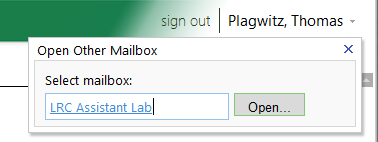
- As once can easily find documented for MS-Exchange 2007, if you are the owner of the mailbox, you can use the OWA-feature “open other mailbox”.

- As impersonated user for this mailbox
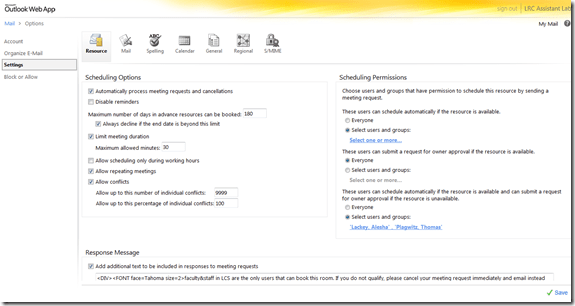
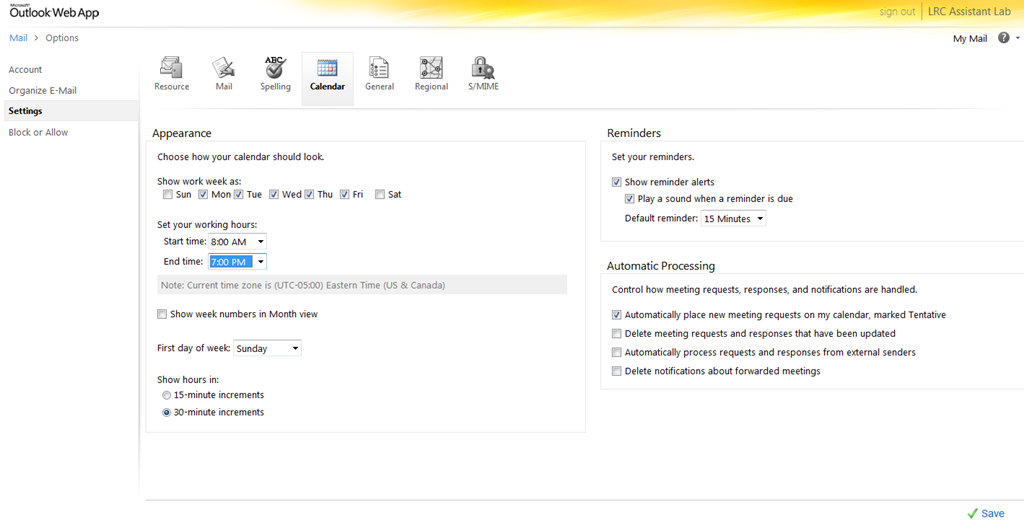
 , you can access the “Options / Settings”:
 - for the “resource” scheduling
- for its “calendar”

- This is maybe not as much fun as PowerShell’s Set-MailboxCalendarSettings and set-CalendarProcessing (click as you go, no batching), but easier on your MS-Exchange admin
 and especially practical for quick modifications and tests,

LRC Outlook/Exchange 2010 Resource Calendaring: LRC resources in the Global Address List (GAL)
2011/08/30
3 comments
- Open the GAL for resources by clicking on “Resources” in a meeting request, like here:

- You will find an equivalent of the LRC bookable resources list in Outlook’s/O’WA’s Global Address List.
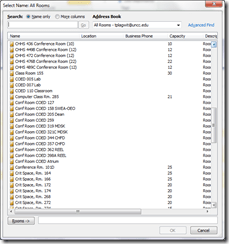
- In the GAL,you can filter by recipient type:

- the result, in outlook:
- the result, in outlook:
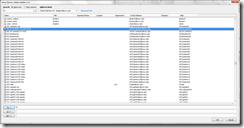
- for LRC resources, especially other than rooms, it is easier to filter by name(all LRC resource names start with “LRC”) – the result,
- in Outlook:
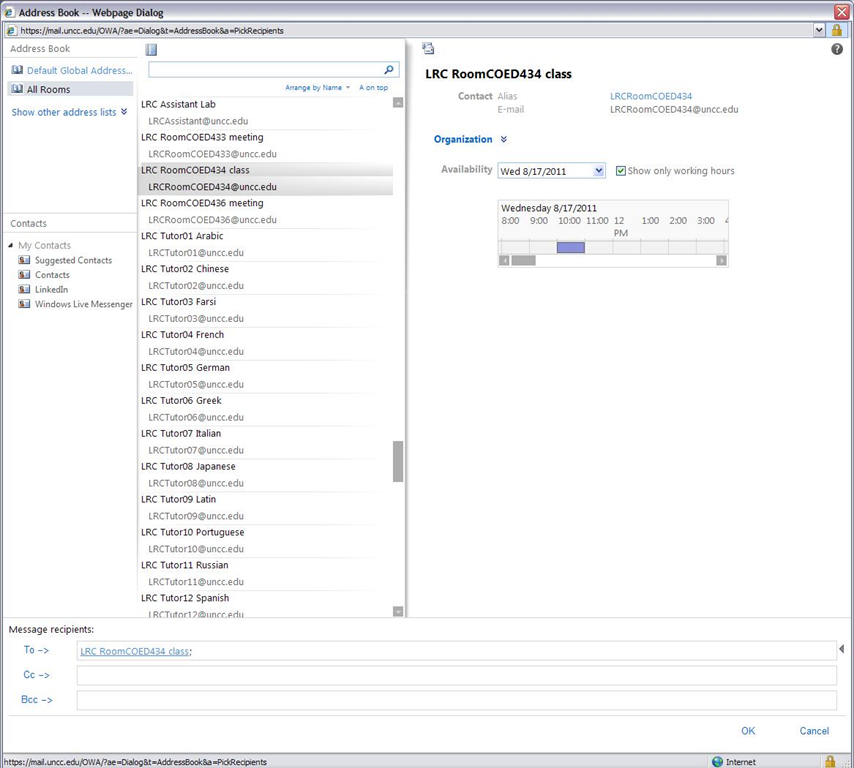
- in OWA you will see the GAL as part of the address book

- in Outlook:


LRC Outlook/Exchange 2010 Resource Calendaring: How to cancel meetings in OWA
2011/08/30
4 comments
- View instead a short screencast how to cancel meeting requests in OWA.
- Or: You start out with a meeting request conversation like this, showing:
- a request send from account LRC help (example)
- an accepted meeting response from the resource (e.g. the room) account

- to cancel that meeting, you can go to your (!) calendar in OWA,
- select (click on) the meeting and choose “delete”
- either from the context menu after right-click the meeting
- or from the ribbon after selecting the meeting
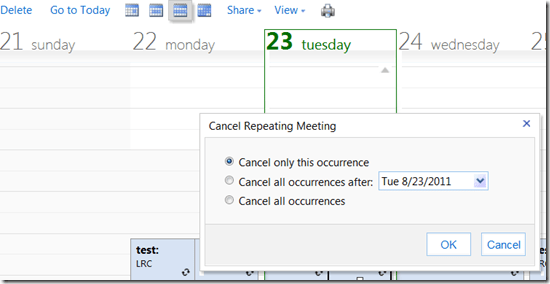
- if the meeting was repeating/recurring, you will be given the option to
- cancel this occurrence
- cancel all future occurrences
- cancel all occurrences (be CAREFUL not to delete past meetings that have taken place; cancel all future meetings in a series by updating the meeting series end time (leaves past meetings of the series intact))
- either from the context menu after right-click the meeting
- select (click on) the meeting and choose “delete”
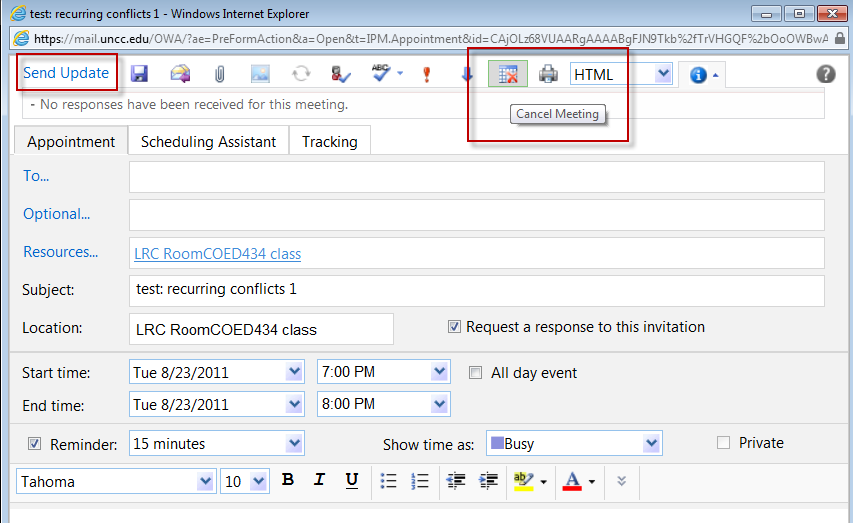
- you can also just open the meeting and choose from the top menu the “Cancel meeting” button, then press menu button: “Send update”:

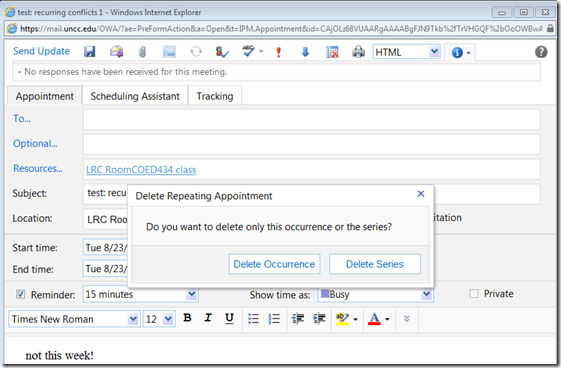
- Again, for recurring/repeating meetings, you will be asked to confirm what exactly you want to cancel, the individual occurrence or the entire series of meetings:
- Again, for recurring/repeating meetings, you will be asked to confirm what exactly you want to cancel, the individual occurrence or the entire series of meetings:
- You have the opportunity to include an informative note in your update before sending.

- After the cancellation has gone through, this is how the results will look like in the e-paper trail:
- “sent items”
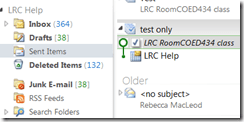
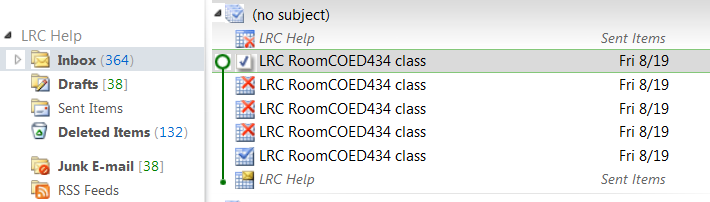
- a cancelled meeting conversation in your “inbox” in “conversation view”:

- Here is a complete icon legend:

- “sent items”





LRC Outlook/Exchange 2010 Resource Calendaring: How staff view resource “Calendars from your organization” in OWA
2011/08/30
6 comments
- Note: Students that have not been specifically invited to share a calendar, must use (staff may also) this approach to view calendars, to avoid a permission problem .
- Staff can load resource calendars, but as somebody who books the resource (except where you still cannot book/schedule/sign up: Tutors), you normally neither need nor want to (unless you manage the resources).
- To preview the free/busy schedule of the resource, use the scheduling assistant instead.
- To make sure that you have booked the resource, load your OWN calendar instead: Since it is you who “meets” with the resource, your meeting will be reflected on there. If you also loaded the resource’s calendar, you would see your “meeting” twice. A meeting always appears in the calendar of all “participants” – only that, other than for resource calendars, you normally do not view the calendar of the other participants who are “human resources”(or maybe you are, at least in the scheduling assistant, but not with details beyond “busy”).

- You may want to load the resource calendar to learn details about the other “meetings”of the resource (e.g. which conflicting meeting organizer you can contact in an emergency, or to know how many tentative meeting requests are already pending for a tutor). Below is how:
-
Similarly to in Outlook (desktop):
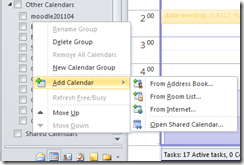 , in OWA, click on the lower left “Calendar-icon”
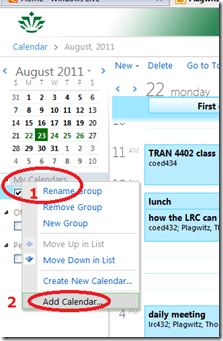
  to unfold the “My Calendars” list
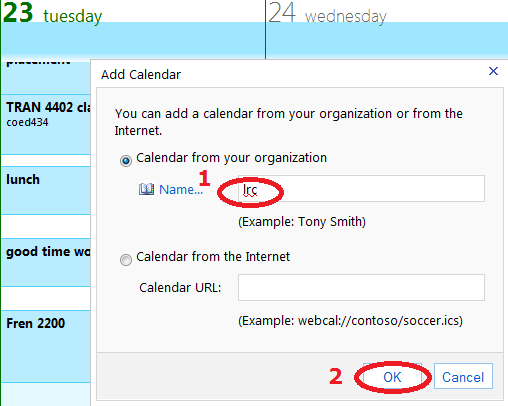
  in the left pane, then right-click on “My Calendars”, choose “Add Calendar”
 .
. -
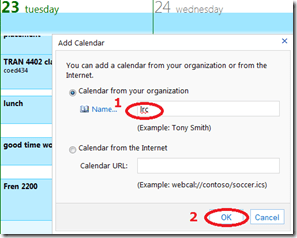
put (part of) the name, click “ok”
-
if there are multiple matches, select the correct one (you can only select one at a time)

-
press “OK” again:
 .
. -
As explained above, there is little reason to go overboard and add too many calendars, unless you have to manage:

-
However, you can also easily remove calendars, through the context menu item “Remove shared calendar”







How to efficiently find help on this blog
2011/06/10
Leave a comment
- Searching
- Full-text search: quick, even though dumb (“Computers are only machines…”). It may not return the most relevant results.

- Human-curated search: The author adds metadata to his posts as he sees fit. The metadata vocabulary is somewhat stable from past experience, but may change (”The author is only a human.”
 ). You effectively execute a humanly-curated search when clicking in the right column on either
- a tag link, e.g.
 https://plagwitz.wordpress.com/tag/moodle/
 - a category link, e.g.

- a tag link, e.g.
- Humanly-curated and Boolean AND search combined: This can be powerful in drilling down to an answer to a specific problem – provided there is one on the blog.
- Even though there is no easily clickable interface for this, by building URLs in the web browser address bar
 , combining tags or categories with the plus-sign, you can execute an AND-search against multiple tags(or categories) on WordPress.com
 - Example: https://plagwitz.wordpress.com/tag/moodle+erepository/ finds posts that the author related to both Moodle and eRepository. This can be especially useful for searching the FAQs: https://plagwitz.wordpress.com/tag/faq+[add your problem-technology-tag here, e.g. Audacity]/
- Even though there is no easily clickable interface for this, by building URLs in the web browser address bar
- Full-text search: quick, even though dumb (“Computers are only machines…”). It may not return the most relevant results.
- Notifications: Subscribe to RSS-feeds to receive timely updates on the topics that matter most to you. Both
- WordPress.com, providing RSS-feeds for all categories and tags (click on a tag or category link and find the
 icon, it will link to the RSS feed – Example: https://plagwitz.wordpress.com/tag/moodle/feed/) – watch either the webpage or your browser GUI for orange RSS icons you can click on to initiate a subscription -and also for multiple categories/tags (even though this feature is even better hidden, you need to construct a URL in your browser address bar. Example: https://plagwitz.wordpress.com/tag/moodle+erepository/feed/). If you want to go beyond our own metadata, WordPress allows also for subscribing to your own searches via RSS: “To keep up with your favorite search results we offer an RSS feed for all search results. Simply click the Follow this search via RSS link in the side bar of any search results page to subscribe to updates in the search result”, consult the WordPress search documentation.
 - and MS-Outlook, making RSS-subscriptions look familiar like email (of importance in certain environments), greatly facilitate this.
- WordPress.com, providing RSS-feeds for all categories and tags (click on a tag or category link and find the
- Text-messaging: Get synchronous human help through the Moodle-Wimba Room link.


Categories: blog, e-infrastructure, service-is-documenting
categories, FAQs, meta, metadata, rss, searching, tags, text-messaging, wimba-classroom, wordpress
Potential Moodle-compatible replacements for Wimba Voice
2011/05/05
Leave a comment
With the demise of Wimba Voice on campus, Languages and Culture Studies lost some of their online learning acitivities and are still looking for a replacement, perferably within Moodle.
I have looked through some options and would recommend the following applications for a test install:
1. NanoGong, free (as in kittens). More info here:
2. WebSwami, a language learning platform, not free, and can also record video, and do much more. More info here:
Categories: e-languages, Greek (ancient), service-is-evaluating-learning-tools, software
moodle, nanogong, webswami
Introduction of NanoGong, free open source voice recorder for Moodle
2011/05/05
2 comments
- This is a brief summary outline of NanoGong (which has just been upgraded to version 4.1, which includes an installation file for our current Moodle version 1.9.8), would be a good audio recording add-on for language learning to install in our Moodle learning system. What follows is compiled from various online sources:
- “NanoGong is an applet that can be used by someone to record, playback and save their voice, in a web page. When the recording is played back the user can speed up or slow down the sound without changing it. The speeded up or slowed down version of the recorded sound can be saved to the user’s hard disk, if he/she wishes
- There are special features for programmers, such as the ability to show or hide parts of the NanoGong interface or to completely control what the applet does.
- The NanoGong applet has been released as an open source project since version 3. The picture below shows the NanoGong applet with all components shown. “

- “NanoGong provides a very simple and transparent voice support for Moodle. Using a NanoGong activity and a NanoGong filter NanoGong provides two different types of voice support for Moodle”:
- “An extended HTML editor which supports voice-enriched content”, “ enabling a voice recording option for virtually any Moodle activity entry that uses the wysiwyg toolbar”, as you can see here:

- ”A NanoGong activity which allows students to submit voice messages to their teachers”:
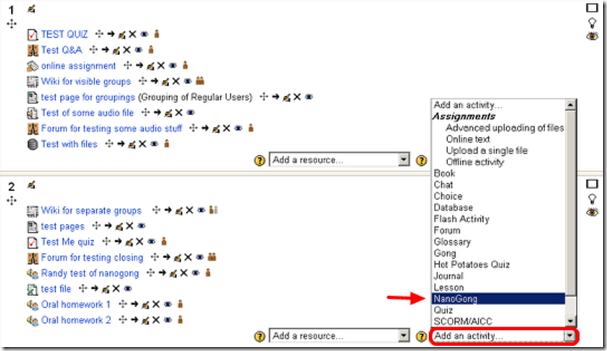
- Questions remain:
- You can customize the recorder applet: Need to check whether this includes the timestretching capability, given that language teachers can be averse to student-controlled,
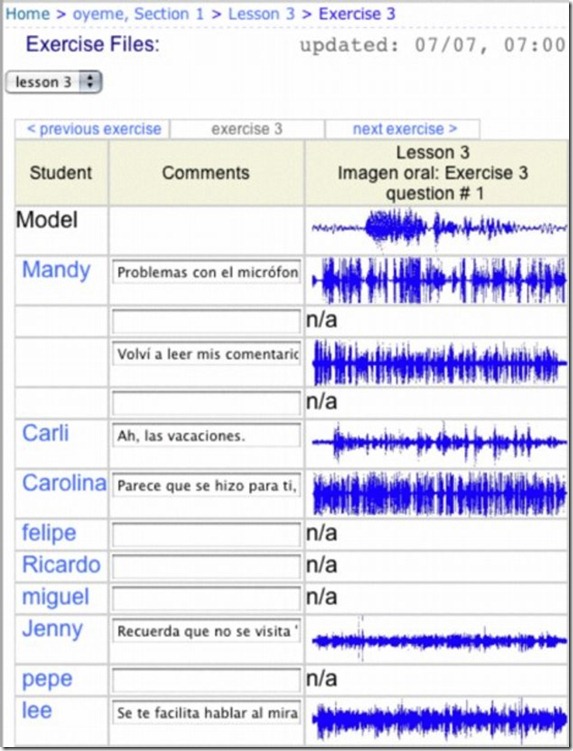
- Need to check for capability of downloading batches of submissions from the student class and grade it with time-saving techniques, like described here using Audacity. A more sophisticated example that testifies to the same features required to get graders adopt increasing audio student submissions was Web Audio Lab, an authoring system for developing interactive audio-based language courses (Language Resource Center, Cornell University. 2003-2007):

- How could one implement a dual-track recorder using NanoGong, with the program track providing aural cues for a more natural oral interaction?
- Requires JAVA (test compatibility).
- There is no Moodle 2.0 version yet.
- NanoGong seems “a derivative of the Gong standalone voice board” – without similar requirements and issues? Gong can also be integrated into Moodle, seems more advanced, but also much more difficult to implement (requires a tomkat server; problems have been reported with losing course deletion functionality in Moodle, the authentication pass-through not working from Moodle and the audio graph not working in Moodle).
- As with any open source project, there are some move Ifs.
- However, Nanogong seems the free audio recording plug-in for Moodle which is currently most favored.


Categories: e-languages, service-is-evaluating-learning-tools, software
audio, moodle, nanogong, recording


Questions? Read the About. Or just ask me a quick Our Databases: Resources with calendars -- Language learning material Moodle Sites, multimedia files -- films


FAQs for LRC student staff or for students or for teachers. To search our FAQs, in the browser addressbar, add after "https://plagwitz.wordpress.com/feed/?tag=faqs+/" "+TAG1" (from tag cloud below) OR "https://plagwitz.wordpress.com/feed/tag=faqs
&category_name=" "CAT1" (from category hierarchy below). OR search both categories and tags, and multiple TAGs/CATs (connect with "," for OR-search, with "+" for AND-search), like so: https://plagwitz.wordpress.com/feed/?tag=TAG1+TAG2+...TAGn&category_name=CAT1
+CAT2+...CATn"
Other ways to find help
If you cannot find it here, look there: 5,500 Language-Learning Links and Programs for learning or teaching 150 languages
Shortcuts:Our Lists, Our Maps, LRC Staff Moodle Site,LRC Project Moodle Site, 49erexpress, UNCC Moodle, Student Recordings: s:claslcslrcsanakostudent
Learning usage samples: Sanako oral exam, Kaltura webcam presentation, Dictation with speech recognition, Sanako written exam, Chinese and Japanese interactive stroke-order practice
Test the Sanako Installer, Webbrowser Popup Konfigurator for XP, or Windows7, faster LRC TeacherPC Log-in Let MS facilitate diacritics writing by installing for you US-International keyboard layout
This is my personal blog (Google+). The views expressed on these pages are mine alone and not those of my employer. The information in this weblog is provided “AS IS” with no warranties, and confers no rights.

