Archive
Spanish movie subtitles exercise project
- objective:
- To facilitate lesson delivery and student interaction in our Language Resource Center I have programmed a VBA- and MS-Word- based cloze quiz template with batch creation based on a simple markup language and rich autocorrecting functions that use string metric algorithms (Damerau-Levenshtein).
 The template supports typical activities in the digital language lab: digital audio- and video-based listening comprehensions, e.g. Quiz Template with Chanson Lyrics,
 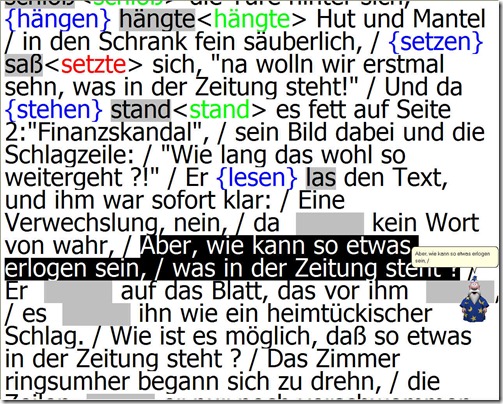 and speaking and dialoguing activities for language learning or other examples):
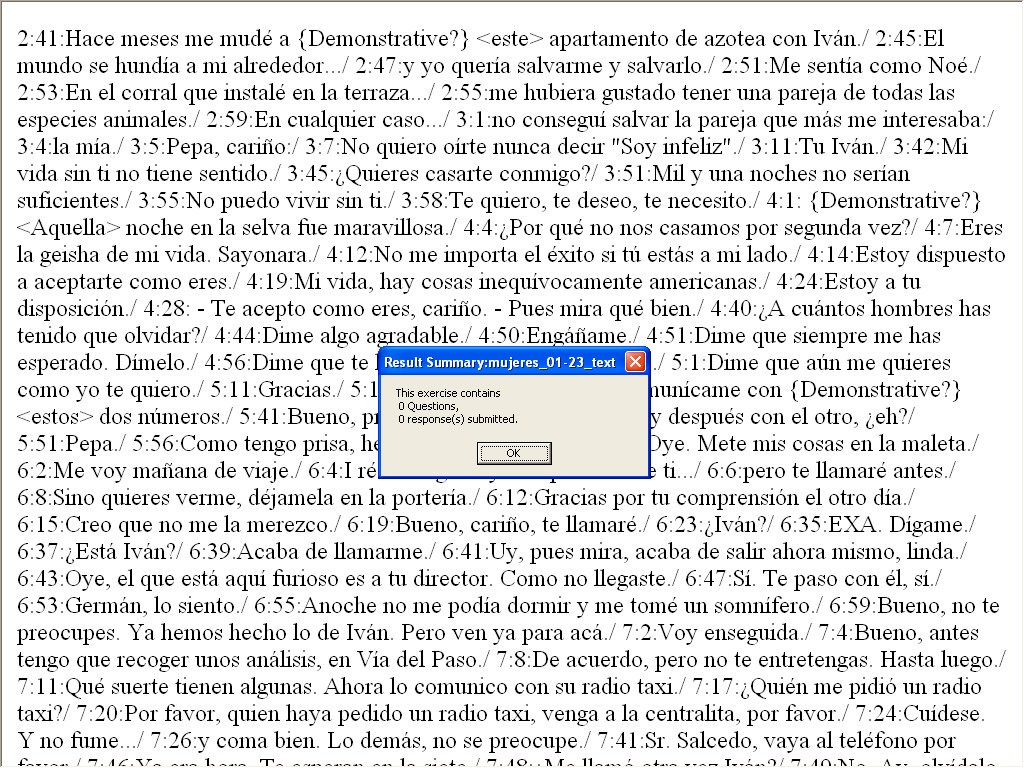
 - Teachers can use them as exercise-generating engines: the templates allow copy/paste of their own exercises into this template. To also automatically create language teaching materials with the required markup in French, German, Italian and Spanish (mostly based on movie subtitles) for this template, I wrote a C#-program that applies an expanding library of regular expressions which can match typical language learner tasks:
- function words,
 e.g for Spanish Movie Subtitling Exercise Creation,
- affixes/infixes
- and lexical subsets taken from corpus linguistic research on word-frequency (SUBTLEX, Opensubtitles)).
- function words,
- This template support the learner by strengthening learner autonomy and providing immediate corrective feedback and – in conjunction with the grouping facilities of the Center’s classroom management system infrastructure – allow for custom-tailored instruction based on the immediately available outcome of formative assessments, and also automated summative feedback:
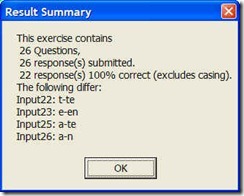
- A Spanish TA can provide meaningful vocabulary and grammar questions as input for cloze listening comprehension exercises that I will create on the basis of subtitles I have for Spanish movies being used in (= put on reserve for viewing in the LRC by) the Spanish program consistent exercises that students can take while watching the movie in class adapted meaningfully to technical possibilities of template
- Screencasts Demos:
- making of template exercises
- manually marked up: Part II to minute 4, Part III
- alternatively, markup can be generated by regular expressions which we will try to develop:
- use of template exercises : Part II, from minute 4
- materials
- source texts:subtitle files for proof reading
- Amores Perros
- Pedro Almodovar – Mujeres al borde de un ataque de nervios
- Pedro Almodovar – Hable Con Ella
- ideas for exercise needs that fit into this cloze format
- grammar
- function words
- affixes
- vocabulary
- frequency-based wordlists from corpus linguistics
- word lists from current textbook
- grammar
- source texts:subtitle files for proof reading
- Deliverables: combos of
- materials
- exercise ideas
- making of template exercises
- To facilitate lesson delivery and student interaction in our Language Resource Center I have programmed a VBA- and MS-Word- based cloze quiz template with batch creation based on a simple markup language and rich autocorrecting functions that use string metric algorithms (Damerau-Levenshtein).



How to make a tally on student staff performance
- We have a “Do’s and Don’ts” checklist for student workersas a Word web app
- easy to view/print for student staff,
- easy to update/print (and stash the work places with) for permanent staff – where each item has their point value.
- We have a tally of points earned (sorry, permanent staff only) by temp staff member with date+time and explanation in Excel Web app which can be easily updated with observations by permanent staff when walking the LRC floor
How a teacher creates a Moodle file upload assignment for writing
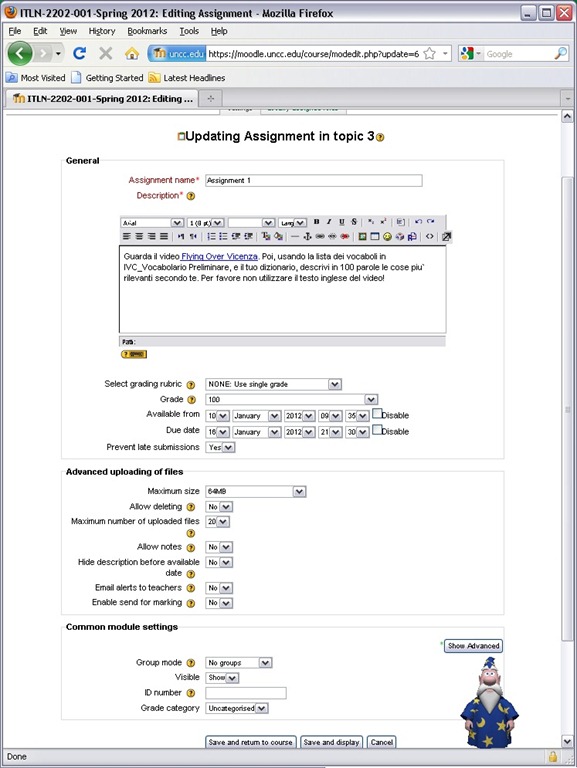
- In your Moodle course, turn editing on, choose Assignment: Advanced upload of files (required for response file from teacher).
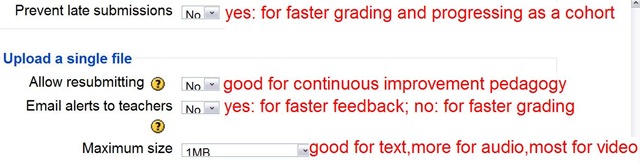
- Provide name and instructions. Choose the desired options (uploading one file is enough):
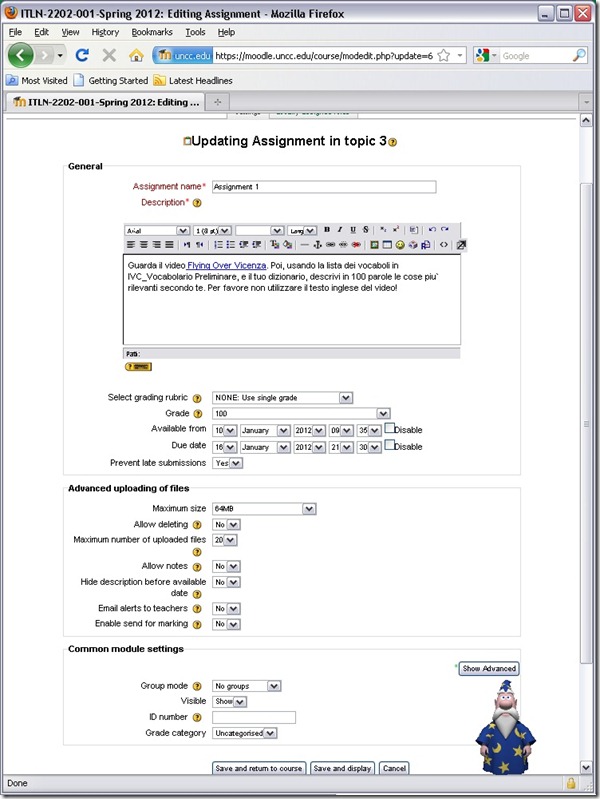
- A gradebook column will be automatically created, and will be initially empty.

- Instruct your students how to take the MS-Word upload assignment, and when (if you leave the default availability/due date on, the assignment will automatically appear in their Moodle Calendar, and can appear in their Ninermail calendar).

How we reorganized the reception area to improve support of circulation and small group work
The new reception desk is meant to secure the entrance to Coed436. To secure the circulation equipment, we do not let students into COED436 anymore, whether they are trying to check out equipment or for other reasons (except if they need to see the LRC coordinator). Hand all equipment to students over the counter. The door to Coed436 has to be locked when the LRC Assistant leaves the reception desk (it always can be unlocked from inside).
We also carved out 2 small group work spaces in the LRC entrance area. They can be used by language tutors with their students, and by other small student groups, including for assigned film viewing. These work spaces currently do not have to be booked, but they can be. Bookings take precedence over walk-ins. Send meeting requests to LRCRoomCoed433c@uncc.edu (Group1 next to entrance), LRCRoomCoed433d@uncc.edu (Group 2)). The calendar on the reception desk will display the bookings.
We moved 3 more iMacs (with built-in web cameras) into the main classroom (currently available to students only when all other iMacs are in use). All the iMacs in the main classroom actually have now also their own “room”: LRCroomCoed433b@uncc.edu (iMacs), but we are not requiring this “room” to be booked (yet). We are considering this in an attempt to avoid pile-ups of students trying to take video recording assignment. First we monitor actual usage patterns, especially nearing assignment dead-lines.
New “rooms”, and other equipment types are highlighted in green on our list of bookable resources.


How a teacher best adds cues and pauses to an mp3-recording with Audacity to create student language exercises
- The first screencast example uses insert tones and a gut amount of pause, for an interpreting exercise, into an authentic German political speech
- 1:00 search for a break (button: play/stop – pause prevents edits)
- 1:05 move the cursor to the break (mouse left-click on timeline)
- 1:20 insert a pause (menu:Generate / Silence )
- 1:25 zoom in (button:magnifying glass, CTRL + mouse scroll wheel)
- 1:45 generate a tone (menu:Generate / Noise), change the duration
- 2:10 do not replace the selection
- 2:20 use undo, just like in MS-word and other programs
- 2:30 move the cursor to the start of the selection (mouse left-click on timeline)
- 2:40 generate a tone (menu:Generate / Noise)
- don’t forget to review results before distributing to students
- the second screencast example, of post-editing a questions/response exercise in ESL, takes the amount of pause inserted from the recorded teacher instruction for the student, and uses copy/paste to speed things up even more.
- You can also only insert tones and not pauses, as in the 3rd screencast, and allow the students flexible pause lengths, if you can rely on the Sanako Student recorder Voice insert. Or if you must, let students use audacity for recording also, and have them learn how to move the recording cursor around manually, and throw away the source track.
How a teacher creates audio recordings for use with Sanako Student Voice Insert mode
- One of the Sanako Student player’s useful features geared toward language learning activities, is that it can save the teacher the time and effort for inserting pauses into their audio recordings, so that students can record responses into them.
- Meaning the teacher can just press the red speak button
 and record through the entire file in one sitting.
 - The teacher can still help students finding their way around the file, especially where to insert their own audio recording responses, by adding aural cues.
- This can be done in minimal time: I once saw a teacher use a bicycle bell – and why not, if it saves time.
- A spoken instruction “Respond”/”Answer in 10 seconds” is not more difficult to spot (unless only the voice graph is being browsed) and might be even better.
- If you have spare time:
- You can post-edit the file with audacity, generating and inserting sinus tones.
- You can use the Sanako player to insert bookmarks instead of cues.
- Meaning the teacher can just press the red speak button
- As long as students have been instructed to how to use voice insert recording mode with the Sanako student recorder.
- This is for self access of students to teacher recorded files – be it during class or homework.
- If you want to record students under exam conditions, a similar insert recording feature is available within the activity: Model imitation, but not with a pre-recorded file, only when the live teacher is the program source students listen to for cues.

LRC Outlook/Exchange 2010 Resource Calendaring: How to alter meeting times in OWA
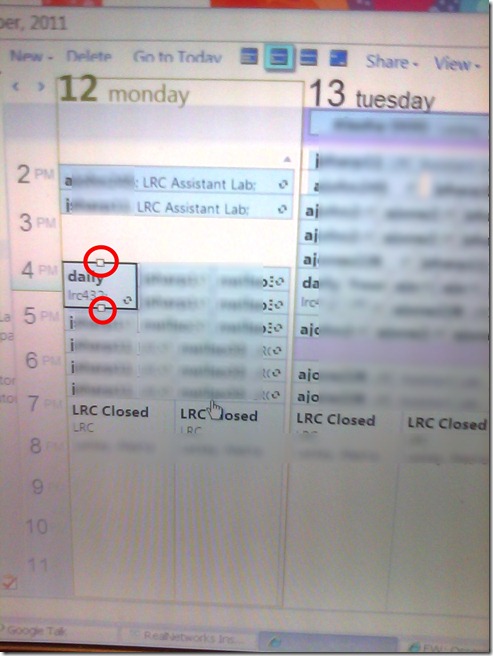
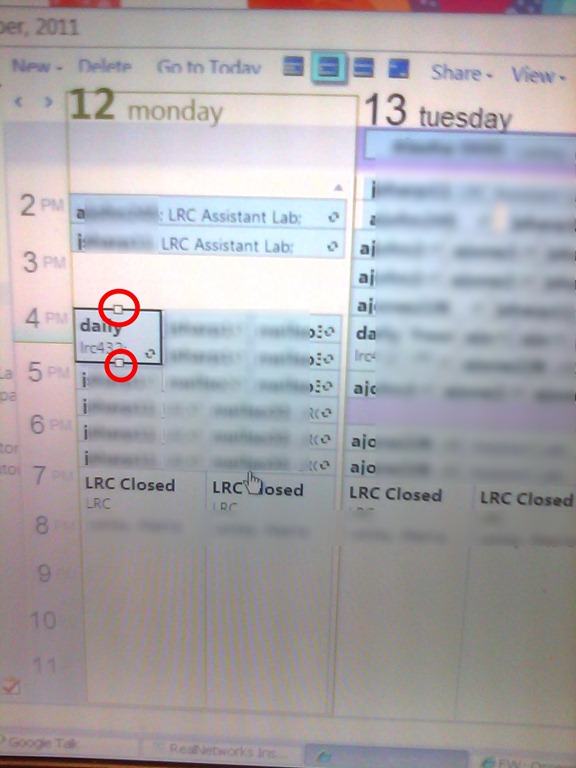
- If you are the meeting organizer (you initiated the meeting request), in your NINERMAIL/OWA calendar, just click on the meeting and drag the meeting start and/or end time with your left mouse button in the desired new location (works like in Outlook), and send updates (this will not affect for the series of a recurring meeting, only the current occurence):
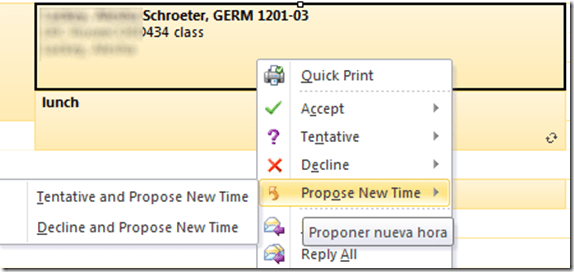
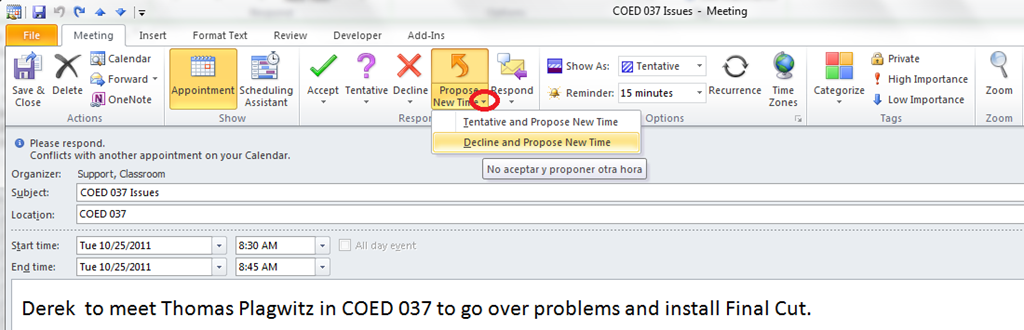
- If you are not the meeting organizer, the meeting organizer, when requesting a meeting with you, may have allowed you to “Request a new time”: use the corresponding button (screenshots are for Outlook):
- in the meeting request:
 .
.
- in the meeting request:
- or in the calendar item context menu

How a teacher creates a Moodle Single file upload assignment, with optional attached file
- turn editing on
- add activity / simple file upload

- Write the assignment instructions

- For your students to be able to download a fle with additional information (e.g. the model recording), select some text pointing to it and click the link icon on the editor menu
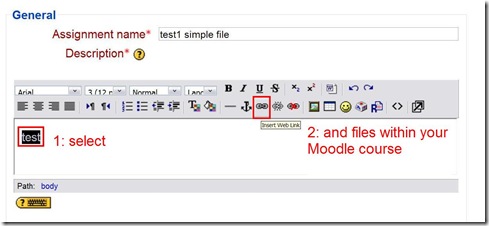
- (1) button: “browse”, (2) click your file uploaded into your moodle course earlier, have the window close and (3) your URL appear (or type one manually, if the file is from the WWW), (4) click button: “ok”:

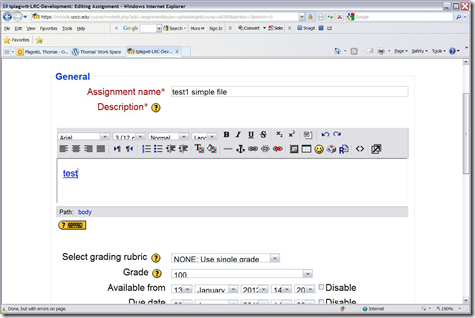
- Voilà, your link:
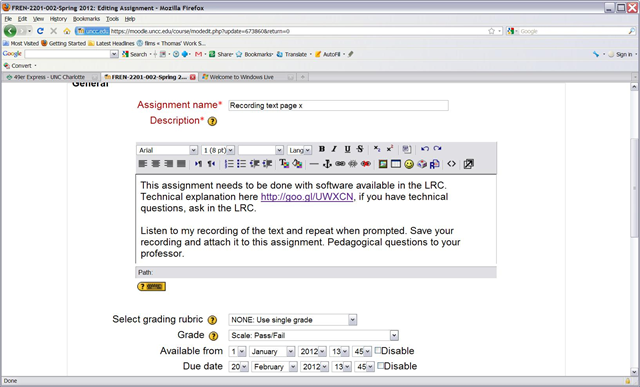
- set the other assignment options according to your needs :

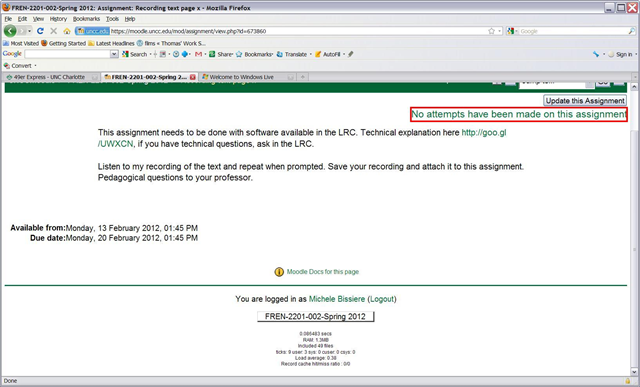
- click button: “save and display”, you are done:





Questions? Read the About. Or just ask me a quick Our Databases: Resources with calendars -- Language learning material Moodle Sites, multimedia files -- films


FAQs for LRC student staff or for students or for teachers. To search our FAQs, in the browser addressbar, add after "https://plagwitz.wordpress.com/feed/?tag=faqs+/" "+TAG1" (from tag cloud below) OR "https://plagwitz.wordpress.com/feed/tag=faqs
&category_name=" "CAT1" (from category hierarchy below). OR search both categories and tags, and multiple TAGs/CATs (connect with "," for OR-search, with "+" for AND-search), like so: https://plagwitz.wordpress.com/feed/?tag=TAG1+TAG2+...TAGn&category_name=CAT1
+CAT2+...CATn"
Other ways to find help
If you cannot find it here, look there: 5,500 Language-Learning Links and Programs for learning or teaching 150 languages
Shortcuts:Our Lists, Our Maps, LRC Staff Moodle Site,LRC Project Moodle Site, 49erexpress, UNCC Moodle, Student Recordings: s:claslcslrcsanakostudent
Learning usage samples: Sanako oral exam, Kaltura webcam presentation, Dictation with speech recognition, Sanako written exam, Chinese and Japanese interactive stroke-order practice
Test the Sanako Installer, Webbrowser Popup Konfigurator for XP, or Windows7, faster LRC TeacherPC Log-in Let MS facilitate diacritics writing by installing for you US-International keyboard layout
This is my personal blog (Google+). The views expressed on these pages are mine alone and not those of my employer. The information in this weblog is provided “AS IS” with no warranties, and confers no rights.
 Thomas' Work Space