Archive
View a path to where you can start troubleshooting Pearson MyLanguageLab Wimba Voice Java
We used to do proctored LRC chapter exams using this textbook online component, but the Wimba Voice student recording tools stopped working, although a possible solution has been proposed with the problem report. This screencast leads to an exercise where more testing (each supported browser will behave differently – this is Chrome) is possible:: 
How teachers can include a link to their metacourse content in their Moodle course
- How teachers get the metacourse link:
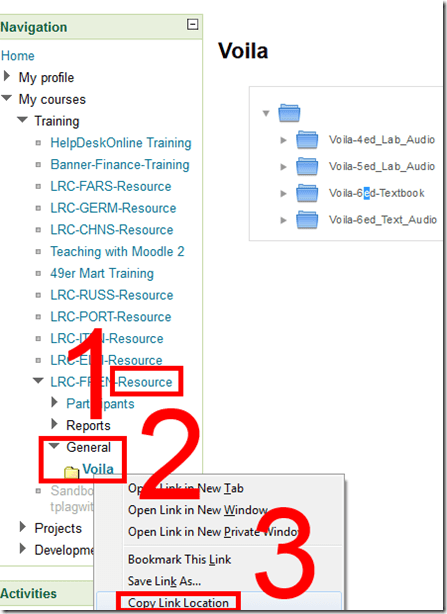
- Find your metacourse and expand (1).
- find your resource (the textbook is actually “Voilà”, but we want to make extra sure there are no non-ASCII compatibility issues) and right-click (2).
- Click “copy link location” (3).
- How to use the metacourse link in your actual course:
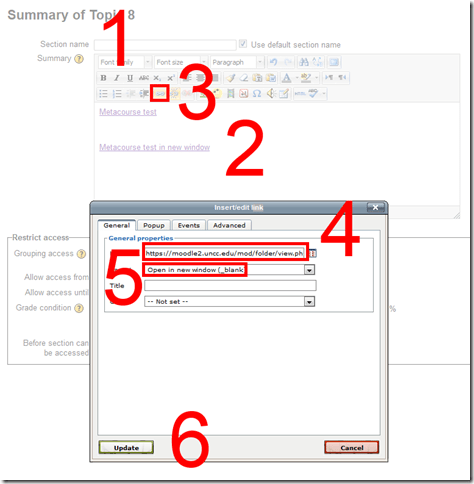
- You can e.g. start a new topic (0).
- Add title (1).
- Add text (2).
- Add link to text (3).
- Paste link from clipboard. (4)
- I you choose open in new window (5), following the link will not navigate the student away from your actual course in the main web browser window.
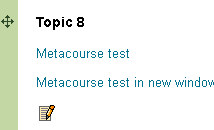
- Result:
 Caveats:
 - FireFox opens in a new tab, even if you in Moodle request to open in a new window.
- You can only link to the root folder of a Moodle Metacourse. If there are multiple content sets within your textbook folder, please advise your student of the name.

Making computerized vocabulary quizzes for use in the LRC from Prof. Koralova’s Friendly Russian textbook
You can browse on the Group room PC to this folder with the
source files (read acces), you just need to look at the Word versions: S:\COAS\LCS\LRC\sanako\student\friendly-russian-docx-student-copy
In the source files, new vocabulary that the students have to learn, appears in 2 forms
1. Either under the heading “new words”, mostly with English meaning in a sparate column
2. Or in the running text, colored in red (and with no entirely obvious English translation for me who I do not speak Russian, but likely for you).
The target file is here (in most browsers other than Internet Explorer 64-bit, you should be able to open this in EXCEL for easier editing).
We need Russian and English in 2 columns. The computer program we are going to feed these flash cards into is quite simple in its automatic evaluation. That’s why we need to enable students to guess exactly the Russian from the English flash card side (and vice versa). Hence we may need to simplify the entries in both.
To give a few examples:
– Complicated lists of variants (inflected forms, similar phrases etc.) need to be broken up into separate rows
– linguistic metadata (like gender “fem.”– but maybe not articles: “la maison – das Haus” -, irregular verb) in a separate column, per language.
I included an example (from chapter 4, section 6) what I think the end result is supposed to look like:
Source example:
ти́хо (adv.) – quiet(ly); тишина́ (n.) – stillness; quiet
никогда́ – never; ти́хо, как никогда́ – quiet as never (before); когда́ – when
В чём де́ло? – idiom: What’s the matter?
ах да – oh yes
матч – match; game
почти́ – almost
ка́ждый – each; every
ме́сяц – month
всё в поря́дке (idiom)– everything is OK (lit.: everything is in order)
что ещё на́до? – what else (does one) need?
Target example:
|
russian |
metadata |
english |
metadata2 |
|
Ти́хо |
quiet |
||
|
тишина́ |
stillness |
||
|
тишина́ |
quiet |
||
|
никогда́ |
never |
||
|
ти́хо, как никогда́ |
quiet as never before |
||
|
когда́ |
when |
||
|
В чём де́ло? |
What’s the matter? |
||
|
ах да |
oh yes |
||
|
матч |
match |
||
|
матч |
game |
||
|
почти́ |
almost |
||
|
ка́ждый |
each |
||
|
ка́ждый |
every |
||
|
ме́сяц |
month |
||
|
всё в поря́дке |
everything is OK |
||
|
что ещё на́до? |
what else does one need? |
||
Hint: the easiest way to get the vocabulary charts Russian – English from Word into 2 columns in Excel: CTRL+H, “find:” space-space, “Replace”:^t (for tab), then copy/pasting the result makes 2 columns for Russian/English.
Pearson mygermanlab "AUDIO INIT FAILED" for Blackboard voice/Wimba setup wizard – a firewall issue?
In Firefox, Chrome, IE8 on Win 7 (64bit) …

No other missing requirement in browser tuneup but QuickTime (which is said to be not required for PC)… And here is the likely solution from the Pearson website:
“Audio Init Failed” or “Error: Communication Error”
This error occurs because the computer’s security prevents the Wimba plug-in from sending data to our servers. Please take the steps described below to be sure that communication between your computer and our servers is always allowed.
- Please configure the security program or firewall on your computer to allow the file shown below (audioproxy.exe) to connect to the internet. (If you do not know how to make this change, please contact technical support for the security program you are using.)
Windows XP or 2000
C:\Documents and Settings\[Windows Username]\Application Data\HorizonWimba\JSecureDoor\audioproxy_X.Y.Z\data\audioproxy.exe
Windows Vista
C:\Users\[Windows Username]\AppData\Local\HorizonWimba\JSecureDoor\audioproxy_X.Y.Z\data\audioproxy.exe
- Java applets or Java Script also must be allowed by personal firewall or internet security software. Some firewalls have settings to block Java applets and Java Scripting, which will prevent Wimba Voice applets from loading. You may need to contact technical support for that firewall or security program for assistance configuring that program to allow Java applets and Java Script.
- Your browser must also allow Java applets and Java Scripting.
Internet Explorer
- Open Internet Explorer and click Tools > Internet Options
- From the Internet Options window, select the Advanced tab
- Scroll down the list to Java(Sun) heading and make sure the box below it is checked
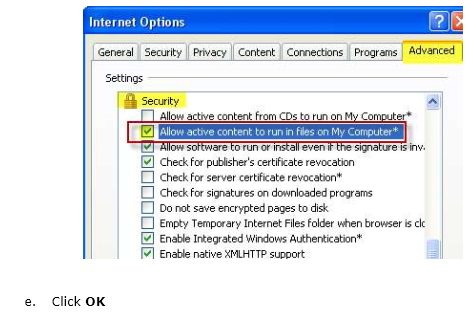
Note: If you do not see Java(Sun), go Sun’s Java website at www.java.com and click Free Java Download. - Scroll down the list to the Security heading and make sure the box beside Allow active content to run in files on My Computer is checked
- Click OK
Pasted from <http://247pearsoned.custhelp.com/app/answers/detail/a_id/7356/~/blackboard-voice-(wimba-voice)%3A-error-messages>
More info from the Pearson troubleshooting documentation:

LRC hosts help desk for students to register on their McGraw-Hill Connect online textbook website
This special Help desk will be sign-posted in the LRC on the day of the events. For now, consult the calendar of the iMacsand Group Room1, 2 (see https://thomasplagwitz.com/2012/11/04/how-to-view-lrc-hoursevents/).Here is the documentation:
Demo of Puntos de partida on the McGraw-Hill Connect online platform for Hybrid Spanish teachers
- For your review:

- Highlights:
-
Learnsmart: adaptive learning content that asks for and tracks for the teacher and adapts for the student to students metacognitive confidence about her knowledge before testing it
-
In a flipped classroom setting, highest failure areas in the online learning results can be easily seen by the teacher to adapt the next class meeting.
-
How to re-enroll in MyLanguageLab/MyGermanLab in a new term in the LRC
- Bring:
- Valid Email Address
- Student Access Code – packaged with your text or available standalone at the bookstore.
- Your Instructor’s Section/Course ID ___________ (Note: The Course ID must be entered exactly as it is provided to you including typing the hyphen “-“ and using all capital letters.)
- Open Internet Explorer, go to goo.gl/JUSUC.
Ø Click Sign in under “Sign in” 
Ø Enter the username and password you created as part of registration.
Ø In the new window, under Your Courses and Products select the link with the title of your required text.
Ø Click Enroll in Course
Ø Enter Course ID (provided by your instructor) (Note: The Course ID must be entered exactly as it is provided to you including typing the hyphen “-“ and using all capital letters.)
Done!
Or not: IMPORTANT NOTICE for Returning Users who:
· used a MyLanguageLabs course with your textbook in a previous semester
· purchased 24-month access
· received the following error after entering the Course ID you received from your instructor
If you get this error  , go to www.mylanguagelabs.com and under Sign In click “Problems with your Course ID? Click here.”
(adapted for the LRC from How to Enroll in a New Semester Handout )
Help with MyLanguageLab recordings
- Taken almost straight from the BB_Voice_Troubleshooting_Guide.pdf:
- When using the Voice Recorder, first click the (0) blue “Record” to load the recorder. You may have to accept a security warning.
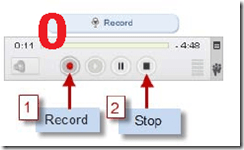
- Then click the (1) red record button

- IMPORTANT: Click the (2) black STOP
![clip_image001[14]](https://thomasplagwitz.com/wp-content/uploads/2012/11/clip_image00114_thumb.jpg?w=37&h=34 "clip_image001[14]") button to save your recording. (If you do not click the stop button, your recording will NOT be saved and your instructor will not be able to hear your voice). When you stopped, the timer in the upper right will change from showing “time remaining” to “time recorded”.
button to save your recording. (If you do not click the stop button, your recording will NOT be saved and your instructor will not be able to hear your voice). When you stopped, the timer in the upper right will change from showing “time remaining” to “time recorded”. - Click the (now not grayed out, but ) green PLAY
![clip_image001[8]](https://thomasplagwitz.com/wp-content/uploads/2012/11/clip_image0018_thumb.jpg?w=38&h=36 "clip_image001[8]") button to confirm your voice was recorded. If you do not hear anything, check your microphone and the volume controls on your computer.
button to confirm your voice was recorded. If you do not hear anything, check your microphone and the volume controls on your computer. - If you wish, to re-record your voice,
- click the red record button again.
- Click YES when asked if you want to Override Current Recording.
![clip_image001[16]](https://thomasplagwitz.com/wp-content/uploads/2012/11/clip_image00116_thumb.jpg?w=244&h=62 "clip_image001[16]")
- Re-record and again click STOP. and play to Playback your recording.
- When finished, Click Submit for Grading to submit the recording to your instructor for review.


![clip_image001[14]](https://thomasplagwitz.com/wp-content/uploads/2012/11/clip_image00114.jpg "clip_image001[14]")
![clip_image001[8]](https://thomasplagwitz.com/wp-content/uploads/2012/11/clip_image0018.jpg "clip_image001[8]")
![clip_image001[16]](https://thomasplagwitz.com/wp-content/uploads/2012/11/clip_image00116.jpg "clip_image001[16]")


Questions? Read the About. Or just ask me a quick Our Databases: Resources with calendars -- Language learning material Moodle Sites, multimedia files -- films


FAQs for LRC student staff or for students or for teachers. To search our FAQs, in the browser addressbar, add after "https://plagwitz.wordpress.com/feed/?tag=faqs+/" "+TAG1" (from tag cloud below) OR "https://plagwitz.wordpress.com/feed/tag=faqs
&category_name=" "CAT1" (from category hierarchy below). OR search both categories and tags, and multiple TAGs/CATs (connect with "," for OR-search, with "+" for AND-search), like so: https://plagwitz.wordpress.com/feed/?tag=TAG1+TAG2+...TAGn&category_name=CAT1
+CAT2+...CATn"
Other ways to find help
If you cannot find it here, look there: 5,500 Language-Learning Links and Programs for learning or teaching 150 languages
Shortcuts:Our Lists, Our Maps, LRC Staff Moodle Site,LRC Project Moodle Site, 49erexpress, UNCC Moodle, Student Recordings: s:claslcslrcsanakostudent
Learning usage samples: Sanako oral exam, Kaltura webcam presentation, Dictation with speech recognition, Sanako written exam, Chinese and Japanese interactive stroke-order practice
Test the Sanako Installer, Webbrowser Popup Konfigurator for XP, or Windows7, faster LRC TeacherPC Log-in Let MS facilitate diacritics writing by installing for you US-International keyboard layout
This is my personal blog (Google+). The views expressed on these pages are mine alone and not those of my employer. The information in this weblog is provided “AS IS” with no warranties, and confers no rights.
 Thomas' Work Space