Archive
Protected: How to conduct an easy oral exam with Sanako1200 (Model imitation/Question Response) – Part II: Implementation/instruction of examined students
Computer Lab Imaging with Ghost Console and Deepfreeze Console
0. As of Winter 2011 Novell – AD and Deepfreeze 7 upgrade, flagged for updating: TBA.
1. DEEPFREEZE console
1.1. Unfreeze the image source client
2. Client PREPARE THE IMAGE
2.1. Login as labadmin,
2.1.1.NAL [tba], labtools, icon Microsoft Update (be sure to use icon in launcher it will disable policies that won’t allow it otherwise use windowsupdate.com
2.1.2 Remove the machine from the domain: My Computer / System Properties / Computer Name / Button: Change / Member of: Workgroup: LRC (if it asks for a user/pwd, leave both blank and click OK), restart as prompted using Ghost Console / Add to workgroup
2.2. Login as ITSadmin (work station only)
2.2.1.Create user testuser (Administrator), will be based on past default user template
2.3. Log in as testuser
2.3.1.Document what you are doing by running c:\temp\labscreencastfullhighaudio.wme / menu button: start encoding / when done, menu button: stop encoding, rename output file to not overwrite existing output,
2.3.2.Make changes ß centre_image_request_list_allda
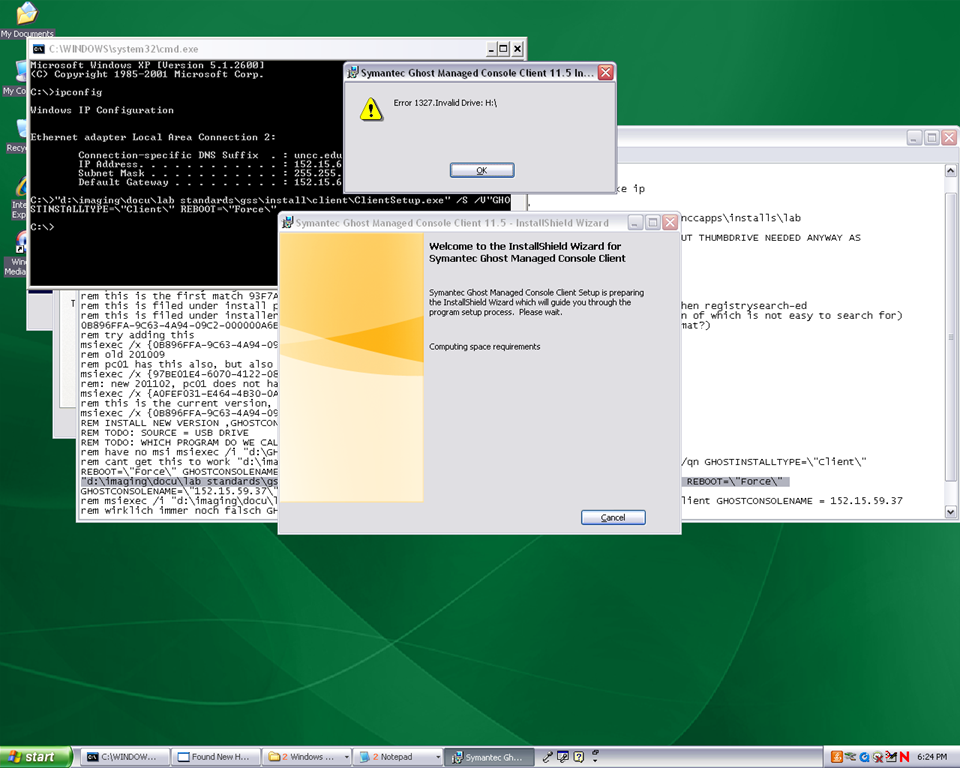
2.3.2.1 if software installs complain about missing H: (home) drive, plug in a thumbdrive and change its driveletter to H:
2.3.3.Clean before making testuser default user:
2.3.3.1. control / internet options / clean history and temp files
2.3.3.2. recycling bin: empty
2.3.3.3. right-click start button: / menu item:properties / button:customize / tab:general / button:clear list + tab:advanced: clear list
2.3.3.4. C: / properties /disk cleanup, all, except: “Compress old files”, “cached installers”, “Office setup files”
2.3.3.5 Firefox: menu: tools / clear recent history / time range: “everything”/ check everything and click button “clear now:” 
2.4. Log in as itsadmin
2.4.1.Document what you are doing by running c:\temp\labscreencastfullhighaudio.wme / start encoding / rename to not overwrite existing output,
2.4.2.Manage testuser – default user transition
2.4.2.1. USERS
2.4.2.1.1. Make testuser default user:
2.4.2.1.1.1. Unhide: explorer / tools / folder options / tab:view / show hidden files and folder, unhide protected operating system files
2.4.2.1.1.1.1. make a backup of old documents and settings/default user (entire directory, not only ntuser.dat): zip onto thumbdrive with date/version number )
2.4.2.1.1.2. xp copy profile windowskey+pause/break /tab:advanced / section:user profiles / button:settings, select the profile [you cannot copy the active profile, so log in as itsadmin], button: copy to, new window: copy to, section:copy profile to, button:browse, select c:\documents and settings\default user, button:ok
2.4.2.1.1.3. [not even the ntuser.dat seems necessary, since even the ntuser.dat gets updated by copy profile] c:\document and settings\testuser\ntuser.dat [+dolater:subfolders?]: back up ntuser.dat to ntuser.old, then copy into default user
2.4.2.1.1.4.Re-hide: explorer / tools / folder options / tab:view / do not show hidden files and folder, hide protected operating system files
2.4.2.1.2. Remove other accounts:
2.4.2.1.2.1. system / advanced / user profiles / clean profiles: delete all accounts except default user (it if shows) and itsadmin
2.4.2.1.2.2. administrative tools / computer management / treenode:local users and groups management / delete non built-in users and non-administrative users
2.4.3.Uninstall deepfreeze (by re-running the installer from unccapps/installs / df#wks.exe) (this will restart the computer; log in again as itsadmin)
2.4.4.delete c:\nalcache
2.4.5.backup the c:\temp \*.wmv screencasts onto a thumbdrive
2.4.6.do this as last step: run c:\windows\system32\trend\ImgSetup.exe, which gives a message: “this program has been configured to start whenever the system is restarted.”
2.4.7.if sysprep required (deploying to non-uniform hardware, e.g. dell optiplex 760 vs 780), run
2.4.8.Reboot to login screen
3. Ghost console configuration
3.1. Ghost console: upload/backup and download/deploy/clone the image
3.1.1. configuration resources / images / right-click: new / image pointing to a file with the NAME that includes today’s date in the format MMDDYY
3.1.2 task: “CAPTURE IMAGE” (not run): open
3.1.1.1. ISource machine: set to machine you have created the image on
3.1.1.2. Image: set to config resource that you have just created
3.1.1.3. [IF NOT CHECKED]check tab:general /checkbox: Remove machine from Domain before taking an image. You must remove the computer from its domain if you are going to roll out the image file to a number of computers. [except if using sysprep].
3.1.1.4 button: save, button:execute

4. DEEPFREEZE console
4.1. UNFREEZE ALL CLIENTS [LRC must be closed]
5. Ghost console configuration
5.1. Deploy task:
5.1.1.“DEPLOY IMAGE TEST”:
5.1.1.1. [ITEM IS ONLY FYI]tab:general / check: clone, but uncheck: configuration [tba: NOT unchecked now?] , refresh configuration, refresh inventory [tba: why?]
5.1.1.2. [ITEM IS ONLY FYI]tab: clone: check “use Ghost walker to perform a sid change”
5.1.2.configuration task “ADD TO DOMAIN”
5.1.2.1. [ITEM IS ONLY FYI] Alternative individually: ghost console / default configuration / right click computer / properties/ configuration / edit default configuration / tree: workgroup/domain membership
5.1.2.2. [ITEM IS ONLY FYI]alternative via batch configuration template: task “Add to AD group” to add to AD [for lcs? Is this why we do this separately from the domain?]: tab:general, check configuration , target machine group: browse for your default group / coed434, tab;configuration: browse for “add machines to ad” – based on template “add machines to ad”, check allow template settings, tree: workgroup/domain membership / check apply member of , check uncheck computer name which is already set, no description , workgroup/domain: its.uncc.edu, container:unccharlotte / labs / clas / lcs / workstations, uncheck: Move computers that are currently in a container.
6. Ghost console: TEST DEPLOY/ADD AD with 2 computers:
6.1. Test: template task: download/deploy to 2 clients
6.2. Test: on client:
6.2.1.Are clients joined to domain [cannot log in with domain account if not; global test: tba]
6.2.2.logging in (creating profiles based on default user) as staff and labstudent: language & translation apps coming up?
7. Ghost console : PRODUCTION DEPLOY/ADD AD
7.1. checks: are you deploying the right image? Are all computers turned on? Cancelling a Ghost deploy task is a pain, if it does not reboot to the login screen, run a token task like deepfreeze-boot-unfrozen
7.2. Clone/Download, Add to Domain/AD
7.3. Test the clients are joined to domain
7.3.1.For all: ghost console / default configuration / right click computer / properties/ configuration
8. Clients
8.1. Login as labadmin staff account (domain account ß uncheck “workstation only”, to freeze with this default)
8.2. DEEPFREEZE: install from novell-delivered application, from Ghost console: deepfreeze7-install, reboot to frozen install: from Ghost console:deepfreeze7-bootfrozen
9. DEEPFREEZE console
9.1. Test the clients are frozen (exclamation point denotes "not sure")
9.2 Add your scheduled maintenance window, again, to avoid domain trust issues .
GoogleApps.uncc.edu
Symptoms: When clicking on a a sharing link from a GoogleApps document, the recipients may be redirected to the standard Google login page, with their personal Google account user name. Even if they change this user name to their UNCC user name, they cannot log in (Error: wrong password).

Resolution: Do not click on the sharing link in the email. Rather, go to http://googleapps.uncc.edu and log in there. Find the new document shared with you in your documents list.
Language Lab Web Portal, University of Michigan – Dearborn
For lack of even an LMS – which in post-secondary language lab environments in the US in the “noughties” commonly has had to double as CMS and Groupware -, the lab web portal in the post title had to fulfill many functions.
While the technically most advanced features probably was full text search against both database and file system (uploaded documents) – which I could relatively easily implement thanks to MS-SQL-Server and a limited number of database tables –, I liked best the collaborative building of a bank of language learning exercises using authentic materials, i.e. interactive websites from the target culture.
A few sample illustrations of the use in both language lab and affiliated computerized classrooms you can see here:



The list below links to a series screencasts of the Language Lab Web Portal that I made for training and demonstration purposes. They show the language lab web portal software in action:


MS-SharePoint and the LLC
The LLC has a SharePoint team-site (Yay! ). About the first thing asked for in September when I found out searching the company website that Inside Loyola – the locally branded version of DataTEL’s ActiveCampus – is built on MS-SharePoint.

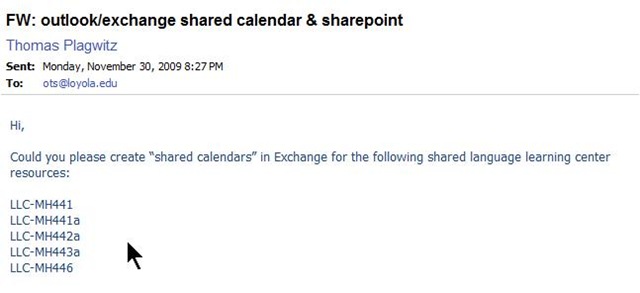

This means MS-SharePoint’s features are available to the LLC. This has benefits which come with groupware applications (aka “What’s Wrong with Email?”) that sit on top of an account management system likes AD.
On the basis of the MS-SharePoint/MS-Exchange/MS-Active directory stack, you can build, with much less effort, a much better calendaring/scheduling solution than CGI’s from the 90s provide.

Calendaring/Scheduling is a productivity task common to most businesses. Learning resource catalogues are much more vertical market specific. But if you cannot even manage the character input issues in foreign language video catalogue in your pre-.Net ASP solution, you might still find a generic solution based on SharePoint lists better.
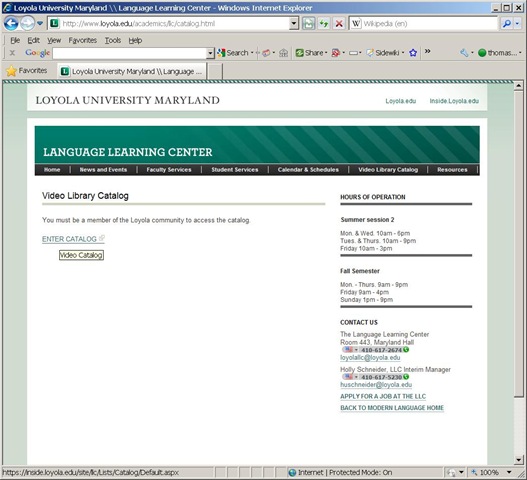
And once you outsourced common productivity software development to MS, you can get implementing e-learning beyond watching TV.
LLC Catalogue: Video-Reserves.xlsm, Reserve desk, Schedule, using Blackboard Content System WebDAV
For a LLC video schedule, we came up with the following repurposing of existing infrastructure:
- MS-Excel: still the “Swiss army knife” of choice for the middle manager. Allows for: semi-automatic creation of reserve date sequences (insert series), given a start and end date; data validation during data entry, and, based on that, sorting and filtering and, based on that, finding.
- Blackboard Content management system (WebDAV) to manage reading and writing (editing) permissions.

- Staff can use MS-Excel to request videos – preferably at start of term – to be put on reserve within a start and end date, during which they will be periodically shown, by opening the spreadsheet from MS-Excel and filling in the green cells in the first empty row at the bottom.

- Lab Staff can use MS-Excel to periodically transfer video reserve requests into video showings.
- Lab Assistants can use MS-Excel to daily maintain video reserve desk and video showings.
- Students can use a web browser to preview video showing times during the remainder of the term.
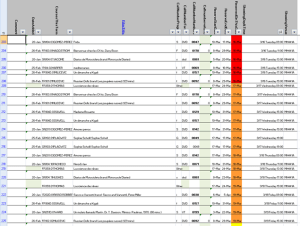
- To open the video schedule for read-only, Loyola students and staff can simply click this link in their browser: https://blackboard.loyola.edu/bbcswebdav/users/trplagwitz/llc-pfiles/video/video-reserves.xslm. Even read-only access includes the capability to search, sort and filter the schedule data, but you cannot save back.
- To open the video schedule for editing, LLC and Modern Languages staff can start MS-Excel, click menu: File / Open, and copy/paste this link: https://blackboard.loyola.edu/bbcswebdav/users/trplagwitz/llc-pfiles/video/video-reserves.xslm, then click open.
- All users will have to authenticate with their institutional account info:


Network shares for collaboration: Applications and Files
As explained earlier here, we have set up network shares for collaboration which you can access from your office computers.
Overview of shares:
If you still have textbook media files in the LLC (talk to me on how to move them into the Blackboard content system and recycle them between terms by doing a course rollover in Blackboard ), access them on drive M: (for “media”).
If you have students making audio recordings in the LLC, access them on drive S: (for “students”). A better way for doing recordings during self-access/homework is TBA.
Some useful files for management are on drive H:, in the LLC folder. Some background info is here.
Overview of files:
To access these files quickly, you can click  , click
  , paste the path to the file, click
  :
:
H:\LLC\people\Sign_In_Sheet.xls – Attendance Meter.
H:\LLC\scheduling\channel55-presenter\channel55.ppt – the PowerPoint displayed on the Campus TV Network channel; for the LLC (TBA: as of March 2010, computer is being swapped out, and I have to migrate my application again – stay tuned).
H:\LLC\scheduling\hallway-presenter\hallway.ppt – the PowerPoint displayed on the hallway screen outside of the LLC on MH, 4th floor.
The PowerPoint files – one being displayed on the 4th floor hallway computer, the other on Channel 55 Campus TV – contain sections for announcements/advertisements which you may want to edit, update and/or add to.
Open these files like files on your computer. Overwrite the text in the files with current information. It is strongly recommended that you add slides by copy/pasting existing slides.
If you need help with the PowerPoints, I trained and assessed the lab assistants through Language Learning Center Blackboard site. There should always be an assistant at the LLC desk that can help you with basic PowerPoint tasks.
Your updates will not show instantaneously, but next day. I’ll check for changes in either PowerPoint file, backup the original and upload the new version over night to their respective computers.
How to automate nightly updates of a Kiosk PowerPoint
This copies nightly a ppt file from a network share where it is collaboratively edite to a network computer where it is displayed for announcement and marketing. The ppt file should already be set to kiosk, manual timings, loop mode.
#region ;**** Directives created by AutoIt3Wrapper_GUI ****
#AutoIt3Wrapper_outfile=\\adfileprod01\Shared\LLC\scheduling\channel55-presenter\updater-channel55.exe
#endregion ;**** Directives created by AutoIt3Wrapper_GUI ****
; revision after hardware upgrade from hallway.au3, "hallway"->"channel55" not in variable names, only in strings , except for encryption password
; includes debugging
; connect to channel55-presenter using tightvnc
; adapt at [TBA]
#include <ie.au3>; put the compiled executable of this in channel55Presenter c:\temp and run it as a scheduled task  late-nightly
#include <debug.au3>
#include <File.au3>
#include <Screencapture.au3>
#include <String.au3>
#include <Date.au3>
Global $filename = "[TBA]"; "channel55"
Global $filenamelog = "[TBA]"; "channel55"
Global $fileextremote = ".pps"
Global $fileextlocal = ".pps"
Global $fileextlog = ".log"
Global $pathfilelog
Global $filepathlocal = "[TBA]"; "c:\temp\"
Global $fileshareordriveremote = "[TBA]"; "\\resman\Student Saved Work\"
Global $filepathremote = "[TBA]"; "Admin\conf\scheduling\channel55-presenter\"
Global $filepathremotebackup = "tmp\"
Global $usernameinstructor = "[TBA]" ; "trplagwitz"
Global $passwordinstructor = "[TBA]" ; hashed password
Global $passworddecrypt = "hallway"
Global $LogonDomain = "[TBA]" ; "ad.loyola.edu"
Global $timelocal
Global $timeremote
Global $debugtype = "debugconsole"
_ScreenCapture_SetBMPFormat(0)
$logfilehandle = FileOpen($fileshareordriveremote & $filepathremote & $filepathremotebackup & $filename & $fileextlog, 1)
If Not FileExists($fileshareordriveremote & $filepathremote & $filename & $fileextremote) Then
	$ret = FileWriteLine($logfilehandle, "cannot open file: " & $fileshareordriveremote & $filepathremote & $filename & $fileextremote)
	FileClose($logfilehandle)
	Exit
Else
	If ProcessExists("powerpnt.exe") Then
		ProcessClose("powerpnt.exe")
	EndIf
	Sleep(5000)
	If ProcessExists("powerpnt.exe") Then
		$ret3 = RunWait('taskkill /F /fi "imagename eq powerpnt*"  /im *')
	EndIf
	Sleep(2000)
	$ret = FileCopy($fileshareordriveremote & $filepathremote & $filename & $fileextremote, $filepathlocal & $filename & $fileextlocal, 1)
	$ret = FileWriteLine($logfilehandle, "result:" & $ret & " filemove from: " & $fileshareordriveremote & $filepathremote & $filepathremotebackup & $filename & "_" & today() & $fileextlocal & "t: " & $filepathlocal & $filename & $fileextlocal)
	If FileExists($fileshareordriveremote & $filepathremote & $filename & $fileextremote) Then
		FileDelete($fileshareordriveremote & $filepathremote & $filename & $fileextremote)
	EndIf
	ShellExecute($filepathlocal & $filename & $fileextlocal)
EndIf
FileClose($logfilehandle)
Exit
Func today()
	Return (@YEAR & @MDAY & @MON)
EndFunc   ;==>today
Func addHallwayPresenterNetworkshares($LogonDomain)
	If $LogonDomain = "" Then $LogonDomain = @LogonDomain
	If StringLen($passworddecrypt) > 0 Then
		$driveletterreplacementforhallwayread = DriveMapAdd("*", $fileshareordriveremote, 0, $LogonDomain & "\" & $usernameinstructor, _StringEncrypt(0, $passwordinstructor, $passworddecrypt))
	Else
		$driveletterreplacementforhallwayread = DriveMapAdd("*", $fileshareordriveremote, 0, $LogonDomain & "\" & $usernameinstructor, $passwordinstructor)
	EndIf
	myDebugOut(@ScriptLineNumber, "$driveletterreplacementforhallwayread is: " & $driveletterreplacementforhallwayread & ", $fileshareordriveremote is " & $fileshareordriveremote & ", $usernameinstructor, $passwordinstructor are " & $usernameinstructor & $passwordinstructor)
	If (($driveletterreplacementforhallwayread == "") Or $driveletterreplacementforhallwayread == 0) Then
		$driveletterreplacementforhallwayread = "H:"
	EndIf
	Return $driveletterreplacementforhallwayread
EndFunc   ;==>addHallwayPresenterNetworkshares
Func removeHallwayPresenterNetworkShares()
	$driveletterreplacementforhallwayread = $fileshareordriveremote
	If StringInStr($driveletterreplacementforhallwayread, ":") Then
		If StringInStr($driveletterreplacementforhallwayread, "\") Then
			StringTrimRight($driveletterreplacementforhallwayread, 1)
		EndIf
		$ret = DriveMapDel($driveletterreplacementforhallwayread)
		If $ret = 0 Then myDebugOut(@ScriptLineNumber, "failed to DriveMapDel for: " & $driveletterreplacementforhallwayread)
	EndIf
EndFunc   ;==>removeHallwayPresenterNetworkShares
Func myDebugOut($ScriptLineNumber = @ScriptLineNumber, $msg = "Error")
	Local $debugstring
	Local $debugfilename
	Local $tabhandle
	Local $tabmaxnumber
	Local $tempdir
	$tempdir = @TempDir
	If $tempdir == "" Then $tempdir = "c:\temp"
	$debugstring = $ScriptLineNumber & "~" & _Now() & "~" & $msg
	If $debugtype = "debug" Then
		Local $activewindowtitle = WinGetTitle("")
		MsgBox(0, "debug", $debugstring)
		WinActivate($activewindowtitle)
	ElseIf $debugtype = "debugconsole" Then
		ConsoleWrite($debugstring & Chr(13))
	ElseIf $debugtype = "run" Then
		If $tempdir == "" Then $tempdir = "c:\temp"
		$debugfilename = FileNameEscape($debugstring, $tempdir) & ".jpg"
		_ScreenCapture_Capture($debugfilename)
		_DebugOut($debugstring)
	ElseIf $debugtype = "debugconsolescreen" Then
		ConsoleWrite($debugstring & Chr(13))
		$debugfilename = FileNameEscape($debugstring, $tempdir) & ".jpg"
		_ScreenCapture_Capture($debugfilename)
	ElseIf $debugtype = "releasetextlog" Then
		If $pathfilelog == "" Then $pathfilelog = @TempDir & "\" & "autoitlogfile.log"
		$loghandle = FileOpen($pathfilelog, 1)
		If $ret = 0 Or @error Then Exit
		$ret = FileWriteLine($loghandle, $debugstring & Chr(13))
		If $ret = 0 Or @error Then Exit
		$ret = FileClose($loghandle)
	ElseIf $debugtype = "releasewordpad" Then
	Else
		SetError(1)
	EndIf
EndFunc   ;==>myDebugOut
Func FileNameEscape($filename, $tempdir)
	$filename = StringReplace($filename, ":", "_")
	$filename = StringReplace($filename, ">", "larger_than")
	$filename = StringReplace($filename, "<", "smaller_than")
	$filename = StringReplace($filename, " ", "_")
	$filename = StringReplace($filename, "/", "&")
	$filename = StringReplace($filename, "/", "+")
	$filename = StringReplace($filename, "&", "+")
	$filename = StringReplace($filename, Chr(9), "_")
	$filename = StringReplace($filename, "?", "questionmark")
	$filename = StringReplace($filename, "!", "exclamationmark")
	$filename = StringReplace($filename, "'", "quotationmark")
	$filename = StringReplace($filename, Chr(34), "doublequotationmark")
	$filename = StringReplace($filename, "__", "_")
	$filename = StringReplace($filename, "__", "_")
	$filename = StringReplace($filename, "__", "_")
	$filename = StringReplace($filename, "__", "_")
	$filename = $tempdir & "\" & $filename
	Return $filename
EndFunc   ;==>FileNameEscape
Func FileCopy2LocalTemp($filepath)
	Dim $arrfilepath, $filepathname, $arrfilepathname, $filepathnameext
	$blnValid = True
	If Not FileExists($filepath) Then
		If Not DriveMapAdd("", $filepath) Then
			$blnValid = False
		EndIf
	EndIf
	If $blnValid Then
		$arrfilepath = StringSplit($filepath, "\")
		If @error Then
			SetError(1)
			myDebugOut(@ScriptLineNumber, "error stringsplit filepath")
		EndIf
		$filepathname = $arrfilepath(UBound($arrfilepath) - 1)
		$ret = FileCopy($filepath, @TempDir & "\" & $filepathname)
	Else
		SetError(1)
	EndIf
EndFunc   ;==>FileCopy2LocalTemp


Questions? Read the About. Or just ask me a quick Our Databases: Resources with calendars -- Language learning material Moodle Sites, multimedia files -- films


FAQs for LRC student staff or for students or for teachers. To search our FAQs, in the browser addressbar, add after "https://plagwitz.wordpress.com/feed/?tag=faqs+/" "+TAG1" (from tag cloud below) OR "https://plagwitz.wordpress.com/feed/tag=faqs
&category_name=" "CAT1" (from category hierarchy below). OR search both categories and tags, and multiple TAGs/CATs (connect with "," for OR-search, with "+" for AND-search), like so: https://plagwitz.wordpress.com/feed/?tag=TAG1+TAG2+...TAGn&category_name=CAT1
+CAT2+...CATn"
Other ways to find help
If you cannot find it here, look there: 5,500 Language-Learning Links and Programs for learning or teaching 150 languages
Shortcuts:Our Lists, Our Maps, LRC Staff Moodle Site,LRC Project Moodle Site, 49erexpress, UNCC Moodle, Student Recordings: s:claslcslrcsanakostudent
Learning usage samples: Sanako oral exam, Kaltura webcam presentation, Dictation with speech recognition, Sanako written exam, Chinese and Japanese interactive stroke-order practice
Test the Sanako Installer, Webbrowser Popup Konfigurator for XP, or Windows7, faster LRC TeacherPC Log-in Let MS facilitate diacritics writing by installing for you US-International keyboard layout
This is my personal blog (Google+). The views expressed on these pages are mine alone and not those of my employer. The information in this weblog is provided “AS IS” with no warranties, and confers no rights.

