Archive
SOLVED: How to record, in Adobe-Flash, video from my built-in iSight web camera on an 2010 iMac, combined with sound from an external cs100 PnP USB audio device
- Problem : Our new campus-wide Moodle Kaltura installation enables authentic oral proficiency examinations (we have no other Moodle Plugin for audio recordings). However, we still have no webcams on our mainstay PCs. We do have a few iMacs with built-in iSight webcams, but for providing students more privacy during their assignments in the language resource center, we need headphones. We have for spare some old headphones which we would like to use up, but they are analogue. These iMacs do not have an analog headset connector, only a line-in which would require a preamp. We have good sturdy USB headsets from Sanako, but these are too expensive to purchase for the iMacs that have no ways to secure them and little other specialized language learning use which we do not already get from the PCs (and more…).
- Workaround :
- Try an inexpensive USB audio device that has 3.5mm analog headset inputs.
- On my iMac 2010
- If in system preferences / sound/ I direct input and output to the USB PnP device
- test passes playing system sounds
- in audacity (if you CRANK the microphone sensitivity to the max!)
- recording test passes: The headset loudspeakers and micro work (not well, but they work, as a tab on the microphone indicate: there is static, and the recording volume is still softish, but better than the built in webcam microphone)
- in Kaltura,
- Flash only brings up the security dialogue (in Safari 5 and current Firefox ESR and Chrome) for allowing the web application accessing to the built-in iSight web camera, but no options to choose a separate audio device
- However, if you control-click on Flash’s a video preview window for the web camera, and click on “settings” (not “global settings”, although that is useful for always allowing access from certain URLs like your LMS) .
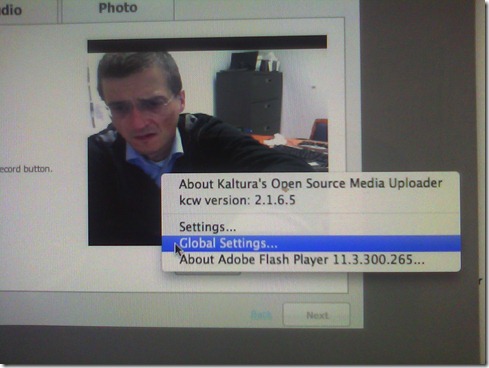
- Click on the microphone icon :

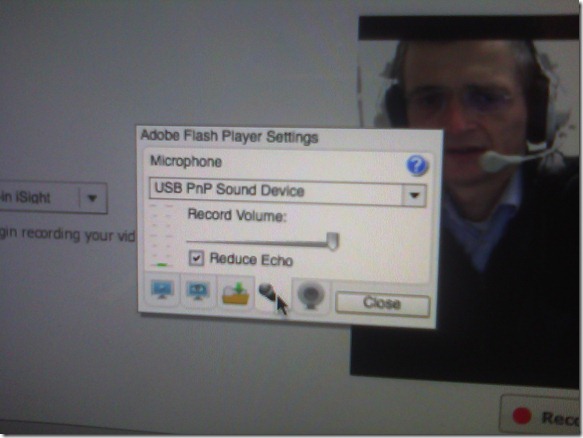
- Make sure the USB PnP device is selected.

- You can bring up the settings dialogue, make sure the USB PnP device is chosen for audio and CRANK up the microphone input sensitivity! Then test the volume levels with the built-in volume meter (should show lots of green bars when you speak. You may have to adjust the Califone headset microphone arm so that the microphone is very close in front of your mouth. ) Unlike in the picture, do not choose “reduce echo ”.
- Remaining
- Questions :
- Can this sensitivity setting be permanently stored for all users in the iMac software image, or do our students always have to adjust the microphone sensitivity?
- It remains to be seen whether this inexpensive and unsecurable device survives long when being used by our student population.
- Problem : The review video function of the Moodle Kaltura Flash video remains very temperamental on the Mac OS X (In my testing, one of the numerous problems we had with Moodle Kaltura on the iMacs popped up again: when starting to review the recording, the time counter goes, but the video stalls for a few seconds – afterwards everything seems to play fine, but this is enough to confuse the heck out of my users) . While we made another small step of progress towards enabling Moodle Kaltura webcam recordings in the language resource center, it seems easier to just get web cameras for the PCs.
- Questions :



Summer 2012 Learning materials creation clinic for preparing oral assessments/assignments
1. I am holding a “Clinic”, open to anybody who needs help with preparing their classes using oral assessments/assignments in the LRC this fall term – RVSP if interested.
2. This clinic focuses on material creation for delivery in upcoming specific courses – based on, but different from my faculty workshops on this topics, If you have not attended, please view the below links for what was covered in the workshops
a. https://thomasplagwitz.com/2011/08/18/sanako-study-1200-workshop-spring-2011/
Specifically:
1. Materials creation
- with SANAKO
i. make teacher audio recording for model-imitation/question-response oral exam: https://thomasplagwitz.com/2012/01/25/how-a-teacher-best-adds-cues-and-pauses-to-an-mp3-recording-with-audacity-to-create-student-language-exercises/
ii. Make teacher recording (https://thomasplagwitz.com/2012/01/11/recording-with-audacity/) for model imitation with voice insert (like reading practice homework assignment, https://thomasplagwitz.com/2012/01/24/how-a-teacher-creates-audio-recordings-for-use-with-sanako-student-voice-insert-mode/ ):
- with Moodle
i. Moodle Kaltura webcam recording assignment: https://thomasplagwitz.com/2011/11/02/how-to-grade-a-moodle-straming-video-assignment-and-moodle-streaming-video-recording-assignment-glitch-2/
ii. Prepare Moodle metacourses learning materials upload: https://thomasplagwitz.com/2011/06/17/moodle-metacourses-part-iv-the-support-workflow-uploading/ and https://thomasplagwitz.com/2011/01/26/moodle-batch-upload-learning-materials-give-students-access/
- with PowerPoint (visual speaking cues with timers): https://thomasplagwitz.com/2009/11/18/create-a-powerpoint-slide-with-a-timer-from-template-for-a-timed-audio-recording-exercise/
- Materials delivery with SANAKO
- remote control student pcs, collaborate over headphones: https://thomasplagwitz.com/2012/05/04/how-you-can-view-the-computer-screens-of-your-class-using-sanako-study-1200/
- pairing students’ audio using headphones: https://thomasplagwitz.com/2011/05/11/study-1200-pairing/
- You must bring some assessment ideas that fit into your skills course which we will turn into audio recordings. You can also bring prerecorded audio files from textbooks as mp3 which we can edit to turn them into materials. If you would like some examples of what colleagues have done
- With Moodle Kaltura: https://thomasplagwitz.com/feed/?category_name=learning-usage-samples&tag=kaltura
- With Sanako oral (formative) assessments/(outcome) exams: please email me, I make accessible to you samples that we do not publish to preserve exam integrity.
How to use Bulk Rename’s RegEx matching capability
Much desired, but took me a while to figure that one out:
By default, any filename with a matched substrings will be replaced by nothing;

What you want to remain, you have to refer to in the replacement with backticks:
Why does MS-OneNote fail to linkify my URLs properly?
If this is a bug, it seems a pretty basic one:
 ,
,
for a 3rd generation software plus a service pack:  . Unless I am doing something wrong, of course (I only paste those links). It is not a link length issue, not all links break at the same length (94 would be an odd length in a binary world anyway). If it is a special character, I fail to see it.
Watching workshop screencast recordings
We added a dual-screen setup to the teacher computer. We produce two screencasts, for archiving and reviewing, per training held, one of the left and one of the right screen. On a typical desktop computer, you should be able to view both side-by-side, like so (using Windows 7 Aero Snap, just activate the right/left window and on your keyboard, press Windows key + right- or left-arrow):

We hope to have screencast recording software, video drivers and scree/projection hardware that will enable us to provide a single screencast of both screens. However, other upgrades are higher up in the priority list.
How to do successful Moodle-Kaltura webcam recording assignments
Kaltura turned out to have a number of limitations, and we have some of our own in the LRC. Both required some debugging and finding of workarounds, which you can benefit of if you follow carefully our step-by-step guides for teachers or for students.

Making audio cues for model imitation/question-response oral exams with Sanako Study 1200
We can easily record and post-process audio files in the LRC for use with the Sanako Study 1200 oral exam activities.
This can work not only for outcome exams (course- or chapter-wise), but also or formative assessment:
Think converting your textbook-based “drills” into Sanako, like repetitively recapitulating the newly acquired vocabulary item “donut” with different cues:
Example: “What can you do with [student can enter her favorite new vocabulary item for the current class] on [teacher can ask for one social web service after the other that her students likely are familiar with]?”. In response, student has to practice vocabularry item by forming sentences that fit the vocabulary item that fit like in the whiteboard example.
We can add to these recordings the features explained in the slide below.
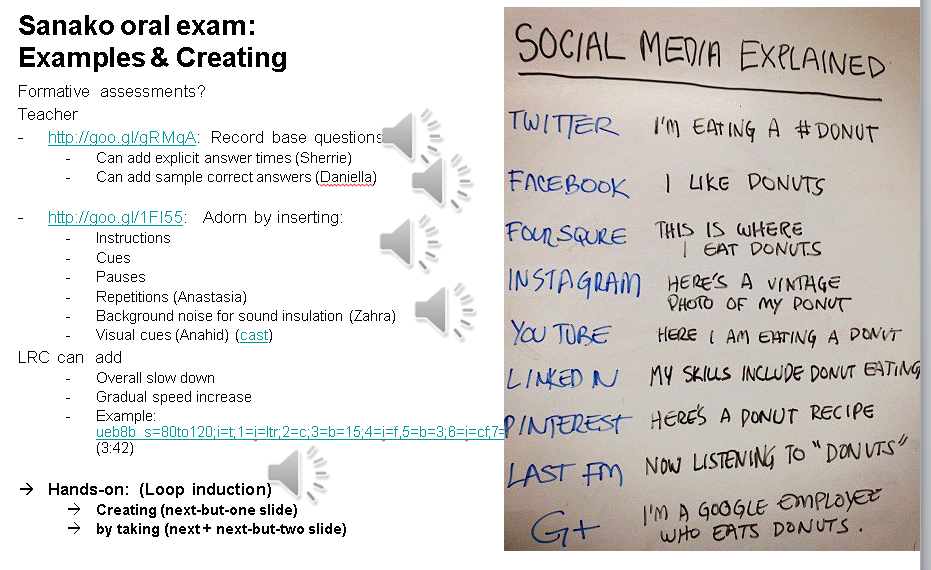
I’d be happy to play you examples from this slide – and more – in the LRC (not to be published here so that the exam files can be reused).


Questions? Read the About. Or just ask me a quick Our Databases: Resources with calendars -- Language learning material Moodle Sites, multimedia files -- films


FAQs for LRC student staff or for students or for teachers. To search our FAQs, in the browser addressbar, add after "https://plagwitz.wordpress.com/feed/?tag=faqs+/" "+TAG1" (from tag cloud below) OR "https://plagwitz.wordpress.com/feed/tag=faqs
&category_name=" "CAT1" (from category hierarchy below). OR search both categories and tags, and multiple TAGs/CATs (connect with "," for OR-search, with "+" for AND-search), like so: https://plagwitz.wordpress.com/feed/?tag=TAG1+TAG2+...TAGn&category_name=CAT1
+CAT2+...CATn"
Other ways to find help
If you cannot find it here, look there: 5,500 Language-Learning Links and Programs for learning or teaching 150 languages
Shortcuts:Our Lists, Our Maps, LRC Staff Moodle Site,LRC Project Moodle Site, 49erexpress, UNCC Moodle, Student Recordings: s:claslcslrcsanakostudent
Learning usage samples: Sanako oral exam, Kaltura webcam presentation, Dictation with speech recognition, Sanako written exam, Chinese and Japanese interactive stroke-order practice
Test the Sanako Installer, Webbrowser Popup Konfigurator for XP, or Windows7, faster LRC TeacherPC Log-in Let MS facilitate diacritics writing by installing for you US-International keyboard layout
This is my personal blog (Google+). The views expressed on these pages are mine alone and not those of my employer. The information in this weblog is provided “AS IS” with no warranties, and confers no rights.
 Thomas' Work Space