Archive
How a student submits prior content from “My content” into a Moodle Kaltura video assignment
- Go to your video assignment in Moodle:
 .
. - Click “Add media submission”:
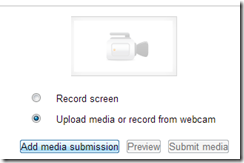
- Jump through the hoops:
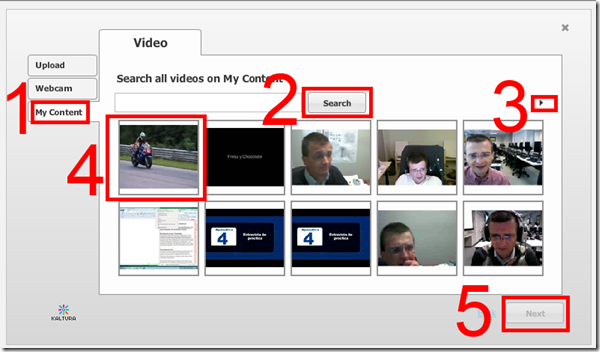
- switch to “my content”
- you have to click the “search” button to show content, leave search filed empty to show all
- note that there may be more
- you have to select a video
- before that, you cannot click next
- confirm on the next screen
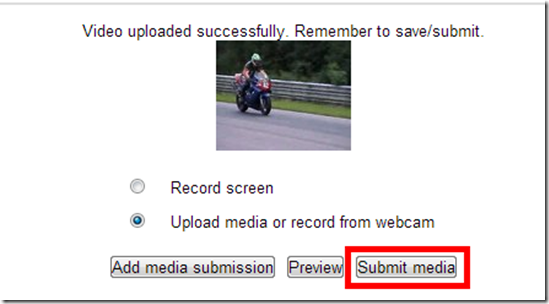
- You are done when you see this:
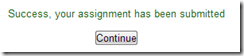 , but hey, better press “continue” to be safe:
 - On the next screen, you can review:
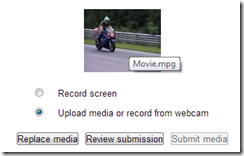
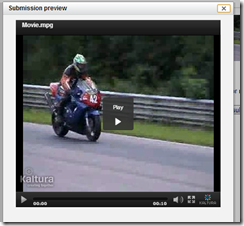
- Not so clear how you get out of there…
- Troubleshooting: If you run into problems, the first thing to try usually is a different web browser.


How to save your MS-Office files on SkyDrive
- Having to work on important documents from different locations – including office, classroom, and home – and getting tired of lugging thumb drives around (or worried about losing or inadvertently destroying them)?
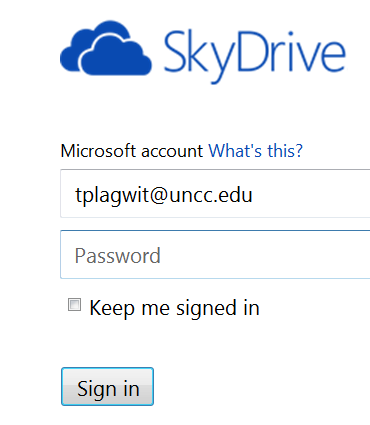
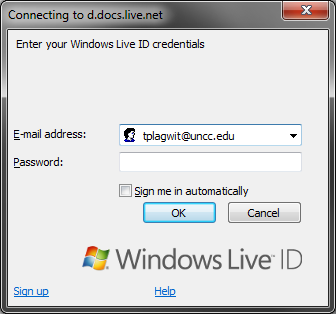
- Use your university email and your password from last June (this one does not get force-updated every 90 days any more, you can manage it yourself).
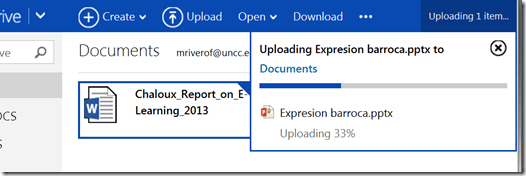
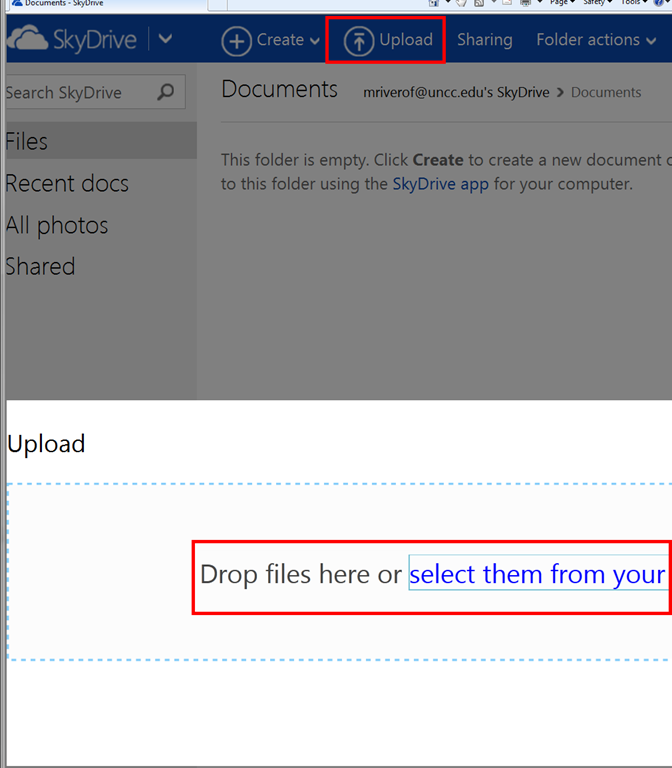
- Upload your important files:

- Drag and drop, e.g. a PowerPoint file:

- Click the file – e.g. a Word file – to view it in your web browser.
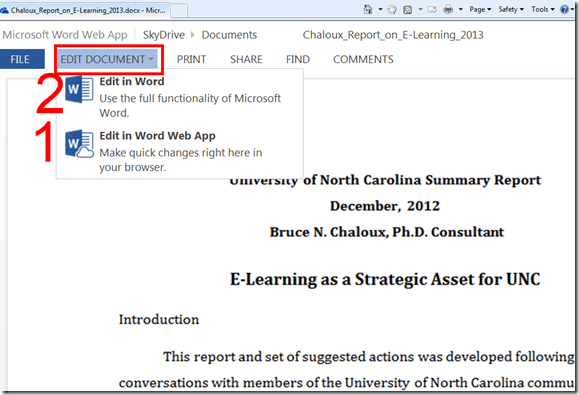
- To edit the file , while viewing, click top menu: “Edit document”. Choose between editing it in the browser (has still some – ever fewer – limitations for complex documents)
- You will have to log in again (on a non-shared computer I prefer to choose to be “signed in automatically”).

- You have to click “Enable Editing” again, but then you are in your familiar MS-Word environment.

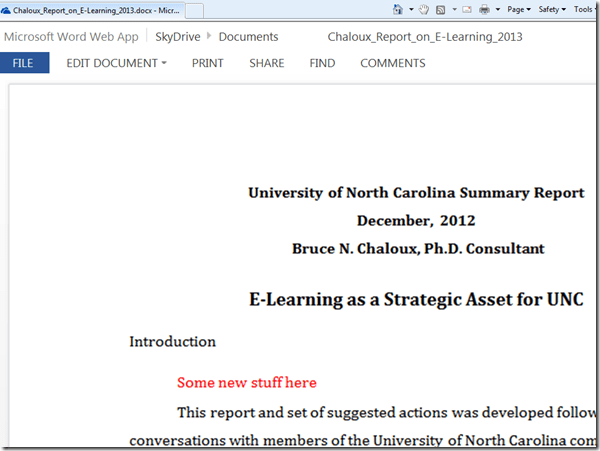
- No need to re-upload the file: Save and close your file, when you open it again in the web browser, it got synched automatically:
- To keep an additional local file backup, use the free MS-SkyDrive App which sets up a local copy of your MS-SkyDrive cloud storage – useful when you have to work offline (e.g. I used to travel every weekend on a plane, but needed to make good use of my travel time).
- Troubleshooting: If you run into problems, the first thing to try usually is a different web browser.




How to control students’ access to internet and local apps with Sanako Study 1200


Straight from the documentation, straight under your fingertips in the tutor interface, and most useful during assessments, but also for individual students that won’t stay on task.
Exam integrity considerations during mock and proctored written exams in the LRC
The easiest way to hold a mock or proctor a written exam in the LRC is provide the students a printout of the exam. For larger classes preparing, and under some circumstances (writing impediment due to injury), providing the MS-Word file on a computer to the student would seem a more convenient solution.
However, the LRC prides itself in the large collection of MS-Office proofing tools it has installed and preconfigured – accessing which from within MS-Word could be construed as cheating during a writing exam. As a matter of fact, since MS-Word auto-detects language, under-waving of misspelled words and incorrect Grammar provides unsolicited and unavoidable extra help.
MS-Office proofing tools could be turned off by using a special MS-word template as the basis for the exam. Easier and quicker is using the SANAKO which can not only block internet access of the examined students, but also block use of entire applications like MS-Word.
Instead of in MS-Word, your students could write their responses in an application that is not part of the proofing tools infrastructure, like Notepad. Western language diacritics can easily be written in any application on LRC PCs thanks to US-International keyboard layout, and non-Western characters even easier than on paper.
For full security, the best environment for exams we can offer remains Respondus lockdown browser, integrated with Moodle, but this requires converting the exam to into a Moodle quiz (which Respondus has tools to facilitate). In certain cases, it might be easiest to create a “dummy” quiz with one long text input field, which your students could type everything in, without having access to any other resources (internet, proofing tools, chat, what not…). However, this quiz still would have to be in your Moodle course so that your students can access access, and their results get put into your gradebook.
Outside of Moodle – if you do not want to go down the Respondus-path – , you can rely on the SANAKO homework collection feature and my langlabemailer to receive the results.
UYork.ca phonetics website for learners of English

A very usable Flash application on the IPA, covering the vowels, diacritics, diphthongs and triphthongs (displaying in linear animations – pictured above – how these more complex have to be altered over time during their production), and suprasegmentals.
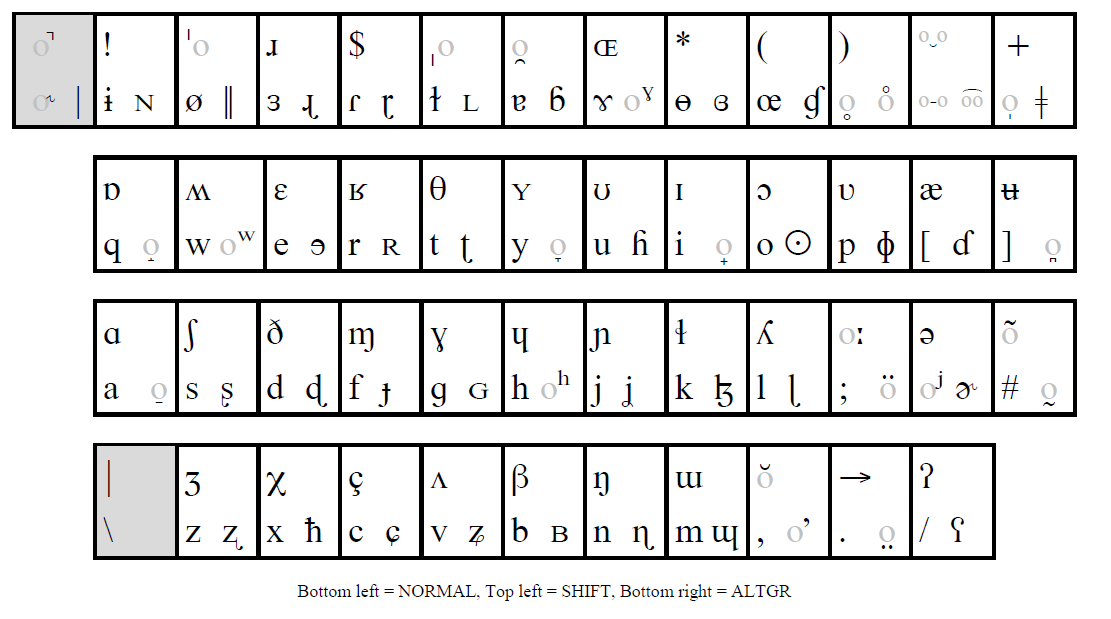
How to type phonetic symbols on a computer
- Web-based On-screen-keyboards (point-and-click; low learning curve, but no fast typing speed; typing into a textbox from where you can copy/paste the result into other programs):
- http://westonruter.github.com/ipa-chart/keyboard/: Sounds are systematically organized. Suitable for learners, but also good for teacher demonstrations.

- Partially based on keyboard shortcuts: http://www.ipatrainer.com/user/site/index.php?pageID=ipawriter:

- http://ipa.typeit.org/full/: Other than the English version, the full version includes non-English sounds. The interface is optimized for fast typing (sorted by keyboard key). Presumably better for teachers using a screen projector as a whiteboard.

- i2speak.com (reviewed here earlier):


- Update: Richard Ishida’s seems also impressive,

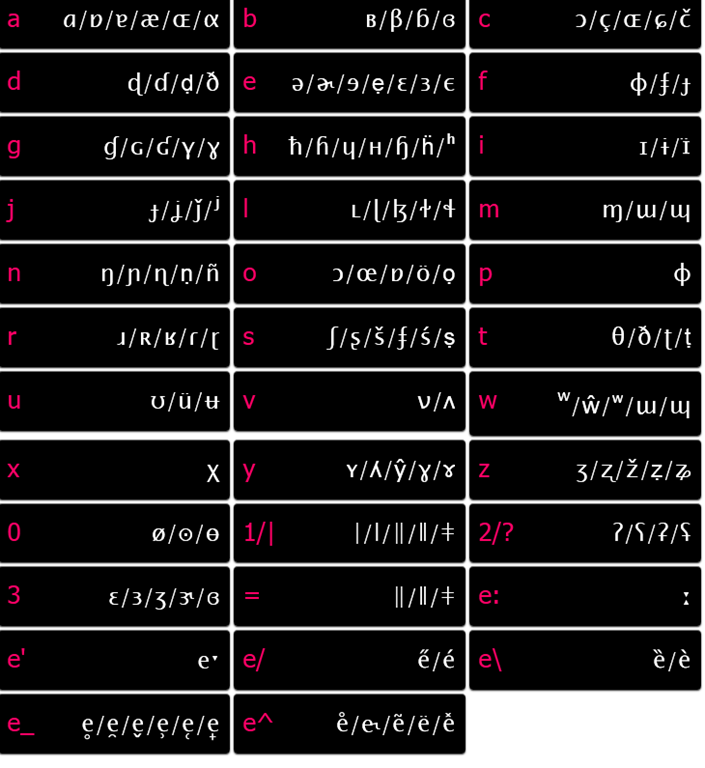
- and you can use phonetics terminology to get characters selected, like so:

- http://ipa.typeit.org/full/: Other than the English version, the full version includes non-English sounds. The interface is optimized for fast typing (sorted by keyboard key). Presumably better for teachers using a screen projector as a whiteboard.
- http://westonruter.github.com/ipa-chart/keyboard/: Sounds are systematically organized. Suitable for learners, but also good for teacher demonstrations.
- Windows-based:
- http://www.phon.ucl.ac.uk/resource/phonetics/: MS-Windows keyboard layout. May be good for even faster typing, if you can memorize the keyboard layout or add keyboard stickers (we unfortunately have too many languages vying for our hardware keyboard space already). Requires download & installation (may be added to the LRC keyboards during next imaging if we receive enough requests).
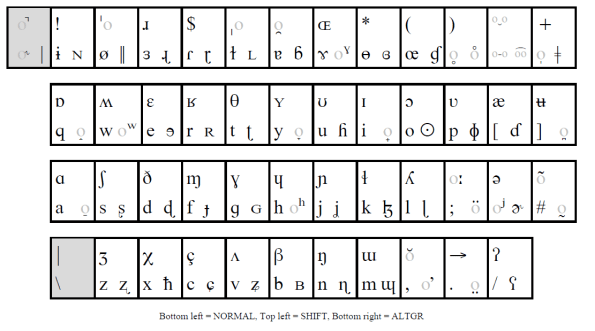
- http://staff.washington.edu/dmontero/IPACharmap/.

- http://sourceforge.net/projects/allchars/: If you are use to the ALT+### method of entering characters and are still on XP, this may be for you: You can generate your own keyboard shortcuts for phonetic characters.
- MS-Word:
- http://email.eva.mpg.de/~bibiko/downloads/uniqoder/uniqoder.html: Allows to select IPA-Symbols from a toolbar. Untested.
- http://www.phon.ucl.ac.uk/resource/phonetics/: MS-Windows keyboard layout. May be good for even faster typing, if you can memorize the keyboard layout or add keyboard stickers (we unfortunately have too many languages vying for our hardware keyboard space already). Requires download & installation (may be added to the LRC keyboards during next imaging if we receive enough requests).
- There are also always X-Sampa and CXS and ASCII-IPA: ways of writing IPA in plain ASCII messages – but yet another thing to teach novices in phonetics may be a bridge too far.




Use CTRL+TAB to switch between tabs in Chrome kiosk fullscreen mode
- On the reception desk, when you open the NINERMAIL after logging into 49erexpress, Chrome opens NINERMAIL in another full screen tab (which hides the 49erexpress tab) – unlike full screen Internet Explorer, which opened NINERMAIL in a new window, but which we had to abandon with the introduction of offfice365.
- The 49erepxress tab is hidden, but still there, and you can switch between full screen tabs wit hthe keyboard shortcut CTRL+TAB (hold CTRL and pressing TAB repeatedly will cycle through all open Chrome tabs).
- So when a client is finished with NINEMAIL (meeting request), have them not only log out of NINERMAIL, but also CTRL+TAB back to the 49erexpress tab to log them out of 49express (and browse from the result window to the Sign-in link to be ready for the next client).
- No need to close the NINERMAIL tab. Next time somebody logs in to 49erexpress tab, Chrome will recycle the previous NINERMAIL tab.


Questions? Read the About. Or just ask me a quick Our Databases: Resources with calendars -- Language learning material Moodle Sites, multimedia files -- films


FAQs for LRC student staff or for students or for teachers. To search our FAQs, in the browser addressbar, add after "https://plagwitz.wordpress.com/feed/?tag=faqs+/" "+TAG1" (from tag cloud below) OR "https://plagwitz.wordpress.com/feed/tag=faqs
&category_name=" "CAT1" (from category hierarchy below). OR search both categories and tags, and multiple TAGs/CATs (connect with "," for OR-search, with "+" for AND-search), like so: https://plagwitz.wordpress.com/feed/?tag=TAG1+TAG2+...TAGn&category_name=CAT1
+CAT2+...CATn"
Other ways to find help
If you cannot find it here, look there: 5,500 Language-Learning Links and Programs for learning or teaching 150 languages
Shortcuts:Our Lists, Our Maps, LRC Staff Moodle Site,LRC Project Moodle Site, 49erexpress, UNCC Moodle, Student Recordings: s:claslcslrcsanakostudent
Learning usage samples: Sanako oral exam, Kaltura webcam presentation, Dictation with speech recognition, Sanako written exam, Chinese and Japanese interactive stroke-order practice
Test the Sanako Installer, Webbrowser Popup Konfigurator for XP, or Windows7, faster LRC TeacherPC Log-in Let MS facilitate diacritics writing by installing for you US-International keyboard layout
This is my personal blog (Google+). The views expressed on these pages are mine alone and not those of my employer. The information in this weblog is provided “AS IS” with no warranties, and confers no rights.
 Thomas' Work Space