Archive
SDL-Trados Studio 2009 Online Training Links
SDL maintains an repository of archived online webinars on Trados here.
SDL maintains a list of upcoming free webinar events here. Here is a sampling of their upcoming live trainings (as of August 2011) here:
Friday 19
Ask the expert – A session dedicated / to the most frequently asked questions / on SDL Trados Studio 2009
15:00 – 16:00 London / 16:00 – 17:00 Paris
Thursday 25
Tips and tricks to get you more productive / with SDL Trados Studio 2009
09:30 – 10:30 London / 10:30 – 11:30 Paris
Type: Product info & demo
Friday 26
An introduction to SDL Trados Studio 2009 for translators
10:00 – 11:00 London / 11:00 – 12:00 Paris
Type: Product info & demo
For what you can expect from these webinars, please note that they also offer full training courses, but these are not free.
Keyboard overlay stickers improve foreign character writing support in the LRC
Some non-western, but character-based languages benefit from having keyboard overlay stickers installed. Here is a list of what the LRC has:
| Amount | Languages | installed@ |
| 3 | Arabic | 1 list. station, 2 rightmost computers in the front row of the left (teacher perspective) half of the main classroom |
| 2 | Farsi | 2 rightmost computers in the middle row of the left (teacher perspective) half of the main classroom |
| 1 | Greek | 1 list. station |
| 3 | Russian | 1 list. station, 2 rightmost computers of the rear row of the left (teacher perspective) half of the main classroom |
Here are photos of the Arabic and Cyrillic keyboards:
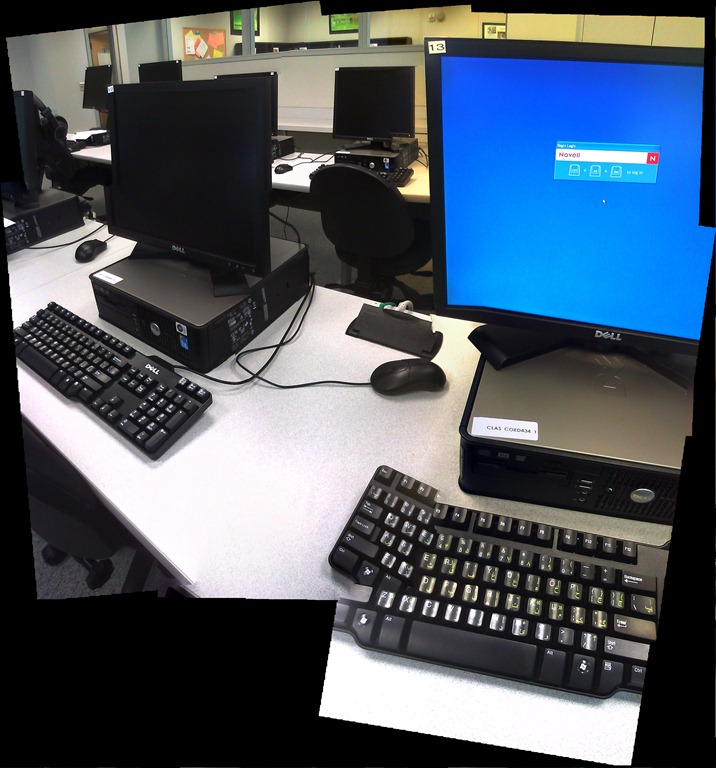

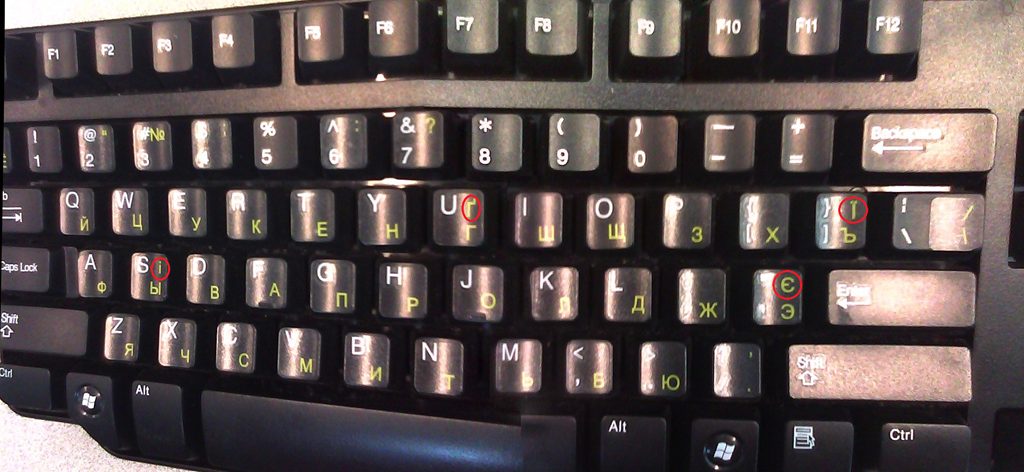
We installed the stickers, so that they reflect the software layout of the keyboard that you get when choosing the respective language from the international toolbar. Note that the letters marked in red on the Cyrillic keyboard picture below are not supported by the Russian keyboard layout:
Since only one set can be added to any existing physical keyboard, the teacher computer keyboard can not have an overlay. The student computers with overlays are the listening stations and computers 6,7,12,13,18,19 on the LRC layout map.
Remember that the On-screen-keyboard software remains accessible at all PC’s through clicking “Start”, “Run”, typing “OSK”, clicking "OK".
Example where you can get your own keyboard overlay stickers.
Sanako Study 1200: Student Basics II: The Screencast
This screencast covers the basics of Study 1200 for students
For a quick guide to the Student interface, see Student Basics I: The Screenshots
Foreign Language Character Input on Windows XP in the LRC
The LRC offers the following foreign language characters writing support:
| American English | us international | not needed | us-int |
| Arabic | Google;MS;MS-maren;fontboard | maybe later, now osk | demo |
| British English | us international | not needed | us-int |
| Dutch | us international | not needed | us-int |
| Farsi | Google;MS | maybe later, now osk | demo |
| French | us international | not needed | us-int |
| German | us international | not needed | us-int |
| Greek | Google;MS | maybe later, now osk | demo |
| Italian | us international | not needed | us-int |
| Japanese | MS | not needed | |
| Korean | MS | maybe later, now osk | demo |
| Mandarin | MS;pinyinput | not needed | pinyin |
| Portuguese (Brazilian) | us international | not needed | us-int |
| Russian | Google;MS | maybe later, now osk | demo |
| Spanish | us international | not needed | us-int |
The support is best accessed from the “international toolbar”, like so: 
You can also use the windows on-screen keyboard to input non-Western characters on a computer that has not the corresponding keyboard overlay stickers. In the small-group workspaces, which have writing pads, you can also use the MS-Handwriting IME for East-Asian languages.
The on-screen keyboard (OSK) for foreign language character input on MS-Windows
A little known, but useful tool for non-western languages which can not be represented by the us-international keyboard layout, when no hardware keyboard is available:
The Windows on screen keyboard reflects the soft keyboard installed via Control panel / Regional and language options / Text input languages. and selected via the language toolbar, like so:

Easiest access, click Start, click Run, type “osk”, click “OK”. Or try this on XP: 
Quia Online Exercises
Here are examples from the Treffpunkt Deutsch Quia Website. Quia Treffpunkt Deutsch is organized in chapters which you can select from the dropdown navigation control on the left. As you see on the following page, each chapter contains 3 different types of exercises, organized in sections.

If you click on a section header, you will see a list of exercises:
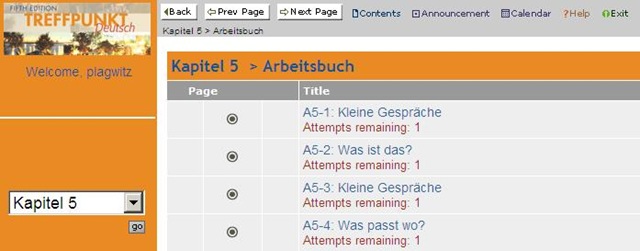
Here is an example of an exercise, assigned as “A[rbeitsbuch=work book], K[apitel=chapter]9: A9[=chapter-number, again]-1[=exercise-number]”.
The letters and numbers from the assignment repeat in the exercise, see this screenshot:
 \
\
You can also hover your mouse over the info button in the upper left corner to get a summary of this information: 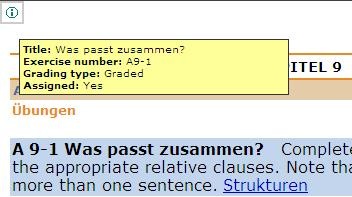
Also note the link to the corresponding preparatory web page which opens in a new window (Problems getting the window to open? the popup-blocker of your web browser may be the root? instead of simply clicking on the link, try CTRL-clicking, on the link as well as the browser information bar, if it comes up). It is crucial to read/review the corresponding preparatory web page first.
It is not necessary to get everything 100% correct. It is not even a good use of your time to redo the exercise until you get everything 100% correct. Especially if you try speeding up this tedious task by doing the first round mechanically to get at the automated feedback answers, then doing the second round mechanically by pasting them in. That is why I have my Quia course “Options” set to “Calculate cumulative scores based on students’ first attempt” and to “Ignore student results after the 1st attempt”.
Therefore, you will see that you have only 1 “Attempt remaining” for each exercise. You will also, unless individually told otherwise, only have to do the exercises that are “Assigned” (consult legend at bottom of page).
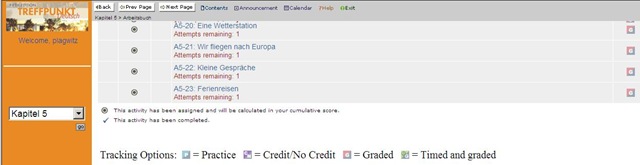
Rather use the valuable error feedback to go back to the Structures and try to learn and bring any remaining questions to class – it is highly likely that fellow students have the same problems, especially if they have the same native tongue. That is also the reason why I review your submission before class – not to mark you down, but to see from your problems help what to spend valuable class time one.

Also, the exercises are integrated into the progression of the course (including your ability to do partner work with others during class meetings). That is why you will not be able to submit exercises long after when they were due:

For reviewing, we will use other materials.
Finally, consult the Help which is linked in the top menu:

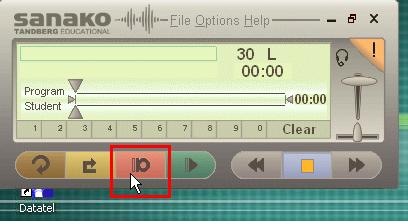
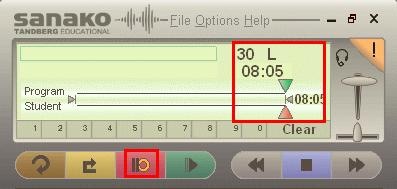
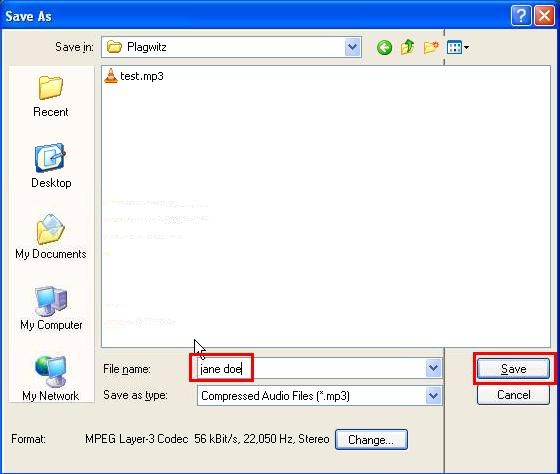
How students make audio recordings using Sanako Lab300 Media Assistant








Questions? Read the About. Or just ask me a quick Our Databases: Resources with calendars -- Language learning material Moodle Sites, multimedia files -- films


FAQs for LRC student staff or for students or for teachers. To search our FAQs, in the browser addressbar, add after "https://plagwitz.wordpress.com/feed/?tag=faqs+/" "+TAG1" (from tag cloud below) OR "https://plagwitz.wordpress.com/feed/tag=faqs
&category_name=" "CAT1" (from category hierarchy below). OR search both categories and tags, and multiple TAGs/CATs (connect with "," for OR-search, with "+" for AND-search), like so: https://plagwitz.wordpress.com/feed/?tag=TAG1+TAG2+...TAGn&category_name=CAT1
+CAT2+...CATn"
Other ways to find help
If you cannot find it here, look there: 5,500 Language-Learning Links and Programs for learning or teaching 150 languages
Shortcuts:Our Lists, Our Maps, LRC Staff Moodle Site,LRC Project Moodle Site, 49erexpress, UNCC Moodle, Student Recordings: s:claslcslrcsanakostudent
Learning usage samples: Sanako oral exam, Kaltura webcam presentation, Dictation with speech recognition, Sanako written exam, Chinese and Japanese interactive stroke-order practice
Test the Sanako Installer, Webbrowser Popup Konfigurator for XP, or Windows7, faster LRC TeacherPC Log-in Let MS facilitate diacritics writing by installing for you US-International keyboard layout
This is my personal blog (Google+). The views expressed on these pages are mine alone and not those of my employer. The information in this weblog is provided “AS IS” with no warranties, and confers no rights.
 Thomas' Work Space