Archive
Audacity on startup automatically selects the "microphone" as recording device…
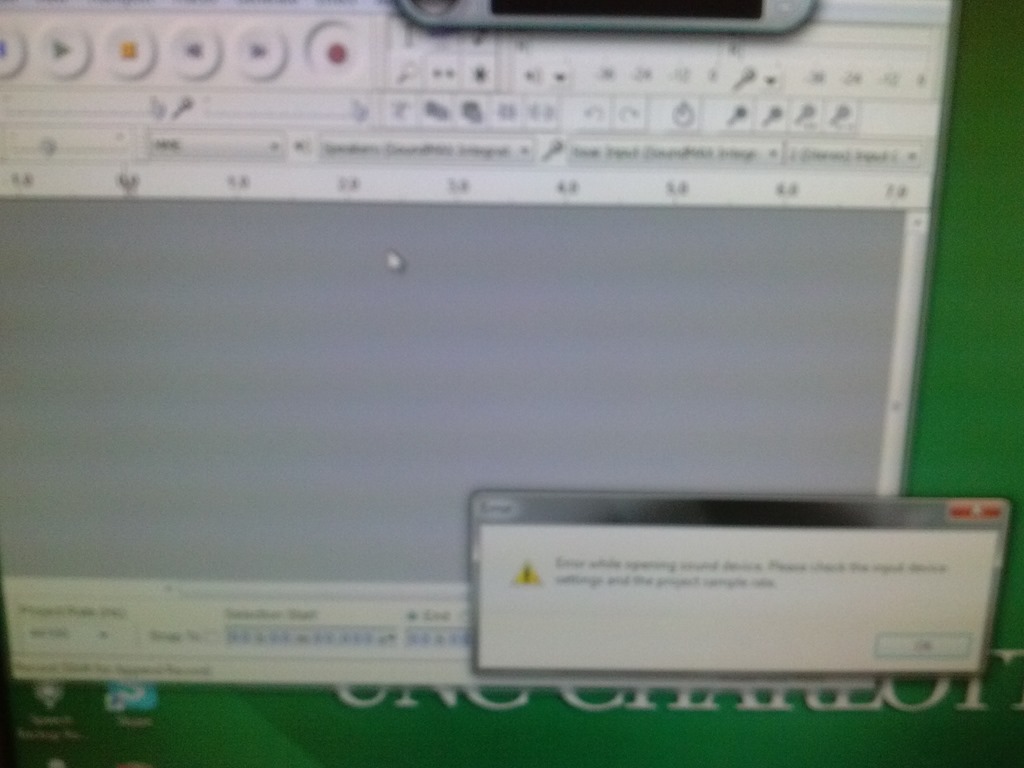
- Which is a problem if we do not use the front microphone jack, but rather the rear input:
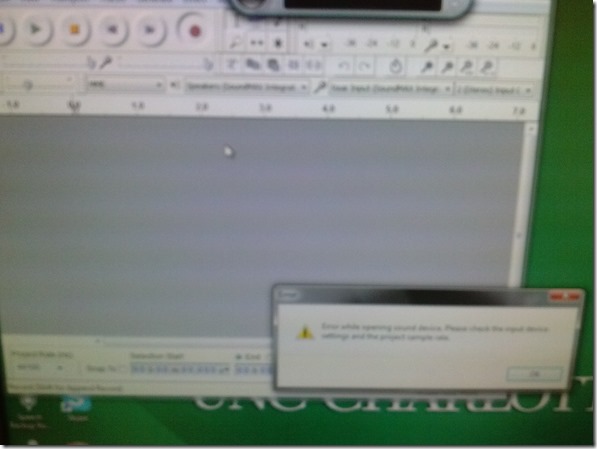
- Seems to be still an issue on the Group computers….
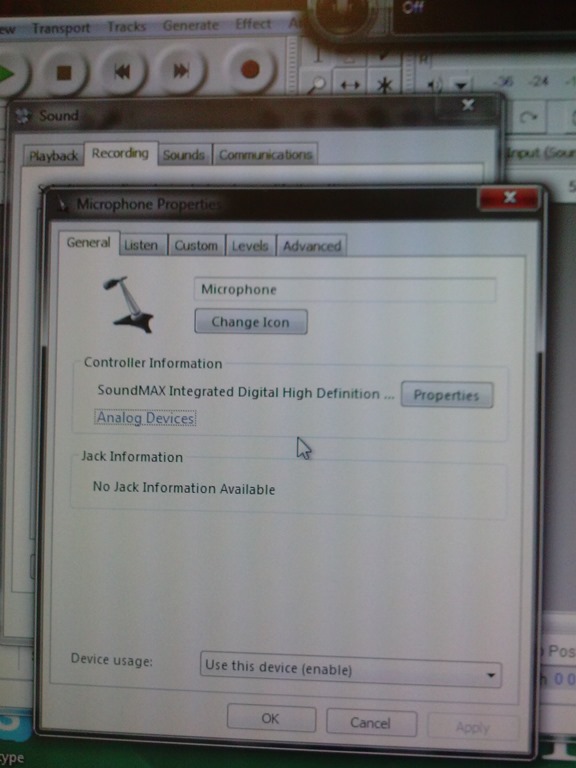
- Solution is the same as found and documented for the listening stations in relation to problems students had with how Saba Centra handles audio hardware, disable the front jack in mmsys.cpl of Windows7:

A checklist for our late hires in the LRC
- With the help of your colleagues at the reception desk, sign up for your work schedule by sending meeting requests from NINERMAIL to lrcassistant@uncc.edu,
- Plug any holes/weaknesses in the schedule Reception Staffing
- Uf you have $2000 FWS, not more than 10 hours /week even if you start late.
- Final approval from LRC coordinator required.
- Whenever starting/leaving your shift, log in at the reception desk computer, allow all windows to open, then clock in by entering your code for checkin/out from the spreadsheet checkoutin.xls into the meeting request (series) on your NINERMAIL calendar.
- Read/listen to the training materials you received –
- Word (goo.gl/5hgr7Y) printout : contains a checklist for your responsibilities during your shift.
- PowerPoint:
- Deck (goo.gl/OV45aF) printout explains how to help with booking LRC equipment and rooms using NINERMAIL meeting requests (which will constitute e most of your work at the help desk).
- Video of training session: goo.gl/nWDDro.
- NOTE: After your first 2 weeks at work, there will be a Moodle quiz (TBA) that you need to pass!
- Questions?
- First and foremost, follow the instructions and helpful hints of your more senior colleagues at the reception desk.
- Bring further questions to the LRC coordinator or director.
- If no one is available for questions: post questions in the LRC Moodle Forum.
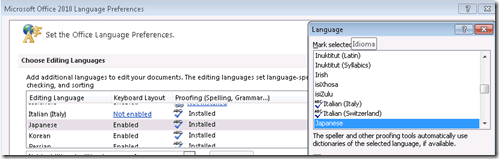
Japanese Language Tools (Proofing, dictionary, furigana) in the LRC MS-Office 2010 installation
- Even if not showing in MS-Word’s Language selector),
-
-

-
Even though there is no Japanese Thesaurus:

-
There are these tools:
-
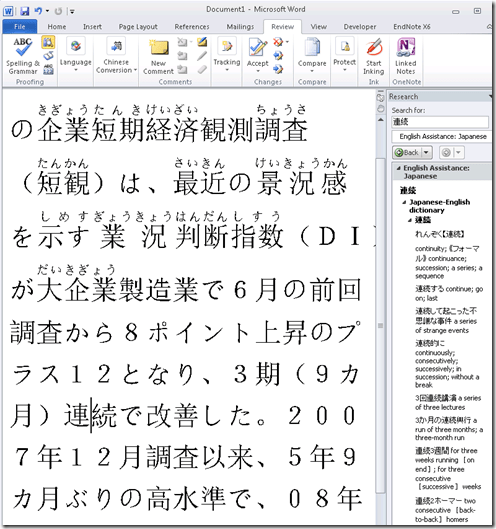
In the Research pane, "English Assistance: Japanese" (in the ribbon / "Review" tab, Proofing section, press the
 , then ALT-Click a character to start a lookup:
 -
-
a Japanese Consistency Checker:

-
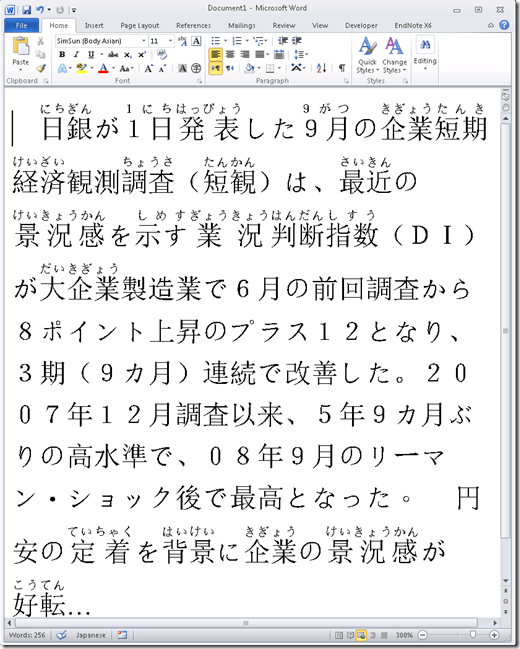
Furigana:
-
To enable:

-
Result (in view / Web layout):
-
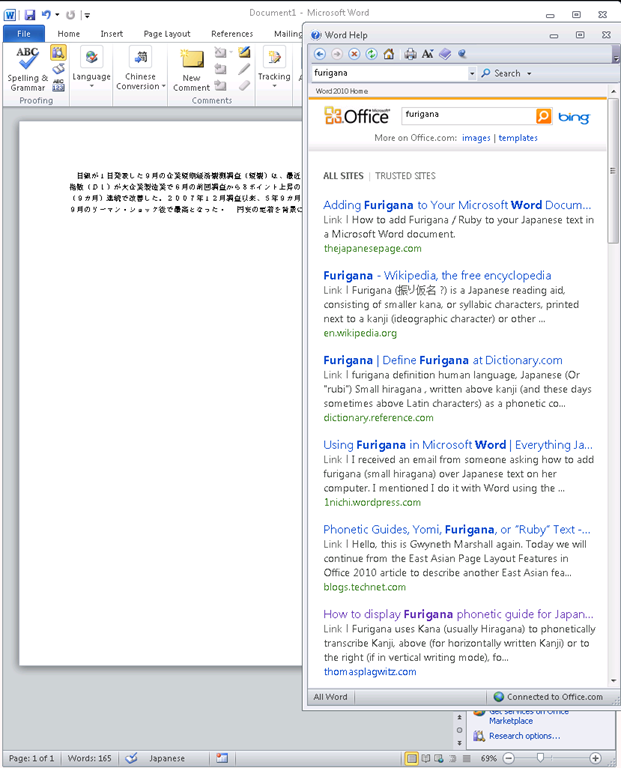
Incidentally, my blog has not quite made it into the TOP 5 of MSW-Office help content:

-
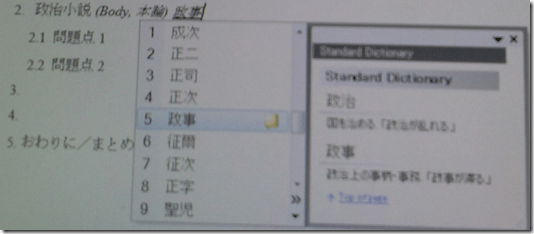
In addition, for Office, but also beyond, there are the tools of the MS-Office Input method editor (which include dictionary help when you write):



Pearson mygermanlab "AUDIO INIT FAILED" for Blackboard voice/Wimba setup wizard – a firewall issue?
In Firefox, Chrome, IE8 on Win 7 (64bit) …

No other missing requirement in browser tuneup but QuickTime (which is said to be not required for PC)… And here is the likely solution from the Pearson website:
“Audio Init Failed” or “Error: Communication Error”
This error occurs because the computer’s security prevents the Wimba plug-in from sending data to our servers. Please take the steps described below to be sure that communication between your computer and our servers is always allowed.
- Please configure the security program or firewall on your computer to allow the file shown below (audioproxy.exe) to connect to the internet. (If you do not know how to make this change, please contact technical support for the security program you are using.)
Windows XP or 2000
C:\Documents and Settings\[Windows Username]\Application Data\HorizonWimba\JSecureDoor\audioproxy_X.Y.Z\data\audioproxy.exe
Windows Vista
C:\Users\[Windows Username]\AppData\Local\HorizonWimba\JSecureDoor\audioproxy_X.Y.Z\data\audioproxy.exe
- Java applets or Java Script also must be allowed by personal firewall or internet security software. Some firewalls have settings to block Java applets and Java Scripting, which will prevent Wimba Voice applets from loading. You may need to contact technical support for that firewall or security program for assistance configuring that program to allow Java applets and Java Script.
- Your browser must also allow Java applets and Java Scripting.
Internet Explorer
- Open Internet Explorer and click Tools > Internet Options
- From the Internet Options window, select the Advanced tab
- Scroll down the list to Java(Sun) heading and make sure the box below it is checked
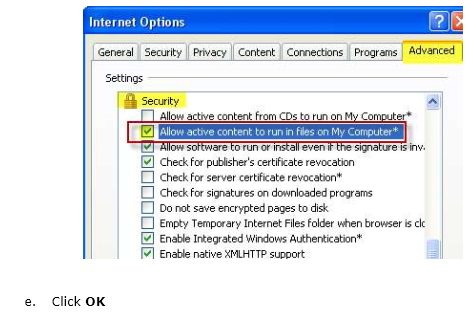
Note: If you do not see Java(Sun), go Sun’s Java website at www.java.com and click Free Java Download. - Scroll down the list to the Security heading and make sure the box beside Allow active content to run in files on My Computer is checked
- Click OK
Pasted from <http://247pearsoned.custhelp.com/app/answers/detail/a_id/7356/~/blackboard-voice-(wimba-voice)%3A-error-messages>
More info from the Pearson troubleshooting documentation:

How not to have to join a Saba Centra online class from the LRC late, for lack of speaking capabilities
- Problem: We continue getting reports from teachers that students who try to participate in a Saba Centra online class from the LRC listening station computers (with analogue headphones) experience a considerable delay in joining and cause disruption to online classes since they have to troubleshoot their microphones, for lack of being audible online.
- Root cause: Saba Centra on startup automatically selects the “microphone” as recording device…
- Workaround:
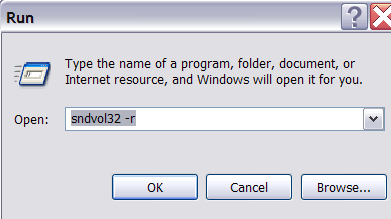
- On XP, click “Start”, click “Run”, type (without quotes) “SndVol32 –R” (meaning: “SoundVolume for Recording”), click “OK” which opens the volume mixer for recording devices. The radio button selected will be “Rear input”.

- Start Saba Centra.
- Switch back to the volume mixer you opened in step 1. Note that the radio button now selected is “Microphone”. This is wrong for the listening stations (and the teacher station) in the LRC. Switch it back to “Rear input” (you know that your headset is supposed to be plugged into the rear).

- And off you go… Plus note: There is no need for “expensive” workarounds like:
- haphazardly trying to replug headphones,
- purchasing your own USB headphones,
- hogging the main classroom with its USB headphones.
- On XP, click “Start”, click “Run”, type (without quotes) “SndVol32 –R” (meaning: “SoundVolume for Recording”), click “OK” which opens the volume mixer for recording devices. The radio button selected will be “Rear input”.

Saba Centra on startup automatically selects the "microphone" as recording device…
- … But we in the language lab use the (dual function microphone/line-in) "rear input" for our headsets (for ergonomic, health&safety and security reasons). Workaround here.
- Apparently this startup behavior cannot be changed within Saba Centra:
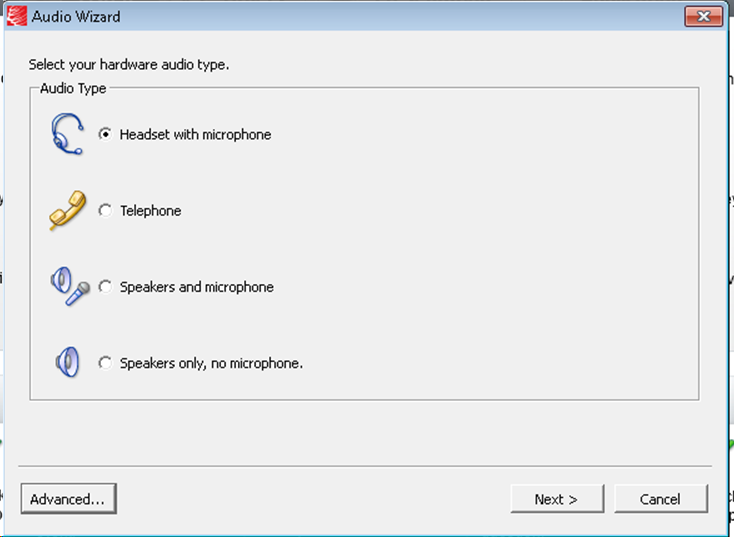
- Any startup will bring up the “Audio Wizard” asking users, even in a controlled lab environment, to configure their audio devices,
- and if users do (and choose what they have: headset), make wrong assumptions which audio plug to enable (“Microphone” front panel, even if your headset is plugged into the rear panel dual “line-in/microphone”)
- The workaround according to these easily Googled instructions is using the “Advanced” audio wizard options to override this “Audio Wizard” error, like so:
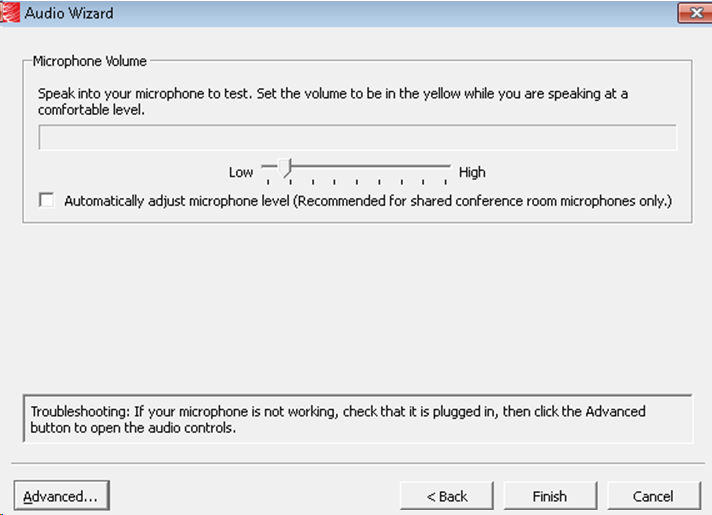
- “Re-open the Audio Wizard, go to the third screen and change your recording device in your “Recording Device” menu. Advance two slides and determine if you can hear your recorded voice. ”
- 1st screen:
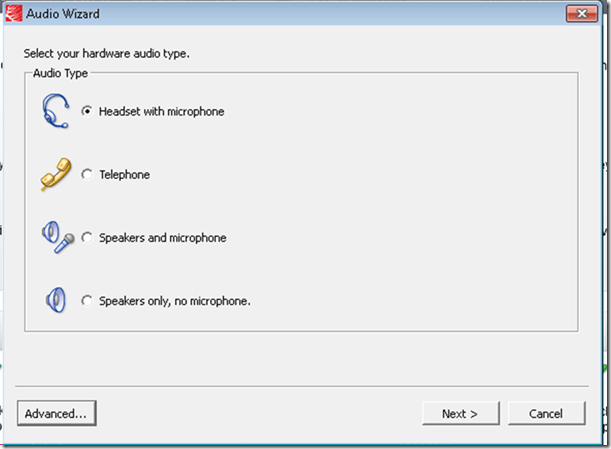
- 3rd screen:
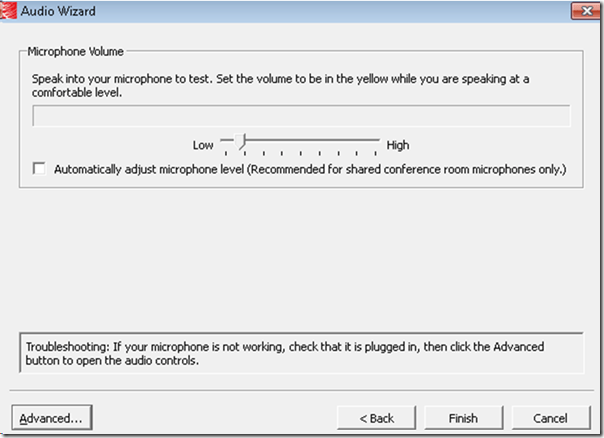
- note the instructions – Click “Advanced”. But it is easier to just use from the start our Workaround here.
- 1st screen:
- “Re-open the Audio Wizard, go to the third screen and change your recording device in your “Recording Device” menu. Advance two slides and determine if you can hear your recorded voice. ”
- The long-term solution is reconfigure your hardware and disable the front panel audio – but will Saba Centra understand you? Stay tuned…
How to prevent squealing noise on the brown headphones AKA audio feedback
- Symptom:high-pitched squealing sound, usually when logged into the computers along the wall (listening stations –other computers have different black headsets which are not as prone to this problem,) and not wearing the headset.
- Short answer: LRC Assistants will let the student who causes the squealing noise know:
- ”Turn the volume knob on the brown headset down!”
- “You can turn it back up once you have put the headset on”.
- Explanation:
- The brown (analog) headsets on the listening stations exhibit this squealing noise when
- the students do not wear the headset
- AND the microphone is too close to the headphone speakers
- AND the headphone volumne knob is turned up to high.
- This phenomenon is called an (audio) feedback loop:
- The headphone speakers echo what is spoken into the microphone (this is called sidetone).
- This is an important language learning feature (helps you control your pronunciation).
- However, it spirals out of control when students do not wear the headset. They also need to “wear the headset!” (general recommendation in the language lab) to have the benefit of the sidetone (and then their head insulates between speakers and microphones).
- The brown (analog) headsets on the listening stations exhibit this squealing noise when


Questions? Read the About. Or just ask me a quick Our Databases: Resources with calendars -- Language learning material Moodle Sites, multimedia files -- films


FAQs for LRC student staff or for students or for teachers. To search our FAQs, in the browser addressbar, add after "https://plagwitz.wordpress.com/feed/?tag=faqs+/" "+TAG1" (from tag cloud below) OR "https://plagwitz.wordpress.com/feed/tag=faqs
&category_name=" "CAT1" (from category hierarchy below). OR search both categories and tags, and multiple TAGs/CATs (connect with "," for OR-search, with "+" for AND-search), like so: https://plagwitz.wordpress.com/feed/?tag=TAG1+TAG2+...TAGn&category_name=CAT1
+CAT2+...CATn"
Other ways to find help
If you cannot find it here, look there: 5,500 Language-Learning Links and Programs for learning or teaching 150 languages
Shortcuts:Our Lists, Our Maps, LRC Staff Moodle Site,LRC Project Moodle Site, 49erexpress, UNCC Moodle, Student Recordings: s:claslcslrcsanakostudent
Learning usage samples: Sanako oral exam, Kaltura webcam presentation, Dictation with speech recognition, Sanako written exam, Chinese and Japanese interactive stroke-order practice
Test the Sanako Installer, Webbrowser Popup Konfigurator for XP, or Windows7, faster LRC TeacherPC Log-in Let MS facilitate diacritics writing by installing for you US-International keyboard layout
This is my personal blog (Google+). The views expressed on these pages are mine alone and not those of my employer. The information in this weblog is provided “AS IS” with no warranties, and confers no rights.
 Thomas' Work Space