Archive
Posts Tagged ‘audio’
Saba Centra on startup automatically selects the "microphone" as recording device…
2013/05/03
Leave a comment
- … But we in the language lab use the (dual function microphone/line-in) "rear input" for our headsets (for ergonomic, health&safety and security reasons). Workaround here.
- Apparently this startup behavior cannot be changed within Saba Centra:
- Any startup will bring up the “Audio Wizard” asking users, even in a controlled lab environment, to configure their audio devices,
- and if users do (and choose what they have: headset), make wrong assumptions which audio plug to enable (“Microphone” front panel, even if your headset is plugged into the rear panel dual “line-in/microphone”)
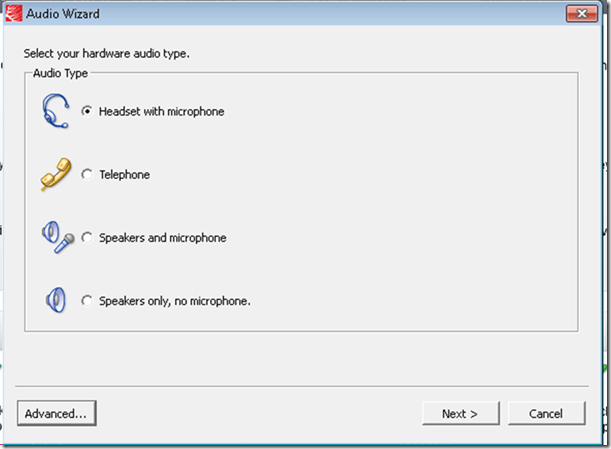
- The workaround according to these easily Googled instructions is using the “Advanced” audio wizard options to override this “Audio Wizard” error, like so:
- “Re-open the Audio Wizard, go to the third screen and change your recording device in your “Recording Device” menu. Advance two slides and determine if you can hear your recorded voice. ”
- 1st screen:
- 3rd screen:
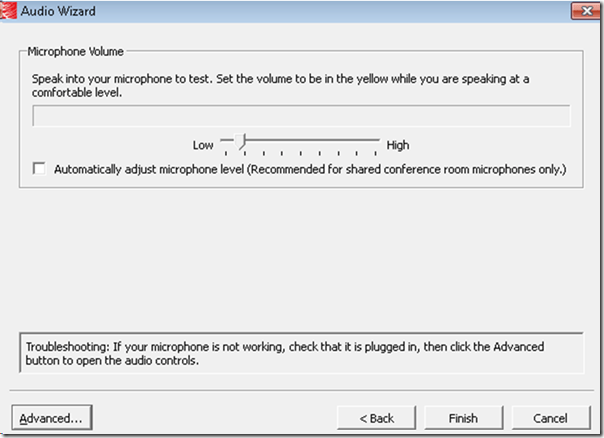
- note the instructions – Click “Advanced”. But it is easier to just use from the start our Workaround here.
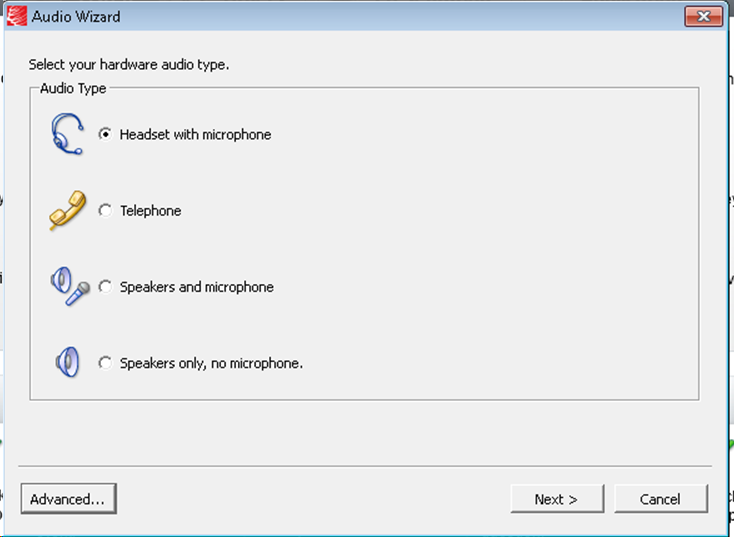
- 1st screen:
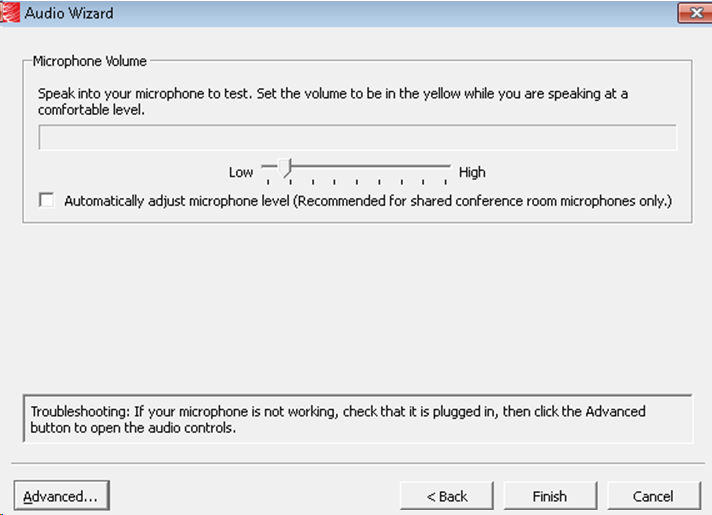
- “Re-open the Audio Wizard, go to the third screen and change your recording device in your “Recording Device” menu. Advance two slides and determine if you can hear your recorded voice. ”
- The long-term solution is reconfigure your hardware and disable the front panel audio – but will Saba Centra understand you? Stay tuned…
How to prevent squealing noise on the brown headphones AKA audio feedback
2013/03/13
Leave a comment
- Symptom:high-pitched squealing sound, usually when logged into the computers along the wall (listening stations –other computers have different black headsets which are not as prone to this problem,) and not wearing the headset.
- Short answer: LRC Assistants will let the student who causes the squealing noise know:
- ”Turn the volume knob on the brown headset down!”
- “You can turn it back up once you have put the headset on”.
- Explanation:
- The brown (analog) headsets on the listening stations exhibit this squealing noise when
- the students do not wear the headset
- AND the microphone is too close to the headphone speakers
- AND the headphone volumne knob is turned up to high.
- This phenomenon is called an (audio) feedback loop:
- The headphone speakers echo what is spoken into the microphone (this is called sidetone).
- This is an important language learning feature (helps you control your pronunciation).
- However, it spirals out of control when students do not wear the headset. They also need to “wear the headset!” (general recommendation in the language lab) to have the benefit of the sidetone (and then their head insulates between speakers and microphones).
- The brown (analog) headsets on the listening stations exhibit this squealing noise when
LRC offers generating audio files from your foreign language texts
2013/03/01
2 comments
- Would you like to expose your student to L2 listening materials beyond the audio learning materials that come with your textbook?
- Materials customized to the learning needs of your classes? From current affairs maybe?
- Would you prefer no to send them to internet audio that may be difficult and time consuming to integrate?
- Do you lack the time to record speaking cues, oral exam questions or reading models yourself?
- Do you need audio files that you and your students can rewind/fast forward/replay, edit and record into with voice insert?
- And would you prefer using audio in your classes that comes with aligned text, whether that audio that has been transcribed or vice versa, to create glossaries, captions, multimedia assignments?
- The LRC now offers generating audio files from your foreign language texts in many languages.
- The service is based on the quality voices of Google Translate text-to-speech (better (simpler) than its actual translation portion, let alone its naïve use).
- Unlike Google translate, the service persists longer than 100 character texts to audio files (mp3) that (and the underlying digital text) we can work with further, in your syllabus, the LMS and the digital audio lab.
- Technical background and samples.
- Languages that are available in good quality: See links under this post; other languages: please test with me..
- To request an audio file generation for your class, send the following information to the LRC
- regular reading/listening materials: plain digital text should do;
- SANAKO oral exam cues: please enter the text in this MS-Word table and add information in the additional columns for exam customization.
How a teacher can use Sanako voice insert to easily add spoken comments to students’ Sanako oral proficiency exams- step–by step
2012/11/19
Leave a comment
- Requirements:
- you need access to the network share to open/save student recordings (this works in your office;
I do not know whether there is technology supported on campus thatthis makes this work in your home office also, - you need to have the free Sanako student recorder Lite installed, here is how: Just “Run” the above link.
- Recommended: in the student recorder, from menu: TBA, set your “default save directory” to the current folder with the student recordings – otherwise you have to change the save as dialogue back to this destination for each file you save.
- you UPDATE: DO NOT ANYMORE need to disable the voice graph (
notcompatible with voice-insert recording; you can, however show the voice graph again when done recording and reviewing the file) - you need to save the student recording, updated with your comments, in the same folder with the same file name as the source (when “saving as” and choosing the name, preferably do not type it, but rather select or copy/paste it. The original file will still be preserved since your version will be saved in a a different format and therefore have a different file extension)
- you need access to the network share to open/save student recordings (this works in your office;
- TBA:you can rewind to listen, and re-record to overwrite comments that you want to revise
- More training:
How to play Windows media on the MAC OS platform
2012/11/12
Leave a comment
LRC-provided Windows Media encoded audio and video learning materials files can easily also be played on the MAC, since Microsoft supports Windows Media also on the Mac-platform.
Mac users can download wmv/wma support for the Mac OS X version 10.3.9 or later, QuickTime version 7.0 or later) from http://www.microsoft.com/windows/windowsmedia/player/wmcomponents.mspx for free. In this download from Microsoft, Windows Media® Components for QuickTime are now “new & improved”.
Categories: learning-materials, software
apple-Mac-OS, audio, FAQs, windows-media, windows-media-audio, wma
How to mix SANAKO- recorded individual students’ audio tracks together
2012/11/05
Leave a comment
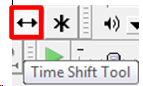
- If the students’ audio tracks are not already time-aligned, first use audacity: "time shift tool" to align individual tracks
 (with this tool selected, you can move individual tracks back and forth, to the left or right).
 - If/ When they are time-aligned, use audacity/ menu: tracks/"stereo track to mono".
MS Windows Media Encoder, your free audio and video encoding utility
2012/11/02
Leave a comment
- Benefits
- Free
- Can cut and convert
- video
- Makes screencasts also.
- can capture video
- audio
- including pause removal.
- video
- can stream
- Limitation: Outputs only to MS media formats (WMA, WMV) (
- Download here. There is also a 64-bit version.
- Officially supported on
- Windows 2000 and XP. I use it on Vista and Windows 7 (both 64-bit) also (for audio; no guarantees).
- f I remember correctly, Windows Media Encoder has a built-in limit to support only up to 4 CPU cores, you may have to limit CPU usage if you run on more advanced hardware platforms).
- a bit of config:
- For good quality video and audio, put a prx file like this in "C:\Program Files (x86)\Windows Media Components".
- Put a wme file like this anywhere and start by double clicking the file, then press green “Record” button.
Digitizing audio tapes in 2012…
2012/09/26
Leave a comment


…comes now at least with “China price”. e-learning is not about digitizing, but in tape, you can get entangled. : –)
Categories: service-is-learning-materials-creation
audio


Questions? Read the About. Or just ask me a quick Our Databases: Resources with calendars -- Language learning material Moodle Sites, multimedia files -- films


FAQs for LRC student staff or for students or for teachers. To search our FAQs, in the browser addressbar, add after "https://plagwitz.wordpress.com/feed/?tag=faqs+/" "+TAG1" (from tag cloud below) OR "https://plagwitz.wordpress.com/feed/tag=faqs
&category_name=" "CAT1" (from category hierarchy below). OR search both categories and tags, and multiple TAGs/CATs (connect with "," for OR-search, with "+" for AND-search), like so: https://plagwitz.wordpress.com/feed/?tag=TAG1+TAG2+...TAGn&category_name=CAT1
+CAT2+...CATn"
Other ways to find help
If you cannot find it here, look there: 5,500 Language-Learning Links and Programs for learning or teaching 150 languages
Shortcuts:Our Lists, Our Maps, LRC Staff Moodle Site,LRC Project Moodle Site, 49erexpress, UNCC Moodle, Student Recordings: s:claslcslrcsanakostudent
Learning usage samples: Sanako oral exam, Kaltura webcam presentation, Dictation with speech recognition, Sanako written exam, Chinese and Japanese interactive stroke-order practice
Test the Sanako Installer, Webbrowser Popup Konfigurator for XP, or Windows7, faster LRC TeacherPC Log-in Let MS facilitate diacritics writing by installing for you US-International keyboard layout
This is my personal blog (Google+). The views expressed on these pages are mine alone and not those of my employer. The information in this weblog is provided “AS IS” with no warranties, and confers no rights.
 Thomas' Work Space