Google etymology feature
2014/01/11
Leave a comment
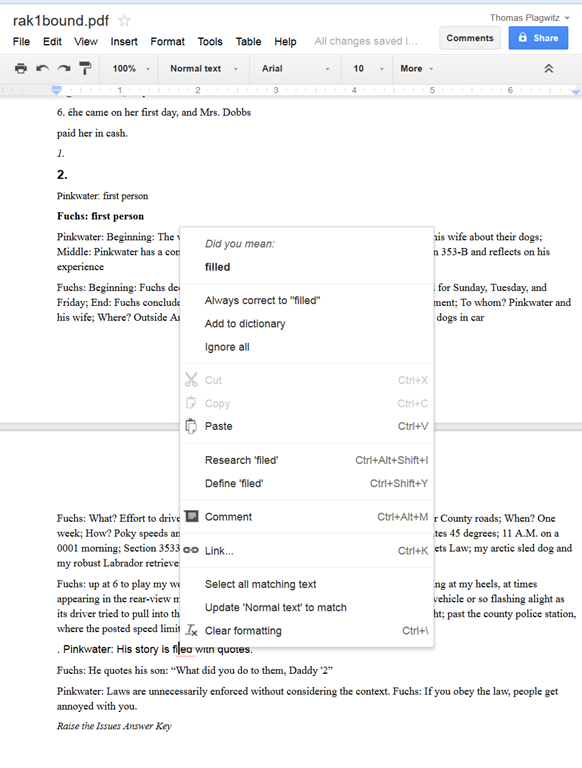
- Etymology information has been added to Google end of August, still need to review this more closely (other languages supported?), but for now:
- Type “etymology” followed by the English word to get the Etymology (and unfold the arrow below to get additional dictionary information, including historical frequency)
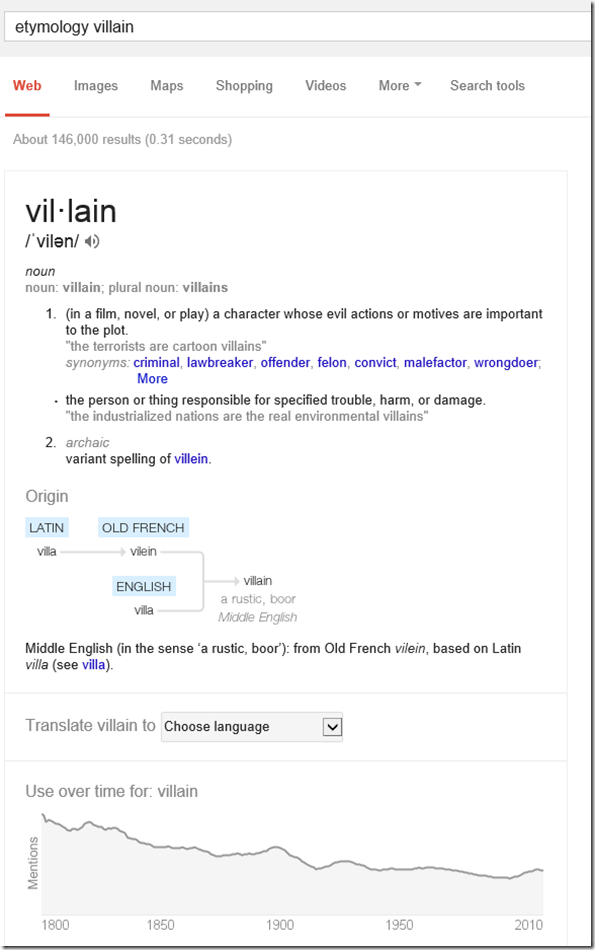
- Of course this feature cannot replace a historical legal dictionary, but I what I was looking for was the juxtaposition with “freeman” in English feudal history, which I would have liked to find a reference here to also
- Etymology does not seem to be supported if I type “Etymology Schmetterling” (or “Etymologie Schmetterling”), the feature does not come up. It does if I type “etymology butterfly", however: Is this right?! The next thing which is missing (and this reminds me too much of how our students use Google translate) is the admission of that these explanations are theories which are contentious, and should be debated:


Categories: Dictionaries, e-languages, English, mental-notes
etymology, google
Positioning of Language Lab PCs needs improving
2014/01/11
3 comments
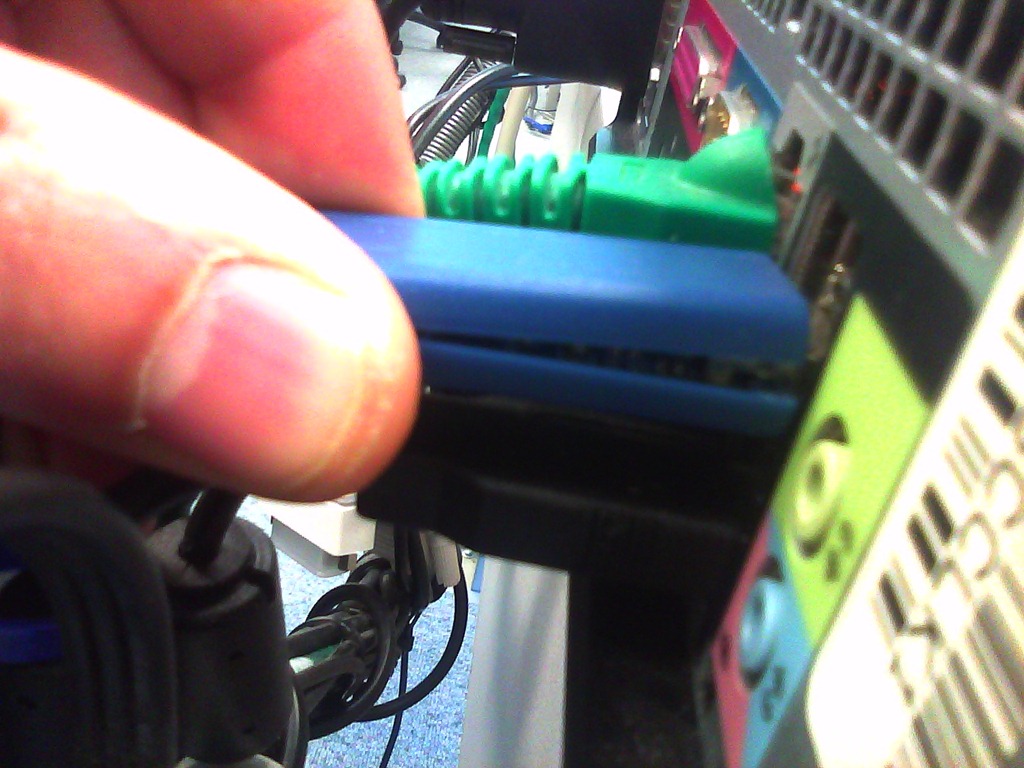
- Update: We worked around the issue with a male/female USB extension cord (black) to connect the Sanako USB connector (blue) into, this way, the whole setup can be aligned with the rear of the PC and won’t stick out and get in the way:

- Problem: Rear connectors of computers get disconnected or even damaged. Input (keyboard, mouse, microphone) and output devices (headset) get disconnected connected and therefore fails to work. Damaged equipment needs to be ordered and replaced, at considerable cost of time and money ($TBA per Sanako cable). It is too time-consuming to test equipment functionality (30 headsets and mice and keyboards) before each assessments and exam.
- Example of student in seat:
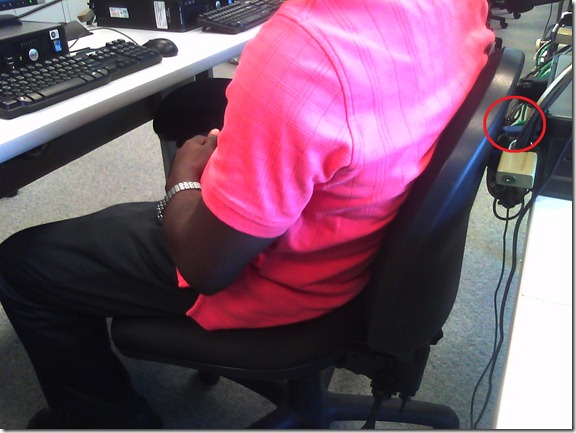
- We have observed these and similar damages regularly:


- Cause: Our language lab computer desks and rows are too narrow, for individual student sitting in front of the computer, not to mention classes moving in and out of their seats
- Other requirements:
- We need to have equipment plugged in the rear connectors of the computer and cable-tied to prevent students from trying to adjust or “fix” computers by re-plugging the equipment (often improperly, making them fail to work), and also because there is limited desk surface in front of the computers, given keyboard and mouse need to fit in front.
- For the functionality of the Sanako digital audio language lab system, we especially need to make sure, that the headset is plugged in on the same USB port in all computers.
- Solutionsthat we have
- already tried
- we have tied down the connectors with cable ties, but this has not worked sufficiently.
- yet to try: is there a way
- to permanently attach computers in a different, safer position on the existing furniture?
- or to buy and install different furniture, computers seated under desks inaccessible for end user and locked?
- already tried



Categories: e-infrastructure, Glitches&Errors, headphones, Photos, proposals, Student-Computers
furniture
Daily LRC walkthrough
2014/01/10
Leave a comment
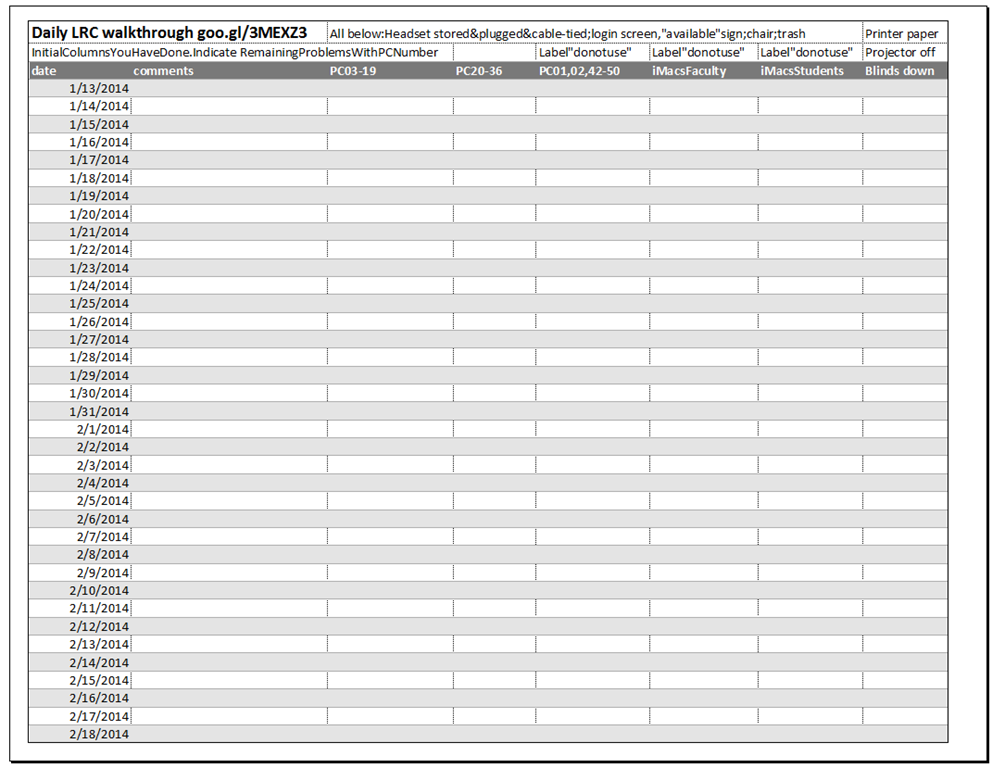
Take the clip board with this list, and, follow the instructions for the daily walkthrough, fill it out for the current row (= today’s date).
Categories: checklists, e-infrastructure, hardware, Spreadsheets
entrypoints
LRC headset tests
2014/01/10
Leave a comment
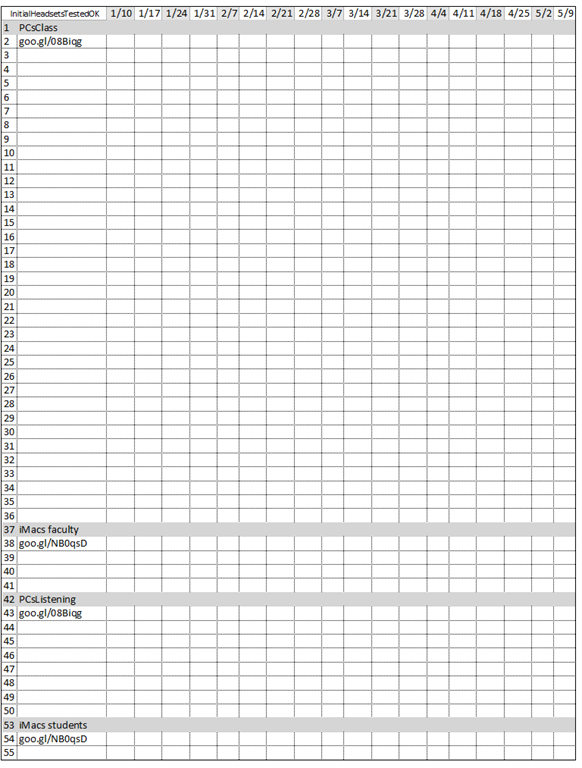
- To improve LRC readiness – given that headsets are the most prominent component of the language center, as well as a wear and tear part –,
- every Friday during the term (see column),
- a group of expert LRC assistants, armed with the above checklist on a clip board on the reception desk,
- tests each headset (see rows) in the LRC for functionality (play, record), using the procedure outlined in step-by-step instructions linked in the 2nd column from the left above
- and reports the test results on the clip board:
- upon success, puts tester’s initials,
- otherwise marks as “not ok”, e.g.
- “no plug”,
- ”no mic”, or “mic w/ static”
- “no sound”,
- etc.
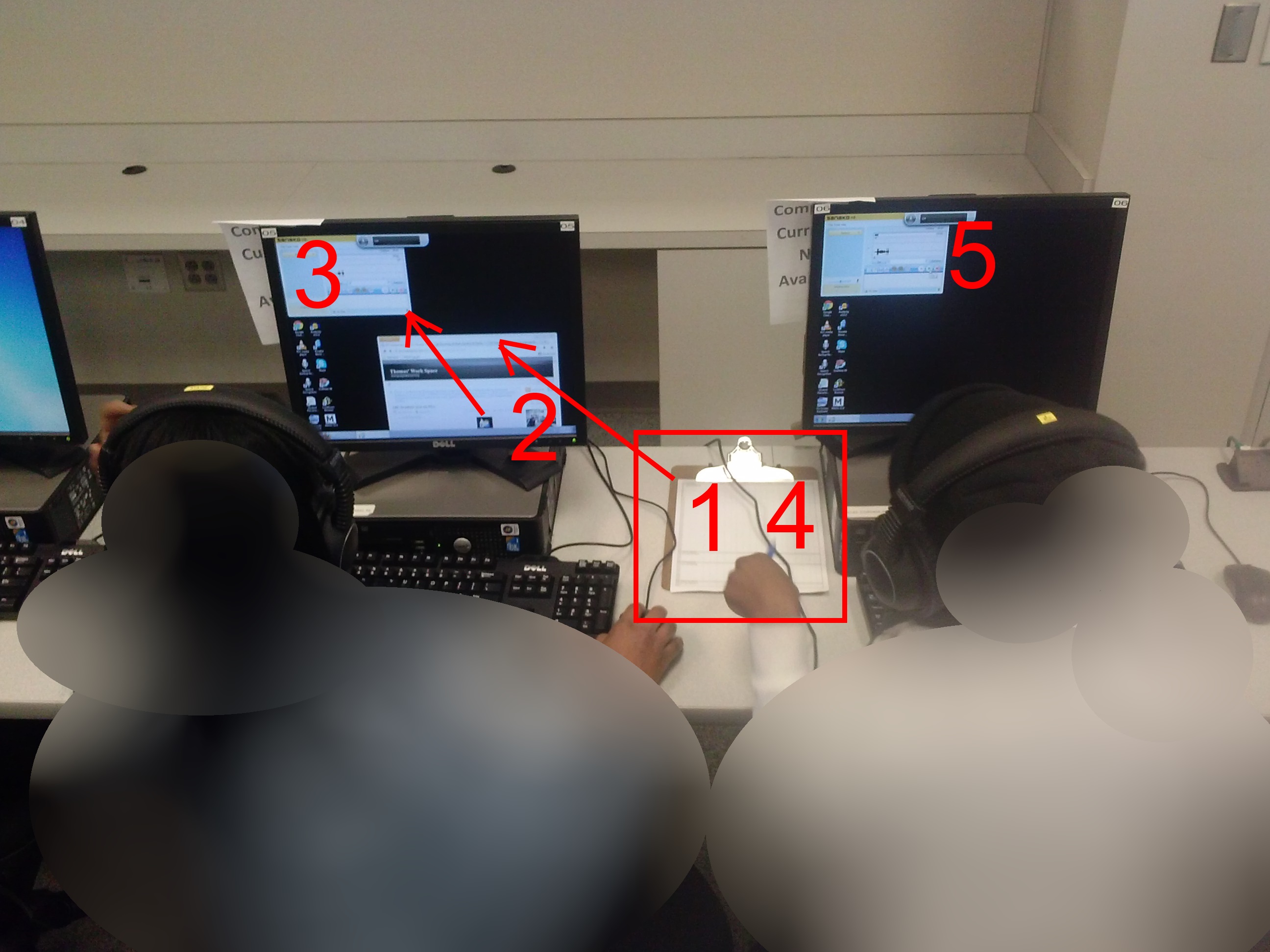
- LRC assistants should, as pictured:

- from the clipboard,
- access the instructions
- follow the instructions
- record the results
- while working side-by-side to cut the load in half.
- In addition (not pictured), they can log in on multiple computers and start working on the first pair while the last pair stills starts up.
Categories: audience-is-students, checklists, e-infrastructure, hardware, headphones, Spreadsheets
asset-management
The simplest OCR options you have here
2014/01/10
Leave a comment
- (Staff:) Using the departmental scanner which outputs PDF to a network share (that you can link from your desktop). The PDF is searchable at least
- (Staff & Students:) Using only your desktop, at work or at home:
- MS-Office
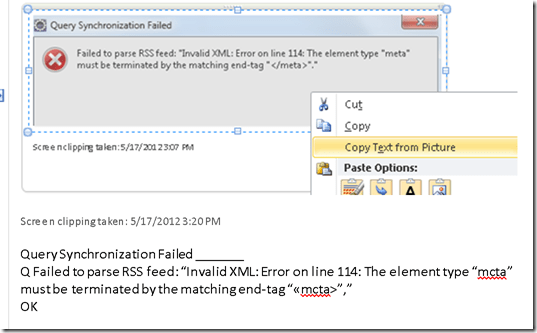
- OneNote 2007/2010: paste image, right-click to access context menu, “extract text”. Example (you can see it is quick and simple, but not error-free):
- Imaging components :TBA
- OneNote 2007/2010: paste image, right-click to access context menu, “extract text”. Example (you can see it is quick and simple, but not error-free):
- Google Apps can also OCR the files you upload to Google Docs.
- You first need to change the default settings. Choose from hard-drive icon for file uploads, context menu: “Settings” / “Convert text form uploaded PDF and image files”.
- You may want to upload an entire folder – then you need to either use Chrome or allow the install of a Java applet.
- You may want to use not have to deal with one Googledoc for each image you upload. So bind your scanned pages (unless your OCR software already allows this – I have been restricted to “Windows Scan and Fax”) to multi-page PDFs (imagemagick’s convert command can do it for free). Note that the max upload size in Google Docs is 2mb, which restricted me to about 10 pages per document (strangely, since I had scanned to b lack and white and very small size, but the PDF size grew, likely using a less efficient encoding – might be able to optimize this).
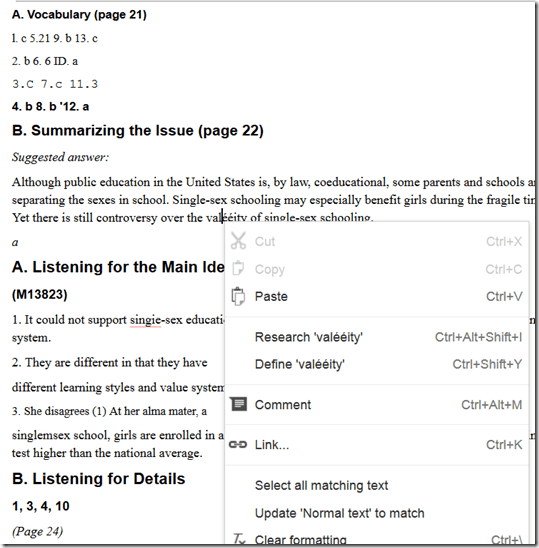
- Google Apps uses the same OCR engine as Google Books. Not much formatting is being retained, in the below examples note the line breaks, but that is fine for me, since I am only after large chunks of text for further processing:

- I have only tested English (largely current affairs) text, but was impressed with the OCR results.
- Also, where the OCR went wrong (2-times 4 per page; also some artifacts, my scans were not very clean: Google Apps seems to handle dark spots on the page better then unstraightened lines),
- the proofreading suggestions (as usual, right click to access) are very good (better than MS-Word’s when I downloaded the files).

- Sometimes you have to consult the original image which conveniently gets put above the OCR’ed: text.

- You can download the results as MS-Word files and within MS-Word, remove all the scan images using ^g.

- MS-Office




Spring 2014 LRC report
2014/01/08
Leave a comment
- Old issues (continued from the Fall 2013 report ):
- The LRC software image:
- UPDATE: Recent Java updates are issues with textbook publisher pages.
- We are still trying to get some of the Sanako digital audio lab functionality from last year back.
- To help with this, we are upgrading the Sanako software once again, to a maintenance release (v 7.1.) which we have also been given for free – it is not clear whether the fall Sanako version was unstable or whether the LRC computers are overtaxed with the upgrade to Windows 7.
- We also still have configuration issues with the new imaging process which we try to get resolved.
- Please do not hesitate to use the Sanako: talk to me in advance what you are trying to do, and I will test for you and, if necessary, try find workarounds or provide additional training.
- The Moodle audio recorder: The Center for Teaching and Learning, after pulling the Nanogong recorder which was released by mistake, on the basis of the survey you responded to, have kindly installed a test (not public yet) version of PoodLL. We will be testing with a teacher this term.
- The LRC software image:
- New issues: We have had repeated issues with LRC hardware and equipment readiness which tended to crop up in the middle of attempted usage. To increase LRC readiness for use by you and your students, this term:
- We schedule LRC assistants to do regular walkthroughs, checks and inventories :
- of headphones, computers, film and faculty equipment functionality and
- also of the teaching and learning environment: maintain status of projector, teacher computer, furniture, blind and cleanliness…
- We will have the most experienced LRC assistant function as a supervisor at the reception desk: Unless there is a pile-up of clients, this supervising assistant has been instructed not to interact directly with clients, but monitor and – as required – correct and re-train the less experienced LRC assistants.
- Please support LRC assistants in their tasks, and let us know of any problems, service breakdowns etc.
- We schedule LRC assistants to do regular walkthroughs, checks and inventories :
Sanako recorder still requiring configuration from student on every log in?
2014/01/08
Leave a comment

How to get started with clicker use in your course by downloading & installing Turningpoint
2014/01/07
Leave a comment
-
Just in case you get stuck already with your local computer: You can download the software from Moodle:

-
If you do not see this menu (you are supposed the CTL workshop first), contact the help desk.
-
To download, I entered my institutional info and had no problem downloading and installing the pc [not non-] install version of the software.
-
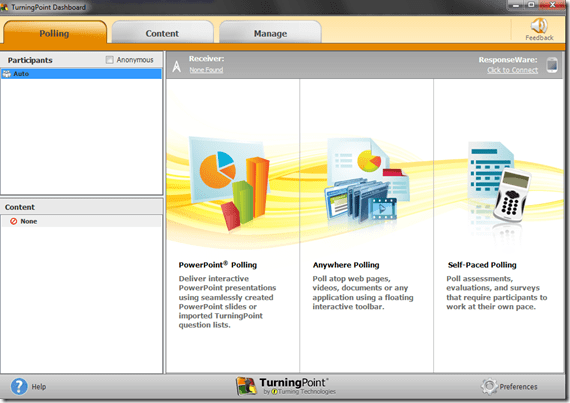
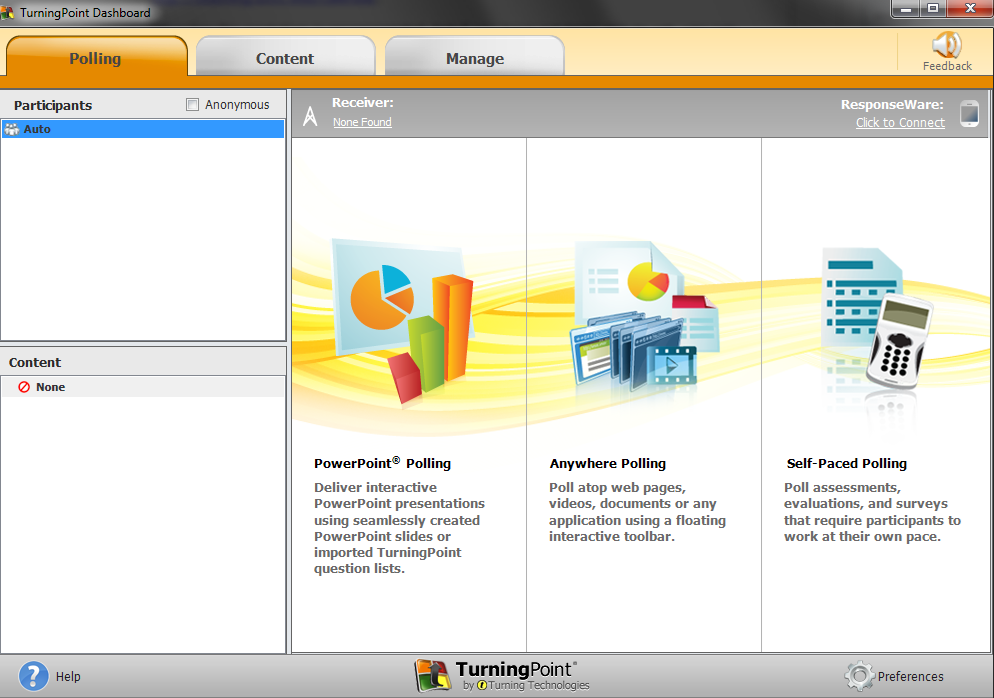
After the install, when you open ppt (from the “Turningpoint dashboard”: “PowerPoint Polling”),
-
-
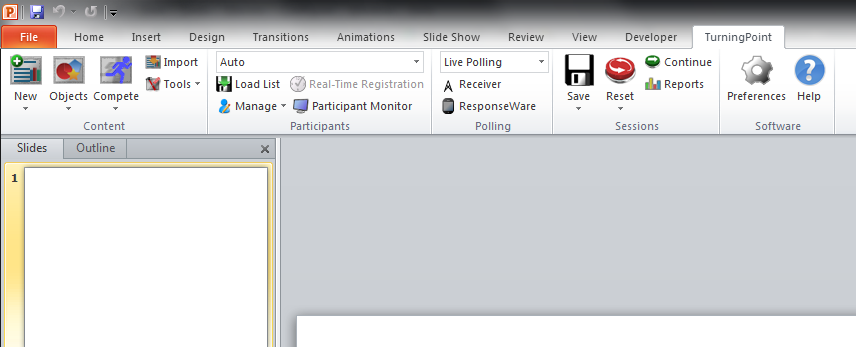
The Turningpoint plugin opens its own ribbon menu which you can use to add clicker exercises.
-

-
From here, there is more help available from
-
the vendor and
-

Categories: e-learning, Student-response-systems-AKA-clickers
turningpoint


Questions? Read the About. Or just ask me a quick Our Databases: Resources with calendars -- Language learning material Moodle Sites, multimedia files -- films


FAQs for LRC student staff or for students or for teachers. To search our FAQs, in the browser addressbar, add after "https://plagwitz.wordpress.com/feed/?tag=faqs+/" "+TAG1" (from tag cloud below) OR "https://plagwitz.wordpress.com/feed/tag=faqs
&category_name=" "CAT1" (from category hierarchy below). OR search both categories and tags, and multiple TAGs/CATs (connect with "," for OR-search, with "+" for AND-search), like so: https://plagwitz.wordpress.com/feed/?tag=TAG1+TAG2+...TAGn&category_name=CAT1
+CAT2+...CATn"
Other ways to find help
If you cannot find it here, look there: 5,500 Language-Learning Links and Programs for learning or teaching 150 languages
Shortcuts:Our Lists, Our Maps, LRC Staff Moodle Site,LRC Project Moodle Site, 49erexpress, UNCC Moodle, Student Recordings: s:claslcslrcsanakostudent
Learning usage samples: Sanako oral exam, Kaltura webcam presentation, Dictation with speech recognition, Sanako written exam, Chinese and Japanese interactive stroke-order practice
Test the Sanako Installer, Webbrowser Popup Konfigurator for XP, or Windows7, faster LRC TeacherPC Log-in Let MS facilitate diacritics writing by installing for you US-International keyboard layout
This is my personal blog (Google+). The views expressed on these pages are mine alone and not those of my employer. The information in this weblog is provided “AS IS” with no warranties, and confers no rights.
 Thomas' Work Space