How to save MS-Word files in Wordperfect format.
- Teachers receive new computers with MS-Word 2007, but need to send files to publishers that accept only Wordperfect format.
- I located and installed an old (= not supported in MS-Office2007 anymore) WP-converter for Word 2003 which is the MS-word version we still have, side-by-side with MS-Word 2007, installed on the teacher computer in the Sanako LAB 300 (MH441).

- Now you can save the MS-Word files created on your new office computer on the shared network drive (H: in your office). Here is how:
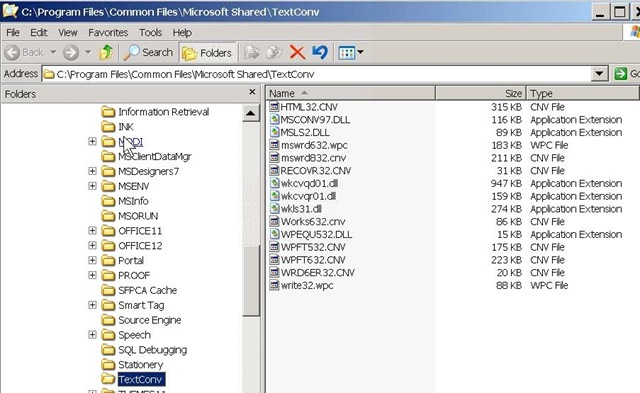
- From the MH441 teacher computer, open the saved file: First open Ms-Word 2003 from the start-button. Then open the H-drive. I made this drive accessible as start-button / “h-drive”on the MH441 teacher computer:


- Browse to your document, drag it into the MS-Word 2003 window. Click Menu: “File”/ “Save As””. From the dropdown: “Save as type”, you can now choose one of the old Wordperfect format.

- Assuming you do not publish more than a handful of papers per year, this should keep you afloat until your publisher (I suggest sending them the URL of this webpage) accepts other file formats (RTF is a widely supported minimum standard, and MS-Word 2007 can save as RTF, Word Perfect can read it).


A better way to do student homework audio recordings in the Sanako LAB 300, using Blackboard:Assignment
-
More robust than the more common way using the default network shares of a Sanako Lab 300 – to my knowledge, up to this day Sanako Labs lack any integration with the LMS/VLE regarding the upload of student output – is using the assignment tool of the VLE which provides integration with the Student Information System and an entire infrastructure for assessment purposes (gradebook and beyond).
-
I know that some teachers use Blackboard email with attachments for assignments, others the blackboard drop-box. Some, including me, use the assignment tool which, since it appears to be far superior to the older tools, this post would like to advertise.
-
The assignment tool automatically creates a grade center column.
-
You can batch download student file submission (papers or recordings) and blackboard assignment tool puts the assignment name and the username in the file name for easier management,
-
and you can upload a graded version to return assignments to the student and include comments.
-
You can also create comments for the instructors only to view.
-
Faculty can also use track changes and insert more fine-grained comments and corrections within MS-Word.
-
-
Here are the parts of this series:
-
How the student reviews a grade Blackboard audio recording assignments: TBA.
How to automate nightly updates of a Kiosk PowerPoint
This copies nightly a ppt file from a network share where it is collaboratively edite to a network computer where it is displayed for announcement and marketing. The ppt file should already be set to kiosk, manual timings, loop mode.
#region ;**** Directives created by AutoIt3Wrapper_GUI ****
#AutoIt3Wrapper_outfile=\\adfileprod01\Shared\LLC\scheduling\channel55-presenter\updater-channel55.exe
#endregion ;**** Directives created by AutoIt3Wrapper_GUI ****
; revision after hardware upgrade from hallway.au3, "hallway"->"channel55" not in variable names, only in strings , except for encryption password
; includes debugging
; connect to channel55-presenter using tightvnc
; adapt at [TBA]
#include <ie.au3>; put the compiled executable of this in channel55Presenter c:\temp and run it as a scheduled task  late-nightly
#include <debug.au3>
#include <File.au3>
#include <Screencapture.au3>
#include <String.au3>
#include <Date.au3>
Global $filename = "[TBA]"; "channel55"
Global $filenamelog = "[TBA]"; "channel55"
Global $fileextremote = ".pps"
Global $fileextlocal = ".pps"
Global $fileextlog = ".log"
Global $pathfilelog
Global $filepathlocal = "[TBA]"; "c:\temp\"
Global $fileshareordriveremote = "[TBA]"; "\\resman\Student Saved Work\"
Global $filepathremote = "[TBA]"; "Admin\conf\scheduling\channel55-presenter\"
Global $filepathremotebackup = "tmp\"
Global $usernameinstructor = "[TBA]" ; "trplagwitz"
Global $passwordinstructor = "[TBA]" ; hashed password
Global $passworddecrypt = "hallway"
Global $LogonDomain = "[TBA]" ; "ad.loyola.edu"
Global $timelocal
Global $timeremote
Global $debugtype = "debugconsole"
_ScreenCapture_SetBMPFormat(0)
$logfilehandle = FileOpen($fileshareordriveremote & $filepathremote & $filepathremotebackup & $filename & $fileextlog, 1)
If Not FileExists($fileshareordriveremote & $filepathremote & $filename & $fileextremote) Then
	$ret = FileWriteLine($logfilehandle, "cannot open file: " & $fileshareordriveremote & $filepathremote & $filename & $fileextremote)
	FileClose($logfilehandle)
	Exit
Else
	If ProcessExists("powerpnt.exe") Then
		ProcessClose("powerpnt.exe")
	EndIf
	Sleep(5000)
	If ProcessExists("powerpnt.exe") Then
		$ret3 = RunWait('taskkill /F /fi "imagename eq powerpnt*"  /im *')
	EndIf
	Sleep(2000)
	$ret = FileCopy($fileshareordriveremote & $filepathremote & $filename & $fileextremote, $filepathlocal & $filename & $fileextlocal, 1)
	$ret = FileWriteLine($logfilehandle, "result:" & $ret & " filemove from: " & $fileshareordriveremote & $filepathremote & $filepathremotebackup & $filename & "_" & today() & $fileextlocal & "t: " & $filepathlocal & $filename & $fileextlocal)
	If FileExists($fileshareordriveremote & $filepathremote & $filename & $fileextremote) Then
		FileDelete($fileshareordriveremote & $filepathremote & $filename & $fileextremote)
	EndIf
	ShellExecute($filepathlocal & $filename & $fileextlocal)
EndIf
FileClose($logfilehandle)
Exit
Func today()
	Return (@YEAR & @MDAY & @MON)
EndFunc   ;==>today
Func addHallwayPresenterNetworkshares($LogonDomain)
	If $LogonDomain = "" Then $LogonDomain = @LogonDomain
	If StringLen($passworddecrypt) > 0 Then
		$driveletterreplacementforhallwayread = DriveMapAdd("*", $fileshareordriveremote, 0, $LogonDomain & "\" & $usernameinstructor, _StringEncrypt(0, $passwordinstructor, $passworddecrypt))
	Else
		$driveletterreplacementforhallwayread = DriveMapAdd("*", $fileshareordriveremote, 0, $LogonDomain & "\" & $usernameinstructor, $passwordinstructor)
	EndIf
	myDebugOut(@ScriptLineNumber, "$driveletterreplacementforhallwayread is: " & $driveletterreplacementforhallwayread & ", $fileshareordriveremote is " & $fileshareordriveremote & ", $usernameinstructor, $passwordinstructor are " & $usernameinstructor & $passwordinstructor)
	If (($driveletterreplacementforhallwayread == "") Or $driveletterreplacementforhallwayread == 0) Then
		$driveletterreplacementforhallwayread = "H:"
	EndIf
	Return $driveletterreplacementforhallwayread
EndFunc   ;==>addHallwayPresenterNetworkshares
Func removeHallwayPresenterNetworkShares()
	$driveletterreplacementforhallwayread = $fileshareordriveremote
	If StringInStr($driveletterreplacementforhallwayread, ":") Then
		If StringInStr($driveletterreplacementforhallwayread, "\") Then
			StringTrimRight($driveletterreplacementforhallwayread, 1)
		EndIf
		$ret = DriveMapDel($driveletterreplacementforhallwayread)
		If $ret = 0 Then myDebugOut(@ScriptLineNumber, "failed to DriveMapDel for: " & $driveletterreplacementforhallwayread)
	EndIf
EndFunc   ;==>removeHallwayPresenterNetworkShares
Func myDebugOut($ScriptLineNumber = @ScriptLineNumber, $msg = "Error")
	Local $debugstring
	Local $debugfilename
	Local $tabhandle
	Local $tabmaxnumber
	Local $tempdir
	$tempdir = @TempDir
	If $tempdir == "" Then $tempdir = "c:\temp"
	$debugstring = $ScriptLineNumber & "~" & _Now() & "~" & $msg
	If $debugtype = "debug" Then
		Local $activewindowtitle = WinGetTitle("")
		MsgBox(0, "debug", $debugstring)
		WinActivate($activewindowtitle)
	ElseIf $debugtype = "debugconsole" Then
		ConsoleWrite($debugstring & Chr(13))
	ElseIf $debugtype = "run" Then
		If $tempdir == "" Then $tempdir = "c:\temp"
		$debugfilename = FileNameEscape($debugstring, $tempdir) & ".jpg"
		_ScreenCapture_Capture($debugfilename)
		_DebugOut($debugstring)
	ElseIf $debugtype = "debugconsolescreen" Then
		ConsoleWrite($debugstring & Chr(13))
		$debugfilename = FileNameEscape($debugstring, $tempdir) & ".jpg"
		_ScreenCapture_Capture($debugfilename)
	ElseIf $debugtype = "releasetextlog" Then
		If $pathfilelog == "" Then $pathfilelog = @TempDir & "\" & "autoitlogfile.log"
		$loghandle = FileOpen($pathfilelog, 1)
		If $ret = 0 Or @error Then Exit
		$ret = FileWriteLine($loghandle, $debugstring & Chr(13))
		If $ret = 0 Or @error Then Exit
		$ret = FileClose($loghandle)
	ElseIf $debugtype = "releasewordpad" Then
	Else
		SetError(1)
	EndIf
EndFunc   ;==>myDebugOut
Func FileNameEscape($filename, $tempdir)
	$filename = StringReplace($filename, ":", "_")
	$filename = StringReplace($filename, ">", "larger_than")
	$filename = StringReplace($filename, "<", "smaller_than")
	$filename = StringReplace($filename, " ", "_")
	$filename = StringReplace($filename, "/", "&")
	$filename = StringReplace($filename, "/", "+")
	$filename = StringReplace($filename, "&", "+")
	$filename = StringReplace($filename, Chr(9), "_")
	$filename = StringReplace($filename, "?", "questionmark")
	$filename = StringReplace($filename, "!", "exclamationmark")
	$filename = StringReplace($filename, "'", "quotationmark")
	$filename = StringReplace($filename, Chr(34), "doublequotationmark")
	$filename = StringReplace($filename, "__", "_")
	$filename = StringReplace($filename, "__", "_")
	$filename = StringReplace($filename, "__", "_")
	$filename = StringReplace($filename, "__", "_")
	$filename = $tempdir & "\" & $filename
	Return $filename
EndFunc   ;==>FileNameEscape
Func FileCopy2LocalTemp($filepath)
	Dim $arrfilepath, $filepathname, $arrfilepathname, $filepathnameext
	$blnValid = True
	If Not FileExists($filepath) Then
		If Not DriveMapAdd("", $filepath) Then
			$blnValid = False
		EndIf
	EndIf
	If $blnValid Then
		$arrfilepath = StringSplit($filepath, "\")
		If @error Then
			SetError(1)
			myDebugOut(@ScriptLineNumber, "error stringsplit filepath")
		EndIf
		$filepathname = $arrfilepath(UBound($arrfilepath) - 1)
		$ret = FileCopy($filepath, @TempDir & "\" & $filepathname)
	Else
		SetError(1)
	EndIf
EndFunc   ;==>FileCopy2LocalTemp
Student attendance metering: present signin.xls and perspectives
We are working on replacing the old attendance meter which is still down:

As you will remember, we have been recording attendance last term and made this data available to you on our new network share: H:\llc\people\Sign_In_Sheet.xls. To summarize your students attendance, you can filter this data, using standard excel features.
New this term: To help you with this, we added an hard-coded MS-Excel auto-filter (see down-arrows in column headers): filter by course language, then number, then teacher, then the student in question , to summarize during assessment.
We expanded the data validation, so that we get the computer help us processing the data (sort, filter, search…).
Per your request, we added the course number, section and teacher columns to the sign-in sheet (to be manually updated at every term start – a poor man’s integration into the campus information system which had better not be done even by central services, but rather only purchased by them):

Individual teachers can use the built-in filters to drill down to their classes/students for advising/grading.

Individual student can be tracked, together with their time spent in the LLC:

Students enter in the green columns, mostly having to access only built-in shortcuts and selection boxes, while the other columns get updated completely automatically.
To enable students inputting their information directly, we have hacked together a dual screen system in the LLC entrance area.

We will also use this dual screen system for improving other LLC services, by hooking into central services. We will ask students with less than clear requests (“My professor wants me to do my homework here, where is it?”) to load their syllabus from blackboard and share their screen with the lab assistant, to assist with (not solve: that would need library resources, meaning professional library catalogue, library professional staff and library professional network and procedures) locating movies and other assigned learning materials.
For the attendance meter, this means: students can enter this information themselves; lab assistants still supervise, and collect the student ID to double check and prevent the cheating that I was approached about to fix with the prior system: signing in for friends, especially with passwords separate from university-wide passwords which there is no reason to keep secret.
Please note that this home-brew spreadsheet-based system is still severely limited in its functionality.
We could POSSIBLY (this would need setup and coordination with various central offices) automate this more, given time for the initial investment.
I have experimented with hooking into the swipe card system. However, students would have to be asked to swipe out also. For other reporting purposes, I have already managed to retrieve this data in this form: 
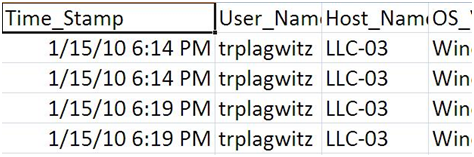
I have experimented with recording log-in (but no log-off) data on the LLC computers (another hack) in a centrally available spreadsheet, in this format:
I have inquired about using Microsoft’s SCCM (a generic software management application not meant for monitoring learning or language learning): We could gather statistics on two LLC-specific programs: the SANAKO media player and the webbrowser.exe (both, however, are likely, but not required to be used for language learning if a student prefers to do the learning in other applications). Neither would record actual files being opened.
All of these approaches, while preventing the most blatant cheating, still would not record actual language learning activity. They do not prevent students from spending their time in the LLC doing unrelated activities (like browsing sports news or playing online games) while they can do their assigned Blackboard and Quia homework from the convenience of their residence.
It is the professional systems that have been programmed with the resources from of revenue of literally thousands of campus-wide installations that can record these language learning activities.
The Sanako language lab software contains a webbrowser.exe which can not only be remote controlled by the teacher, but also be configured to allow only browsing certain (partial) urls or disallow browsing certain urls. it is also possible to apply different policies in different situations. this facility, while part of the package your purchased with the lab, has not been set up as of yet.
It would require developing policies and implementing them. E.g. one could during non-class use of the LLC only allow browsing publisher websites, including Quia.com, and Blackboard.loyola.edu and Loyola.edu (a radical approach).
One could also explicitly preventing certain websites, like Facebook (this would be more effective during face-to-face session in the LLC).
Then there are the facilities within your textbook websites (Quia) and within your course management (Blackboard, keywords for free tools being: Course Statistics, Statistics Tracking with activity_accumulator, Performance Dashboard, Early Warning System Rules, Adaptive Release rules for content, project ASTRO which is an acronym for Advanced System Tracking and Reporting Online), or as an add-on (Provost Pulse).
With the impetus being on ubiquity these days, it will have to be seen whether there are tools for Blackboard or Quia that can help enforcing that students use specific computers (maybe via IP address of computer?).
Beyond these solutions, there is an entire research area for, and software market revolving around, student retention management which also covers attendance tracking. Notable players include Hobsons EMT® Retain and Starfish Early-alert (which is run by a former Blackboard VP and can be integrated with Blackboard student data system as a building block).
I suggest we invest our limited local resources into finding better ways to integrate and train on these existing central facilities that provide information on learning (which we then can use to refine our teaching). Given current circumstances, I would recommend exploring the tracking systems in Quia and Blackboard (not restricted to being used on the LLC computers) and tracking learning outcomes (like student language recordings which the LLC can help with – not as much with the digital recording technology which is being commoditized, but rather with providing a language learning shared/collaborative/meeintg space).
Video Library: Scheduling for Reserve Desk and Viewings
Lab staff instruction for editing the video-reserves spreadsheet H:\LLC\scheduling\video-reserves&mh441b-showing\video-reserves.xls:
- Lab supervisors build the spreadsheet for the reserve desk and viewing: video-reserves-reservedonthisday-unfold-schedule-viewing.wmv, video-reserves-viewing-selecting-timeslots&venues.wmv
- Lab assistants read the spreadsheet and handle the actual media (i.e. update the reserve desk and show the videos): video-reserves-reservedonthisday-filter-viewing-or-reserve.wmv
Quia Online Exercises
Here are examples from the Treffpunkt Deutsch Quia Website. Quia Treffpunkt Deutsch is organized in chapters which you can select from the dropdown navigation control on the left. As you see on the following page, each chapter contains 3 different types of exercises, organized in sections.

If you click on a section header, you will see a list of exercises:
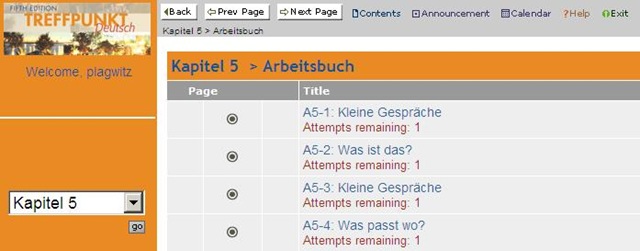
Here is an example of an exercise, assigned as “A[rbeitsbuch=work book], K[apitel=chapter]9: A9[=chapter-number, again]-1[=exercise-number]”.
The letters and numbers from the assignment repeat in the exercise, see this screenshot:
 \
\
You can also hover your mouse over the info button in the upper left corner to get a summary of this information: 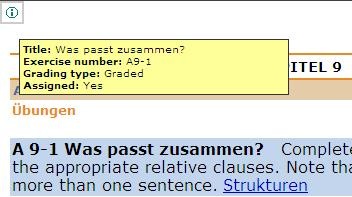
Also note the link to the corresponding preparatory web page which opens in a new window (Problems getting the window to open? the popup-blocker of your web browser may be the root? instead of simply clicking on the link, try CTRL-clicking, on the link as well as the browser information bar, if it comes up). It is crucial to read/review the corresponding preparatory web page first.
It is not necessary to get everything 100% correct. It is not even a good use of your time to redo the exercise until you get everything 100% correct. Especially if you try speeding up this tedious task by doing the first round mechanically to get at the automated feedback answers, then doing the second round mechanically by pasting them in. That is why I have my Quia course “Options” set to “Calculate cumulative scores based on students’ first attempt” and to “Ignore student results after the 1st attempt”.
Therefore, you will see that you have only 1 “Attempt remaining” for each exercise. You will also, unless individually told otherwise, only have to do the exercises that are “Assigned” (consult legend at bottom of page).
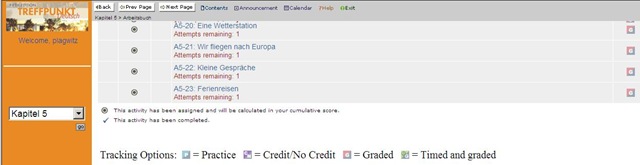
Rather use the valuable error feedback to go back to the Structures and try to learn and bring any remaining questions to class – it is highly likely that fellow students have the same problems, especially if they have the same native tongue. That is also the reason why I review your submission before class – not to mark you down, but to see from your problems help what to spend valuable class time one.

Also, the exercises are integrated into the progression of the course (including your ability to do partner work with others during class meetings). That is why you will not be able to submit exercises long after when they were due:

For reviewing, we will use other materials.
Finally, consult the Help which is linked in the top menu:

How to prevent accidental deletion of files
Hard drives tend to fail occasionally. We recommend working with the institution-provided personal network shares which are regularly backed up by IT.
However, backups can only ever be run so often (normally overnight), and if you create a file during the day and accidentally delete it, there is no Windows Recycle Bin like functionality for network shares.
I am not making recommendations, especially not to bypass institutionally provided services, but I have worked with these additional (free and MS-backed) tools to extend these services:
1. Microsoft Synctoy 2.1: You can create folder pairs (between local and network drives and portable drives). You can have these folder pairs synchronized on the click of a button. This implies that this is not tool does not completely automate synchronization, but you could e.g. do this every morning and evening when you start/stop working. You will have to wait for the synchronization to finish. You could work on the local drive during the day – being able to benefit form the existence of the Recucle bin – and synchronize with your personal network drive at night.
2. Microsoft Live Mesh Beta: You can sign up with a Windows Live ID and designate a folder on your (multiple) PC(s) to be synchronized via a web folder. This happens automatically. Space is limited (5GB?).
3. There are also some settings in MS-Word you may want to consider, which you can access by clicking the Office button / Word options / Advanced:
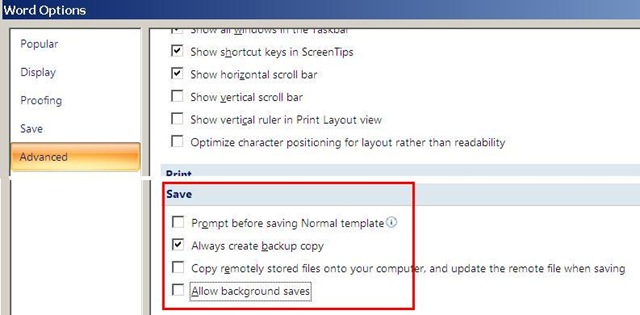
I always have a backup file created on save (in the same folder) and do not allow background saves which helps against file corruptions. I have not tested working with the option of keeping local copies of network share files.
Be aware that you are on your own with this, and that your mileage may vary.
Blackboard: Rolling over courses between terms
In your old course, go to CONTROL PANEL > COURSE COPY”.
Choose: “Copy Course Materials into an Existing Course” (assuming your new course shell has been created for you by your IT admin).
Click button:“Browse” and in the opening window, choose your existing current course, by the term identifier:
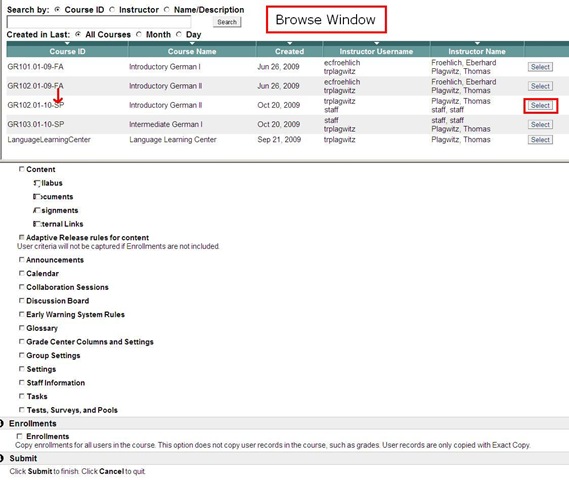
Check all items you want to copy. What is safest to avoid errors? Everything, except enrollments?
Click “Submit”/“OK” until done.
The course copy operation will be queued up, and you will be notified when the operation is finished.
Then go to your new course. This operation also copied the content items, including the content management system items.



Questions? Read the About. Or just ask me a quick Our Databases: Resources with calendars -- Language learning material Moodle Sites, multimedia files -- films


FAQs for LRC student staff or for students or for teachers. To search our FAQs, in the browser addressbar, add after "https://plagwitz.wordpress.com/feed/?tag=faqs+/" "+TAG1" (from tag cloud below) OR "https://plagwitz.wordpress.com/feed/tag=faqs
&category_name=" "CAT1" (from category hierarchy below). OR search both categories and tags, and multiple TAGs/CATs (connect with "," for OR-search, with "+" for AND-search), like so: https://plagwitz.wordpress.com/feed/?tag=TAG1+TAG2+...TAGn&category_name=CAT1
+CAT2+...CATn"
Other ways to find help
If you cannot find it here, look there: 5,500 Language-Learning Links and Programs for learning or teaching 150 languages
Shortcuts:Our Lists, Our Maps, LRC Staff Moodle Site,LRC Project Moodle Site, 49erexpress, UNCC Moodle, Student Recordings: s:claslcslrcsanakostudent
Learning usage samples: Sanako oral exam, Kaltura webcam presentation, Dictation with speech recognition, Sanako written exam, Chinese and Japanese interactive stroke-order practice
Test the Sanako Installer, Webbrowser Popup Konfigurator for XP, or Windows7, faster LRC TeacherPC Log-in Let MS facilitate diacritics writing by installing for you US-International keyboard layout
This is my personal blog (Google+). The views expressed on these pages are mine alone and not those of my employer. The information in this weblog is provided “AS IS” with no warranties, and confers no rights.

