Videoconferencing: Tandberg Conference-Me Test
While we initially ran into a glitch during the client install:
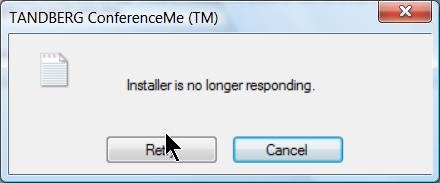
The application did seem to install correctly.
The video quality was acceptable even with low bandwidth settings. The application provides well-structured documentation as well as convenient interface, including through context menus:
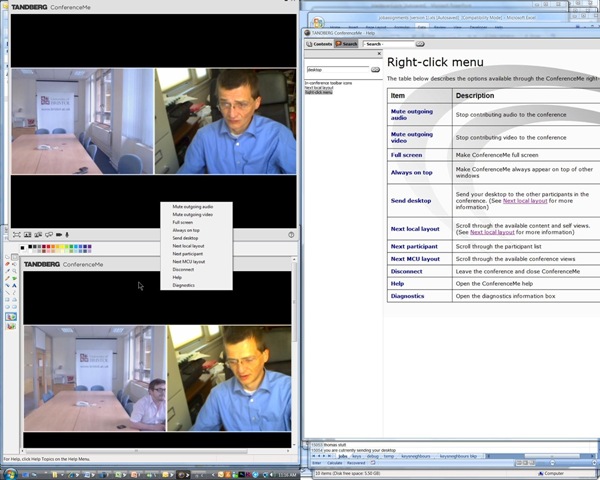
The diagnostic tools also seems strong:

Overall, Tandberg’s Conference-Me application looks like an attractive package.
Data cleansing and ETL with Perl to remove broken links

Doing simple web analytics with an ASP.net DataGrid control over SQL-Server

MS-SharePoint and the LLC
The LLC has a SharePoint team-site (Yay! ). About the first thing asked for in September when I found out searching the company website that Inside Loyola – the locally branded version of DataTEL’s ActiveCampus – is built on MS-SharePoint.

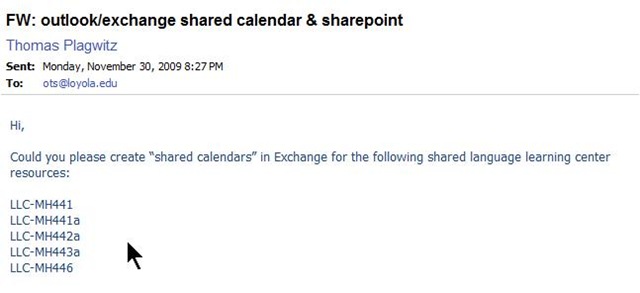

This means MS-SharePoint’s features are available to the LLC. This has benefits which come with groupware applications (aka “What’s Wrong with Email?”) that sit on top of an account management system likes AD.
On the basis of the MS-SharePoint/MS-Exchange/MS-Active directory stack, you can build, with much less effort, a much better calendaring/scheduling solution than CGI’s from the 90s provide.

Calendaring/Scheduling is a productivity task common to most businesses. Learning resource catalogues are much more vertical market specific. But if you cannot even manage the character input issues in foreign language video catalogue in your pre-.Net ASP solution, you might still find a generic solution based on SharePoint lists better.
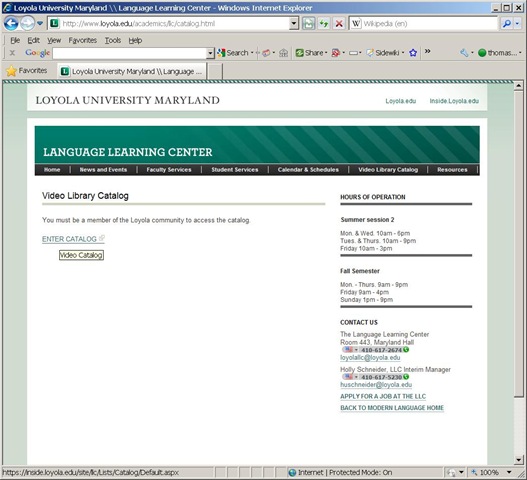
And once you outsourced common productivity software development to MS, you can get implementing e-learning beyond watching TV.
LLC Catalogue: Video-Reserves.xlsm, Reserve desk, Schedule, using Blackboard Content System WebDAV
For a LLC video schedule, we came up with the following repurposing of existing infrastructure:
- MS-Excel: still the “Swiss army knife” of choice for the middle manager. Allows for: semi-automatic creation of reserve date sequences (insert series), given a start and end date; data validation during data entry, and, based on that, sorting and filtering and, based on that, finding.
- Blackboard Content management system (WebDAV) to manage reading and writing (editing) permissions.

- Staff can use MS-Excel to request videos – preferably at start of term – to be put on reserve within a start and end date, during which they will be periodically shown, by opening the spreadsheet from MS-Excel and filling in the green cells in the first empty row at the bottom.

- Lab Staff can use MS-Excel to periodically transfer video reserve requests into video showings.
- Lab Assistants can use MS-Excel to daily maintain video reserve desk and video showings.
- Students can use a web browser to preview video showing times during the remainder of the term.
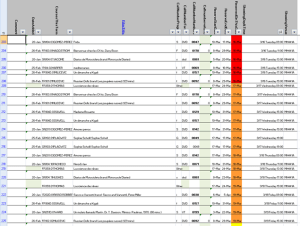
- To open the video schedule for read-only, Loyola students and staff can simply click this link in their browser: https://blackboard.loyola.edu/bbcswebdav/users/trplagwitz/llc-pfiles/video/video-reserves.xslm. Even read-only access includes the capability to search, sort and filter the schedule data, but you cannot save back.
- To open the video schedule for editing, LLC and Modern Languages staff can start MS-Excel, click menu: File / Open, and copy/paste this link: https://blackboard.loyola.edu/bbcswebdav/users/trplagwitz/llc-pfiles/video/video-reserves.xslm, then click open.
- All users will have to authenticate with their institutional account info:


Blackboard: Content System: Permissions, Roles and Gotchas
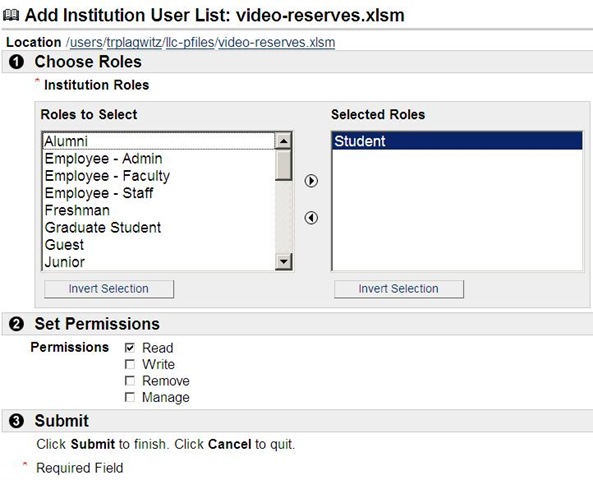
- The “Course user list“ refers to courses.
- The “Organization user list” refers to departmental groups. The subdivision is meaning list for our department.
- The “Institution user list” adds the most global group level.

- Finally, you can make files available to the “Public”. Note, however, that this seems to effectively bypass the more fine-grained permission checks. E.G. if you give read access to the public, users who open your files will not receive an authentication challenge, so if you try to give some of the users write access to your files, that will not trickle through. Workaround: Do not use “public”.
LLC Catalogue: This is not Google!
-
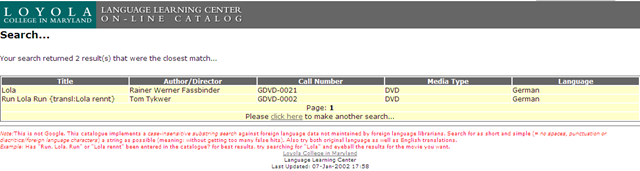
I have been given access to the online catalogue program, learned that VS.net 2008 still supports classic ASP, and managed to make a couple of changes to the catalogue home and search result and pages which will hopefully make your learning material searches more successful.


Network shares for collaboration: Applications and Files
As explained earlier here, we have set up network shares for collaboration which you can access from your office computers.
Overview of shares:
If you still have textbook media files in the LLC (talk to me on how to move them into the Blackboard content system and recycle them between terms by doing a course rollover in Blackboard ), access them on drive M: (for “media”).
If you have students making audio recordings in the LLC, access them on drive S: (for “students”). A better way for doing recordings during self-access/homework is TBA.
Some useful files for management are on drive H:, in the LLC folder. Some background info is here.
Overview of files:
To access these files quickly, you can click  , click
  , paste the path to the file, click
  :
:
H:\LLC\people\Sign_In_Sheet.xls – Attendance Meter.
H:\LLC\scheduling\channel55-presenter\channel55.ppt – the PowerPoint displayed on the Campus TV Network channel; for the LLC (TBA: as of March 2010, computer is being swapped out, and I have to migrate my application again – stay tuned).
H:\LLC\scheduling\hallway-presenter\hallway.ppt – the PowerPoint displayed on the hallway screen outside of the LLC on MH, 4th floor.
The PowerPoint files – one being displayed on the 4th floor hallway computer, the other on Channel 55 Campus TV – contain sections for announcements/advertisements which you may want to edit, update and/or add to.
Open these files like files on your computer. Overwrite the text in the files with current information. It is strongly recommended that you add slides by copy/pasting existing slides.
If you need help with the PowerPoints, I trained and assessed the lab assistants through Language Learning Center Blackboard site. There should always be an assistant at the LLC desk that can help you with basic PowerPoint tasks.
Your updates will not show instantaneously, but next day. I’ll check for changes in either PowerPoint file, backup the original and upload the new version over night to their respective computers.


Questions? Read the About. Or just ask me a quick Our Databases: Resources with calendars -- Language learning material Moodle Sites, multimedia files -- films


FAQs for LRC student staff or for students or for teachers. To search our FAQs, in the browser addressbar, add after "https://plagwitz.wordpress.com/feed/?tag=faqs+/" "+TAG1" (from tag cloud below) OR "https://plagwitz.wordpress.com/feed/tag=faqs
&category_name=" "CAT1" (from category hierarchy below). OR search both categories and tags, and multiple TAGs/CATs (connect with "," for OR-search, with "+" for AND-search), like so: https://plagwitz.wordpress.com/feed/?tag=TAG1+TAG2+...TAGn&category_name=CAT1
+CAT2+...CATn"
Other ways to find help
If you cannot find it here, look there: 5,500 Language-Learning Links and Programs for learning or teaching 150 languages
Shortcuts:Our Lists, Our Maps, LRC Staff Moodle Site,LRC Project Moodle Site, 49erexpress, UNCC Moodle, Student Recordings: s:claslcslrcsanakostudent
Learning usage samples: Sanako oral exam, Kaltura webcam presentation, Dictation with speech recognition, Sanako written exam, Chinese and Japanese interactive stroke-order practice
Test the Sanako Installer, Webbrowser Popup Konfigurator for XP, or Windows7, faster LRC TeacherPC Log-in Let MS facilitate diacritics writing by installing for you US-International keyboard layout
This is my personal blog (Google+). The views expressed on these pages are mine alone and not those of my employer. The information in this weblog is provided “AS IS” with no warranties, and confers no rights.
 Thomas' Work Space