Archive
Subtitling Audio Files with Windows Media Player Enhanced Tag Editor
Working with (target language) subtitles is a common requirement in digital language labs.
While the method demonstrated in the following screencast requires some getting used to – remember to share and reuse the result -, the advantage over Sanako Media Assistant subtitling is that the subtitles get stored in the file and not only linked to in a separate file (links tend to/are bound to break if you try to manage your product in course management systems or erepositories): subtitling-with-windows-media-player-enhanced-tag-editor.wmv.
And then there is this very nice capability of YouTube.com: http://www.google.com/support/youtube/bin/answer.py?answer=100077, if you dare navigate the waters of copyright, data protection and privacy (FERPA).
Windows Live Photos: How to Download Album
Do your photos not display thumbnails or go missing in slideshow view? Just download them and view them offline, from here: 
View the departmental calendar with your Outlook calendar
If you are looking for a more convenient way to coordinate your personal calendar (and in the future: –s) with the departmental calendar, you can do what is called “Connect to Outlook” a Sharepoint Teamsite Calendar.
Go to “Inside Loyola”, go to your Modern Languages & Literatures team site, 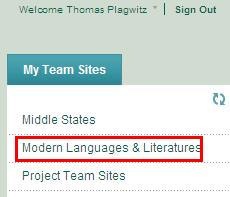
click in the left menu: “Calendar”, click from the calendar top menu: “Actions”/ “Connect to Outlook”, like here:

Click “Yes”here: 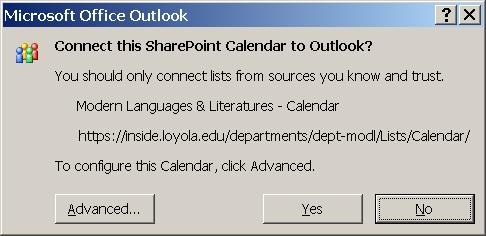 , or “Advanced”,
But there is not much to configure here: 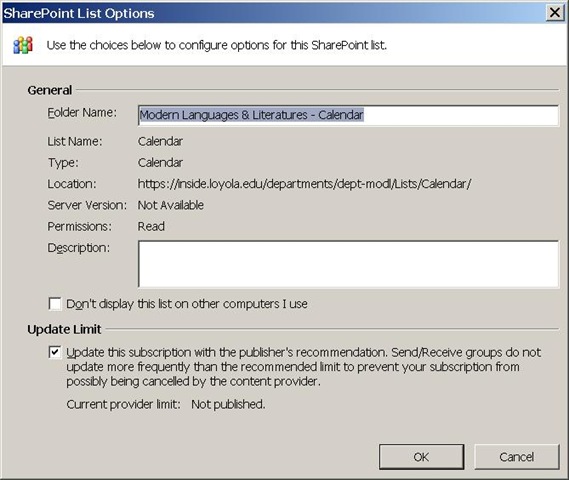
In the resulting view (in “Overlay mode”, like 2 overlaid transparencies), events are much easier to coordinate: like so:
Incidentally: If, after “Connect to Outlook” a Sharepoint Teamsite Calendar, this password dialogue keeps popping up, like so: 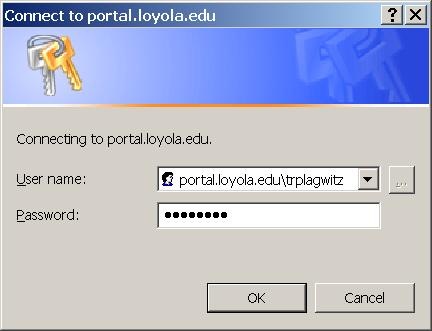 , instead of [your usual username], put [your usual username]@loyola.edu, plus remove the prefix “portal.loyola.edu/”.
Canon ZR-200 LLC Camera Basics
The camera can store only about 30 [check, might be 100 or more, recording size is 5MB per 1 min video] minutes on its SD card
Currently we are using my personal SD card, bring your own to extend the recording time (by swapping the cards. You can move video clips onto classroom computers’ network shares if the classroom computer is in MS-Active Directory (which most should be) and if the classroom computer has an SD card reader (which most will NOT have).
Video–clips (internal access only) showing how to operate the camera are here:
camera-canon-zr200-Inserting&Removing_Memory_Card_Starting&Stopping&Filming.avi
camera-canon-zr200-Inserting_Memory_Card_into_Card_Reader_on_Assistant-Computer.AVI
camera-canon-zr200-moving_video_from_memory_card_to_H-Drive.avi
For base documentation, see these graphics:


You can change the audio modes:


Optimum video mode with card is 320*240.
All in all: Quick and dirty recording and archiving for basic assessments…
Create a PowerPoint slide with a timer from template for a timed audio recording exercise
If you require an audio recording exercise, where you allot to students a longer period of time for a free-form response, possibly to a visual cue, here is a demo screencast, based on the teacher.pot powerpoint template collection: powerpoint-timer-slide.wmv.
Quia Audio Files in Internet Explorer
Quia.com contains “Play audio” links to mp3 audio.

You may experience this, when you first try to access the audio with Internet Explorer.

If you cannot read the instruction in the information bar, resize the window so that you can, like here:

After clicking “trust Microsoft” and “Run ActiveX” in the following dialog, the “Internet Explorer cannot display this webpage” may appear. Ignore this, close the window and reopen it by clicking again on the “Play” link in the parent window.
This time you will (hopefully) see this:

You need to do this only once – per PC? per user? Let me know in the comments.
Collaboration using MS-Office and Network Shares
Accessing: We set up collaborative editing on a number of MS-Office files (Word, Excel, PowerPoint for starters) on network shares.
These files function like files on your computer’s C: or D: (cd) drive. C: (and H:, S:) you can write to, while D: (and M:) you can only read from. Details, including students’ access, below:
|
Mapped as for |
Staff (including LLC staff) can |
Student can |
Language services use |
NetworkPath |
|||
|
Staff |
Student |
read |
write |
read |
write |
|
|
|
H:\LLC |
|
Yes |
Yes |
No |
No |
sensitive exam files; internal documentation & management (hallway.ppt, channel55.ppt, Sign_In_Sheet.xls) |
\\adfileprod01\shared\LLC |
|
M: |
|
Yes |
No (admin only) |
Yes |
No |
LLC: (large) multimedia files (to be moved into Blackboard content system) |
\\resman\media |
|
S: |
|
Yes |
Yes |
Yes |
Yes |
Student audio recordings |
\\resman\Student Saved Work\ |
|
G: |
G: |
Only current user |
Only current user |
Only current user |
Only current user |
Personal home drive |
\\adfileprod01\users\[yourusername] |
If you do not see the M: and S: click drive  , click
  , paste “\\resman\Student Saved Work\Admin\conf\ms.vbs”, click
  .
.
To access the files quickly, you can click , click , paste the path to the file, click . Alternatively, browse to the folder with the file like to any other folder on your PC, starting from “My Computer”. Repeat access from the office computer is easiest if you create a shortcut to the file, by right-click-dragging the file onto your desktop (do not create a copy, it will get out of synch and be useless for collaboration).
You can also access the files from home if you follow the instructions here. I have not thoroughly tested this, but my installation on MS-Vista, after the initial setup, defaults to a web-interface view which allows reading the files, but, unlike VPN connections I have used, not editing.
Searching: Search files like you do on your computer.
Editing: Files are unlike those on your C: or D: drive insofar as other people can open them also. If somebody has a file open and thus locks you out of writing to it, simply come back later when she has closed it.
The Excel Sign_In_Sheet.xls is a “shared” spreadsheet, in the sense that you will not be locked out while lab assistants have it open (which is always during LLC opening hours). However, you may get conflict messages if you try to save edits (which you normally would do not need to do, just viewing), like demonstrated here: excel_shared.wmv.

If you use regular (non-shared Excel) MS-Office Files, you may see such a warning message:

If you clicked “Notify”, you will eventually be prompted to open the file in read-write mode, and your changes will be saved, if you colleague did not update the file (otherwise you will have to save under a different file name and later can use tool “compare and merge” to merge changes). 
For PowerPoint, you may see this:

If you clicked “open” ”read-only”, you will see a reminder:
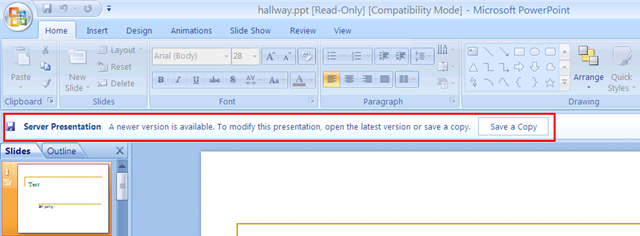
It is probably easier to close the file and try again later, to see whether your colleague is finished with it.
Blackboard: Discussion board: Unread posts
- The Blackboard discussion board is designed for busy people keeping track of large constituencies – some classes have 1 instructor, 100s of participants and discussion board assignments….
- One of the most useful features is when you enter the discussion board, there is a shortcut to the “Unread Posts”, like marked here:
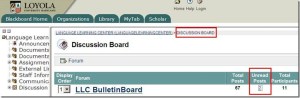
- If you click on this number of unread posts, you are taken to an overview page (sorted counter-chronologically be default; not threaded, but you have plenty of other display and management options), which you can skim for new developments, as well as use to manage your posts:

- Examine the top menu for options. You can either for individual posts click “mark as read”, as you read each one. Or you can use the “select all” tool and the “mark all as read” button in the top menu to clean up your board. Once you leave, your discussion board home page should look like this:




Questions? Read the About. Or just ask me a quick Our Databases: Resources with calendars -- Language learning material Moodle Sites, multimedia files -- films


FAQs for LRC student staff or for students or for teachers. To search our FAQs, in the browser addressbar, add after "https://plagwitz.wordpress.com/feed/?tag=faqs+/" "+TAG1" (from tag cloud below) OR "https://plagwitz.wordpress.com/feed/tag=faqs
&category_name=" "CAT1" (from category hierarchy below). OR search both categories and tags, and multiple TAGs/CATs (connect with "," for OR-search, with "+" for AND-search), like so: https://plagwitz.wordpress.com/feed/?tag=TAG1+TAG2+...TAGn&category_name=CAT1
+CAT2+...CATn"
Other ways to find help
If you cannot find it here, look there: 5,500 Language-Learning Links and Programs for learning or teaching 150 languages
Shortcuts:Our Lists, Our Maps, LRC Staff Moodle Site,LRC Project Moodle Site, 49erexpress, UNCC Moodle, Student Recordings: s:claslcslrcsanakostudent
Learning usage samples: Sanako oral exam, Kaltura webcam presentation, Dictation with speech recognition, Sanako written exam, Chinese and Japanese interactive stroke-order practice
Test the Sanako Installer, Webbrowser Popup Konfigurator for XP, or Windows7, faster LRC TeacherPC Log-in Let MS facilitate diacritics writing by installing for you US-International keyboard layout
This is my personal blog (Google+). The views expressed on these pages are mine alone and not those of my employer. The information in this weblog is provided “AS IS” with no warranties, and confers no rights.
 Thomas' Work Space