Archive
Archive for the ‘technology-domains-is-any’ Category
The big LRC SANAKO “How do I…?”
2012/12/05
Leave a comment
(Work in progress).
View larger Word version than this embed:
Categories: all-languages, animated-GIFs, audience-is-students, audience-is-teachers, classroom-management-system, digital-audio-lab, documentation, e-languages, Institution-is-University-of-North-Carolina-Charlotte, learning-usage-samples, Listening, LRCRoomCoed434, Presenter-Computer, Reading, recording-software, Screencasts, screenshot-albums, service-is-documenting, service-is-training, Speaking, Student-Computers, training, Writing
sanako-study-1200
How to use MS-Skydrive with your university account here
2012/11/29
Leave a comment
- One of the benefits of live@edu is institutional access to file storage space in the cloud. You need not set anything up for that. Just go to http://skydrive.com and log in with (1) your university account, here is what you get:
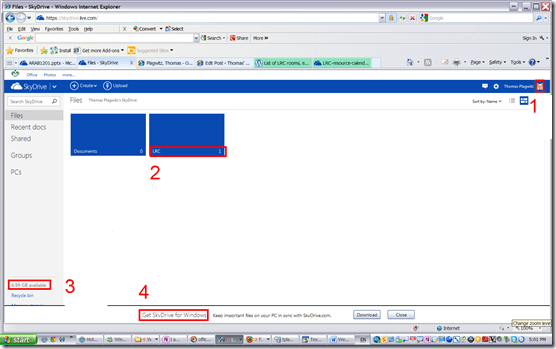
- You can create (or upload) folders and files (this one is from a long time ago, since I briefly could log in when live@edu was first introduced. Students always could log in).
- 7 GB of free space in the cloud should be plenty, including
- for teachers looking for a convenient way to bring files to the classroom beyond the limitations of the H: –drive “ My documents”
- for film students misplacing they backup hardware. No more hogging of checked out cameras just since you did not bring your portable hard drive. Just upload your clips to skydrive.com, access them from home.
- If you install the optional free Skydrive app (available ofr Windows Vista and up and MacOS X.7)
- the file size limit is expanded from 100MB to 2GB.
- files can be automatically synchronized between your classroom and home computer.
- To access files on classroom computers without the skydrive app, just use skydrive.com

Help with MyLanguageLab recordings
2012/11/28
Leave a comment
- Taken almost straight from the BB_Voice_Troubleshooting_Guide.pdf:
- When using the Voice Recorder, first click the (0) blue “Record” to load the recorder. You may have to accept a security warning.
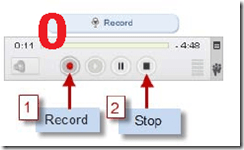
- Then click the (1) red record button

- IMPORTANT: Click the (2) black STOP
![clip_image001[14]](https://thomasplagwitz.com/wp-content/uploads/2012/11/clip_image00114_thumb.jpg?w=37&h=34 "clip_image001[14]") button to save your recording. (If you do not click the stop button, your recording will NOT be saved and your instructor will not be able to hear your voice). When you stopped, the timer in the upper right will change from showing “time remaining” to “time recorded”.
button to save your recording. (If you do not click the stop button, your recording will NOT be saved and your instructor will not be able to hear your voice). When you stopped, the timer in the upper right will change from showing “time remaining” to “time recorded”. - Click the (now not grayed out, but ) green PLAY
![clip_image001[8]](https://thomasplagwitz.com/wp-content/uploads/2012/11/clip_image0018_thumb.jpg?w=38&h=36 "clip_image001[8]") button to confirm your voice was recorded. If you do not hear anything, check your microphone and the volume controls on your computer.
button to confirm your voice was recorded. If you do not hear anything, check your microphone and the volume controls on your computer. - If you wish, to re-record your voice,
- click the red record button again.
- Click YES when asked if you want to Override Current Recording.
![clip_image001[16]](https://thomasplagwitz.com/wp-content/uploads/2012/11/clip_image00116_thumb.jpg?w=244&h=62 "clip_image001[16]")
- Re-record and again click STOP. and play to Playback your recording.
- When finished, Click Submit for Grading to submit the recording to your instructor for review.


![clip_image001[14]](https://thomasplagwitz.com/wp-content/uploads/2012/11/clip_image00114.jpg "clip_image001[14]")
![clip_image001[8]](https://thomasplagwitz.com/wp-content/uploads/2012/11/clip_image0018.jpg "clip_image001[8]")
![clip_image001[16]](https://thomasplagwitz.com/wp-content/uploads/2012/11/clip_image00116.jpg "clip_image001[16]")
Categories: audience-is-students, e-languages, multimedia-recording, textbooks, websites
mylanguagelab
Protected: How to get SamAccountName name through Outlook Global Address List
2012/11/27
Enter your password to view comments.
Categories: e-infrastructure
directoryservices, ms-.net, ms-active-directory, outlook, userprincipal
Fall 2012 Faculty Workshop II: Clinic on creating teaching materials for use with the Sanako
2012/11/22
Leave a comment
- (Being planned and scheduled, therefore this post is a work in progress, please stay tuned: ).
- As a continuation (and practical application ) of our previous Intermediate Sanako Teaching Techniques Workshop (and a repetition of our Learning material creation Clinic from the summer), we will create learning materials.
- Bring some ideas and materials. The Sanako and entire LRC infrastructure aims to lower the technical authoring requirements.
- We can record remotely, all authoring teachers at the same time, your source (model/question material) which you will be able to distribute as easily (“ loop induction”) from the Sanako teacher station. Bring some questions your students should be able to respond to in L2, and be prepared to read some text that you want them to repeat, for pronunciation practive
- We can author hand-outs for so-called “homework” (actually reading and writing, with supervision and collection by the teacher as easy as the handout): It just takes opening one of our customized LRC MS-Word templates. I will hand out (more loop induction) “homework” files to aid your work. Bring some texts and essay writing tasks
- PowerPoint exam files with visual cues: bring some ideas for vocabulary quizzes.
Categories: announcements, audience-is-teachers, digital-audio-lab, documentation, e-languages, Institution-is-University-of-North-Carolina-Charlotte, learning-usage-samples, Listening, LRCRoomCoed434, Reading, service-is-learning-materials-creation, Speaking, workshops, Writing
MS-Word, sanako-study-1200, templates
How a teacher can use Sanako voice insert to easily add spoken comments to students’ Sanako oral proficiency exams- step–by step
2012/11/19
Leave a comment
- Requirements:
- you need access to the network share to open/save student recordings (this works in your office;
I do not know whether there is technology supported on campus thatthis makes this work in your home office also, - you need to have the free Sanako student recorder Lite installed, here is how: Just “Run” the above link.
- Recommended: in the student recorder, from menu: TBA, set your “default save directory” to the current folder with the student recordings – otherwise you have to change the save as dialogue back to this destination for each file you save.
- you UPDATE: DO NOT ANYMORE need to disable the voice graph (
notcompatible with voice-insert recording; you can, however show the voice graph again when done recording and reviewing the file) - you need to save the student recording, updated with your comments, in the same folder with the same file name as the source (when “saving as” and choosing the name, preferably do not type it, but rather select or copy/paste it. The original file will still be preserved since your version will be saved in a a different format and therefore have a different file extension)
- you need access to the network share to open/save student recordings (this works in your office;
- TBA:you can rewind to listen, and re-record to overwrite comments that you want to revise
- More training:


Questions? Read the About. Or just ask me a quick Our Databases: Resources with calendars -- Language learning material Moodle Sites, multimedia files -- films


FAQs for LRC student staff or for students or for teachers. To search our FAQs, in the browser addressbar, add after "https://plagwitz.wordpress.com/feed/?tag=faqs+/" "+TAG1" (from tag cloud below) OR "https://plagwitz.wordpress.com/feed/tag=faqs
&category_name=" "CAT1" (from category hierarchy below). OR search both categories and tags, and multiple TAGs/CATs (connect with "," for OR-search, with "+" for AND-search), like so: https://plagwitz.wordpress.com/feed/?tag=TAG1+TAG2+...TAGn&category_name=CAT1
+CAT2+...CATn"
Other ways to find help
If you cannot find it here, look there: 5,500 Language-Learning Links and Programs for learning or teaching 150 languages
Shortcuts:Our Lists, Our Maps, LRC Staff Moodle Site,LRC Project Moodle Site, 49erexpress, UNCC Moodle, Student Recordings: s:claslcslrcsanakostudent
Learning usage samples: Sanako oral exam, Kaltura webcam presentation, Dictation with speech recognition, Sanako written exam, Chinese and Japanese interactive stroke-order practice
Test the Sanako Installer, Webbrowser Popup Konfigurator for XP, or Windows7, faster LRC TeacherPC Log-in Let MS facilitate diacritics writing by installing for you US-International keyboard layout
This is my personal blog (Google+). The views expressed on these pages are mine alone and not those of my employer. The information in this weblog is provided “AS IS” with no warranties, and confers no rights.
 Thomas' Work Space