Archive
LRC offers generating audio files from your foreign language texts
- Would you like to expose your student to L2 listening materials beyond the audio learning materials that come with your textbook?
- Materials customized to the learning needs of your classes? From current affairs maybe?
- Would you prefer no to send them to internet audio that may be difficult and time consuming to integrate?
- Do you lack the time to record speaking cues, oral exam questions or reading models yourself?
- Do you need audio files that you and your students can rewind/fast forward/replay, edit and record into with voice insert?
- And would you prefer using audio in your classes that comes with aligned text, whether that audio that has been transcribed or vice versa, to create glossaries, captions, multimedia assignments?
- The LRC now offers generating audio files from your foreign language texts in many languages.
- The service is based on the quality voices of Google Translate text-to-speech (better (simpler) than its actual translation portion, let alone its naïve use).
- Unlike Google translate, the service persists longer than 100 character texts to audio files (mp3) that (and the underlying digital text) we can work with further, in your syllabus, the LMS and the digital audio lab.
- Technical background and samples.
- Languages that are available in good quality: See links under this post; other languages: please test with me..
- To request an audio file generation for your class, send the following information to the LRC
- regular reading/listening materials: plain digital text should do;
- SANAKO oral exam cues: please enter the text in this MS-Word table and add information in the additional columns for exam customization.
Sanako Study 1200 V6.1 implements text-to-speech with language learner features
- Sanako continues its foray into learning materials – this time semi-automated (makes sense to me: what can be automated, will be automated) and into text-to-speech automation (makes sense to me: one of the more robust (since simpler) applications of AI to NLP) for pronunciation help (also makes sense to me: can help my language learners fight their fear of losing face).
- Text-to-speech looks like a great addition in Sanako Study 1200 V.61 for the language learner:

- especially since it
- includes play speed options
- allows for download of speech rendition for review
- can blend with a human expert in the face-to-face classroom
- while saving human experts time to record audio learning materials.
- Caveats:
- Would like to know more about IVONA voices.
- Pricing? Available Languages?
- especially since it
- We are still on Sanako 5.2, but will be losing our Deskbot text-to-speech wizard with XP soon – so coincidentally I have just been wondering whether we will be able to hack together a text-to-speech on Windows 7, maybe using Google translate voices, but without the Google translate features that are commonly abused by language learners? Update: Look here for automating Google translate text-to-speech.

Multilingual WordNet search interface
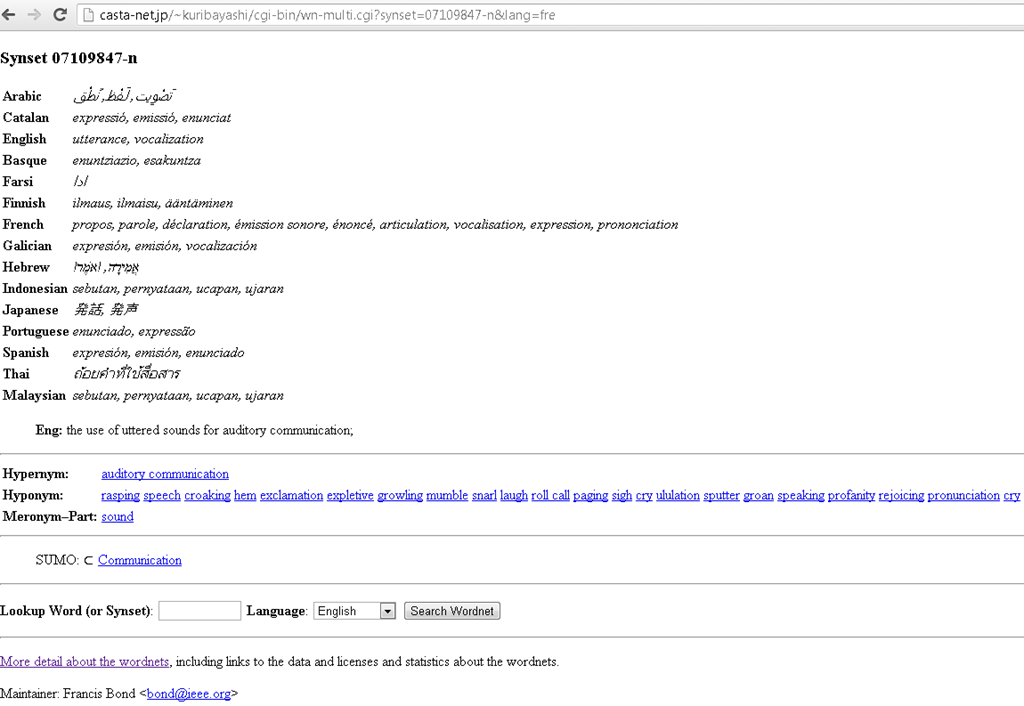
Covers a subset of the languages supported by the LRC. Based on Wordnet which is rather than a dictionary for human consumption, a machine-readable semantic network, but here is one of its machine-generated applications.
Looking forward to the Digital Humanities Unconference at UNC Charlotte
- Why I come to THATCamp Piedmont:
- I am looking for practitioners of NLP in a language and literature teaching context since I am working on Using NLP tools to automate production and correction of interactive learning material (presented at Calico 2012)
- for the Learning Exercise Creation Engines (presented at EUROCALL 2007) I developed.
- A little about myself:
- My Ph.D. thesis expanded the close reading of textual variants in the German editorial schools of Hans Zäch and the use of the computer-generated textual concordances in the interpretation and selection of textual variants into a corpus linguistic-inspired approach, that traced Leitmotifs in the work (partially first digitized by myself) of the foremost Swiss-German classic as a digital corpus using Regular Expressions programming.
- I have since applied my corpus linguistic approach to
- the use of machine translation software
- the automation of learning material creation (glossing, question generation, differentiation) on the basis of natural language processing of textual (film subtitles, news) corpora.
New keyboard shortcuts for diacritics on LRC Teacher PC
- The US international keyboard layout that has come with MS-Windows for many years (though – except in the LRC – not set as default, you need to enable it in the control panel) greatly facilitates typing of characters for most languages that use Roman script with common diacritical marks, but does not cover Pinyin and similar diacritical marks.
- Carly from Carleton, as avid a language teacher as a technologist, had the great idea to extend Microsoft’s US-international keyboard so as to include all the Pinyin tone marks (and other accents useful for linguists). Here is the upshot, extracted from her instructions, but excluding what (either shortcut or (use of common accents within Pinyin is now covered also below) purpose) has not changed from the shortcuts of the non-extended US-international keyboard that used to be the default in the LRC:
-
What you want Which keys you press (before comma is “dead” key = no result until after next key) Example acute accent, pinyin 2nd tone
‘(=apostrophe), vowel
á é í ó ú
grave accent, pinyin 4th tone
`(=grave), vowel
à è ì ò ù
macron accent, pinyin 1st tone
hyphen, vowel
ā ē ī ō ū
pinyin 3rd tone
%(=shift+5), vowel
e.g. ǎ ě ǐ ǒ ǔ
ü with pinyin tones
Accent, double-quote
e.g. ǖ ǘ ǚ ǜ
letter with dot below
; (=shift+period), letter
e.g.

letter with double acute
: (=shift+;) , o or u
ő, ű, Ő, Ű
- We are offering the extended US-international keyboard this as an optional keyboard on the teacher and student PCs with Windows 7.
- To select the new keyboard layout, use the language toolbar, click on 2nd option:
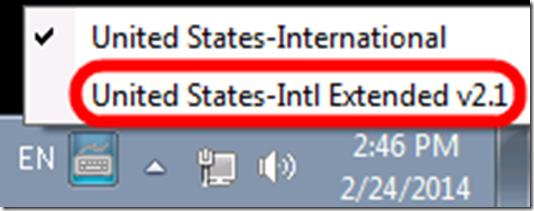
- To explore the new keyboard layout use the Windows On-screen keyboard which will let you peek ahead after your pressed a dead key.
- To bypass a special dead key (= get the normal behavior of the key), press SPACE after it.

How students can record their picture or photo presentations with PowerPoint 2010
- The screencast shows the necessary steps:

- inserting a photo album,
- presenting while recording the presentation with narration
- saving as a show (.ppsx) – make sure you have ribbon:”Slide show”/ “Play narrations” checked:

- to prepare an assignment for a Moodle single-file-upload (How a student takes a Moodle Simple file upload assignment).

A comparison of options for student oral photo presentation assignment
- Objective: Student presents personal photos in target language (e.g. home). b
- Contenders for Tools:
- Voicethread (free version)
- University-environment
- For Multimedia authoring:
- MS-PowerPoint
- not yet contenders
- MS-Community Clips (screen capture recording, to be installed)
- benefit: single purpose, record yourself talking while flipping through the images on your computer
- cost: new tool to learn, and no long term perspective
- Sanako Student Recorder: not a contender, it has subtitling options, but cannot author multimedia presentations (teachers used to with the Sanako authoring tool, but this is not longer supported).
- MS-Community Clips (screen capture recording, to be installed)
- As LMS: Moodle.
- For Multimedia authoring:
- Comparison:
- Student
- Authoring:
- (PowerPoint ties:) Image upload is easy in Voicethread (including batches):
 , but PowerPoints Insert / Photo album is as fast (if you have digital photos).
 - Image narration:
- (PowerPoint ties:) Image upload is easy in Voicethread (including batches):
-
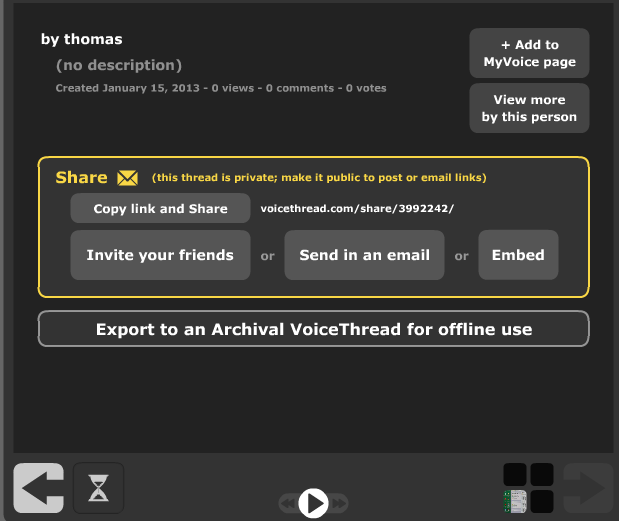
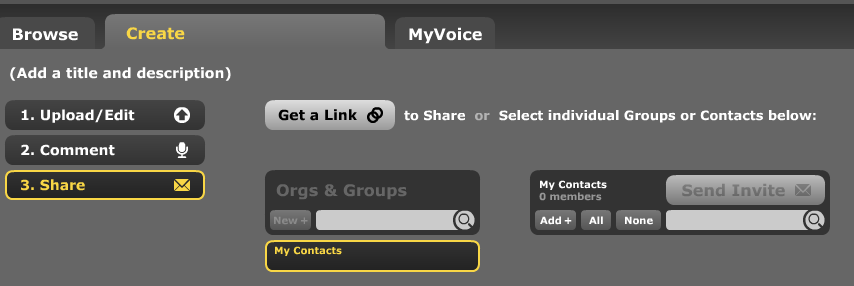
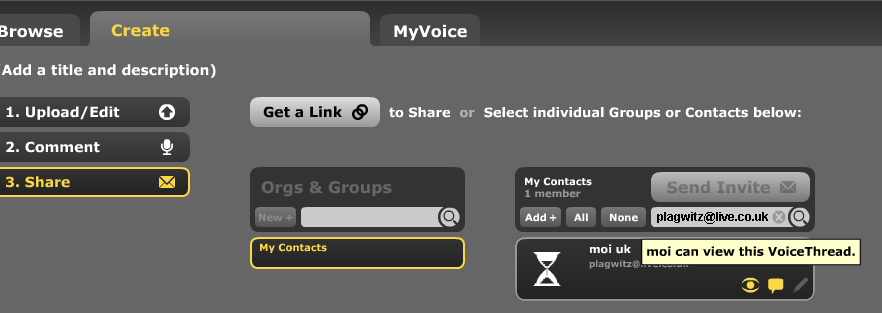
Assignment submission: Voicethread (free) has no support for assignments, only for sharing. Students have to find a way to submit their Voicethread,
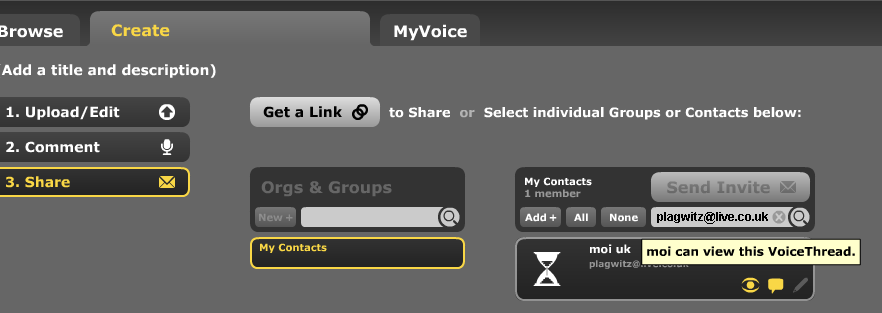
- either by email or invitation to pre-created contacts:

- or, – with higher initial setup cost, but greater reusability benefit – by invitation to a pre-created contact:
 ,
, 

- either by email or invitation to pre-created contacts:
- Sharing/peer-editing/grading:
- (Moodle would win where it has peer-grading options. YMMV:) Sharing within the class is possible, but sharing with "anyone" is a privacy (possibly FERPA) issue, and sharing with a handmade class list (no import) is tedious.
- Authoring:
- Teacher: grading
- Managing submissions
- (LMS wins?:) Voicethread (free) does not allow an export that could be uploaded to the LMS.
 Student can email links or invitations like these:
 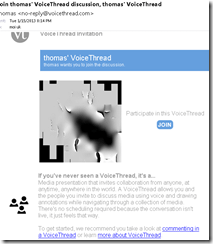 . It is up to you managing them, and completion of assignment and grading for the class. This is no LMS gradebook.
 - (Voicethread wins:) PowerPoint can be saved as a slideshow that starts on click (save as .ppsx) (including with narration). But opening and listening, without the need for saving to a local file, remains easier in Voicethread.
- (LMS wins?:) Voicethread (free) does not allow an export that could be uploaded to the LMS.
- (Voicethread wins:) Providing feedback is possible,
 including oral
  – but is this insert recording? And providing editing access is not the default:
- Record-keeping:
- (Moodle wins:) Voicethread: Uh.. oh..?! I see no retention story, especially not in the free version. With Moodle, you can leave all that to the institutional support.
- Managing submissions
- Student: receiving feedback
- (A tie:) Voicethread’s audio feedback versus Moodle/PowerPoints gradebook access.
- Learning curve:
- Voicethread has the advantage of being a specialized tool (relatively few options, still relatively simple interface – few distractions).
- Other tools have the advantage of greater familiarity in the long run and reusability. Of course it depends also where you are working: stable positions get greater benefit from embarking on the institutional environment.
- Student
-
Summary: PowerPoint/Moodle remains the solution for the pedagogical task at hand that the LRC currently supports. Fortunately
- a narration of a picture presentation using PowerPoint and
- its submission by the student and grading by the teacher on the basis of a Moodle single file upload assignment are not too difficult.




How to re-enroll in MyLanguageLab/MyGermanLab in a new term in the LRC
- Bring:
- Valid Email Address
- Student Access Code – packaged with your text or available standalone at the bookstore.
- Your Instructor’s Section/Course ID ___________ (Note: The Course ID must be entered exactly as it is provided to you including typing the hyphen “-“ and using all capital letters.)
- Open Internet Explorer, go to goo.gl/JUSUC.
Ø Click Sign in under “Sign in” 
Ø Enter the username and password you created as part of registration.
Ø In the new window, under Your Courses and Products select the link with the title of your required text.
Ø Click Enroll in Course
Ø Enter Course ID (provided by your instructor) (Note: The Course ID must be entered exactly as it is provided to you including typing the hyphen “-“ and using all capital letters.)
Done!
Or not: IMPORTANT NOTICE for Returning Users who:
· used a MyLanguageLabs course with your textbook in a previous semester
· purchased 24-month access
· received the following error after entering the Course ID you received from your instructor
If you get this error  , go to www.mylanguagelabs.com and under Sign In click “Problems with your Course ID? Click here.”
(adapted for the LRC from How to Enroll in a New Semester Handout )


Questions? Read the About. Or just ask me a quick Our Databases: Resources with calendars -- Language learning material Moodle Sites, multimedia files -- films


FAQs for LRC student staff or for students or for teachers. To search our FAQs, in the browser addressbar, add after "https://plagwitz.wordpress.com/feed/?tag=faqs+/" "+TAG1" (from tag cloud below) OR "https://plagwitz.wordpress.com/feed/tag=faqs
&category_name=" "CAT1" (from category hierarchy below). OR search both categories and tags, and multiple TAGs/CATs (connect with "," for OR-search, with "+" for AND-search), like so: https://plagwitz.wordpress.com/feed/?tag=TAG1+TAG2+...TAGn&category_name=CAT1
+CAT2+...CATn"
Other ways to find help
If you cannot find it here, look there: 5,500 Language-Learning Links and Programs for learning or teaching 150 languages
Shortcuts:Our Lists, Our Maps, LRC Staff Moodle Site,LRC Project Moodle Site, 49erexpress, UNCC Moodle, Student Recordings: s:claslcslrcsanakostudent
Learning usage samples: Sanako oral exam, Kaltura webcam presentation, Dictation with speech recognition, Sanako written exam, Chinese and Japanese interactive stroke-order practice
Test the Sanako Installer, Webbrowser Popup Konfigurator for XP, or Windows7, faster LRC TeacherPC Log-in Let MS facilitate diacritics writing by installing for you US-International keyboard layout
This is my personal blog (Google+). The views expressed on these pages are mine alone and not those of my employer. The information in this weblog is provided “AS IS” with no warranties, and confers no rights.
 Thomas' Work Space