Archive
How to prevent accidental deletion of files
Hard drives tend to fail occasionally. We recommend working with the institution-provided personal network shares which are regularly backed up by IT.
However, backups can only ever be run so often (normally overnight), and if you create a file during the day and accidentally delete it, there is no Windows Recycle Bin like functionality for network shares.
I am not making recommendations, especially not to bypass institutionally provided services, but I have worked with these additional (free and MS-backed) tools to extend these services:
1. Microsoft Synctoy 2.1: You can create folder pairs (between local and network drives and portable drives). You can have these folder pairs synchronized on the click of a button. This implies that this is not tool does not completely automate synchronization, but you could e.g. do this every morning and evening when you start/stop working. You will have to wait for the synchronization to finish. You could work on the local drive during the day – being able to benefit form the existence of the Recucle bin – and synchronize with your personal network drive at night.
2. Microsoft Live Mesh Beta: You can sign up with a Windows Live ID and designate a folder on your (multiple) PC(s) to be synchronized via a web folder. This happens automatically. Space is limited (5GB?).
3. There are also some settings in MS-Word you may want to consider, which you can access by clicking the Office button / Word options / Advanced:
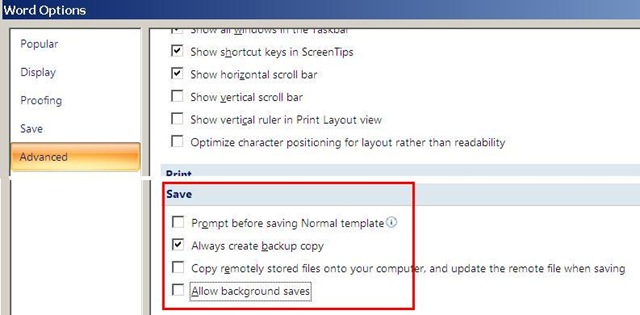
I always have a backup file created on save (in the same folder) and do not allow background saves which helps against file corruptions. I have not tested working with the option of keeping local copies of network share files.
Be aware that you are on your own with this, and that your mileage may vary.
Renaming Outlook Calendars
Calendaring is still an underutilized data source, but sharing of and collaboration on calendars are picking up.
If you find yourself juggling more and more calendars of your own and others that are shared with you, you will want to organize your calendars by naming them.
In MS-Outlook, however, you may find that the renaming option is grayed out and disabled when trying to rename your Calendar:  .
.
To work around this issue, do this:
-
Download the Exchange 2003 Information Store Viewer to your computer.http://www.microsoft.com/downloads/details.aspx?FamilyId=3D1C7482-4C6E-4EC5-983E-127100D71376&displaylang=en, unpack Mdbvu32.exe (CAUTION: THIS IS A POWERFUL UTILIITY THAT CAN ALTER YOUR DATA IN MANY WAYS, INCLUDING DELETING IT. HANDLE WITH CARE!).
-
Create an Outlook profile that can connect to the problem mailbox.[If you work on your own mailbox, you can skip this].
-
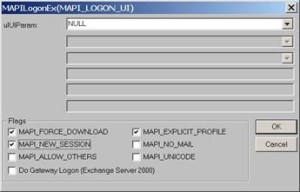
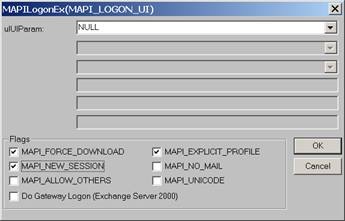
Run Mdbvu32.exe. Select the following three options and click OK: MAPI_FORCE_DOWNLOAD, MAPI_EXPLICIT_PROFILE, MAPI_NEW_SESSION
-
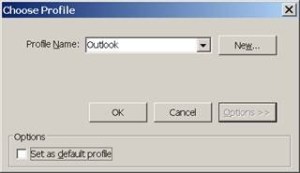
Make sure that the profile you have created in Step 2 [or your default profile] is selected. Click OK.
-
Click MDB -> OpenMessageStore.
-
Make sure the problem mailbox is selected and click Open.

-
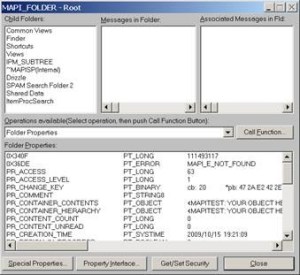
Click MDB -> Open Root Folder.
-
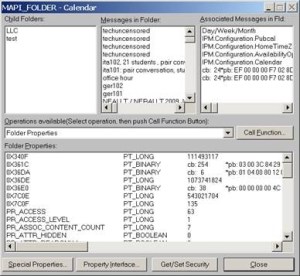
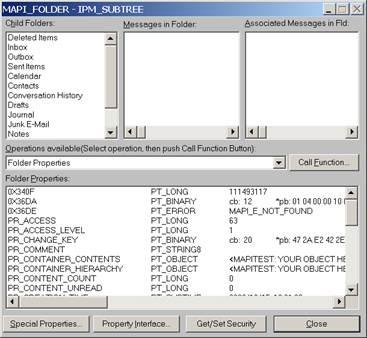
Double-click “IPM_SUBTREE” in the left list (if for some reason you don’t see this double click each entry in the top/left until you get a folder list.)

-
Double-click the Calendar.
-
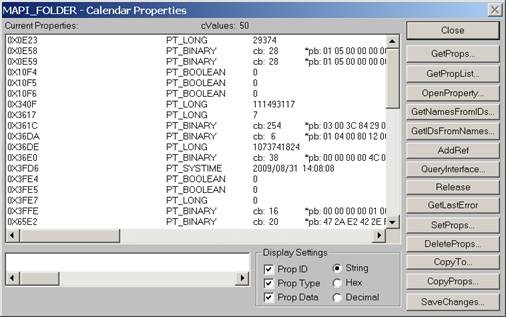
Click the “Call Function” button.

-
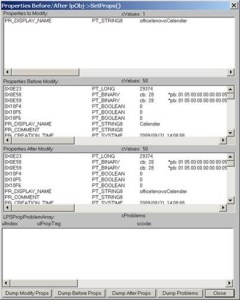
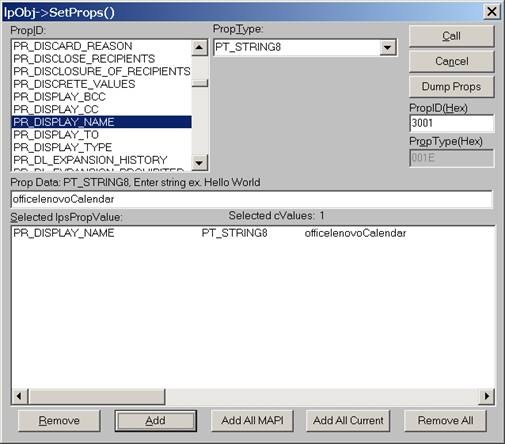
Click the “SetProps” button.

-
Make sure the “PR_Display_Name” is selected from the PropID list. Change its name to <whatever> in the textbox below and click the ”Add” button. You will see that the change action is added to the list. Click the “Call” button on the right-top corner to apply the change.

-
4. Click Close until you drop out of the windows, then close the MDBVU utility and OK to the logoff. From:
 To:
To: 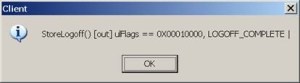
-
You may need to close and reopen Outlook to refresh the folder name.
-
And voilà:







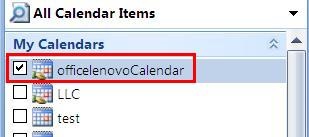
I just verified this to work on MS-Outlook 2007 against MS-Exchange 2007 (and assume it to work on stand-alone PST files also), and added the screenshots to clarify this. My thanks go to user traval and MS for the heavy lifting (although I wish MS would make my lifting still easier).
Basics of Windows Search (Windows Vista, probably Windows7) – in German
Ich könnte ohne die verbesserte Windows (als herunterladbares add-on auch für XP) Suche wohl noch leben (vegetieren! :-), aber nicht mehr arbeiten.
In MS-Vista (englisch, das müßt ihr selbst eindeutschen, aber meist gehen die die englischen Abkürzungen auch im deutschen Windows), im “control panel” kann man unter “indexing options” Feinheiten einstellen:

Man kann die Suchoptionen ändern, wenn man die “search tools” aufklappt:
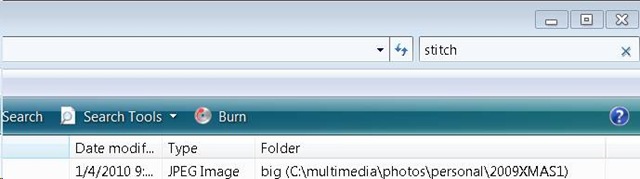
Wehttps://plagwitz.wordpress.com/wp-admin/post.php?post=6&action=editnn man mit windows taste + f eine neue Suche öffnet, hat man auch eine “Aufklappe” für “advanced search”:

Das sieht dann so aus :
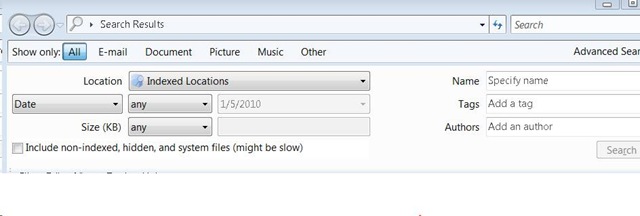
Sobald man zu faul wird, immer das Gui zu benutzen, kann man nach dem öffnen von windows-Taste + f in der Einzel-Suchzeile die “advanced syntax” (in der Hilfe dokumentiert) benutzen.
Die Abkürzungen, die ich am häufigsten benutze, sind ungefähr diese :
file:weihnachtsgeschenke ext:xls folder:myfiles date:>12/24/2009
Windows Live Photos: How to Download Album
Do your photos not display thumbnails or go missing in slideshow view? Just download them and view them offline, from here: 
View the departmental calendar with your Outlook calendar
If you are looking for a more convenient way to coordinate your personal calendar (and in the future: –s) with the departmental calendar, you can do what is called “Connect to Outlook” a Sharepoint Teamsite Calendar.
Go to “Inside Loyola”, go to your Modern Languages & Literatures team site, 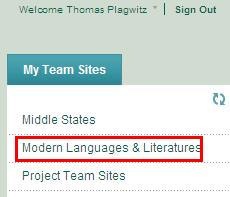
click in the left menu: “Calendar”, click from the calendar top menu: “Actions”/ “Connect to Outlook”, like here:

Click “Yes”here: 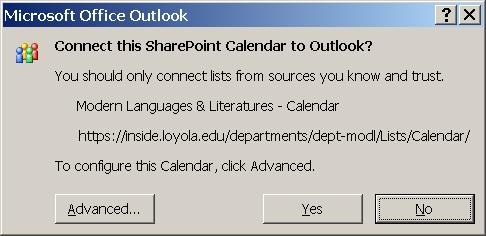 , or “Advanced”,
But there is not much to configure here: 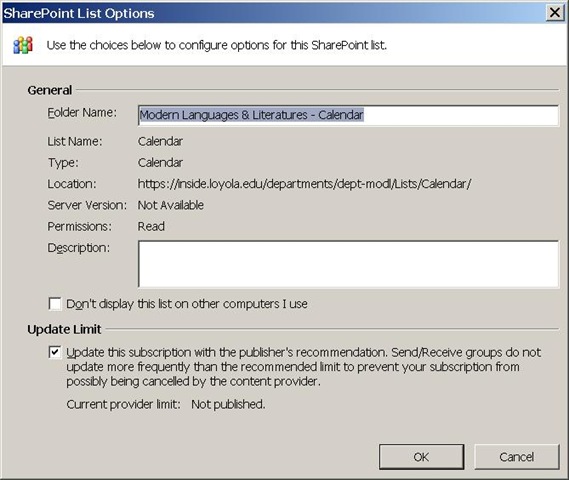
In the resulting view (in “Overlay mode”, like 2 overlaid transparencies), events are much easier to coordinate: like so:
Incidentally: If, after “Connect to Outlook” a Sharepoint Teamsite Calendar, this password dialogue keeps popping up, like so: 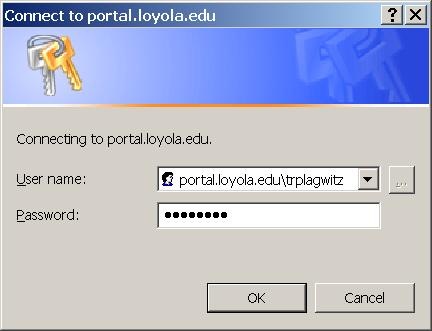 , instead of [your usual username], put [your usual username]@loyola.edu, plus remove the prefix “portal.loyola.edu/”.
Canon ZR-200 LLC Camera Basics
The camera can store only about 30 [check, might be 100 or more, recording size is 5MB per 1 min video] minutes on its SD card
Currently we are using my personal SD card, bring your own to extend the recording time (by swapping the cards. You can move video clips onto classroom computers’ network shares if the classroom computer is in MS-Active Directory (which most should be) and if the classroom computer has an SD card reader (which most will NOT have).
Video–clips (internal access only) showing how to operate the camera are here:
camera-canon-zr200-Inserting&Removing_Memory_Card_Starting&Stopping&Filming.avi
camera-canon-zr200-Inserting_Memory_Card_into_Card_Reader_on_Assistant-Computer.AVI
camera-canon-zr200-moving_video_from_memory_card_to_H-Drive.avi
For base documentation, see these graphics:


You can change the audio modes:


Optimum video mode with card is 320*240.
All in all: Quick and dirty recording and archiving for basic assessments…
Collaboration using MS-Office and Network Shares
Accessing: We set up collaborative editing on a number of MS-Office files (Word, Excel, PowerPoint for starters) on network shares.
These files function like files on your computer’s C: or D: (cd) drive. C: (and H:, S:) you can write to, while D: (and M:) you can only read from. Details, including students’ access, below:
|
Mapped as for |
Staff (including LLC staff) can |
Student can |
Language services use |
NetworkPath |
|||
|
Staff |
Student |
read |
write |
read |
write |
|
|
|
H:\LLC |
|
Yes |
Yes |
No |
No |
sensitive exam files; internal documentation & management (hallway.ppt, channel55.ppt, Sign_In_Sheet.xls) |
\\adfileprod01\shared\LLC |
|
M: |
|
Yes |
No (admin only) |
Yes |
No |
LLC: (large) multimedia files (to be moved into Blackboard content system) |
\\resman\media |
|
S: |
|
Yes |
Yes |
Yes |
Yes |
Student audio recordings |
\\resman\Student Saved Work\ |
|
G: |
G: |
Only current user |
Only current user |
Only current user |
Only current user |
Personal home drive |
\\adfileprod01\users\[yourusername] |
If you do not see the M: and S: click drive  , click
  , paste “\\resman\Student Saved Work\Admin\conf\ms.vbs”, click
  .
.
To access the files quickly, you can click , click , paste the path to the file, click . Alternatively, browse to the folder with the file like to any other folder on your PC, starting from “My Computer”. Repeat access from the office computer is easiest if you create a shortcut to the file, by right-click-dragging the file onto your desktop (do not create a copy, it will get out of synch and be useless for collaboration).
You can also access the files from home if you follow the instructions here. I have not thoroughly tested this, but my installation on MS-Vista, after the initial setup, defaults to a web-interface view which allows reading the files, but, unlike VPN connections I have used, not editing.
Searching: Search files like you do on your computer.
Editing: Files are unlike those on your C: or D: drive insofar as other people can open them also. If somebody has a file open and thus locks you out of writing to it, simply come back later when she has closed it.
The Excel Sign_In_Sheet.xls is a “shared” spreadsheet, in the sense that you will not be locked out while lab assistants have it open (which is always during LLC opening hours). However, you may get conflict messages if you try to save edits (which you normally would do not need to do, just viewing), like demonstrated here: excel_shared.wmv.

If you use regular (non-shared Excel) MS-Office Files, you may see such a warning message:

If you clicked “Notify”, you will eventually be prompted to open the file in read-write mode, and your changes will be saved, if you colleague did not update the file (otherwise you will have to save under a different file name and later can use tool “compare and merge” to merge changes). 
For PowerPoint, you may see this:

If you clicked “open” ”read-only”, you will see a reminder:
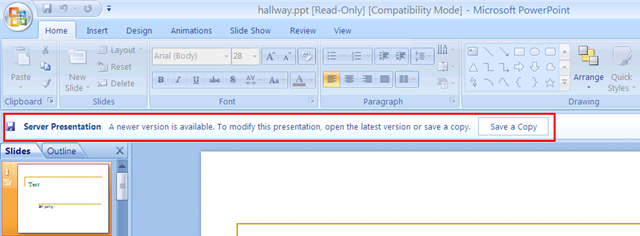
It is probably easier to close the file and try again later, to see whether your colleague is finished with it.
MS-Office Communicator: Getting Started
https://thomasplagwitz.com/2009/11/13/collaboration-using-ms-office-and-network-shares/Click  , click
  , type “communicator”, click
  .
.
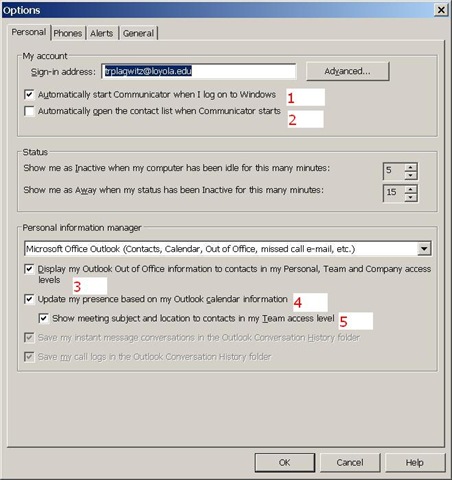
To adjust options, click (1), (2) and (3) here:

To start communicator with Windows, select (1).
To have Outlook automatically show you as busy during calendar appointments (e.g. your classes), select (4).
To get your contact list up to speed, select all the contacts in the to-address line of a mass email and drag them to your communicator window, see this screencast here: communicator-email-contact-drag.wmv.
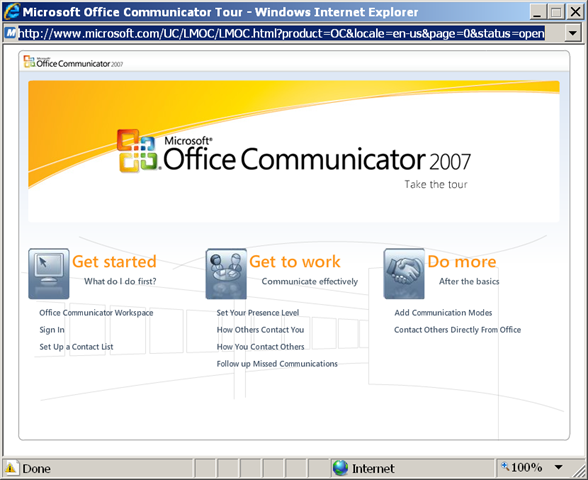
Microsoft has a useful “Getting Started” web-based training here:
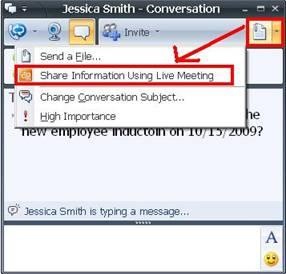
To use the advanced features of Live Meeting, you can either use the context menu of the contact, or within an existing messaging session, escalate to Live Meeting by using the upper right hand corner menu, like in these 2 screnshots:



Questions? Read the About. Or just ask me a quick Our Databases: Resources with calendars -- Language learning material Moodle Sites, multimedia files -- films


FAQs for LRC student staff or for students or for teachers. To search our FAQs, in the browser addressbar, add after "https://plagwitz.wordpress.com/feed/?tag=faqs+/" "+TAG1" (from tag cloud below) OR "https://plagwitz.wordpress.com/feed/tag=faqs
&category_name=" "CAT1" (from category hierarchy below). OR search both categories and tags, and multiple TAGs/CATs (connect with "," for OR-search, with "+" for AND-search), like so: https://plagwitz.wordpress.com/feed/?tag=TAG1+TAG2+...TAGn&category_name=CAT1
+CAT2+...CATn"
Other ways to find help
If you cannot find it here, look there: 5,500 Language-Learning Links and Programs for learning or teaching 150 languages
Shortcuts:Our Lists, Our Maps, LRC Staff Moodle Site,LRC Project Moodle Site, 49erexpress, UNCC Moodle, Student Recordings: s:claslcslrcsanakostudent
Learning usage samples: Sanako oral exam, Kaltura webcam presentation, Dictation with speech recognition, Sanako written exam, Chinese and Japanese interactive stroke-order practice
Test the Sanako Installer, Webbrowser Popup Konfigurator for XP, or Windows7, faster LRC TeacherPC Log-in Let MS facilitate diacritics writing by installing for you US-International keyboard layout
This is my personal blog (Google+). The views expressed on these pages are mine alone and not those of my employer. The information in this weblog is provided “AS IS” with no warranties, and confers no rights.
 Thomas' Work Space