Archive
Configuring an MS-Exchange mail account from home on a personal laptop with Windows 7 (64-bit), Outlook 2010 (32-bit)
Follow your provider’s official instructions and entry points – this is only to remind myself where I have to jump through which domain qualifying hoops:
- Establish the VPN connection to your MS-Exchange environment
- Go to “Control Panel”, open “Mail Setup”, click button:”E-mail Accounts”
- In dialogue:”Account settings”, click button:”New”

- Select “E-mail account”
- Select “Manually configure …”
- Select “Microsoft Exchange…”
- Enter the info you have been given and click check names.
- In the Windows Security Dialogue, enter the qualifying domain:

- I did not need to enter “More Settings”.
- One of quite a few oddities I observed: After creating the Exchange account in the Control Panel: Mail item, when starting Outlook, the Windows Security dialogue that asks for my credentials appear to not accept my password (it comes up over and over again, asking for the password). However, once I canceled out of it and restarted Outlook, Outlook went right into downloading my Exchange mail etc. (this was with “Remember my credentials”set in the Windows Security dialogue). Go figure!
How to make screencasts in animated GIFs for free
If you want a persuasive web (blog) documentation solution for the most casual, time-pressed users and which is supported on the widest possible range of platforms;
and if you are lucky enough to work in environments where it is not the base infrastructure that forms the bottleneck (as this solution is not bandwidth optimized):
then even in the day of Flash 10, Silverlight 4 and HTML5, you might give some consideration the age-old animated GIF.
What you can visualize with animated GIFS will remain basic. But if the basics are what needs fixing, this approach can have remarkable benefits (think low-end, high-gain of the graph for “law of diminishing returns”).
I have been looking for a while for a “soup to nuts” write-up how to do this easily and for free, and experienced am unusually high noise to signal ratio. This is why I want to point to the following article that seems to fit the bill nicely:
http://omaralzabir.com/how-to-make-screencasts-in-optimized-animated-gif-for-free/
The author persuasively combines CamSoft, ImageMagick and the Microsoft GIF Animator.
An example to follow here.
My little Ode to Excel
Since about 2003, I have spent a good portion of my days analyzing data in Excel, and I enjoy it.
Specifically, I have written and administered many inventory databases: for software, various learning materials, media products, content feeds, departmental equipment, work tickets, for user timesheets and user accounts and other user management tasks. I have of course also maintained budgets and various schedules applications in MS-Excel and technology projects.
I have also programmed learning and other LOB applications in MS-Excel: automated account creation from the university student database, subtitle exercise creation, vocabulary learning based on word frequency, collaborative learning material repository catalogue, automated video metadata reading and import or automated multimedia learning material cataloguing system in MS-Excel.
From work, I am proficient in using MS-Excel features array formulas for aggregating/summarizing numerical data, v-lookups, data visualization and chart plotting. I routinely write VBA macros, including my own worksheet formulas/functions to enforce complex data integrity requirements (ISBN13), created a VBA-driven automated backup solution for shared workbooks, and data-mine complex dependencies, including network graphs. Most recently, I have set up pivot tables against multi-million record election database for a large political organization in Philadelphia.
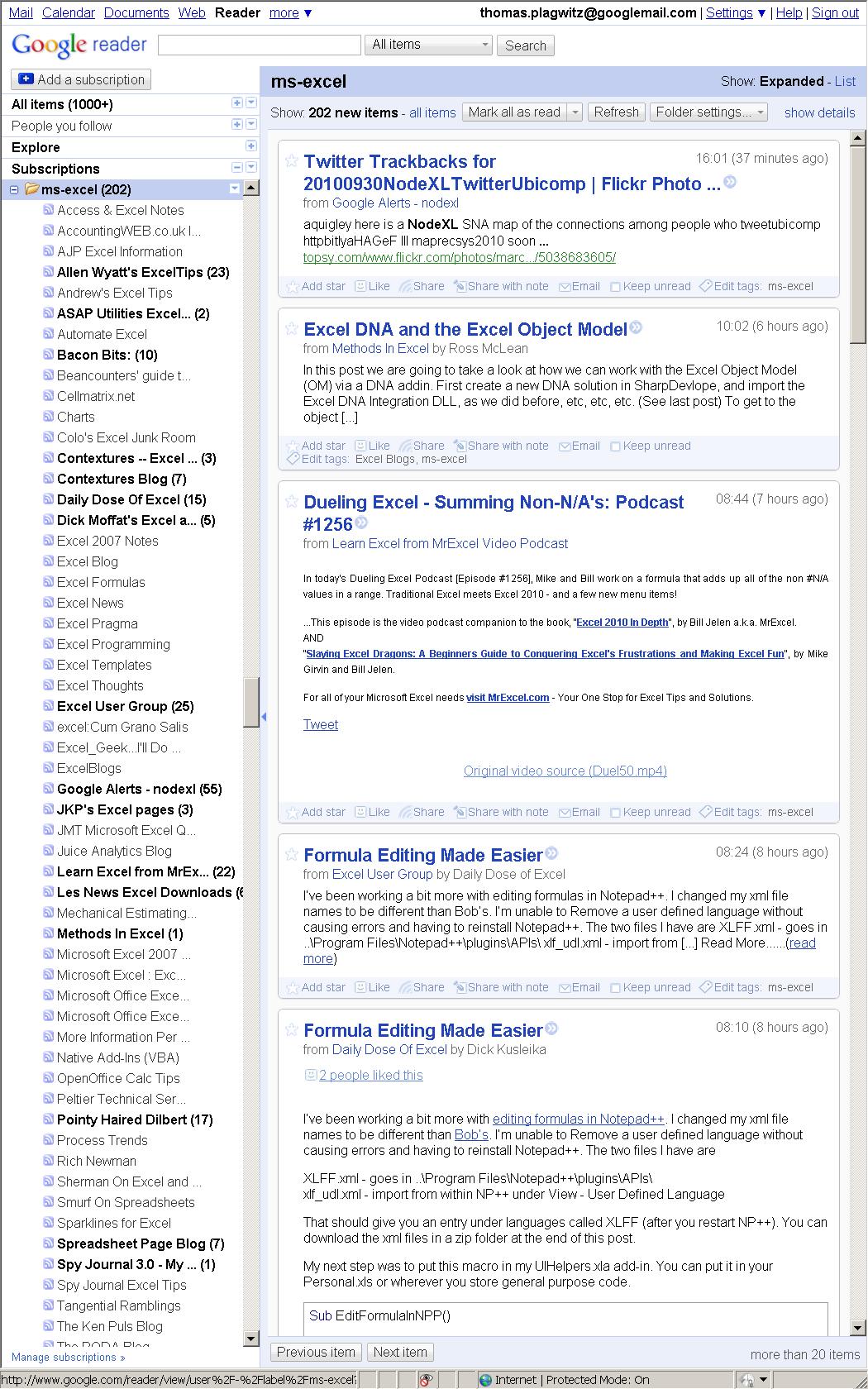
For many years, I have been subscribed to the lists and blogs that are most popular in the MS-Excel user community. Finally, I also have experience in documenting of and training staff in MS-Excel, e.g. on sharing workbooks, and I blog MS-Excel how-to’s, e.g. on pivot-tables or scheduling.
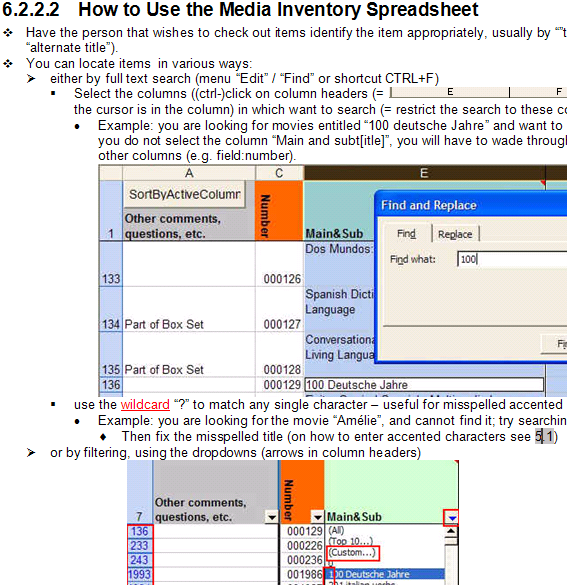
Please also have a look at my Excel portfolio.
MS-Office Communicator: Tips for using: Screen-Sharing
Here is a successful real-world example of a screen-sharing session on getting shared calendars set up using MS-Exchange and/or MS-SharePoint.
Think of screen-sharing session as an online or virtual meeting which, while less time-consuming than a real meeting, aids in communicating, maybe even more so than the former, since the topics themselves are online/”virtual”. If you provide computer support to family members in different parts of the world, you may be familiar with “Remote Assistance” form MS-Windows XP. I have always regretted that such technology is not used more for the support needs in HE environments, since I first used it at Lycos-Bertelsmann in March 2000.
It demos how MS-Communicator allows you to start a text-messaging session, based on presence in your contacts list, and then, if need be, can easily ‘”escalate” to sharing your screen. Not quite as easy as handing papers around in a “real” meeting, but much more useful
communicator-email-contact-drag.wmv (TBA: find start and escalation – left as an exercise to the reader)
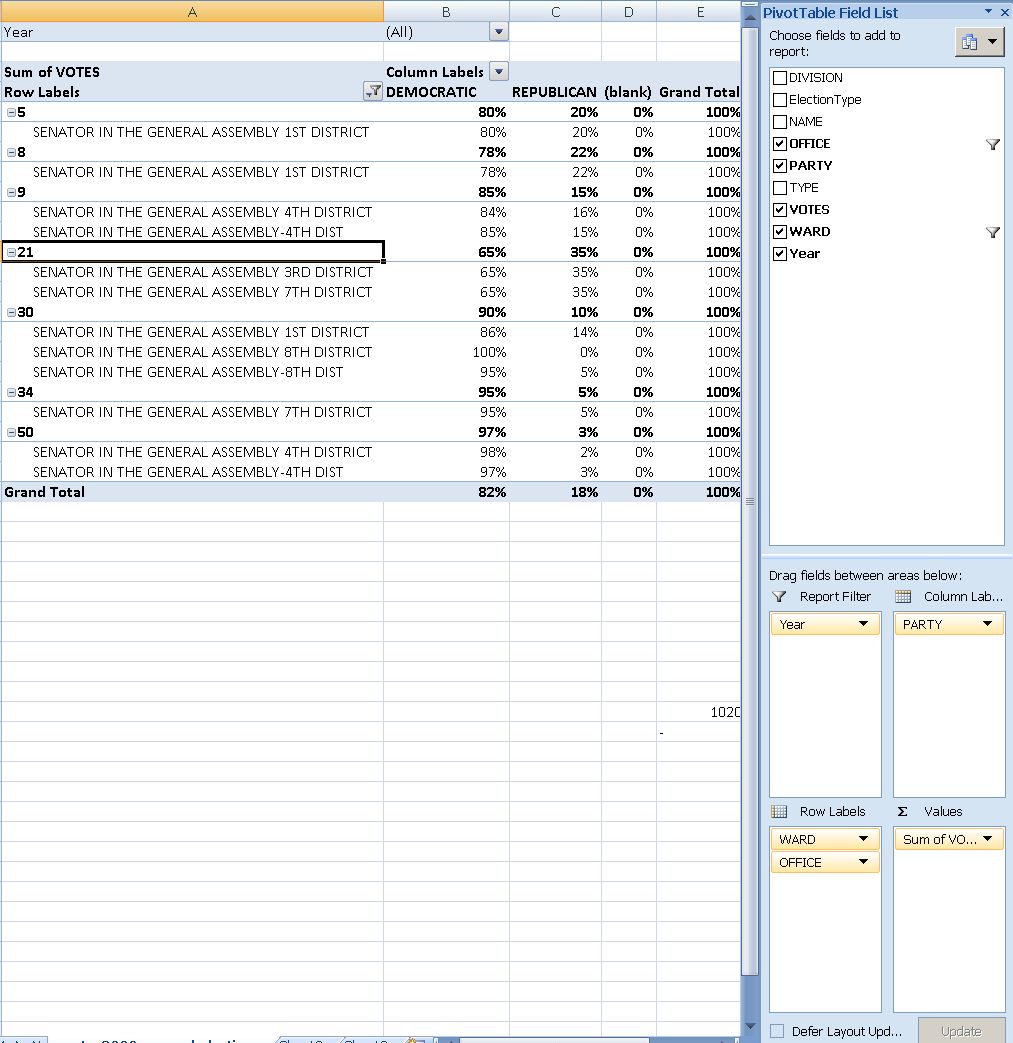
How to display rows as percentage of grand total in Excel Pivot Tables
A few notes on Excel’s Version of OLAP cubes: Here is a note detailing the steps taken to display rows as percentage integers of the grand total.

MS-Office Communicator: Tips for using: Presence
No time for playing phone-tag (or “Phone-tag: Next generation”, aka email-tag)? “Presence” is your friend.
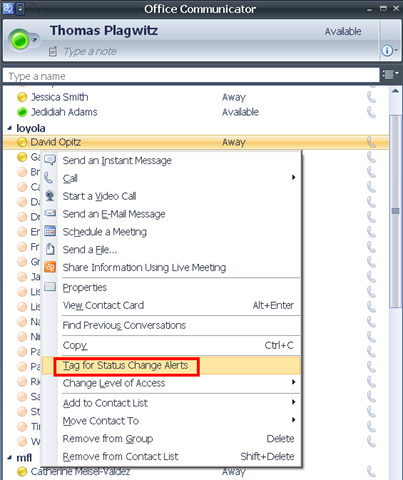
In Communicator, from your contact-list, right-click on a contact, choose “tag-for-status-change-alerts”.
From MS-Help: Tag a contact so you are notified when they are available: “Communicator can notify you of changes in a contact’s availability by displaying an alert whenever their presence status changes to Available or Offline. The alert shows the contact’s name, title, instant messaging address, and new presence status. You can click the alert to start an instant messaging session with the contact. Configuring Communicator to display this alert for a given contact is called tagging.”
Like in these screenshots:

Videoconferencing: Tandberg Conference-Me Test
While we initially ran into a glitch during the client install:
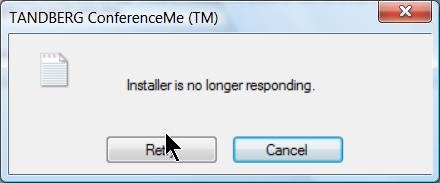
The application did seem to install correctly.
The video quality was acceptable even with low bandwidth settings. The application provides well-structured documentation as well as convenient interface, including through context menus:
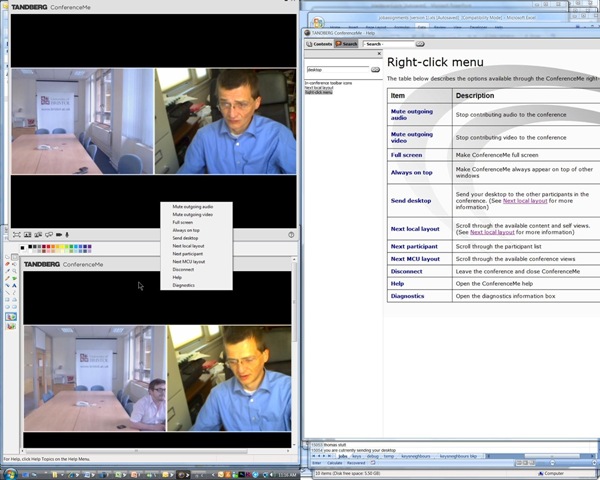
The diagnostic tools also seems strong:

Overall, Tandberg’s Conference-Me application looks like an attractive package.



Questions? Read the About. Or just ask me a quick Our Databases: Resources with calendars -- Language learning material Moodle Sites, multimedia files -- films


FAQs for LRC student staff or for students or for teachers. To search our FAQs, in the browser addressbar, add after "https://plagwitz.wordpress.com/feed/?tag=faqs+/" "+TAG1" (from tag cloud below) OR "https://plagwitz.wordpress.com/feed/tag=faqs
&category_name=" "CAT1" (from category hierarchy below). OR search both categories and tags, and multiple TAGs/CATs (connect with "," for OR-search, with "+" for AND-search), like so: https://plagwitz.wordpress.com/feed/?tag=TAG1+TAG2+...TAGn&category_name=CAT1
+CAT2+...CATn"
Other ways to find help
If you cannot find it here, look there: 5,500 Language-Learning Links and Programs for learning or teaching 150 languages
Shortcuts:Our Lists, Our Maps, LRC Staff Moodle Site,LRC Project Moodle Site, 49erexpress, UNCC Moodle, Student Recordings: s:claslcslrcsanakostudent
Learning usage samples: Sanako oral exam, Kaltura webcam presentation, Dictation with speech recognition, Sanako written exam, Chinese and Japanese interactive stroke-order practice
Test the Sanako Installer, Webbrowser Popup Konfigurator for XP, or Windows7, faster LRC TeacherPC Log-in Let MS facilitate diacritics writing by installing for you US-International keyboard layout
This is my personal blog (Google+). The views expressed on these pages are mine alone and not those of my employer. The information in this weblog is provided “AS IS” with no warranties, and confers no rights.
 Thomas' Work Space