Archive
Archive for the ‘e-infrastructure’ Category
Another possible cause for WHEA_UNCORRECTABLE_ERROR: Overheating?
2014/08/15
Leave a comment
- Problem:
- Win8.1. System experiences terrible slow downs.
- Eventually even BSODs with whea_uncorrectable_errors crop up.
- Root Cause:
- Trying to do root cause analysis, I consider:
- Search for “Windows woes after 8.1 upgrade” (online searches lead to results, but seem not applicable here).
- Internet (speed test shows normal):

- Virus: I have Window Essentials, but also try Malwarebytes – prognosis negative.
- GPU (Bitcoin miner?), CPU. GPU-Z shows no problem there :

- CPUID HWMonitor to the rescue: GPU utilization looks good here also, but what is this with the CPU temperatures?!?!
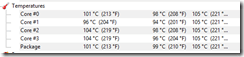
- On opening up the case and examining the CPU: poorly managed cable blocked the fan heat sink.
- Trying to do root cause analysis, I consider:
- Solution: Cable ties! (This new video card install proved more expensive than it should).
- Other thoughts:
- Why did Windows Performance Metering show the apparently throttled CPU still as mostly idle (It still showed single digit percentages for CPU utilization even when computer was positively crawling)?


Categories: e-infrastructure, hardware
gpu-z, heatsink, hwmonitor
How to fix Expression Encoder not outputting to a Silverlight template
2014/07/28
Leave a comment
- This glitch has bugged me once too often, so now I am writing myself a mental note:
- Problem:
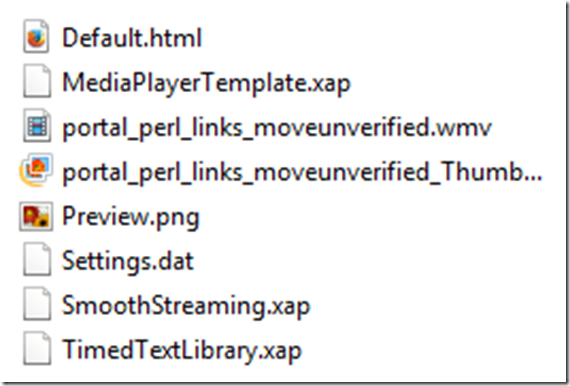
- On some projects, Expression Encoder outputs only media files, while I need a web-publishable HTML container that calls Silverlight:
 .
. - And I cannot find in the interface where to re-enable this output option.
- On some projects, Expression Encoder outputs only media files, while I need a web-publishable HTML container that calls Silverlight:
- Root cause : Something turns the display of the Template Tab off.
- Solution:
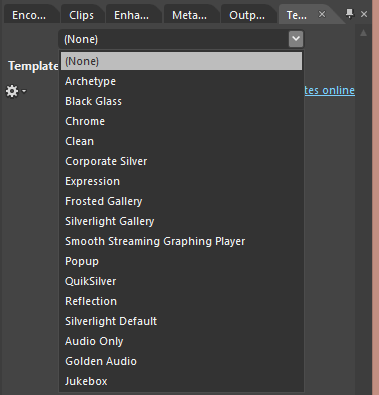
- To show the Template tab, in an existing “Transcoding Project”, go to menu: “Window”, check “Templates” :

- Makes all the difference:
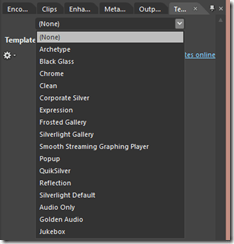

- Now select something else but “None” which your prior transcoding defaulted to.
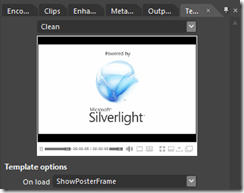
- Voilà:
- To show the Template tab, in an existing “Transcoding Project”, go to menu: “Window”, check “Templates” :




A Project Management Life Cycle–with some communication problems
2014/07/20
Leave a comment


Categories: animated-GIFs, e-infrastructure, Glitches&Errors, service-is-project-managing
How to fix “Print to OneNote”, “OneNote cannot find a page on which to insert your printout”
2014/07/16
2 comments
- This error kept popping up for me on OneNote 2013, but I gather it is a classic.
- I should have just taken the error message seriously and literally: Could I do better than OneNote and find a page where OneNote says it cannot?
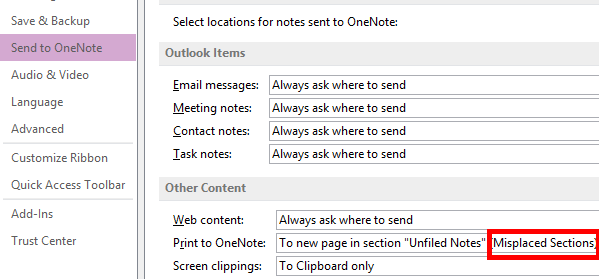
- First, to find out where I and OneNote are supposed to be looking for this page, go to File / Options/ Send To OneNote and check which “print to “location you have set.
- This one here looks obviously suspicious (and does not exist – one would wish still when this location goes out of scope this could be flagged with a more transparent warning):

- Change the location :

- to one that actually exists:

- or better maybe, for lack of a more transparent error checking if page goes out of scope, chose one of the other, hopefully more robust options:



Categories: e-infrastructure, Glitches&Errors, office-software
2013, ms-onenote, printing
Protected: LRC calendars requirements and configuration management
2014/07/15
Enter your password to view comments.
Protected: LRC headset organization
2014/07/15
Enter your password to view comments.
Categories: e-infrastructure, headphones
How to sort a Pivot table by a calculated field column
2014/07/12
Leave a comment
(Click on image for original size version, now bigger.)

Categories: animated-GIFs, e-infrastructure, mental-notes
2013, MS-Excel, pivot-tables
How to work around broken links and visible “Machine generated alternative text”issues with images from MS-OneNote in Windows Live Writer
2014/07/08
Leave a comment
- Problem: Sometimes when you use Windows Live Writer (2012) to post images copied from MS-OneNote (2010, 2013), the result (on WordPress) can get messed up, like so (post has since been fixed as described below):
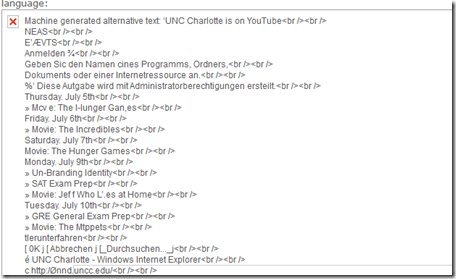
- The image is missing (“src=” link broken).
- The “alt=” text is visible instead (and you did not want to post this “alt=”text anyway. (MS-OneNote OCRs images to make the text therein searchable; this text is put into the “alt”when pasting from MS-OneNote).
- Root cause:
- Windows Live Writer converts the pasted content by
- removing the “alt=”Machine generated alternative text: [deleted for brevity]”
- creating from the pasted content thumbnail images
- which it links in the “src=” tag, and links the thumbnail image to the full-size original image.
- If something – unclear what – prevents this conversion, Unfortunately, this is not obvious from the “edit” tab view or elsewhere within Windows Live Writer. But when posted, will result in “Machine generated alternative text” from MS-OneNote in place, but even break the image src link:
 .
. - What exactly triggers (and would allow you to force) a successful conversion within Windows Live Writer I do not know. However, there is a simple:
- Windows Live Writer converts the pasted content by
- Workaround:

- After pasting your images, be patient : The trick seems to be to give Windows Live Writer enough time (more apparently if you have pasted multiple images) to finish
- Things you can look for in Windows Live Writer to make sure the conversion is finished:
- edit tab: you can tell the difference by the resizing of the image on the edit tab:
- before:

- after (= conversion finished):
- before:
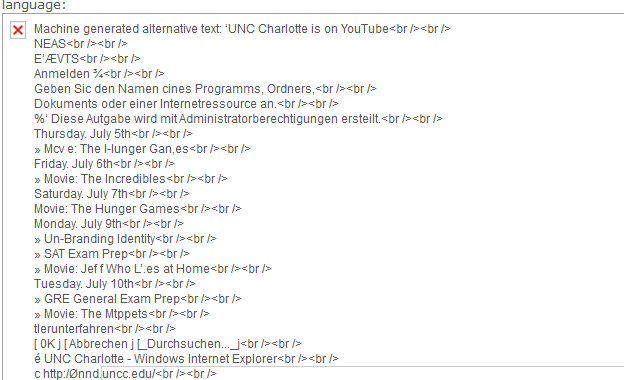
- source code tab: A somewhat radical solution, but here beneficial is that the conversion removes the imported “alt” text of the image.
- before: alt=”Machine generated alternative text: [deleted for brevity]” src=”$clip_image006.jpg”
- after: alt=”clip_image006″ src=”$clip_image006_thumb.jpg”
- edit tab: you can tell the difference by the resizing of the image on the edit tab:


Questions? Read the About. Or just ask me a quick Our Databases: Resources with calendars -- Language learning material Moodle Sites, multimedia files -- films


FAQs for LRC student staff or for students or for teachers. To search our FAQs, in the browser addressbar, add after "https://plagwitz.wordpress.com/feed/?tag=faqs+/" "+TAG1" (from tag cloud below) OR "https://plagwitz.wordpress.com/feed/tag=faqs
&category_name=" "CAT1" (from category hierarchy below). OR search both categories and tags, and multiple TAGs/CATs (connect with "," for OR-search, with "+" for AND-search), like so: https://plagwitz.wordpress.com/feed/?tag=TAG1+TAG2+...TAGn&category_name=CAT1
+CAT2+...CATn"
Other ways to find help
If you cannot find it here, look there: 5,500 Language-Learning Links and Programs for learning or teaching 150 languages
Shortcuts:Our Lists, Our Maps, LRC Staff Moodle Site,LRC Project Moodle Site, 49erexpress, UNCC Moodle, Student Recordings: s:claslcslrcsanakostudent
Learning usage samples: Sanako oral exam, Kaltura webcam presentation, Dictation with speech recognition, Sanako written exam, Chinese and Japanese interactive stroke-order practice
Test the Sanako Installer, Webbrowser Popup Konfigurator for XP, or Windows7, faster LRC TeacherPC Log-in Let MS facilitate diacritics writing by installing for you US-International keyboard layout
This is my personal blog (Google+). The views expressed on these pages are mine alone and not those of my employer. The information in this weblog is provided “AS IS” with no warranties, and confers no rights.
 Thomas' Work Space