Archive
Troubleshooting NanoGong recorder assignments for students and rich HTML editor content creation by teachers
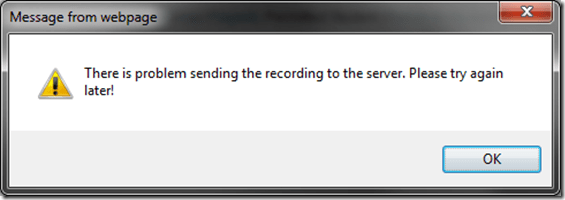
- Once, when submitting, I got this error? But other teachers managed to test the NanoGong recording assignment application successfully when working as a “permitted student”? That may be related to using a project site.
- If you try to use NanoGong in a browser not fully supportive of Java, you can get easily stuck:
- Firefox which has not been explicitly configured to allow JAVA applets – you will get stuck w/o the option to bypass warning dialogues.

- Chrome is not very forgiving either (here for the HTML editor plug-in):
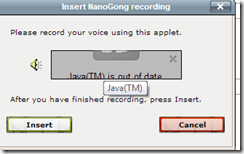 , but you can get past it:
  .
. - I am running into more problems using the rich HTML editor recorder plug-in which I supposed to make it easier for the teacher to provide their own audio to their students:
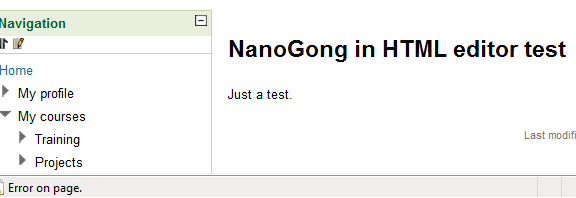
- IE8 does not display the content at all.
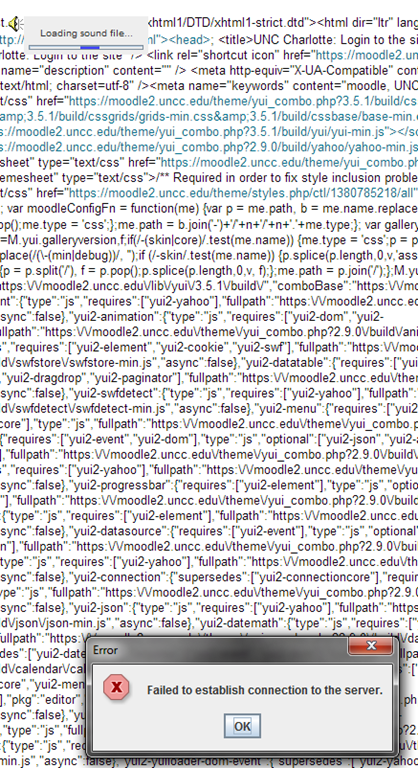
- Chrome 30 spits out raw code, and when you locate and click on the loudspeaker icon, I only get this :
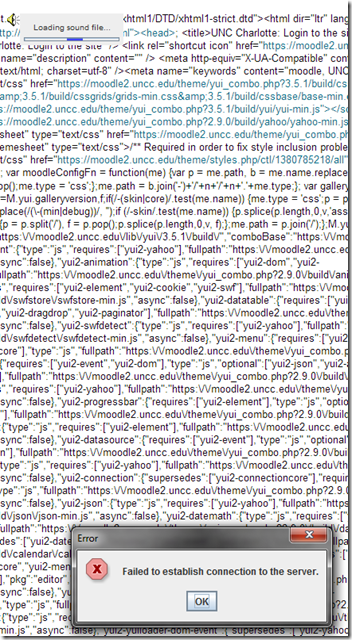 .
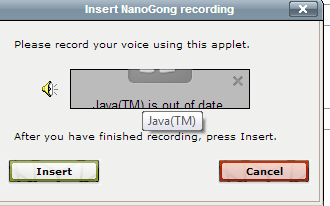
. - IE8, on the other hand, draws a blank:



JAVA warning dialogues to bypass during NanoGong activities
- You may be prompted to update JAVA – likely a not a bad idea:
![java outdated warning_thumb[1]](https://thomasplagwitz.com/wp-content/uploads/2013/10/java-outdated-warning_thumb1_thumb1.png?w=560&h=354 "java outdated warning_thumb[1]")
- Click “RUN”:
![image_thumb[8]_thumb[1]](https://thomasplagwitz.com/wp-content/uploads/2013/10/image_thumb8_thumb1_thumb1.png?w=461&h=542 "image_thumb[8]_thumb[1]")
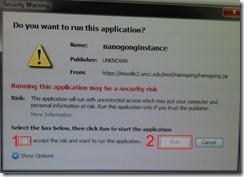
- Check (1) “Accept”and Click (2) “Run”:

- Click “Don’t Block”:
![CAM03106_thumb[1]](https://thomasplagwitz.com/wp-content/uploads/2013/10/cam03106_thumb1_thumb1.jpg?w=556&h=294 "CAM03106_thumb[1]")
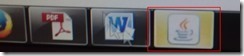
- Even more annoying when warning dialogues do not come to the foreground, and your computer/web browser simply seems to be stuck. Check your task bar/dock for blinking/jumping JAVA notifications, like here:
 .
. - You have to bypass these dialogues only once – per session (lab) or possibly per computer. Choose the right answer, for university assignments, it is safe to “Allow! Allow! Allow! (“run”, “don’t block:”, update”, what ever – use common sense).
- Remember, thinks could be worse, – like if you try to use NanoGong in a Firefox that has not been explicitly configured to allow JAVA applets – read more on our troubleshooting NanoGong page.
![java outdated warning_thumb[1]](https://thomasplagwitz.com/wp-content/uploads/2013/10/java-outdated-warning_thumb11.png "java outdated warning_thumb[1]")
![image_thumb[8]_thumb[1]](https://thomasplagwitz.com/wp-content/uploads/2013/10/image_thumb8_thumb11.png "image_thumb[8]_thumb[1]")
![CAM03106_thumb[1]](https://thomasplagwitz.com/wp-content/uploads/2013/10/cam03106_thumb11.jpg "CAM03106_thumb[1]")
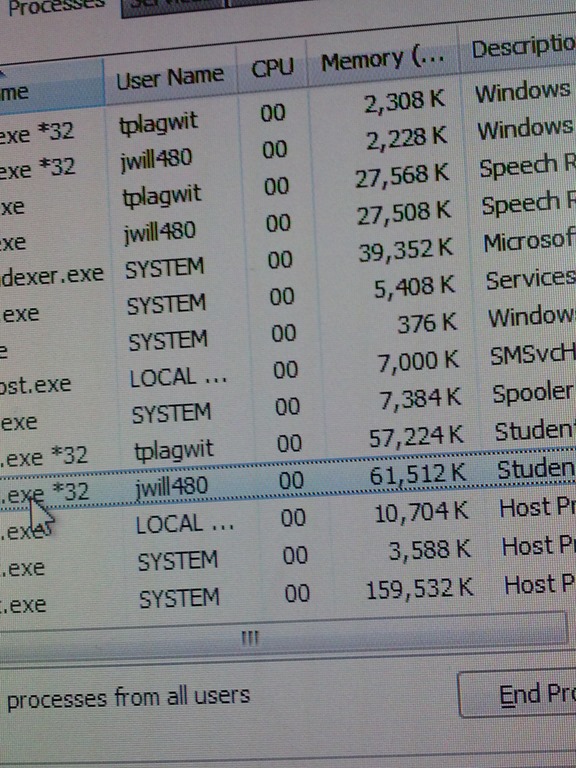
New problem in Sanako Study 1200 version 7 with 2 student recorder exe’s running simultaneously on client, under different user accounts?
- UPDATE: Also an issue in the spring term on the teacher computer..
- UPDATE: still an issue in the spring term.

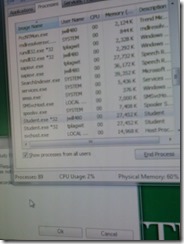
- This cannot be good (brought this student down).
- How is this possible?
- Presumably the student logged out an admin during a Sanako activity (we frequently have to place late-coming students sit and use an administrator computer, but they do not always get at term start that they are not supposed to log the admin out and in)
- So this seems another (special) case of the recently observed student managing to exit the Sanako during an activity (helper.exe was running alright).

WordSmith Tools are once again not licensed
- StartingWordsmith from the desktop shortcut results in this:

- Didn’t I test and describe last summer how to fix this?

Protected: Sanako “Student audio is not available”…
Sanako recording during pairing won’t work
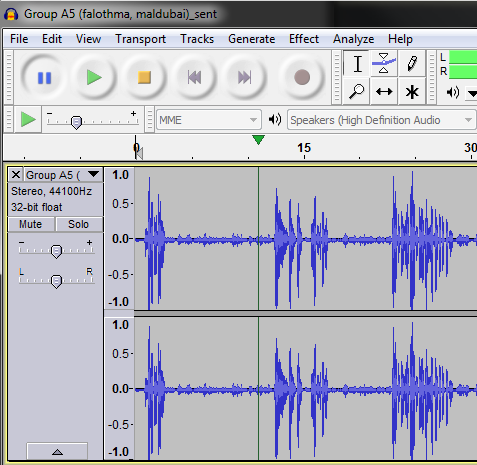
- Now: Records one party only – bad if you have to find this out only after an exam… You can see this in the graph here – low audio is partner speaking, and not audible:
 and hear it yourself on campus here: "S:\coas\lcs\lrc\sanako\student\8-7-2013_2-35-18_PM ELTI level 2 final pair\Group A5 (falothma, maldubai)_sent.MP3"
 - Then (example of how it is supposed to sound): "S:\COAS\LCS\LRC\sanako\student\2013-02-27 14_13-pair-no-names\Group B4 (LXCOED434-PC36, LXCOED434-PC17)_sent.MP3":
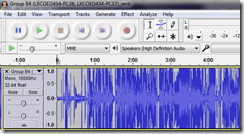
- workaround: Instead of being able to default to mp3 format, as we used to, the teacher now has to save the audio of pairing activites in a Sanako proprietary format (MIFF) and, including the students, play it back with the Sanako prpoprietary player. If the teacher does not remember to change the format from the default MP3 to MIFF for pairing exercise recordings, the teacher (and students) will lose the assessment materials of half the class (and likely not find this out until when the files get opened for grading).

Pearson mygermanlab "AUDIO INIT FAILED" for Blackboard voice/Wimba setup wizard – a firewall issue?
In Firefox, Chrome, IE8 on Win 7 (64bit) …

No other missing requirement in browser tuneup but QuickTime (which is said to be not required for PC)… And here is the likely solution from the Pearson website:
“Audio Init Failed” or “Error: Communication Error”
This error occurs because the computer’s security prevents the Wimba plug-in from sending data to our servers. Please take the steps described below to be sure that communication between your computer and our servers is always allowed.
- Please configure the security program or firewall on your computer to allow the file shown below (audioproxy.exe) to connect to the internet. (If you do not know how to make this change, please contact technical support for the security program you are using.)
Windows XP or 2000
C:\Documents and Settings\[Windows Username]\Application Data\HorizonWimba\JSecureDoor\audioproxy_X.Y.Z\data\audioproxy.exe
Windows Vista
C:\Users\[Windows Username]\AppData\Local\HorizonWimba\JSecureDoor\audioproxy_X.Y.Z\data\audioproxy.exe
- Java applets or Java Script also must be allowed by personal firewall or internet security software. Some firewalls have settings to block Java applets and Java Scripting, which will prevent Wimba Voice applets from loading. You may need to contact technical support for that firewall or security program for assistance configuring that program to allow Java applets and Java Script.
- Your browser must also allow Java applets and Java Scripting.
Internet Explorer
- Open Internet Explorer and click Tools > Internet Options
- From the Internet Options window, select the Advanced tab
- Scroll down the list to Java(Sun) heading and make sure the box below it is checked
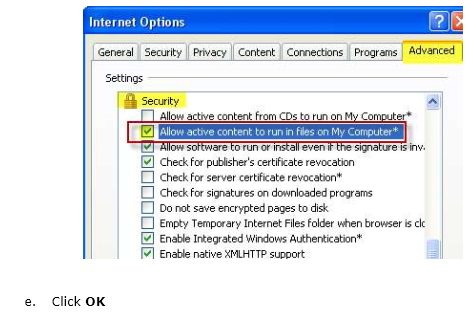
Note: If you do not see Java(Sun), go Sun’s Java website at www.java.com and click Free Java Download. - Scroll down the list to the Security heading and make sure the box beside Allow active content to run in files on My Computer is checked
- Click OK
Pasted from <http://247pearsoned.custhelp.com/app/answers/detail/a_id/7356/~/blackboard-voice-(wimba-voice)%3A-error-messages>
More info from the Pearson troubleshooting documentation:



Questions? Read the About. Or just ask me a quick Our Databases: Resources with calendars -- Language learning material Moodle Sites, multimedia files -- films


FAQs for LRC student staff or for students or for teachers. To search our FAQs, in the browser addressbar, add after "https://plagwitz.wordpress.com/feed/?tag=faqs+/" "+TAG1" (from tag cloud below) OR "https://plagwitz.wordpress.com/feed/tag=faqs
&category_name=" "CAT1" (from category hierarchy below). OR search both categories and tags, and multiple TAGs/CATs (connect with "," for OR-search, with "+" for AND-search), like so: https://plagwitz.wordpress.com/feed/?tag=TAG1+TAG2+...TAGn&category_name=CAT1
+CAT2+...CATn"
Other ways to find help
If you cannot find it here, look there: 5,500 Language-Learning Links and Programs for learning or teaching 150 languages
Shortcuts:Our Lists, Our Maps, LRC Staff Moodle Site,LRC Project Moodle Site, 49erexpress, UNCC Moodle, Student Recordings: s:claslcslrcsanakostudent
Learning usage samples: Sanako oral exam, Kaltura webcam presentation, Dictation with speech recognition, Sanako written exam, Chinese and Japanese interactive stroke-order practice
Test the Sanako Installer, Webbrowser Popup Konfigurator for XP, or Windows7, faster LRC TeacherPC Log-in Let MS facilitate diacritics writing by installing for you US-International keyboard layout
This is my personal blog (Google+). The views expressed on these pages are mine alone and not those of my employer. The information in this weblog is provided “AS IS” with no warranties, and confers no rights.
 Thomas' Work Space