Archive
Archive for the ‘service-is-any’ Category
Advanced language learners can test their English, German or Spanish proficiency in 3.5 minutes here using Exhale
2014/05/23
4 comments
Update: A new version of the Spanish vocabulary test is here, and the English vocabulary test has been updated here.
Go here and click English or German, or (also requiring only 3.5 minutes to take, but more for manually grading your test with this answer key) go here for Spanish, if you want to to take a simple quick vocabulary test that has been shown to correlate well with general proficiency. You can find more info here on English and German, and here on Spanish.
Installing dkPro in 2014…
2014/05/08
Leave a comment
- … proved easier than 2012 (thanks, Richard
 ), but still not for the faint of heart…
 - I got it to work
 , despite an update release of ver 1.6 – once again like in 2012 – in the middle of my installation travails.
 - Read all about those in here.

Categories: Learning-logs, service-is-learning-materials-creation, software
DkPro, installing
Slowing source audio for interpreting classes in the digital audio lab
2014/04/25
Leave a comment
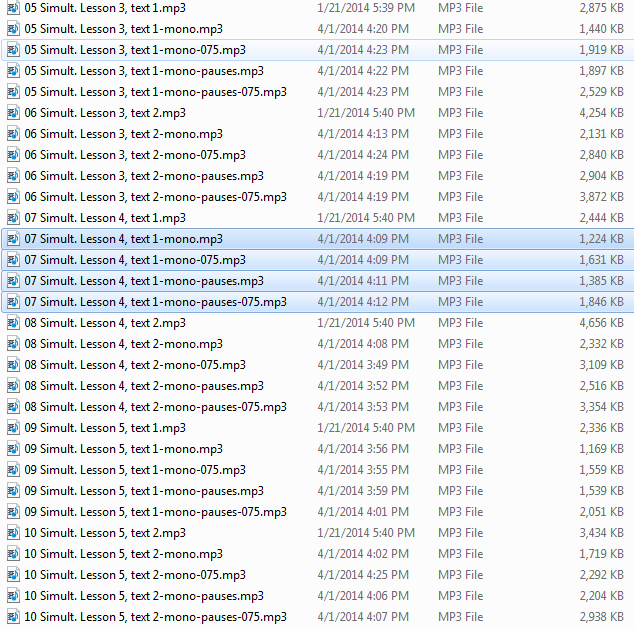
- To judge from listening to Simult. Lesson 1, text 2 on Acebo Interpreter’s Edge (ISBN 1880594323), I am wondering whether some of our students (= personalization) would need this audio to be simplified, to gain the benefit of a well-adjusted i+1? I can pre-process the audio :
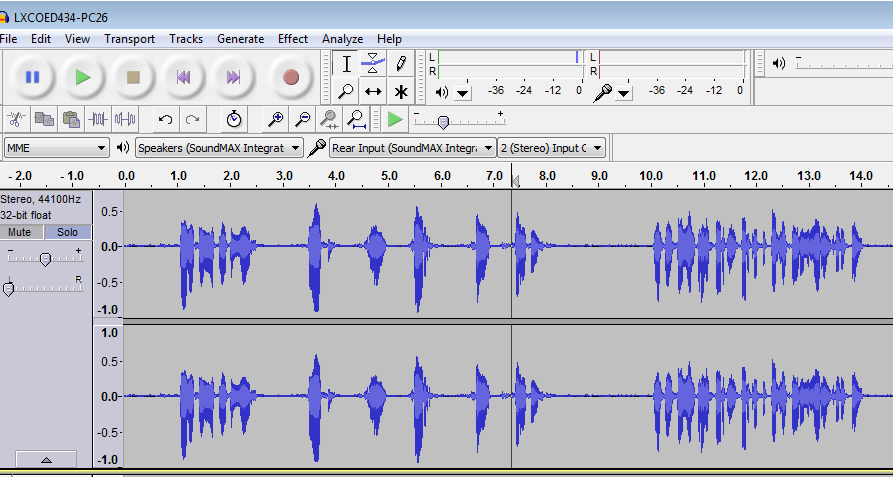
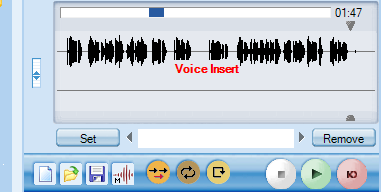
- Where the flatlines = natural pauses are in above graph, insert a audio signal as where students can press voice insert recording, Example:

- We can also insert a pause and a cue at the beginning and end to set students a limit how long they can interpret, but if students operate the player manually, there is no teacher control and no exam condition, and the students having to manage the technology tends to distract from the language practice.
- Slow down the audio without changing the pitch (just have to make sure not to overdo it, else will sound like drunken speech – my time stretching software would be able to avoid “drunken speech” syndrome, but I have not been able to work on it since briefly for IALLT in Summer 2011 for 3 years now…)
- We can use this adjusted with the Sanako grouping feature to personalize instruction (find the right i+1 for each of your student, useful if there are considerable variations in their proficiency): How to group students into sessions (in 3 different ways) goo.gl/JgXUP/.
- Where the flatlines = natural pauses are in above graph, insert a audio signal as where students can press voice insert recording, Example:


Web browser popup blocker exceptions need configuring
2014/04/09
Leave a comment

- Which computers
- This I found on the Reception desk
- but isn’t that then also wrong on all student pcs which have the same base image?
- Which exceptions missing: I noticed immediately:
- outlook.com
- www.uncc.edu should read uncc.edu
- Which browsers
- Example is IE9,
- But are others different?
Protected: Elti0162 Syllabus with learning materials for listening and speaking
2014/04/07
Enter your password to view comments.
Categories: English, Listening, service-is-learning-materials-creation, Speaking, Spreadsheets
elti0162
Our tutorplayer installation which comes with Sanako study 1200 tutor on the teacher computer is broken
2014/04/04
Leave a comment

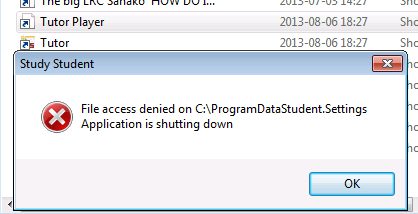
- What’s with the non-existent path hard-coded here? Missing path delimiter? But that is not enoguh to fix the path: There is a student.settings in C:\ProgramData\Sanako\Study\Student\Tutor.Settings – not sure why tutorplayer is not accessing this file.
- Which is double annoying since I just had to enable MFF as default recording save format for some teachers that need dual track support which is buggy with MP3.
No usable dual track audio from Sanako Study 1200 version 7 when saving as MP3?
2014/04/04
Leave a comment
- We have not been using the dual track recording capabilities of the Sanako much here yet, or have relied on the diachronic separation of channels that the Sanako voice-insert mode provides. Now, however, we want to apply the Sanako to consecutive interpreting in our MA program where there is more of a need for the reviewing student/grading teacher to switch between source and target language on the recorded dual-track audio.
- As far as I remember, dual track recording, one of the core features of the digital audio lab, used to work out of the box in Sanako (up to version 5 on XP?), but to my surprise, no more when I saved a student exercise, the left and right channel were identical (and the source and interpreter voices very hard to separate, the entire interpretation impossible to follow).
- I had noticed before that with version 7 (at least, we skipped 6) all recording was dual channel, but simply duplicated the left and right audio channel (isn’t this a waste of bandwidth and storage resources?).
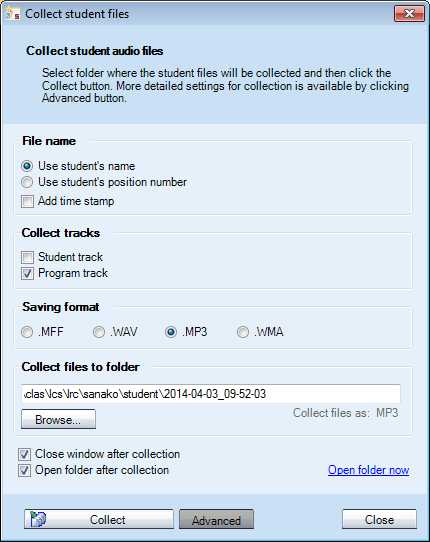
- I tested our 7.1 installation (on Windows 7 64-bit), by changing the advanced collection settings, for an interpreting audio file, clapping from the teacher station:
- First I changed the tracks to be saved:
- Test1:
 .This mixes student and program down onto each channel: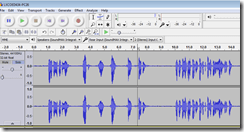
- Test 2:
 , Program track only, as expected (no clapping)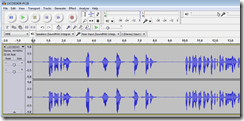
- Test 3:
 Student track, as expected (only clapping – pretty much)
- Workaround: After trying whether I can save manually from the student station, it occurred to me to change the file format also
- WMA:
- dual track
- works with “Save AS” from the student.exe (where the mp# options is conspicuously absent, or am I missing something):

- won’t work with “collect” from the tutor.exe: both tracks (saving both is – fortunately – only an option for “save as“ WMA from the student exe. You can also save only the student track as WMA) get mixed down to one (and the student is far too soft) , as you can witness here:

- works with “Save AS” from the student.exe (where the mp# options is conspicuously absent, or am I missing something):
- WMA is a technically nice, efficient (small file size) and widely supported format, but does require an add-on installation on the MacOS X, not to mention mobile devices.
- WMA on Windows plays in Windows Media Player, but from version 12, Windows Media Player has no easy way to adjust the balance anymore, you have to dig relatively deeply into the OS (mmsys.cpl) itself.
- dual track
- MFF:
- dual track works
also(saving single track is actually not an option in this format)both using- the student recorder “Save as” (which can also mix both tracks, see above)
- “collect” from the tutor.exe: you can fade in the left and right channel with the balance tool that you find in the student recorder to the left of the timeline.
- Unfortunately,
- the file size quickly gets out of hand:

- and for no obvious reason, the biggest here is 12 times the size, but not longer than the smallest, and also only a 5-minute recording (I know that mff stores also the user’s bookmark information, but this can hardly be the culprit):

- compare this with how WMA compresses:
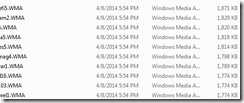
- MFF is a proprietary format, which only the Sanako recorder can play. This may be a nice way to get more adoption of the free Sanako student recorder which is great for language learning. However, I had not originally planned on forcing my users to use it who are most comfortable with mp3.
- the file size quickly gets out of hand:
- dual track works
- In addition, I now have a the problem with how to switch the Sanako default collection to MFF for interpreting teachers without confusing regular users.
- WMA:
 .
.
 ,
,






Questions? Read the About. Or just ask me a quick Our Databases: Resources with calendars -- Language learning material Moodle Sites, multimedia files -- films


FAQs for LRC student staff or for students or for teachers. To search our FAQs, in the browser addressbar, add after "https://plagwitz.wordpress.com/feed/?tag=faqs+/" "+TAG1" (from tag cloud below) OR "https://plagwitz.wordpress.com/feed/tag=faqs
&category_name=" "CAT1" (from category hierarchy below). OR search both categories and tags, and multiple TAGs/CATs (connect with "," for OR-search, with "+" for AND-search), like so: https://plagwitz.wordpress.com/feed/?tag=TAG1+TAG2+...TAGn&category_name=CAT1
+CAT2+...CATn"
Other ways to find help
If you cannot find it here, look there: 5,500 Language-Learning Links and Programs for learning or teaching 150 languages
Shortcuts:Our Lists, Our Maps, LRC Staff Moodle Site,LRC Project Moodle Site, 49erexpress, UNCC Moodle, Student Recordings: s:claslcslrcsanakostudent
Learning usage samples: Sanako oral exam, Kaltura webcam presentation, Dictation with speech recognition, Sanako written exam, Chinese and Japanese interactive stroke-order practice
Test the Sanako Installer, Webbrowser Popup Konfigurator for XP, or Windows7, faster LRC TeacherPC Log-in Let MS facilitate diacritics writing by installing for you US-International keyboard layout
This is my personal blog (Google+). The views expressed on these pages are mine alone and not those of my employer. The information in this weblog is provided “AS IS” with no warranties, and confers no rights.
 Thomas' Work Space