Archive
How to bind files to PDF with eXpert PDF Creator
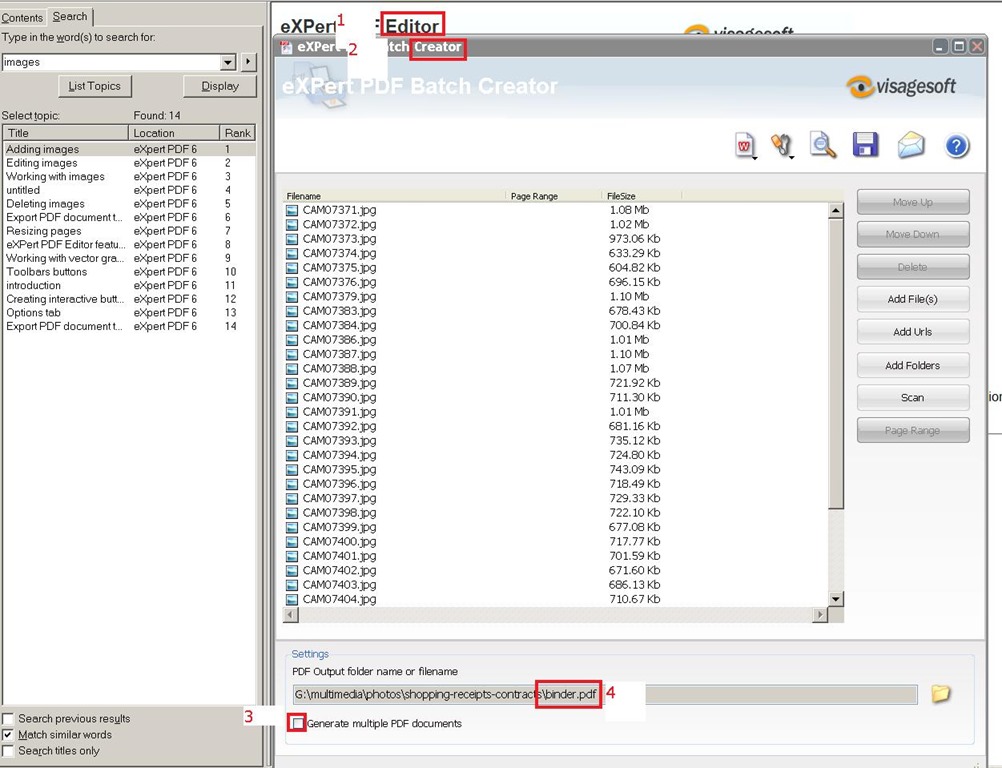
- I tried PDF Editor (mind you, old version! 6 which I still have around from a promotion – nice software, though) first, including its help.
- Use Batch Creator instead,
- uncheck “Create multiple Documents”
- then you will be prompted for a (new) filename for the bound files.

- Then click the “save” icon in the upper right menu.
Intel HD 4000 a disappointment even in 2D…
- I did not expect anything great of INTEL HD’s 3d performance, and I do not need it.
- I thought, however, I could get away with the HD4000 which is part of my I5-3570k.
- first disappointment: my board comes with HDMI, DVI and VGA, but HD4000 supports only up to 2 screens at a time.
- System is unbalanced, slowed down.
- Winsat seems to indicate, why:

- Seems poorly balanced by Intefor the most common use case.
- After installing an ASUS GT640-2GD (inexpensive, but supports 4 displays):
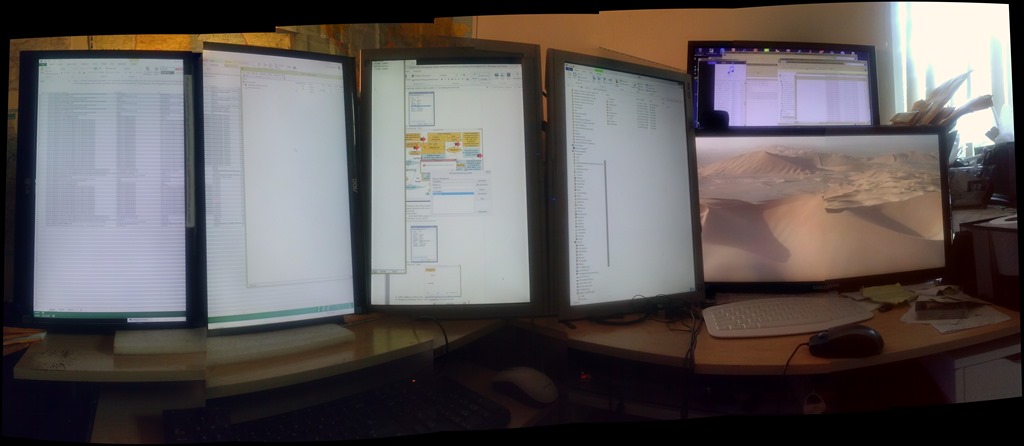
- And 4 (+2, the alignment is better than it appears in this photo stitch) instead of dual screens:

- Still not great (and the 3d score drops actually), but seems much more usable during office work: CPUScore : 7.8
D3DScore : 6.4
DiskScore : 8.05
GraphicsScore : 6.4
MemoryScore : 7.8 - Especially efficient is the support of 4 displays without need for equipment supporting Displayport:

- No full screen spanning support in the driver (monitors are not considered one large screen by Windows): good for window management with Aero Snap; not good for multimedia display spanning screens.
- And 4 (+2, the alignment is better than it appears in this photo stitch) instead of dual screens:


“To rely on raw MT output is almost as bad an idea as getting a full-body tattoo in a language you don’t speak.”
“Hanzi Smatter, a blog, received a picture of a biker who got a computer-translated “Ride Hard Die Free” tattooed in huge Chinese characters down his torso. The only problem was that he got “die” in the sense of a “tool used for stamping or shaping metal” permanently inked on his body, probably because nothing like “die free” was in the translator’s training texts. (It also translated “free” as “free of charge”.)” (from: Johnson: Rise of the machine translators, Economist Jun 4th 2014). However, “using MT, plus post-editing, has cut translation time by 40% for” DELL. Good use of Machine Translation seems all about “blending” resources intelligently, while managing expectations – like eLearning. Like most things in life  .
.
Installing dkPro in 2014…
- … proved easier than 2012 (thanks, Richard
 ), but still not for the faint of heart…
 - I got it to work
 , despite an update release of ver 1.6 – once again like in 2012 – in the middle of my installation travails.
 - Read all about those in here.

How to install and use a free dictionary/encyclopedia app in MS-Word 2013
Installing is easy (our example is Wikipedia): Right-click a word, pick “define” from the context menu, the click download in the side pane for the app you choose.

Usage is also easy: To look up phrases, select, right-click and choose define: 
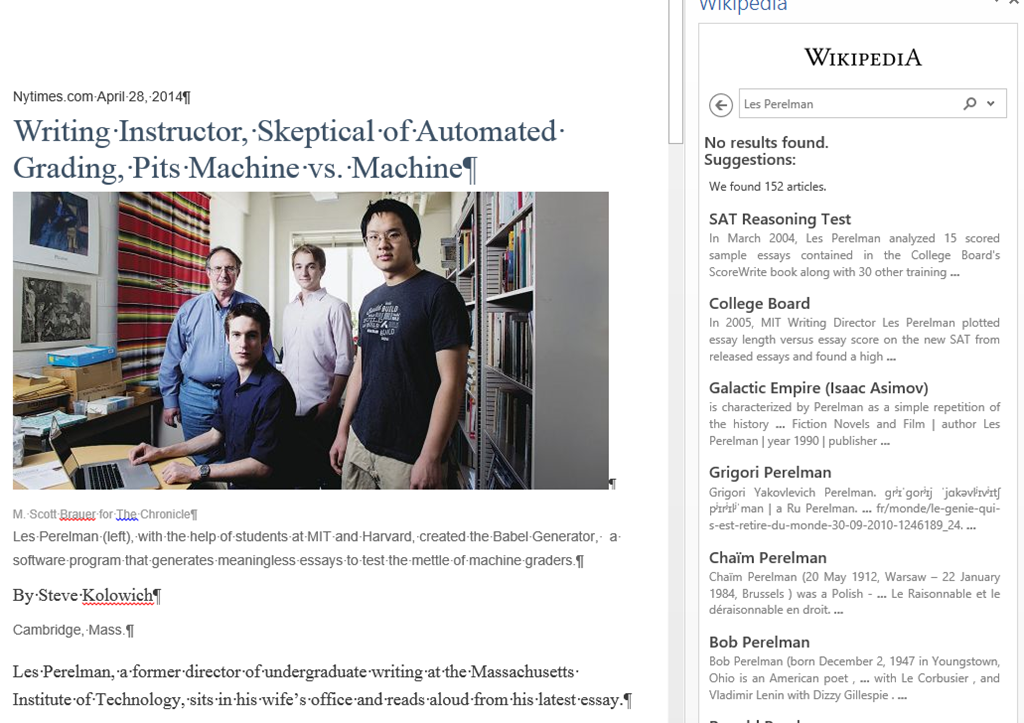
To look up individual words, you can also just double-click the word: 
You can also click “Expand”: 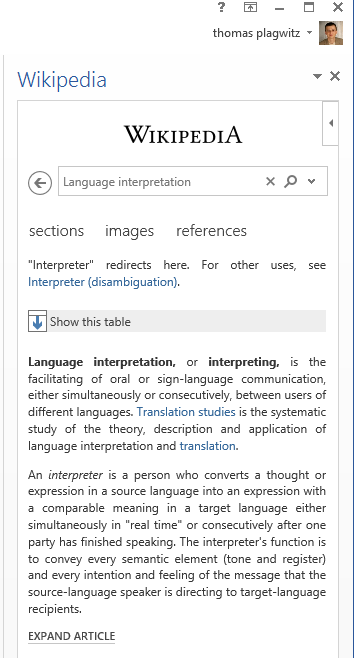
To install more dictionaries after the first one, click Insert / Apps for Office. 

You can search for your L2 (too many to list): 
It works for base forms: 
But I cannot lemmatize (ouch): 
I found out that when I go to Insert/ My Apps/ See all :  , I can show more than one app in the side pane.
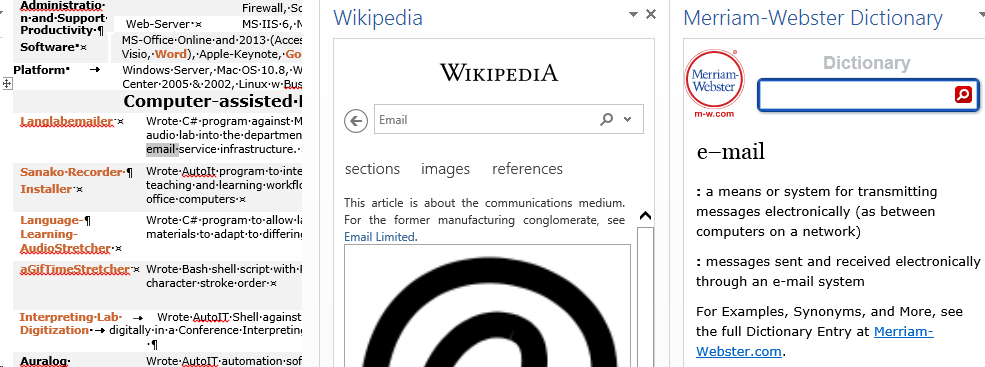
However,how o I change the default lookup that happens on double click on a word?
Interpreting against audio files sources with live feedback in Sanako Study 1200
- How will we be recording
- Individual recording
- Voice insert: student control how much time they have interpreting
- students can stop the source where they want, they can rewind and review the source, they can overwrite their initial interpretation, they can interpret at the speed they want.
- We could insert cues at sentence ends in the source; and also (but little need,) slow the source down or insert pauses
- Student track
- students have to follow along at the speed of the source can stop the source where they want, they can rewind and review the source; they can with some difficulty overwrite their initial interpretation/
- More difficult: We likely should slow the source down or insert pauses
- Voice insert: student control how much time they have interpreting
- Model imitation: like an exam,
- students all speak in parallel, without individual control
- Most difficult: We most likely need to slow the source audio down, including inserting pauses as "breathers")
- Individual recording
- What audio track will we be collecting?
- If student saves manually, student can save either or both tracks , but need to be taught.
- If model imitation, we collect only student recording.
- If lock player/collect buffer, we collect both source and student track
- Listener can focus on one track by controlling the balance during playback: https://thomasplagwitz.com/2014/03/31/how-to-manage-balance-on-stereo-audio-using-audacity-sanako-student-recorder-or-any-audio-player-on-windows/
- Listener can also split the audio tracks (= delete the source track),
- more easily (file / save as) in the sanako recorder
- More
- Teacher listening in
- Is always possible,
- just click the student icon in the classroom layout
- or use screen control / autoscan: the audio switches with the screen, this has a bit of overhead, and our computers are network are not the fastest, but we made some changes to optimize speed; best reserved for when you also need to see the student’s screen.
- Is always possible,
- Teacher speaking: Teacher providing on-the-fly feedback via "Discuss":
- Playlist Launch and open (goo.gl/2awRG/): then you can stop each individual student (students do not work in sync, remote-controlled) .
- Model imitation (goo.gl/ZL7DG/) : then you cannot talk to one (all students record in sync).
- Teacher providing non-live feedback :
- Teacher can provide aural feedback later when grading the student submissions from your office pc:
- How a teacher can use Sanako voice insert to easily add spoken comments to students’ Sanako oral proficiency exams- step–by step
- We recorded here how it is being done for Business Spanish: Protected: How a teacher can give students aural feedback on oral exams using the Sanako Study 1200 Lite Recorder
- For that voice-insert, you need to install the Sanako Recorder on your office PC.
- Teacher can provide aural feedback later when grading the student submissions from your office pc:
Slowing source audio for interpreting classes in the digital audio lab
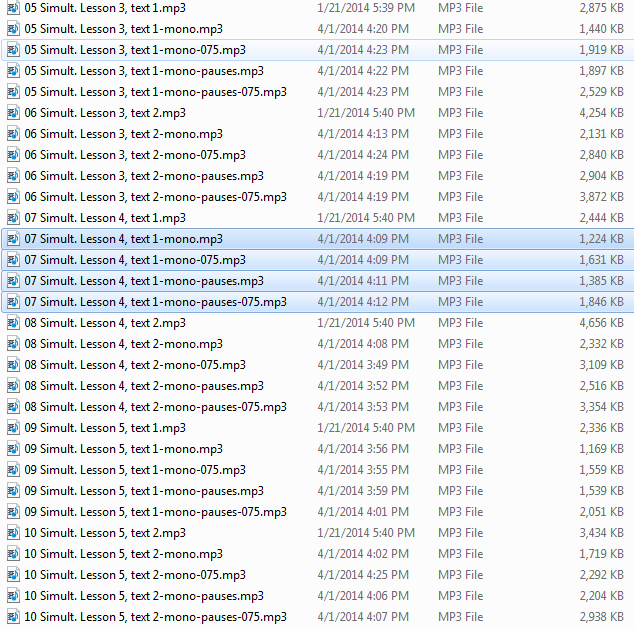
- To judge from listening to Simult. Lesson 1, text 2 on Acebo Interpreter’s Edge (ISBN 1880594323), I am wondering whether some of our students (= personalization) would need this audio to be simplified, to gain the benefit of a well-adjusted i+1? I can pre-process the audio :
- Where the flatlines = natural pauses are in above graph, insert a audio signal as where students can press voice insert recording, Example:

- We can also insert a pause and a cue at the beginning and end to set students a limit how long they can interpret, but if students operate the player manually, there is no teacher control and no exam condition, and the students having to manage the technology tends to distract from the language practice.
- Slow down the audio without changing the pitch (just have to make sure not to overdo it, else will sound like drunken speech – my time stretching software would be able to avoid “drunken speech” syndrome, but I have not been able to work on it since briefly for IALLT in Summer 2011 for 3 years now…)
- We can use this adjusted with the Sanako grouping feature to personalize instruction (find the right i+1 for each of your student, useful if there are considerable variations in their proficiency): How to group students into sessions (in 3 different ways) goo.gl/JgXUP/.
- Where the flatlines = natural pauses are in above graph, insert a audio signal as where students can press voice insert recording, Example:


Web browser popup blocker exceptions need configuring

- Which computers
- This I found on the Reception desk
- but isn’t that then also wrong on all student pcs which have the same base image?
- Which exceptions missing: I noticed immediately:
- outlook.com
- www.uncc.edu should read uncc.edu
- Which browsers
- Example is IE9,
- But are others different?


Questions? Read the About. Or just ask me a quick Our Databases: Resources with calendars -- Language learning material Moodle Sites, multimedia files -- films


FAQs for LRC student staff or for students or for teachers. To search our FAQs, in the browser addressbar, add after "https://plagwitz.wordpress.com/feed/?tag=faqs+/" "+TAG1" (from tag cloud below) OR "https://plagwitz.wordpress.com/feed/tag=faqs
&category_name=" "CAT1" (from category hierarchy below). OR search both categories and tags, and multiple TAGs/CATs (connect with "," for OR-search, with "+" for AND-search), like so: https://plagwitz.wordpress.com/feed/?tag=TAG1+TAG2+...TAGn&category_name=CAT1
+CAT2+...CATn"
Other ways to find help
If you cannot find it here, look there: 5,500 Language-Learning Links and Programs for learning or teaching 150 languages
Shortcuts:Our Lists, Our Maps, LRC Staff Moodle Site,LRC Project Moodle Site, 49erexpress, UNCC Moodle, Student Recordings: s:claslcslrcsanakostudent
Learning usage samples: Sanako oral exam, Kaltura webcam presentation, Dictation with speech recognition, Sanako written exam, Chinese and Japanese interactive stroke-order practice
Test the Sanako Installer, Webbrowser Popup Konfigurator for XP, or Windows7, faster LRC TeacherPC Log-in Let MS facilitate diacritics writing by installing for you US-International keyboard layout
This is my personal blog (Google+). The views expressed on these pages are mine alone and not those of my employer. The information in this weblog is provided “AS IS” with no warranties, and confers no rights.
 Thomas' Work Space