Archive
Meta-search many historical German dictionaries and encyclopedias using Woerterbuchnetz.de
A meta-search by the University of Trier Center for Digital Humanities may not teach you much German – you need to know it already –, but help prevent you remaining a “one-dimensional man”.
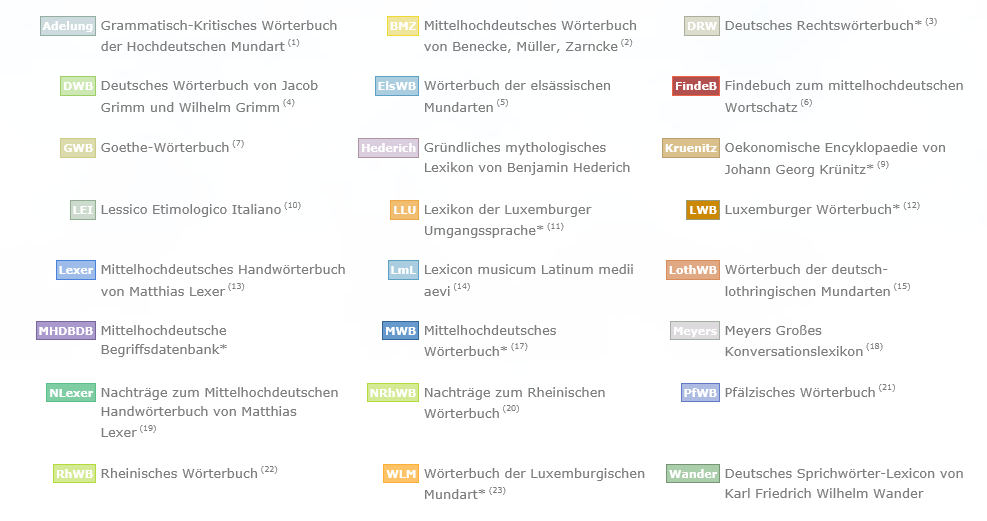
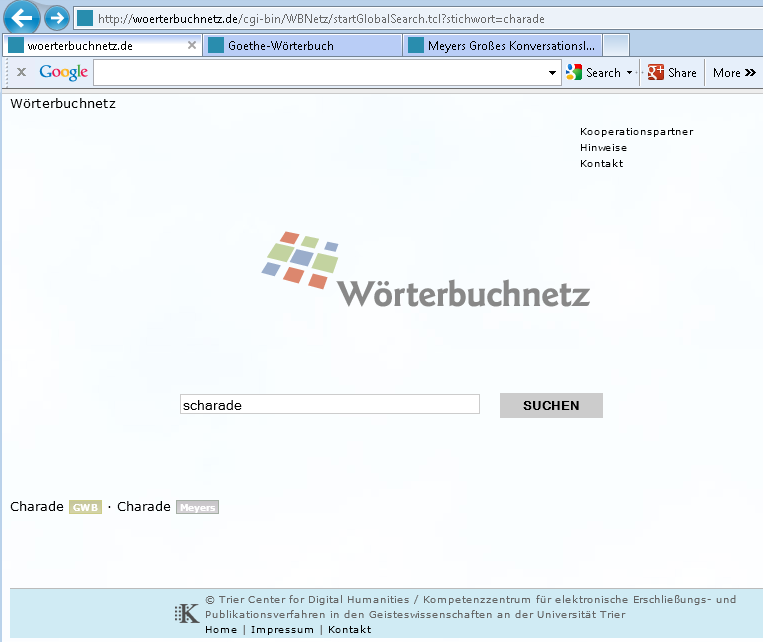
I came to know a lot of those during my own German and history studies a long time ago – – when they still only existed on paper, if not parchment  . Gotta love Digital Humanities, and find other activities for physical exercise. Her is an example search result:
How to download Centro Spanish Textbook audio
The audio is in (compressed) mp3 format. Just right-click on any audio link and choose save target/link as (or similar, depending on browser), like so: 
Example from Centro – Puntos de partida: Online Laboratory Manual, 8th Edition (you need access privileges to follow this link, but you can send links around, users can open them, provided their webbrowser is already logged into the centro site – getting access and finding you way around the website is the real issue. Webspiders are prohibited, though – and even Downthemall saves only files without extensions: rename them to .mp3 or save them manually as .mp3 in the first place, as shown above. Does not work as above? Try a different web browser.
Phonetic Russian character input on US-keyboards with Google IME in the LRC
- To write Russian phonetically in Cyrillic:
- Since “input methods”are specific to each window (and automatically switch to that of the window you make active), first open the application you want to write in, preferably MS-Word (has proofing tools for Russian).
- In the language bar on the lower right, click on “EN”, select “Russian” instead

- Click on the keyboard symbol and select “Google”:

- You first may have to right-click on the language bar on the lower right of your desktop and select “Adjust” to show the keyboard symbol:
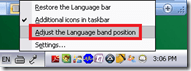
- You first may have to right-click on the language bar on the lower right of your desktop and select “Adjust” to show the keyboard symbol:
- If you now type in MS-Word Russian (your selection did not “stick” in MS-Word? do the above steps again, eventually it will…) phonetically on a US-keyboard, you will be able to select from suggestions in Cyrillic:

- Click the desired suggestion to have it entered into MS-Word:

- To go back to writing temporarily in English (without changing the entire input method back to English), click the (Cyrillic/Latin) letter symbol on the Google Russian IME menu:
 and you can enter English (Latin alphabet) without the popup suggesting you Russian equivalents: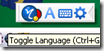
- To switch from the phonetic input to a floating Cyrillic keyboard,
- click on the keyboard symbol in the Google Russian IME.

- Or from the Language bar, switch to the other (Microsoft) keyboard layout for "Russian" (see #4 above), and go to "Start" / "Run" / type OSK, click "OK".
- click on the keyboard symbol in the Google Russian IME.





How to get started with Moodle here
- Moodle is the UNCC LMS – it is central to teaching with technology.
- The LRC provides Moodle-information specific to language learning, incuding FAQ’s.
- The CTL (= Center for Teaching and Learning) has oodles of general Moodle help.
- Search the CTL site for Moodle by clicking here, and you will find:
- Moodle specific:
- view Moodle on-demand screencast video tutorials,
- read Moodle FAQ’s (updated).
- sign up for instructor-led (face-to-face or webinars, some of which are archived and available on-demand) training:
- Updated Webinar list, which includes for Moodle (I highlighted the more general ones)
- Avoiding the Moodle Scroll of Death (30 min. Webinar)
- Copying a Moodle Course (30 min. Webinar)
- Find & Embed Videos in Moodle (30-min. Webinar)
- How Do I: Peer Review in Moodle (30 min. Webinar)
- Incorporating Streaming Media into Moodle (30 min. Webinar)
- Making Moodle Beautiful (30 min. Webinar)
- Moodle 2 FAQ (30 min. Webinar)
- Moodle Grade Book and Mail Merge (30-min. Webinar)
- Moodle Under the Hood (30 min. Webinar)
- Using Moodle’s Team Assignment (30 min. Webinar)
- Previous (Moodle 1.9)
- Updated Webinar list, which includes for Moodle (I highlighted the more general ones)
- There is more Moodle-information here, just no way for me to provide a direct, filtered link so just browse the pages:
- the CTL podcasts
- Episode 106 Getting Students to Read Your Syllabus: Quizzing in Moodle
- the CTL podcasts
- Moodle specific:
How to take roll in class using Sanako Study 1200
- Today:
- I had to work on getting my Sanako classroom layouts back up after a network cutover on the first day of the academic year.
- I could observe a teacher new to the Sanako lab taking roll on paper, reading out each student’s name and finding the student in the classroom . This is a known good way to learn to put a face to a students’ name. Once that is done (and maybe could be done also faster using student thumbnails in university computer systems like the LMS), one can save teaching time taking roll doing the following :
- At the beginning of each of your class meetings:
- You cannot start a sanako class before your students have logged in and their sanako student clients have started up – that is the first I always ask my students to do.
- In the initial Sanako tutor startup dialogue, open an empty class.
- Wait for the “corridor” to be fully populated, then select all.
- Have the sanako tutor populate the classroom layout.
- Choose menu file / save classroom layout as, and save in your tutor folder with the date as the filename.
- (Load your familiar class layout to actually begin your class – this will take little extra time, for Sanako tutor does not need to wait again for the Sanako student clients to start up).
- After the last day of classes:
- load each saved file into MS-Excel (as an XML table),
- first column will be class date, hide all columns in between that and your student login name,
- select and copy these 2 columns into an attendance spreadsheet (if you find a way to strip the xml wrapper, you can merge the files on the command line – after all, the classroom layout files are just plain text),
- in the attendance spreadsheet, calculate attendance
- either sort first by date, then by login name, and count attendance manually using the dates;
- or have Excel count for you with an array formula pasted into a third column that checks for and counts identical dates.
- Final thoughts: Your mileage may vary if you don’t teach all your classes in a Sanako lab – I used to and have come to appreciate an institutionally provided and maintained lab infrastructure which is stable – compared with complaints I have heard about having to rely on your students not forgetting their clickers if you want to use technology rather than class time for taking roll outside of a stable infrastructure.
How to recycle your Moodle Course using backup/restore
Better do this before the first day of classes, but if you need a quick refresher:



Questions? Read the About. Or just ask me a quick Our Databases: Resources with calendars -- Language learning material Moodle Sites, multimedia files -- films


FAQs for LRC student staff or for students or for teachers. To search our FAQs, in the browser addressbar, add after "https://plagwitz.wordpress.com/feed/?tag=faqs+/" "+TAG1" (from tag cloud below) OR "https://plagwitz.wordpress.com/feed/tag=faqs
&category_name=" "CAT1" (from category hierarchy below). OR search both categories and tags, and multiple TAGs/CATs (connect with "," for OR-search, with "+" for AND-search), like so: https://plagwitz.wordpress.com/feed/?tag=TAG1+TAG2+...TAGn&category_name=CAT1
+CAT2+...CATn"
Other ways to find help
If you cannot find it here, look there: 5,500 Language-Learning Links and Programs for learning or teaching 150 languages
Shortcuts:Our Lists, Our Maps, LRC Staff Moodle Site,LRC Project Moodle Site, 49erexpress, UNCC Moodle, Student Recordings: s:claslcslrcsanakostudent
Learning usage samples: Sanako oral exam, Kaltura webcam presentation, Dictation with speech recognition, Sanako written exam, Chinese and Japanese interactive stroke-order practice
Test the Sanako Installer, Webbrowser Popup Konfigurator for XP, or Windows7, faster LRC TeacherPC Log-in Let MS facilitate diacritics writing by installing for you US-International keyboard layout
This is my personal blog (Google+). The views expressed on these pages are mine alone and not those of my employer. The information in this weblog is provided “AS IS” with no warranties, and confers no rights.

