Archive
Archive for the ‘Learning-activity-is-any’ Category
How to provide students with blended human/computer-automated feedback on their speaking using a dictation with speech recognition assignment screencast
2013/05/08
Leave a comment
- Teachers often feel there is never enough time for grading students’ speaking proficiency. Fortunately, we can now automate feedback on pronunciation using Windows 7 dictation with speech recognition.
- This feature will be available for 7 languages on Windows 7 in the LRC, here is a demo for a reading exercise dictating German.
- An assignment step-by-step could look like this: Students
- record a screencast of their dictation,
- read a text to the computer in MS-Word,
- turn track changes on in MS-Word and correct the text (immediately or after dictation) where the computer could not recognize their speech,
- upload their screencast to Kaltura in Moodle.
- To grade the performance, the teacher has to review only at the very end of the screencast to see how many corrections the student needed to make (when it doubtabout the speech recognition validiiy, the teacher can easily jump to the screencast segment in question and, if necessary, override the speech recognition).
- This could be a regular assignment type since it provides the following benefits:
- immediate automated intelligent feedback for the student
- little grading overhead for the teacher, so that the teacher can concentrate her work on providing aural feedback on student recorded speech as a highlight maybe twice per term, maybe after mock exams before a midterm and final exam
- some multimedia pieces demonstrating language proficiency for the student’s ePortfolio.
- Requirements:
- a quality headset (we use Sanako SLH-07
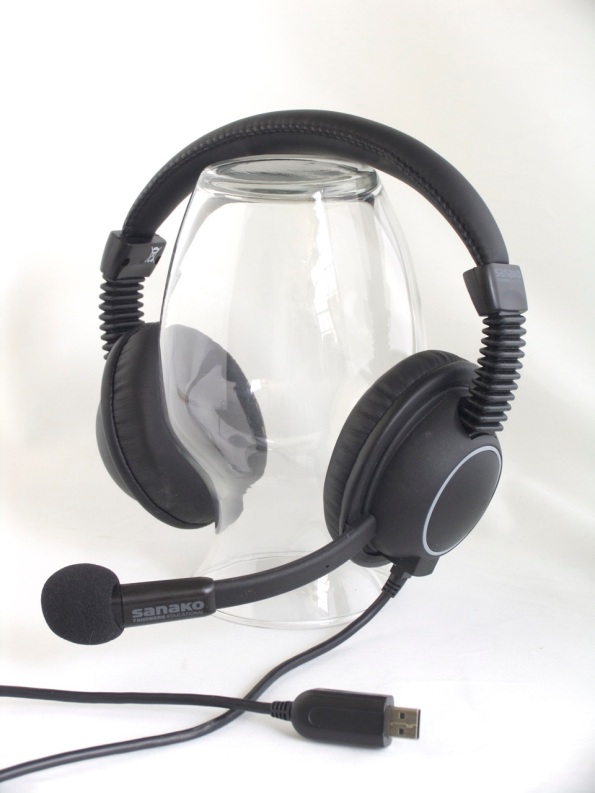 )
) - Windows 7 Enterprise/Ultimate with Language Packs,
- knowing how to switch the display language, (optional/recommended:) TBA:a simplified language switching facility,
- individual voice training data: speech recognition users have to train the computer – once, even in a deepfrozen computer enviroinment, since we enabled you to save this data to and restore it from a flash drive or personal network share space,
- a reading text (often authentic texts can be taken straight from the textbook, to fit in with the syllabus, like in this example from Treffpunkt-Deutsch 1st-year German),
- MS-Word with track changes
- screencast software (we use MS community clips)
- a way to submit the results to the teacher (we use Moodle with Kaltura video uploading (example for teachers, students do it similarly), but email could be sufficient depending on screencast length and attachment size allowance).
- a quality headset (we use Sanako SLH-07

“Clickonce” to download Langlabemailer (BETA)
2013/04/26
Leave a comment
After receiving the response to your request for a download link, click the link in the response to go the download page, and on that page click the button: “Install”.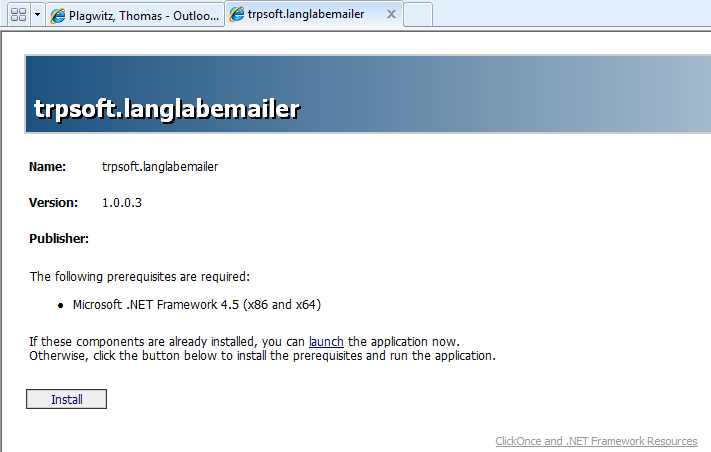
Next:Install. Or Langlabemailer (table of contents).
Protected: How a teacher can give students aural feedback on oral exams using the Sanako Study 1200 Lite Recorder
2013/04/25
Enter your password to view comments.
How a teacher can adapt a Sanako teacher-controlled class recording activity for individual student recordings
2013/03/12
Leave a comment
- Pedagogical need:
- A teacher wants her students to record a presentation,
- but allow the students to move around freely in their recording afterwards, when evaluating it, and submit the best out of 3 tries:
- Technical implementation:
- Using Sanako activity:model imitation of differing for multiple groups
- offers maximum control, least flexibility: students have to speak their presentation linearly
- if you anticipate presentations of considerably different lengths
- first try asking your students – might be useful to them anyway to realize if theirs turns out to be much shorter than others,
- if students are unsure about the length of their presentation,
- conduct the first recording with the entire class and
- have students note what time their recorder time counter is at when they finish, and send you the time as text via the button:envelope
- group your students (grouping step-by-step) into Sessions A-F by incrementing time according to what the student icon bubble shows
- then differentiate class into as many groups as necessary (if <= the 6 “sessions”A-F Sanako Study 1200 offers) end the recording at a different time for each group
- for each group (one or more up to 6),
- choose from dropdown activity: model imitation recording
- and from dropdown: source: none) with more than one group at a time,
- and (optionally) for not more than one group at a time (suggest choosing the biggest group for that) from (dropdown: source: file ) the background noise to play
- and after each group’s allocated time (+ buffer) is up,
- press button:end to end the recording
- after collection of the recordings from students is finished, you can
- press button:replay
 , to let each student listen to her recording (linearly, without control), and
 - press button:free
 , to let students freely move back and forth on the timeline)
 - eventually, press button: clear, to be ready:
- choose from dropdown activity: model imitation recording
- for tries 2 and 3: repeat above steps.
- using Sanako activity: self access:
- provides
- the teacher some control (none over this turning into more of an editing than coherent language practice exercise),
- and students more flexibility (hence requiring prior recording training for students);
- students individually
- record
- move around freely in the file
- replay
- record over prior footage and/or start completely over (menu: File / new)
- press button:envelope to text message the teacher that they are finished and want their (final ) recording to be collected by the teacher
- teacher
- moves signaling students into a group (grouping step-by-step) that is
- dedicated for collecting recordings (TBA:does this not empty their buffer?)
- and button:pc control: locked (= no further or accidental changes)
- once an appropriate (compromise between finished students wanting to leave and teacher not having to collect each recording individually) number of students have been added to this group, presses
- button: end to collect and
- button: clear session to clear the button
- assesses the recordings in the folder that opens with audacity;
- in case of problems, moves students back to the group dedicated to recording
- else lets students leave
- moves signaling students into a group (grouping step-by-step) that is
- provides


Categories: Arabic, assessments, audience-is-teachers, digital-audio-lab, e-languages, English, Farsi, French, German, Greek (modern), Hebrew, Hindi, Italian, Japanese, Korean, Mandarin, multimedia-recording, Polish, Portuguese, Presenter-Computer, Russian, service-is-assessing, Spanish, Speaking, step-by-step-guides, Student-Computers, Swahili, Yoruba
oral-exams, sanako-study-1200
How teachers find their Sanako materials – even from home
2013/03/10
Leave a comment
- The best way (from your office) I described here and support, for lack of any other possibilities, by getting you the desktop shortcuts and Sanako student recorder.
- Other ways are supported by whatever home connection to network shares ITS supports:
- The myfiles portal: https://myfiles.uncc.edu
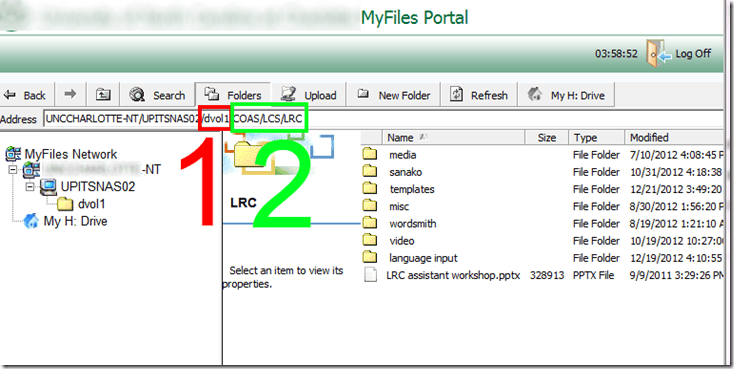
- You can use the folders listed in here,
- except you have to translate “S:” into (1) “DVOL1”.
- Rest stays the same (2).
- Cons’:
- Slower network
- You cannot easily save back after comment on your students audio or text (but give it a shot).
- VPN
- which I test and explain here in detail,
- Pro’s: it is a better experience
- instead of it requiring you to do yet another path translation, you can simply click here;
- you can (batch) open and save files (maintaining ownership) like on your office PC (no extra upload and download operations required, and no need to manually route files to students)
- Con’s: Slower network.
- The myfiles portal: https://myfiles.uncc.edu
How to batch download all submissions as a zip file from a Moodle: Gradebook File-upload assignment column.
2013/03/01
Leave a comment
- I have no file upload assignment with submissions handy in my own Moodle course, so I am patching this together from other universities (thanks, umass.edu, cotc.edu).
- “ Another time saver you can use is the Download all assignments as a zip link. This will package all uploaded documents from any submissions in the assignment into
a zipped folder that you can download. Once downloaded, you can unzip the file and access each paper. This can be a real time saver!”. Image: 
- Extra: This procedure will add the student’s name to the file. No more wading through submitted audio files named by students trying to identify submitters.
Categories: e-learning, grading, lms
automation, batches, file-upload, files, gradebook, moodle


Questions? Read the About. Or just ask me a quick Our Databases: Resources with calendars -- Language learning material Moodle Sites, multimedia files -- films


FAQs for LRC student staff or for students or for teachers. To search our FAQs, in the browser addressbar, add after "https://plagwitz.wordpress.com/feed/?tag=faqs+/" "+TAG1" (from tag cloud below) OR "https://plagwitz.wordpress.com/feed/tag=faqs
&category_name=" "CAT1" (from category hierarchy below). OR search both categories and tags, and multiple TAGs/CATs (connect with "," for OR-search, with "+" for AND-search), like so: https://plagwitz.wordpress.com/feed/?tag=TAG1+TAG2+...TAGn&category_name=CAT1
+CAT2+...CATn"
Other ways to find help
If you cannot find it here, look there: 5,500 Language-Learning Links and Programs for learning or teaching 150 languages
Shortcuts:Our Lists, Our Maps, LRC Staff Moodle Site,LRC Project Moodle Site, 49erexpress, UNCC Moodle, Student Recordings: s:claslcslrcsanakostudent
Learning usage samples: Sanako oral exam, Kaltura webcam presentation, Dictation with speech recognition, Sanako written exam, Chinese and Japanese interactive stroke-order practice
Test the Sanako Installer, Webbrowser Popup Konfigurator for XP, or Windows7, faster LRC TeacherPC Log-in Let MS facilitate diacritics writing by installing for you US-International keyboard layout
This is my personal blog (Google+). The views expressed on these pages are mine alone and not those of my employer. The information in this weblog is provided “AS IS” with no warranties, and confers no rights.
 Thomas' Work Space
