Archive
How to provide students with blended human/computer-automated feedback on their speaking using a dictation with speech recognition assignment screencast
- Teachers often feel there is never enough time for grading students’ speaking proficiency. Fortunately, we can now automate feedback on pronunciation using Windows 7 dictation with speech recognition.
- This feature will be available for 7 languages on Windows 7 in the LRC, here is a demo for a reading exercise dictating German.
- An assignment step-by-step could look like this: Students
- record a screencast of their dictation,
- read a text to the computer in MS-Word,
- turn track changes on in MS-Word and correct the text (immediately or after dictation) where the computer could not recognize their speech,
- upload their screencast to Kaltura in Moodle.
- To grade the performance, the teacher has to review only at the very end of the screencast to see how many corrections the student needed to make (when it doubtabout the speech recognition validiiy, the teacher can easily jump to the screencast segment in question and, if necessary, override the speech recognition).
- This could be a regular assignment type since it provides the following benefits:
- immediate automated intelligent feedback for the student
- little grading overhead for the teacher, so that the teacher can concentrate her work on providing aural feedback on student recorded speech as a highlight maybe twice per term, maybe after mock exams before a midterm and final exam
- some multimedia pieces demonstrating language proficiency for the student’s ePortfolio.
- Requirements:
- a quality headset (we use Sanako SLH-07
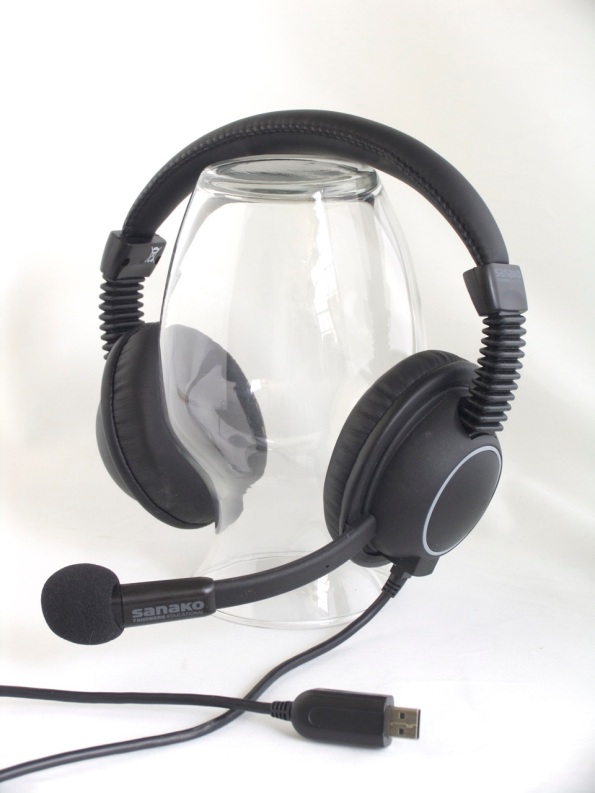 )
) - Windows 7 Enterprise/Ultimate with Language Packs,
- knowing how to switch the display language, (optional/recommended:) TBA:a simplified language switching facility,
- individual voice training data: speech recognition users have to train the computer – once, even in a deepfrozen computer enviroinment, since we enabled you to save this data to and restore it from a flash drive or personal network share space,
- a reading text (often authentic texts can be taken straight from the textbook, to fit in with the syllabus, like in this example from Treffpunkt-Deutsch 1st-year German),
- MS-Word with track changes
- screencast software (we use MS community clips)
- a way to submit the results to the teacher (we use Moodle with Kaltura video uploading (example for teachers, students do it similarly), but email could be sufficient depending on screencast length and attachment size allowance).
- a quality headset (we use Sanako SLH-07

“Clickonce” to download Langlabemailer (BETA)
After receiving the response to your request for a download link, click the link in the response to go the download page, and on that page click the button: “Install”.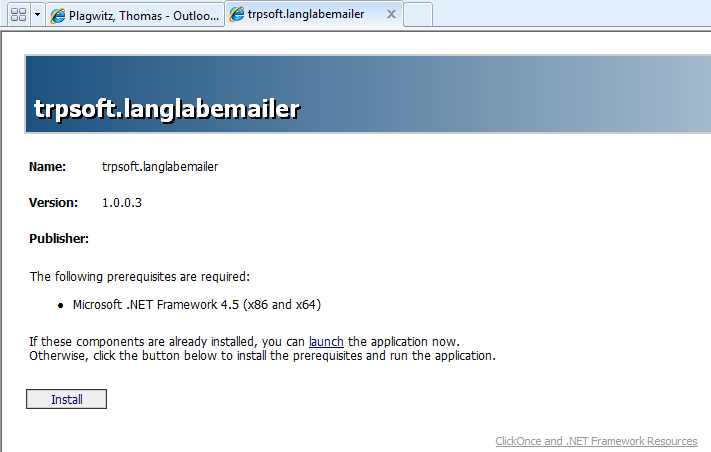
Next:Install. Or Langlabemailer (table of contents).
How students can record their picture or photo presentations with PowerPoint 2010
- The screencast shows the necessary steps:

- inserting a photo album,
- presenting while recording the presentation with narration
- saving as a show (.ppsx) – make sure you have ribbon:”Slide show”/ “Play narrations” checked:

- to prepare an assignment for a Moodle single-file-upload (How a student takes a Moodle Simple file upload assignment).

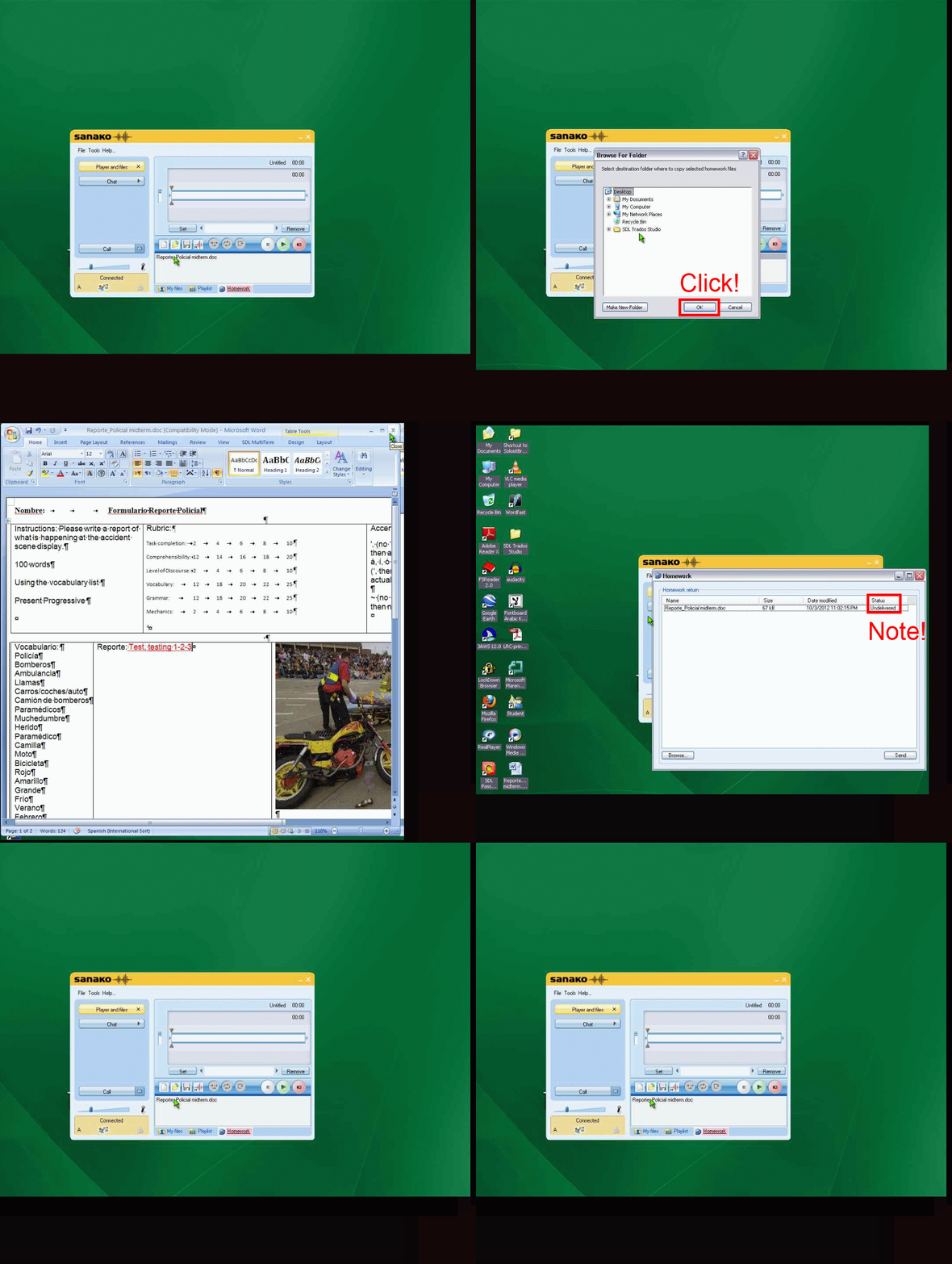
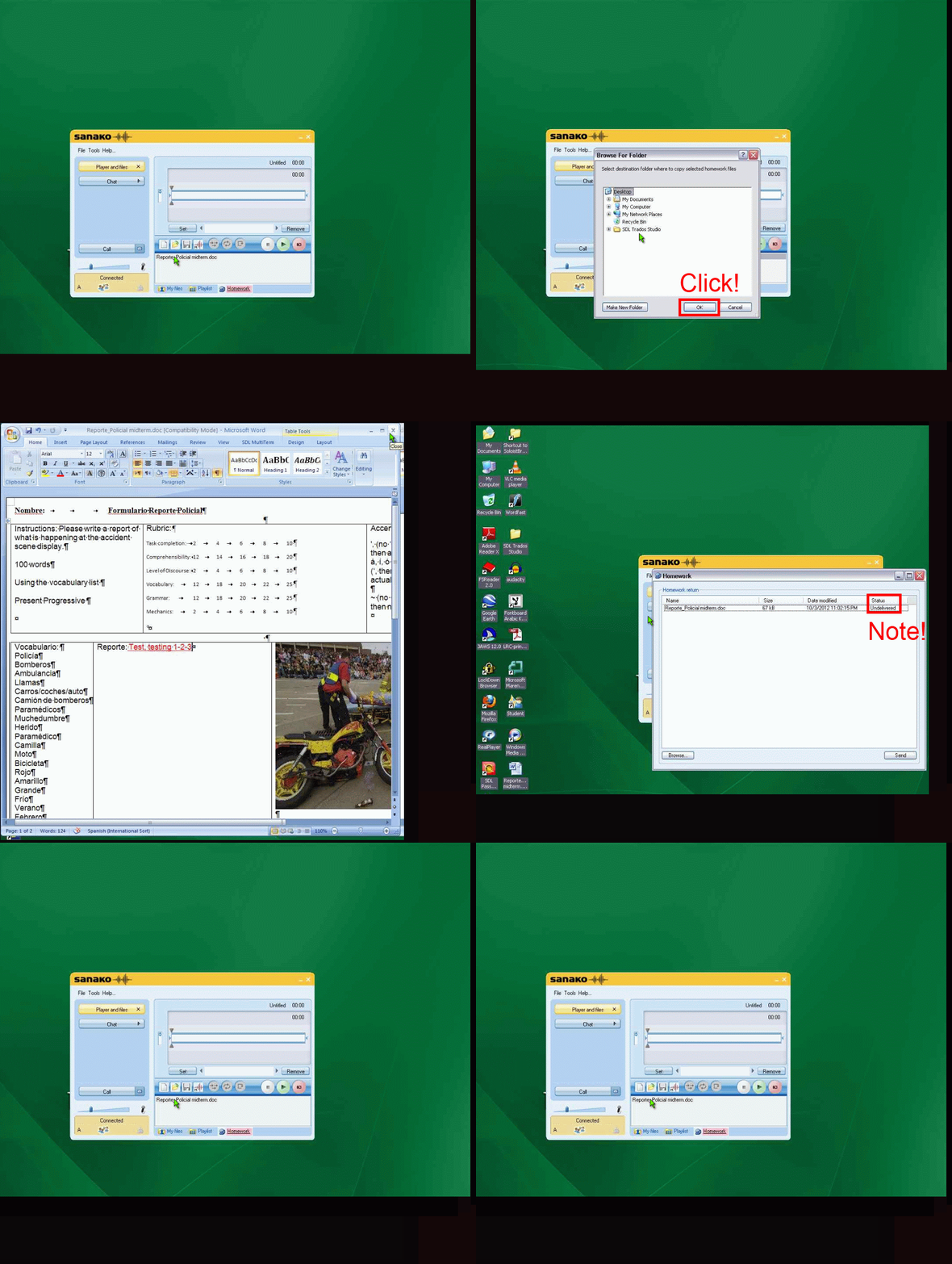
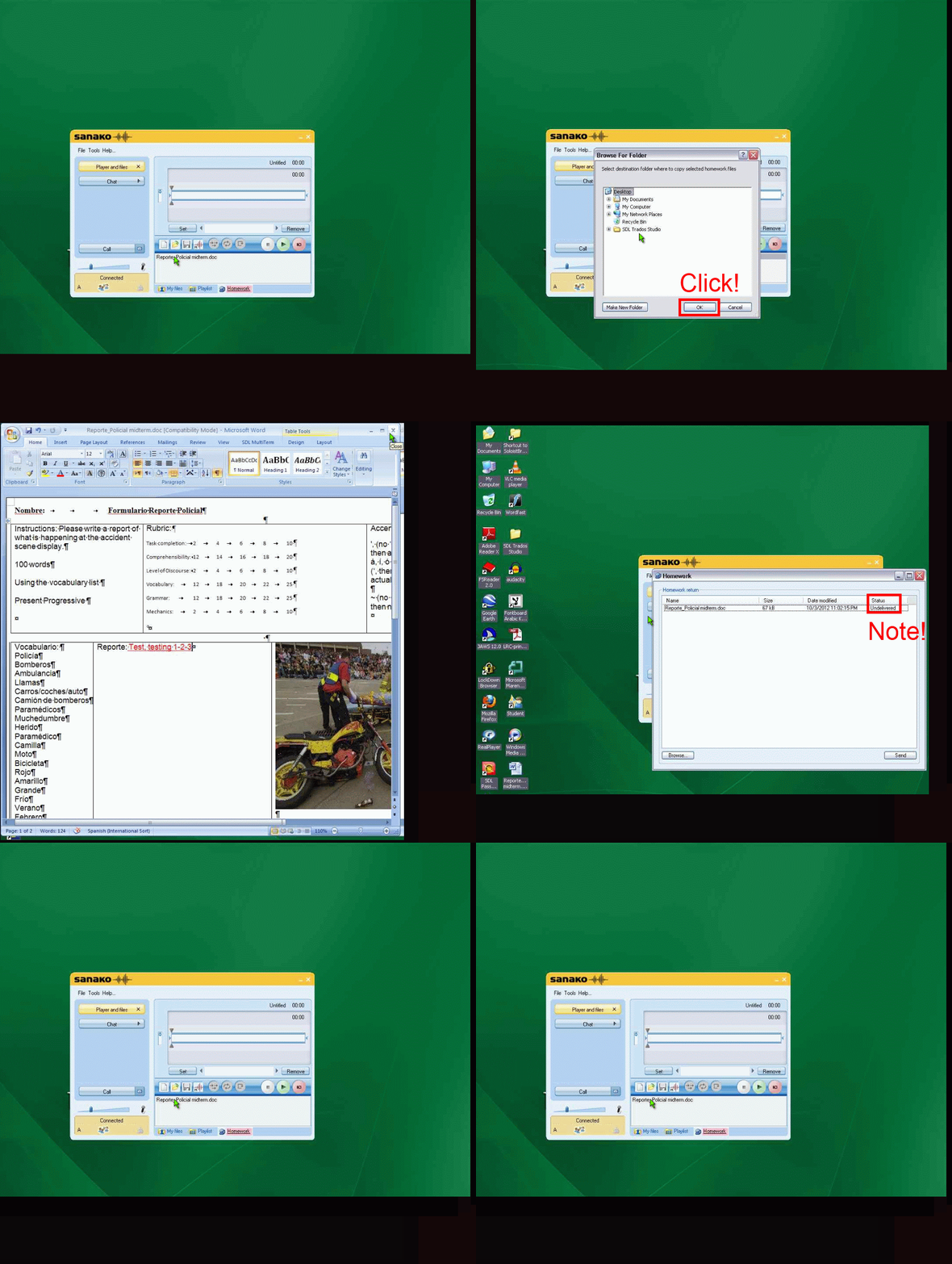
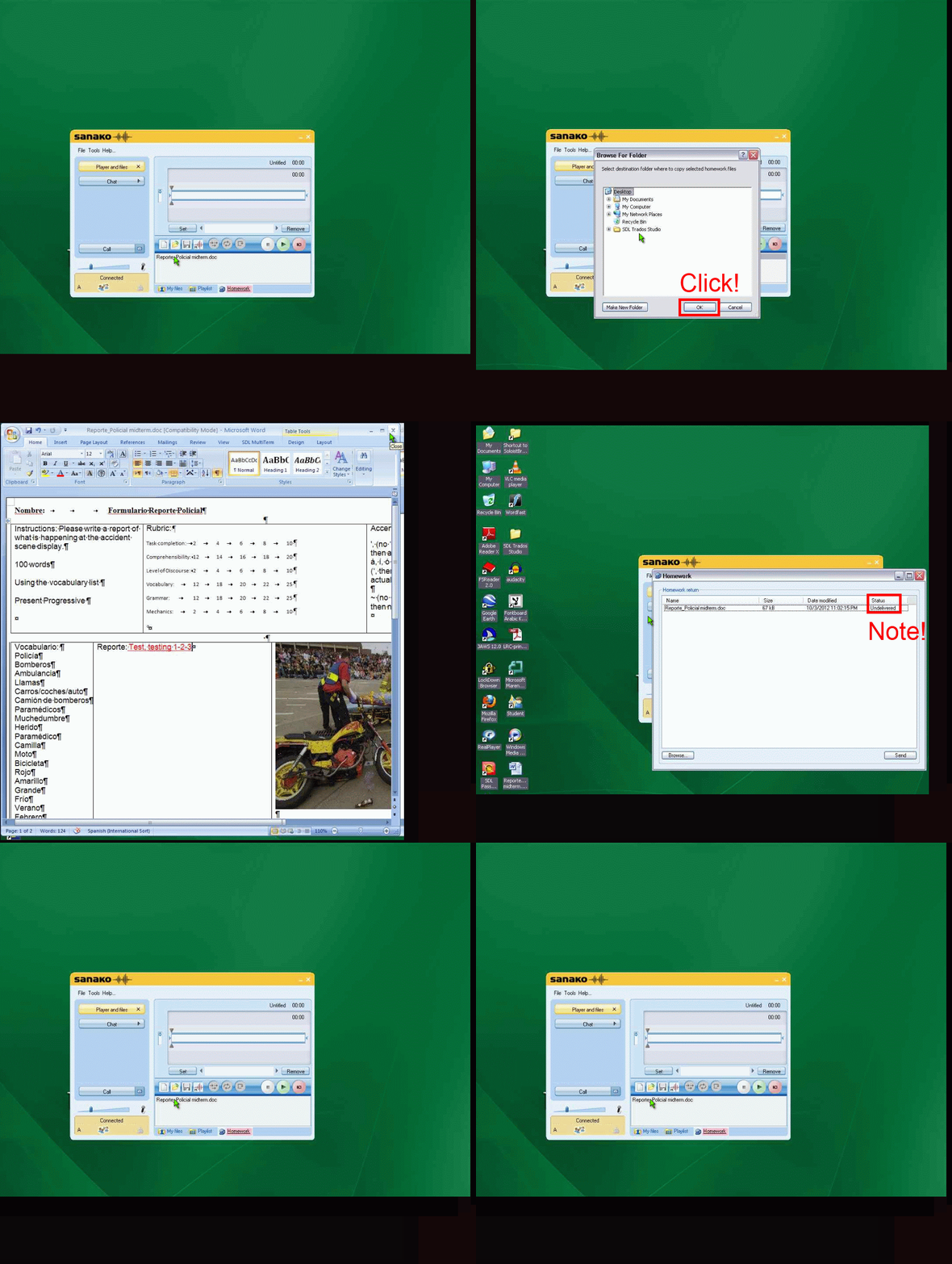
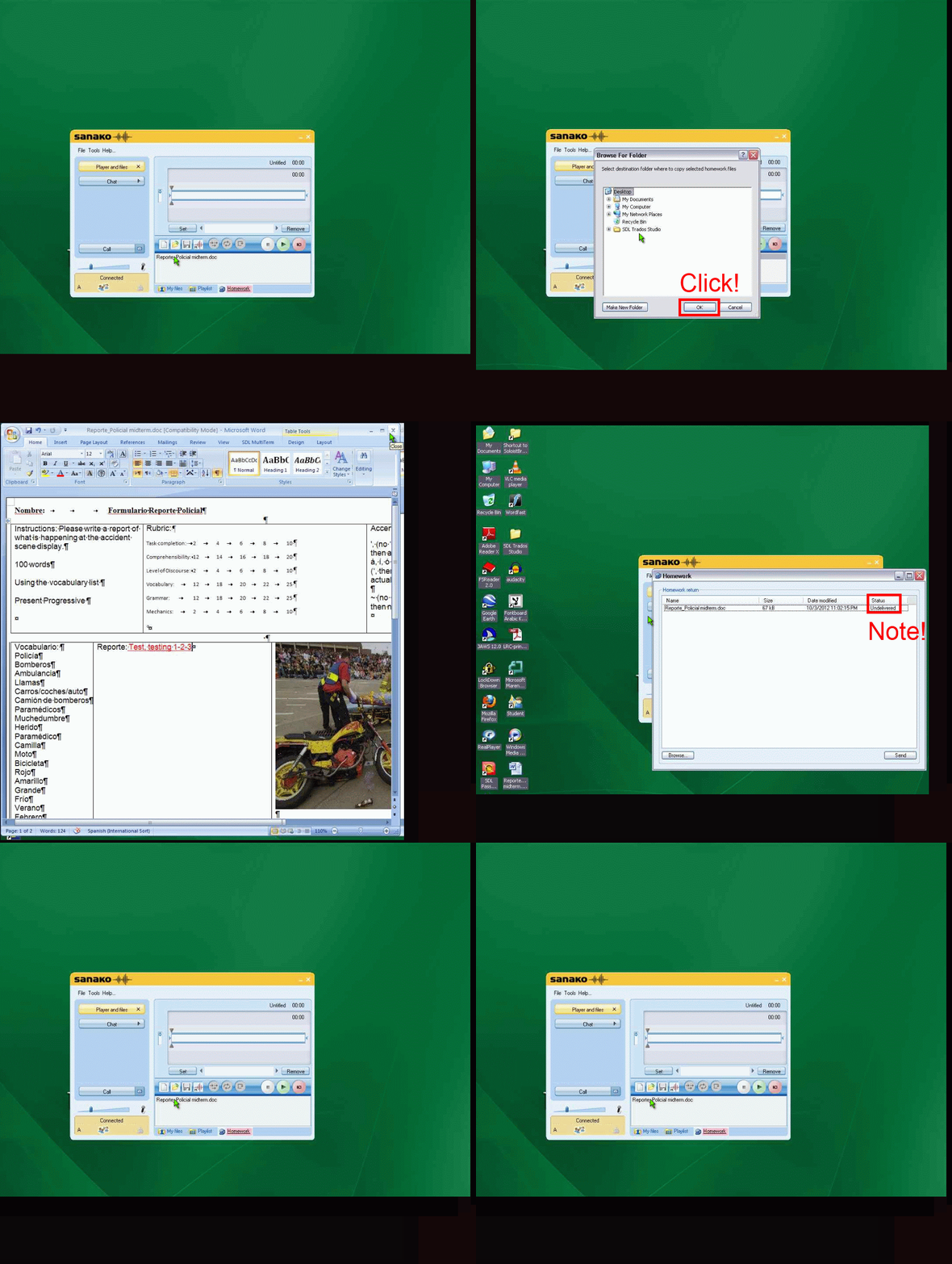
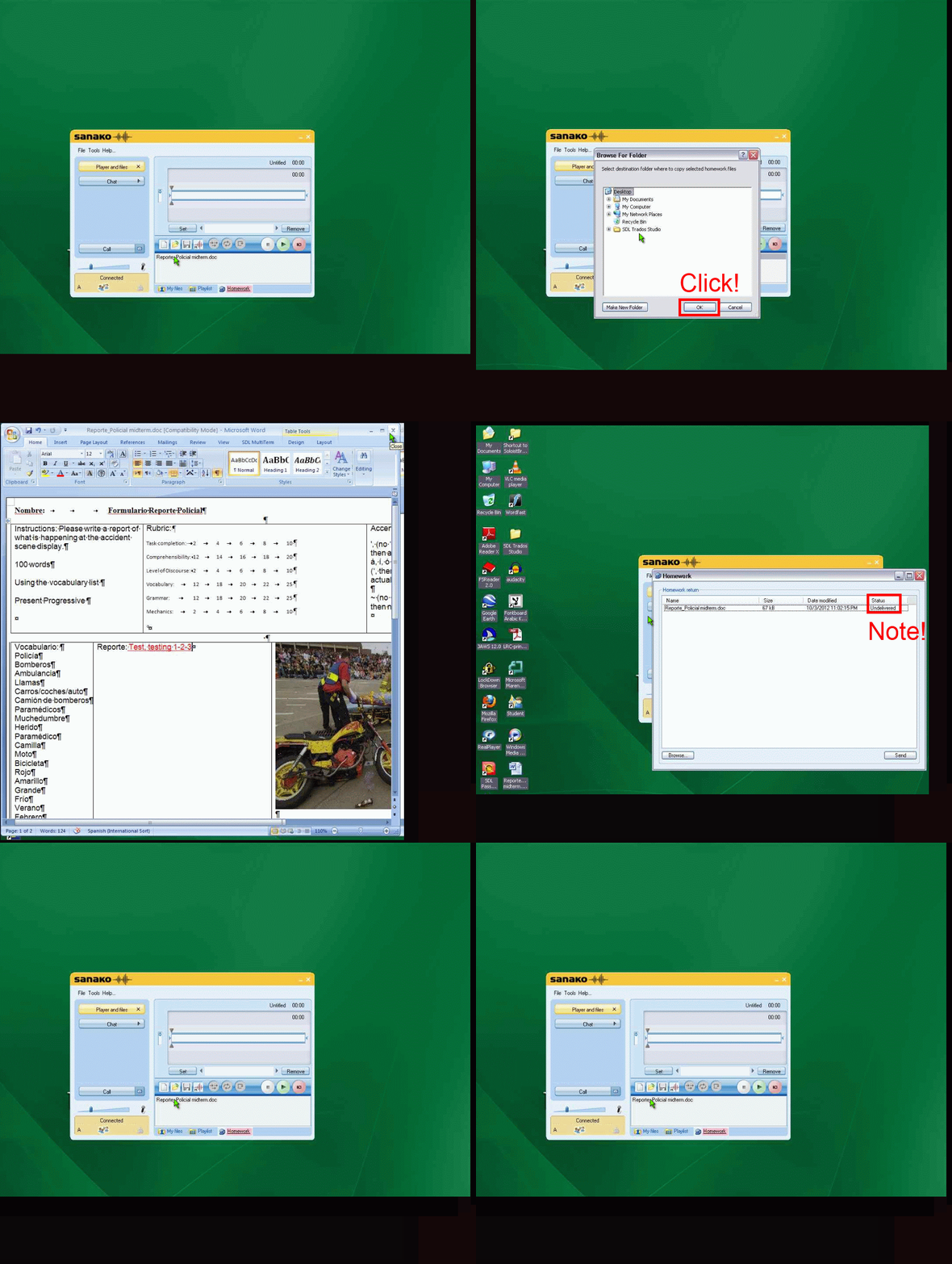
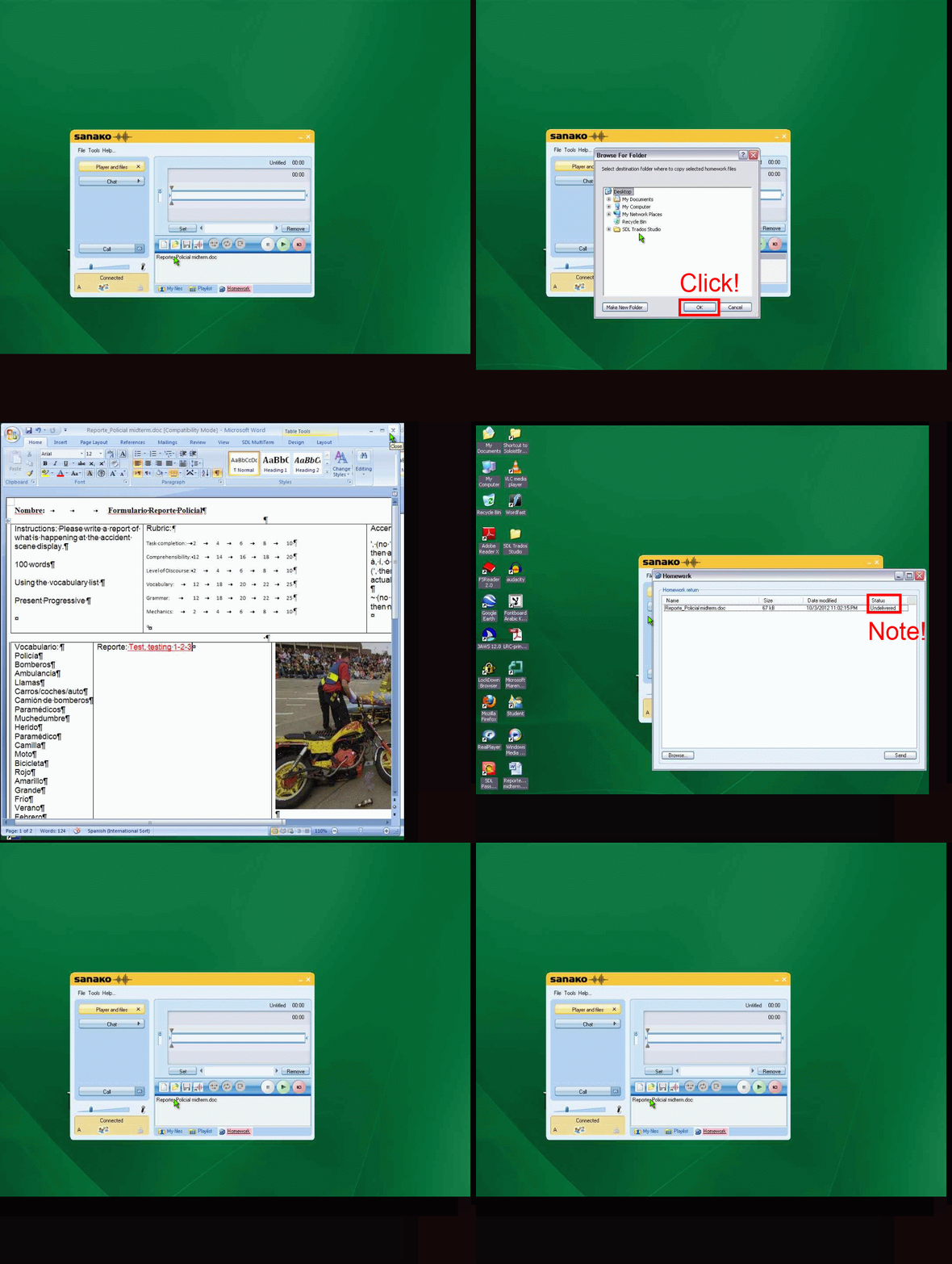
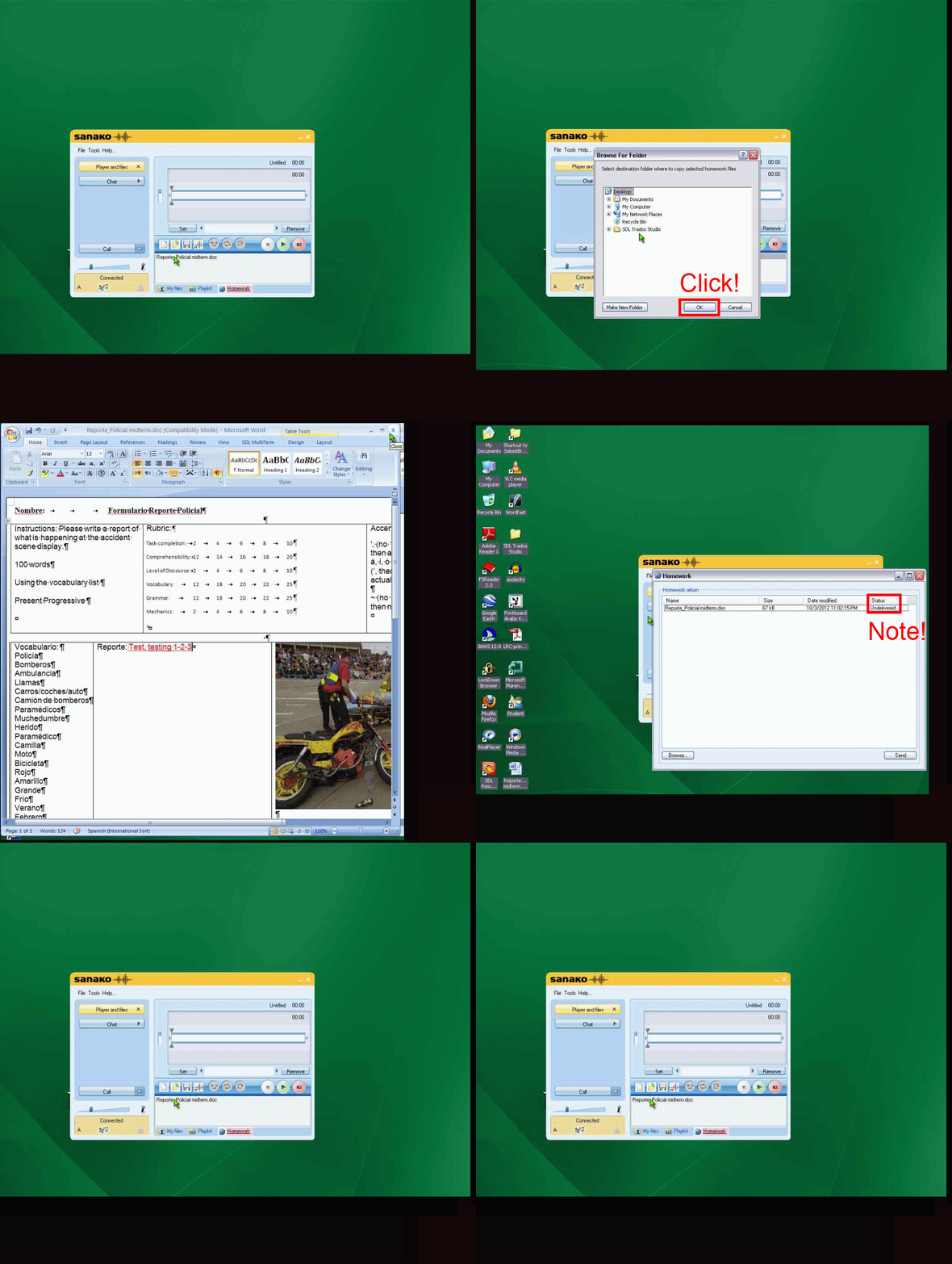
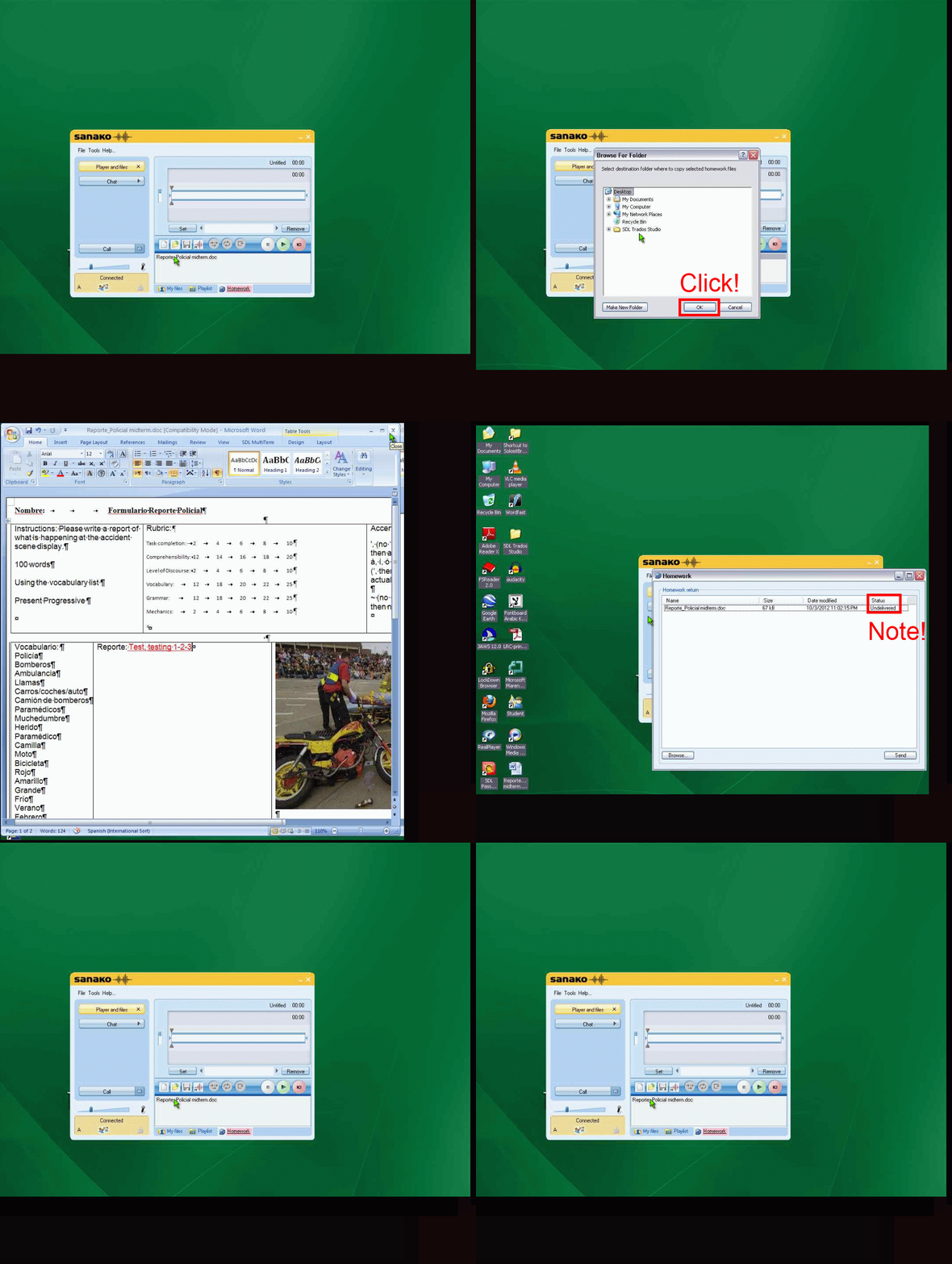
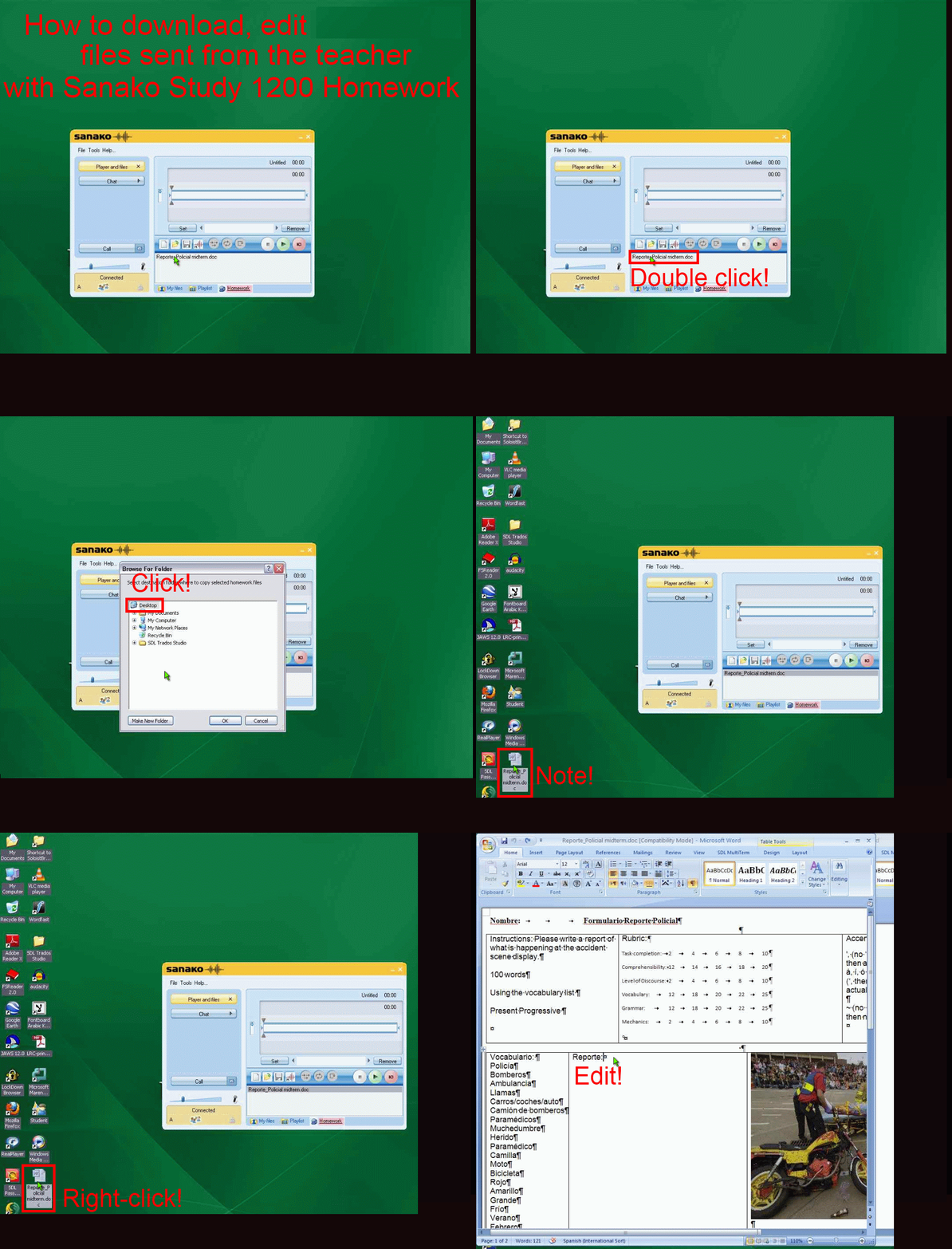
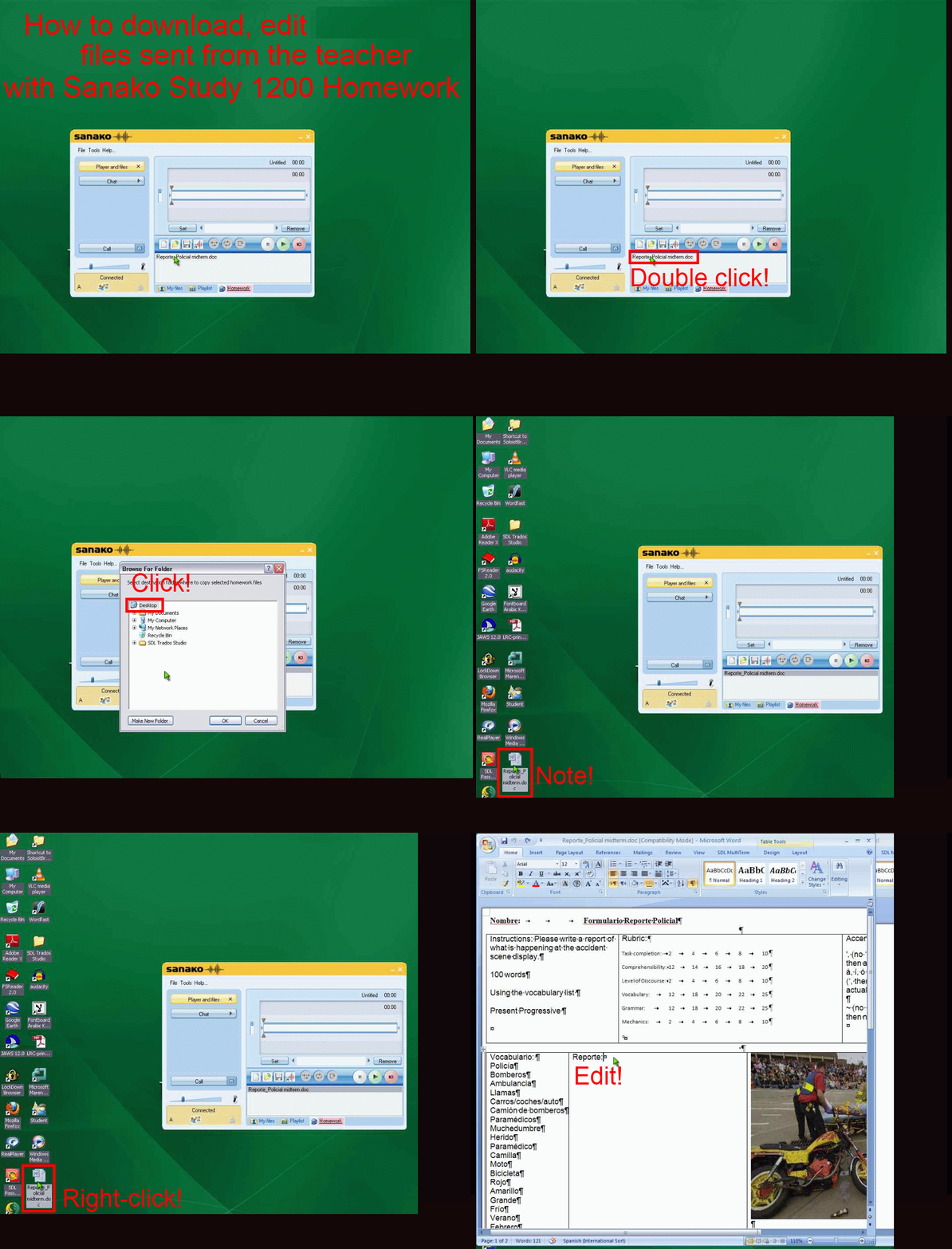
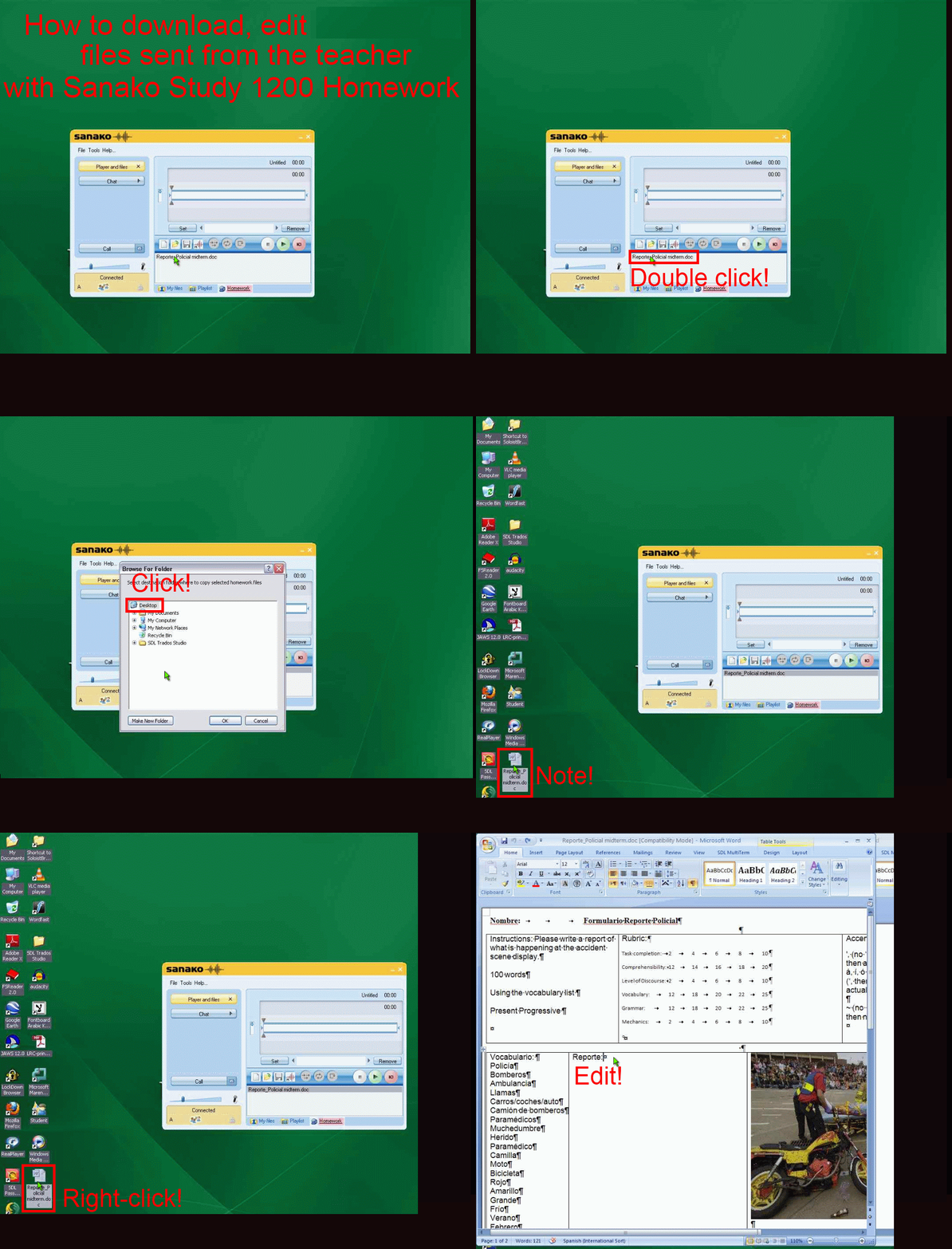
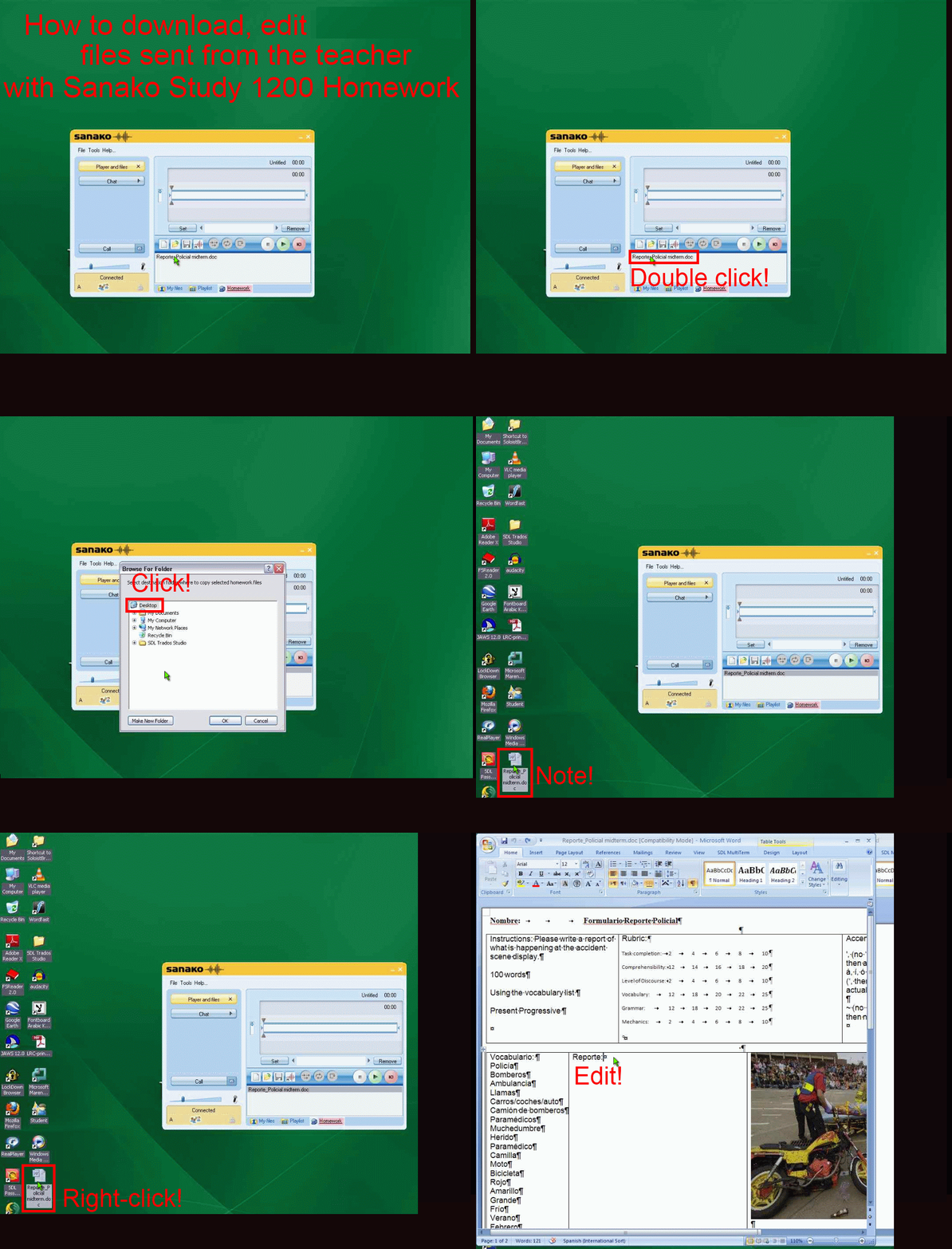
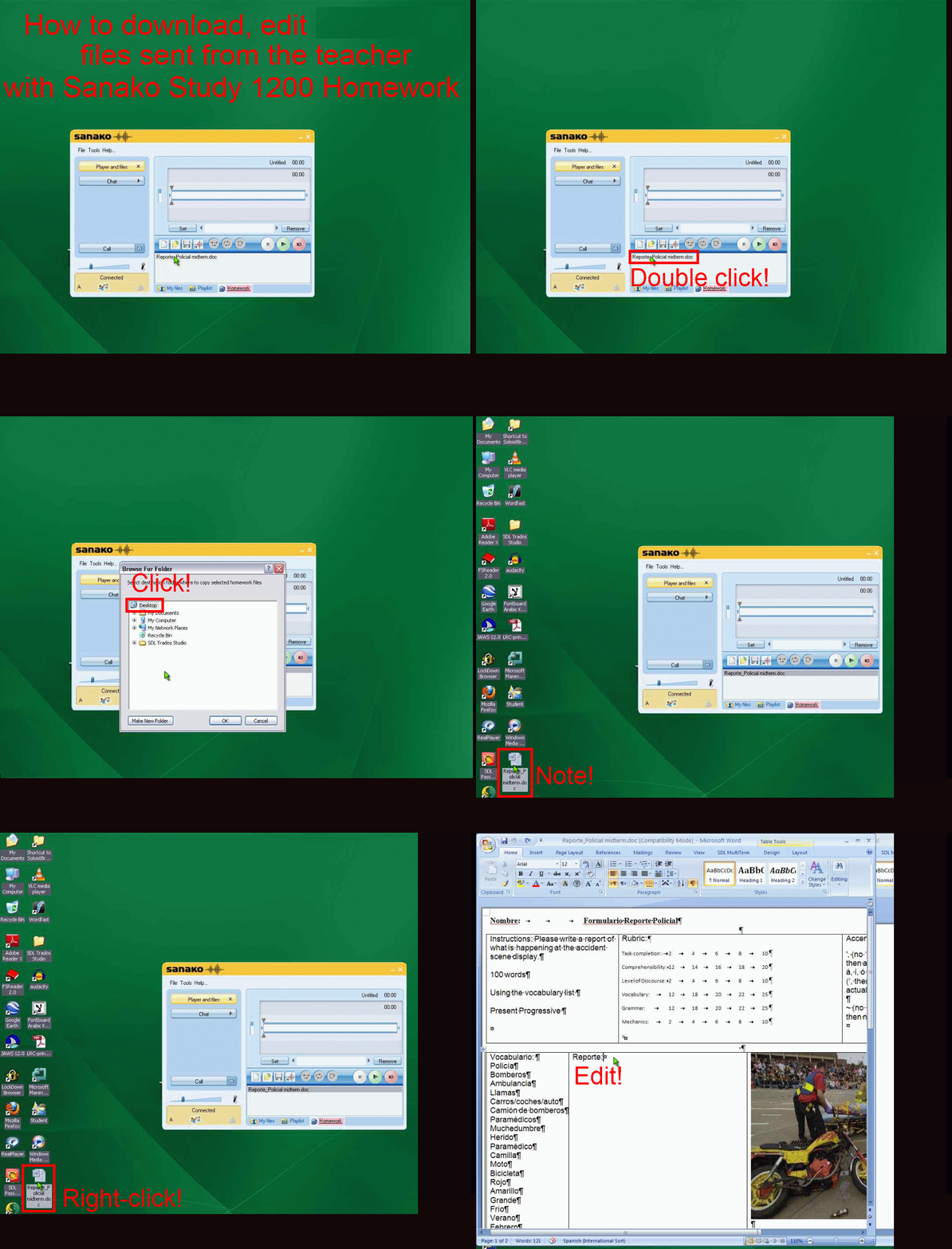
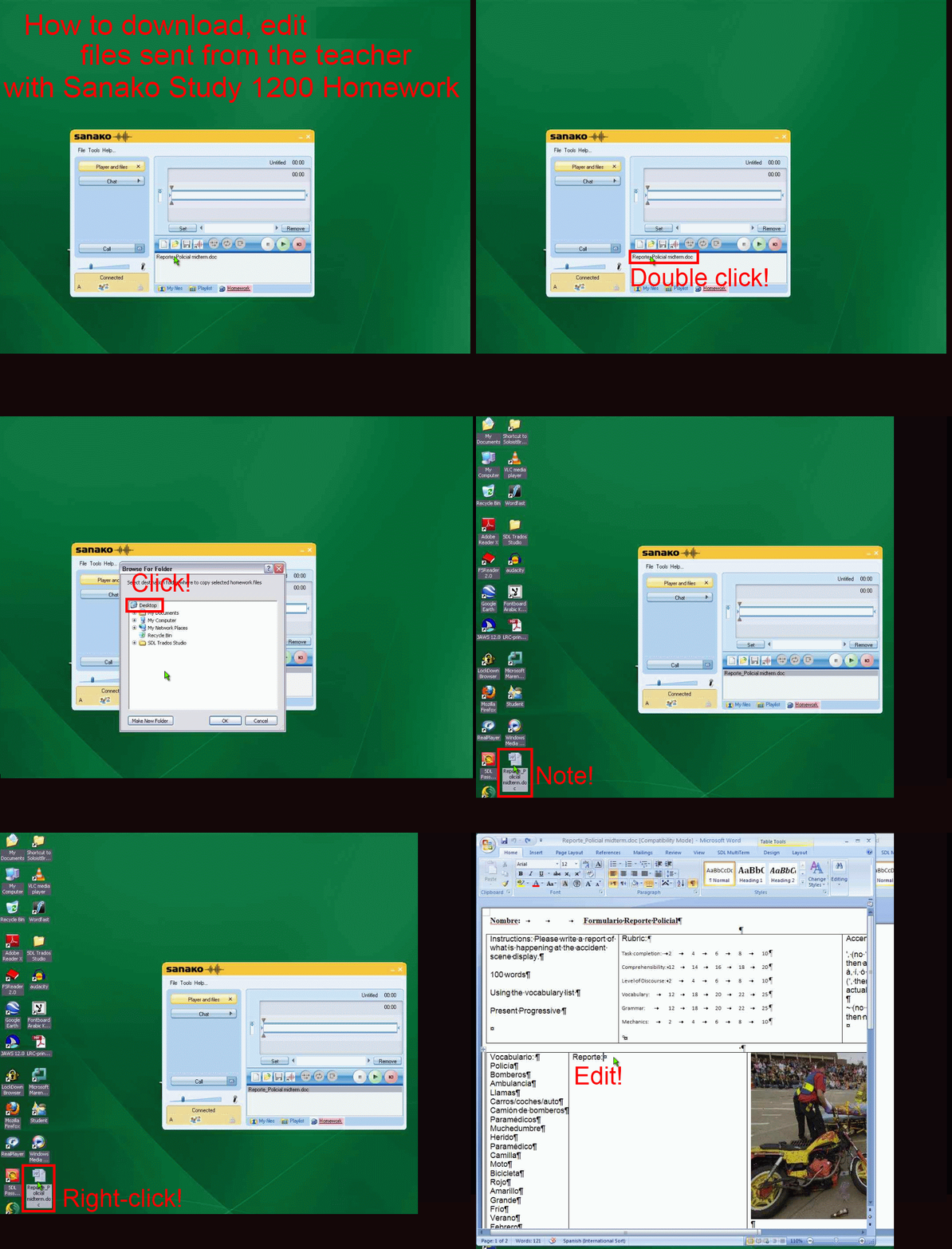
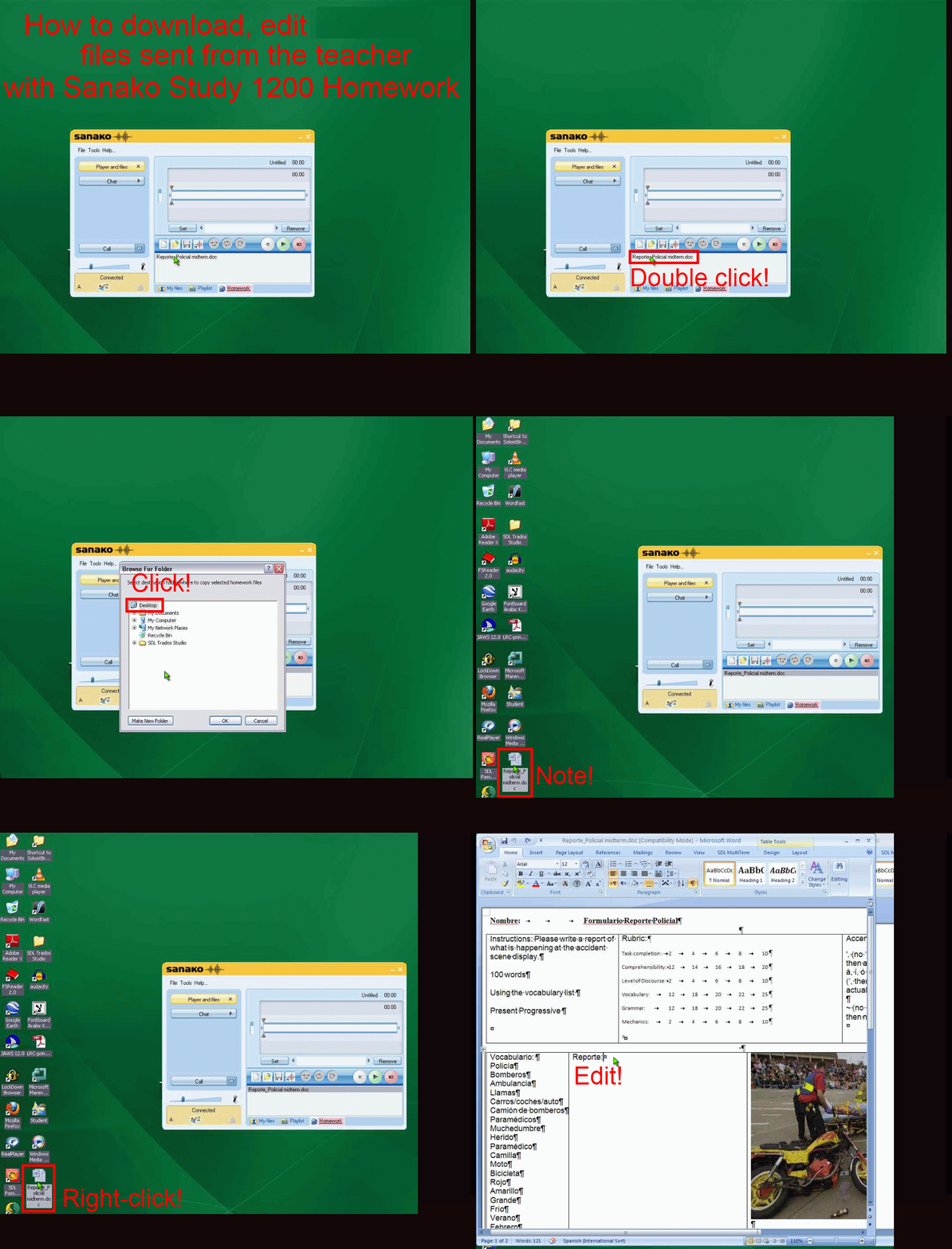
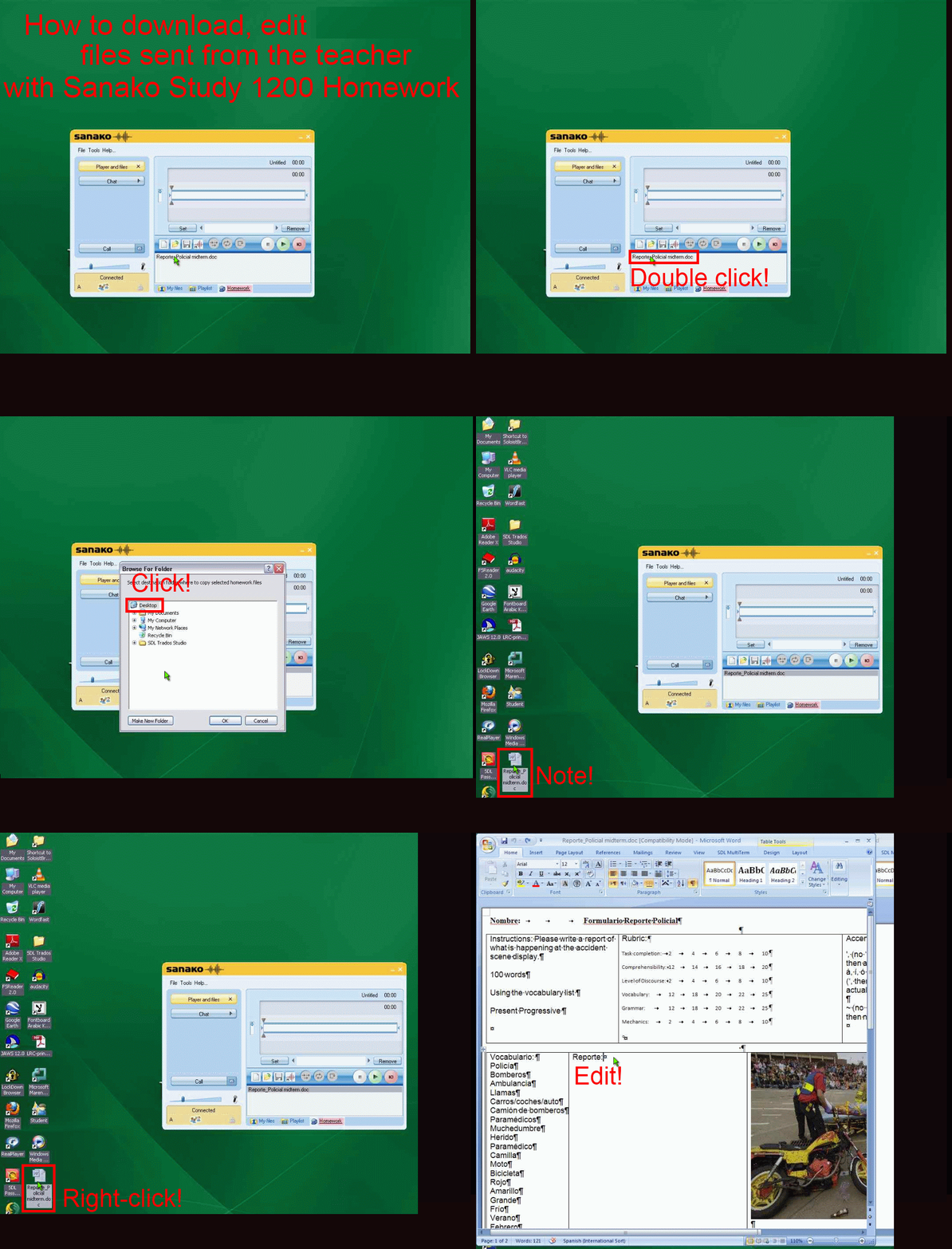
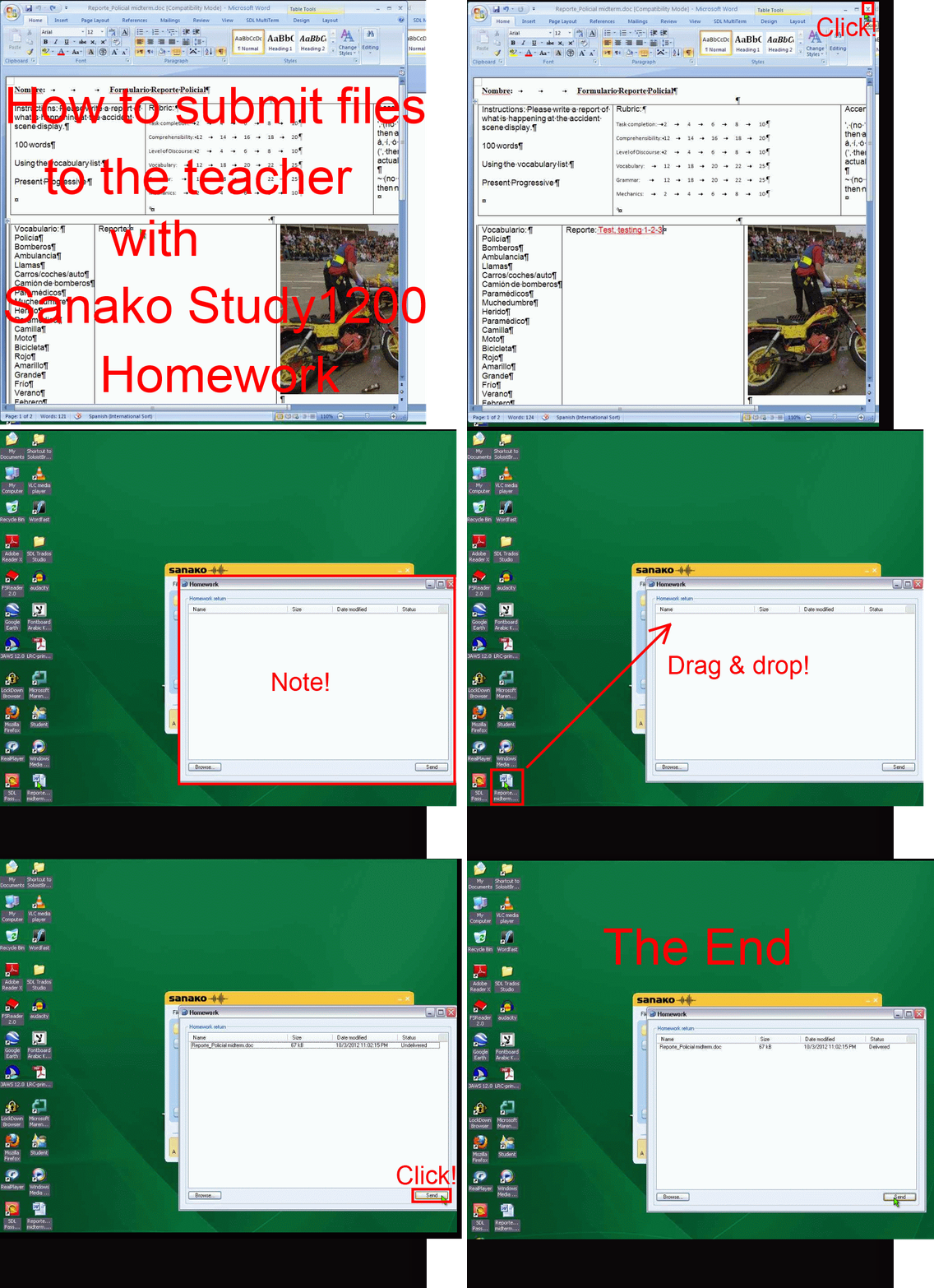
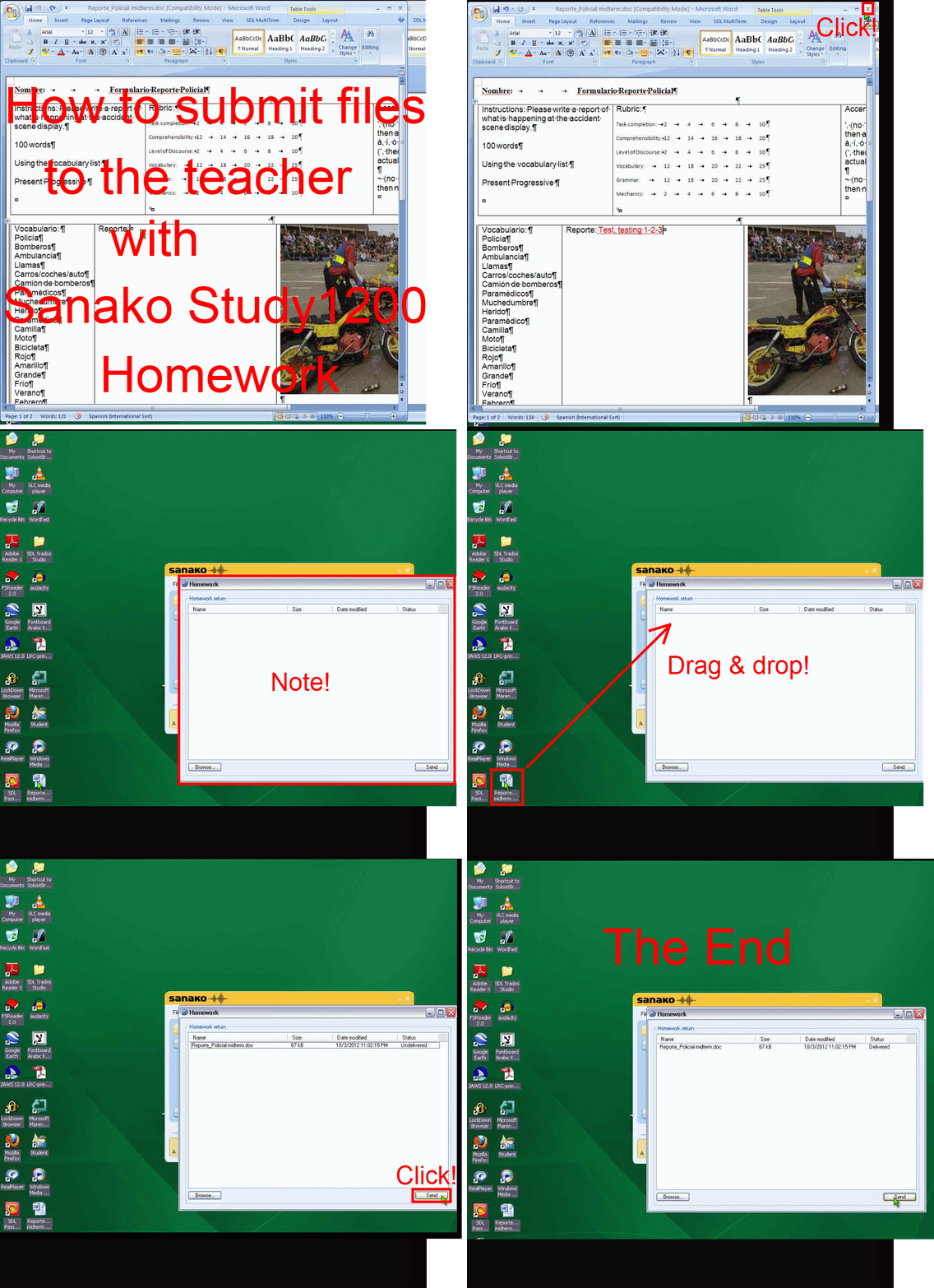
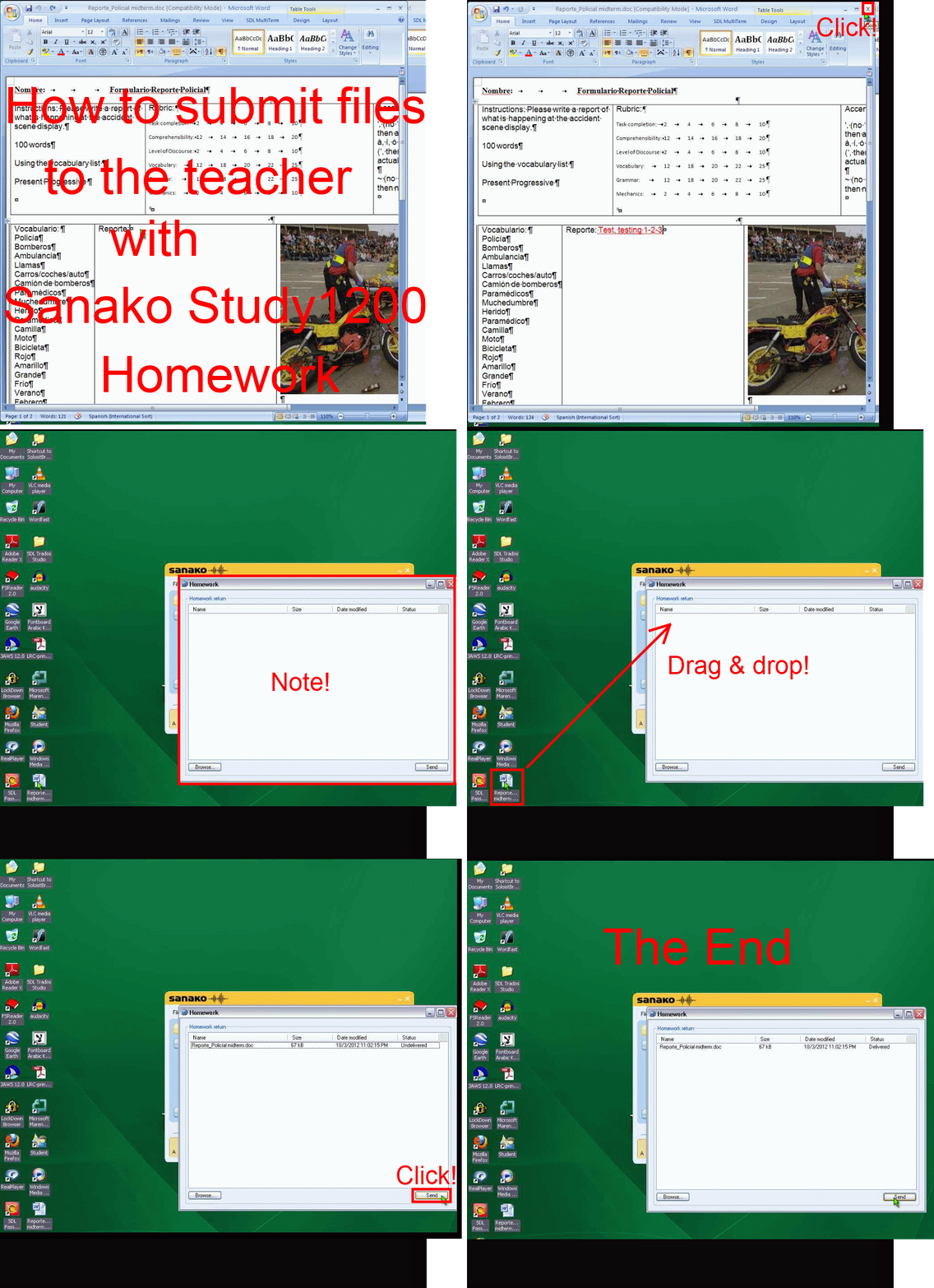
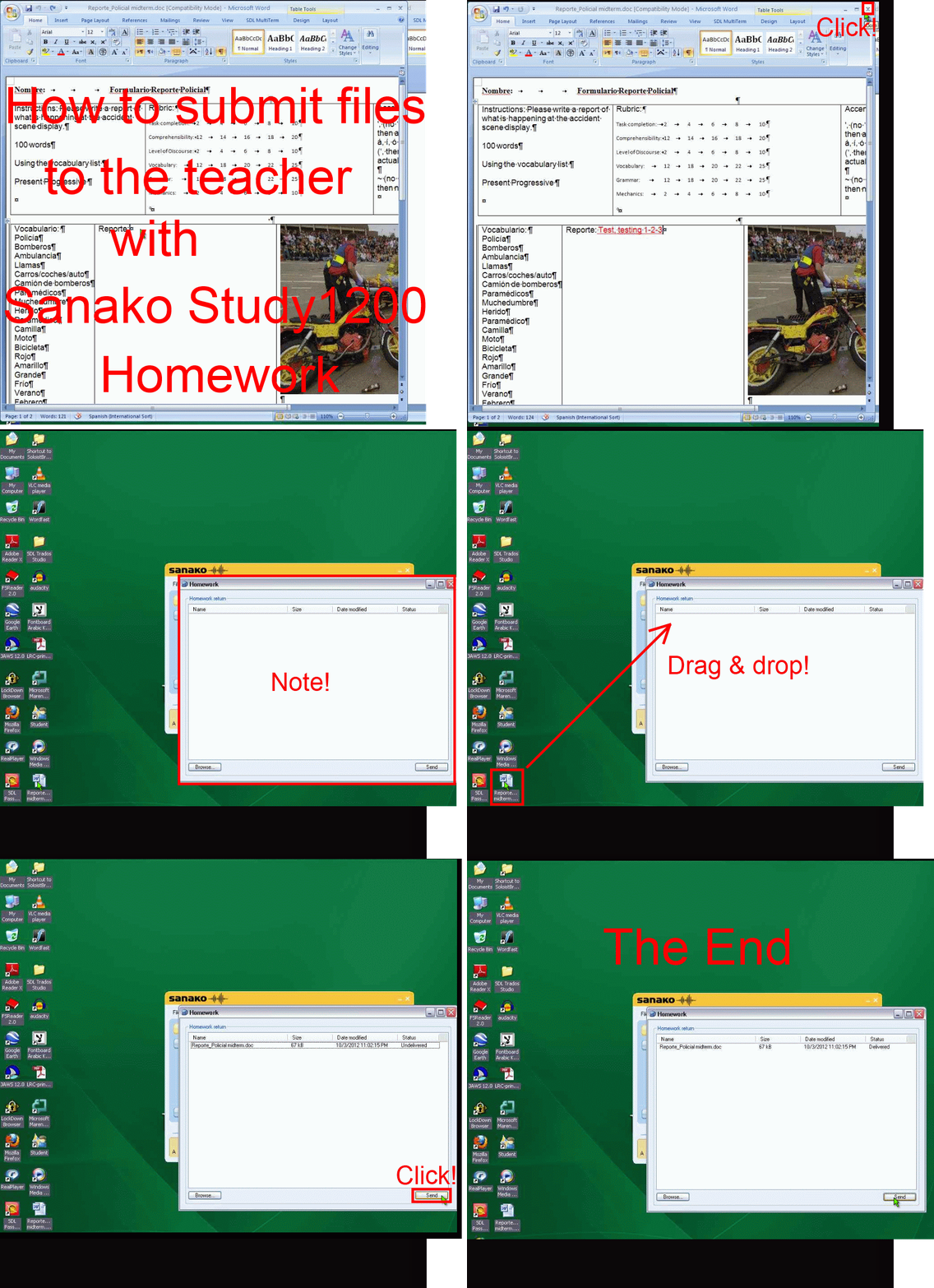
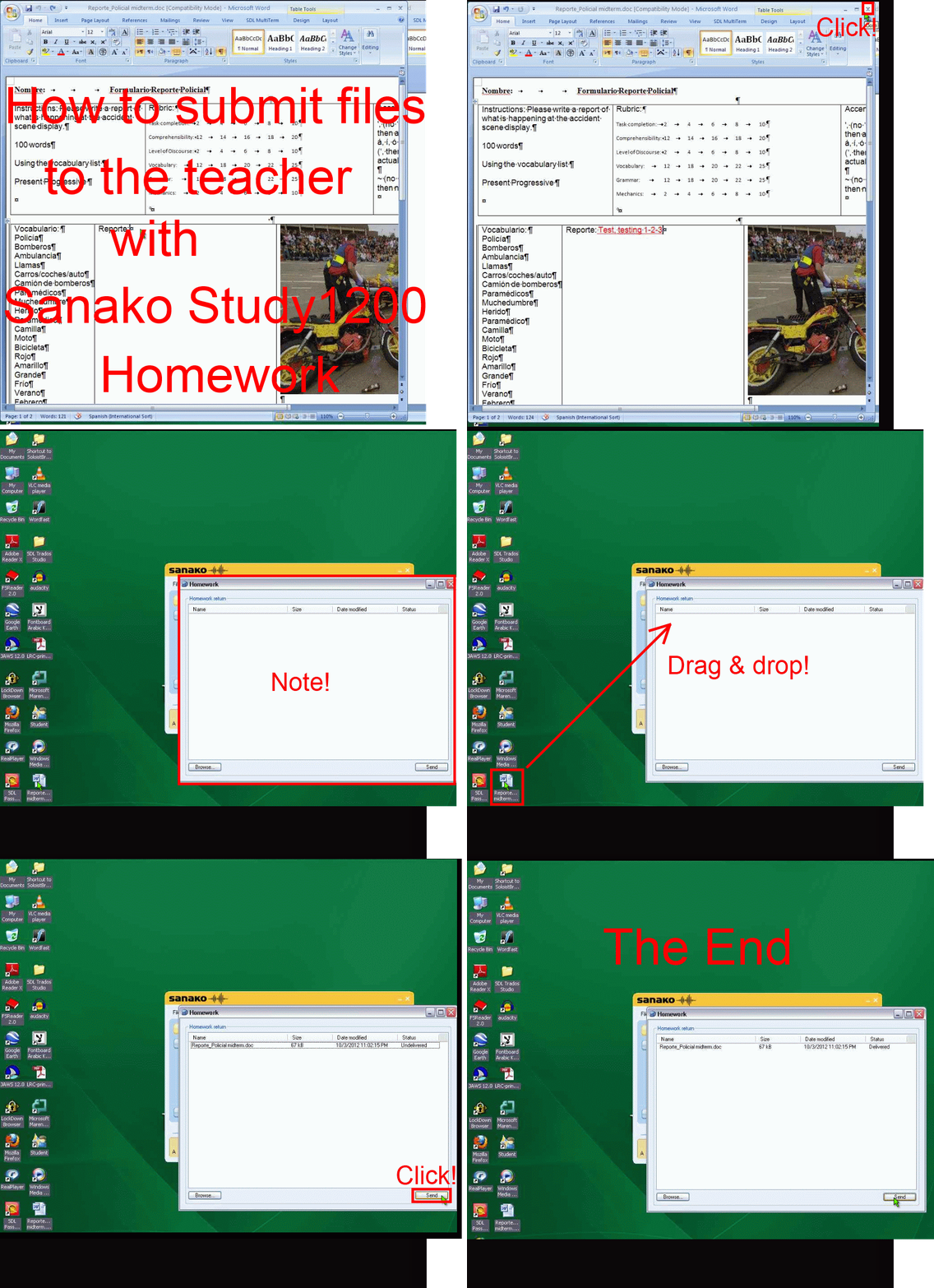
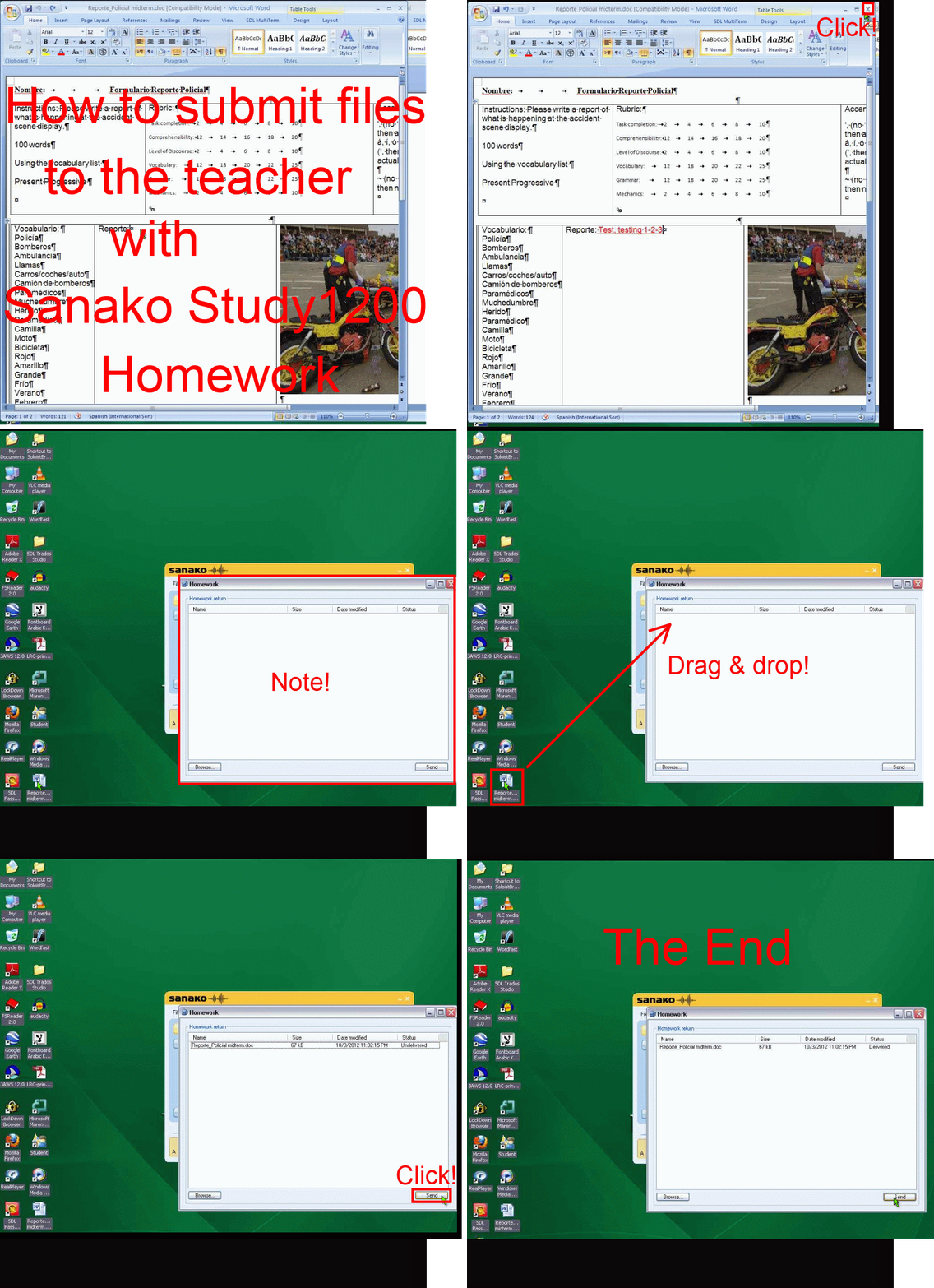
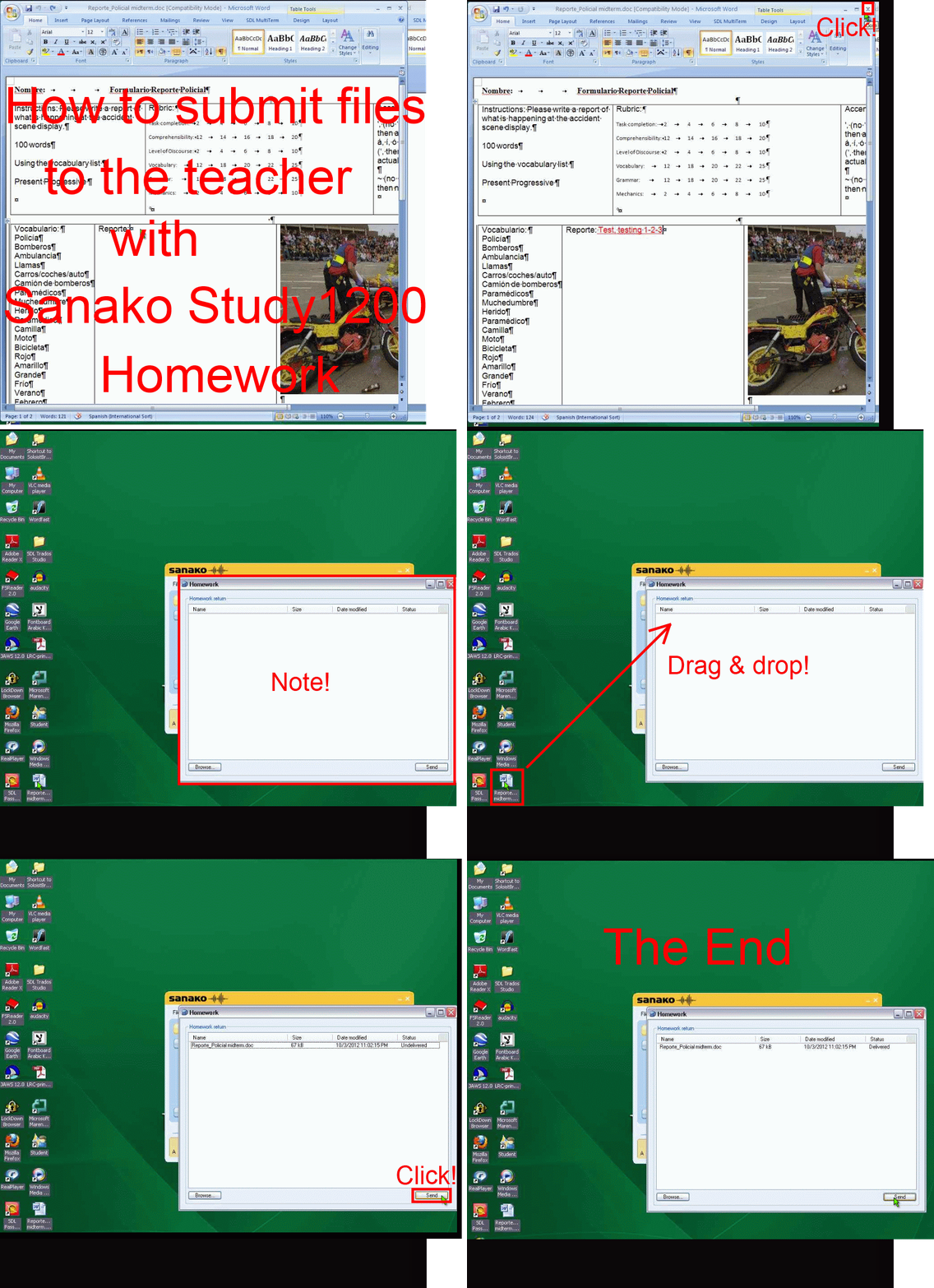
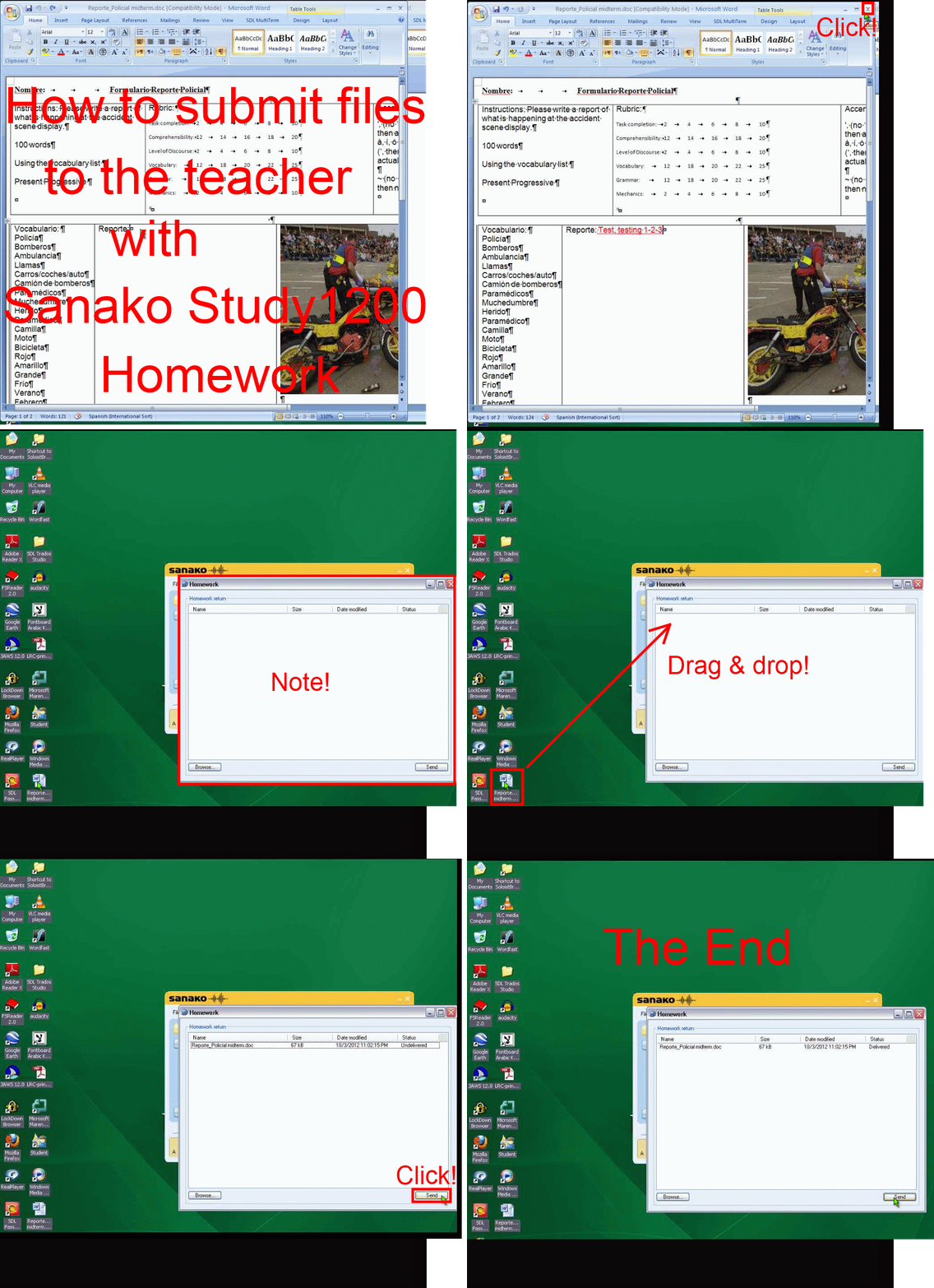
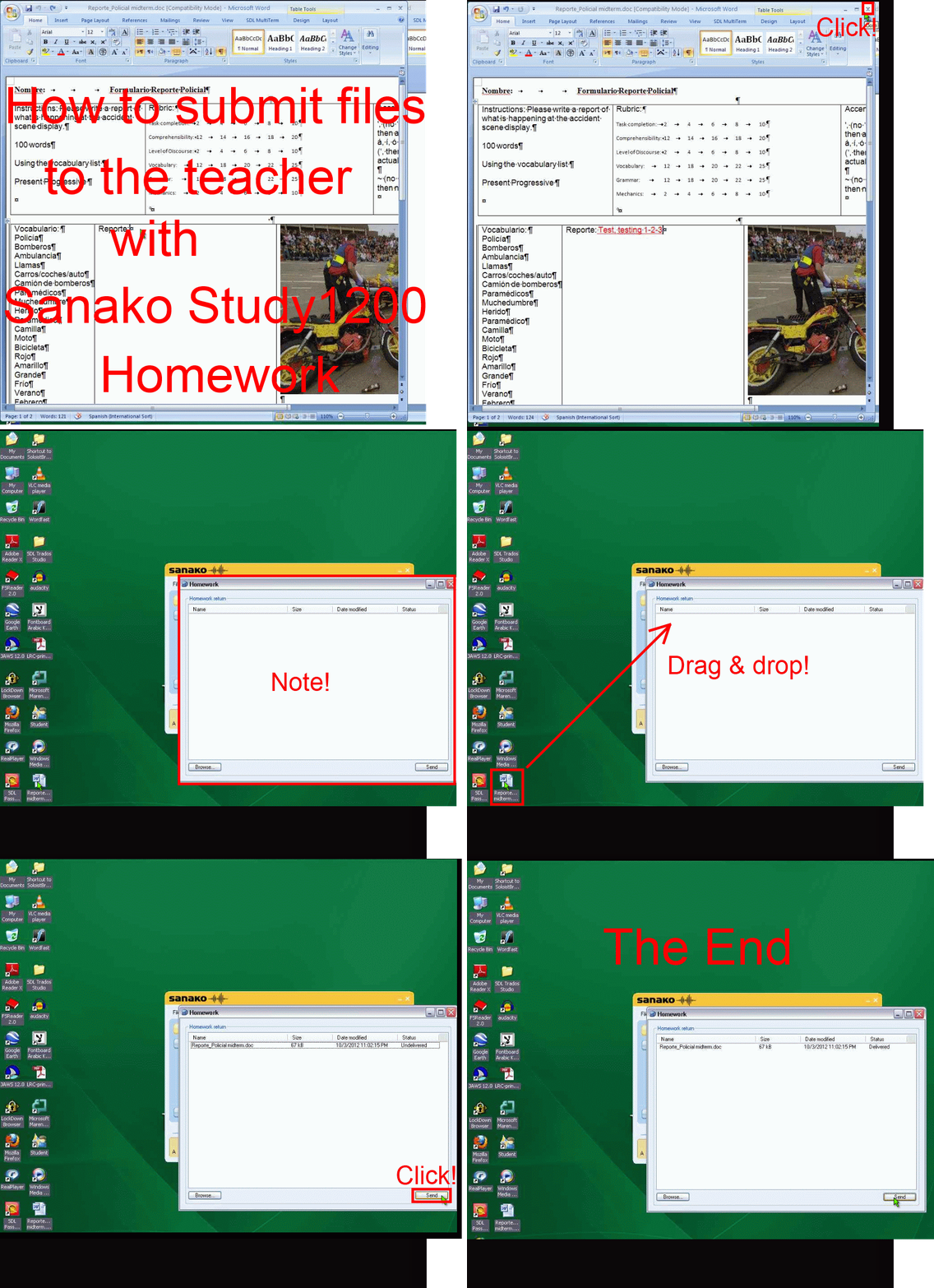
How student downloads, edits and submits files sent from the teacher with Sanako Study 1200 Homework –the ultimate training summary….
…using animated GIFs. (Here are the parts 1+2 that your teacher has to do). Slower? Click , 0.50sec, 0.75sec, 1sec, 2sec, 3sec, 4sec, 5sec, 6sec, 7sec, 8sec, 9sec, 10sec.
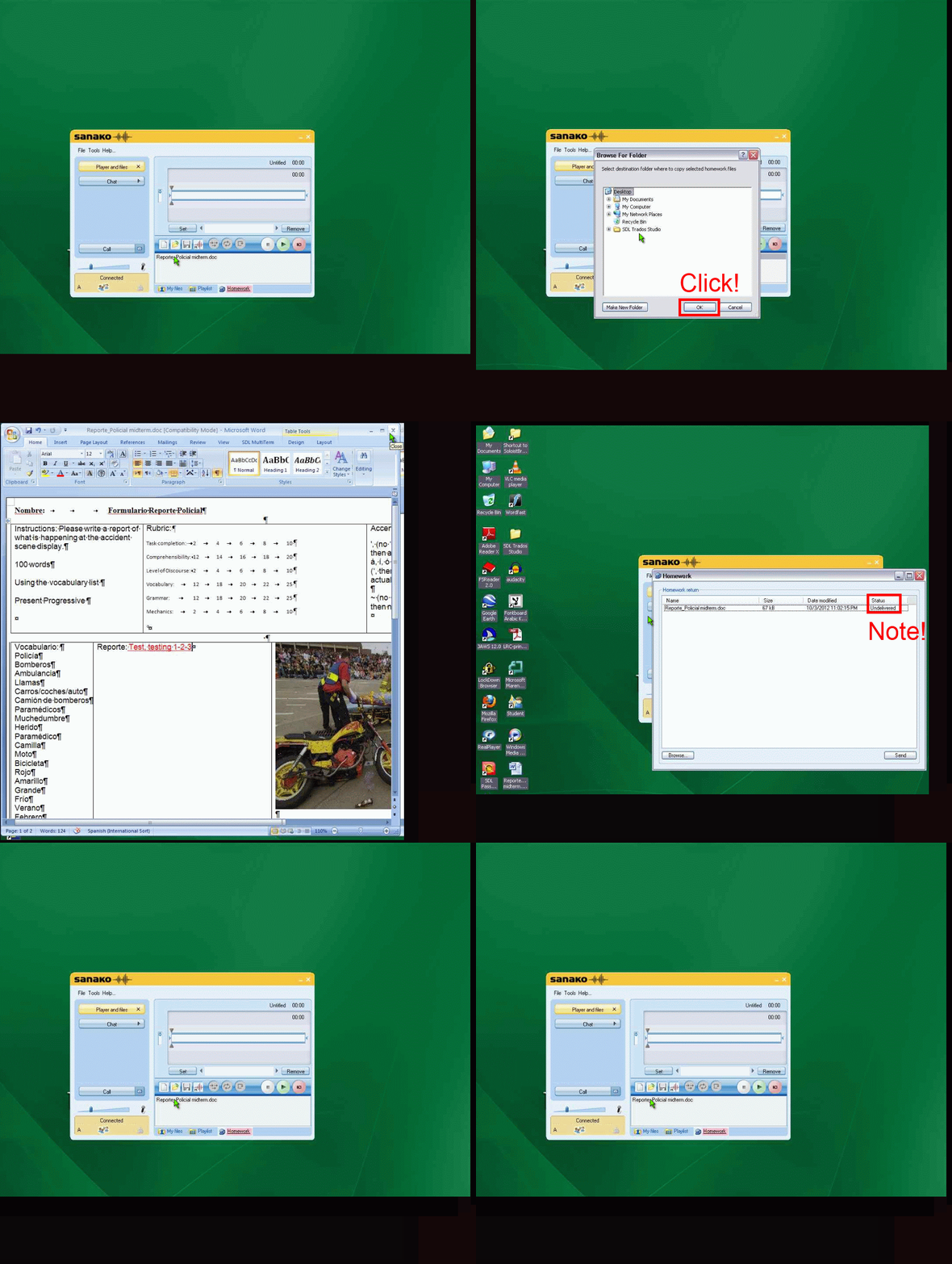
UPDATE: Now also split into
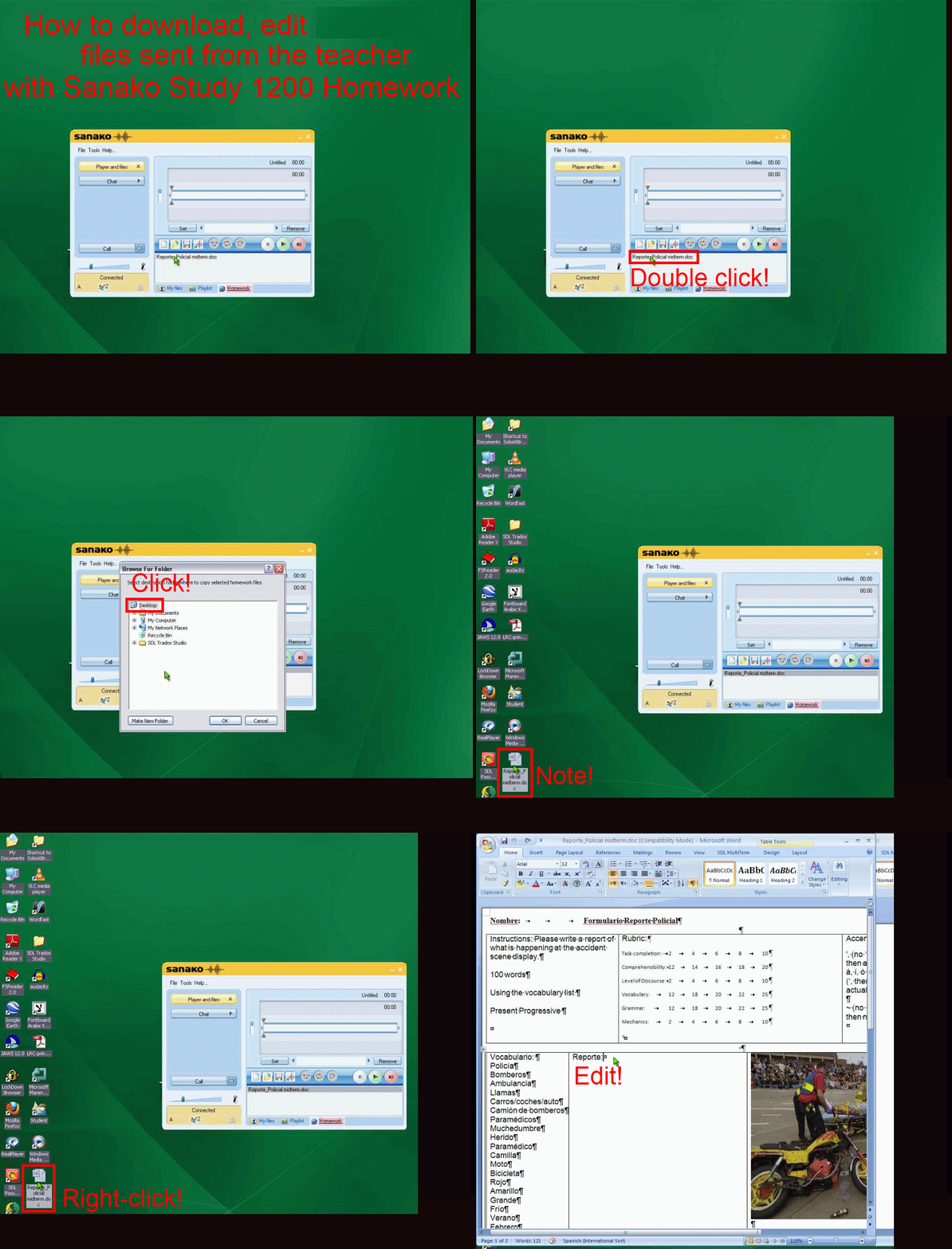
- PART 1: download from teacher (Here are the parts 1+2 that your teacher has to do). Slower? Click , 0.50sec, 0.75sec, 1sec, 2sec, 3sec, 4sec, 5sec, 6sec, 7sec, 8sec, 9sec, 10sec.

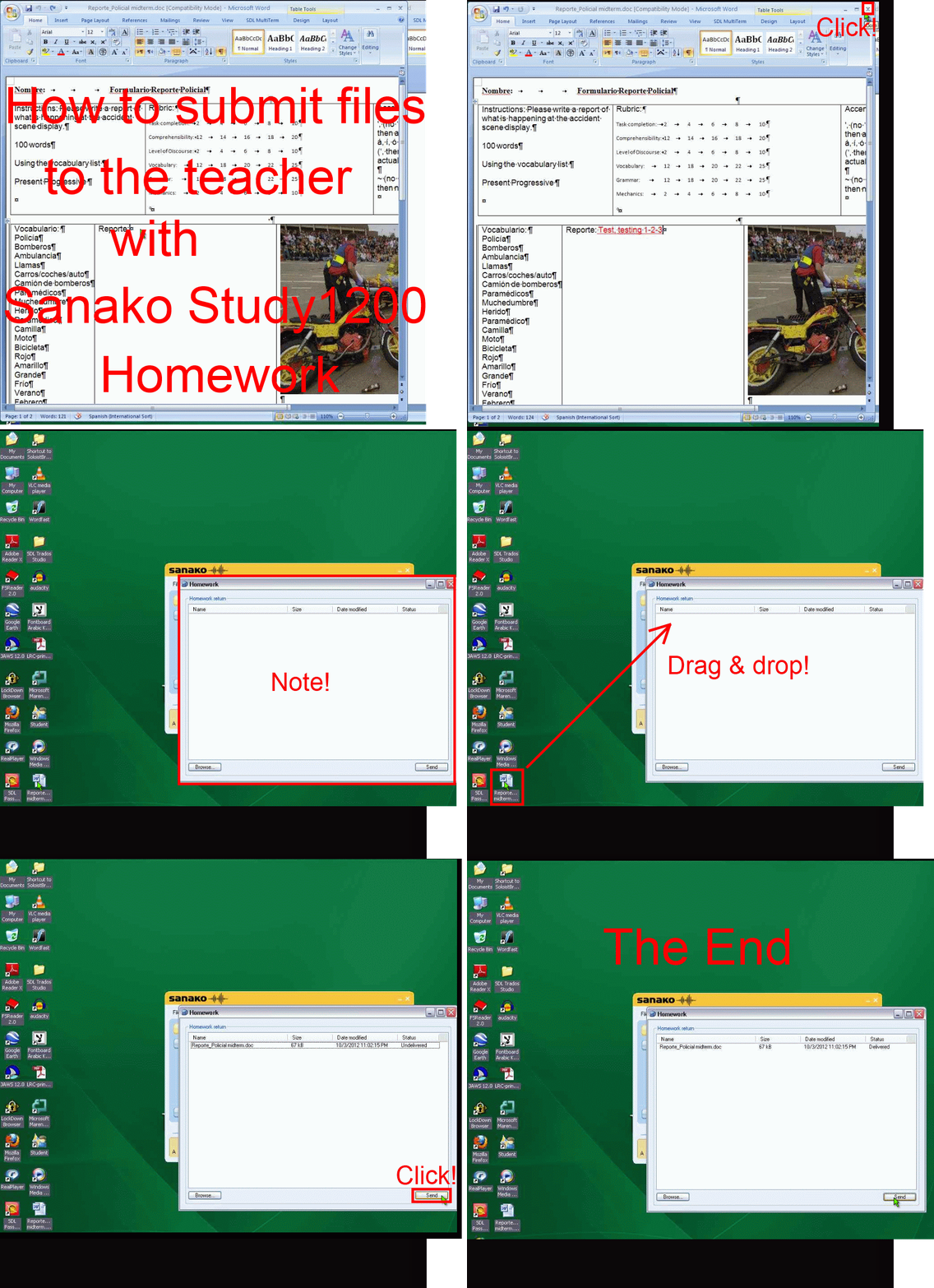
- PART 2: submission to teacher(Here are the parts 1+2 that your teacher has to do). Slower? Click , 0.50sec, 0.75sec, 1sec, 2sec, 3sec, 4sec, 5sec, 6sec, 7sec, 8sec, 9sec, 10sec.

Summer 2012 Learning materials creation clinic for preparing oral assessments/assignments
1. I am holding a “Clinic”, open to anybody who needs help with preparing their classes using oral assessments/assignments in the LRC this fall term – RVSP if interested.
2. This clinic focuses on material creation for delivery in upcoming specific courses – based on, but different from my faculty workshops on this topics, If you have not attended, please view the below links for what was covered in the workshops
a. https://thomasplagwitz.com/2011/08/18/sanako-study-1200-workshop-spring-2011/
Specifically:
1. Materials creation
- with SANAKO
i. make teacher audio recording for model-imitation/question-response oral exam: https://thomasplagwitz.com/2012/01/25/how-a-teacher-best-adds-cues-and-pauses-to-an-mp3-recording-with-audacity-to-create-student-language-exercises/
ii. Make teacher recording (https://thomasplagwitz.com/2012/01/11/recording-with-audacity/) for model imitation with voice insert (like reading practice homework assignment, https://thomasplagwitz.com/2012/01/24/how-a-teacher-creates-audio-recordings-for-use-with-sanako-student-voice-insert-mode/ ):
- with Moodle
i. Moodle Kaltura webcam recording assignment: https://thomasplagwitz.com/2011/11/02/how-to-grade-a-moodle-straming-video-assignment-and-moodle-streaming-video-recording-assignment-glitch-2/
ii. Prepare Moodle metacourses learning materials upload: https://thomasplagwitz.com/2011/06/17/moodle-metacourses-part-iv-the-support-workflow-uploading/ and https://thomasplagwitz.com/2011/01/26/moodle-batch-upload-learning-materials-give-students-access/
- with PowerPoint (visual speaking cues with timers): https://thomasplagwitz.com/2009/11/18/create-a-powerpoint-slide-with-a-timer-from-template-for-a-timed-audio-recording-exercise/
- Materials delivery with SANAKO
- remote control student pcs, collaborate over headphones: https://thomasplagwitz.com/2012/05/04/how-you-can-view-the-computer-screens-of-your-class-using-sanako-study-1200/
- pairing students’ audio using headphones: https://thomasplagwitz.com/2011/05/11/study-1200-pairing/
- You must bring some assessment ideas that fit into your skills course which we will turn into audio recordings. You can also bring prerecorded audio files from textbooks as mp3 which we can edit to turn them into materials. If you would like some examples of what colleagues have done
- With Moodle Kaltura: https://thomasplagwitz.com/feed/?category_name=learning-usage-samples&tag=kaltura
- With Sanako oral (formative) assessments/(outcome) exams: please email me, I make accessible to you samples that we do not publish to preserve exam integrity.
AP Exams in the LRC with Sanako Study 1200
You first need to enable AP examinations in the Sanako Study 1200 settings (not enabled by default). 
Only then you can follow the instructions from the Sanako documentation: “The AP® Exam is an exam type that is used in the highschool level by the Advanced Placement Program in the United States. With Study 1200 you can also accomplish externally-certified AP® oral exams and the Study 1200 student application provides a quick, easy and efficient exam vehicle. Before initiating the actual test, the students give their exam number code. To start the entering mode for the students’ PIN codes, click Send ID requests. The students enter their exam PIN code in the dialog that appears on their screens. The PIN codes appear on your GUI’s class view under each student icon. To initiate the exam, click Start. The media source is connected to the students, and the students are automatically recorded. The students hear all further instructions and the exam questions from the exam source and proceed with the exam as instructed. To end the exam, click End. The student recording collection window opens automatically and you can collect the student tracks for later evaluation.”
Moodle streaming video recording assignment glitch 9
- Are all things Moodle Kaltura on Windows better than on iMacs?
- I don’t think so (Windows 7, IE9): Webcamera cannot be activated, hourglass. Looks like the Flash security dialogue does not make it into the foreground.




Questions? Read the About. Or just ask me a quick Our Databases: Resources with calendars -- Language learning material Moodle Sites, multimedia files -- films


FAQs for LRC student staff or for students or for teachers. To search our FAQs, in the browser addressbar, add after "https://plagwitz.wordpress.com/feed/?tag=faqs+/" "+TAG1" (from tag cloud below) OR "https://plagwitz.wordpress.com/feed/tag=faqs
&category_name=" "CAT1" (from category hierarchy below). OR search both categories and tags, and multiple TAGs/CATs (connect with "," for OR-search, with "+" for AND-search), like so: https://plagwitz.wordpress.com/feed/?tag=TAG1+TAG2+...TAGn&category_name=CAT1
+CAT2+...CATn"
Other ways to find help
If you cannot find it here, look there: 5,500 Language-Learning Links and Programs for learning or teaching 150 languages
Shortcuts:Our Lists, Our Maps, LRC Staff Moodle Site,LRC Project Moodle Site, 49erexpress, UNCC Moodle, Student Recordings: s:claslcslrcsanakostudent
Learning usage samples: Sanako oral exam, Kaltura webcam presentation, Dictation with speech recognition, Sanako written exam, Chinese and Japanese interactive stroke-order practice
Test the Sanako Installer, Webbrowser Popup Konfigurator for XP, or Windows7, faster LRC TeacherPC Log-in Let MS facilitate diacritics writing by installing for you US-International keyboard layout
This is my personal blog (Google+). The views expressed on these pages are mine alone and not those of my employer. The information in this weblog is provided “AS IS” with no warranties, and confers no rights.
 Thomas' Work Space