Archive
How teachers can more quickly open/update/save their Moodle files from MS-Office
MS-Education Labs has published a plugin that speeds up editing MS-Office Files in Moodle.
To use the plugin, download (for 32-bit Office) , run, and from (2007) Office Button or (2010/2003) Menu: “File”, use menu item “Open from Moodle” (and later “Save to Moodle”).

You have to (once) let MS-Office (e.g. MS-Word or Excel) know the URL of Moodle (e.g. http://moodle.uncc.edu),  , then your login credentials:
  .
.
Note that your categorization of Moodle courses (in the tree menu on the left, all courses are filed away in folders called “Training”) prevents an instant load:  .
.
Instead, search for (part of) your course title:  .
.
Select the results you want to add and click button: “Add”: 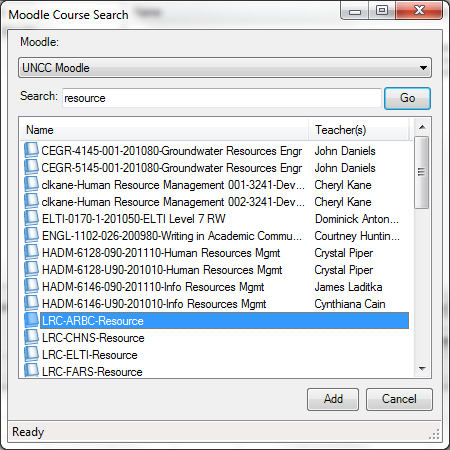 .
.
Wait for the courses to be loaded:  .
.
You can then use the left course tree to browse for matching MS-office files within each of your loaded courses: 
MS-Office files are likely involved in the majority of Moodle edits, so this promises to be a great timesaver.
For more information, see also the CTL’s step-by-step instruction Using the Office Add-in for Moodle.
Grouping students using Sanako Study 1200 “sessions”
This sccreencast on grouping with Study 1200 demonstrates:
|
0:00
|
left activity pane – button:add
|
|
0:25
|
right classroom layout pane – click or drag frame
|
|
0:50
|
the effects of grouping
|
|
1:05
|
bottom link: show corridor
|
|
1:25
|
moving between session/groups with context menu (not shown)
|
|
1:30
|
You may have to start/end the current activity from the activity pane first
|
Sanako Study 1200: Student Basics II: The Screencast
This screencast covers the basics of Study 1200 for students
For a quick guide to the Student interface, see Student Basics I: The Screenshots
MS-Expression Encoder 3: Workaround to force video cropping
In MS-Expression Encoder 3, the video cropping feature in the “Enhance”tab is broken, unless you use the workaround for cropping in this screencast.
First impressions: NC-LOR, the North Carolina K-20 learning materials repository
This web site collects state-wide learning resources. Contained are also the NC-net (“Network for excellence in teaching”) submissions: “The purpose of the North Carolina Network for Excellence in Teaching is to share professional development resources statewide. This helps avoid duplication and encourages replication of best practices. The Resource Exchange offers your college the opportunity to showcase and share its best professional development resources and teaching tools.”
NC-LOR is based on TheLearningEdge’s equella, one of the erepository software systems that I have managed learning materials in.
NC-LOR training materials are hosted on WordPress. Of special interest to us should be the Moodle integration: “How to Use the NCLOR with Moodle 1.9.x (4.1): This tutorial should be reviewed by faculty of institutions who use Moodle as their course management system. This tutorial includes topics like: defining LMS integration, deciding what type of learning activities to put in a course, understanding how to use Moodle with the NCLOR, understanding how to update item links and information on learning object creation”. However, UNCC has not implemented NC-LOR integration as of yet:

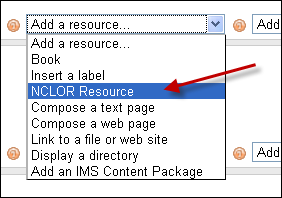
Even without the Moodle integration, while students can access NC-LOR materials only from within Moodle, as member of the UNC system, you can either browse NC-LOR as a Guest, or ask for a Contributor account, my request had a turnaround of only a few minutes. Once you have a contributor profile, you can subscribe to receiving workflow updates from within your profile:

However, what I would like to see, but cannot find is the capability to subscribe to an RSS-feed which notifies me of updates of new submissions in a certain subject-“folder”.
The most important subject folders for LCS and ELTI are here:

There are only about 120 resources (snapshot at bottom) in the root folder, mostly links (reminds me that around 2000, I managed about a 1000 language learning links in a self-adapted PERL-CGI repository…) to freely available internet resources most of which should be in subfolders which, however, are empty.

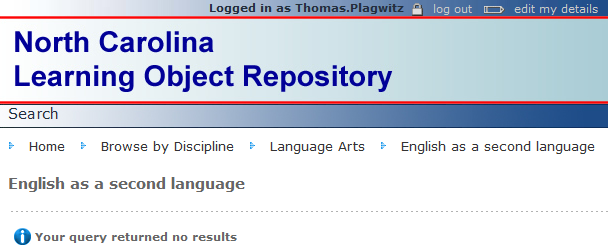
This may be indicative of a number of typical problems I have encountered with learning materials repositories.

Learning Materials eRepositories: Thoughts & Considerations
Cost- and time-saving benefits of learning material eRepositories include:
- sharing and reuse of content for the teacher ad learner
- de-duplication for the IT support
Typical issues I have encountered with learning materials repositories:
- questionable applicability of the software-object-oriented-design (OOD)-derived concept of encapsulated and reusable learning “objects” to highly progressive subjects like language arts;
- also, a not uncommon problem of OOD gone wrong: having a “God-object” vs. SOLID-principled object-design, is even more of a risk with “learning objects”: Don’t they not always tend to be too complex to truly reap the benefits of having a design based on many small encapsulated and reusable objects in software programming?
- licensing & copyright or privacy FERPA restrictions preventing uploads and specialization of interest prevents the network effects which have made the open internet so pervasive (and disruptive to some businesses);
 curation using metadata implementing controlled vocabularies and ontologies , even if crowd-sourced, remains a daunting task for domain specialists for non-librarians, while it has been said to be the secret of librarians:

“als ob er jetzt das Geheimnis dieser Wände aussprechen müßte: ‘Herr General,’ sagt er ‘Sie wollen wissen, wieso ich jedes Buch kenne? Das kann ich Ihnen nun allerdings sagen: Weil ich keines lese!” Weißt du, das war mir nun beinahe wirklich zuviel! Aber er hat es mir, wie er meine Bestürzung gesehen hat, auseinandergesetzt. Es ist das Geheimnis aller guten Bibliothekare, daß sie von der ihnen anvertrauten Literatur niemals mehr als die Büchertitel und das Inhaltsverzeichnis lesen. ‘Wer sich auf den Inhalt einläßt, ist als Bibliothekar verloren!’ hat er mich belehrt. ‘Er wird niemals einen Überblick gewinnen!’” (Robert Musil, Der Mann ohne Eigenschaften)
eRepository implementations I have used:
- Our Moodle instance is still looking for an erepository system to integrate. We are getting some eRepository benefits (easy reuse across courses without need for term-wise recycling/re-upload; de-duplication) by implementing [your language here] metacourses in which we enroll all [your language here] “child courses”
- The equella eRepository is used by NC-LOR, and TBA:I have managed learning materials in it earlier, in conjunction with Blackboard – most recommended (at least then) among educational technologists, but not for the faint of heart, which seems to have limited the faculty adoption (and for which NC-LOR may have been a reference implementation, if I remember correctly). One of the things I did not like about equella when I used it (2006-2008) was the seemingly endless point-and-click-and-WWWait.
- The Blackboard content-system was WebDAV based and therefore, once you had established the connection of your client to the WebDAV share (which MS-VISTA WebDAV updates unfortunately temporarily broke ), featured an extremely user-friendly integration with the MS-Windows shell that allowed for batch-handling of files in a familiar, fast “fat client” interface.
- I was, when it was first released, and its metadata-tagging features advertised by Jon Udell, highly impressed by – and consequently have become an avid proponent of, and much more active photographer itself – MS-Windows Vista (now also in: Live) PhotoGallery which combines intuitive use with great speed . However, requirements for managing and sharing a personal photo and video collection are not nearly as complex as for shared learning materials (although I have also used it managing my personal work ePortfolio).
UNCC LRC Language Placement Test: Web-CAPE Online Placement Exam Step-by-Step
- “The Online Placement Exam is designed to help you determine the first course you should take, based on your ability. This multiple-choice [no speaking, listening or writing required] exam presents questions of different ability levels, adapting the next question’s level according to your answers. The number of questions you will be required to complete depends upon your ability to use the language. The duration of the test varies, but it usually takes 15-20 minutes to complete [but can be finished after only 4 questions, and we will give you up to an hour time to complete the exam]”.
- The proctored exam takes place in the LRC (COED434). The exam schedule is published in the LRC COED434 calendar. Read more on how to view the LRC calendar from within the new NINERMAIL.
- When taking the exam during the proctored session in the language center [do not take the exam on your own], to sign up for the test, you have to go to: https://www.aetip.com/student/RegisterStudent.cfm (note: the “s” behind “http” is required), this now forwards to:https://www.perpetualworks.com/secure/register/student/, for which sthe shortcut is: http://goo.gl/PBjhhS:

- First chose UNCC (Avoid the common error of choosing another University of the UNC system, you will not be able to take the test if you do):

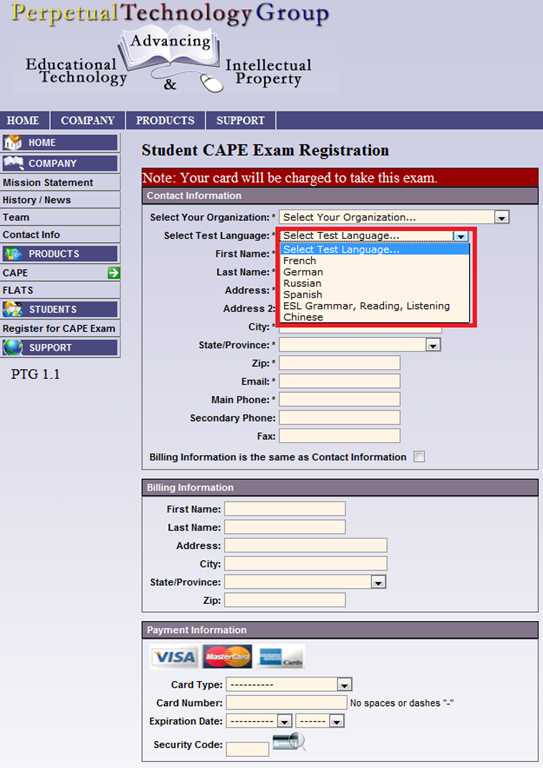
- Then choose your language – note that UNCC only allows testing in French, German and Spanish.

- Fill out the other form fields with your information.
- Finally, you need one of these credit cards, and the proper billing info, to take the test:

- Next, you will have to enter your NINERNET student id number.
- The exam results will eventually go to your file. However, they will have to be post-processed by the department. Do not take the exam without coordinating with the Department of Language and Culture Studies, or else your exam results will get lost!
- Remember that you can repeat the placement test, even though the number of retries per languages is limited to two (your score will get invalidated after that!).
- Remember also that is not advisable to study for (let alone cheat during) a placement exam, or else you will get placed into a course that is not right for you.





Questions? Read the About. Or just ask me a quick Our Databases: Resources with calendars -- Language learning material Moodle Sites, multimedia files -- films


FAQs for LRC student staff or for students or for teachers. To search our FAQs, in the browser addressbar, add after "https://plagwitz.wordpress.com/feed/?tag=faqs+/" "+TAG1" (from tag cloud below) OR "https://plagwitz.wordpress.com/feed/tag=faqs
&category_name=" "CAT1" (from category hierarchy below). OR search both categories and tags, and multiple TAGs/CATs (connect with "," for OR-search, with "+" for AND-search), like so: https://plagwitz.wordpress.com/feed/?tag=TAG1+TAG2+...TAGn&category_name=CAT1
+CAT2+...CATn"
Other ways to find help
If you cannot find it here, look there: 5,500 Language-Learning Links and Programs for learning or teaching 150 languages
Shortcuts:Our Lists, Our Maps, LRC Staff Moodle Site,LRC Project Moodle Site, 49erexpress, UNCC Moodle, Student Recordings: s:claslcslrcsanakostudent
Learning usage samples: Sanako oral exam, Kaltura webcam presentation, Dictation with speech recognition, Sanako written exam, Chinese and Japanese interactive stroke-order practice
Test the Sanako Installer, Webbrowser Popup Konfigurator for XP, or Windows7, faster LRC TeacherPC Log-in Let MS facilitate diacritics writing by installing for you US-International keyboard layout
This is my personal blog (Google+). The views expressed on these pages are mine alone and not those of my employer. The information in this weblog is provided “AS IS” with no warranties, and confers no rights.

