Archive
Archive for the ‘Genre-is-any’ Category
Room and Equipment handling using MS-Exchange Resource Mailboxes: To train in Outlook Desktop or in OWA ?
2011/08/30
2 comments
-
While Outlook desktop is a more powerful calendaring tool than OWA (cf. viewing calendars in overlay mode), we decided to first focus on getting everybody to be functional with meeting requests in OWA, since
-
faculty will want to use this system from their home computers where the outlook desktop configuration, if it exists at all , is probably even more lacking. Students could, but are not likely to have outlook desktop either
-
both faculty and students (both for rooms and for equipment) will walk up to the LRC reception desk needing help, and then only OWA is available
-
it is actually part of both equipment check-out and check-in procedure (if not for rooms, then for equipment) that I am designing that faculty and students open up from OWA (on the web browser that the lab assistant is not using: internet explorer, Firefox, Safari should gives us always 2 options on either operating system) that the meeting that they have made (or if not made, make one on the fly), and that the lab assistant enters a code (generated on the PC at the reception desk) into their appointment and sends the update for them to see them through;
-
we can also serve as backup on our office computers for the reception desk (unstaffed or understaffed), if clients use OWA
-
Essentially, it is not a PC Environment anymore (although it could be if our Remote Desktop infrastructure were much stronger).
Room and Equipment handling using MS-Exchange Resource Mailboxes: Configuration with OWA instead of PowerShell
2011/08/30
1 comment
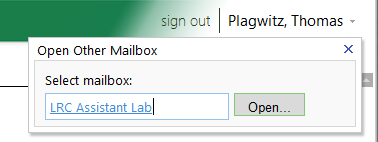
- As once can easily find documented for MS-Exchange 2007, if you are the owner of the mailbox, you can use the OWA-feature “open other mailbox”.

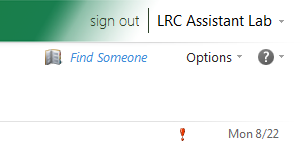
- As impersonated user for this mailbox
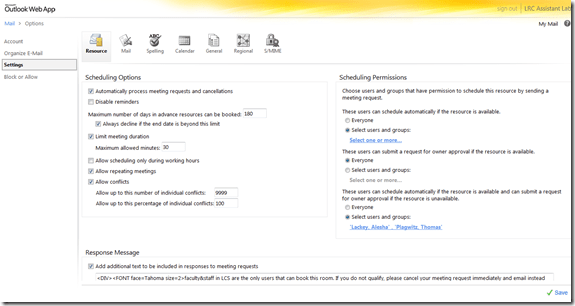
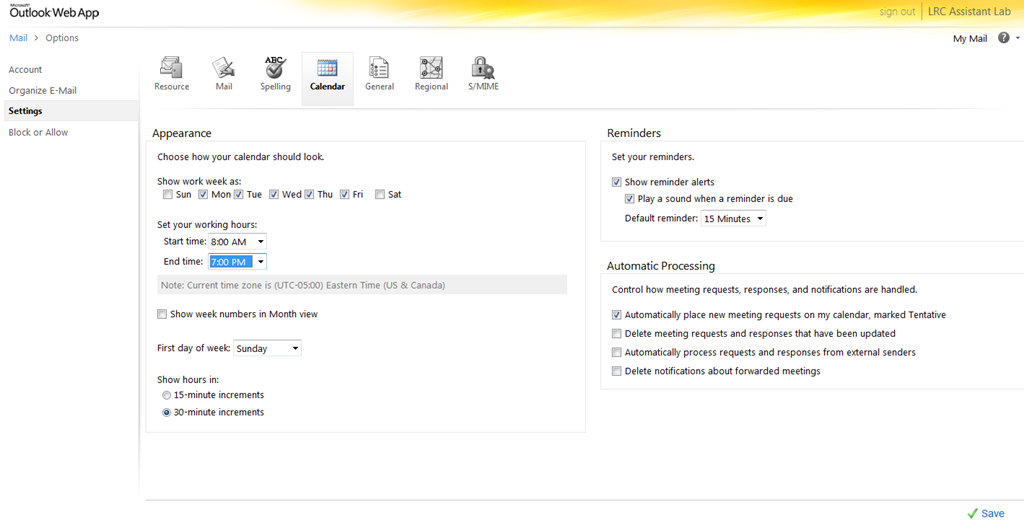
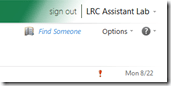 , you can access the “Options / Settings”:
 - for the “resource” scheduling
- for its “calendar”

- This is maybe not as much fun as PowerShell’s Set-MailboxCalendarSettings and set-CalendarProcessing (click as you go, no batching), but easier on your MS-Exchange admin
 and especially practical for quick modifications and tests,

LRC Outlook/Exchange 2010 Resource Calendaring: LRC resources in the Global Address List (GAL)
2011/08/30
3 comments
- Open the GAL for resources by clicking on “Resources” in a meeting request, like here:

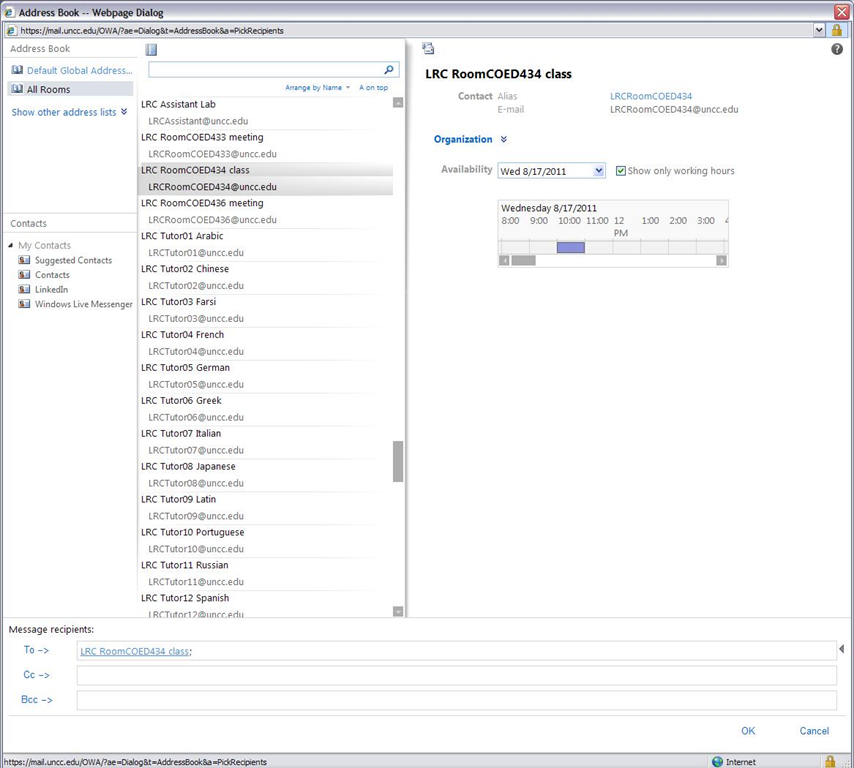
- You will find an equivalent of the LRC bookable resources list in Outlook’s/O’WA’s Global Address List.
- In the GAL,you can filter by recipient type:

- the result, in outlook:
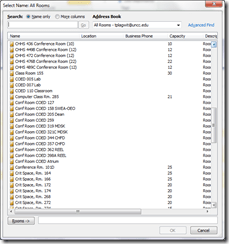
- the result, in outlook:
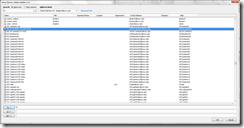
- for LRC resources, especially other than rooms, it is easier to filter by name(all LRC resource names start with “LRC”) – the result,
- in Outlook:
- in OWA you will see the GAL as part of the address book

- in Outlook:


LRC Outlook/Exchange 2010 Resource Calendaring: How to cancel meetings in OWA
2011/08/30
4 comments
- View instead a short screencast how to cancel meeting requests in OWA.
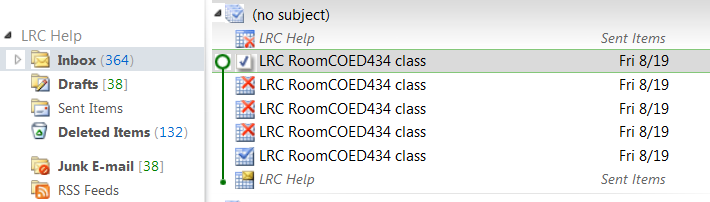
- Or: You start out with a meeting request conversation like this, showing:
- a request send from account LRC help (example)
- an accepted meeting response from the resource (e.g. the room) account

- to cancel that meeting, you can go to your (!) calendar in OWA,
- select (click on) the meeting and choose “delete”
- either from the context menu after right-click the meeting
- or from the ribbon after selecting the meeting
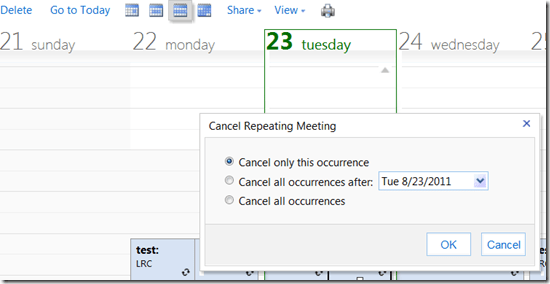
- if the meeting was repeating/recurring, you will be given the option to
- cancel this occurrence
- cancel all future occurrences
- cancel all occurrences (be CAREFUL not to delete past meetings that have taken place; cancel all future meetings in a series by updating the meeting series end time (leaves past meetings of the series intact))
- either from the context menu after right-click the meeting
- select (click on) the meeting and choose “delete”
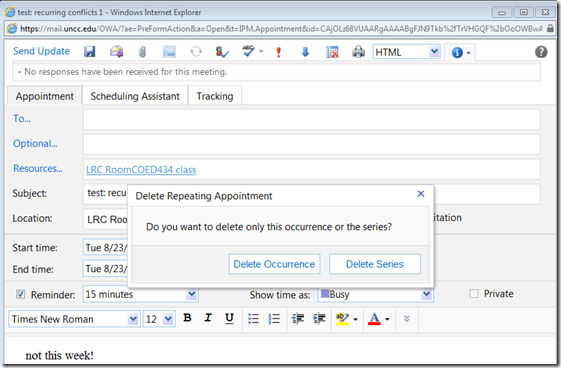
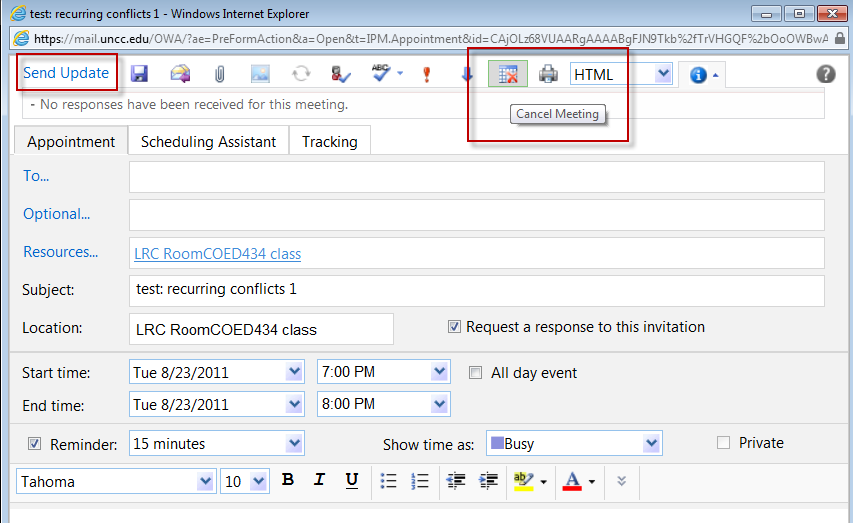
- you can also just open the meeting and choose from the top menu the “Cancel meeting” button, then press menu button: “Send update”:

- Again, for recurring/repeating meetings, you will be asked to confirm what exactly you want to cancel, the individual occurrence or the entire series of meetings:
- Again, for recurring/repeating meetings, you will be asked to confirm what exactly you want to cancel, the individual occurrence or the entire series of meetings:
- You have the opportunity to include an informative note in your update before sending.

- After the cancellation has gone through, this is how the results will look like in the e-paper trail:
- “sent items”
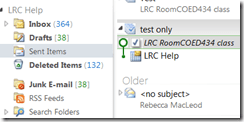
- a cancelled meeting conversation in your “inbox” in “conversation view”:

- Here is a complete icon legend:

- “sent items”





LRC Outlook/Exchange 2010 Resource Calendaring: How staff view resource “Calendars from your organization” in OWA
2011/08/30
6 comments
- Note: Students that have not been specifically invited to share a calendar, must use (staff may also) this approach to view calendars, to avoid a permission problem .
- Staff can load resource calendars, but as somebody who books the resource (except where you still cannot book/schedule/sign up: Tutors), you normally neither need nor want to (unless you manage the resources).
- To preview the free/busy schedule of the resource, use the scheduling assistant instead.
- To make sure that you have booked the resource, load your OWN calendar instead: Since it is you who “meets” with the resource, your meeting will be reflected on there. If you also loaded the resource’s calendar, you would see your “meeting” twice. A meeting always appears in the calendar of all “participants” – only that, other than for resource calendars, you normally do not view the calendar of the other participants who are “human resources”(or maybe you are, at least in the scheduling assistant, but not with details beyond “busy”).

- You may want to load the resource calendar to learn details about the other “meetings”of the resource (e.g. which conflicting meeting organizer you can contact in an emergency, or to know how many tentative meeting requests are already pending for a tutor). Below is how:
-
Similarly to in Outlook (desktop):
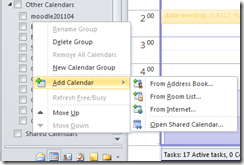 , in OWA, click on the lower left “Calendar-icon”
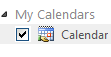
  to unfold the “My Calendars” list
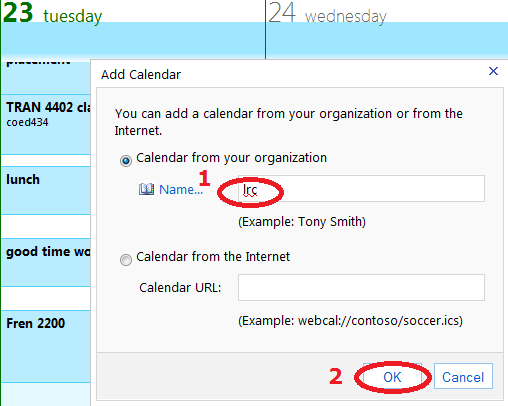
  in the left pane, then right-click on “My Calendars”, choose “Add Calendar”
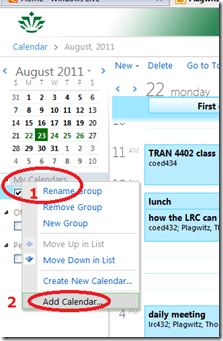 .
. -
put (part of) the name, click “ok”
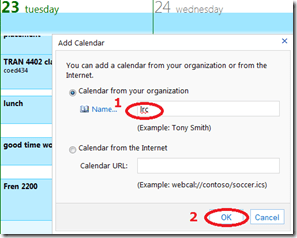
-
if there are multiple matches, select the correct one (you can only select one at a time)

-
press “OK” again:
 .
. -
As explained above, there is little reason to go overboard and add too many calendars, unless you have to manage:

-
However, you can also easily remove calendars, through the context menu item “Remove shared calendar”






Just testing the post by email
2011/08/25
Leave a comment
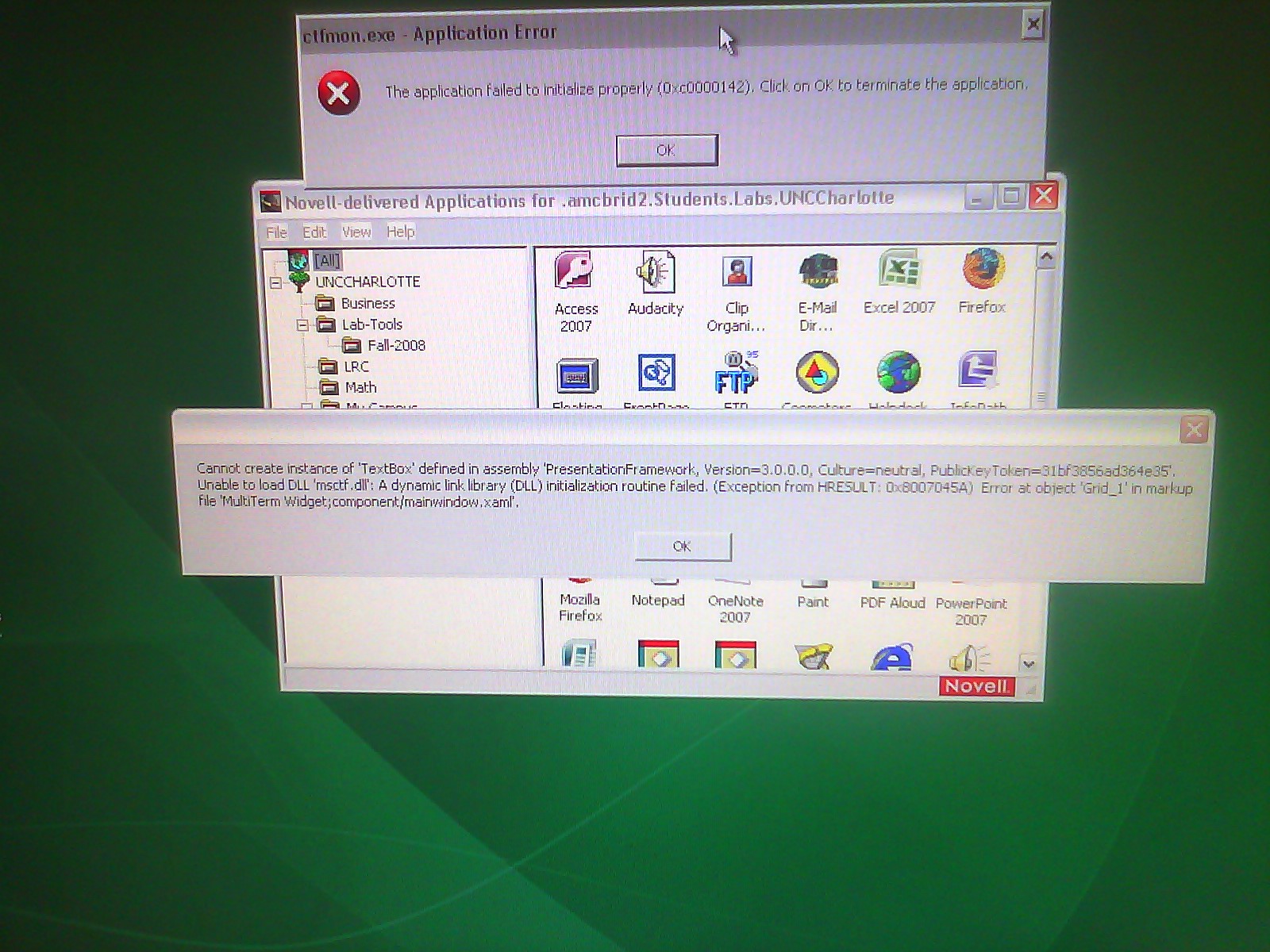
This appears to be a Trados error. Does it appear on every startup? On each Coed434 PC? We have to investigate.
Categories: Glitches&Errors, Student-Computers, translation-software
imaging, sdl-trados
Sanako Study 1200 Workshop Fall 2011
2011/08/18
Leave a comment
Those who wanted to, but did not make it to the vendor training by Sanako’s David Golden (who gave us a basic orientation displaying functions of teacher screen and student screen and demonstrated basic activity functions and what happens at the student screen), might want to have a look at the unedited screencast footage (for Windows Media Player on Windows, if necessary, resort to LRC) I recorded during the entire 2 1/4-hour session:
- the first one recording the screen of a sample student station
- with an explanation of the student player at the beginning,
- the second one recording the screen of the teacher computer
- have a look at the end around 2:10:00 where we connect a group of students via screensharing and audio (headsets), so that a group, dispersed across the classroom, can orally collaborate on an MS-Word document that one student types into but all students see.
- The Sanako features used for this are from the dropdown: activity: discussion, and from the button: pc control:model student. Both can be combined with each other, and with a third feature, the capability to subdivide the class in multiple groups.
- This application I found useful when, before reviewing materials with one half of the class, I sent my more advanced learners off to a more independent and applied group writing task. I allows any member of the class to join the advanced group, no matter where they are located. It also forces the group members to communicate all the target language aurally to the model student. Finally, it affords them access (though not individually) to the language learning tools of a computer while working on their tasks
Categories: all-languages, e-languages, Screencasts, training, workshops
sanako-study-1200


Questions? Read the About. Or just ask me a quick Our Databases: Resources with calendars -- Language learning material Moodle Sites, multimedia files -- films


FAQs for LRC student staff or for students or for teachers. To search our FAQs, in the browser addressbar, add after "https://plagwitz.wordpress.com/feed/?tag=faqs+/" "+TAG1" (from tag cloud below) OR "https://plagwitz.wordpress.com/feed/tag=faqs
&category_name=" "CAT1" (from category hierarchy below). OR search both categories and tags, and multiple TAGs/CATs (connect with "," for OR-search, with "+" for AND-search), like so: https://plagwitz.wordpress.com/feed/?tag=TAG1+TAG2+...TAGn&category_name=CAT1
+CAT2+...CATn"
Other ways to find help
If you cannot find it here, look there: 5,500 Language-Learning Links and Programs for learning or teaching 150 languages
Shortcuts:Our Lists, Our Maps, LRC Staff Moodle Site,LRC Project Moodle Site, 49erexpress, UNCC Moodle, Student Recordings: s:claslcslrcsanakostudent
Learning usage samples: Sanako oral exam, Kaltura webcam presentation, Dictation with speech recognition, Sanako written exam, Chinese and Japanese interactive stroke-order practice
Test the Sanako Installer, Webbrowser Popup Konfigurator for XP, or Windows7, faster LRC TeacherPC Log-in Let MS facilitate diacritics writing by installing for you US-International keyboard layout
This is my personal blog (Google+). The views expressed on these pages are mine alone and not those of my employer. The information in this weblog is provided “AS IS” with no warranties, and confers no rights.

