Archive
Archive for the ‘Genre-is-any’ Category
How to easily view resource mailboxes calendar free/busy using Outlook calendar groups
2013/05/29
Leave a comment
- Display all items in a category with a single click on the checkbox I front of the calendar group
-
Display any portion of the time line in " scheduling view" by
-
Selecting the days in the square calendar sheet in the upper left
-
Navigate the time line with the bottom horizontal scrollbar
-
Note the additional helpful "from [start date]" indicator in a mailboxes booking that is not displayed completely
-


How to quickly add resource mailbox calendars as an Outlook calendar group
2013/05/29
Leave a comment
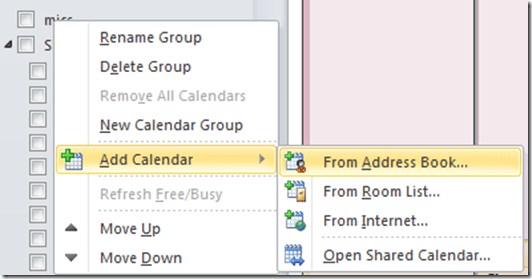
- Right-click the left calendar tree.
-
Choose context menu item: add calendar group / from address list:
-
-
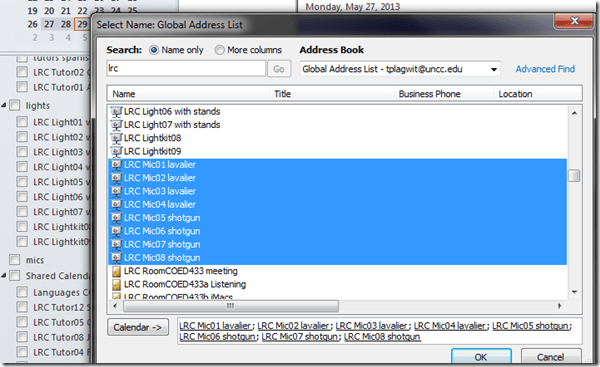
Type " LRC" to search – or the consistent naming scheme you implemented (I hope!).
-
Select all relevant calendars to add.
-
Click on button: "calendar".
-
Click on button: "ok":
-
-
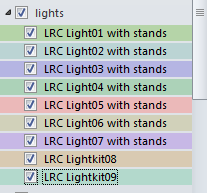
Done:
-


How to organize your email by creating an Inbox rule in OWA
2013/05/28
Leave a comment
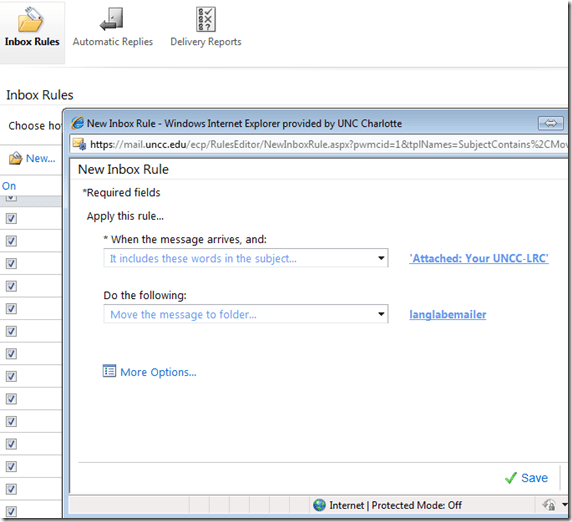
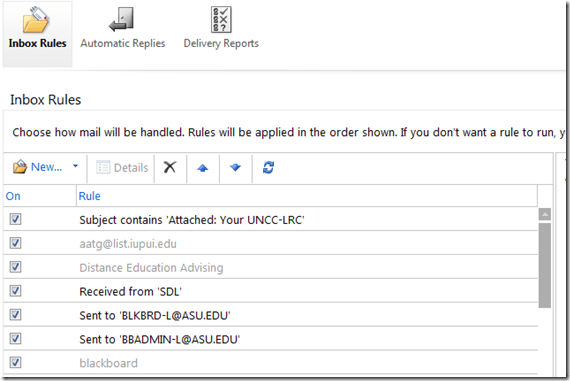
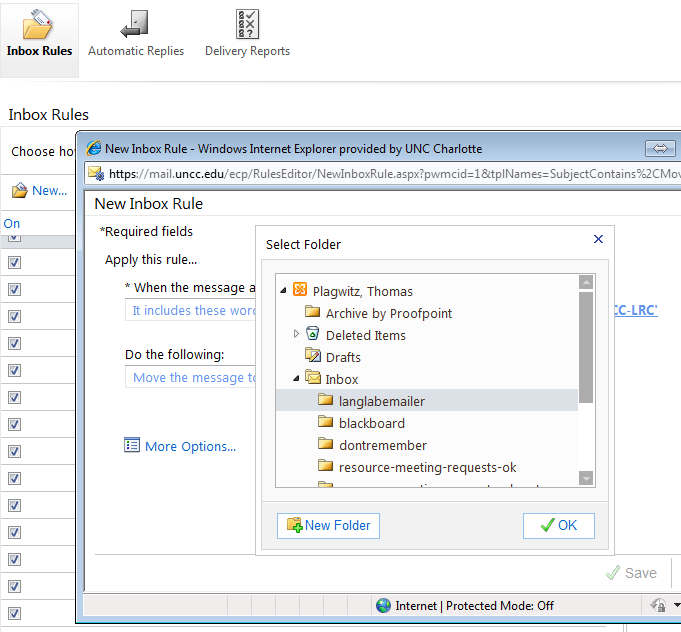
- This step-by-step GUIDE was written for filtering emails from our langlabemailer program (they happen to have “Your UNCC-LRC” in the subject) into a separate folder so that users of the LRC keep the overview:
- students (longitudinally, for their language learner ePortfolios) ,
- but especially teachers (of classes with up to 36 students, throughout the term).
- But you can easily adapt the guide to any other email purpose.
- Including other LRC workflows based on emails: LRC resource booking also relies on OWA emails. All email sent from LRC resource mailboxes have “LRC” at the beginning of the user name and email address.
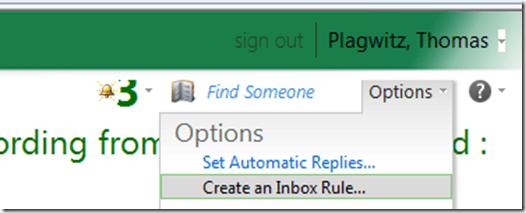
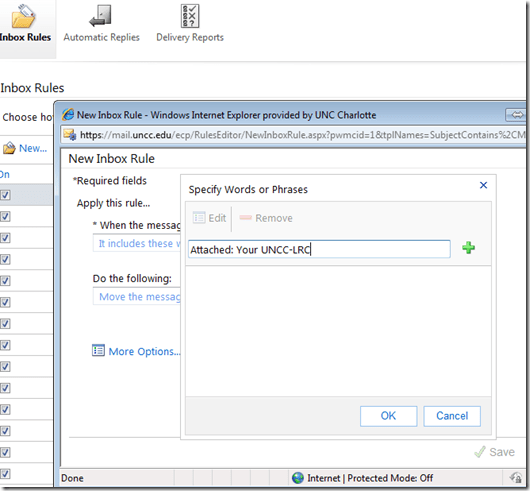
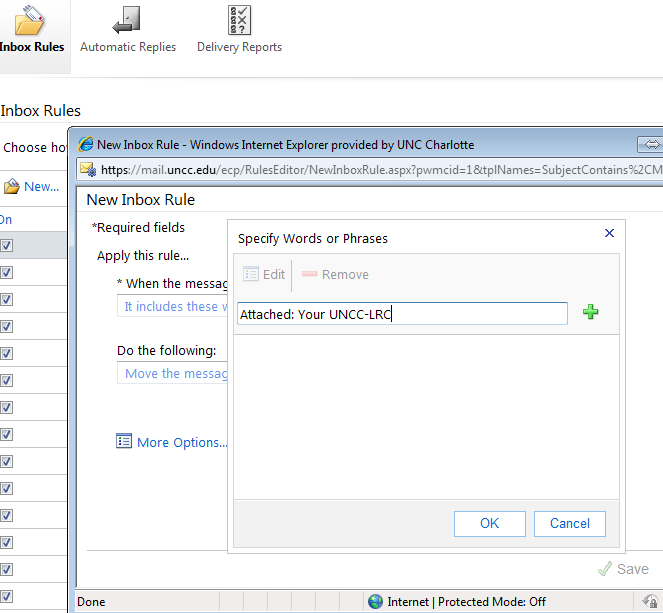
- In short: Options / Create an Inbox Rule / Click “ new” / choose a type / choose keywords / choose folder to sort the email into when it arrives. Or graphically:
-
-

-
-
-
-

-
-

-
-

-
-
-
“
-






How to get access to the LRC Sanako (teacher materials, student recordings) from your office or home PC
2013/05/15
1 comment
- Run the Sanako Installer (first meant for faculty offices only, but now faculty also want to have access from home, so I added that functionality).
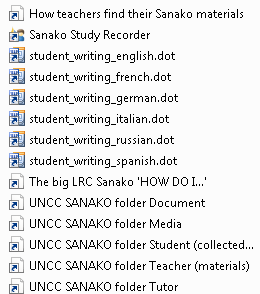
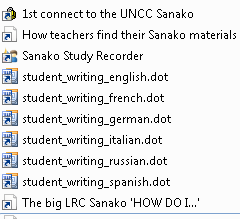
- On your office and or home PC, you get a folder “SANAKO” on your desktop. This folder will contain all you need to access student assessments from past classes or upload learning materials for future classes:
- In the office:
 : It is sufficient to click the additional “UNCC…” links at the bottom of the list .
 - At home:
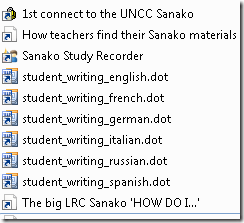
- Click “1st connect…” and log into the campus.
- Click “How teachers find…”, log in with the blog password, open the PDF, click the links in the PDF to the Sanako off-campus folders, log in again with the network credentials as shown in the PDF (sigh…).
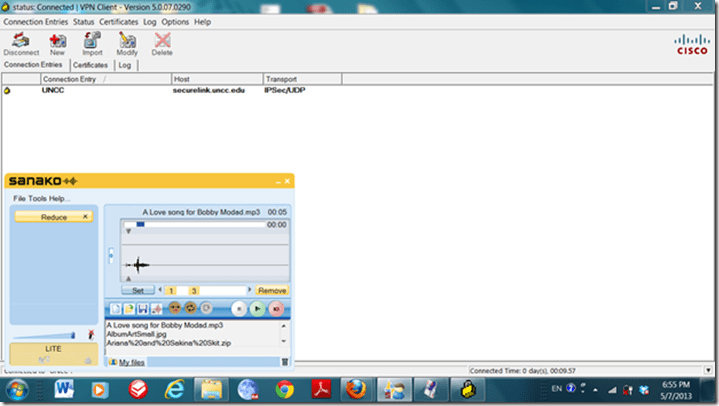
- EXAMPLE: Here you can see on a faculty home PC:
- the sanako recorder and campus connector:
- the SANAKO desktop folder shortcuts:

- You get the Word templates only if you can use them (have WORD installed – remember you can install MS-Office with your free faculty license from here).
- (No, you won’t get the “UNCC…”shortcuts at home, we simplified since.)
- the sanako recorder and campus connector:
- Both office and home:
- Drag any audio files into the Sanako study recorder window (further reading on why the Sanako study recorder is useful for teachers).
- Need to record? configure your microphone in Sanako study recorder, menu Tools.
- In the office:


Categories: audience-is-teachers, documentation, e-infrastructure, e-languages, faculty-offices, Institution-is-University-of-North-Carolina-Charlotte, service-is-configuring-learning-tools, service-is-it-managing, service-is-programming
autoit, iallt2013, MS-Word, sanako-study-1200, sanakorecorderinstall.exe, student.exe, vpn
How to provide students with blended human/computer-automated feedback on their speaking using a dictation with speech recognition assignment screencast
2013/05/08
Leave a comment
- Teachers often feel there is never enough time for grading students’ speaking proficiency. Fortunately, we can now automate feedback on pronunciation using Windows 7 dictation with speech recognition.
- This feature will be available for 7 languages on Windows 7 in the LRC, here is a demo for a reading exercise dictating German.
- An assignment step-by-step could look like this: Students
- record a screencast of their dictation,
- read a text to the computer in MS-Word,
- turn track changes on in MS-Word and correct the text (immediately or after dictation) where the computer could not recognize their speech,
- upload their screencast to Kaltura in Moodle.
- To grade the performance, the teacher has to review only at the very end of the screencast to see how many corrections the student needed to make (when it doubtabout the speech recognition validiiy, the teacher can easily jump to the screencast segment in question and, if necessary, override the speech recognition).
- This could be a regular assignment type since it provides the following benefits:
- immediate automated intelligent feedback for the student
- little grading overhead for the teacher, so that the teacher can concentrate her work on providing aural feedback on student recorded speech as a highlight maybe twice per term, maybe after mock exams before a midterm and final exam
- some multimedia pieces demonstrating language proficiency for the student’s ePortfolio.
- Requirements:
- a quality headset (we use Sanako SLH-07
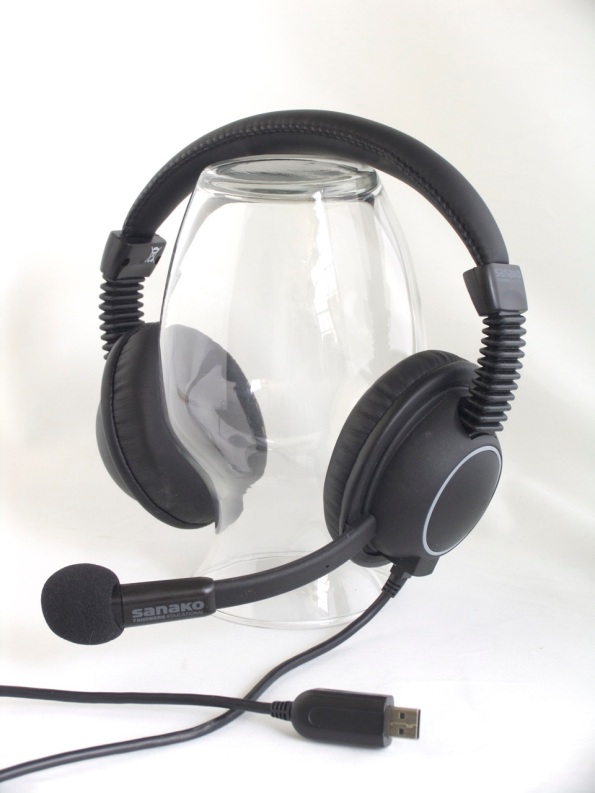 )
) - Windows 7 Enterprise/Ultimate with Language Packs,
- knowing how to switch the display language, (optional/recommended:) TBA:a simplified language switching facility,
- individual voice training data: speech recognition users have to train the computer – once, even in a deepfrozen computer enviroinment, since we enabled you to save this data to and restore it from a flash drive or personal network share space,
- a reading text (often authentic texts can be taken straight from the textbook, to fit in with the syllabus, like in this example from Treffpunkt-Deutsch 1st-year German),
- MS-Word with track changes
- screencast software (we use MS community clips)
- a way to submit the results to the teacher (we use Moodle with Kaltura video uploading (example for teachers, students do it similarly), but email could be sufficient depending on screencast length and attachment size allowance).
- a quality headset (we use Sanako SLH-07

Saba Centra on startup automatically selects the "microphone" as recording device…
2013/05/03
Leave a comment
- … But we in the language lab use the (dual function microphone/line-in) "rear input" for our headsets (for ergonomic, health&safety and security reasons). Workaround here.
- Apparently this startup behavior cannot be changed within Saba Centra:
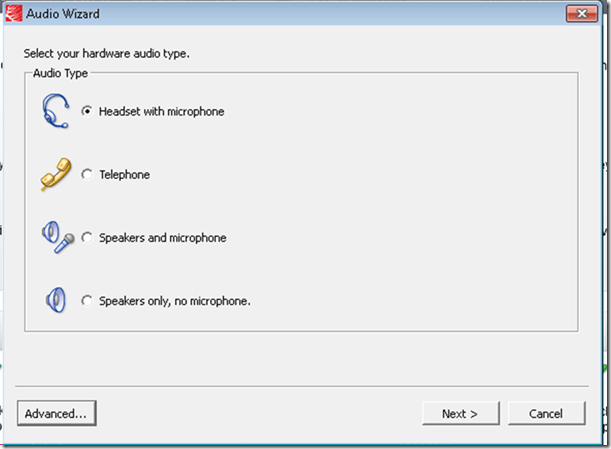
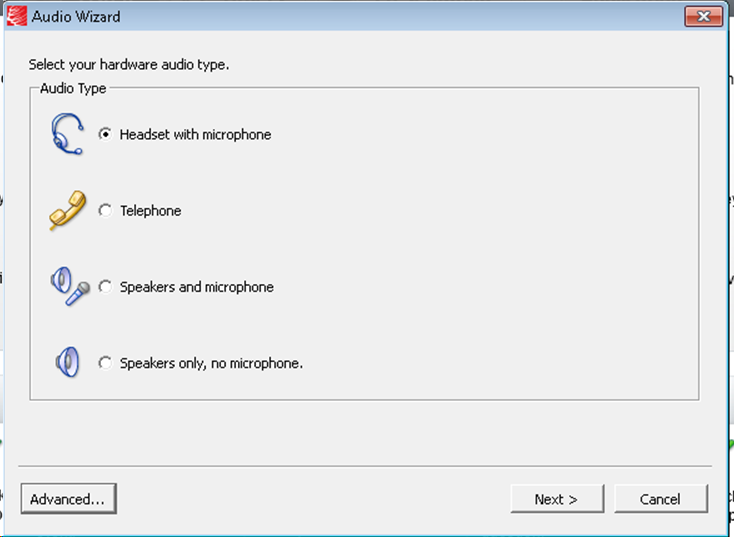
- Any startup will bring up the “Audio Wizard” asking users, even in a controlled lab environment, to configure their audio devices,
- and if users do (and choose what they have: headset), make wrong assumptions which audio plug to enable (“Microphone” front panel, even if your headset is plugged into the rear panel dual “line-in/microphone”)
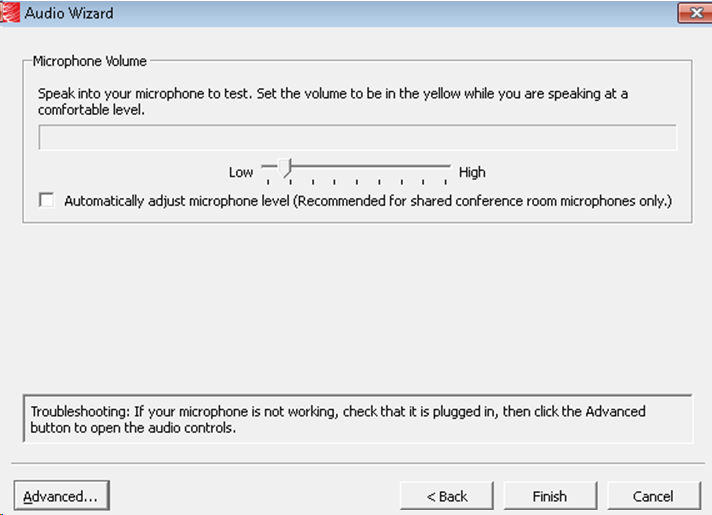
- The workaround according to these easily Googled instructions is using the “Advanced” audio wizard options to override this “Audio Wizard” error, like so:
- “Re-open the Audio Wizard, go to the third screen and change your recording device in your “Recording Device” menu. Advance two slides and determine if you can hear your recorded voice. ”
- 1st screen:
- 3rd screen:
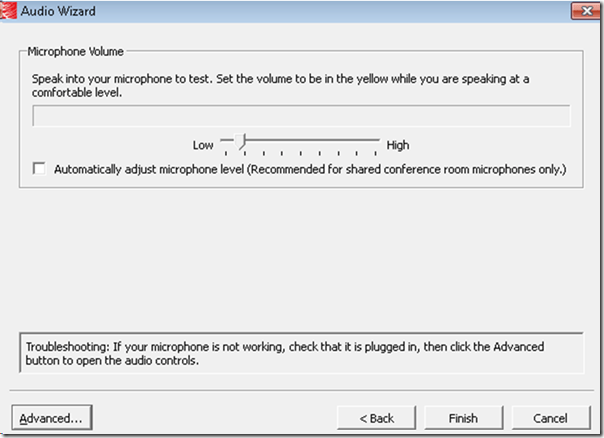
- note the instructions – Click “Advanced”. But it is easier to just use from the start our Workaround here.
- 1st screen:
- “Re-open the Audio Wizard, go to the third screen and change your recording device in your “Recording Device” menu. Advance two slides and determine if you can hear your recorded voice. ”
- The long-term solution is reconfigure your hardware and disable the front panel audio – but will Saba Centra understand you? Stay tuned…
How to upload files into WordPress and link them to articles
2013/05/02
Leave a comment
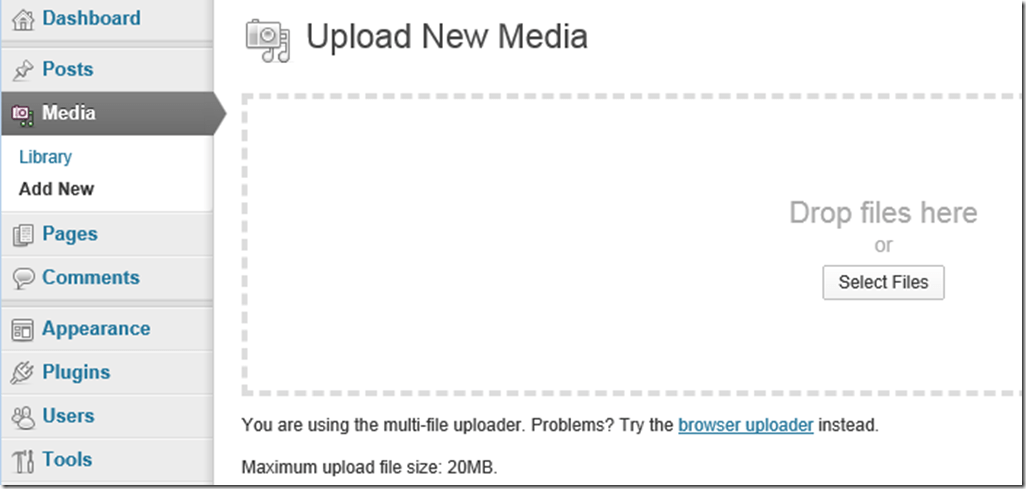
- In the WordPress “Dashboard” (the landing page after you login as WordPress Admin), in the left menu, click menu item : “Media” / “Add New”., and drag&drop (or browse and select them).
-
-
The upload success is visible immediately:
-

-
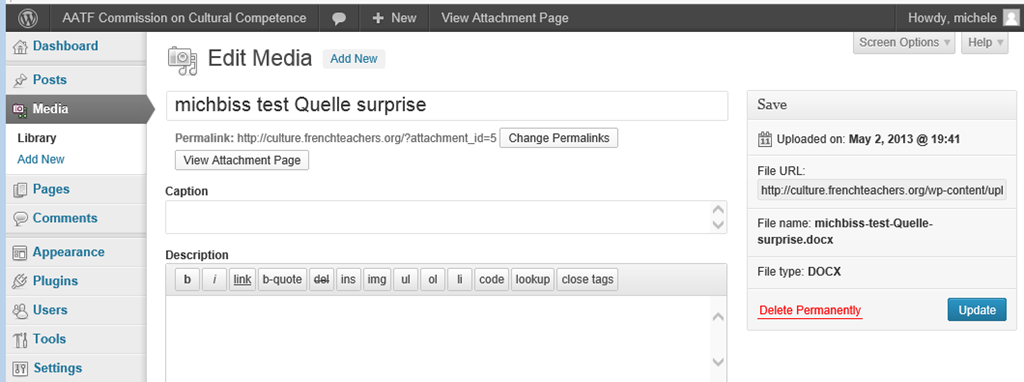
In the media library, after uploading media, on the “edit media”, there is an opportunity for adding metadata to files
-

-
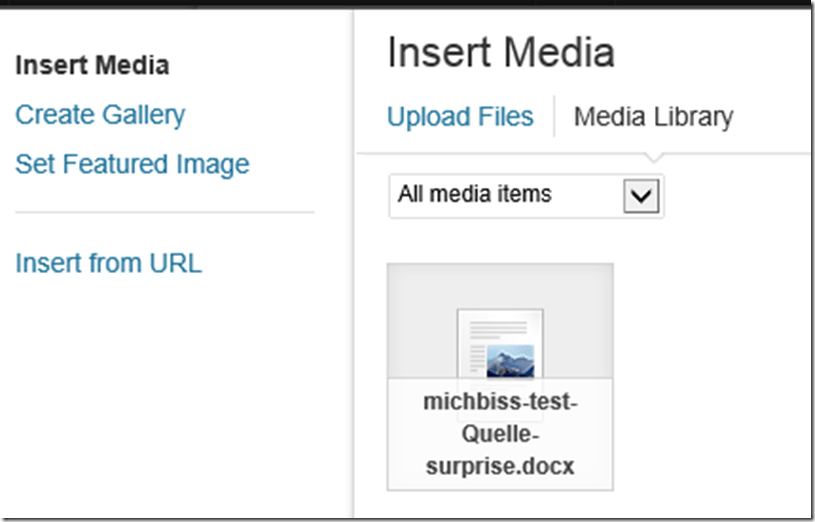
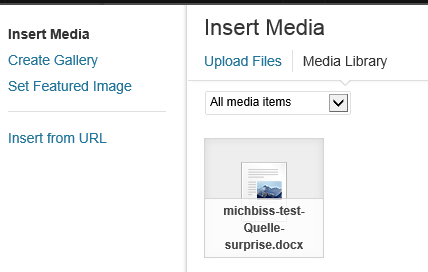
How do you link files from an article? Click on button: “Add media”, and drag&drop files. How about previously uploaded files? Click on button: “Add media”, tab:”media library” (instead of the default tab:”upload files”) , ad find your previously uploaded file in the list.
-


Categories: documentation, e-infrastructure
media-library, uploading, wordpress


Questions? Read the About. Or just ask me a quick Our Databases: Resources with calendars -- Language learning material Moodle Sites, multimedia files -- films


FAQs for LRC student staff or for students or for teachers. To search our FAQs, in the browser addressbar, add after "https://plagwitz.wordpress.com/feed/?tag=faqs+/" "+TAG1" (from tag cloud below) OR "https://plagwitz.wordpress.com/feed/tag=faqs
&category_name=" "CAT1" (from category hierarchy below). OR search both categories and tags, and multiple TAGs/CATs (connect with "," for OR-search, with "+" for AND-search), like so: https://plagwitz.wordpress.com/feed/?tag=TAG1+TAG2+...TAGn&category_name=CAT1
+CAT2+...CATn"
Other ways to find help
If you cannot find it here, look there: 5,500 Language-Learning Links and Programs for learning or teaching 150 languages
Shortcuts:Our Lists, Our Maps, LRC Staff Moodle Site,LRC Project Moodle Site, 49erexpress, UNCC Moodle, Student Recordings: s:claslcslrcsanakostudent
Learning usage samples: Sanako oral exam, Kaltura webcam presentation, Dictation with speech recognition, Sanako written exam, Chinese and Japanese interactive stroke-order practice
Test the Sanako Installer, Webbrowser Popup Konfigurator for XP, or Windows7, faster LRC TeacherPC Log-in Let MS facilitate diacritics writing by installing for you US-International keyboard layout
This is my personal blog (Google+). The views expressed on these pages are mine alone and not those of my employer. The information in this weblog is provided “AS IS” with no warranties, and confers no rights.
 Thomas' Work Space