Archive
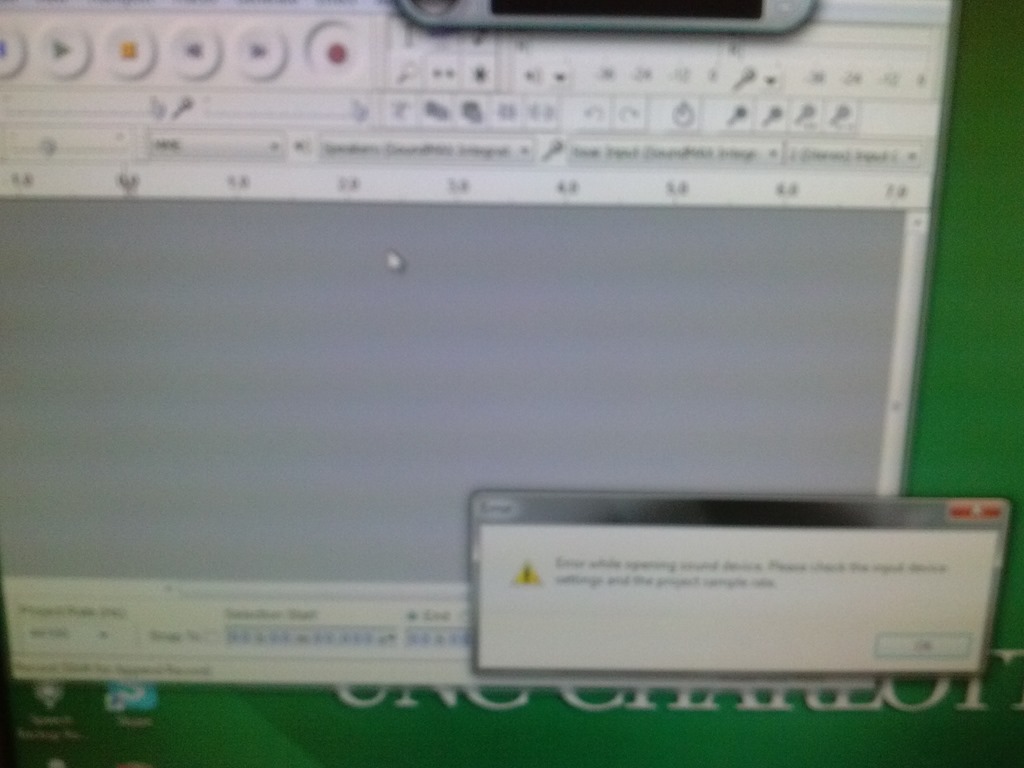
Audacity on startup automatically selects the "microphone" as recording device…
- Which is a problem if we do not use the front microphone jack, but rather the rear input:
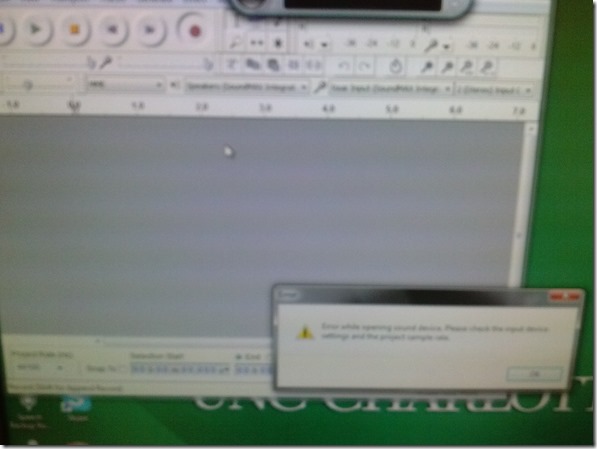
- Seems to be still an issue on the Group computers….
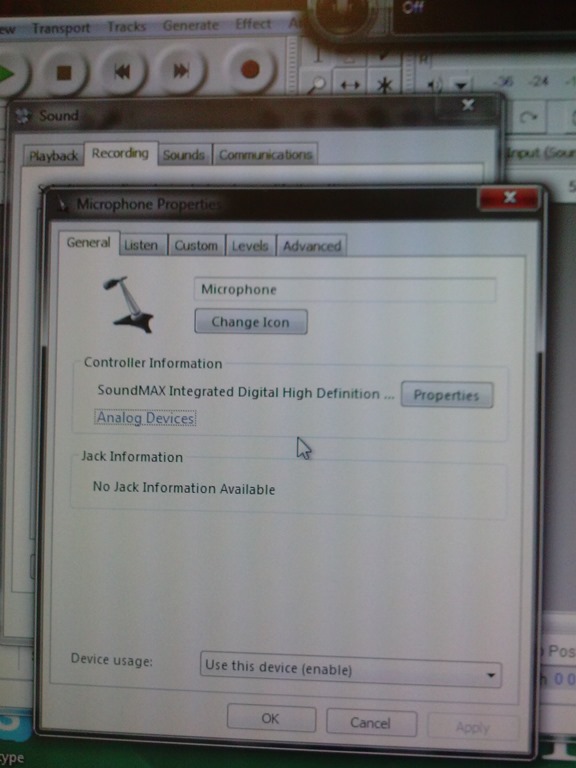
- Solution is the same as found and documented for the listening stations in relation to problems students had with how Saba Centra handles audio hardware, disable the front jack in mmsys.cpl of Windows7:

Troubleshooting NanoGong recorder assignments for students and rich HTML editor content creation by teachers
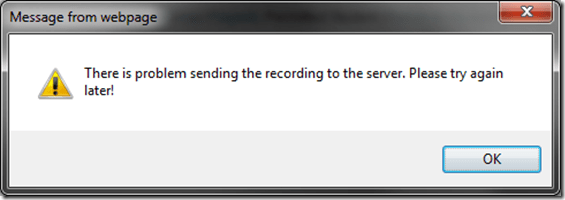
- Once, when submitting, I got this error? But other teachers managed to test the NanoGong recording assignment application successfully when working as a “permitted student”? That may be related to using a project site.
- If you try to use NanoGong in a browser not fully supportive of Java, you can get easily stuck:
- Firefox which has not been explicitly configured to allow JAVA applets – you will get stuck w/o the option to bypass warning dialogues.

- Chrome is not very forgiving either (here for the HTML editor plug-in):
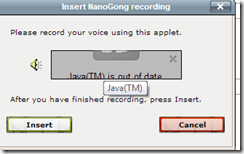 , but you can get past it:
  .
. - I am running into more problems using the rich HTML editor recorder plug-in which I supposed to make it easier for the teacher to provide their own audio to their students:
- IE8 does not display the content at all.
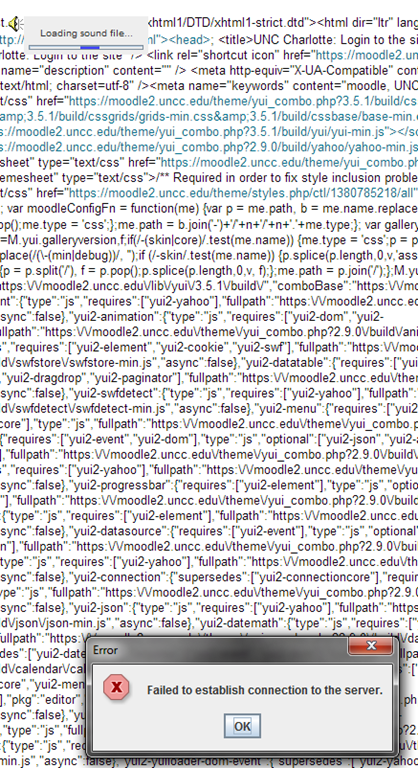
- Chrome 30 spits out raw code, and when you locate and click on the loudspeaker icon, I only get this :
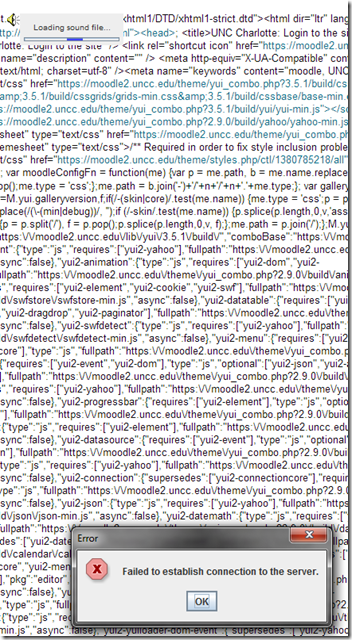 .
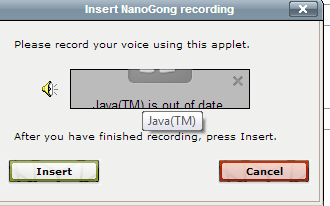
. - IE8, on the other hand, draws a blank:



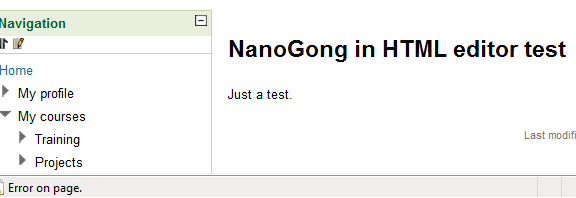
JAVA warning dialogues to bypass during NanoGong activities
- You may be prompted to update JAVA – likely a not a bad idea:
![java outdated warning_thumb[1]](https://thomasplagwitz.com/wp-content/uploads/2013/10/java-outdated-warning_thumb1_thumb1.png?w=560&h=354 "java outdated warning_thumb[1]")
- Click “RUN”:
![image_thumb[8]_thumb[1]](https://thomasplagwitz.com/wp-content/uploads/2013/10/image_thumb8_thumb1_thumb1.png?w=461&h=542 "image_thumb[8]_thumb[1]")
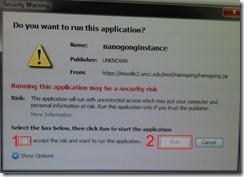
- Check (1) “Accept”and Click (2) “Run”:

- Click “Don’t Block”:
![CAM03106_thumb[1]](https://thomasplagwitz.com/wp-content/uploads/2013/10/cam03106_thumb1_thumb1.jpg?w=556&h=294 "CAM03106_thumb[1]")
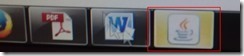
- Even more annoying when warning dialogues do not come to the foreground, and your computer/web browser simply seems to be stuck. Check your task bar/dock for blinking/jumping JAVA notifications, like here:
 .
. - You have to bypass these dialogues only once – per session (lab) or possibly per computer. Choose the right answer, for university assignments, it is safe to “Allow! Allow! Allow! (“run”, “don’t block:”, update”, what ever – use common sense).
- Remember, thinks could be worse, – like if you try to use NanoGong in a Firefox that has not been explicitly configured to allow JAVA applets – read more on our troubleshooting NanoGong page.
![java outdated warning_thumb[1]](https://thomasplagwitz.com/wp-content/uploads/2013/10/java-outdated-warning_thumb11.png "java outdated warning_thumb[1]")
![image_thumb[8]_thumb[1]](https://thomasplagwitz.com/wp-content/uploads/2013/10/image_thumb8_thumb11.png "image_thumb[8]_thumb[1]")
![CAM03106_thumb[1]](https://thomasplagwitz.com/wp-content/uploads/2013/10/cam03106_thumb11.jpg "CAM03106_thumb[1]")
Teacher cannot remote control student computers in Sanako Study 1200 Autoscan
- Problem:
- The 1st video shows me unable to remote control a student PC from the Sanako Tutor/ Screensharing / Autoscan window, despite (audibly) clicking the mouse and typing on the keyboard.
- The 2nd video demonstrates another strange behavior: Not only can I not remote control the student PC – the Autoscan window keeps showing the same screen even after switching to the next student – although students all work on different texts, as is further evidenced by the thumbnail view of the whole classroom on the left.
- This photo was supposed to demonstrate another oddity: the teacher’s typing (instead of going to the student) flashing up in the upper left of the Autoscan window, between the “Monitor” button and the “Word” window frame – but I missed the right moment. Besides, it may be an additional complication due to the Office 2010 Japanese IME chosen here on both teacher and student. Or it may be the root of the problems (but including mouse? screen not updating)

- Additional Info: For what it is worth: here are the Sanako log files from
- Debugging:
- Can this be replicated with an IME other than Office 2010 Japanese (or any non-Western IM), on teacher and/or student? An actual student should be logged in (<- permissions issue?), preferably many (<- performance issue?). Update: No, could not be replicated yet using another keyboard than an East-Asian IME is involved – bug?

Driverinstaller has stopped working
A frequent crash message on both student and teacher station:
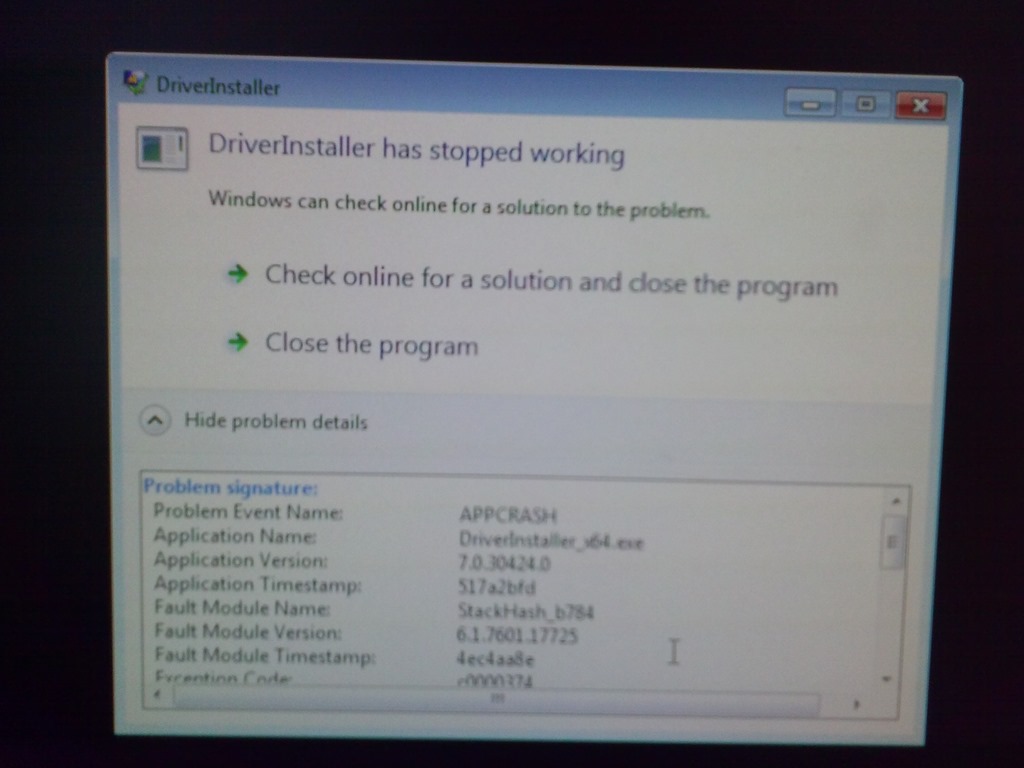

Update: I think this could be a Sanako issue. The release notes for Sanako Study 1200 ver 7.1 mention: “Fixed issue where a "DriverInstaller has stopped working" notification was shown in Windows 7 64bit environments when Student application was started up after crashing ”. This indeed looks like the context I have been seeing this in regularly: 
If you get an error when trying to edit your Moodle settings…
- Like this: “Error: Database connection failed It is possible that the database is overloaded or otherwise not running properly. The site administrator should also check that the database details have been correctly specified in config.php”
- Try click on “Edit settings” again. It may well work the second time (overload?).
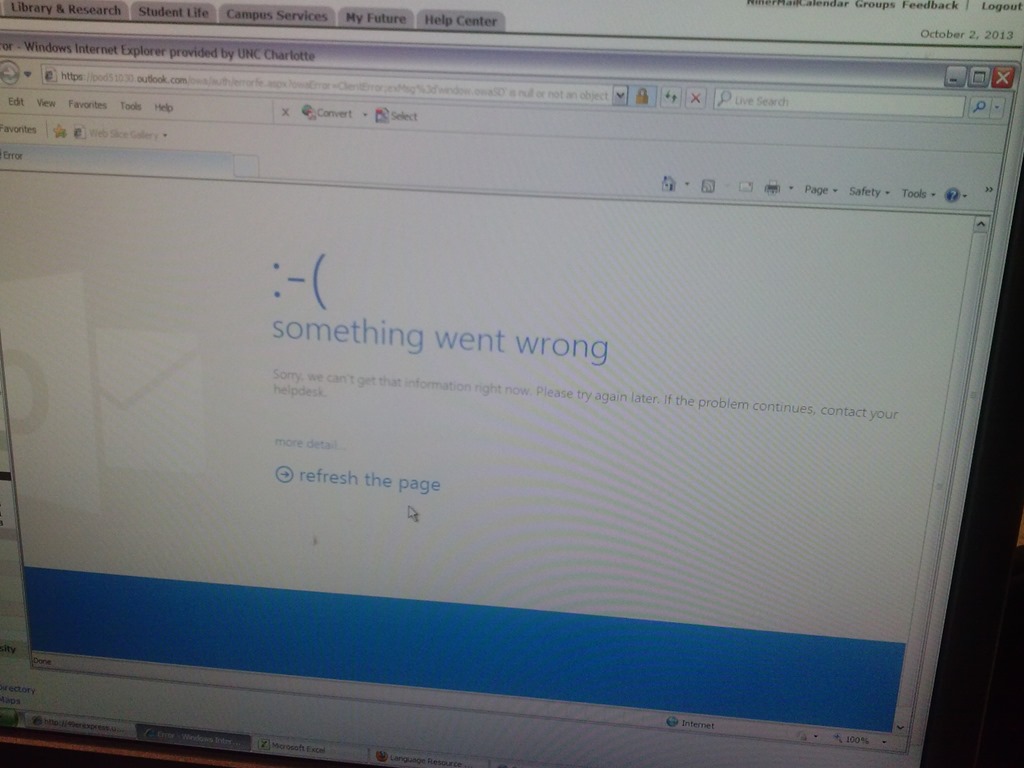
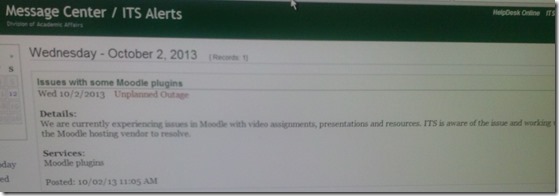
Some users cannot check out LRC items since they cannot log into their NINERMAIL Office365 Outlook

- This seems to have been going on for a while. We have no good way to use another browser on the computers that we use for our room booking and equipment circulation system. Besides,
- IE8 is the default browser on campus.
- Microsoft seems to say it not deprecate it without notice. Rather, pasted from http://community.office365.com/en-us/wikis/manage/office-365-and-internet-explorer-8.aspx states the following (they do not mention XP though, but that is also supported until April 2014):
- Why is Office 365 ending support for Internet Explorer 8? [in short, html5]
-
Why 8 April 2014? Office 365 provides customers 12 months’ notice of disruptive change under our Online Services Support Lifecycle. We announced Office 365 is ending support for Internet Explorer 8 on the System Requirements Wiki on 9 April 2013.
-
Will Internet Explorer 8 users be blocked from connecting to Office 365 after 8 April 2014? No, Office 365 will not deliberately block Internet Explorer 8 users from accessing the service after 8 April 2014. But after that date, users connecting to Outlook Web App will only be able to use Outlook Web App Light.
- ITS says Microsoft told them IE8 is not supported.
- The following change does not fix it here on XP SP3:
-
Windows Registry Editor Version 5.00
-
[HKLM and HKCU\SOFTWARE\Microsoft\Internet Explorer\Main]
“XMLHTTP”=dword:00000001
-
- Go figure.
How to work around Saba Centra not starting by using attend in browser
- Symptom: When you click on your Saba Centra Event in Moodle, you get only a blank frame within Moodle.
- Workaround:
- On your Moodle course page, in the "Activities" block, click the "Centra Events" link.
- Click the "Attend in Browser/Download Recordings" link on top.
- A new window, My Schedule, opens and there are 4 tab across the top: Upcoming, Ongoing, Recordings, Past.
- You will need to check the Upcoming, Ongoing and Past tabs to find your session.
- Click the "Attend in Browser" link. If it works, this is what the result looks like:

- This is per advise from ITS/CTL. They are still looking for root cause and a permanent solution for this campus-wide issue.




Questions? Read the About. Or just ask me a quick Our Databases: Resources with calendars -- Language learning material Moodle Sites, multimedia files -- films


FAQs for LRC student staff or for students or for teachers. To search our FAQs, in the browser addressbar, add after "https://plagwitz.wordpress.com/feed/?tag=faqs+/" "+TAG1" (from tag cloud below) OR "https://plagwitz.wordpress.com/feed/tag=faqs
&category_name=" "CAT1" (from category hierarchy below). OR search both categories and tags, and multiple TAGs/CATs (connect with "," for OR-search, with "+" for AND-search), like so: https://plagwitz.wordpress.com/feed/?tag=TAG1+TAG2+...TAGn&category_name=CAT1
+CAT2+...CATn"
Other ways to find help
If you cannot find it here, look there: 5,500 Language-Learning Links and Programs for learning or teaching 150 languages
Shortcuts:Our Lists, Our Maps, LRC Staff Moodle Site,LRC Project Moodle Site, 49erexpress, UNCC Moodle, Student Recordings: s:claslcslrcsanakostudent
Learning usage samples: Sanako oral exam, Kaltura webcam presentation, Dictation with speech recognition, Sanako written exam, Chinese and Japanese interactive stroke-order practice
Test the Sanako Installer, Webbrowser Popup Konfigurator for XP, or Windows7, faster LRC TeacherPC Log-in Let MS facilitate diacritics writing by installing for you US-International keyboard layout
This is my personal blog (Google+). The views expressed on these pages are mine alone and not those of my employer. The information in this weblog is provided “AS IS” with no warranties, and confers no rights.
 Thomas' Work Space